
Monster Hunter Wilds crashes on PC often result from compatibility issues, outdated drivers, or conflicts with antivirus software. Resolving these crashes typically involves straightforward troubleshooting steps, including adjusting compatibility settings, updating drivers, and modifying GPU configurations. Below are detailed solutions you can follow to get the game running smoothly again.
Run Monster Hunter Wilds and Steam as Administrator
Insufficient system privileges can prevent Monster Hunter Wilds from accessing necessary resources, causing crashes. Granting administrative rights helps the game execute properly.
C:\Program Files (x86)\Steam\steamapps\common\MonsterHunterWilds. Right-click on MonsterHunterWilds.exe, select “Properties,” then go to the “Compatibility” tab. Check “Run this program as an administrator,” click “Apply,” then “OK.”Steam.exe located at C:\Program Files (x86)\Steam, choosing “Properties,” then enabling “Run this program as an administrator” under the Compatibility tab.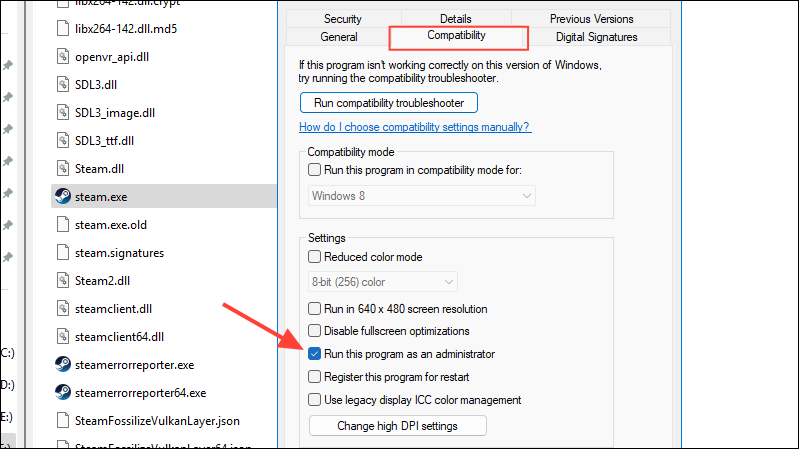
Restart Steam and launch Monster Hunter Wilds to verify if the crashes are resolved.
Update Graphics Drivers and Windows
Outdated or corrupted graphics drivers can cause instability and frequent crashes. Updating your GPU drivers and Windows ensures compatibility and resolves graphical issues.
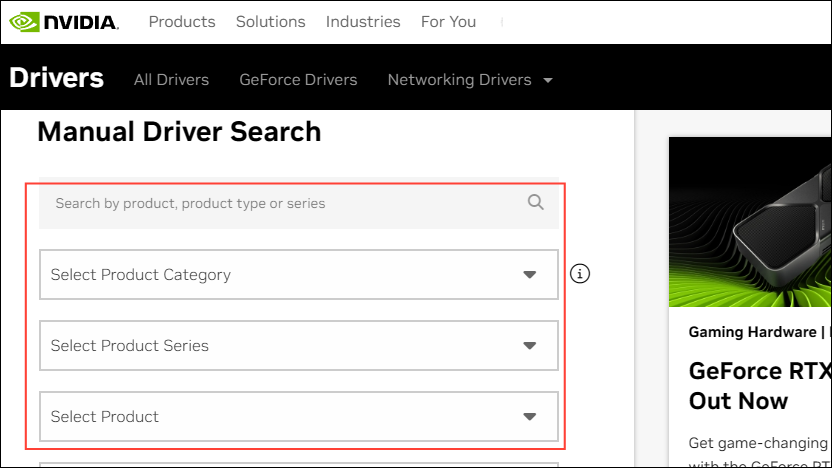
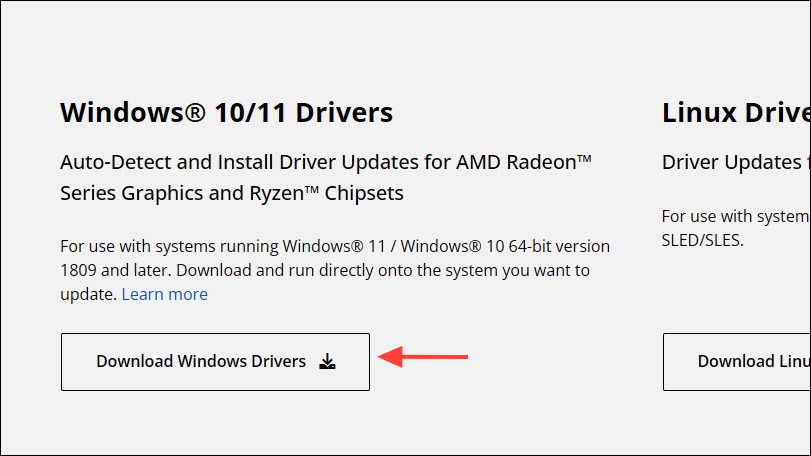
Windows Key + I, navigate to “Update & Security,” and click “Check for updates.” Install any available updates and restart your PC.Add Monster Hunter Wilds to Antivirus Exception List
False positives from antivirus software can block game files, causing crashes or preventing the game from launching. Adding Monster Hunter Wilds and Steam to your antivirus exclusion list prevents interference.
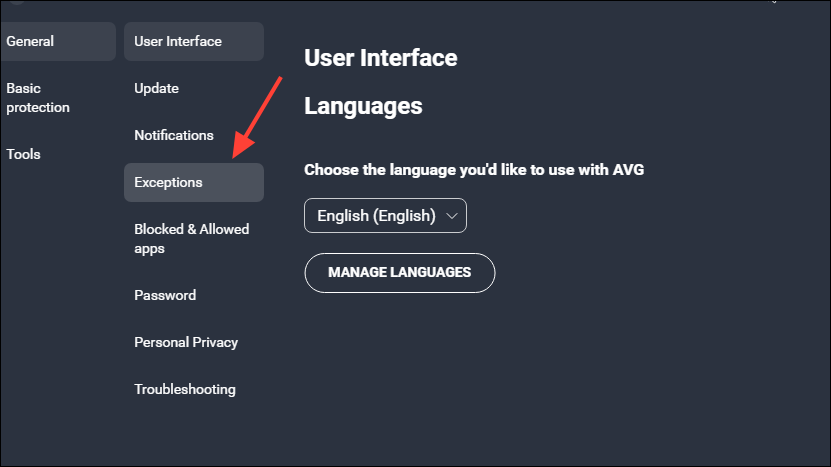
C:\Program Files (x86)\Steam\steamapps\common\MonsterHunterWildsC:\Program Files (x86)\Steam\steamapps\common\MonsterHunterWilds\MonsterHunterWilds.exeC:\Program Files (x86)\Steam\Steam.exe
Save your settings, restart your computer, and launch the game again.
Verify Integrity of Game Files on Steam
Corrupted or missing game files frequently cause crashes. Steam’s built-in file verification tool will check and repair any problematic files.
Disable DLSS and Frame Generation Settings
Some players have reported crashes related to NVIDIA’s DLSS or Frame Generation features. Disabling these advanced graphical settings can improve stability.
Clear Shader Cache and Temporary Files
Shader cache files can become corrupted, causing graphical glitches and crashes. Clearing these files forces the game to regenerate fresh cache data.
Step 1 (NVIDIA GPUs): Right-click your desktop and open NVIDIA Control Panel. Under “Manage 3D Settings,” find “Shader Cache Size” and set it to “Disabled.” Next, use Windows Disk Cleanup tool to remove the DirectX Shader Cache files.
Step 2 (AMD GPUs): Open AMD Adrenalin Software, go to “Gaming,” and select “Reset Shader Cache.” Then run Disk Cleanup to delete DirectX Shader Cache files.
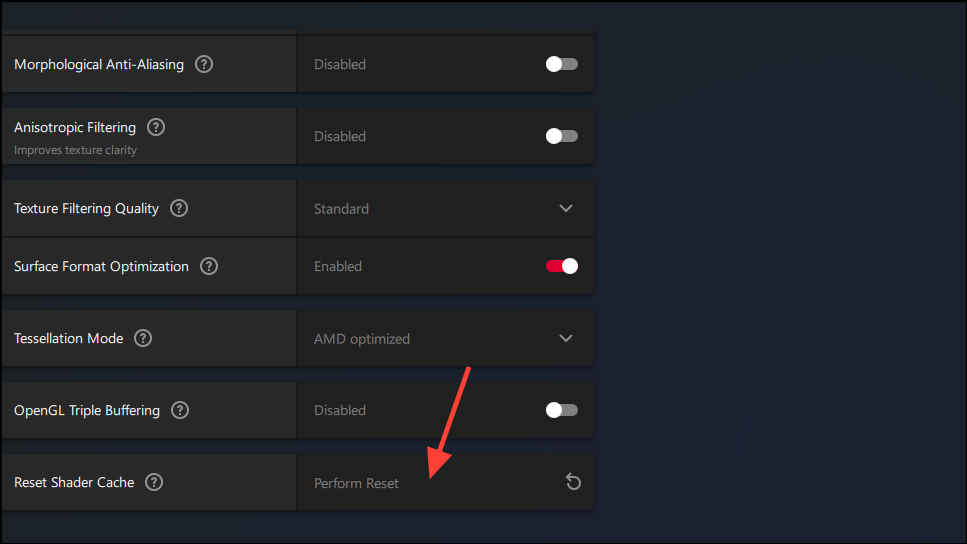
After clearing shader cache, restart your PC and launch Monster Hunter Wilds again.
Adjust GPU Power and Clock Settings
Reducing GPU load by slightly underclocking or limiting power consumption can prevent crashes caused by GPU instability under heavy load.
Step 1 (NVIDIA GPUs): Open NVIDIA Control Panel, click “Help,” and select “Debug Mode.” This temporarily reverts your GPU to reference clock speeds, reducing instability.
Step 2 (AMD GPUs): Open AMD Adrenalin Software, navigate to the “Performance” tab, and enable “Manual Tuning.” Set the GPU voltage slider to around 80% to reduce power consumption and GPU load.
Test the game after applying these settings to check stability.
Contact Capcom Customer Support
If none of the above solutions resolve your crashes, contact Capcom’s official support. Provide detailed information, including a DxDiag report, graphics settings file, and crash logs. Visit the official Monster Hunter support page for further instructions.
Hopefully, these detailed troubleshooting steps will resolve your Monster Hunter Wilds crashing issues. Now, you can dive back into the game without interruptions!





