Resolve the Nvidia driver installation error 0x80070643 with these straightforward troubleshooting steps.
Resolve the Nvidia driver installation error 0x80070643 with these straightforward troubleshooting steps.
by Pallav Pathak
The Nvidia error code 0x80070643 typically appears during the installation of Nvidia graphics drivers, indicating issues with corrupted files, system conflicts, or inadequate system resources. Follow these detailed troubleshooting steps to resolve this error effectively.
Method 1: Check for Corrupted or Missing Driver Files
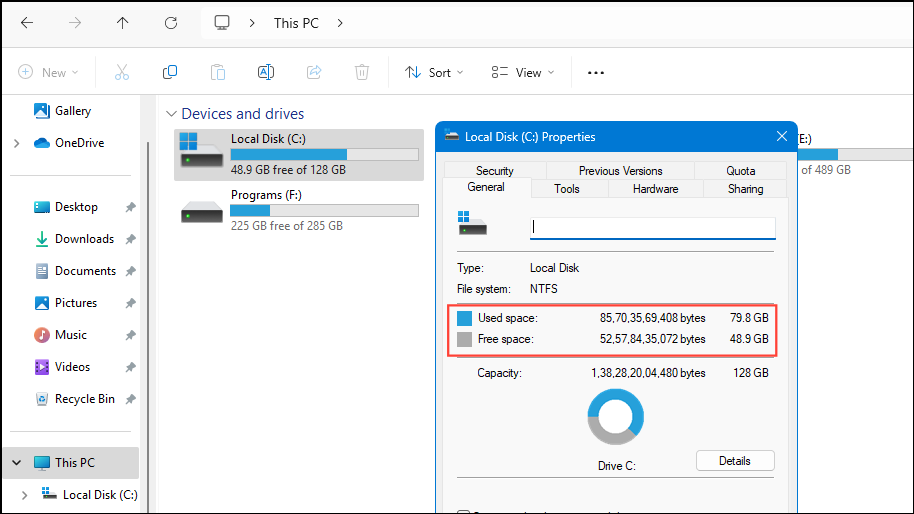
The first thing you’ll want to do is ensure your computer has adequate disk space. Nvidia drivers require sufficient space—at least 16 GB free for a 32-bit operating system or 20 GB for a 64-bit system. Check your available storage space by opening File Explorer, selecting “This PC,” and viewing the drive properties.
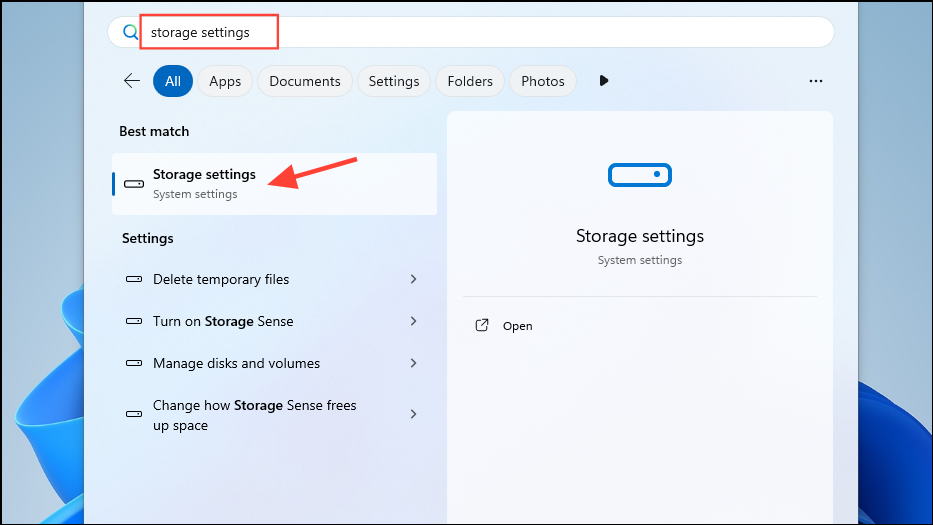
If your system is low on space, consider deleting unnecessary files to free up storage. Windows provides built-in tools for this, accessible by typing “Storage settings” into the Windows search bar.
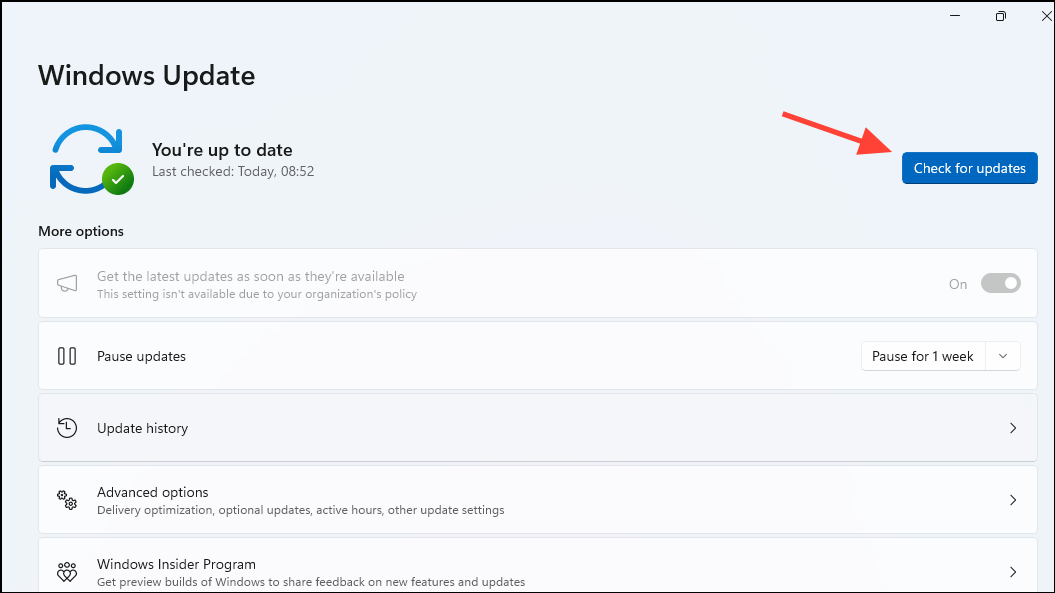
After confirming sufficient disk space, run Windows Update multiple times. To do this, click on the “Start” menu, select “Settings,” then “Update & Security,” and click “Check for updates.”
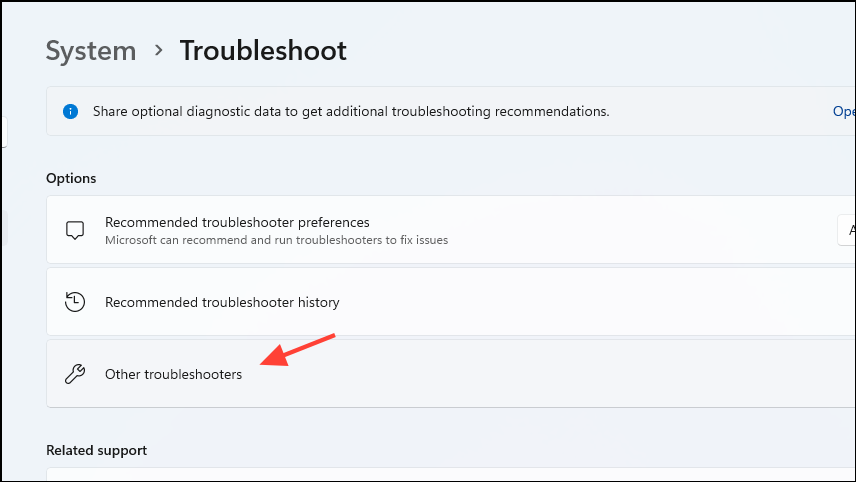
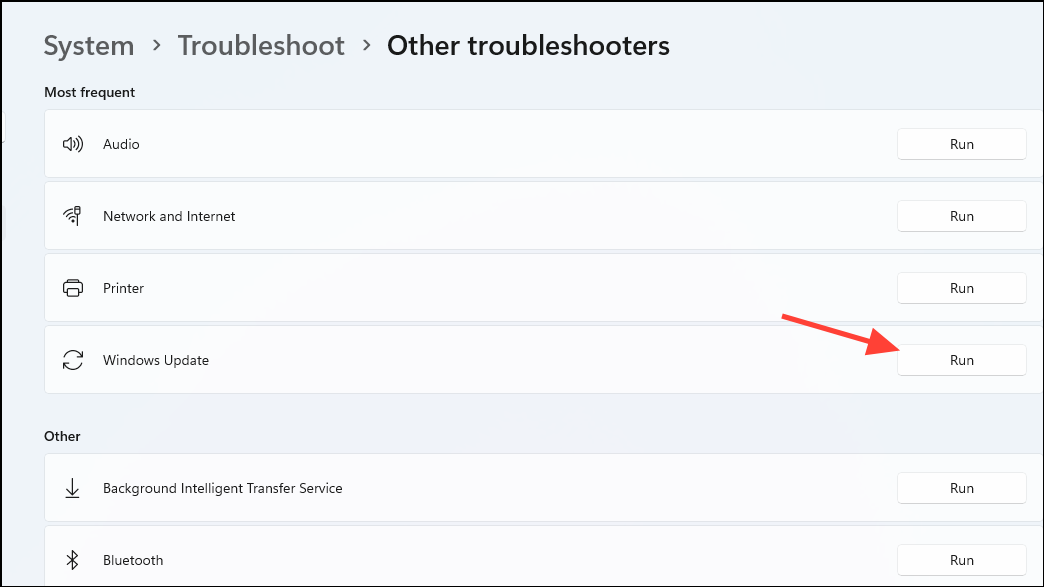
Next, use the built-in Windows Update Troubleshooter. In the “Settings” app, navigate to “System,” select “Troubleshoot,” and click on “Other troubleshooters.”
Disconnect any unnecessary external hardware such as USB drives, external hard drives, or other peripherals connected to your computer. These devices can sometimes interfere with the driver installation process, causing conflicts or errors.
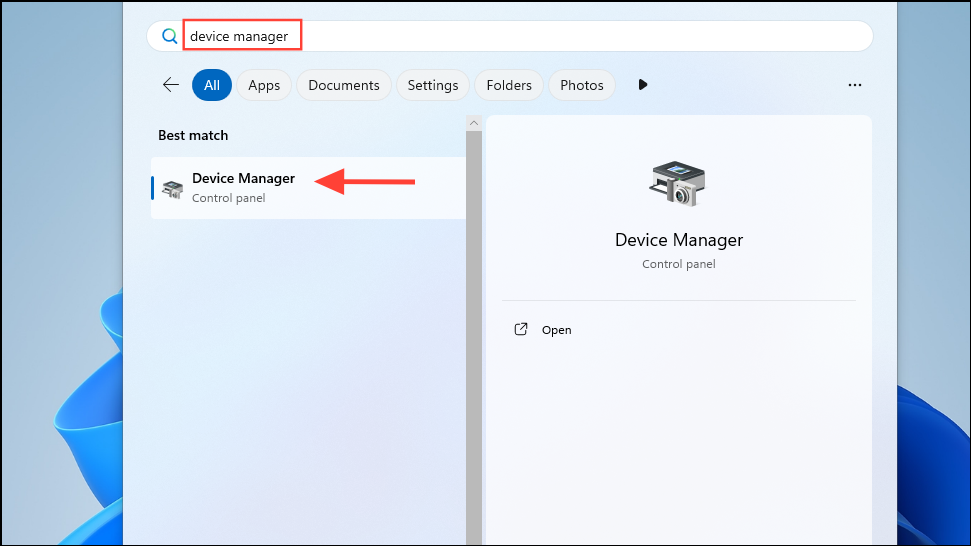
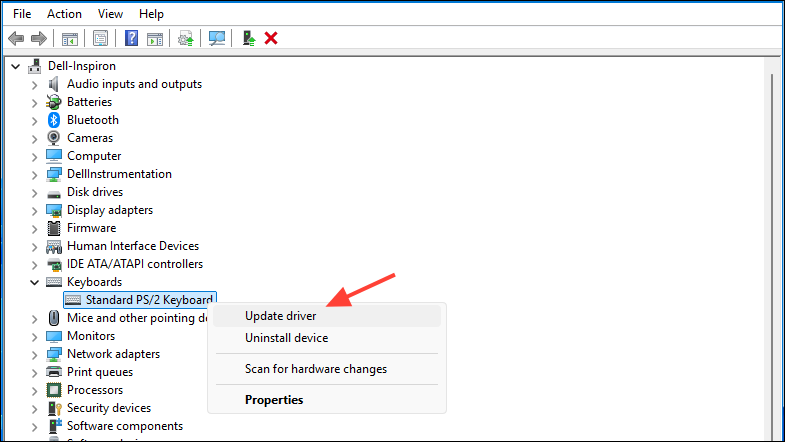
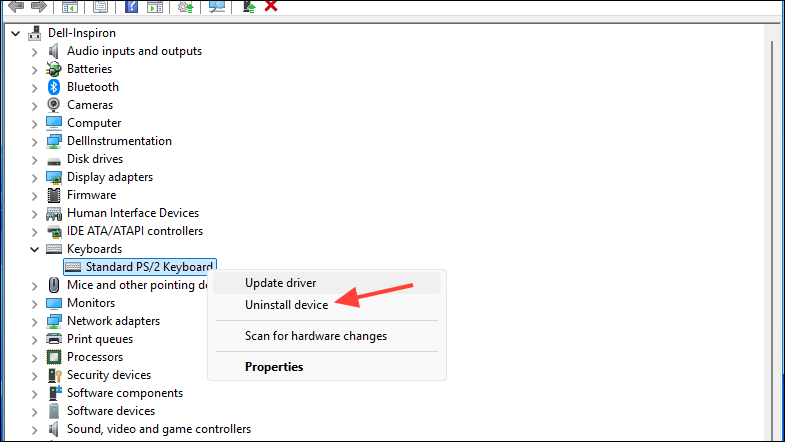
Look for any devices marked with a yellow exclamation mark. This symbol indicates driver issues or conflicts. Right-click on these problematic devices and select “Update driver.”
If updating doesn’t resolve the issue, you can choose “Uninstall device” and restart your computer. Windows will automatically attempt to reinstall the correct drivers upon reboot.
Antivirus software can occasionally block driver installations, mistakenly identifying them as threats. Temporarily disable your antivirus software before attempting the Nvidia driver installation again.
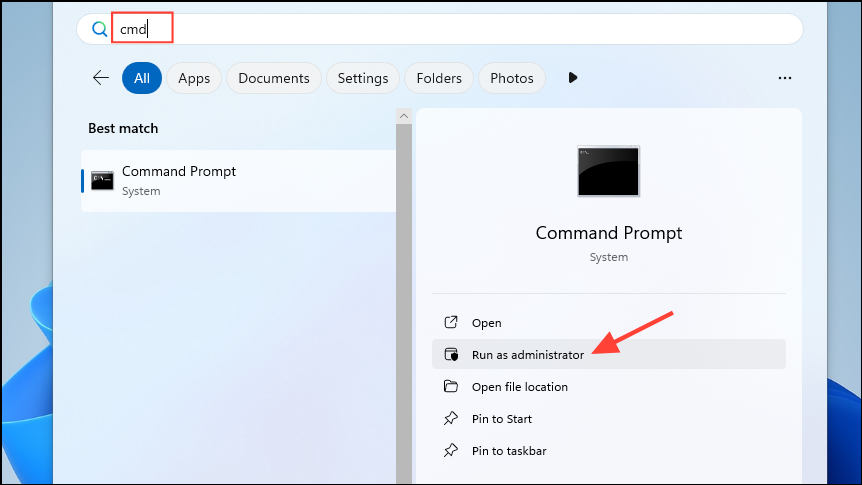
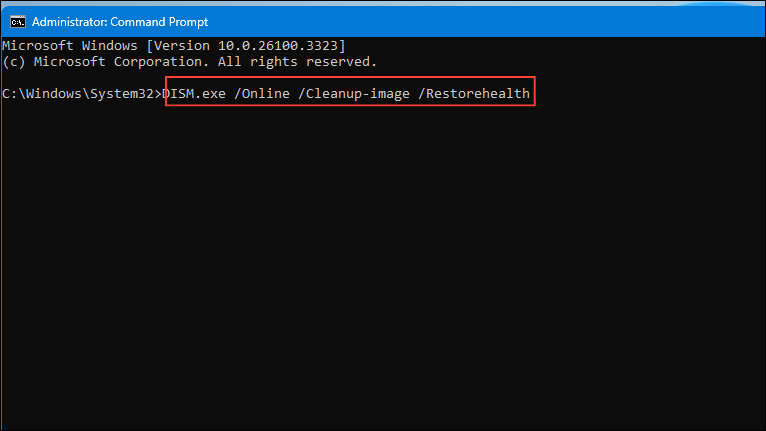
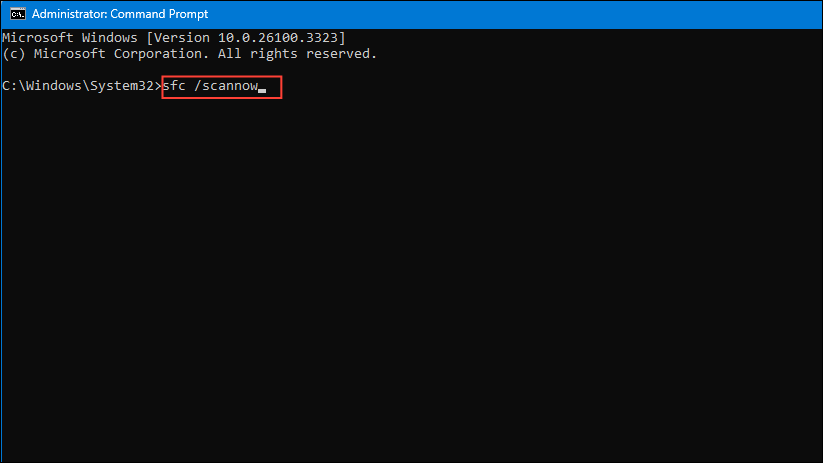
Corrupted system files may also trigger error 0x80070643. Open Command Prompt as an administrator by typing “Command Prompt” into the search bar, right-clicking the result, and selecting “Run as administrator.”
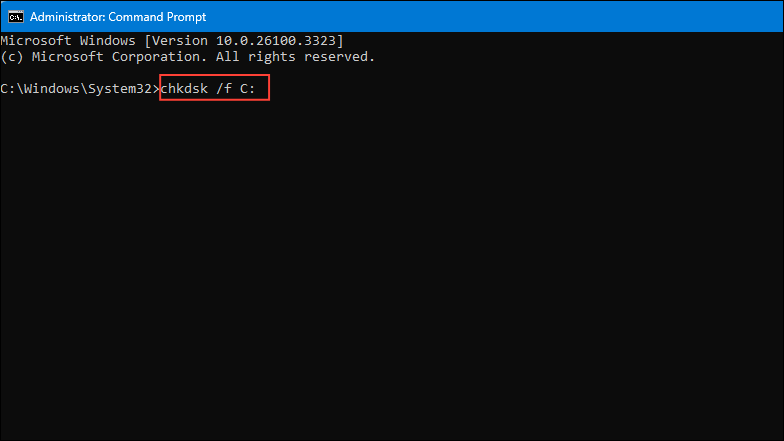
To check and repair hard drive errors, open Command Prompt again as an administrator and type:
chkdsk /f C:
Press Enter and follow the prompts. You may be asked to schedule the disk check for the next system restart—type Y to confirm and then restart your computer.
Method 5: Perform a Clean Installation of Nvidia Drivers
If the above methods fail, performing a clean installation of Nvidia drivers usually resolves persistent issues. First, download the latest Nvidia graphics driver from the official Nvidia website.
Once downloaded, double-click the installer to launch it. When prompted, select the custom installation option, and then check the box labeled “Perform a clean installation.” This option removes previous driver versions and settings, providing a fresh installation environment.
Proceed with the installation by following on-screen prompts. After completion, restart your computer to finalize the installation.
Following these methods should resolve Nvidia error code 0x80070643 and allow smooth installation of your graphics drivers. If the issue persists, consider contacting Nvidia support or your system manufacturer’s technical support for further assistance.