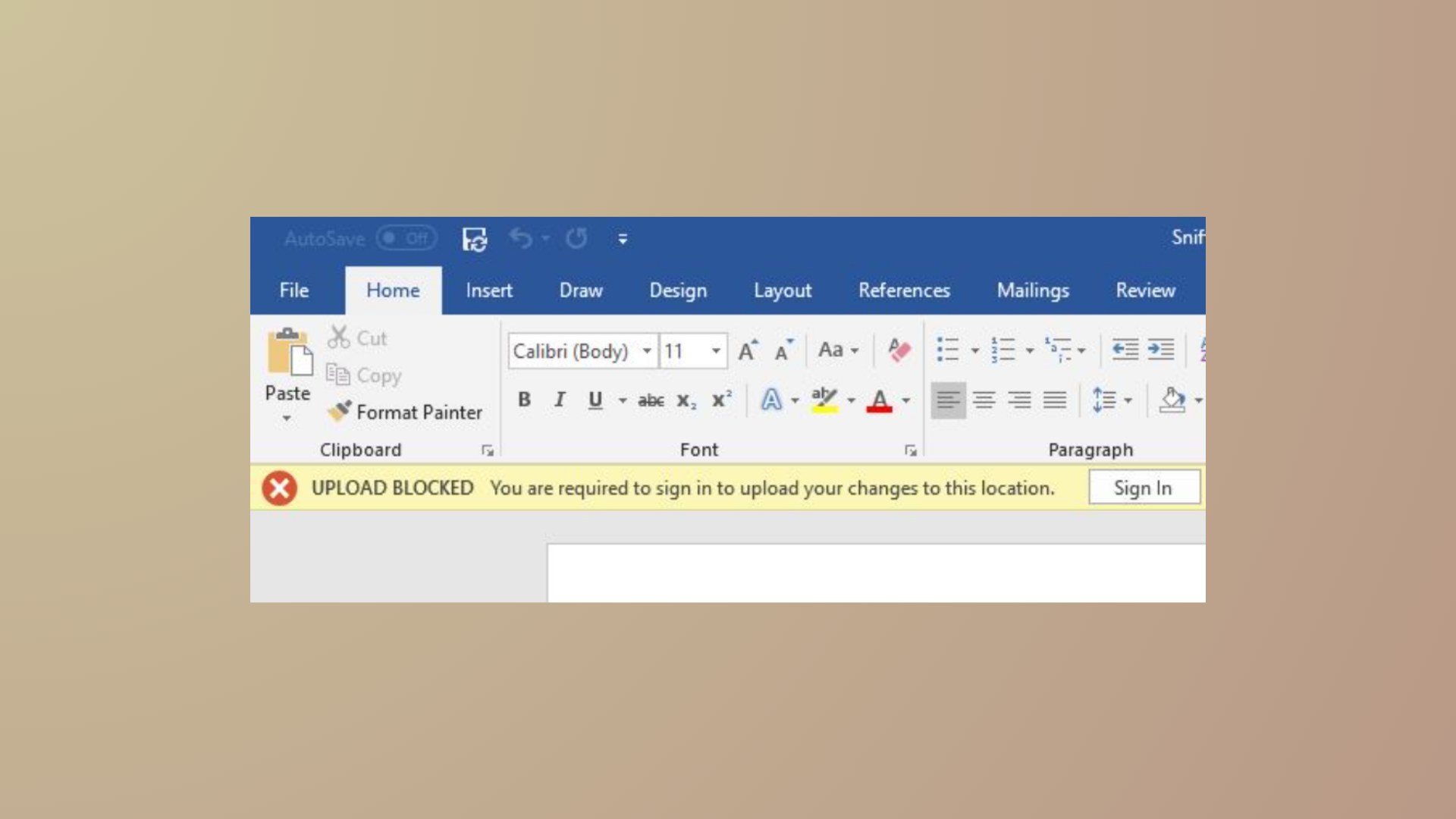
OneDrive error code 0x8004e4be typically interrupts login and syncing, often displaying a prompt to “try again in a few minutes.” This problem may persist even after reinstalling OneDrive, especially if the error returns after restarting your PC. The issue can stem from corrupted app settings, outdated software, damaged components, or system configuration problems. Addressing the root causes with targeted steps can restore normal OneDrive functionality and prevent repeated sign-in failures.
Reset OneDrive to Clear Corrupt Settings
Win + R to open the Run dialog box. This shortcut quickly launches a command window for advanced troubleshooting.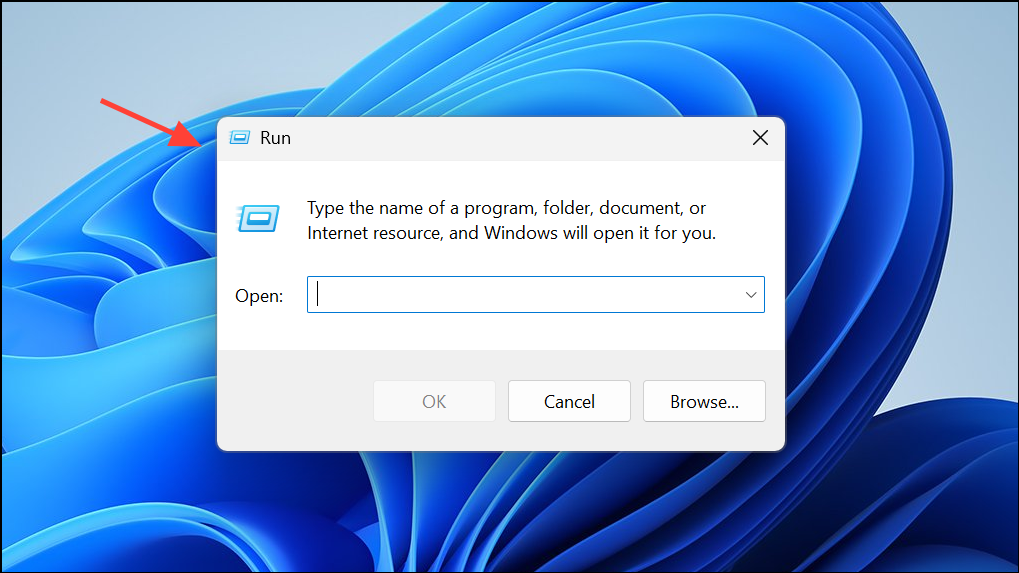
%localappdata%\Microsoft\OneDrive\onedrive.exe /reset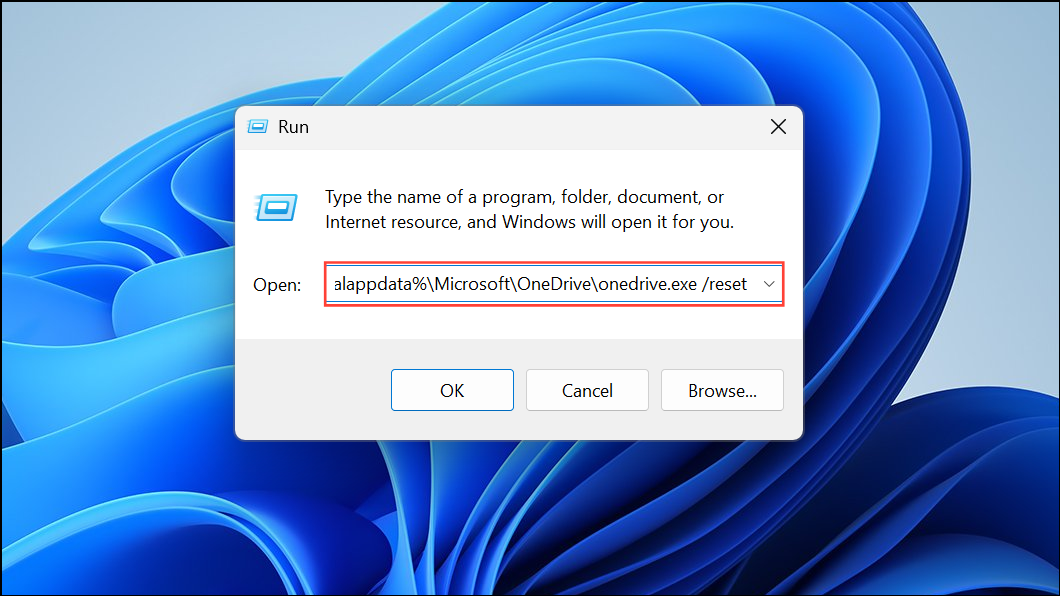
If you receive a “Windows cannot find…” message, use this alternative command and click OK:
C:\Program Files\Microsoft OneDrive\onedrive.exe /reset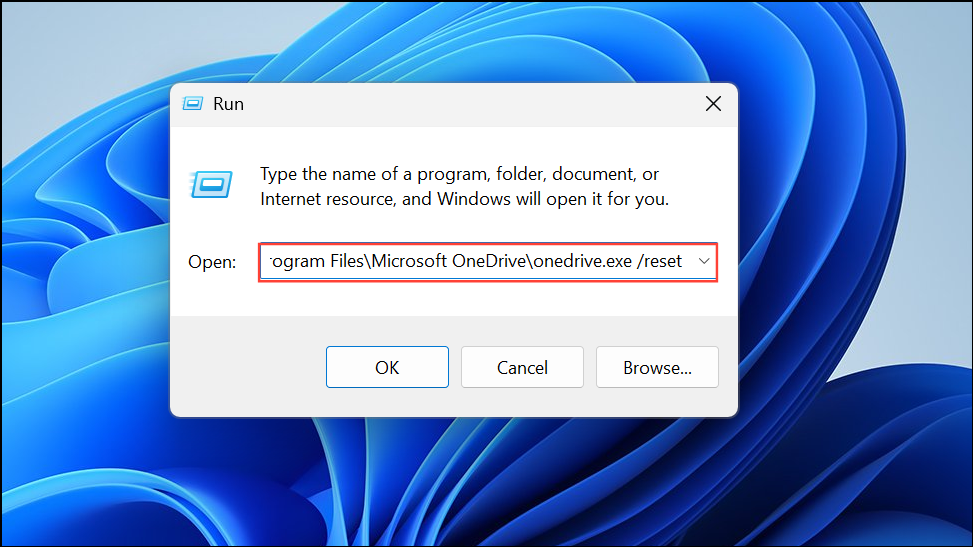
This process clears OneDrive’s cached settings and temporary files, which often resolves underlying sync and login glitches without deleting your stored files. After running the reset, OneDrive will close and restart automatically. Wait a minute or two for the app to relaunch; if it doesn’t, manually open OneDrive from the Start menu.
Clear OneDrive Cache to Remove Corruption
Corrupted cache files can prevent successful authentication or cause repeated sign-in prompts. Clearing the cache removes these problematic files and forces OneDrive to rebuild them on next launch.
Quit OneDrive, or end the process from Task Manager.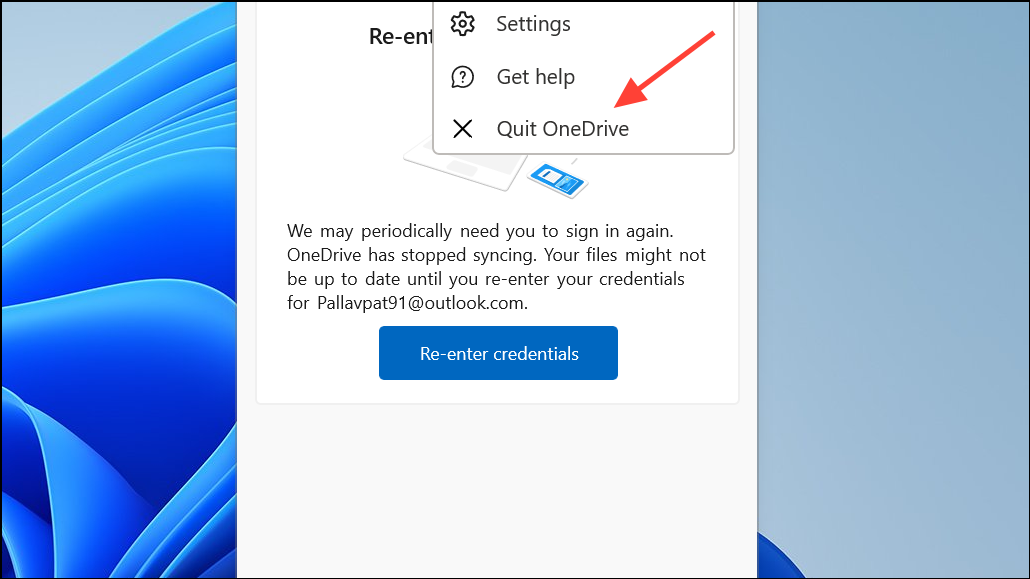
%userprofile%\AppData\Local\Microsoft\OneDrive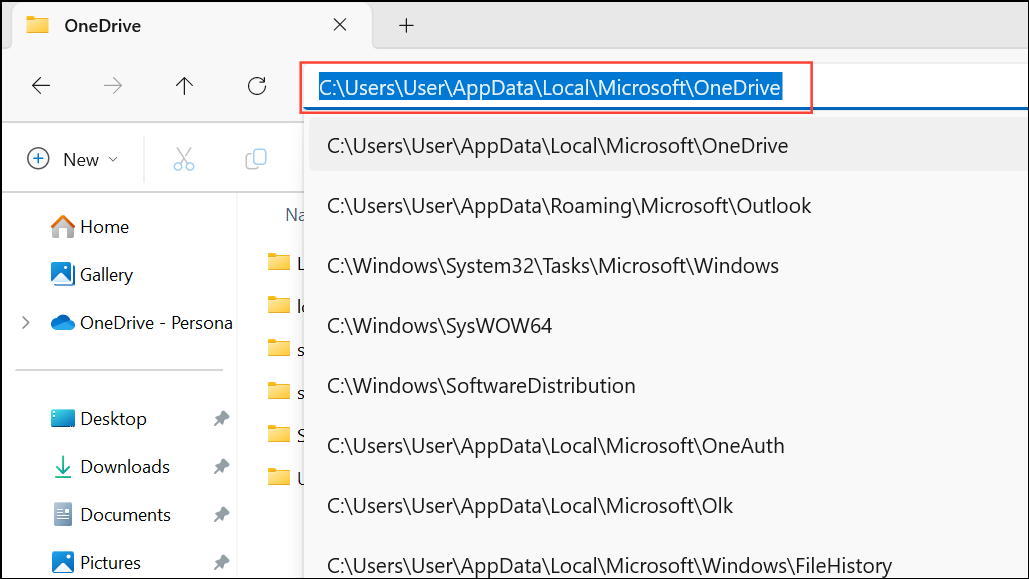
logs folder. Select all files within (Ctrl + A), right-click, and choose Delete.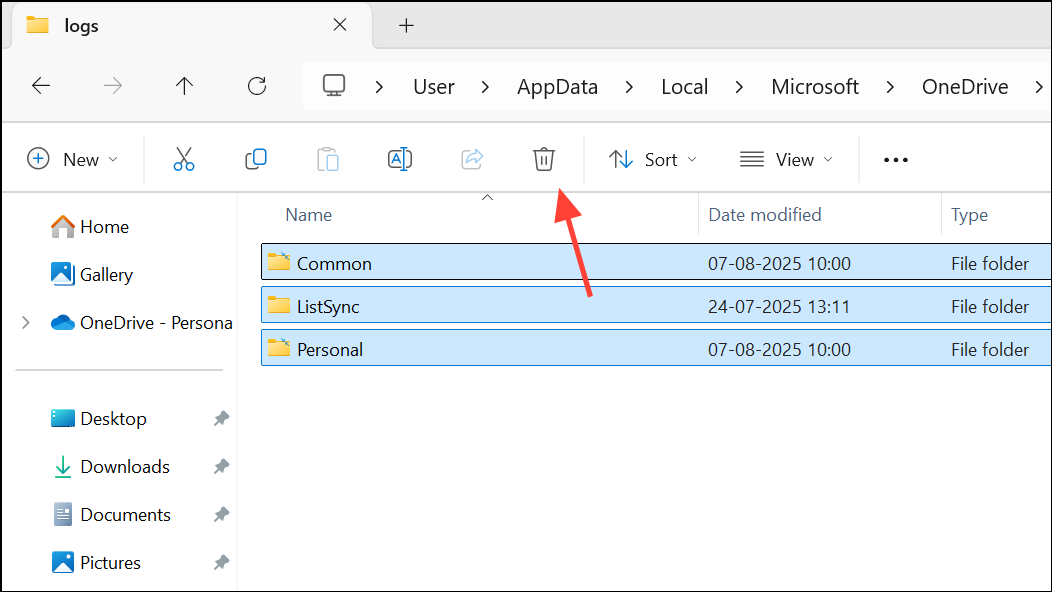
Update OneDrive to the Latest Version
Outdated versions may lack critical bug fixes or compatibility updates, which can trigger persistent errors. Ensuring you have the latest OneDrive release can resolve many authentication and sync issues.
https://www.microsoft.com/en-us/microsoft-365/onedrive/downloadReinstall OneDrive After Complete Uninstallation
If resetting and updating OneDrive don’t resolve the error, a full uninstall followed by a fresh installation can eliminate persistent problems related to damaged files or conflicting settings.
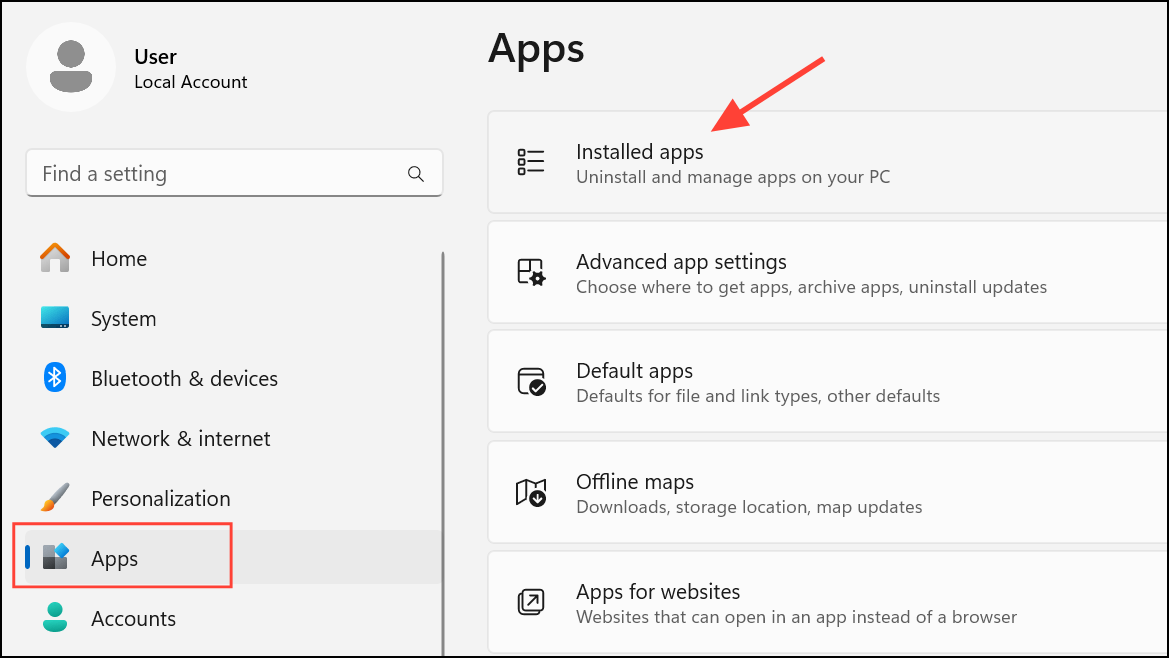
Microsoft OneDrive in the list, click the three dots next to it, and select Uninstall. Confirm any prompts to remove the application.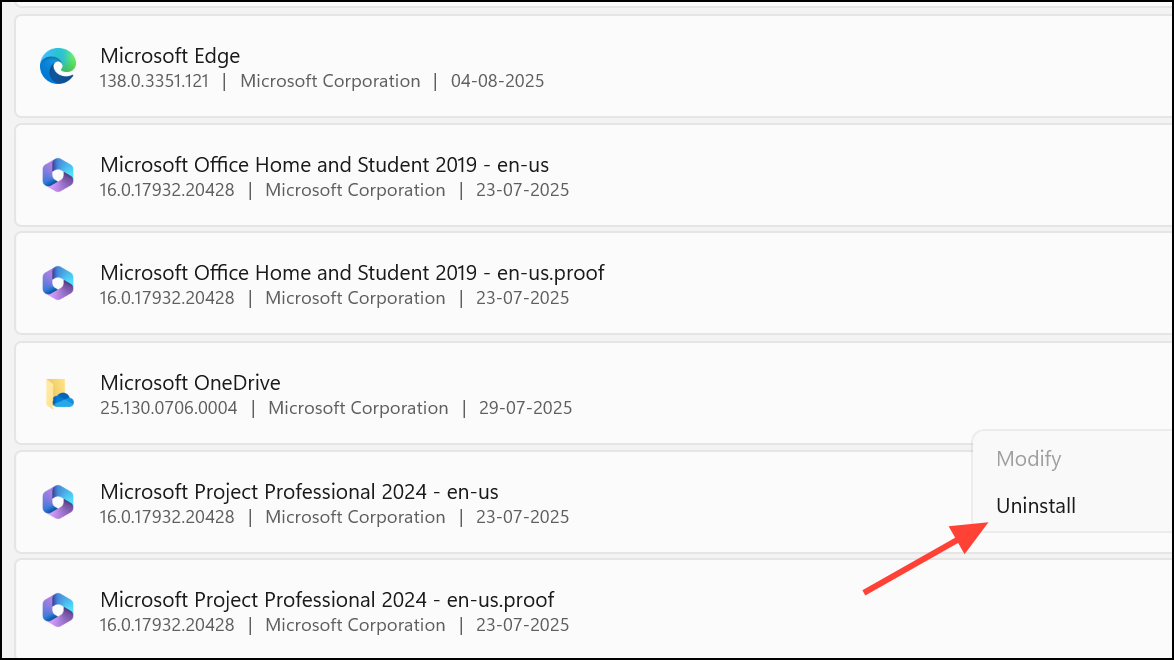
%localappdata%\Microsoft\OneDrive and %appdata%\Microsoft\OneDrive to clear leftover configuration files.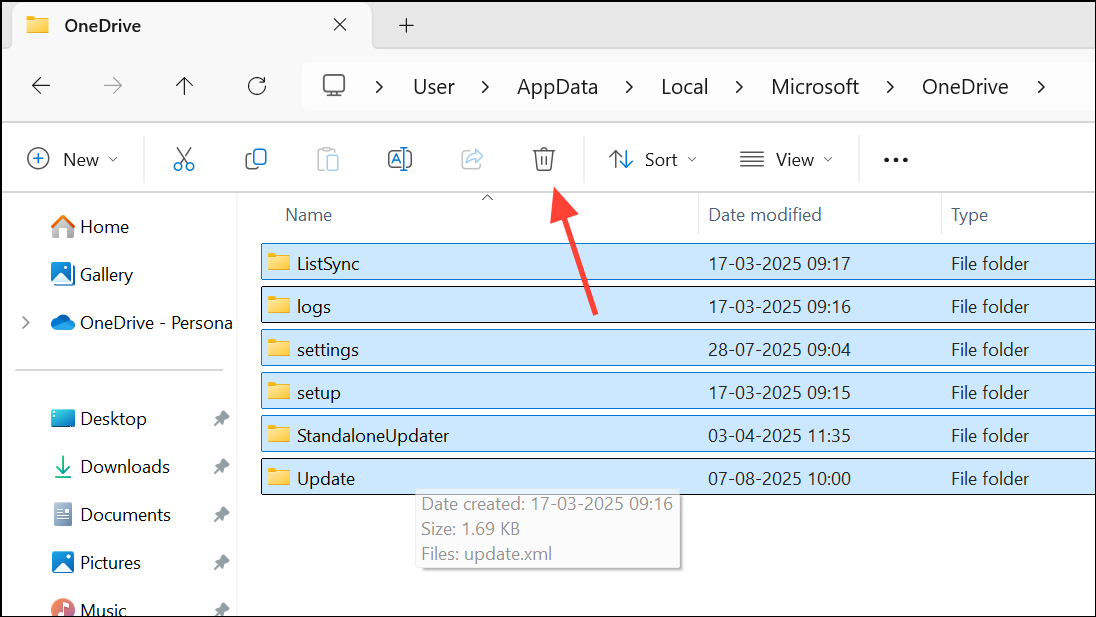
Check Date, Time, and Account Permissions
Incorrect system time or restricted account permissions can block OneDrive authentication. Ensuring accurate settings and proper access rights is essential for a successful login.
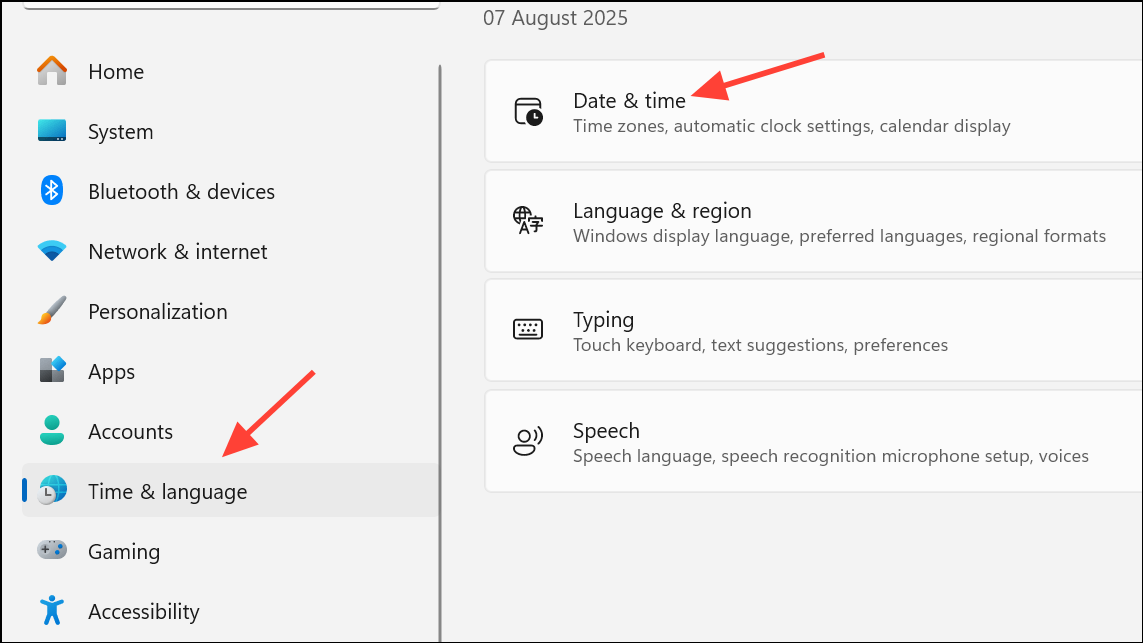
- Set your computer’s date and time to update automatically in
Settings > Time & Language > Date & time.
- Verify that your Windows user account has administrative privileges, especially if using OneDrive with a Microsoft 365 subscription.
- If your account is restricted or locked, address this in account settings or contact your administrator (for business accounts).
Reset Microsoft Store (If Using Store Version of OneDrive)
For users running the Microsoft Store version of OneDrive, issues with the Store cache can interfere with app authentication. Resetting the Store can resolve these conflicts.
wsreset.exe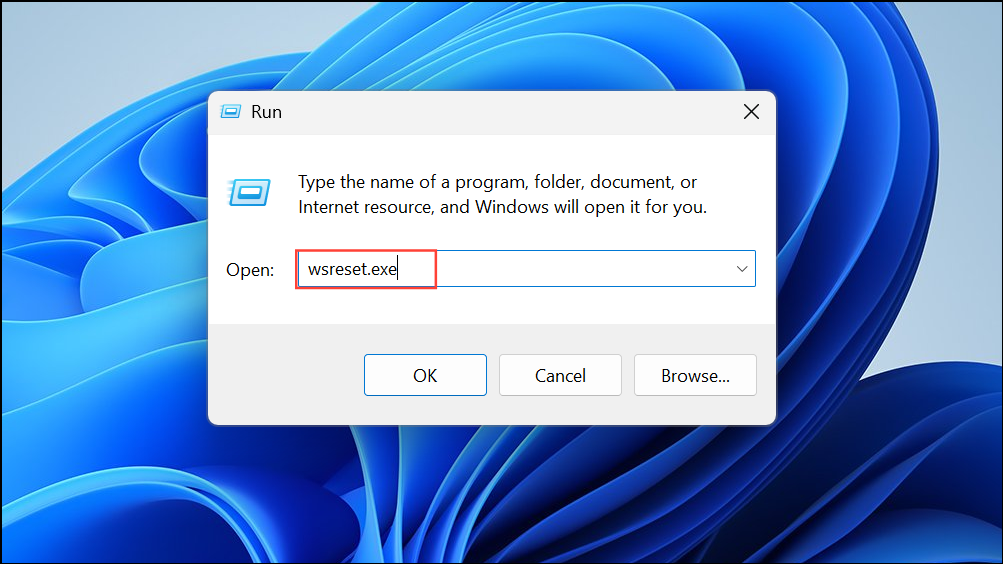
Enter. A blank Command Prompt window may appear and close automatically after a few seconds. The Microsoft Store will open on completion, confirming the reset.After this, try launching OneDrive and signing in again.
Additional Steps for Persistent Issues
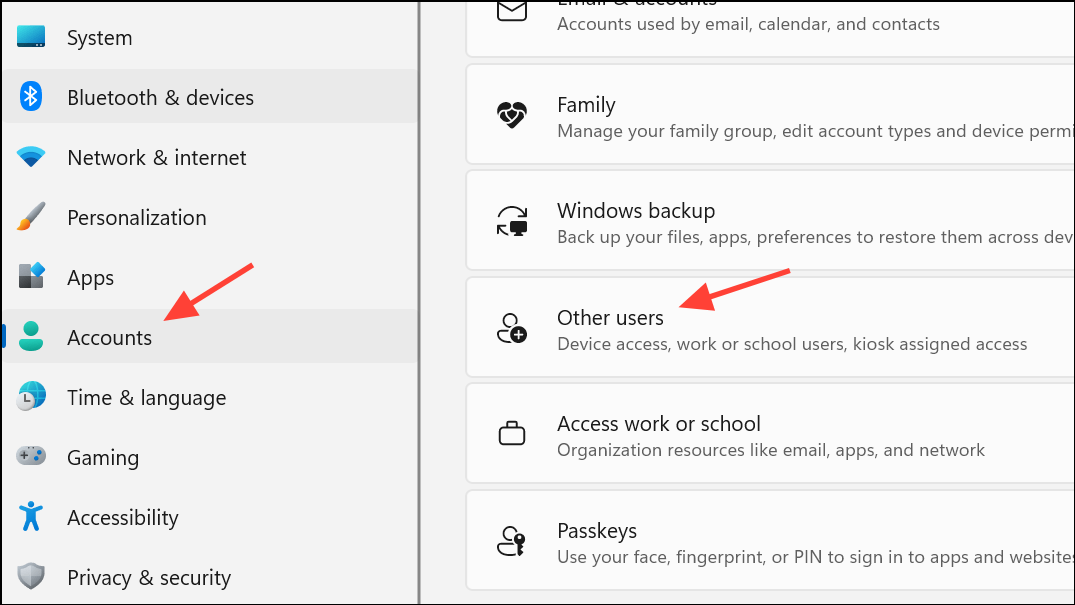
If the above solutions do not resolve the error, consider creating a new Windows user profile. This step can help rule out profile-specific corruption. To do this, open Settings > Accounts > Other users and add a new user or administrator account. Log into this new profile, set up OneDrive, and check if the error persists.
If you continue experiencing issues, especially with business or enterprise accounts, contact Microsoft support through the Office 365 admin center or the official support portal. Provide log details and error codes for more targeted troubleshooting.
Resolving OneDrive error 0x8004e4be restores your ability to sign in and sync files reliably, streamlining cloud-based workflows. Regular updates and occasional cache clearing can help prevent future login problems.