

Razer Cortex sometimes fails to open or stops working correctly due to conflicts with system settings, outdated software, or corrupted files. Resolving these underlying problems restores normal functionality and enables you to continue optimizing your gaming performance.
Method 1: Run Razer Cortex as Administrator
Running Razer Cortex with administrative privileges resolves issues caused by system permission restrictions. This grants the application the necessary rights to access critical system files and settings, enabling it to launch and function normally.
To permanently enable this setting, right-click the Razer Cortex shortcut, select “Properties,” navigate to the “Compatibility” tab, and check the box labeled “Run this program as an administrator.” Click “Apply” and then “OK” to save your changes.
Method 2: Update or Reinstall Razer Cortex Software
Outdated or corrupted installations often prevent Razer Cortex from opening or functioning correctly. Updating or reinstalling the software ensures you have the latest stable version with bug fixes and improvements.
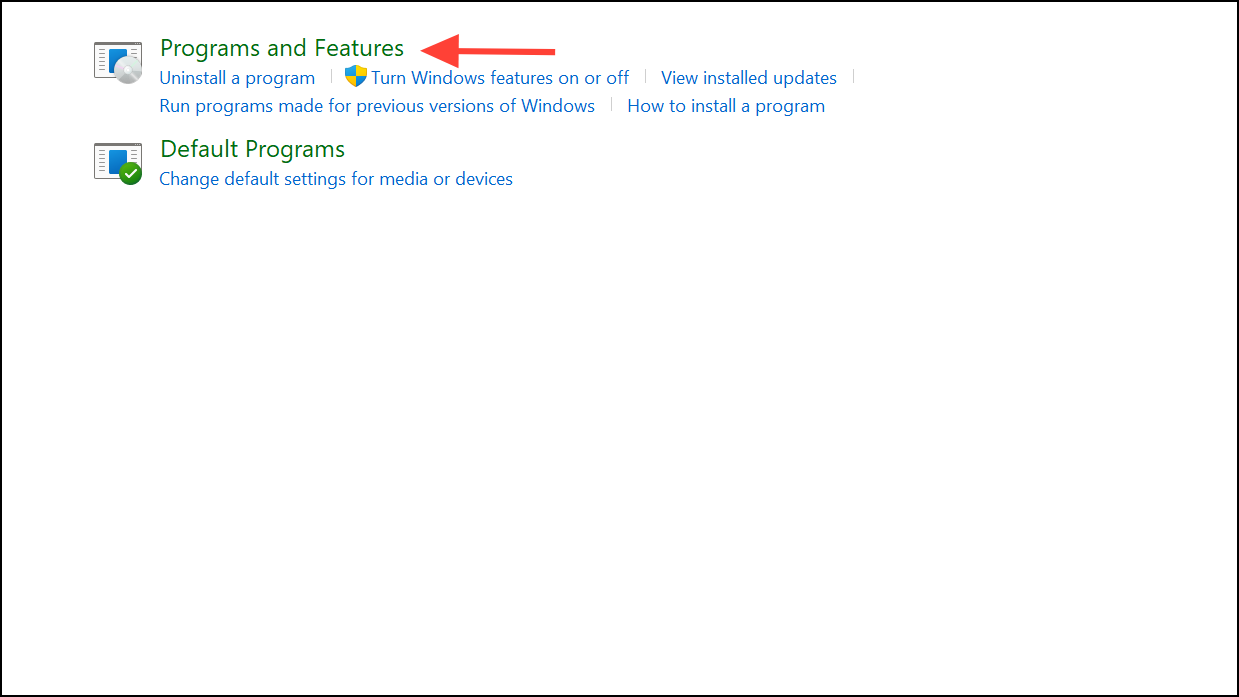
Once installed, launch the program to verify that it opens correctly.
Method 3: End Razer Cortex Processes Using Task Manager
Sometimes, background processes related to Razer Cortex become unresponsive or stuck. Ending these processes through Task Manager frees resources and allows you to relaunch the software successfully.
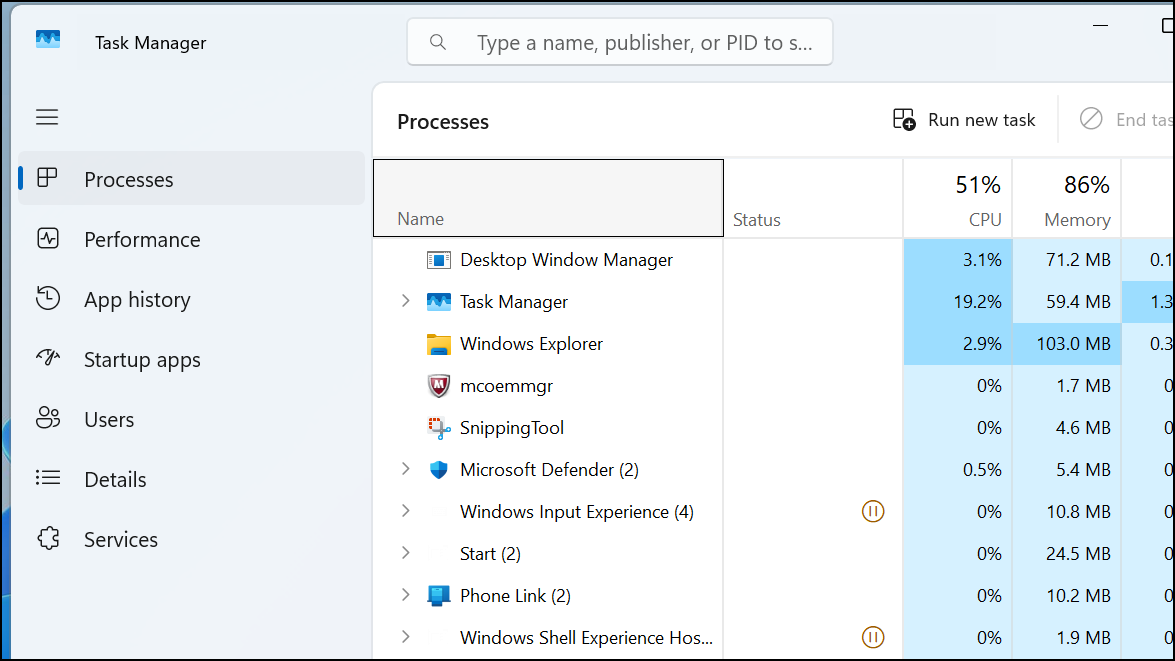
Method 4: Check for Windows Updates and Graphics Drivers
Outdated Windows versions or graphics drivers can conflict with Razer Cortex, causing it to malfunction or not open at all. Regularly updating your system and drivers ensures compatibility and stability.
Windows + I keys to open “Settings.” Click on “Update & Security,” then select “Windows Update.”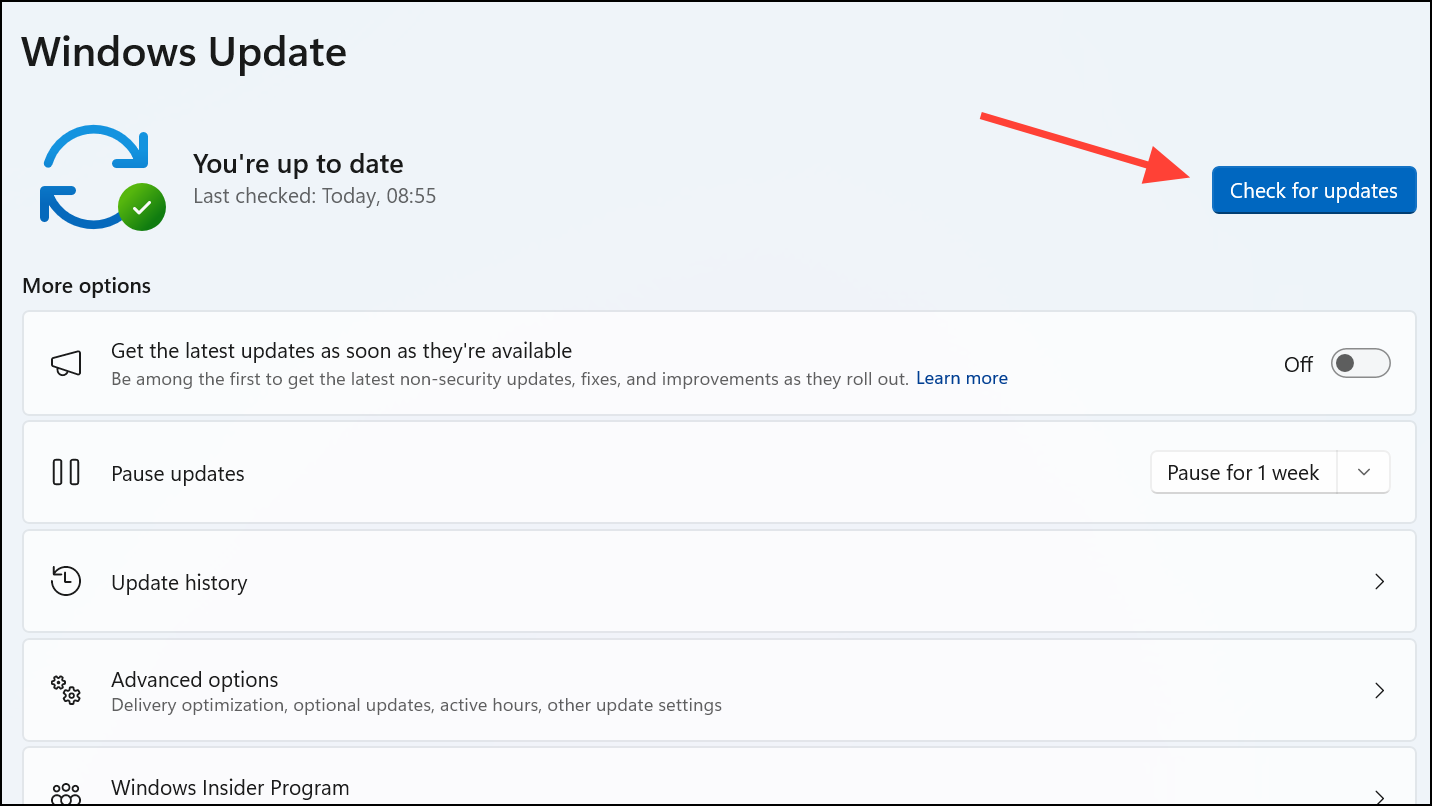
Once your system and drivers are updated, attempt to open Razer Cortex again.
Method 5: Temporarily Disable Antivirus or Firewall
Occasionally, antivirus software or firewall settings mistakenly block Razer Cortex, preventing it from opening or functioning correctly. Temporarily disabling your antivirus or firewall can help determine if this is the issue.
If disabling antivirus or firewall software doesn’t resolve the issue, promptly re-enable your security software to keep your system protected.
By following these methods, you can effectively resolve common issues preventing Razer Cortex from opening or functioning correctly. Regularly updating your software and drivers helps maintain smooth operation and optimal gaming performance.





