

Sudden loss of scroll wheel functionality in Excel often traces back to hidden rows with zero height or specific workbook settings that block vertical scrolling. Addressing these underlying causes restores normal navigation and lets users move through worksheets efficiently.
Adjust Row Heights to Restore Scroll Wheel Functionality
Unexpectedly, hidden rows set to a height of zero can stop the scroll wheel from working in Excel, even if scrolling works in other applications or workbooks. This issue may appear after an Excel update or when using files generated from templates. Setting affected rows to a standard height reinstates normal scrolling.
16, and confirm. This action assigns a visible height to all selected rows, allowing the scroll wheel to function as expected.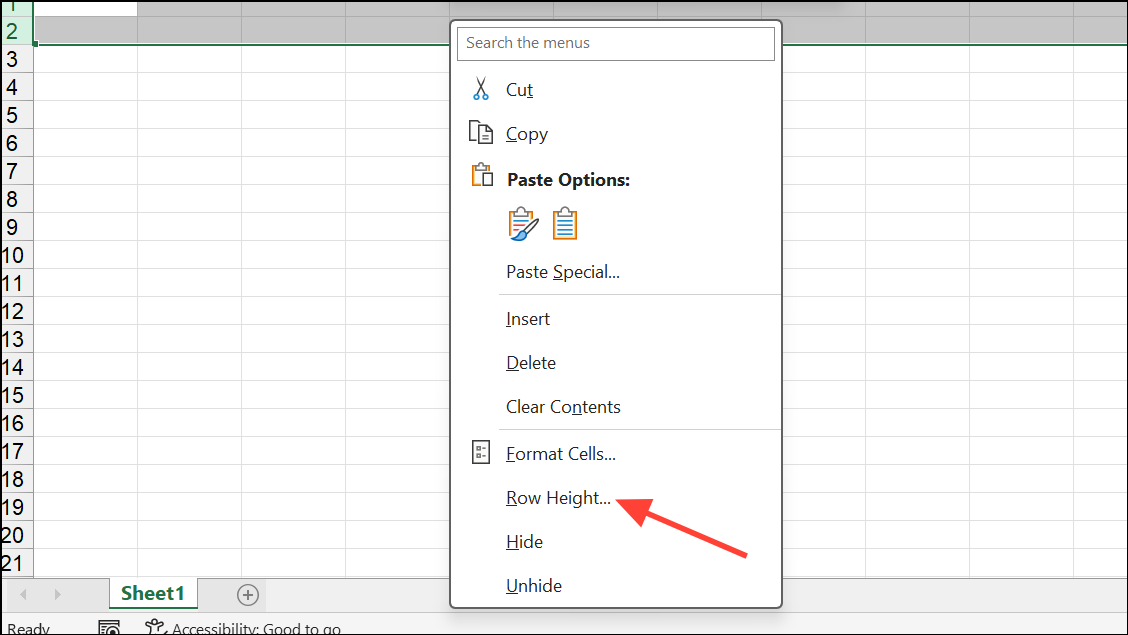
Unfreeze Panes That May Restrict Scrolling
Frozen panes can lock rows or columns in place, which sometimes interferes with scrolling, particularly if the entire visible area is frozen. Unfreezing these panes often resolves the issue.
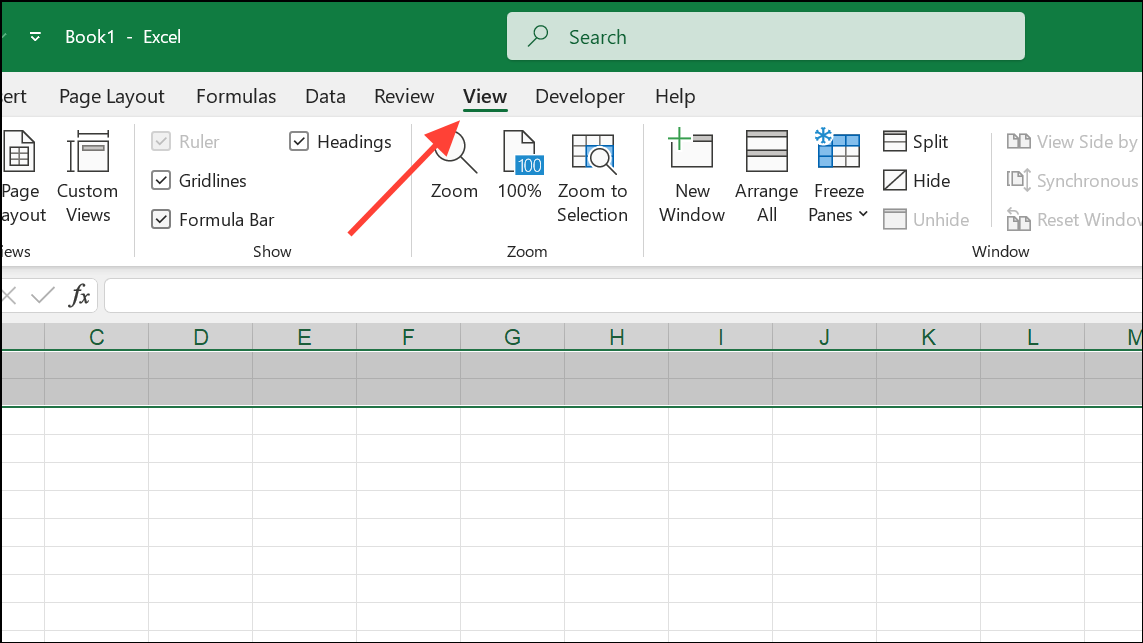
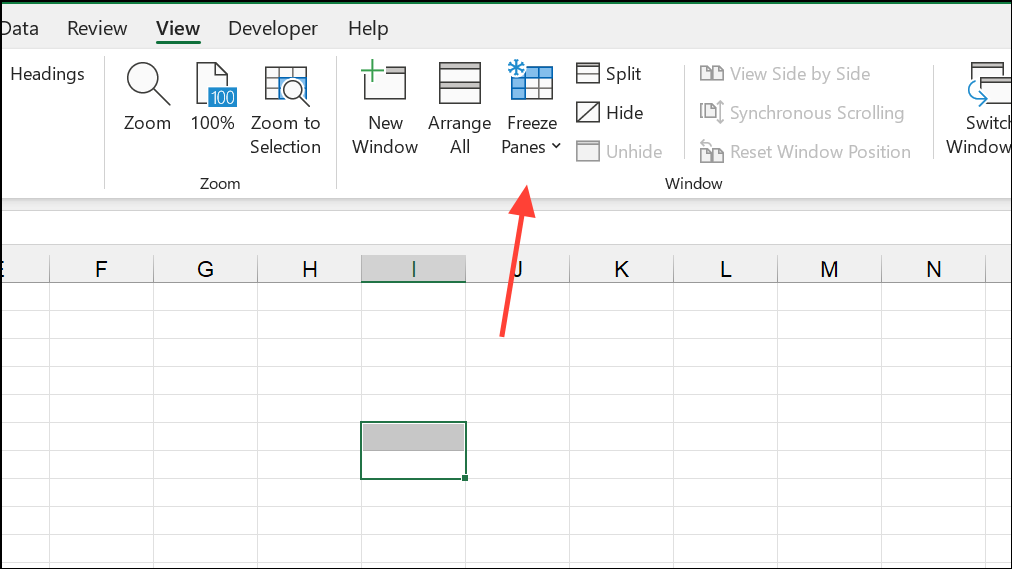
Check Scroll Lock Status
Excel’s Scroll Lock feature, when enabled, can prevent the arrow keys from moving between cells and may sometimes impact scrolling. Disabling Scroll Lock restores normal navigation.
Windows key + Ctrl + O. Click the ScrLk button to disable Scroll Lock.Disable “Zoom on Roll with IntelliMouse”
Excel can interpret mouse wheel movement as zooming instead of scrolling if the “Zoom on roll with IntelliMouse” setting is enabled. Disabling this setting ensures the scroll wheel moves the worksheet vertically.
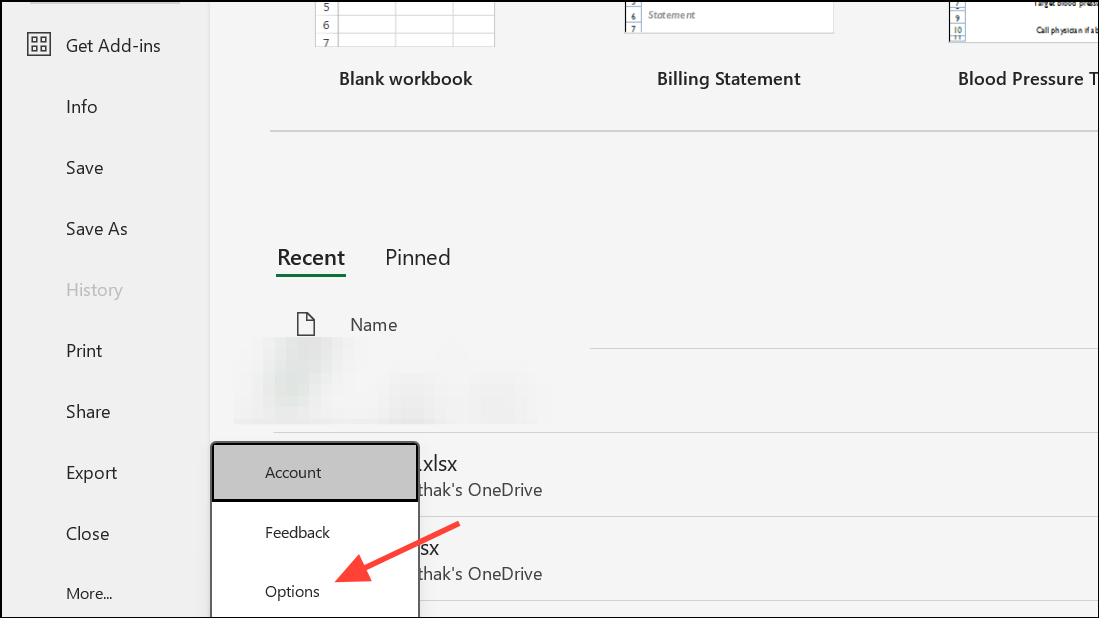
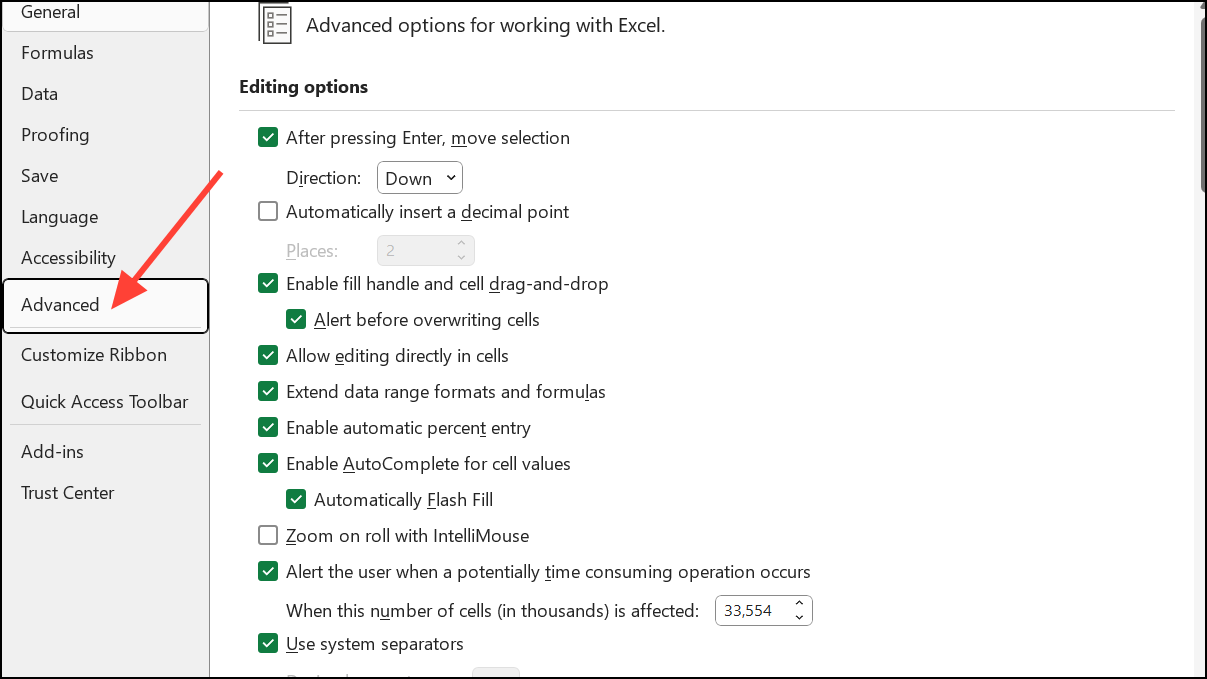
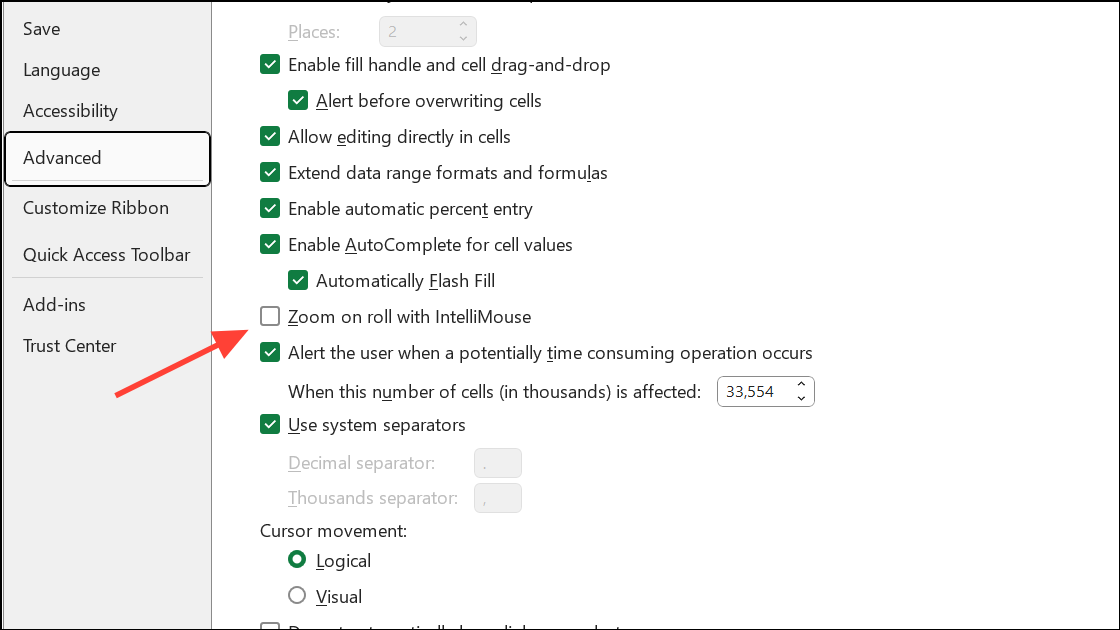
Repair the Excel File
File corruption can disrupt scrolling and other basic functions. Repairing the file restores normal operation without data loss.
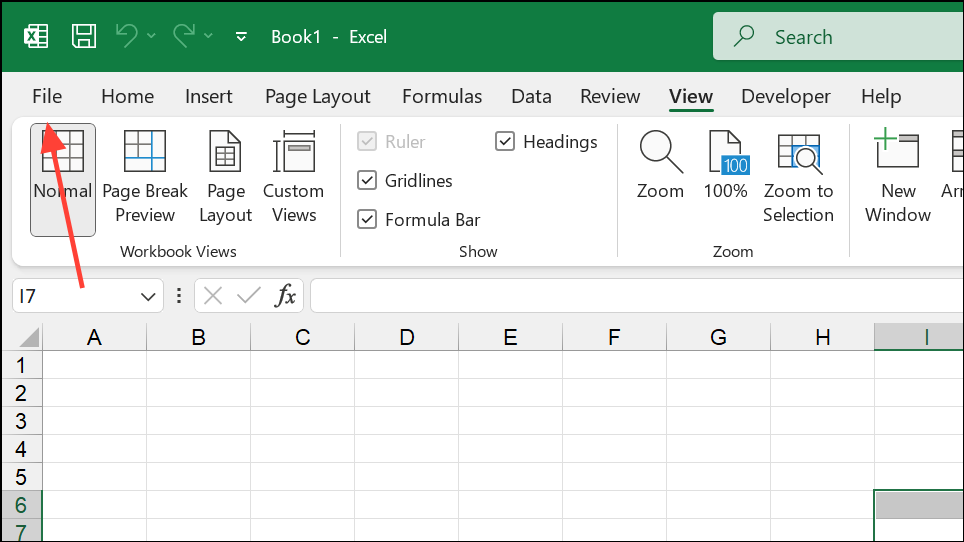
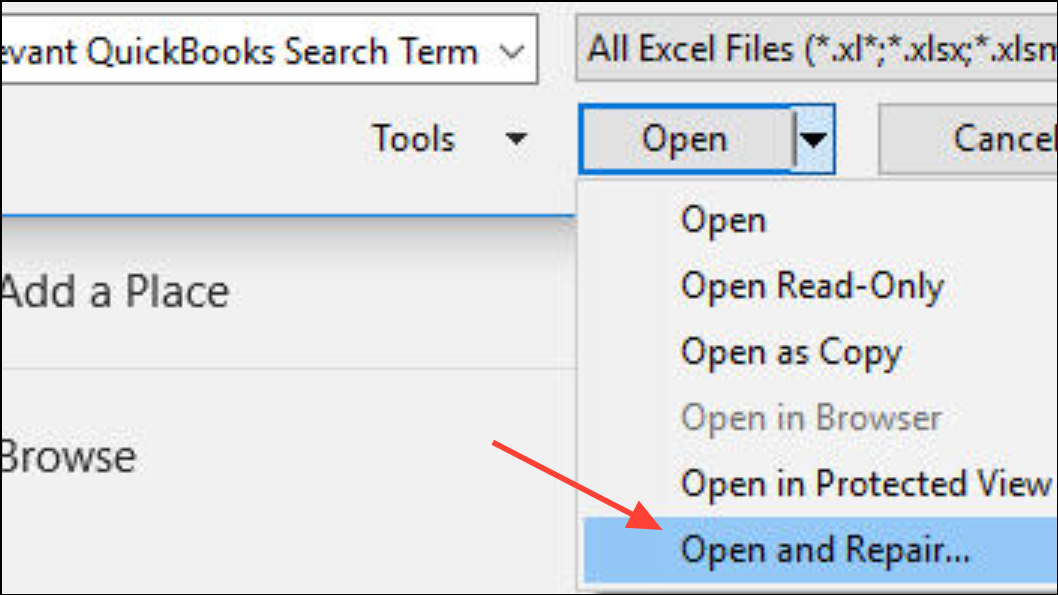
Update or Repair Excel Application
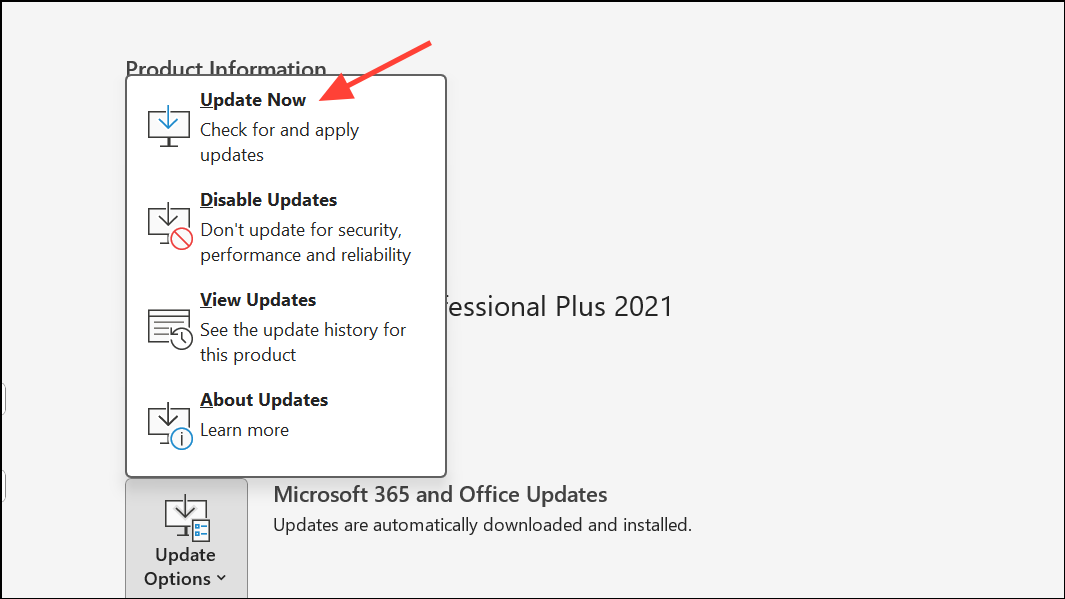
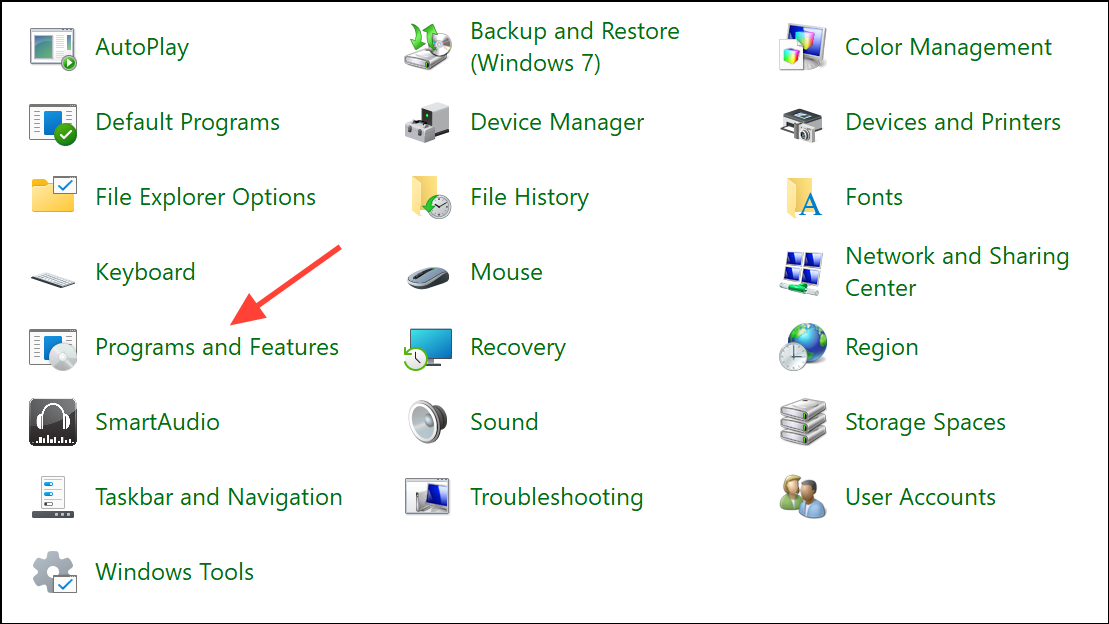
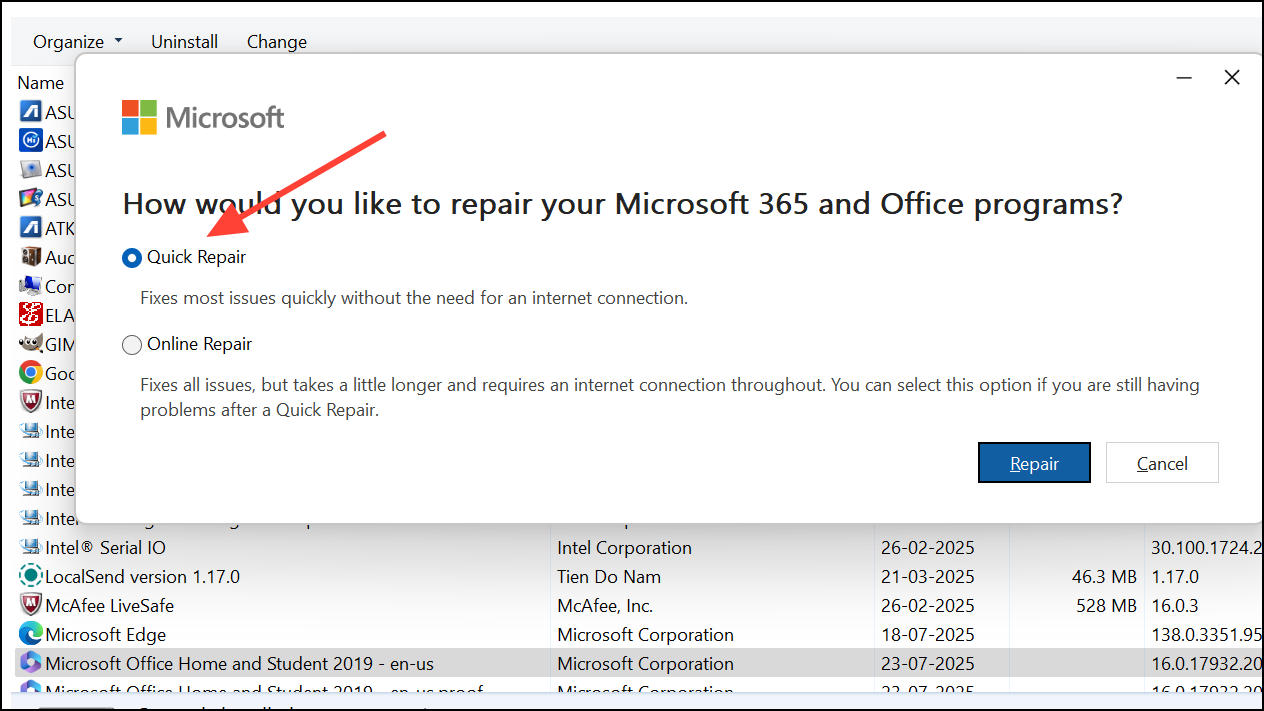
Software updates or minor installation issues can introduce bugs affecting scrolling. Keeping Excel up to date or running a repair can resolve these problems.
Additional Troubleshooting Steps
- Check for hidden objects or set scroll areas in the worksheet by pressing
Alt + F11to open the Visual Basic Editor and ensuring no ScrollArea property is set. - Open Excel in Safe Mode by holding
Ctrlwhile launching Excel. This helps diagnose issues caused by add-ins. - If the scroll bar is missing, enable it via File > Options > Advanced > Display options for this workbook.
- Copy data to a new workbook as a last resort if the issue persists only in a specific file.
Restoring scroll wheel functionality in Excel often comes down to adjusting row heights or unfreezing panes. Keeping Excel updated and checking for hidden workbook settings keeps navigation running smoothly.





