How to Fix System Tray Icon Area Needlessly Taking Up Space
Learn how to reclaim valuable taskbar space by managing your system tray icons effectively
Learn how to reclaim valuable taskbar space by managing your system tray icons effectively
by Pallav Pathak
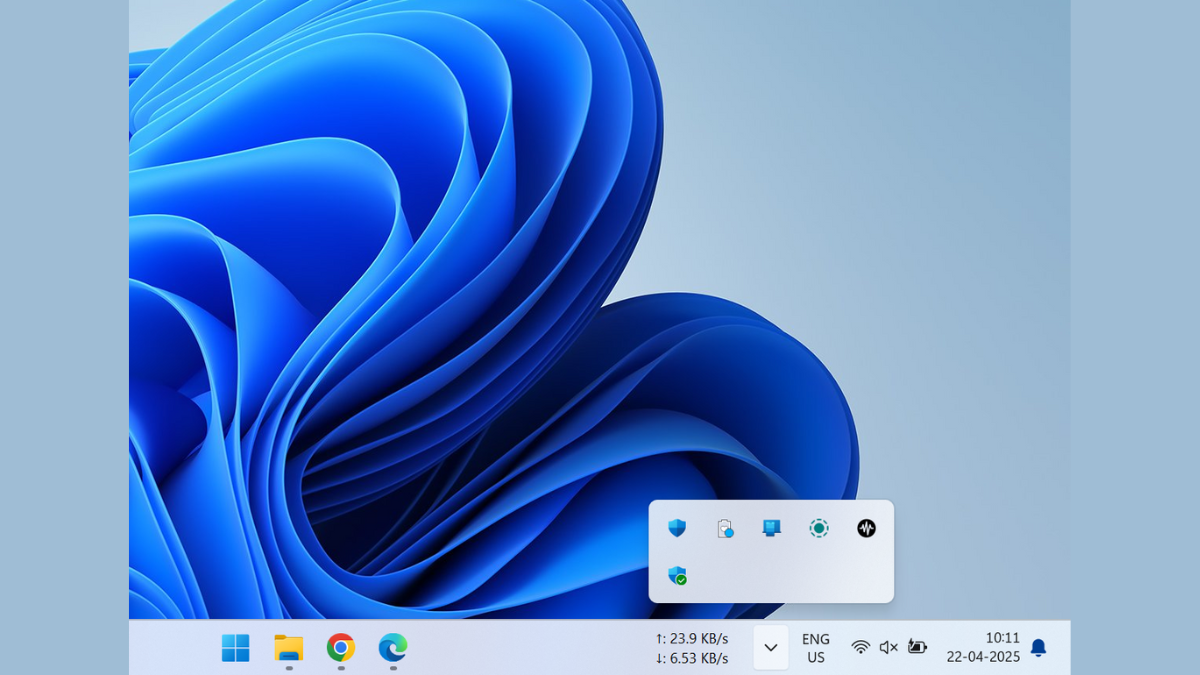
System tray icons can quickly clutter your taskbar, making it difficult to find important notifications or access frequently used features. Excessive icons not only take up unnecessary space but also make your desktop feel disorganized. Fortunately, there are several straightforward ways to fix the issue and streamline your system tray for improved usability.
Method 1: Customize System Tray Icons via Taskbar Settings
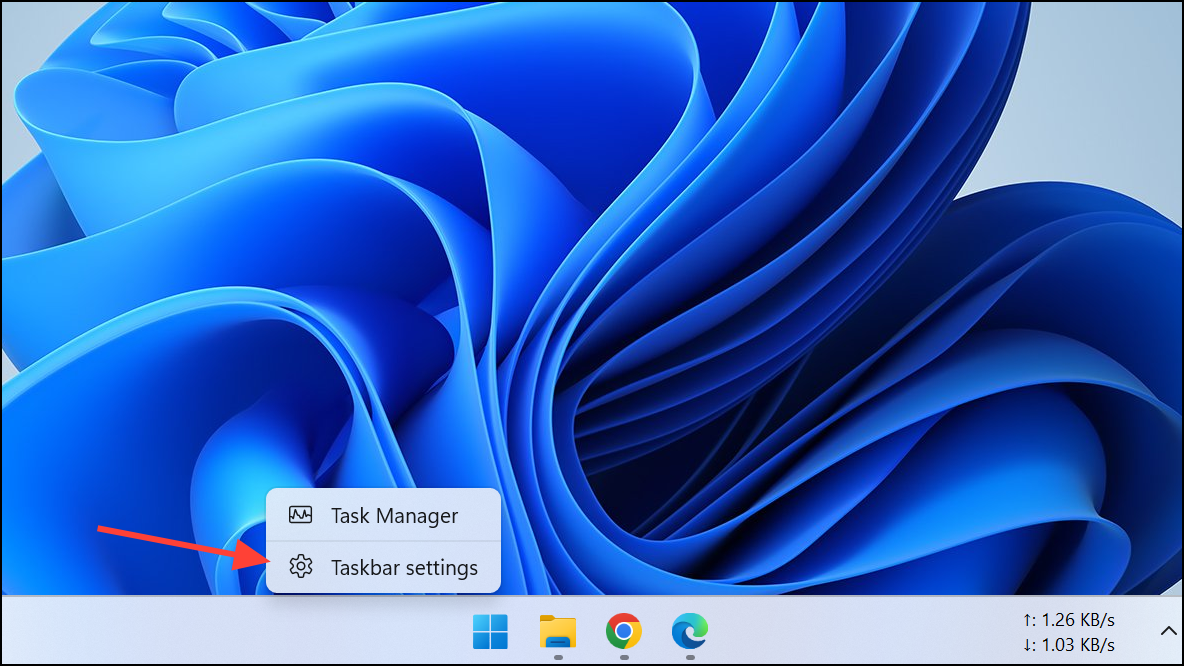
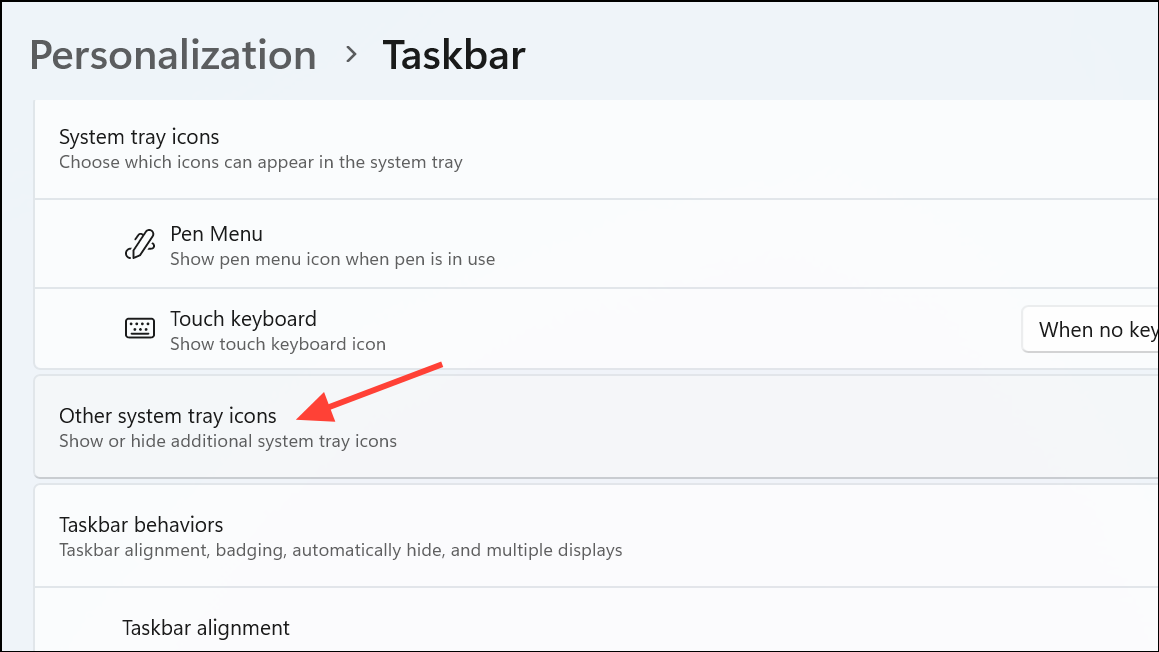
The most effective method to free up space in your system tray is to directly manage icon visibility through Windows Taskbar Settings.
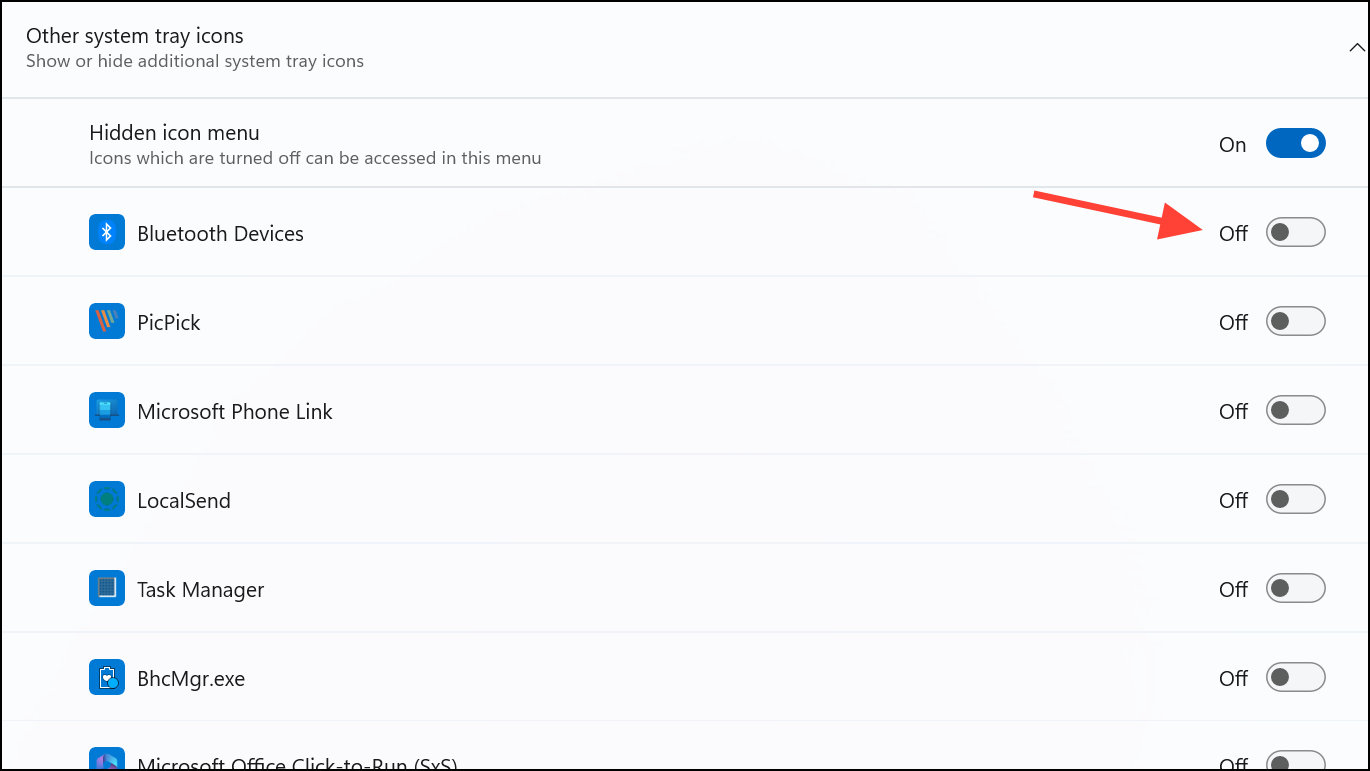
You will see a list of applications and system tools with toggle buttons next to each. Turn off the toggle for any icons you don’t regularly use or need. Doing this immediately hides unnecessary icons, significantly reducing system tray clutter.
On Windows 10, you can head to the “Notification area” settings and select “Turn system icons on or off”. Here, you can disable system-level icons such as Volume, Network, Action Center, or Clock if you find them unnecessary.
After adjusting these settings, your system tray will display only the essential icons, freeing up valuable taskbar space for a cleaner, more organized desktop.
Method 2: Drag and Drop Icons into the Hidden Tray Area
If you prefer a quick manual adjustment, you can easily hide icons by dragging them into the hidden tray section.
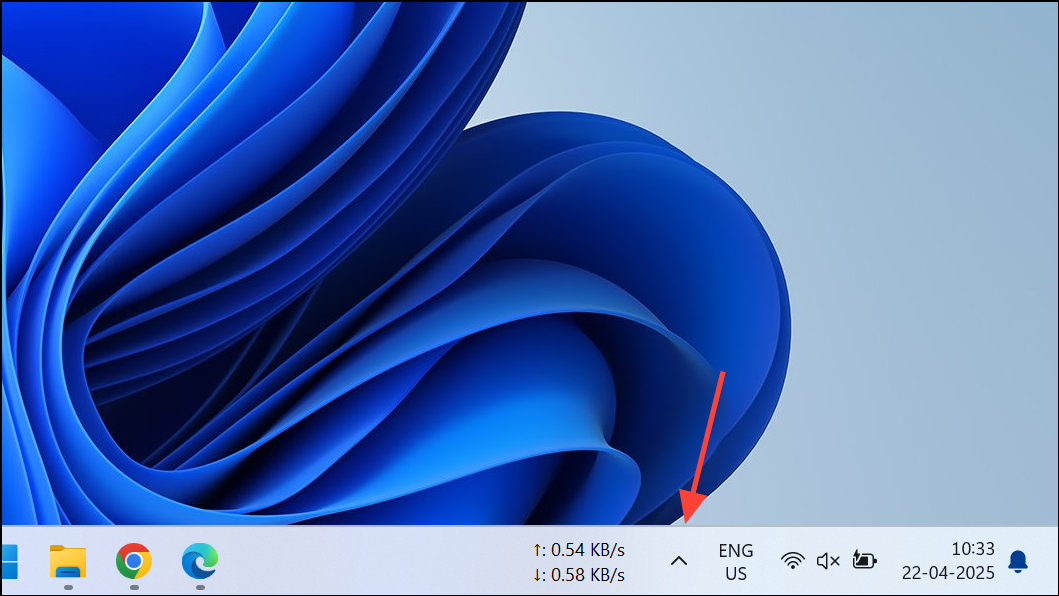
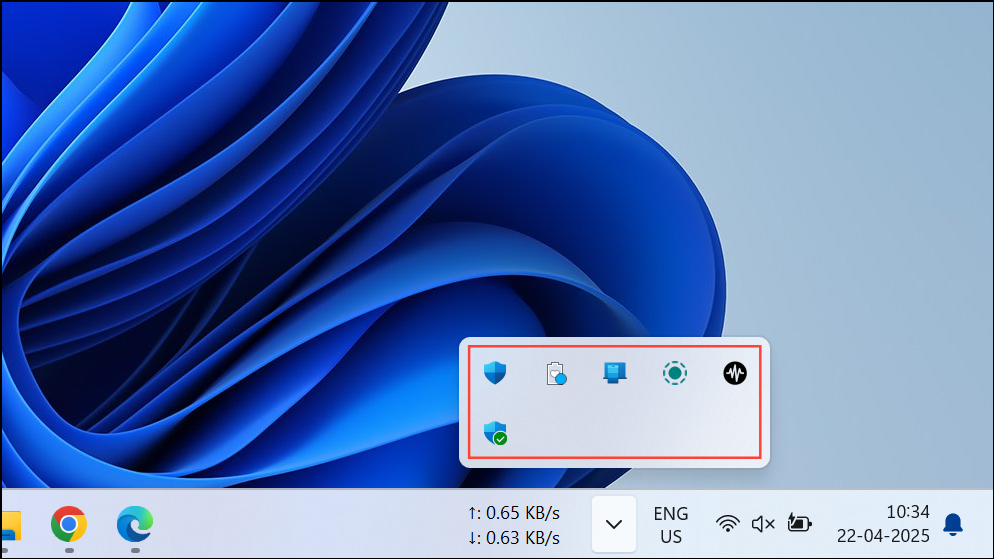
To hide an icon, simply click and drag it from the visible tray area into the hidden icons box that appears after clicking the caret. Icons placed here remain accessible but no longer clutter your main taskbar area.
This method provides a quick fix without diving into settings, ideal for immediate decluttering.
Note: On Windows 11, it is no longer possible to permanently remove system icons like the volume and network icons since they let users open the Control Center directly by clicking on them.
Method 3: Close or Disable Unnecessary Background Applications
Another practical approach is to close or disable applications that run in the background and place icons in the system tray unnecessarily.
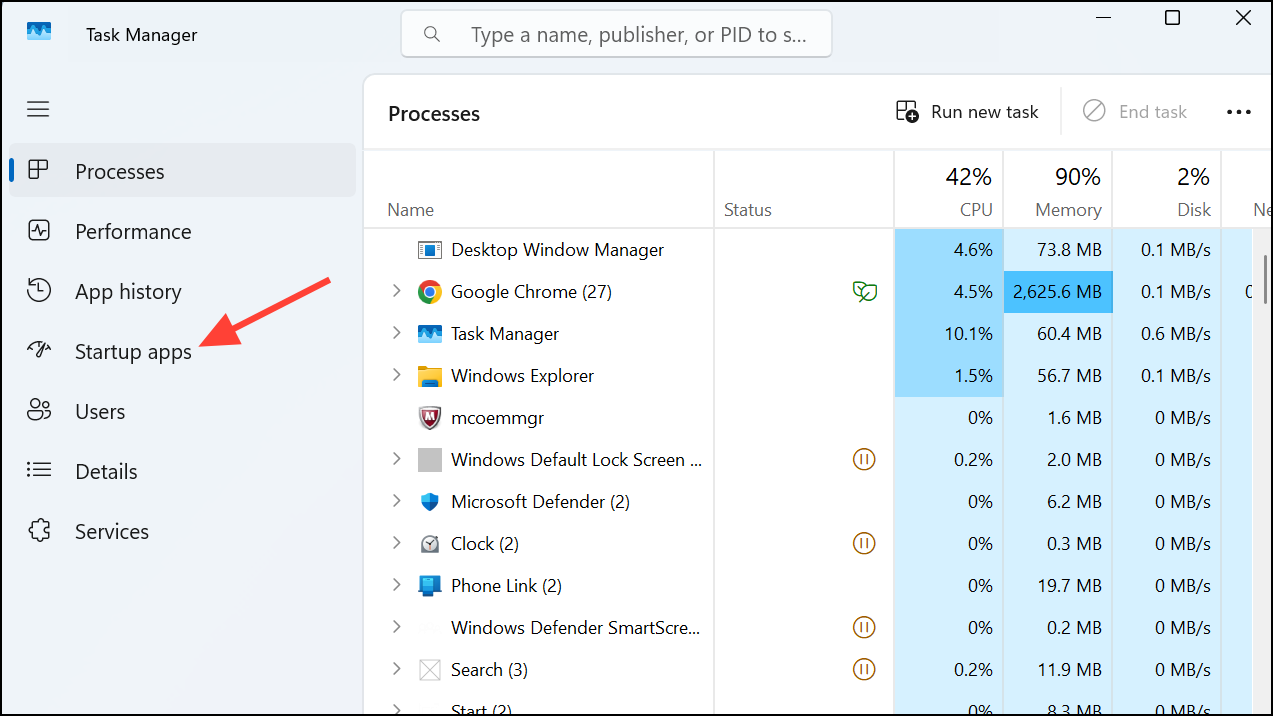
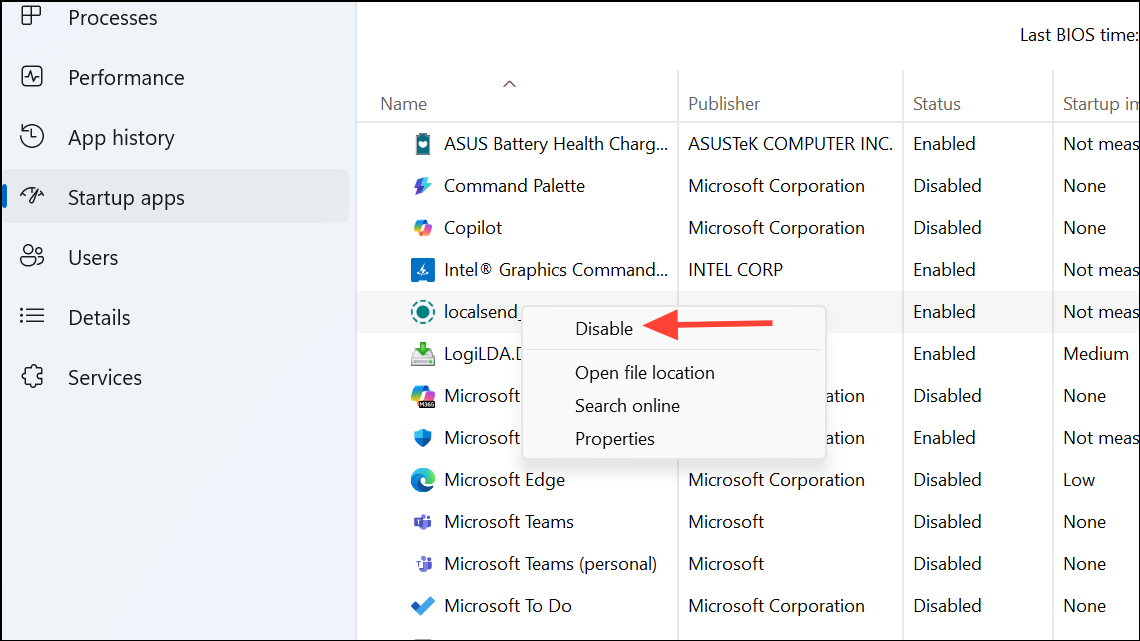
Right-click any application you don’t regularly use or don’t need running constantly, then select “Disable”. This prevents the app from automatically launching and placing an icon in your system tray at every system startup.
By disabling unnecessary startup apps, you not only clear up system tray clutter but also speed up your computer’s boot time and improve overall system performance.
Keeping your system tray tidy by regularly reviewing and managing icons helps you quickly access the features you actually use, making daily computer use smoother and more efficient.