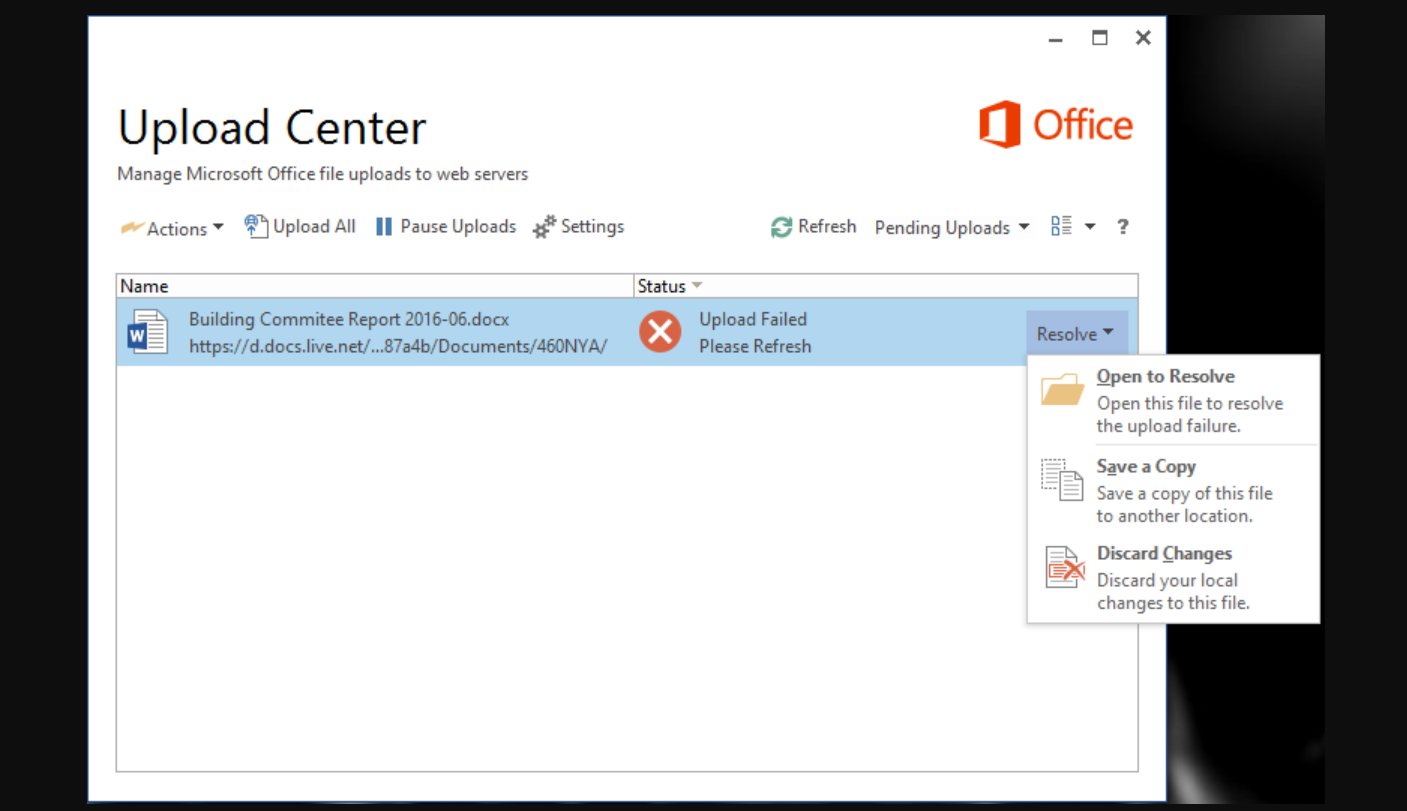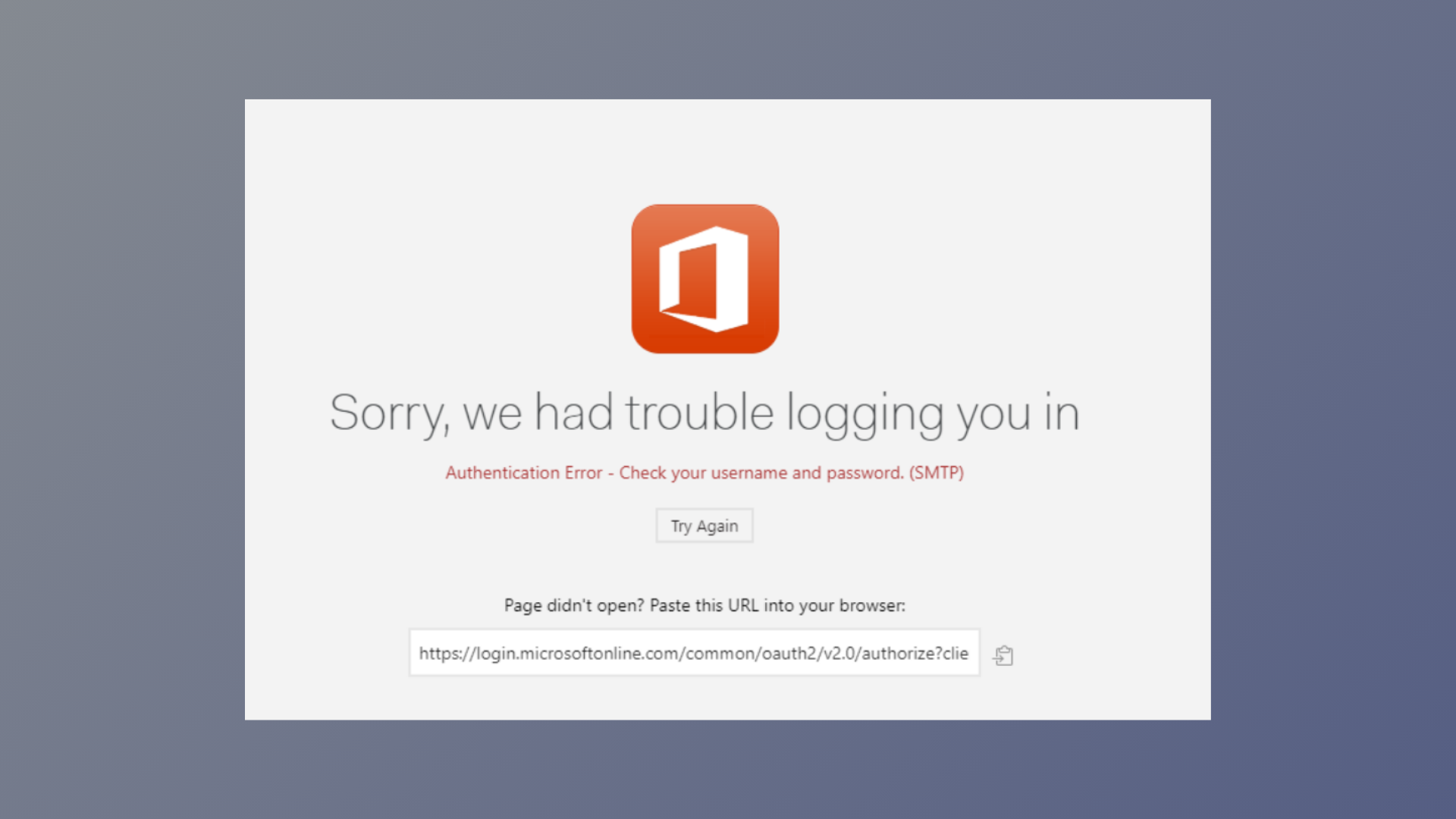
Microsoft Office applications like Word, Excel, and PowerPoint may display the message “The file is corrupt and cannot be opened” when attempting to access a document that has become damaged or is blocked by security settings. This issue can prevent access to important work, disrupt deadlines, and cause data loss if not resolved quickly. Below, you’ll find proven methods to repair and recover your files, restore access, and prevent future problems.
Use Office’s Built-In “Open and Repair” Feature
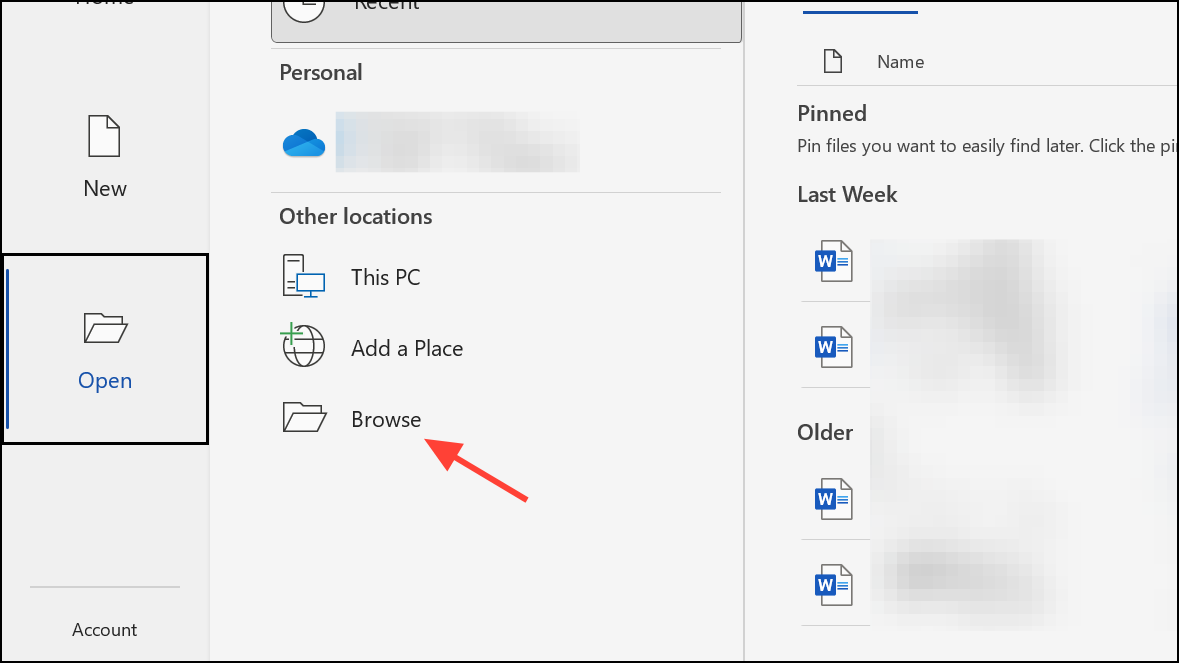
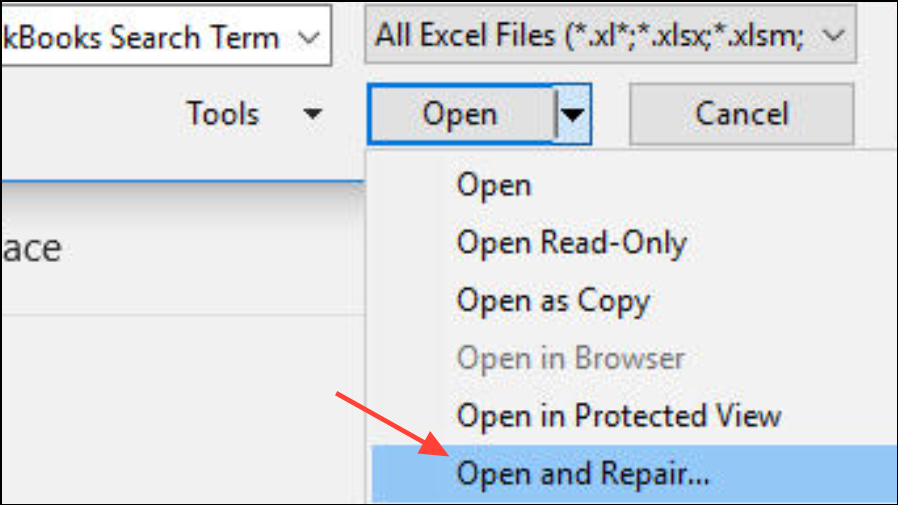
If the repair succeeds, save the file with a new name to ensure the repaired version is preserved. If the file still won’t open, continue with the next methods.
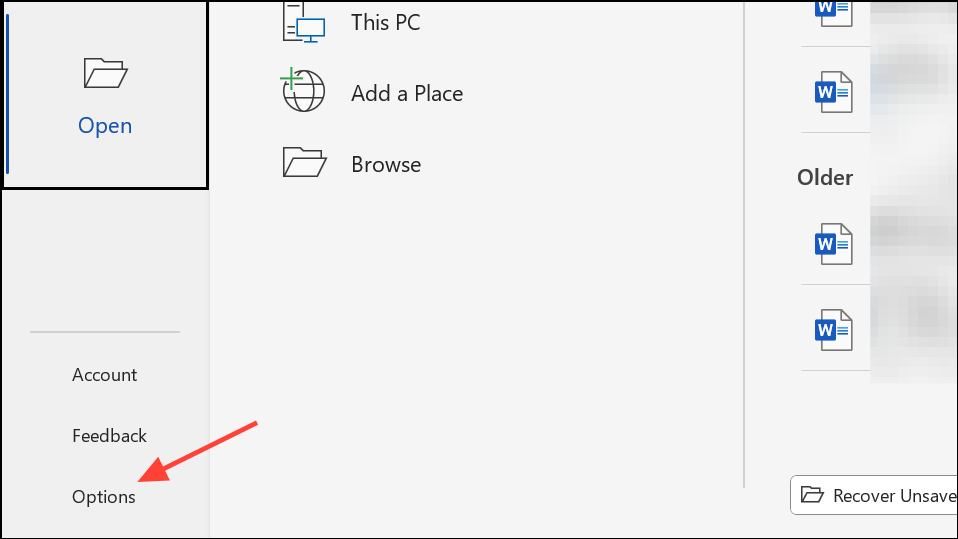
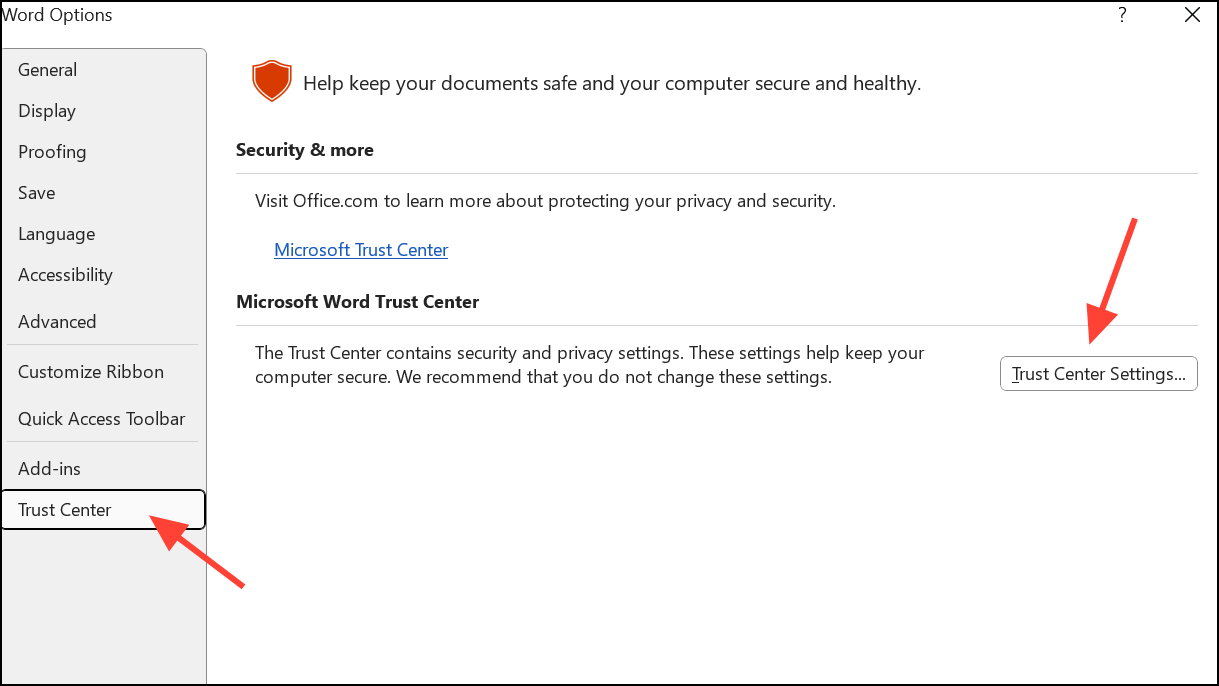
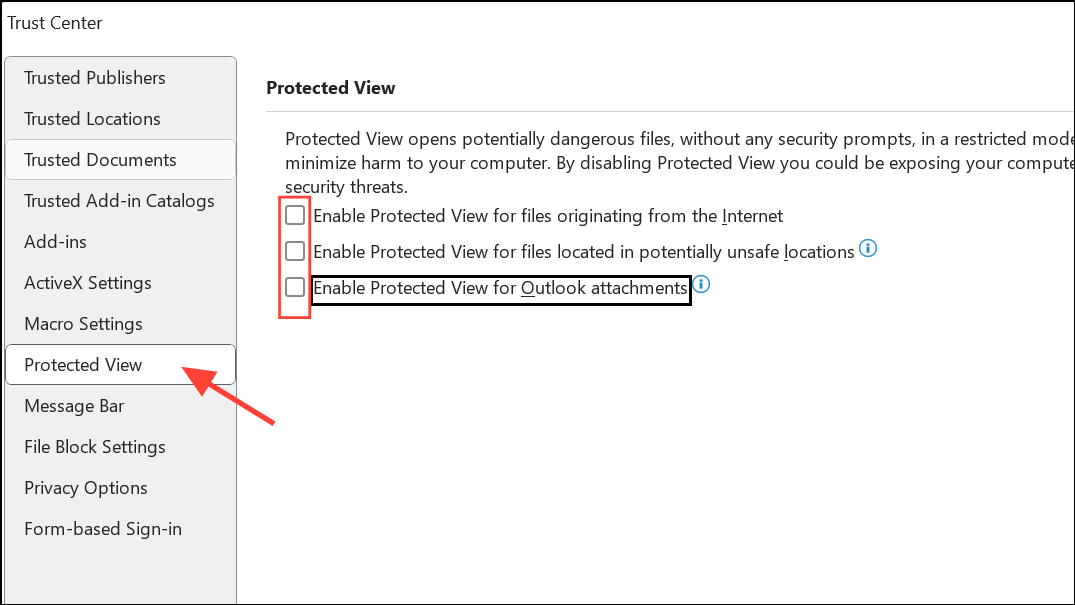
Adjust Trust Center Protected View Settings
Protected View is a security feature in Office that sometimes blocks files, especially those downloaded from the internet or transferred from another computer. Disabling it temporarily can allow access to the file.
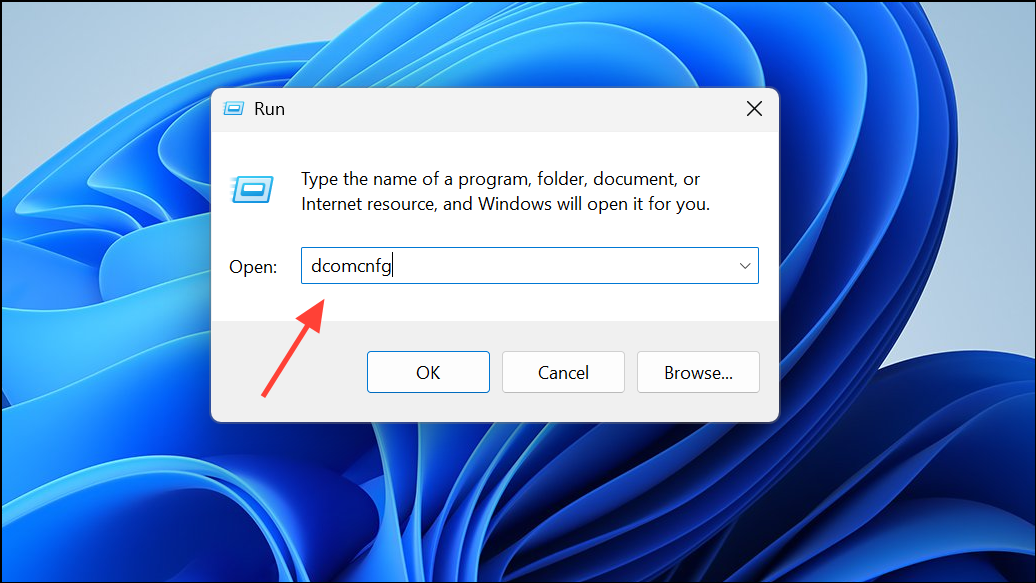
Modify Component Services Default Authentication Settings
Incorrect settings in Windows’ Component Services can interfere with Office’s ability to open files. Resetting these to default can resolve access issues.
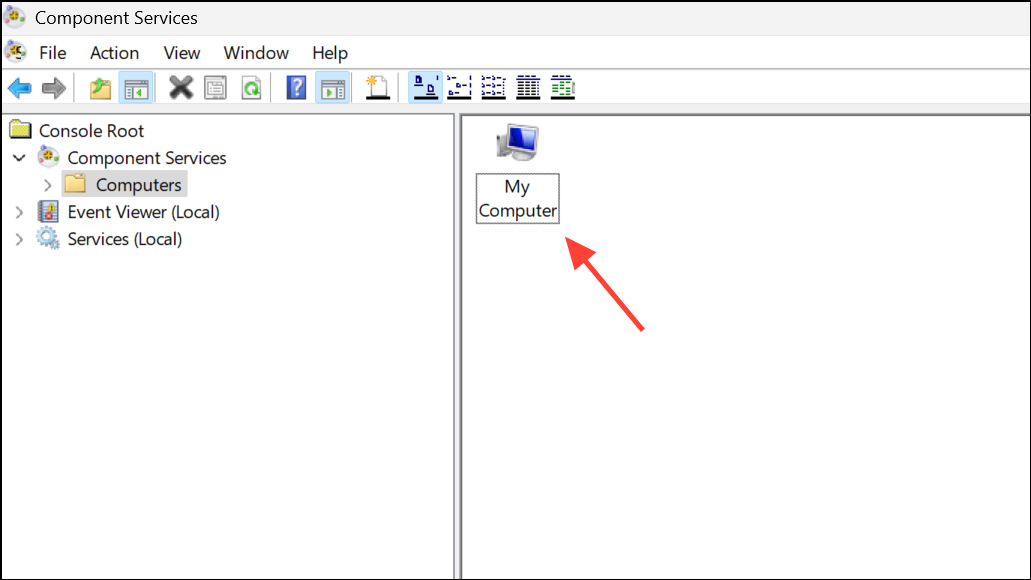

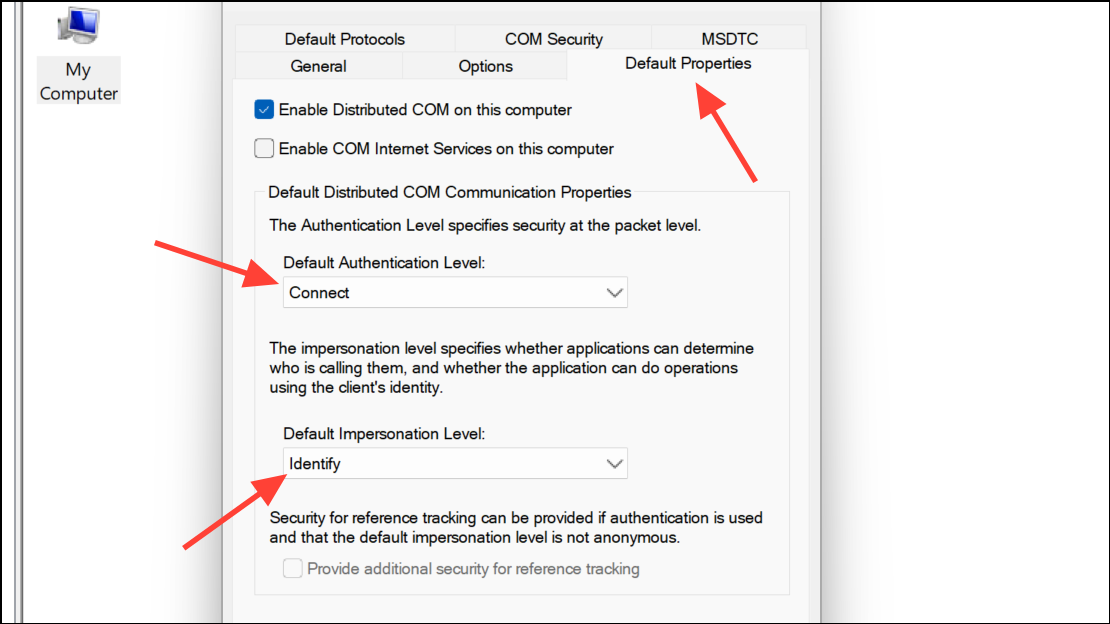
Restart your computer before trying to open the file again.
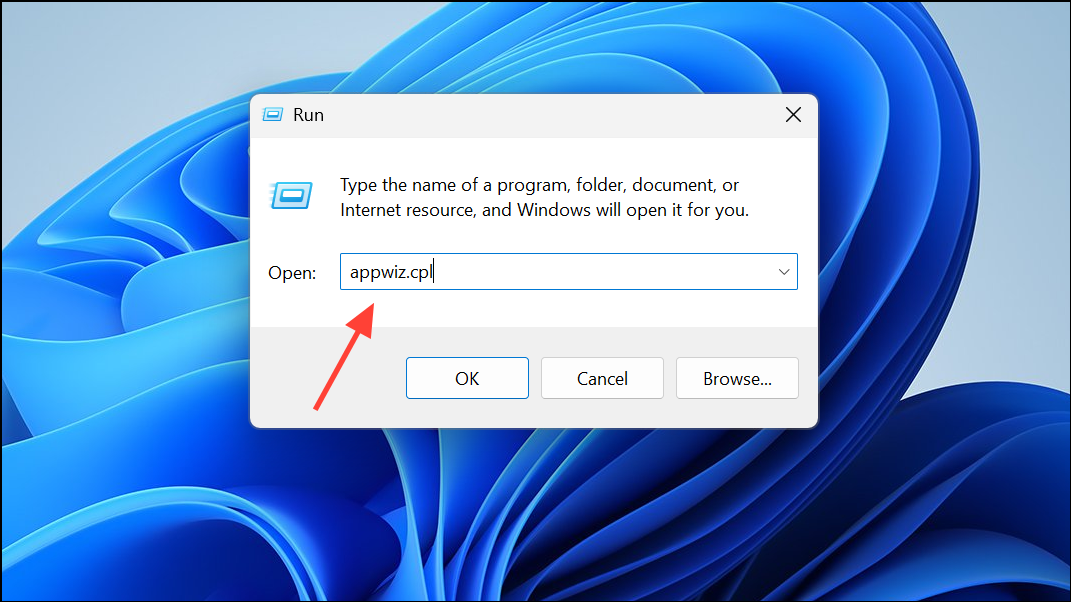
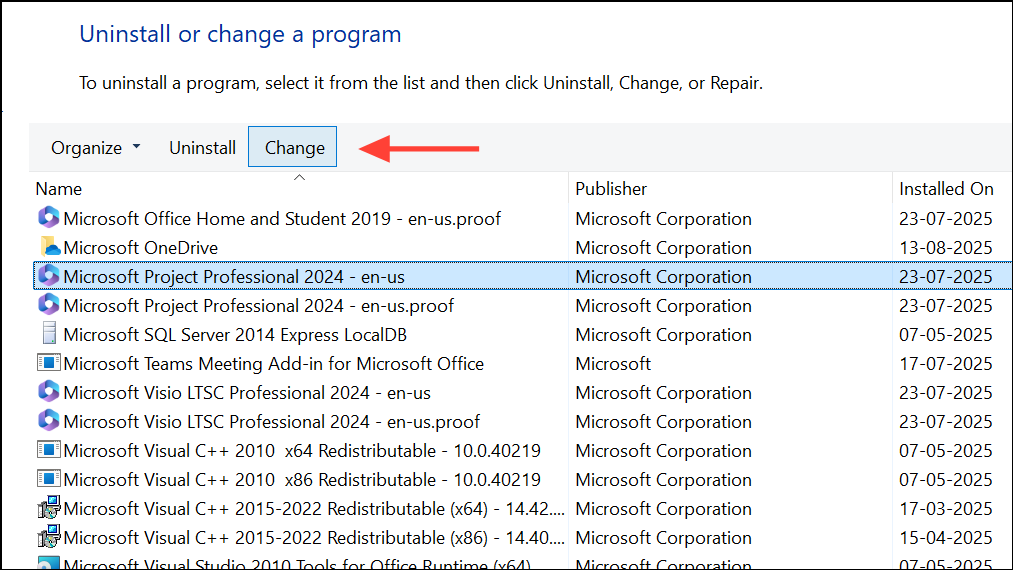
Repair Microsoft Office Installation
Corrupted Office program files can also trigger this error. Repairing your Office installation can resolve underlying issues.
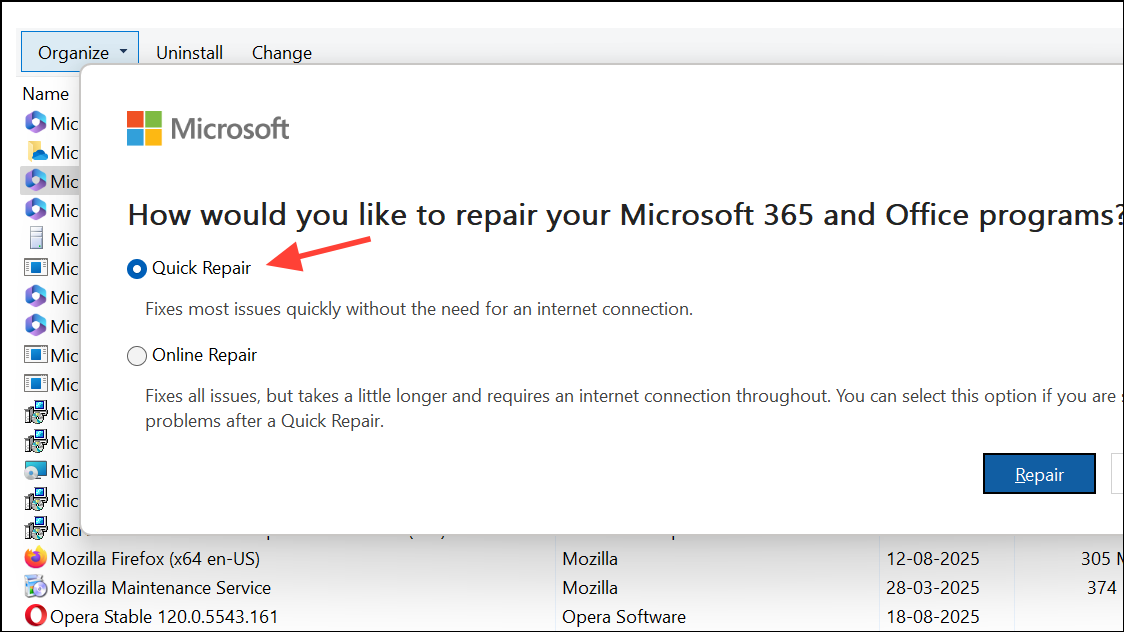
Try Opening the File in a Different Application or Format
Sometimes, another program can read your file even if Office cannot. This method can help you recover at least some of the content.
- Open Word documents in WordPad or Notepad to extract text.
- Upload the file to Google Drive and open it with Google Docs, then download it as a new Word file.
- Try opening the file in LibreOffice, which often succeeds where Office fails.
- For Excel files, use the “Extract Data” option in the Open and Repair dialog to recover values and formulas.
Unlock the File in Windows Properties
Files downloaded from the internet or transferred from another computer may be blocked by Windows, preventing Office from opening them.
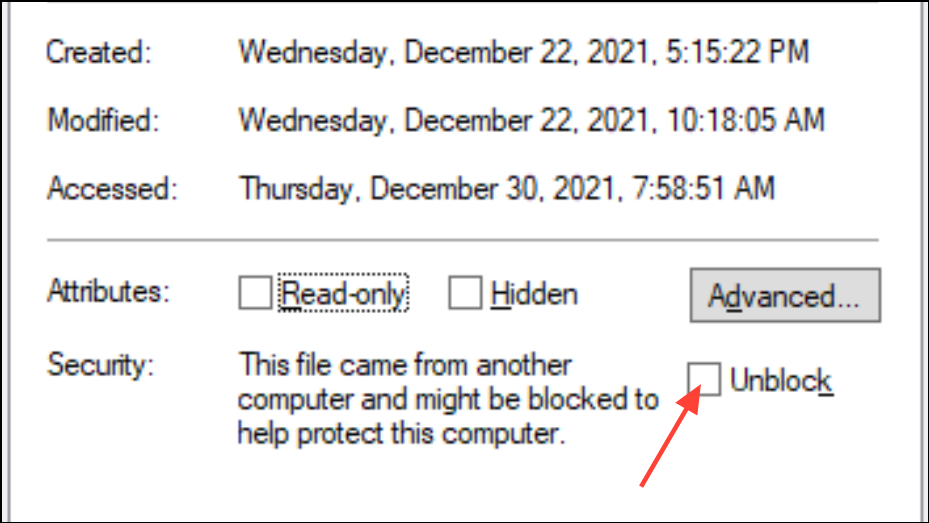
Reopen the file in Office to check if the error is resolved.
Restore a Previous Version or Use Backup Copies
Windows and cloud services like OneDrive may keep older versions of your files that are unaffected by corruption.
- Right-click the file, choose Properties, and go to the Previous Versions tab to restore an earlier version.
- If you use OneDrive, restore your entire OneDrive to a previous date using the OneDrive web interface.
- Check your backup software or File History for available copies.
Use Third-Party Document Repair Tools
When built-in methods fail, specialized repair software can scan and reconstruct corrupted Office files. Tools such as Wondershare Repairit, EaseUS Fixo Document Repair, and Kernel for Word Repair are designed to recover data from files that Office cannot open. These programs often provide a preview of recoverable content before saving, and support batch repair for multiple files.
To use these tools, download and install the chosen software, select your corrupted file, run the repair process, and save the recovered document to a safe location. Always download such utilities from reputable sites to avoid malware or further data loss.
Preventing Future File Corruption
- Always use the “Safely Remove Hardware” option before disconnecting USB drives to reduce the risk of file corruption.
- Enable AutoRecover and AutoSave features in Office to keep backup copies of your work.
- Regularly update Windows and Office to patch known bugs and security vulnerabilities.
- Maintain up-to-date antivirus software to block malware that can damage files.
- Back up important files using cloud storage or external drives.
Resolving the “file is corrupt and cannot be opened” error in Microsoft Office often involves a combination of repair tools, security setting adjustments, and recovery techniques. With these steps, you can restore access to your documents and minimize the risk of future data loss.