Most Office apps display the message “There’s a problem with your Office license” when activation fails, causing editing and premium features to stop working. This error often appears even if your subscription is active and you’re signed in with the correct account. System updates, conflicting licenses, or corrupted account credentials can trigger this issue, but targeted troubleshooting restores access efficiently.
Update Office Using Command Prompt (Most Effective for Persistent Errors)
Recent reports show that forcing an Office update via Command Prompt resolves stubborn license errors, including cases where standard troubleshooting fails. This method directly updates Office components that manage license validation.
cmd in the Start menu, right-click Command Prompt, and select Run as administrator.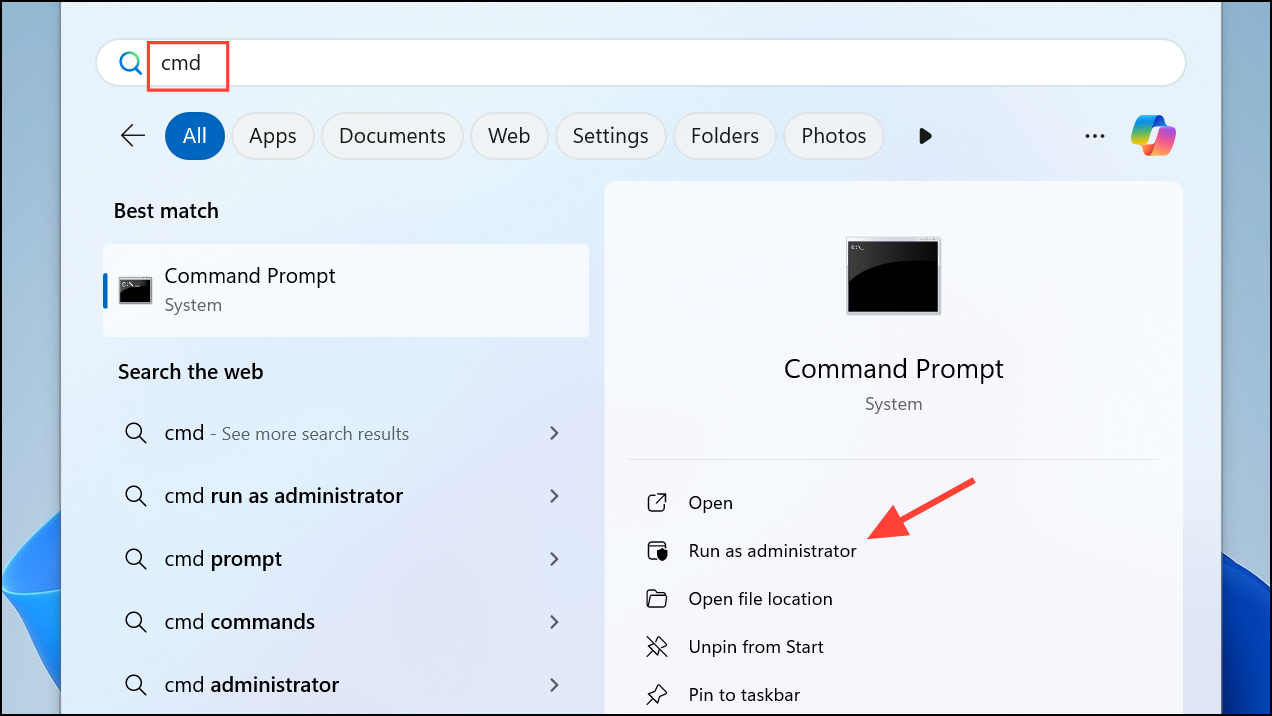
cd "%programfiles%\Common Files\Microsoft Shared\ClickToRun"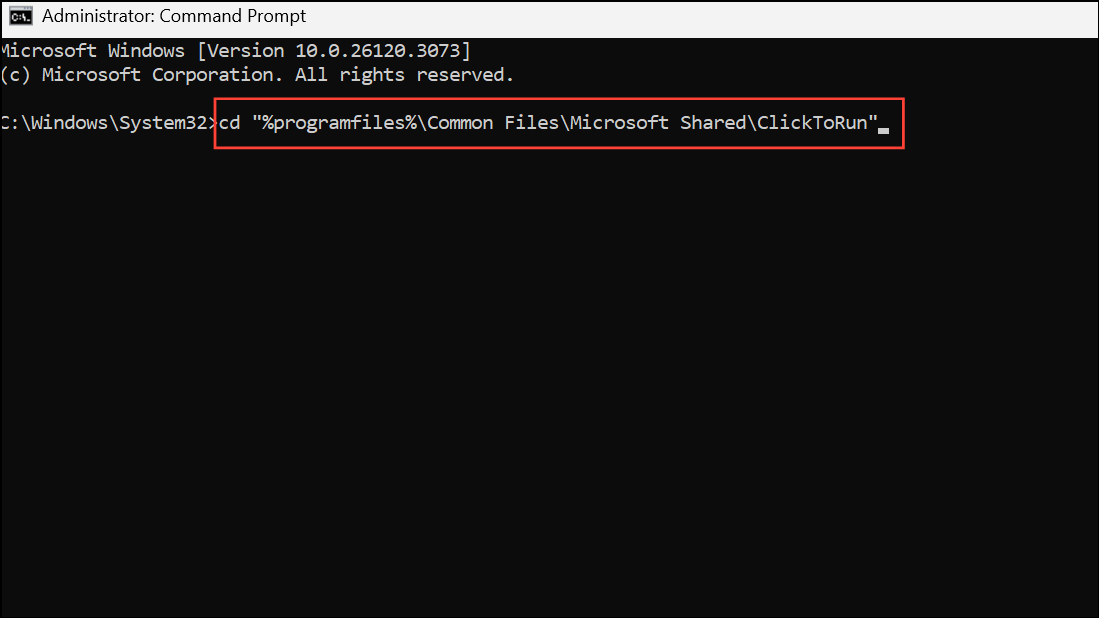
OfficeC2RClient.exe /update user updatetoversion=16.0.17531.20120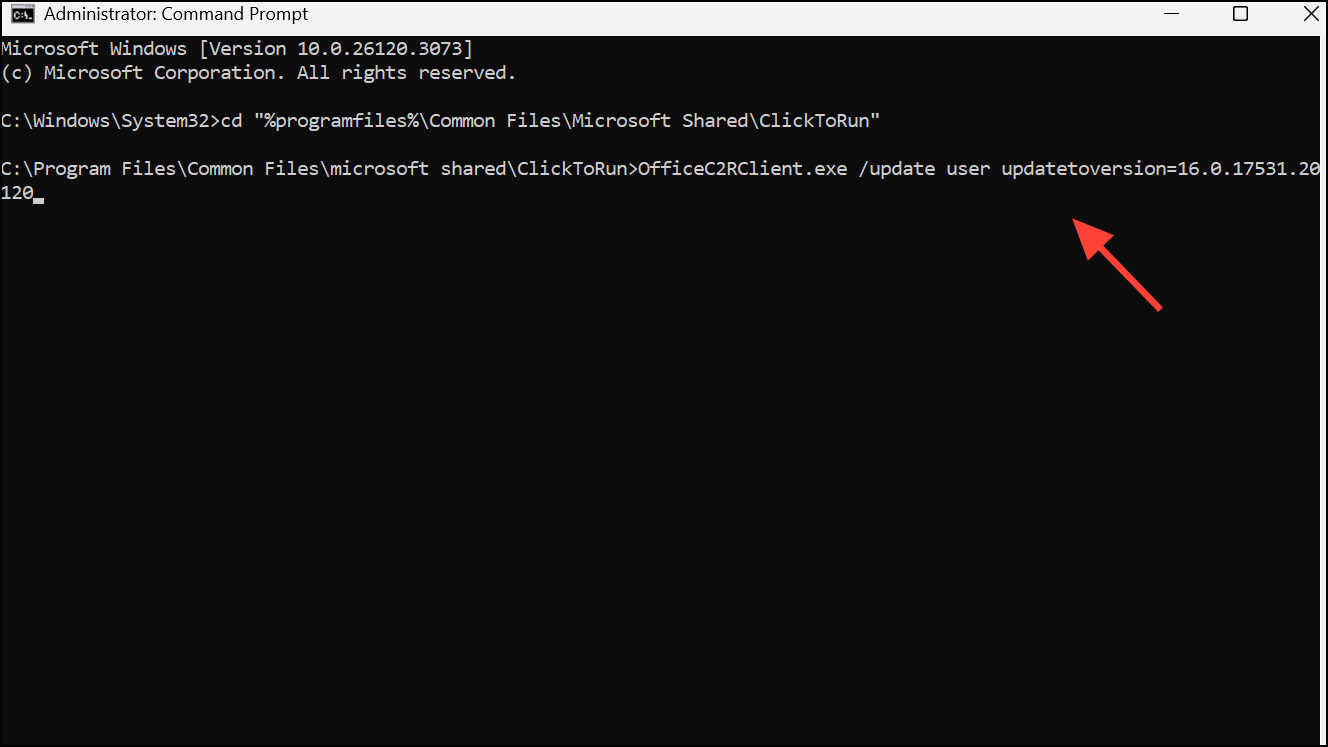
This process downloads and applies the specified Office update, which can reset the licensing state and restore activation. Once complete, reopen any Office app and check if the error is resolved. If so, consider temporarily disabling automatic Office updates to prevent reoccurrence until Microsoft addresses the root cause.
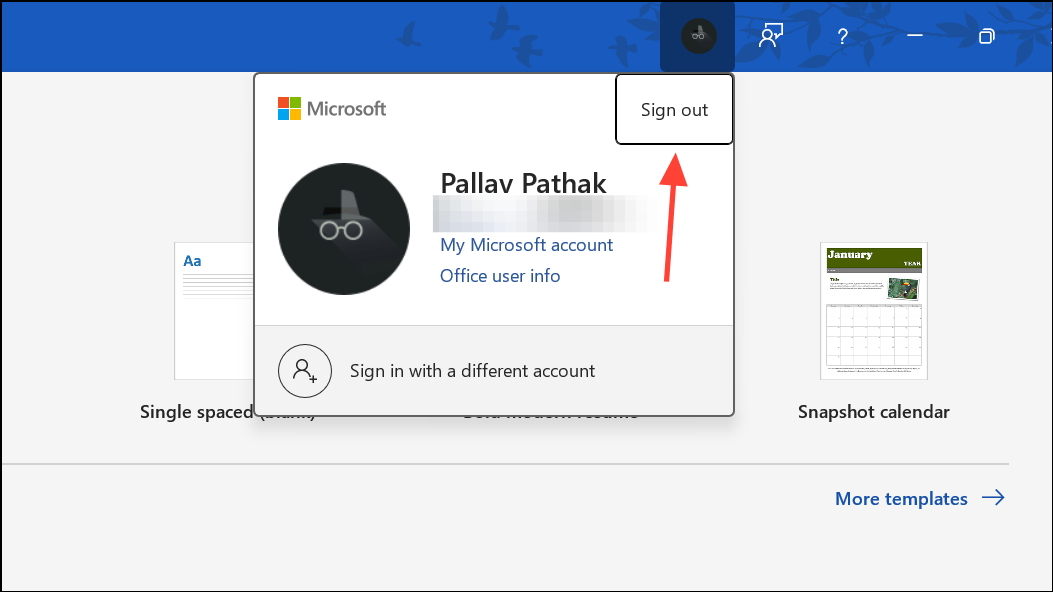
Sign Out and Sign In With the Correct Microsoft Account
Office license errors often result from signing in with the wrong Microsoft account—especially if you have multiple accounts or recently changed subscriptions. Office may not recognize your license if the account isn’t linked to your purchase.
Remove Conflicting or Expired Office Licenses
Having multiple Office versions or leftover license data can cause activation conflicts. Removing unnecessary or expired licenses streamlines activation and prevents Office from using outdated credentials.
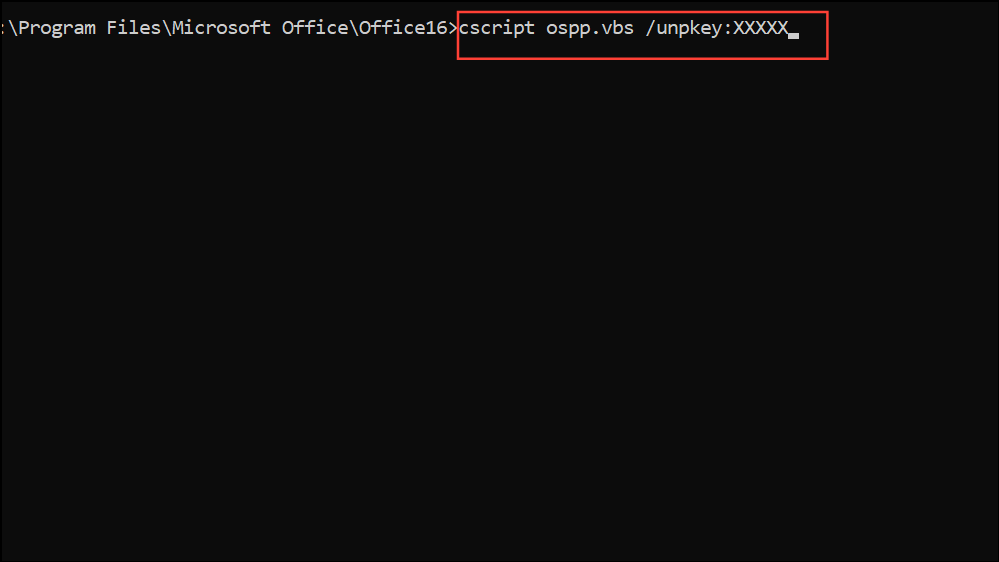
cd "C:\Program Files\Microsoft Office\Office16"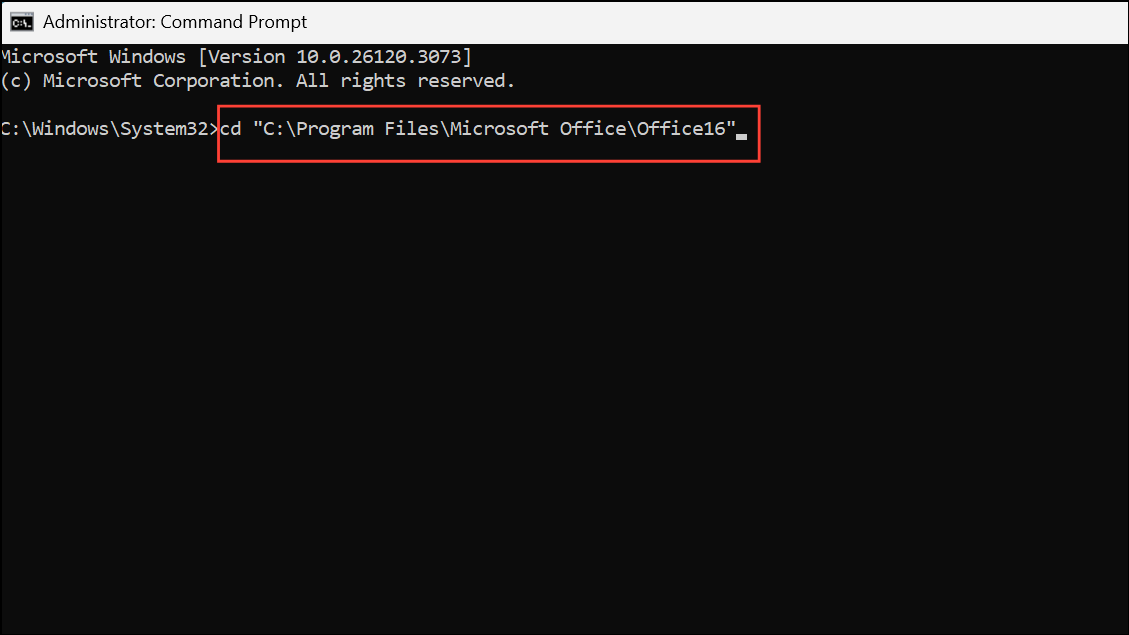
If you have 32-bit Office on a 64-bit system, use:
cd "C:\Program Files (x86)\Microsoft Office\Office16"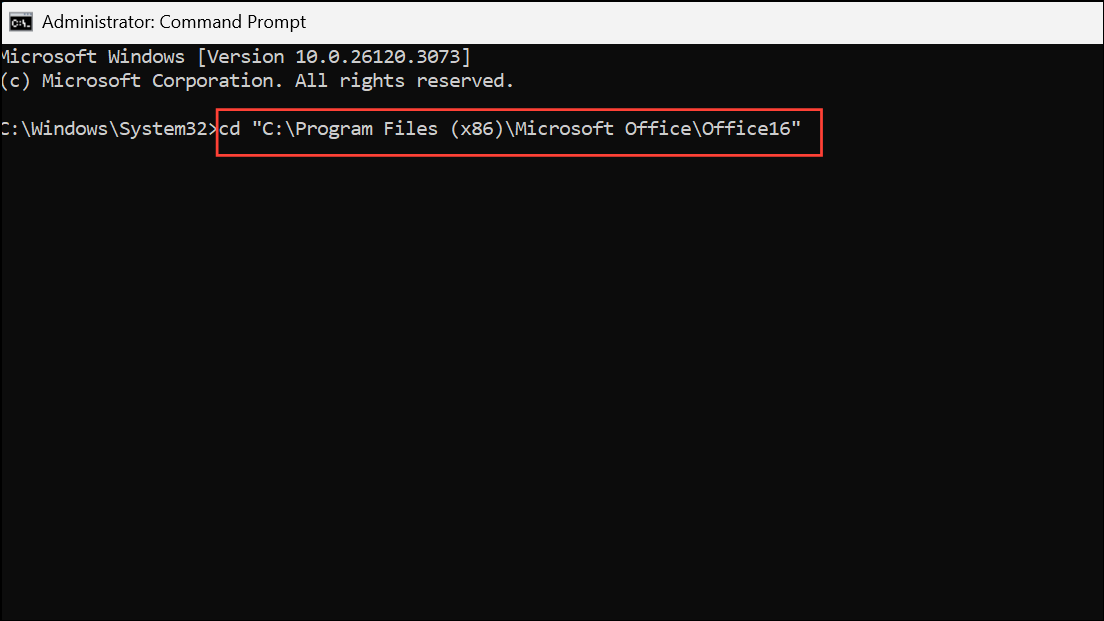
cscript ospp.vbs /dstatus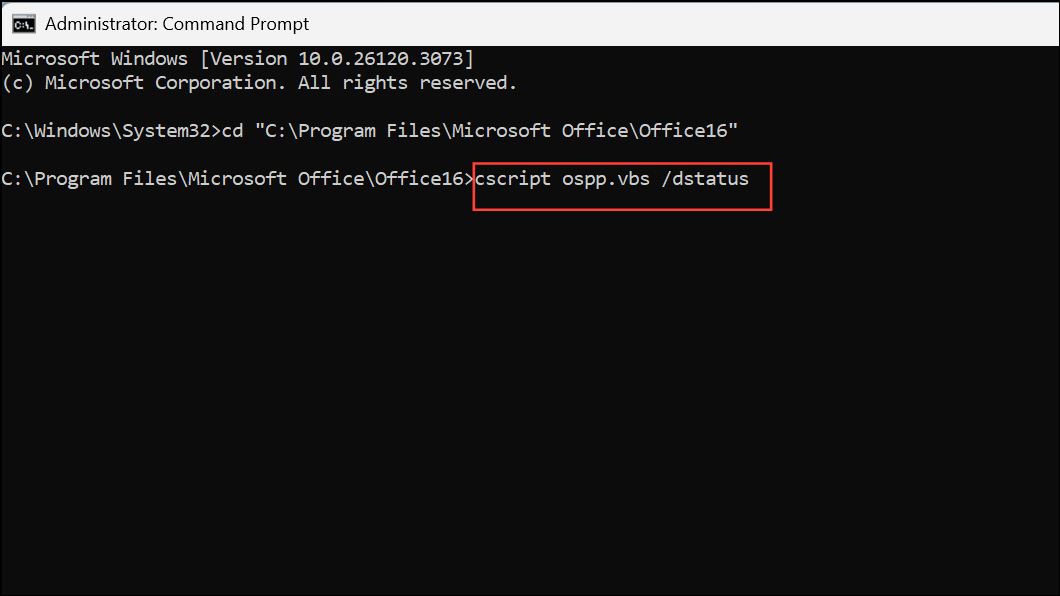
cscript ospp.vbs /unpkey:XXXXX(Replace XXXXX with the actual last five digits.)
Clear Cached Credentials and Identity Data
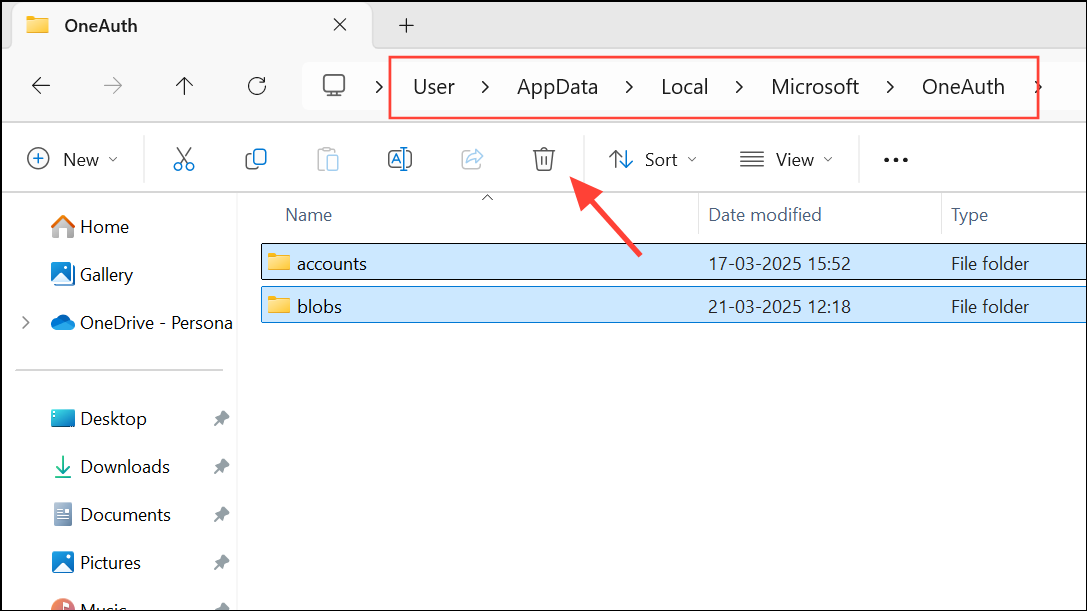
Corrupted cached credentials can prevent Office from validating your license, causing repeated sign-in loops or license errors. Clearing these caches resets account data and allows Office to authenticate properly.
%localappdata%\Microsoft\OneAuth%localappdata%\Microsoft\IdentityCache
Delete the contents of these folders. If you have multiple user profiles, repeat for each.
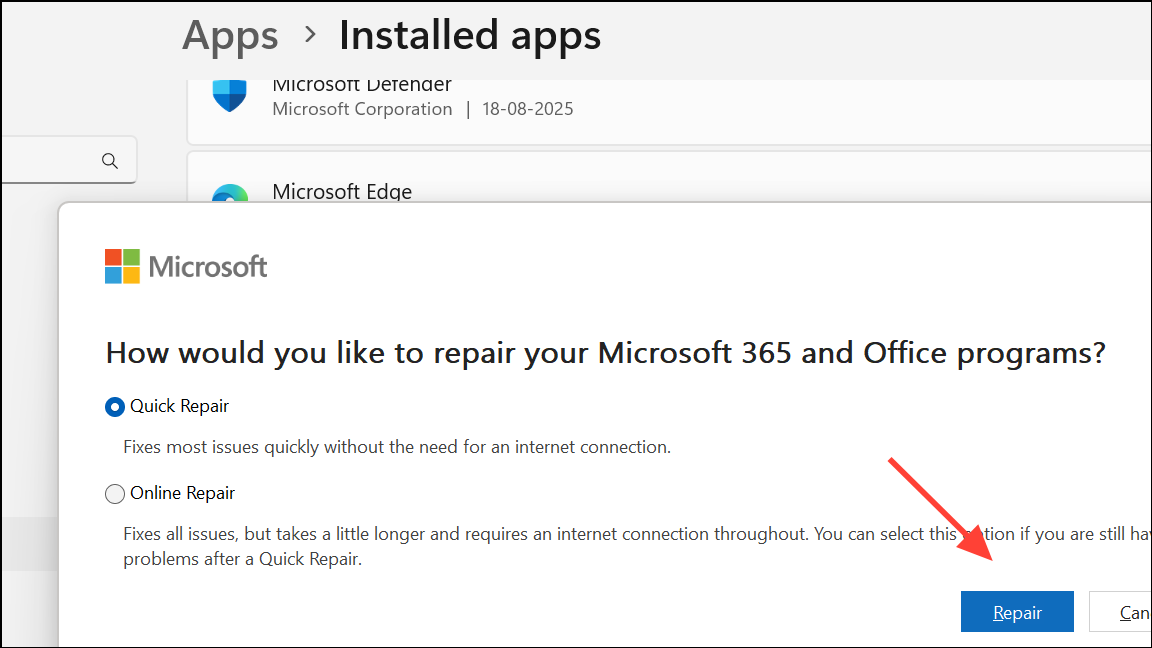
Repair or Reinstall Office
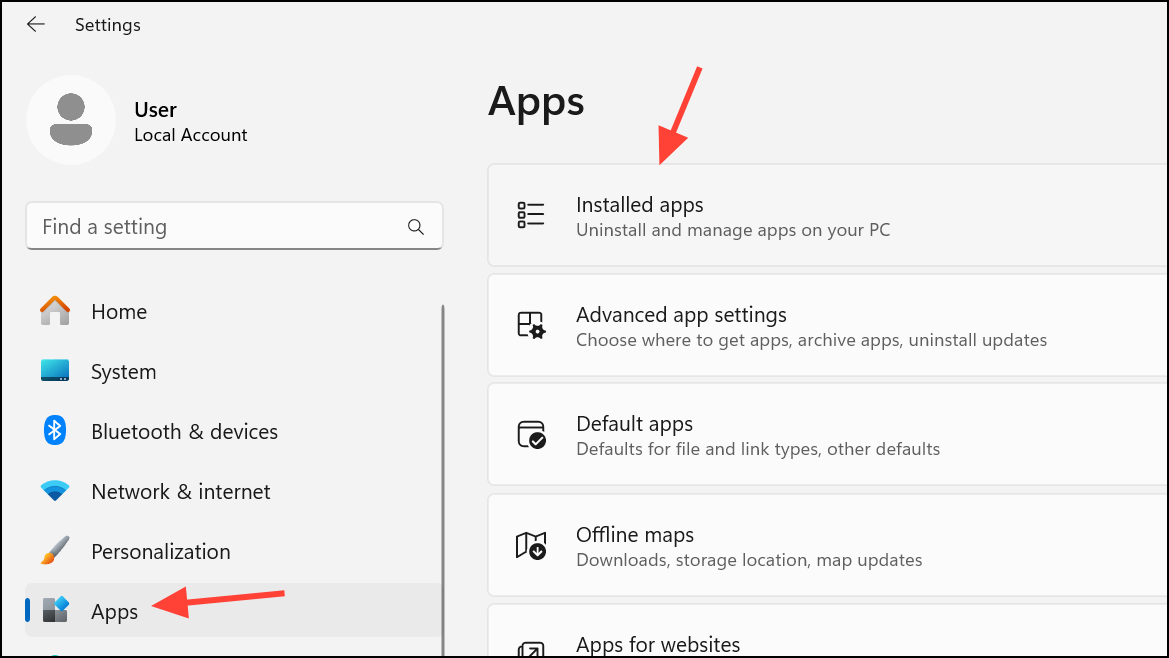
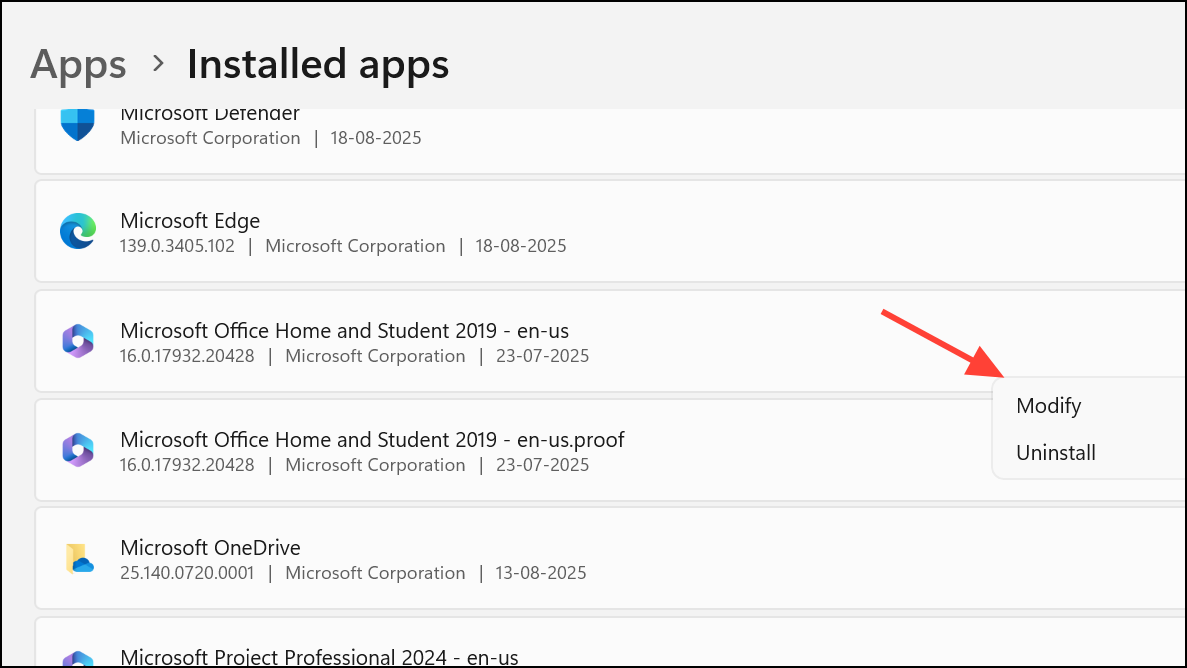
Corrupted Office installations can disrupt license checks and cause persistent errors. Repairing or reinstalling Office replaces damaged files and resets activation components.
Run the Microsoft Support and Recovery Assistant (SARA)
The Microsoft Support and Recovery Assistant (SARA) automates many troubleshooting steps for Office activation issues. It checks for common problems, repairs configurations, and resets activation states.
Check Subscription Status and Update Payment
Expired or suspended subscriptions immediately disable Office activation. Verifying your subscription and payment status prevents unnecessary troubleshooting.
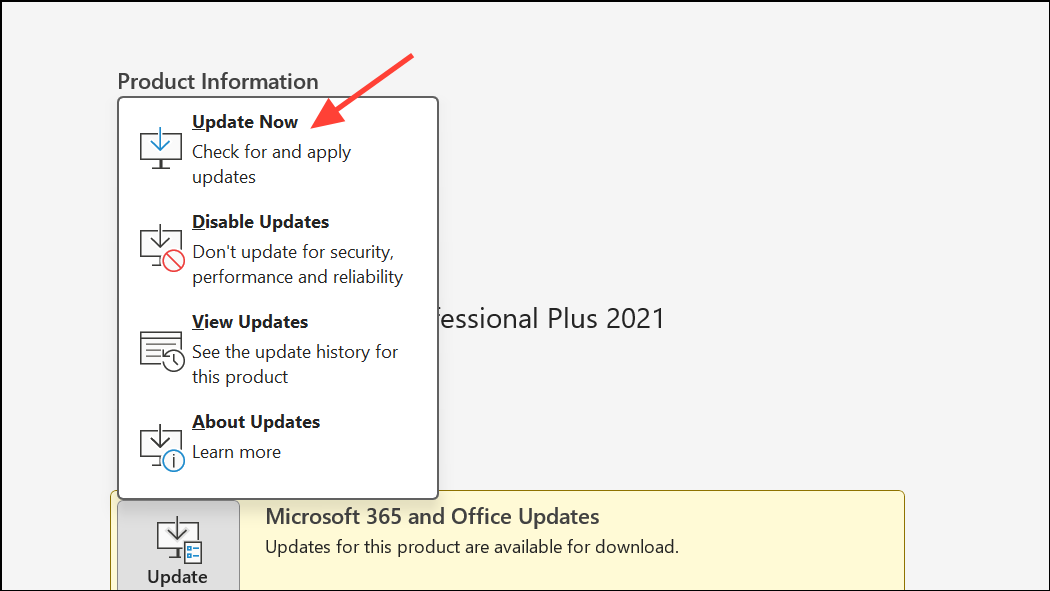
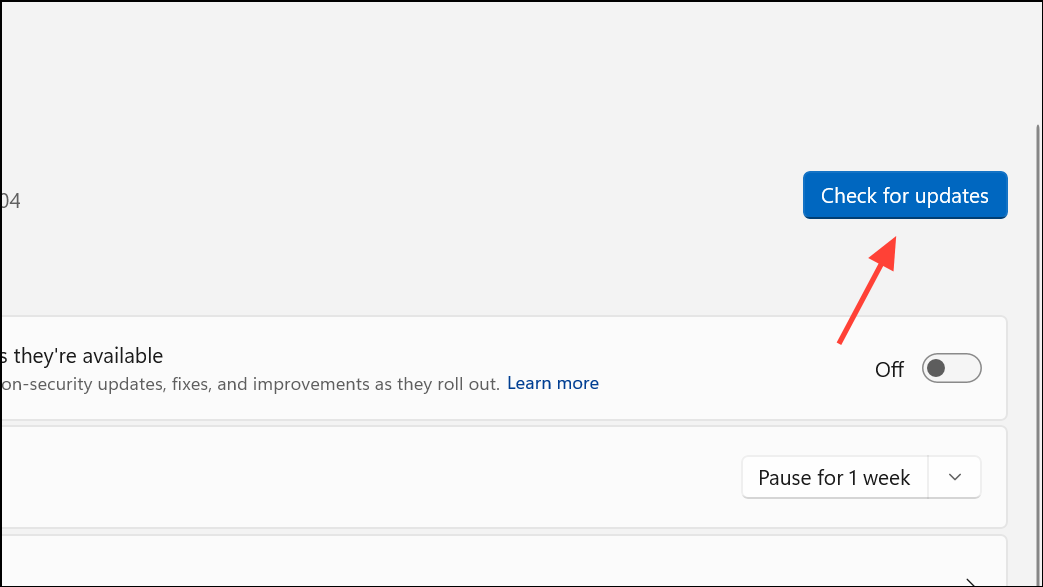
Update Office and Windows
Outdated Office or Windows installations may lack critical license management updates and bug fixes. Keeping both up to date prevents compatibility and activation problems.
Additional Checks: Firewall, Antivirus, and Proxy Settings
Network security tools and proxy configurations can block Office from reaching Microsoft’s activation servers. Adjust these settings if other methods fail.
- Temporarily disable third-party firewalls or antivirus software and try activating Office again. Remember to re-enable protection afterward.
- If you use a proxy, turn it off in Settings > Network & Internet > Proxy and retry activation.
Resolving “There’s a problem with your Office license” restores full editing and premium features. Start with the targeted update method, then progress through account, license, and repair steps as needed. If issues persist, contacting Microsoft Support ensures access to advanced troubleshooting tools.