
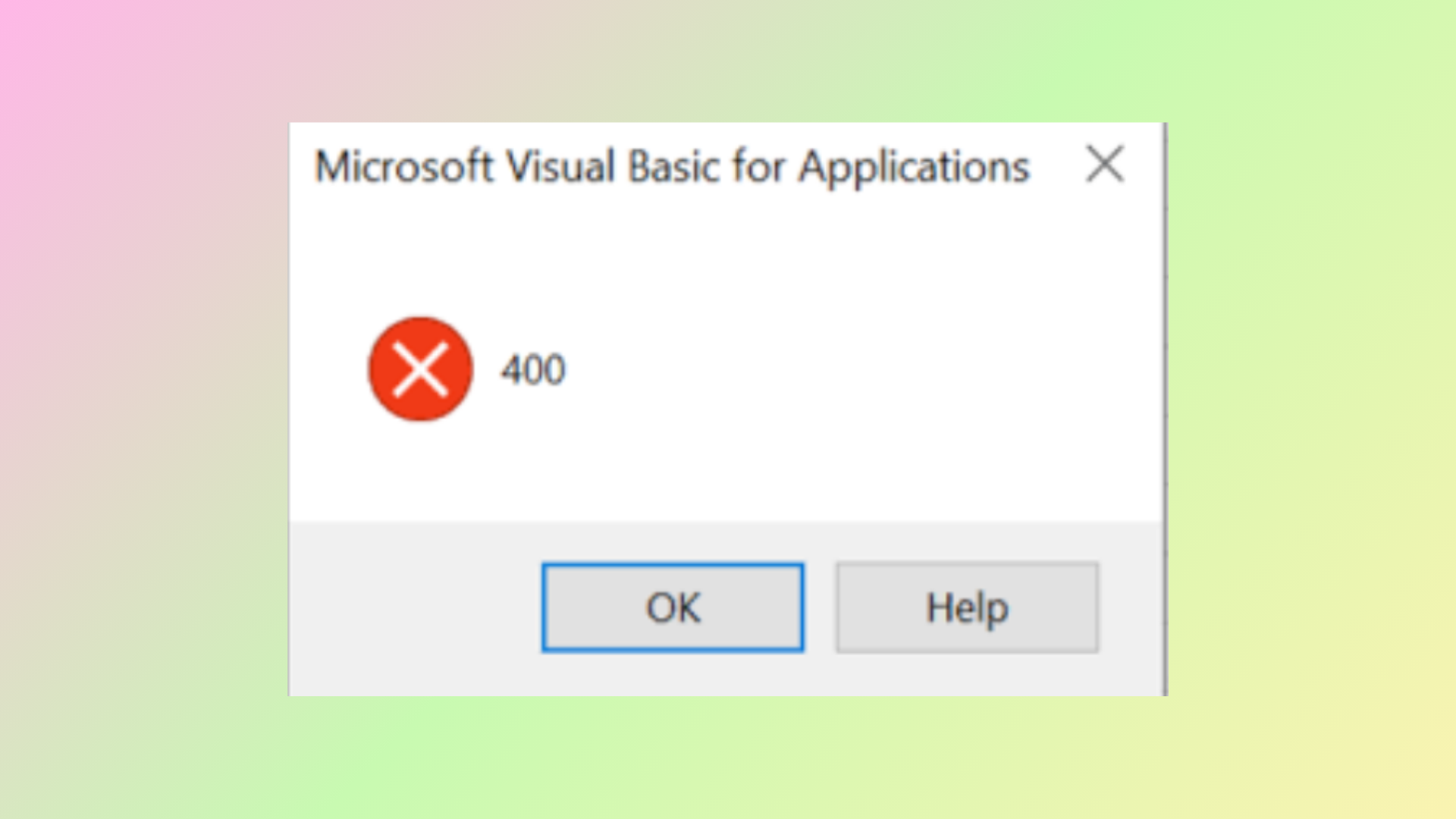
VBA Error 400 in Microsoft Excel typically appears when running macros or executing VBA code, causing scripts to stop unexpectedly or display a cryptic message box with just the number “400.” This error can interrupt automation, slow down daily reporting, and make it difficult to consolidate or process data across multiple sheets. Addressing this issue involves checking your VBA code, validating macro settings, and sometimes repairing or updating your Excel installation.
Move the Macro to a New Module
Macros placed in problematic or corrupted modules often trigger Error 400. Transferring your macro to a fresh module can resolve hidden corruption or misconfiguration.
Insert > Module to create a new module.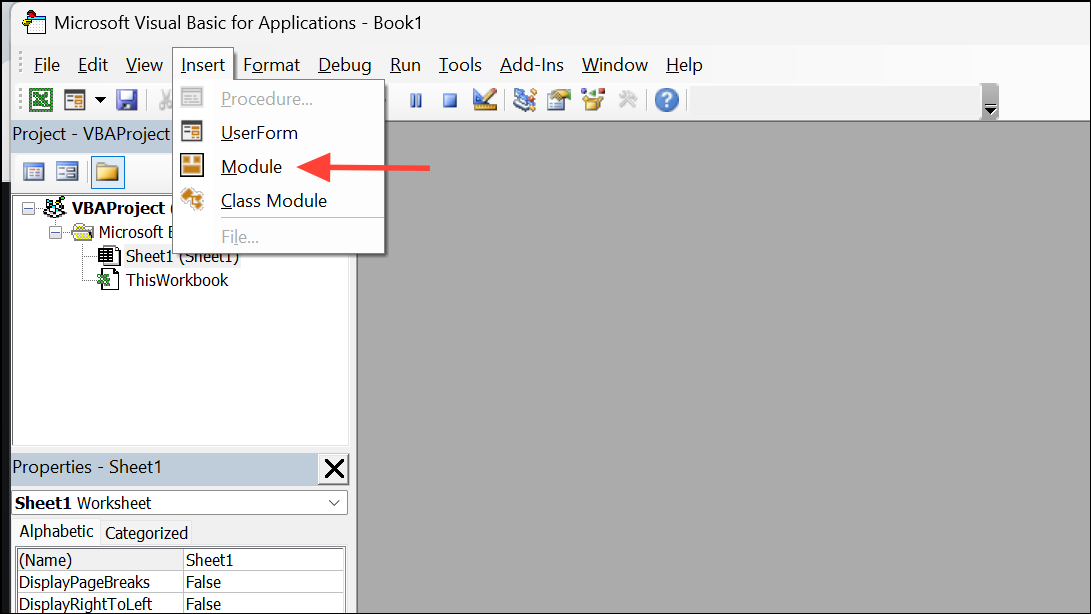
Remove Module to delete it. When prompted, you can export the module as a backup before removal.Check for Invalid Inputs and Debug the Code
Error 400 can result from invalid arguments, missing objects, or references to deleted worksheet elements. Carefully reviewing your code and using VBA’s built-in debugging tools helps identify the precise cause.
Debug menu, then choose Compile VBAProject. This checks for syntax errors.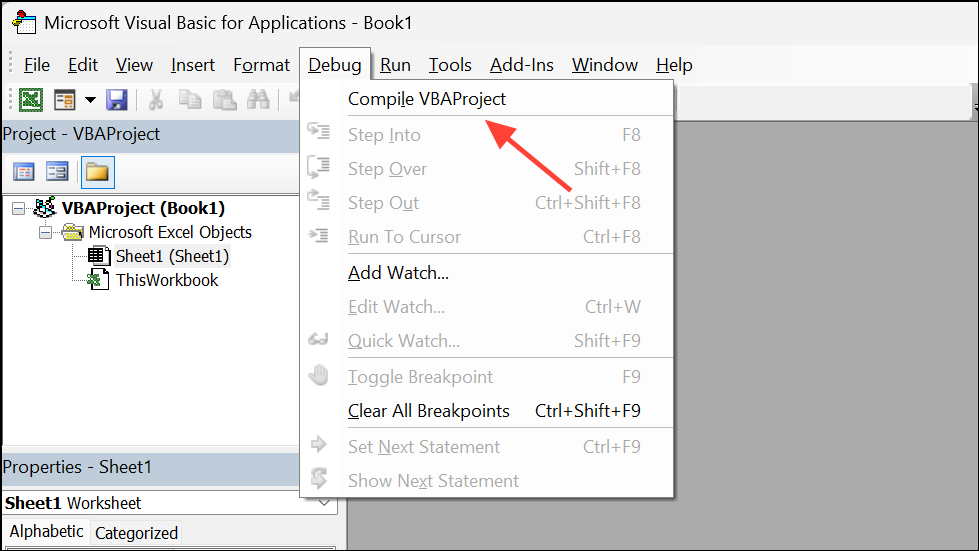
F8 to step through your code line by line. When the error appears, note the highlighted line—this is where the failure occurs.
    On Error GoTo ErrorHandler
    ' Your code here
    Exit Sub
    ErrorHandler:
    MsgBox "Error " & Err.Number & ": " & Err.Description
This approach provides more descriptive error messages, making it easier to identify root causes.
Update Microsoft Excel
Running outdated versions of Excel can cause compatibility issues with VBA macros, especially if your code uses features introduced in newer releases.
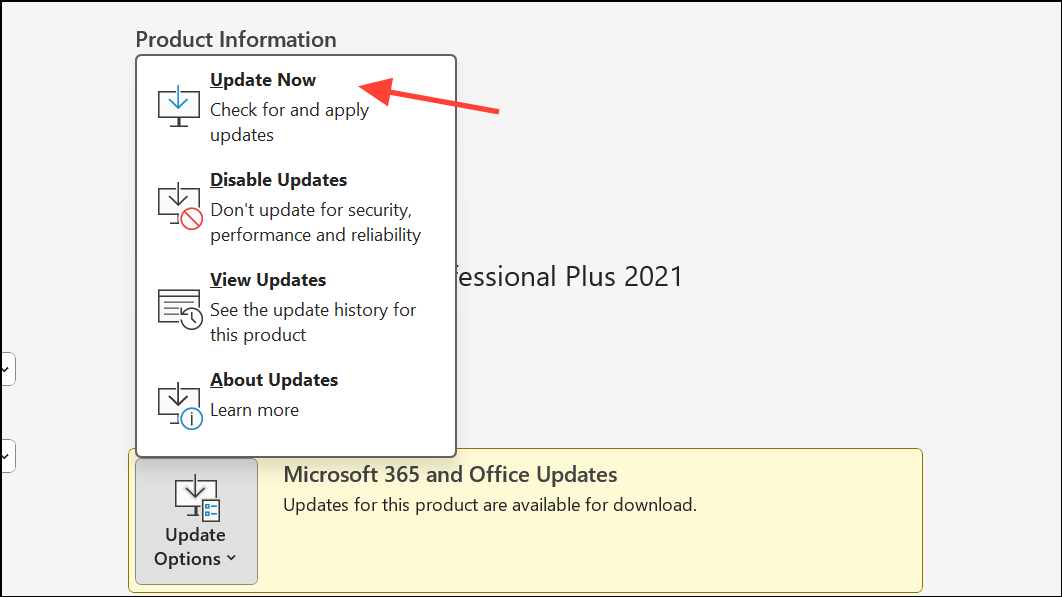
Keeping Excel up to date resolves bugs and ensures compatibility with VBA features.
Enable Trusted Access to the VBA Project Object Model
Macros that interact with other VBA projects require trusted access, or else Excel may block their execution and trigger Error 400.
Developer tab in Excel. If you don’t see it, enable it by clicking File > Options > Customize Ribbon and checking Developer.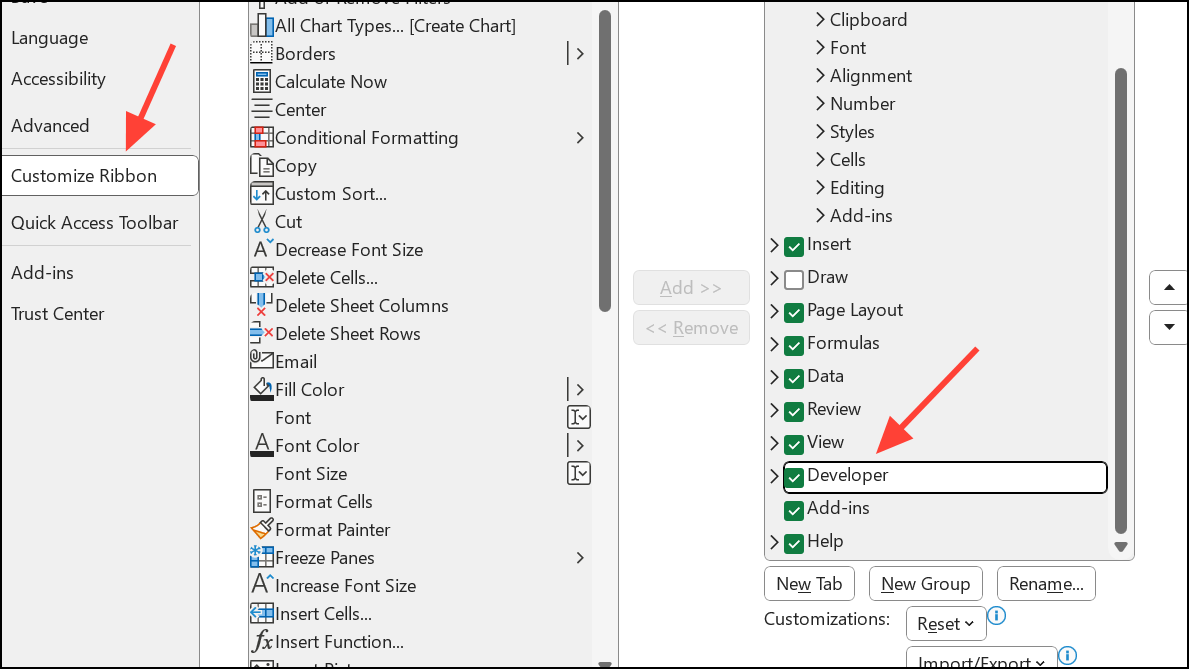
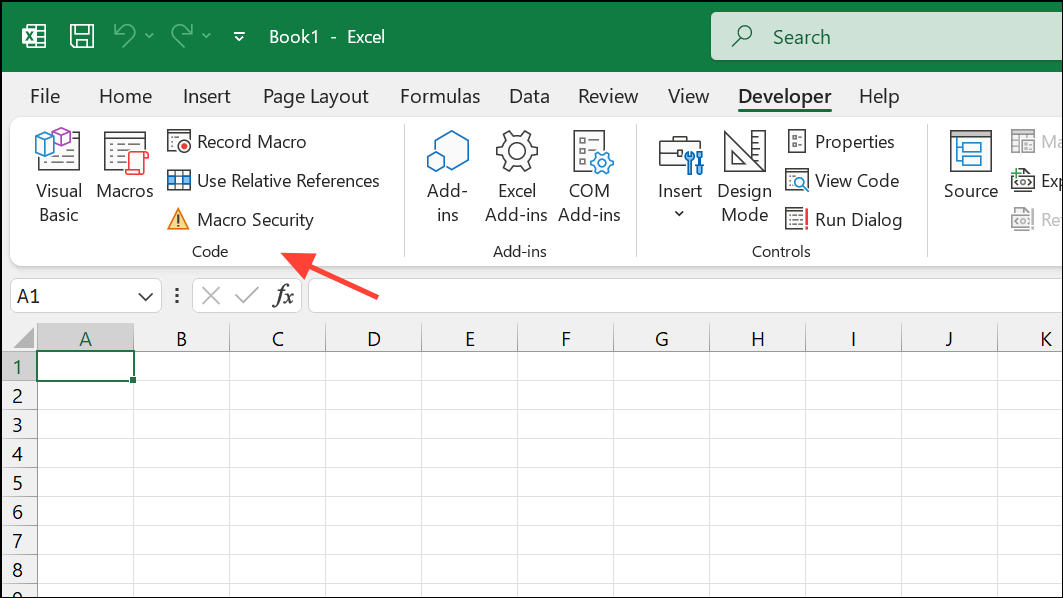
Developer Macro Settings, check the box for Trust access to the VBA project object model.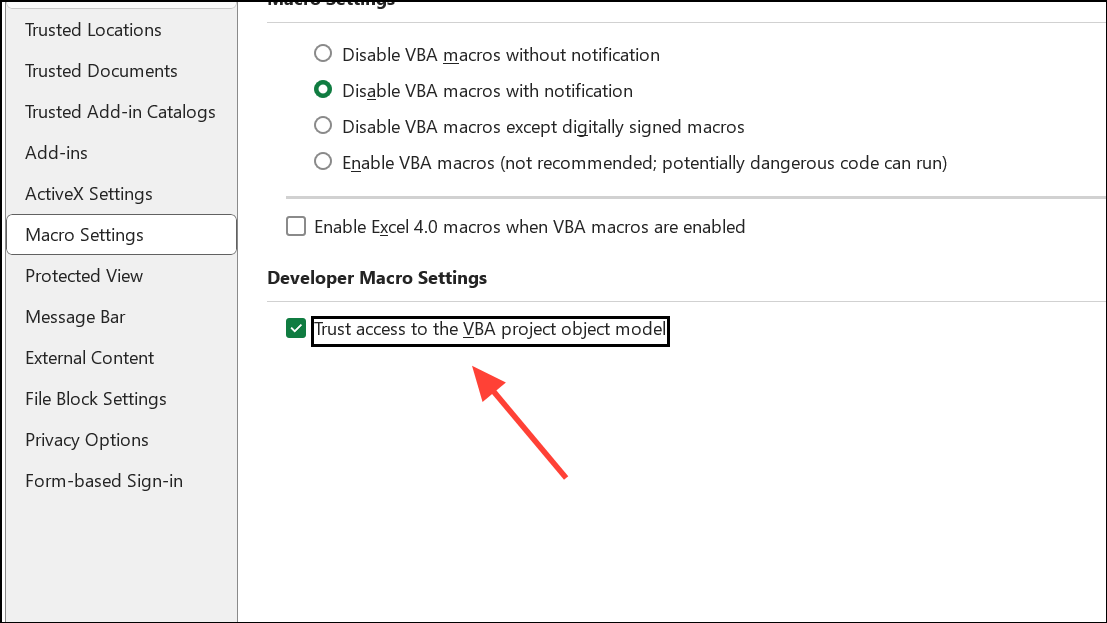
This setting is necessary for macros that programmatically create, edit, or interact with other VBA code.
Repair or Reinstall Microsoft Excel
Corrupted program files or incomplete installations can also cause Error 400. Repairing or reinstalling Excel addresses these underlying issues.
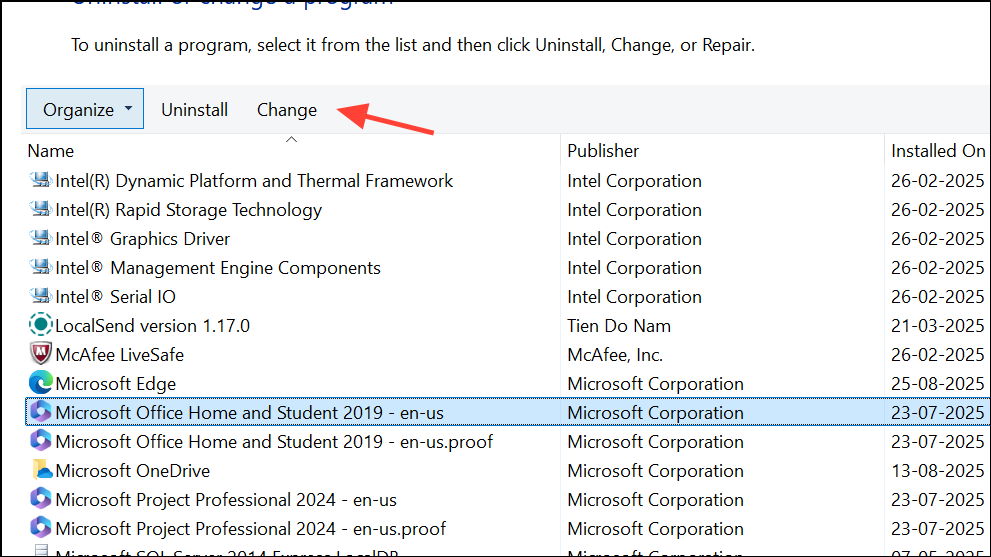
Quick Repair and follow the prompts. If problems persist, repeat the process and select Online Repair for a more thorough reset.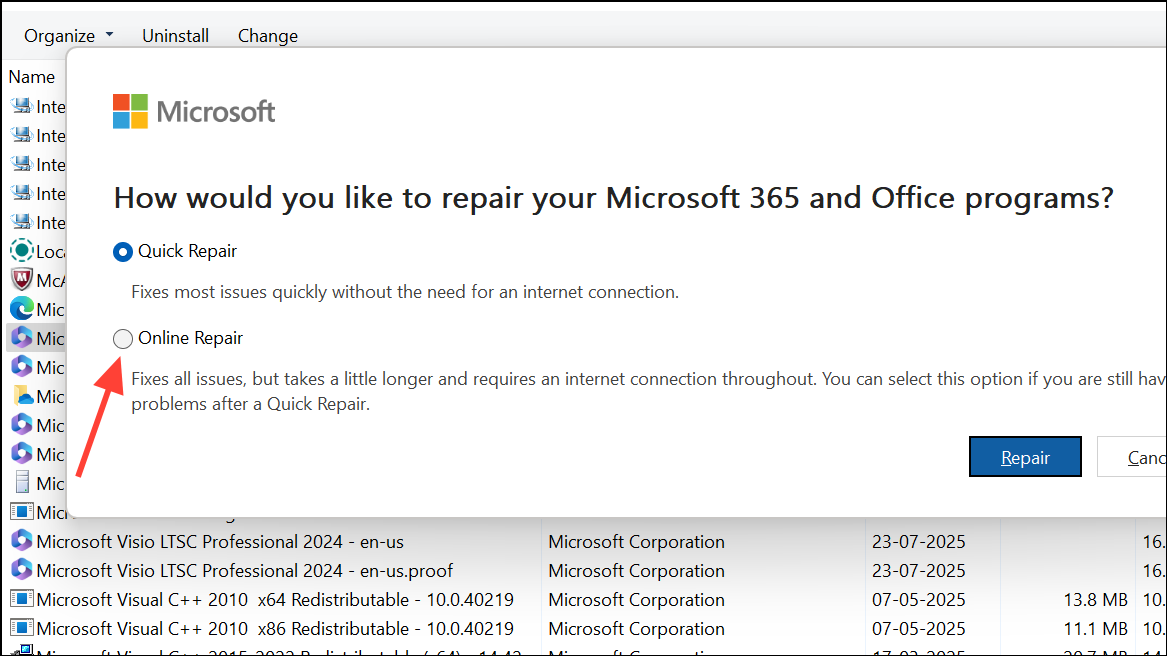
Repairing Excel eliminates file corruption or registry issues that can interfere with macro execution.
Check for Add-Ins or Template Issues
Some users encounter Error 400 when opening specific tabs or features, even without using macros. This can be caused by problematic add-ins or templates.
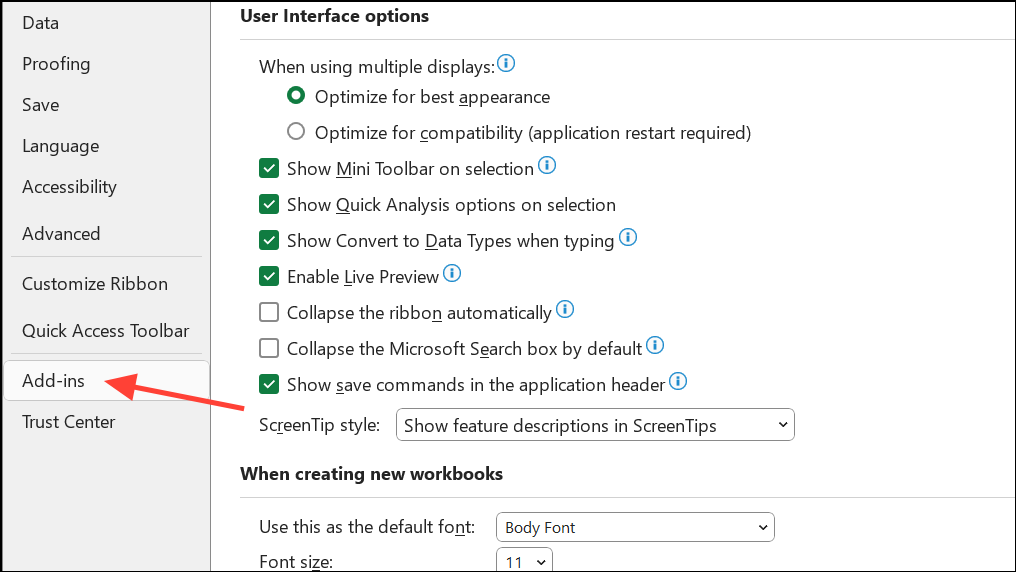
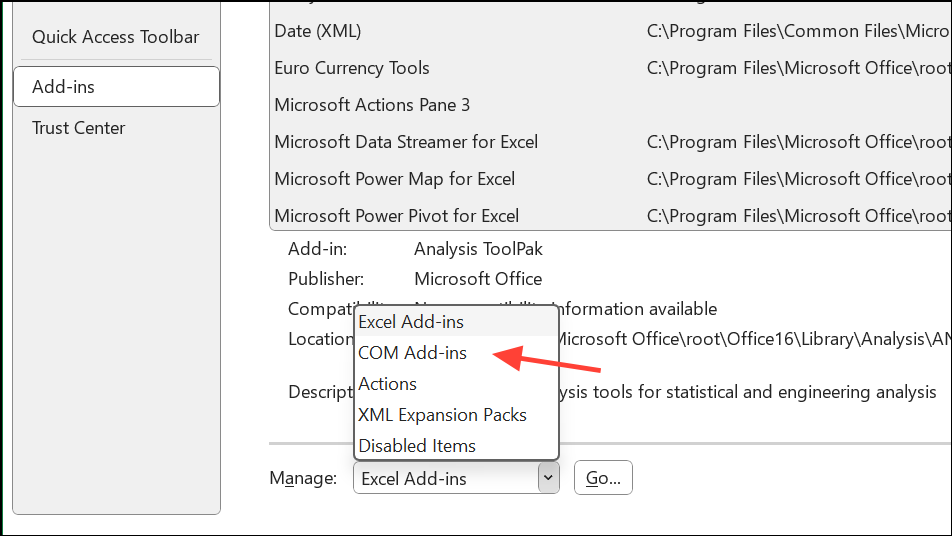
Disabling problematic add-ins or templates prevents them from injecting code that causes Error 400.
Review Code for Compatibility Issues (Windows vs. Mac)
VBA code that works in Windows may fail on Mac, especially if it references features exclusive to Windows (such as certain shapes or ActiveX controls).
ActiveSheet.Shapes("Button 1").TextFrame may not work on Mac Excel.F8 to determine where the error occurs.Ensuring your macros use cross-platform features avoids Error 400 when sharing workbooks between Windows and Mac users.
Use a Professional Repair Tool for Severely Corrupted Files
If your Excel file is heavily corrupted and built-in repair options fail, specialized repair tools can recover macros, modules, and data.
These tools reconstruct damaged workbook structures, restoring macro functionality when standard repairs are insufficient.
Resolving VBA Error 400 in Excel often comes down to code review, macro relocation, updating software, and addressing file or add-in corruption. By following these targeted steps, you can restore macro functionality and streamline your Excel workflow.





