

Opening Word, Excel, or other Office files directly from Windows Explorer sometimes causes the Explorer window to freeze, display a white screen, or close unexpectedly. This disrupts file access and can interrupt your workflow, especially when the issue persists across both local and cloud-synced folders. Several root causes can trigger this problem, ranging from preview pane conflicts to corrupted system files or faulty context menu extensions. The following methods address these causes with effective solutions, starting with the most effective approaches based on user reports and technical forums.
Turn Off the Preview Pane and Details Pane in File Explorer
File Explorer’s preview and details panes can conflict with Office file types, causing Explorer to hang when previewing or displaying metadata. Disabling these panes often resolves the issue immediately.
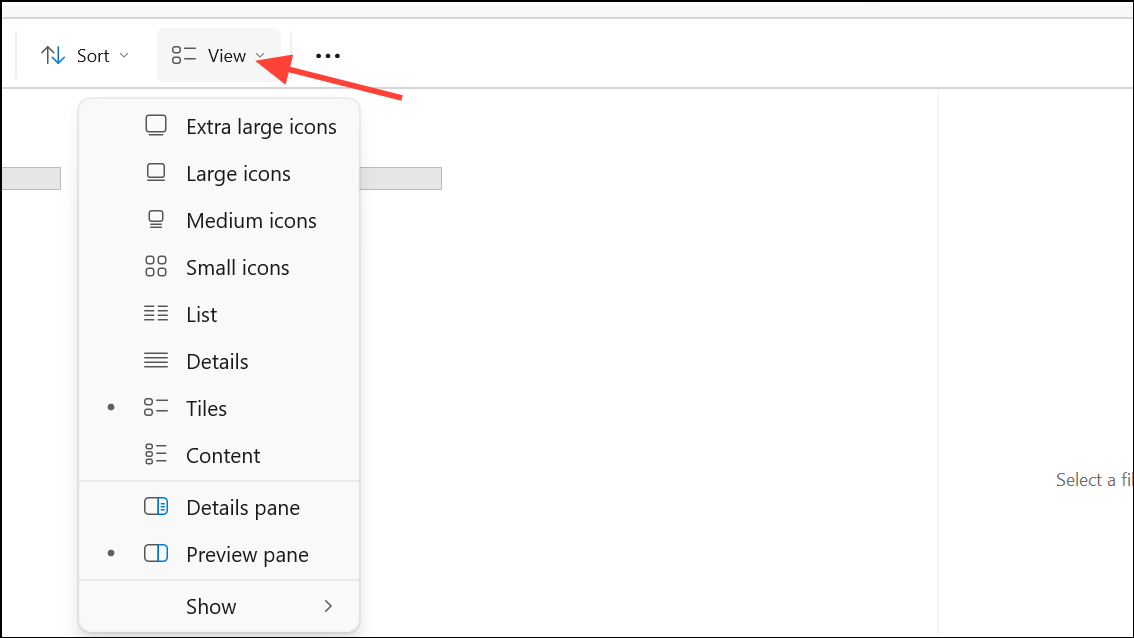
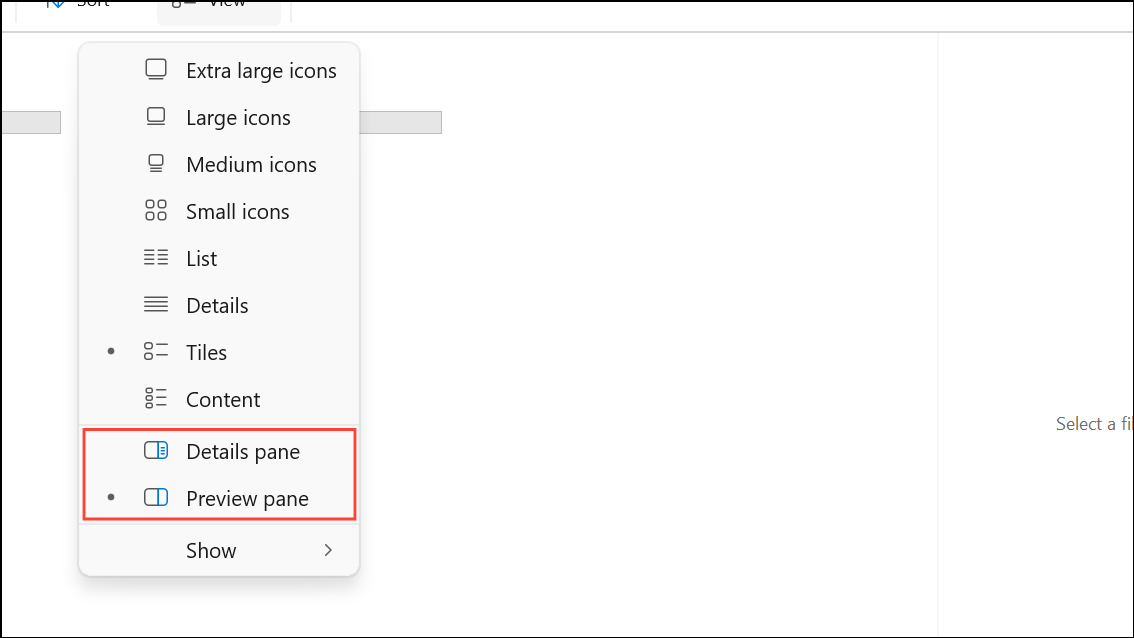
Disabling these panes prevents Explorer from attempting to render file previews, which is a common source of crashes with certain Office files or after recent updates.
Clear and Reset Quick Access Folders
Corrupted or inaccessible Quick Access links can trigger File Explorer crashes, especially when Office file dialogs try to reference these locations. Unpinning all Quick Access folders and clearing the cache can resolve the issue.
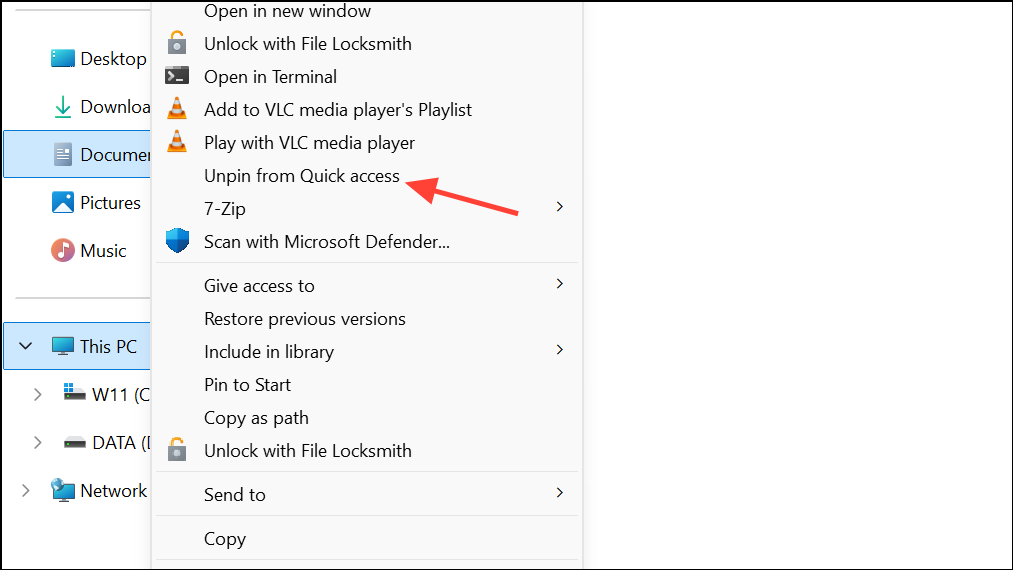
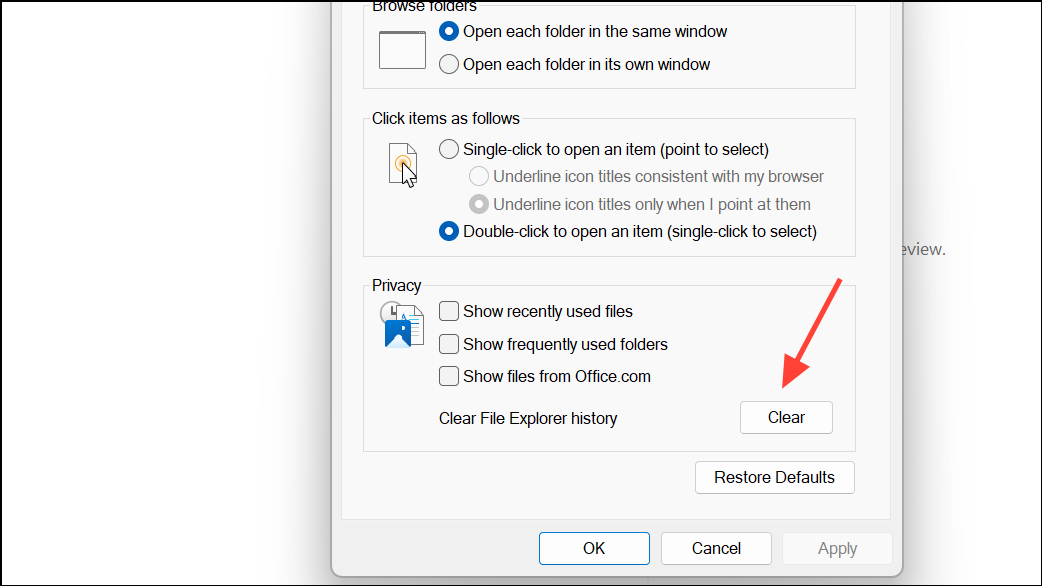
This process removes broken or inaccessible folder references that Office and Explorer may attempt to access, preventing related crashes.
Run System File Checker (SFC) and DISM to Repair System Files
Corrupted or missing system files can destabilize Explorer, especially after Windows updates or system changes. The System File Checker and Deployment Imaging Service and Management Tool (DISM) scan for and repair these files.
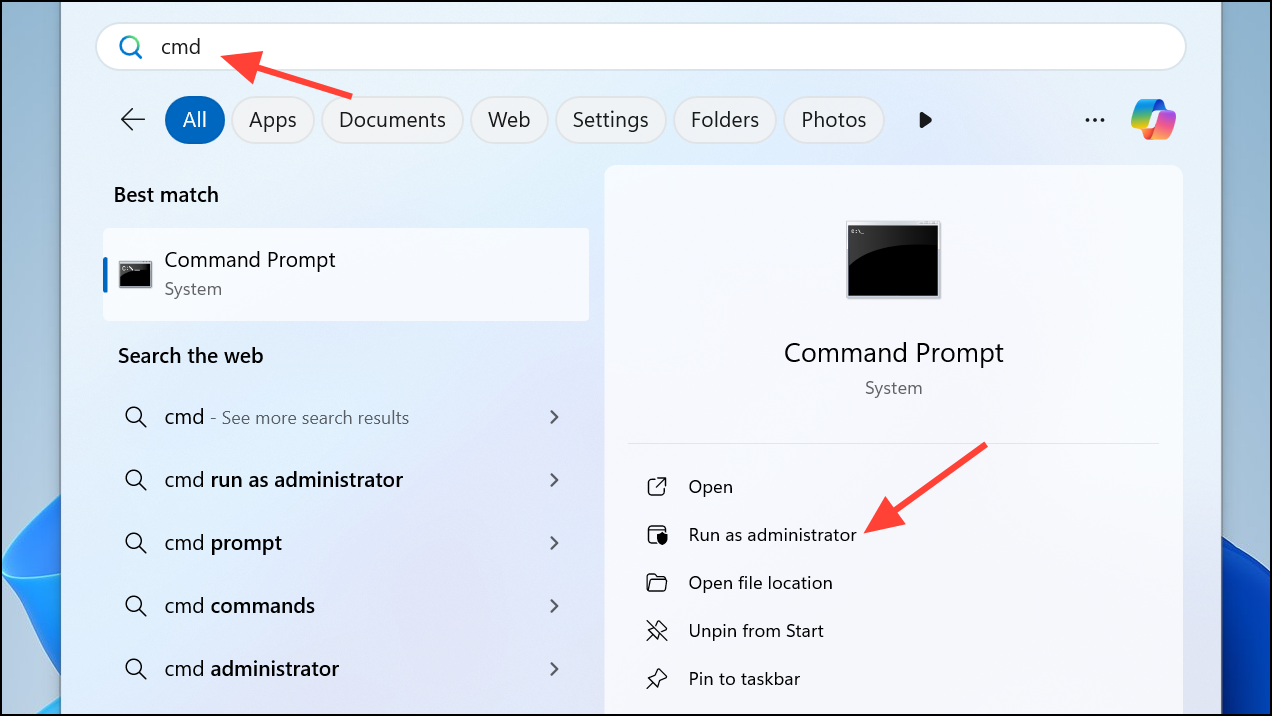
dism.exe /online /cleanup-image /restorehealth
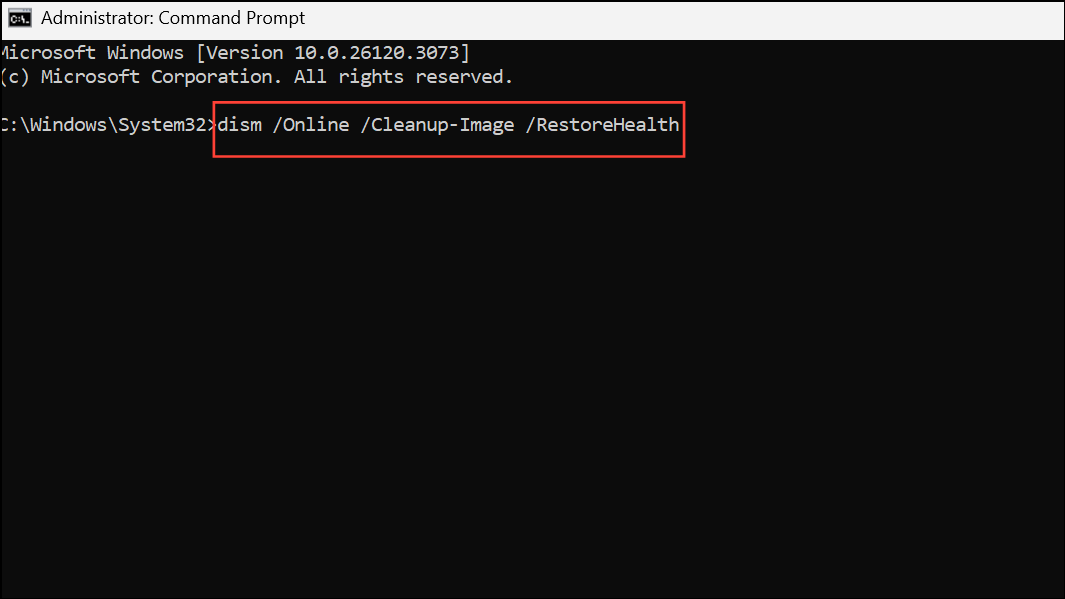
This command checks for and repairs issues in the Windows image.
sfc /scannow
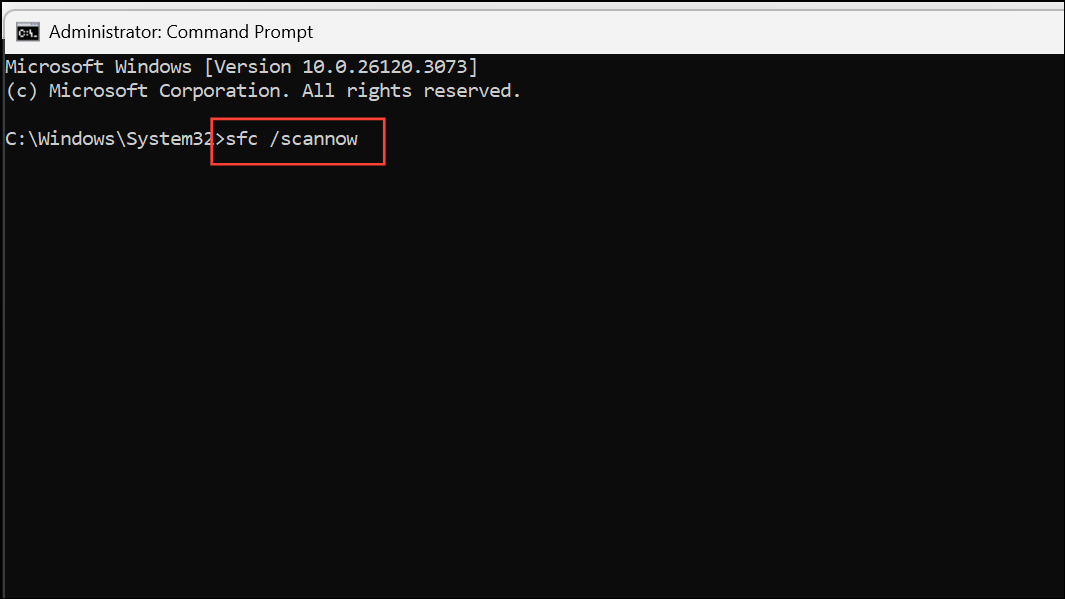
This scans and repairs corrupted or missing system files.
These tools address underlying system corruption that can cause repeated Explorer instability.
Disable Third-Party Context Menu Extensions
Extensions added to the right-click menu by third-party applications can interfere with Explorer’s operation, especially when opening or right-clicking Office files. Disabling these extensions helps isolate the cause.
This method targets unstable or outdated add-ons that can cause Explorer to freeze or close unexpectedly.
Update or Roll Back Graphics Drivers
Outdated or incompatible graphics drivers can cause Explorer to crash, particularly when rendering Office file previews or handling complex file dialogs.
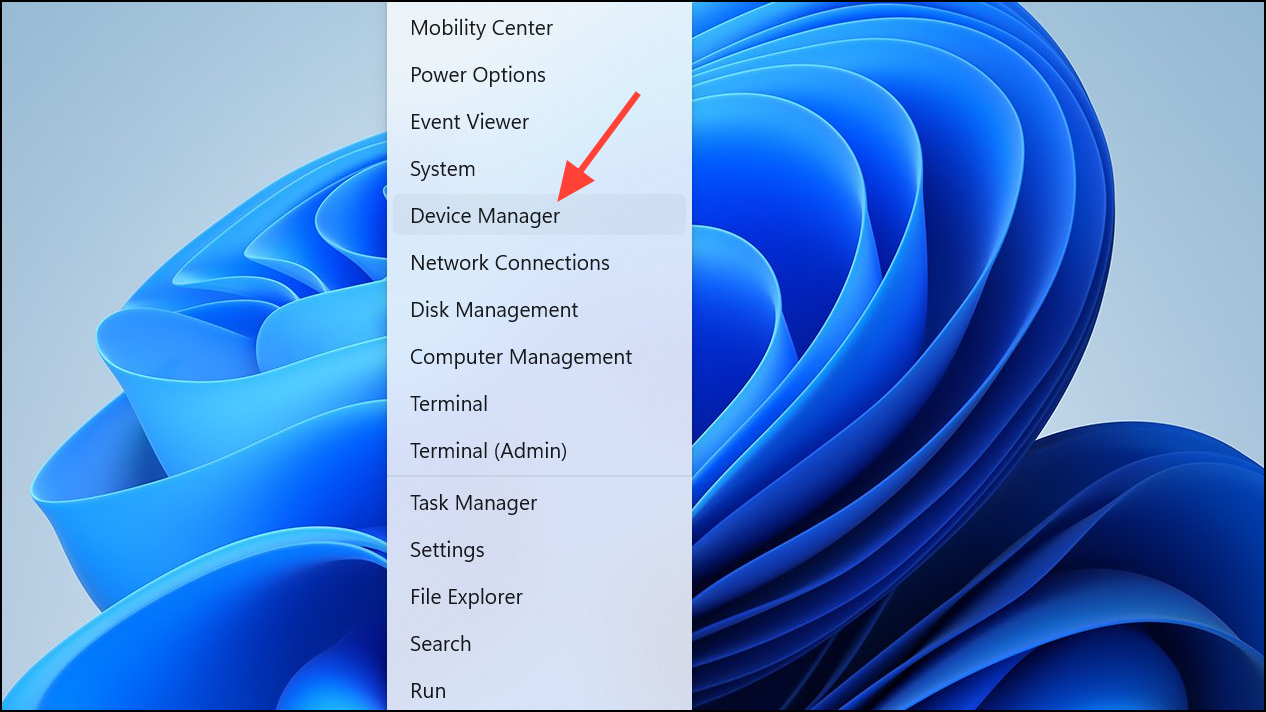
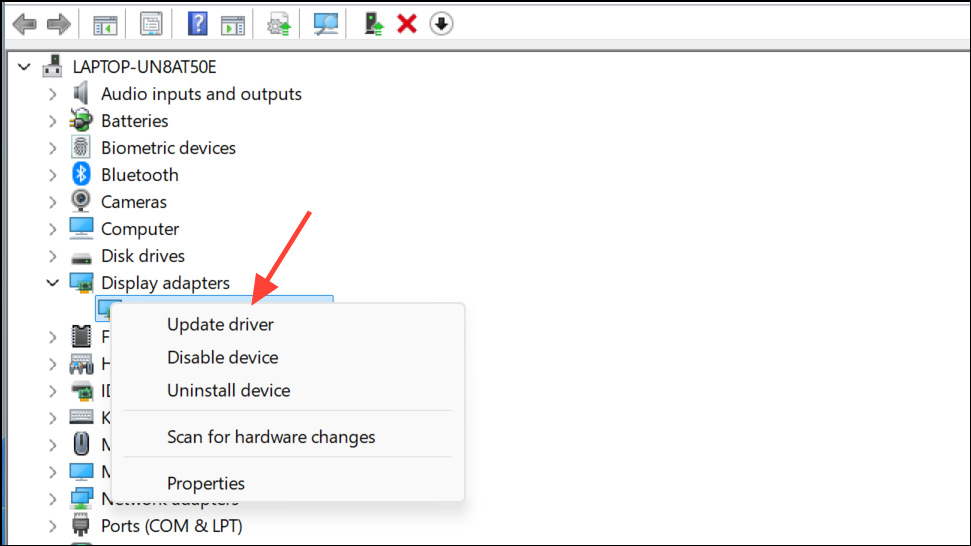
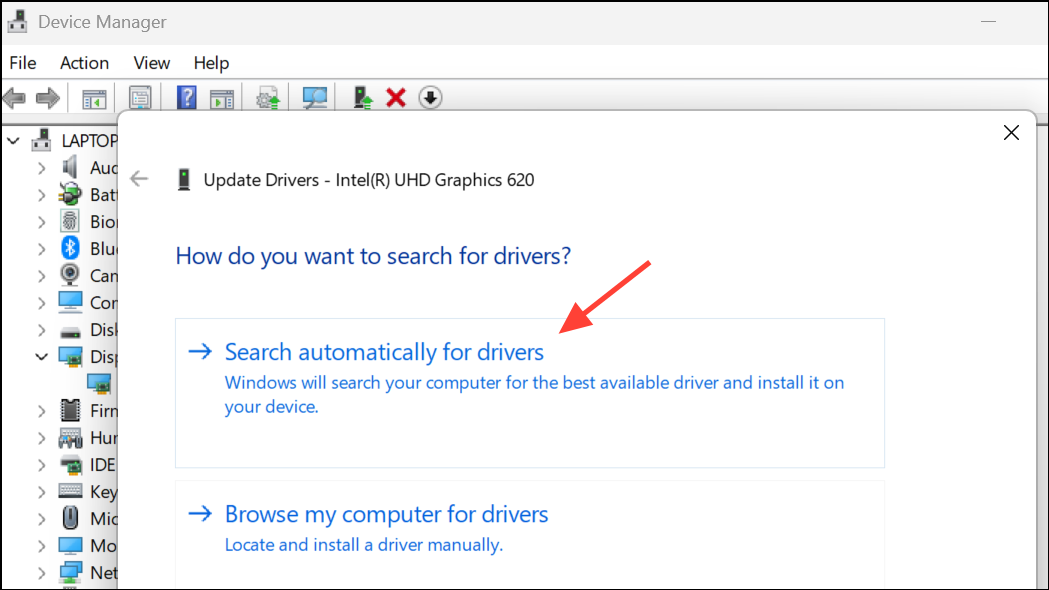
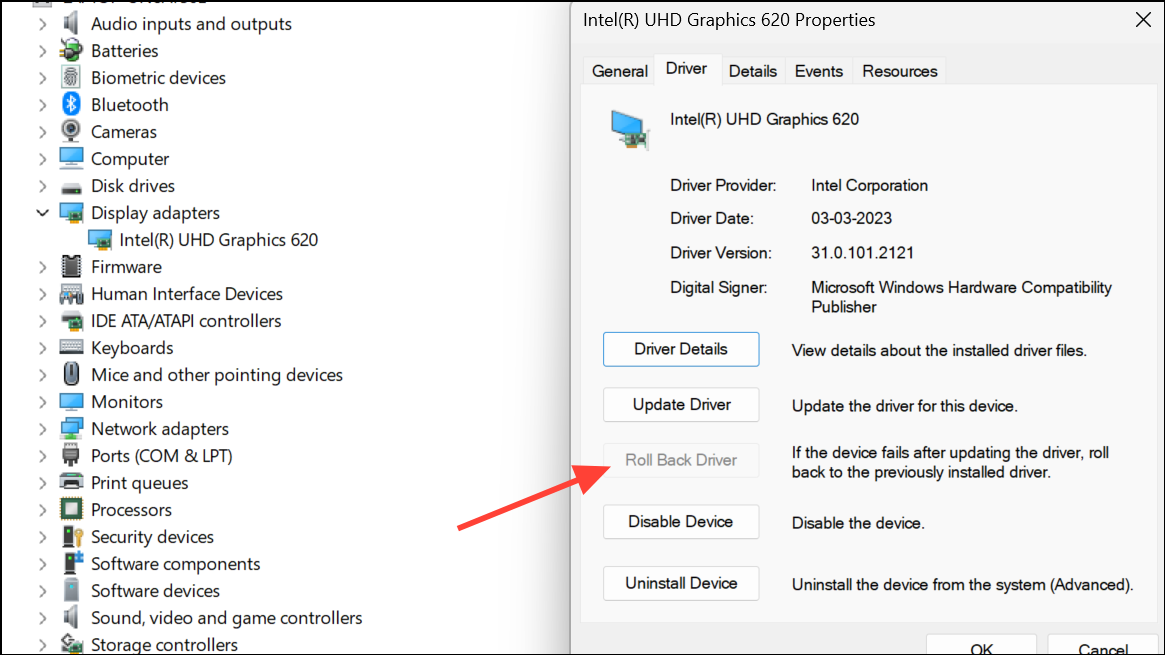
Driver updates or rollbacks can resolve compatibility problems introduced by recent system or graphics updates.
Uninstall Recent Windows Updates
Some users notice Explorer crashes begin after a Windows update. Removing the most recent update can restore system stability.
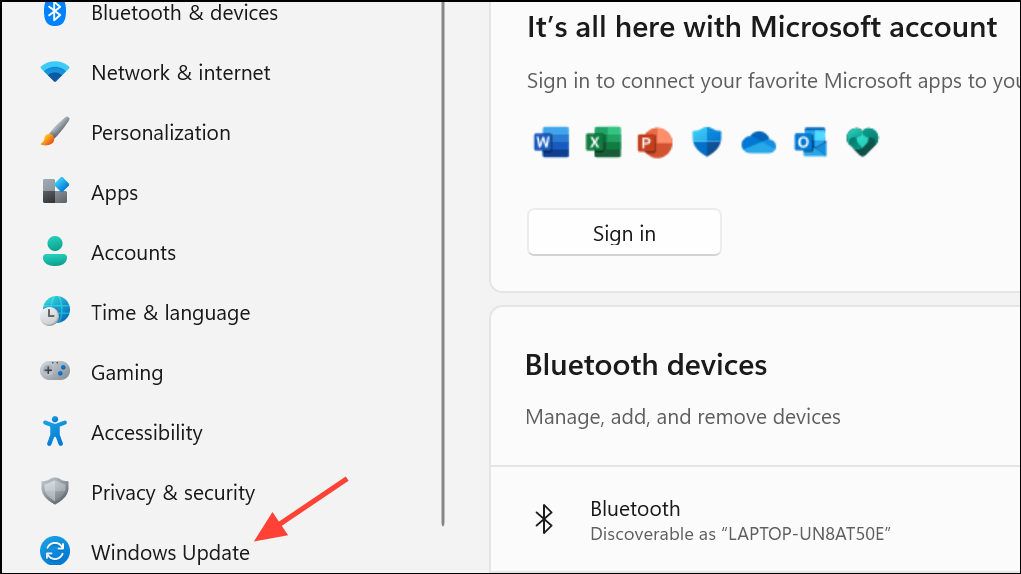
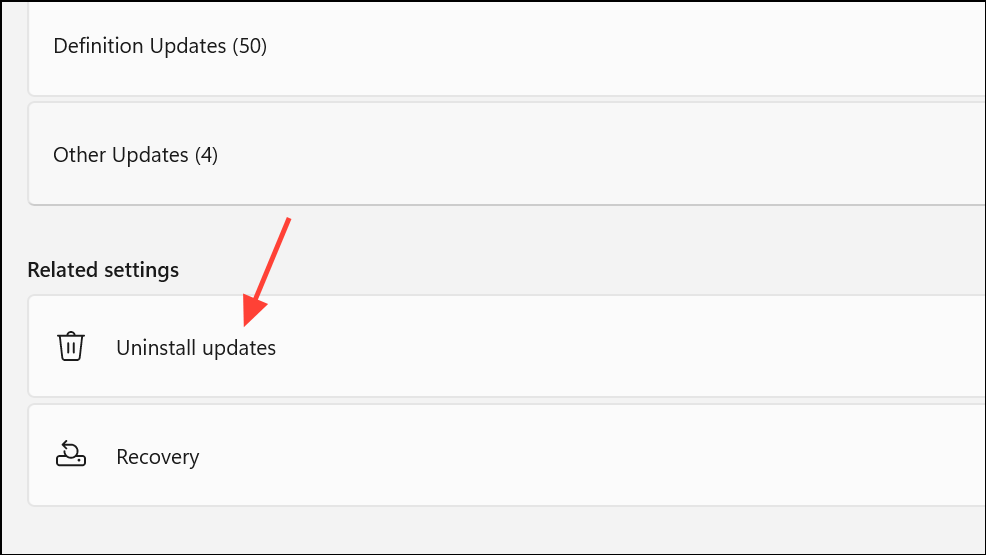
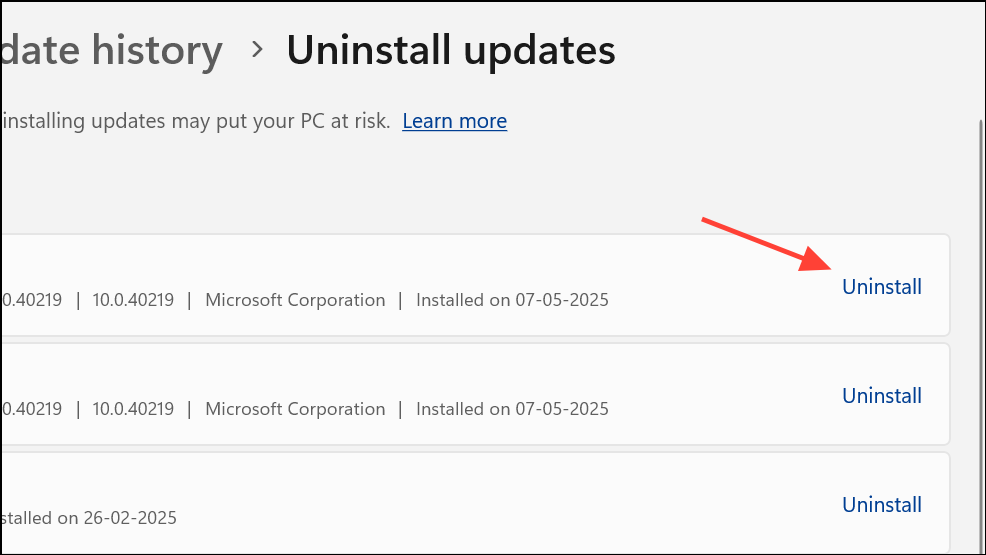
Rolling back problematic updates can quickly resolve new issues that coincide with recent patches.
Test with a New User Profile
Corruption in your Windows user profile can affect Explorer’s stability. Creating a new user account can determine if the issue is profile-specific.
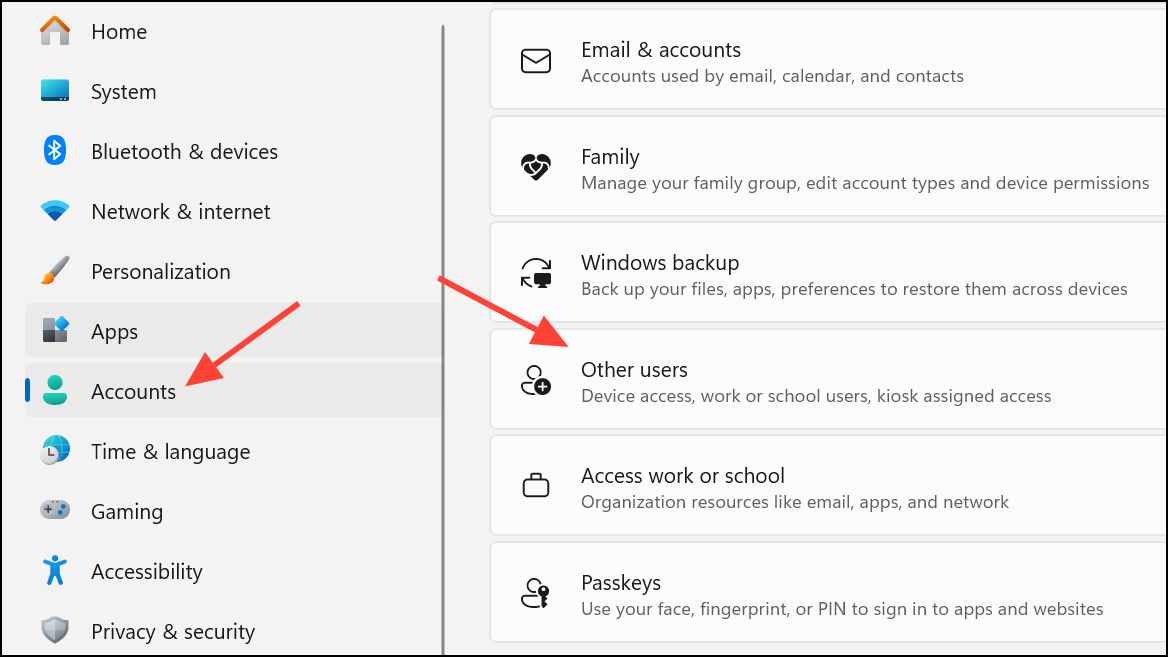

If Explorer works normally in the new profile, consider migrating files and settings to the new account or repairing the old profile.
Direct, targeted changes such as disabling the preview pane or clearing Quick Access links often restore Explorer’s stability with Office files. If these steps do not resolve the issue, system repairs and driver updates provide further solutions without needing a full Windows reinstall.





