

The Windows key on your keyboard provides quick access to essential functions like the Start menu, shortcuts, and app switching. When it stops responding, productivity can drop significantly, making basic tasks cumbersome. Fortunately, there are several effective methods to restore functionality to your Windows key on Windows 10 and 11.
Method 1: Disable Filter Keys
Filter Keys is a Windows accessibility feature designed to ignore brief or repeated keystrokes. If enabled accidentally, it can prevent your Windows key from responding correctly. To turn off Filter Keys:
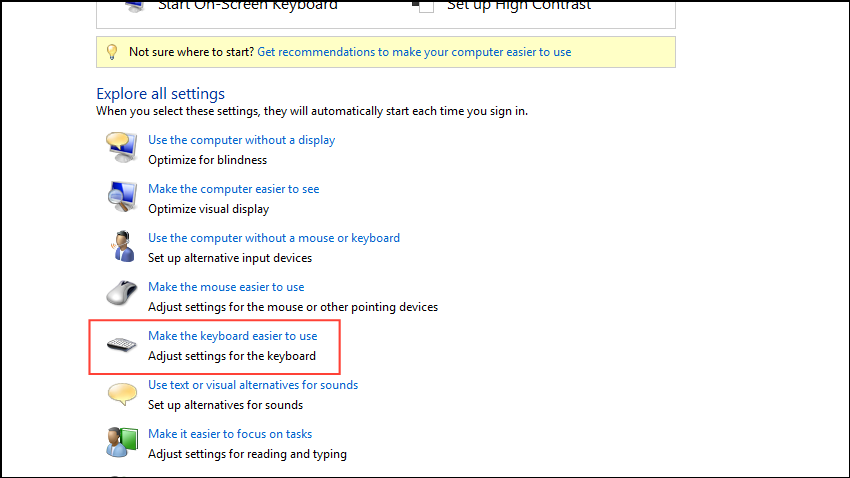
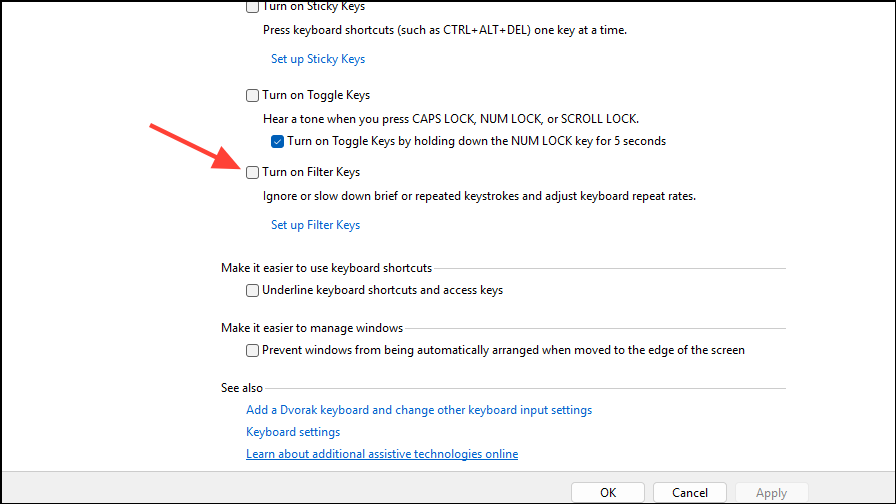
After disabling Filter Keys, test your Windows key to confirm it’s working again.
Method 2: Check for Gaming Mode or Win Lock Key
Many gaming keyboards feature a “Gaming Mode” or “Win Lock” key designed to disable the Windows key during gameplay to avoid accidental interruptions. If your Windows key isn’t responding, ensure that Gaming Mode is turned off.
If you can’t find the key, refer to your keyboard manufacturer’s website or documentation for guidance.
Method 3: Remove the Scancode Map via Registry Editor
Sometimes, certain applications or games create a registry entry called “Scancode Map” to disable the Windows key. Removing this entry can restore key functionality.
Caution: Always back up your registry before making changes. Incorrect edits can cause system instability.
Restart your computer after deletion and verify if the Windows key functions normally.
Method 4: Restart Windows Explorer
The Windows Explorer process controls the desktop and taskbar, and restarting it can resolve temporary glitches affecting the Windows key.
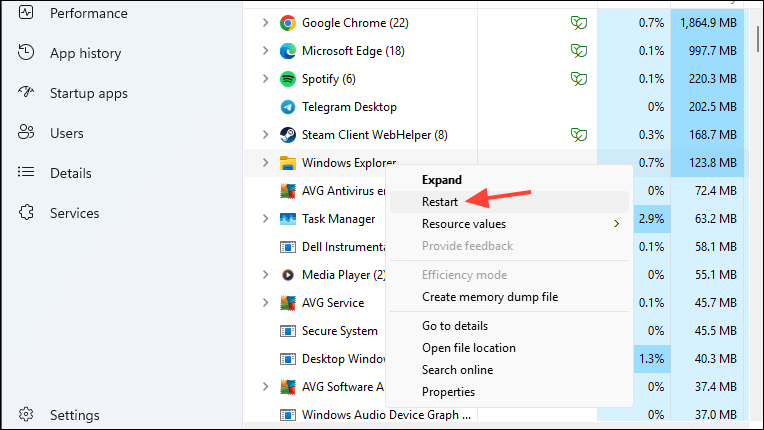
Your screen will briefly flicker or go blank—this is normal. Once Windows Explorer reloads, test your Windows key again.
Method 5: Run System File Checker (SFC)
Corrupted system files can cause keyboard issues, including the Windows key not responding. The System File Checker (SFC) can detect and repair corrupted files.
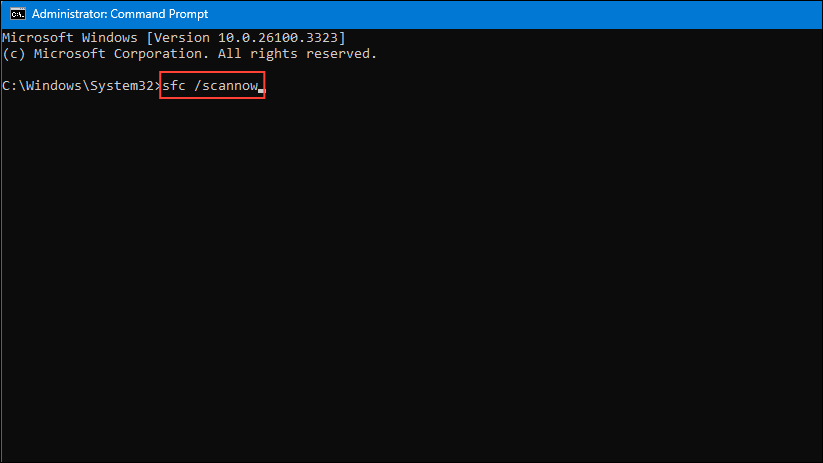
The scan may take several minutes. Once complete, restart your system and check if the Windows key works.
Method 6: Update or Reinstall Keyboard Drivers
Outdated or corrupted keyboard drivers may prevent your Windows key from functioning. Updating or reinstalling drivers can resolve this issue.
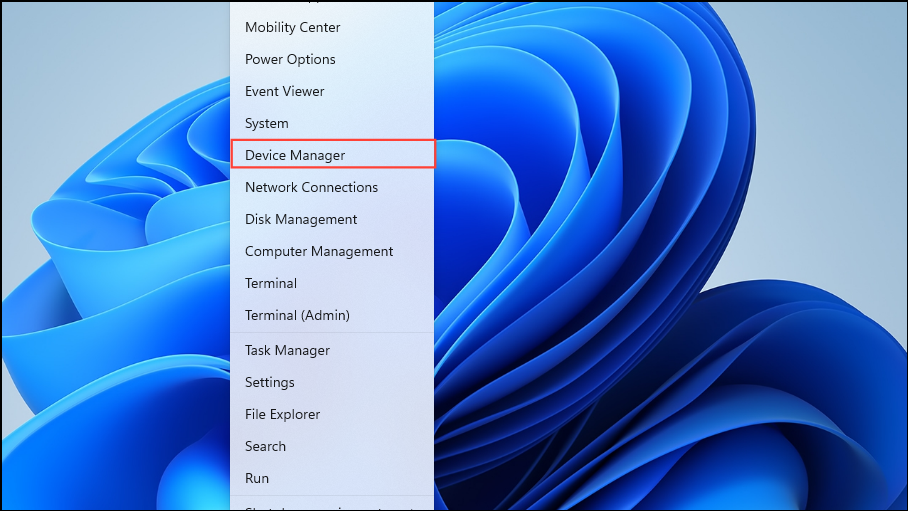
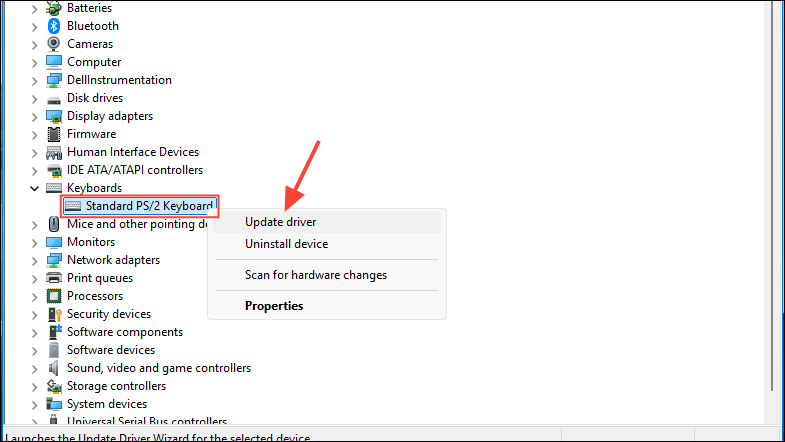
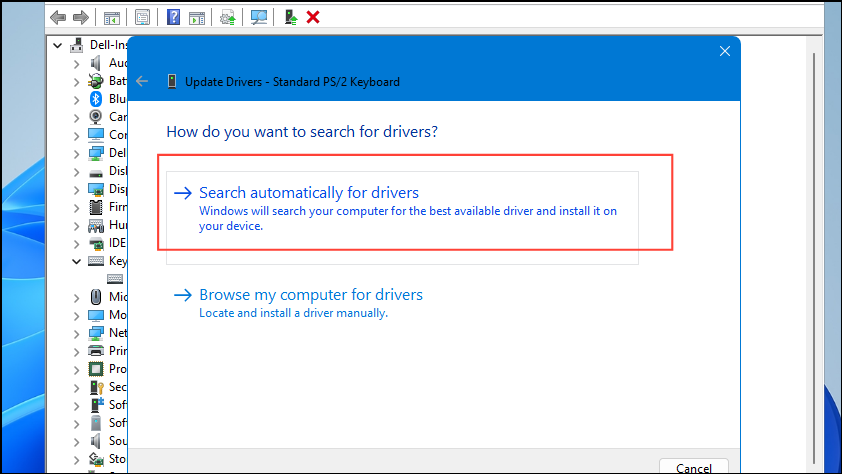
If updating doesn’t help, right-click the keyboard again, select “Uninstall device,” then restart your computer to automatically reinstall the driver.
Method 7: Create a New User Account
Corrupted user profiles can sometimes cause keyboard issues. Creating a new user account can help determine if this is the case.
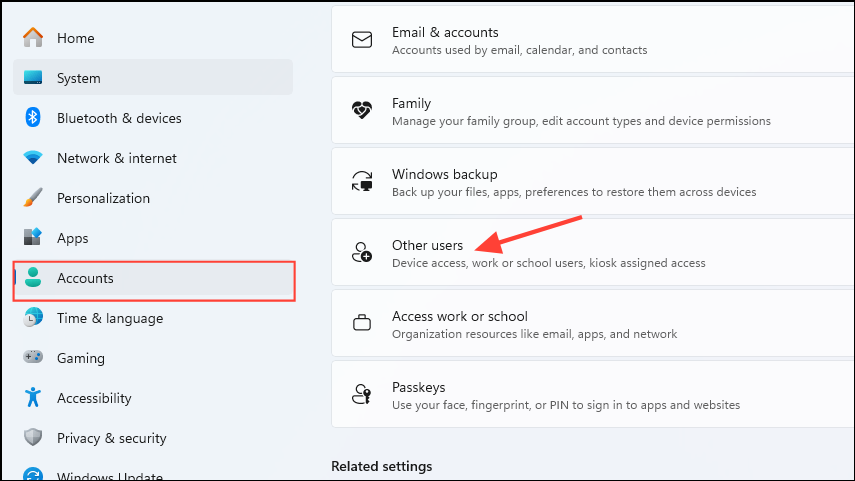
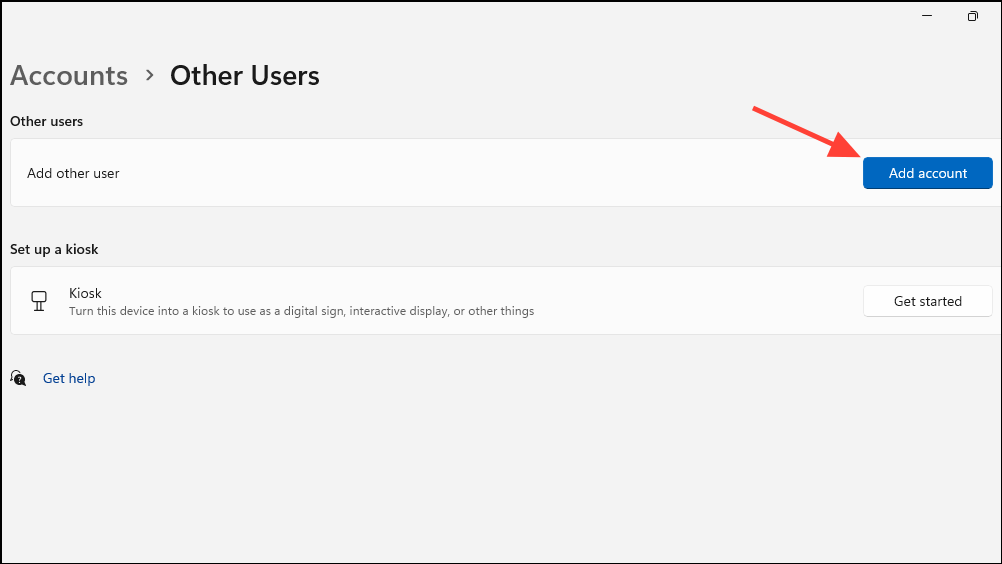
Log into the new account and test the Windows key. If the key works, migrate your files to the new account and delete the old corrupted one.
Method 8: Check for Hardware Issues
If none of the above methods resolve the issue, your keyboard may have a physical problem.
By following these troubleshooting steps, you should successfully restore your Windows key functionality. If you’ve tried all methods and still experience issues, consider seeking professional technical support or contacting your device manufacturer for further assistance.





