Resolve excessive CPU usage caused by Microsoft Windows Search Indexer with these effective solutions
Resolve excessive CPU usage caused by Microsoft Windows Search Indexer with these effective solutions
by Pallav Pathak
Microsoft Windows Search Indexer (SearchIndexer.exe) is a background process responsible for indexing files, emails, and other content on your PC, allowing you to quickly find them via Windows Search. While it’s generally helpful, the Search Indexer can sometimes consume unusually high CPU resources, leading to sluggish performance, increased fan noise, and reduced battery life on laptops. If you’re experiencing this problem, you can follow the methods below to resolve it efficiently.
Method 1: Restart the Windows Search Service
Restarting the Windows Search service can quickly resolve temporary glitches causing high CPU usage.
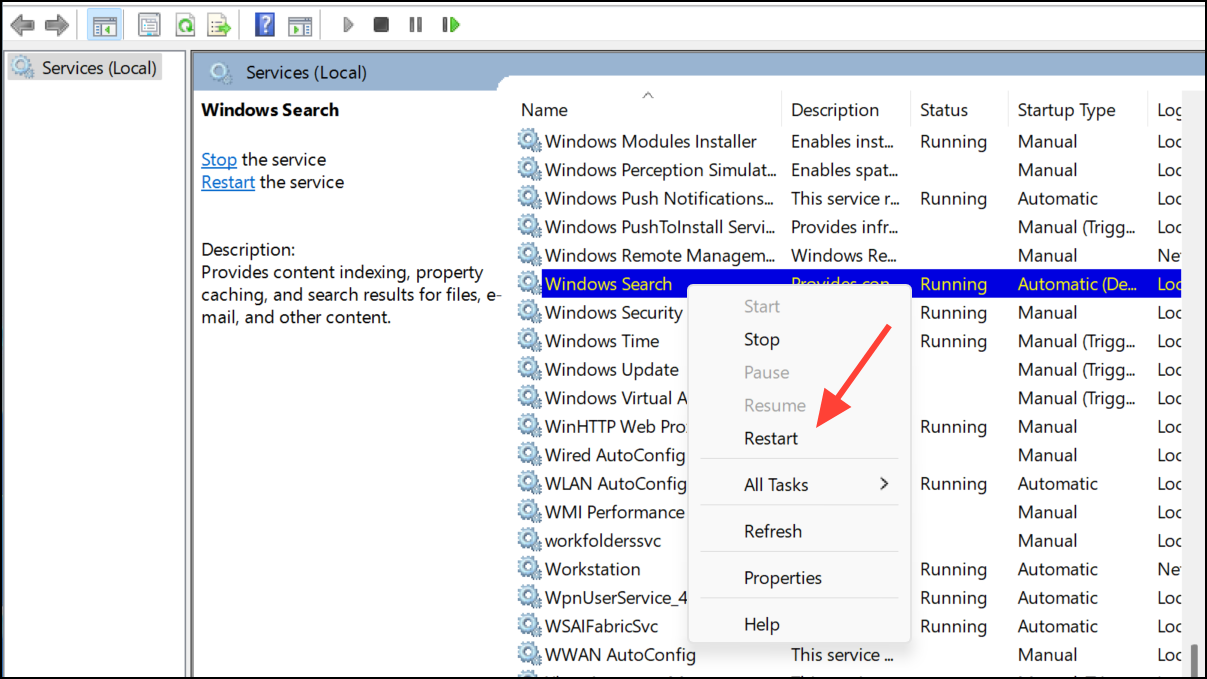
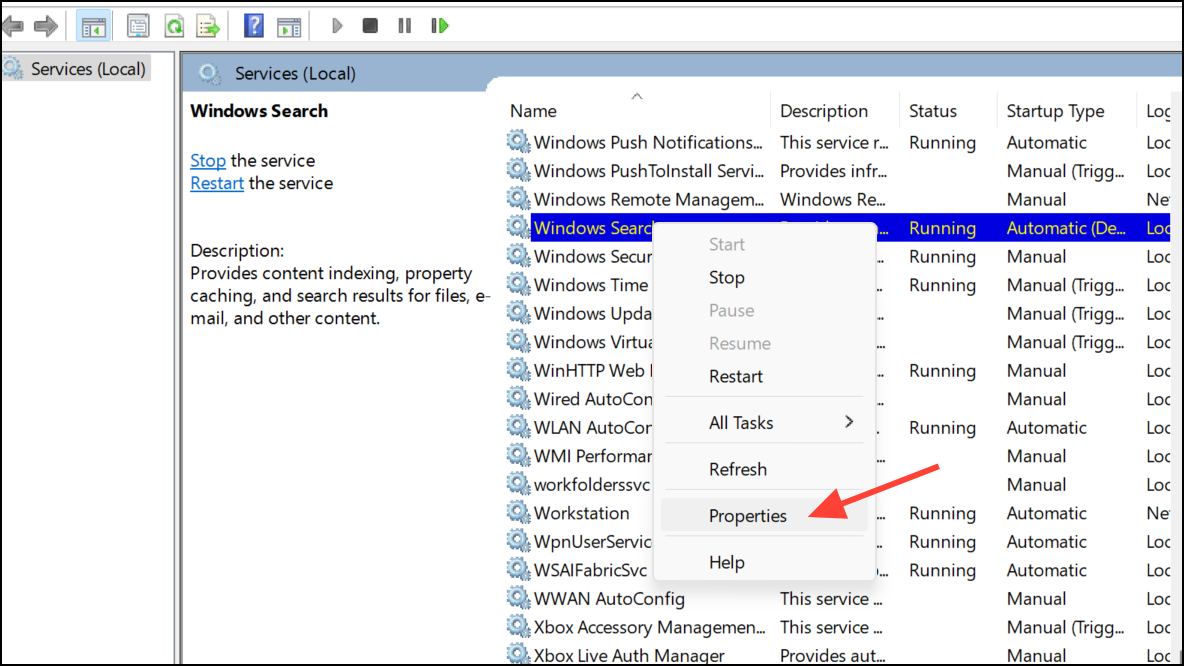
In the Services window, find “Windows Search,” right-click it, and select “Restart.” If the option is greyed out, select “Stop,” wait a moment, then select “Start.”
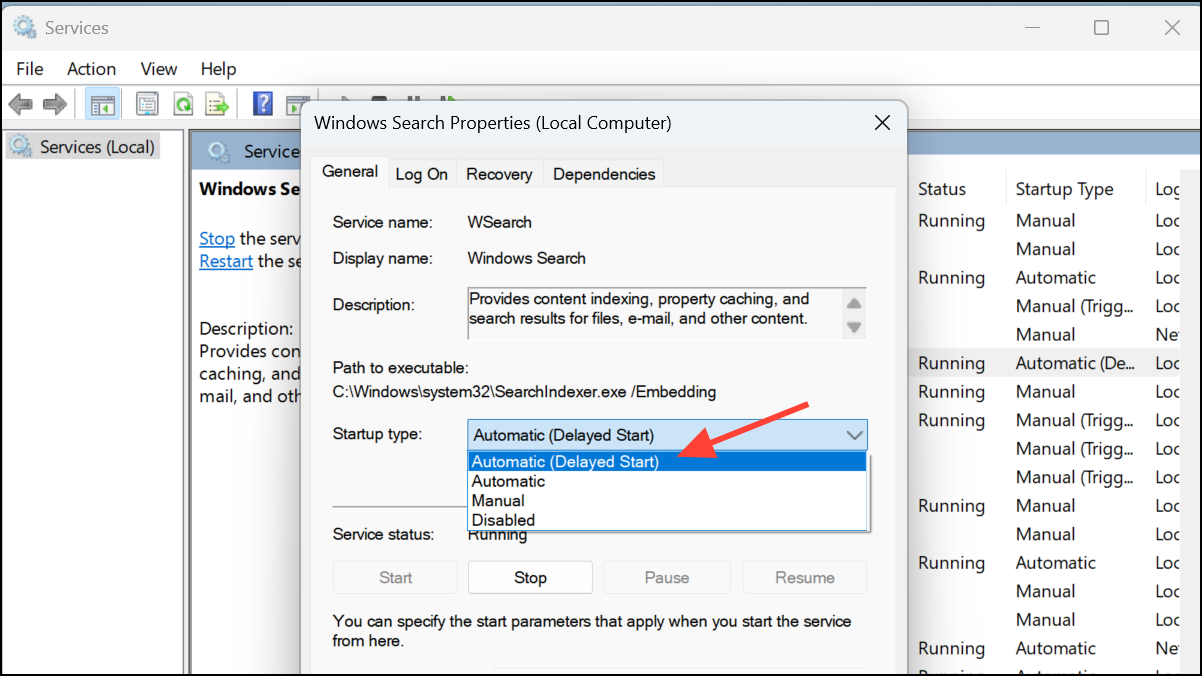
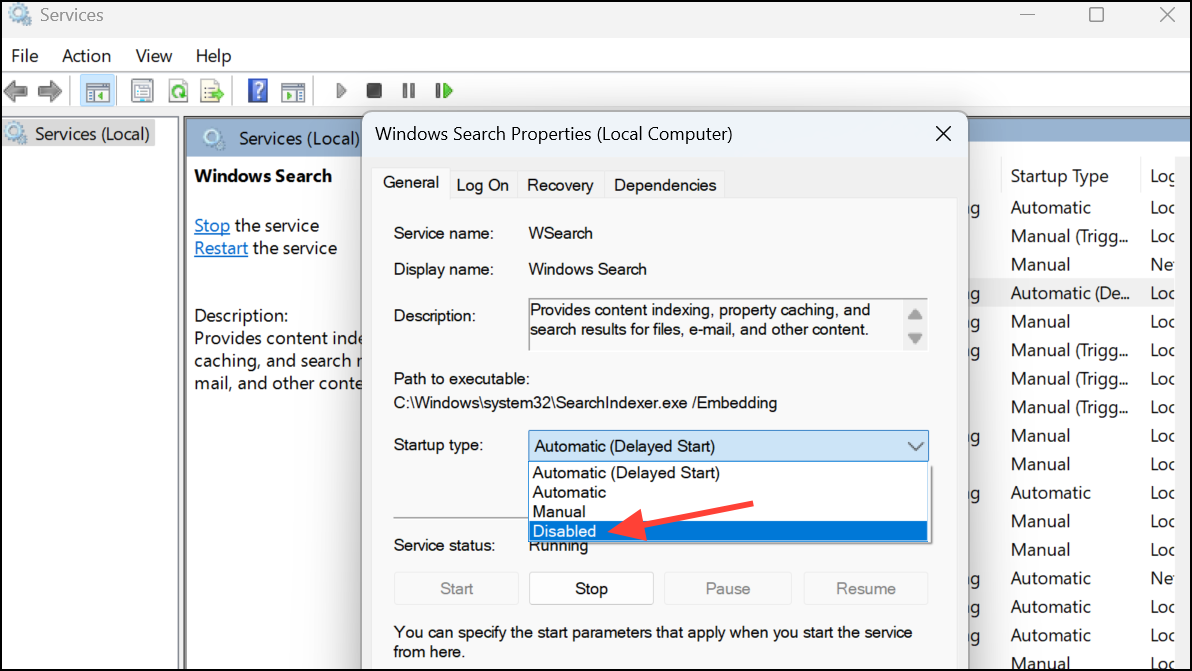
Change the “Startup type” to “Disabled,” then click “Stop,” followed by “Apply” and “OK.”
Note: Disabling the Search Indexer will slow down file searches. Re-enable it later by setting the Startup type back to “Automatic (Delayed Start).”
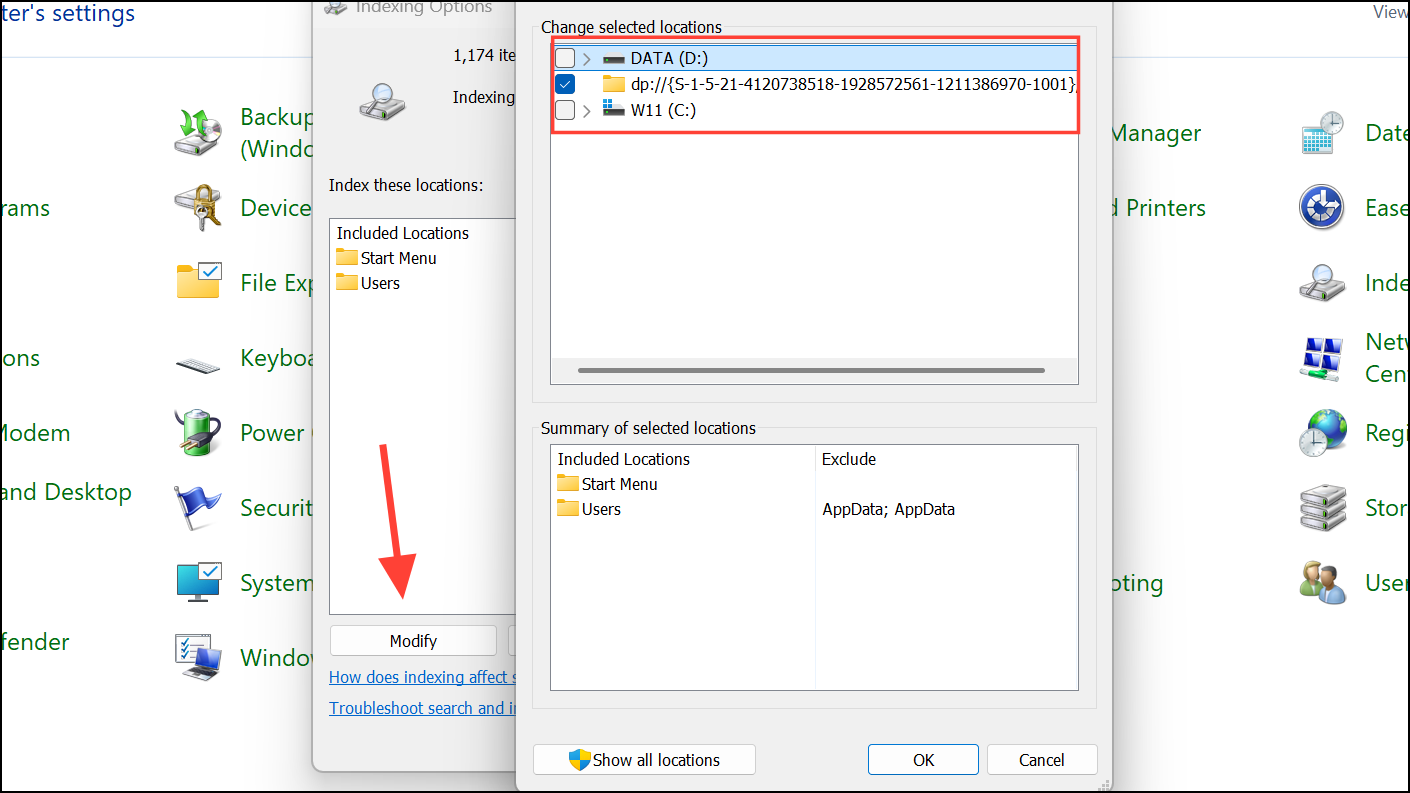
With these methods, you can effectively resolve the issue of high CPU usage caused by the Windows Search Indexer. Regularly checking your indexing settings and ensuring your system files are intact will help maintain optimal performance.