
Word documents sometimes switch to read-only mode without warning, blocking editing and forcing users to save duplicate copies. This shift can disrupt ongoing work, especially when saving triggers the change or when opening files from network locations, cloud storage, or email attachments. Several factors—including file properties, security settings, cloud sync issues, or even antivirus software—can cause this behavior. The following methods address the most effective solutions first, moving to less common fixes for persistent problems.
Disable Protected View and Adjust Trust Center Settings
File tab, then select Options at the bottom of the sidebar. This opens the Word Options dialog.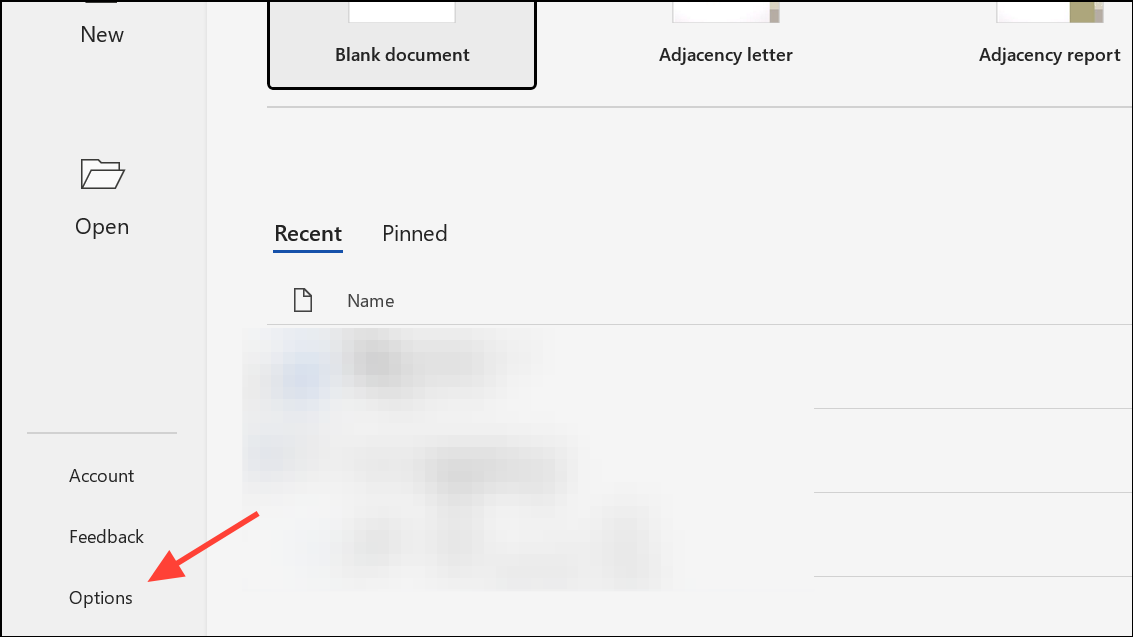
Trust Center from the left menu, then click Trust Center Settings on the right.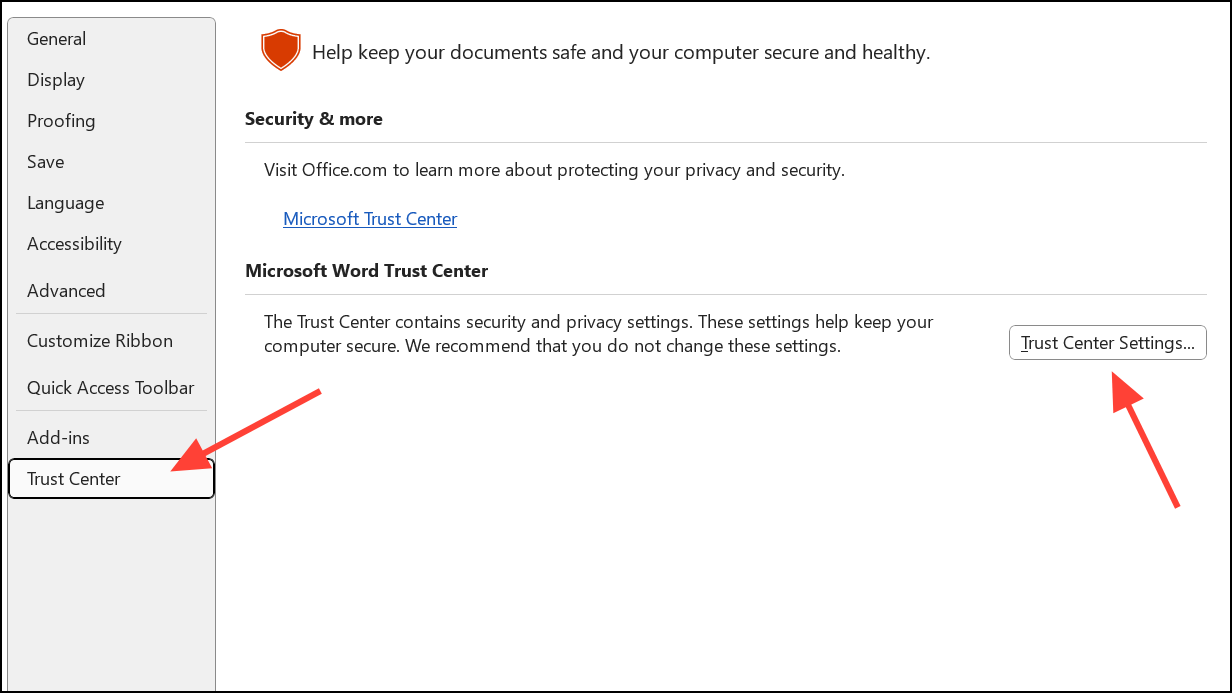
Protected View. Here, you’ll see several checkboxes: “Enable Protected View for files originating from the Internet,” “Enable Protected View for files located in potentially unsafe locations,” and “Enable Protected View for Outlook attachments.” Uncheck the boxes that apply to your situation, but be aware this reduces some security protections.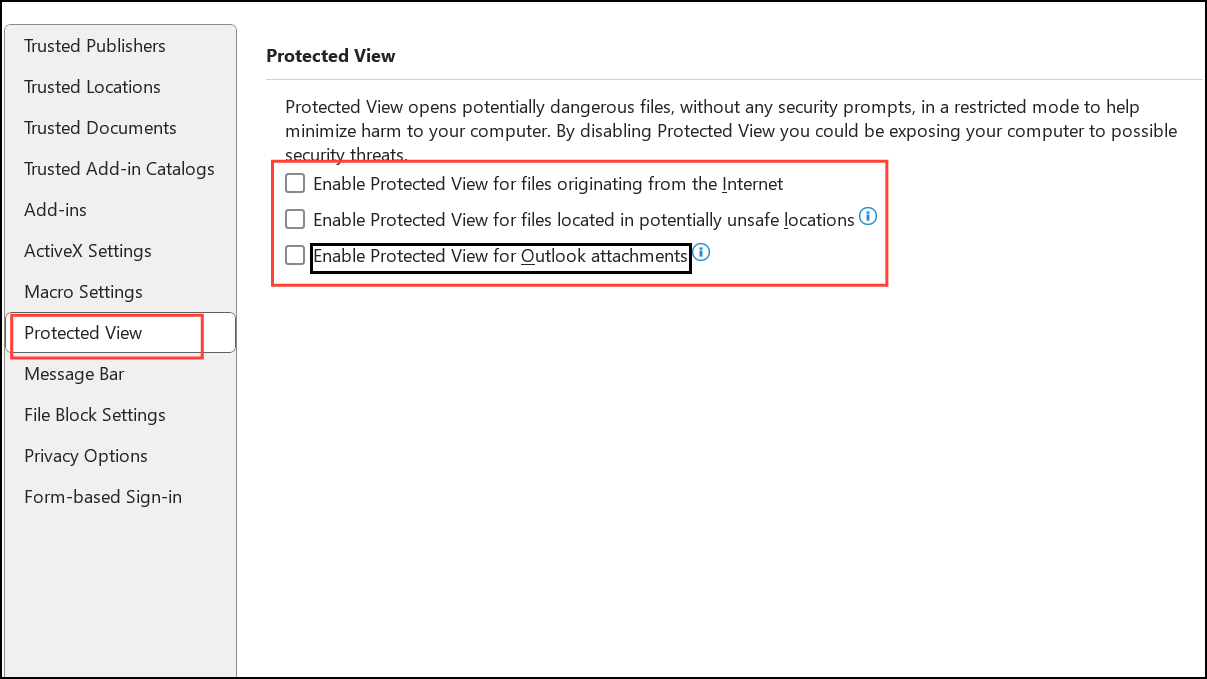
OK to save changes and restart Word for the new settings to take effect. This adjustment lets Word open documents from external sources in full editing mode instead of read-only.Check and Change File Properties
Properties.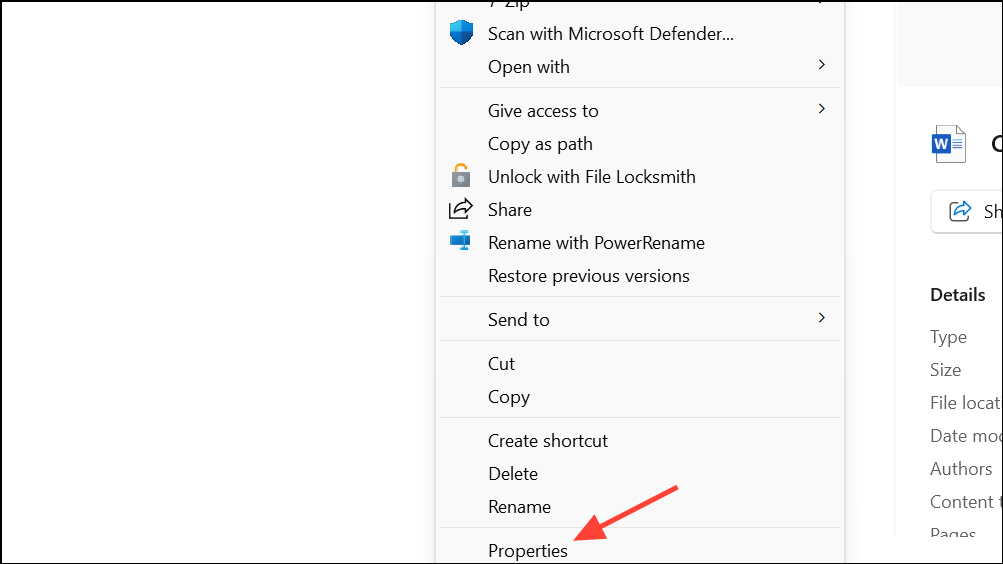
Apply, then OK.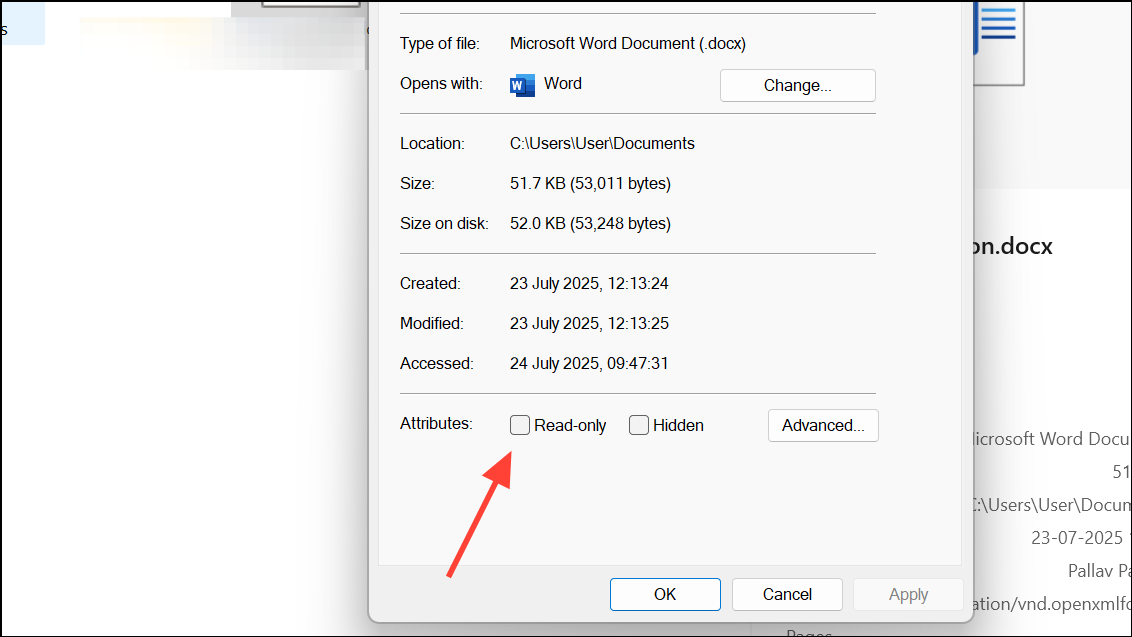
Unblock and then Apply. This removes security restrictions that can force the file into read-only mode.Add Trusted Locations for Network or Cloud Folders
Trusted Locations on the left. Click Add new location and browse to the folder where your documents are stored—this could be a local folder, network share, or cloud sync directory (like OneDrive or Dropbox).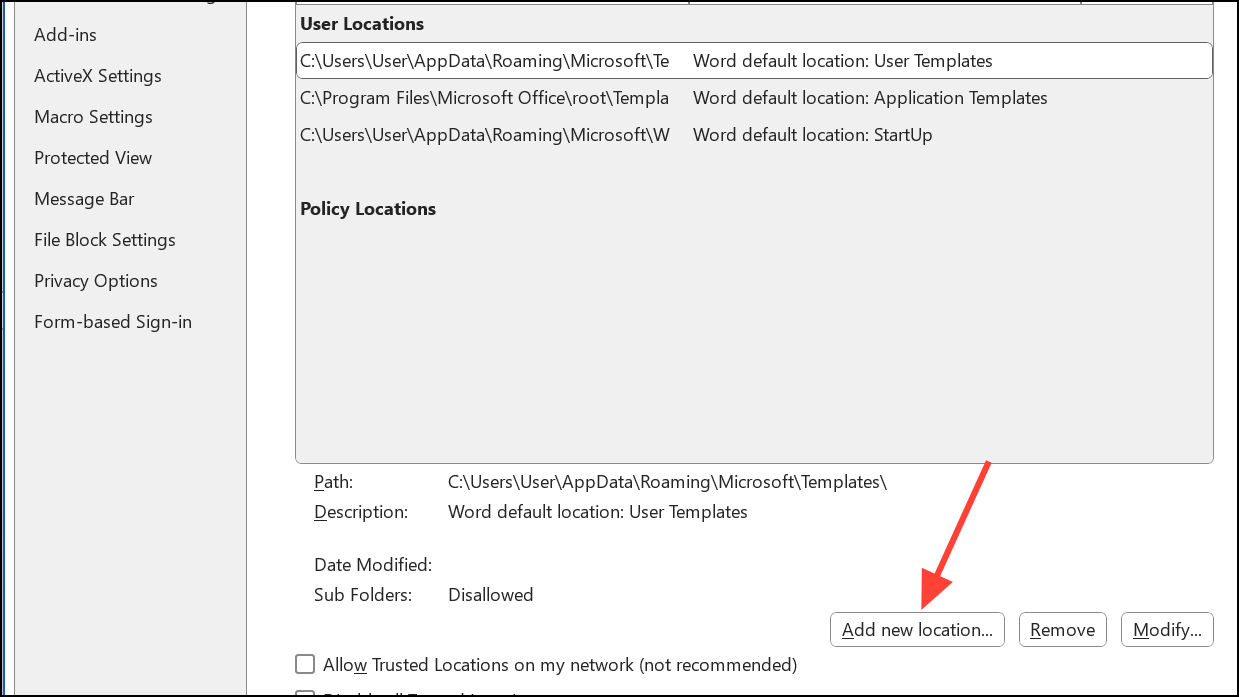
OK to save. Files opened from these trusted locations will no longer default to Protected View or read-only mode.Check for Cloud Sync and OneDrive Issues
Word documents stored in cloud-synced folders (such as OneDrive or SharePoint) may become read-only if there are sync conflicts or if your storage quota is full.
- Ensure OneDrive or your cloud service is fully synced and not showing errors.
- If your cloud storage is full, free up space or upgrade your plan to allow saving changes.
- Try pausing and resuming sync, or move the file to a different location and open it again.
Review Antivirus and Security Software Settings
Some antivirus programs restrict file editing as a protective measure. For example, BitDefender and Avast have ransomware protection features that can block editing in folders like Documents. Review your antivirus settings and add Word or the affected folders to the allowed list or exclusions to restore normal editing access.
Repair Office Installation and Check for Updates
Programs and Features. Find your Microsoft Office installation and right-click it.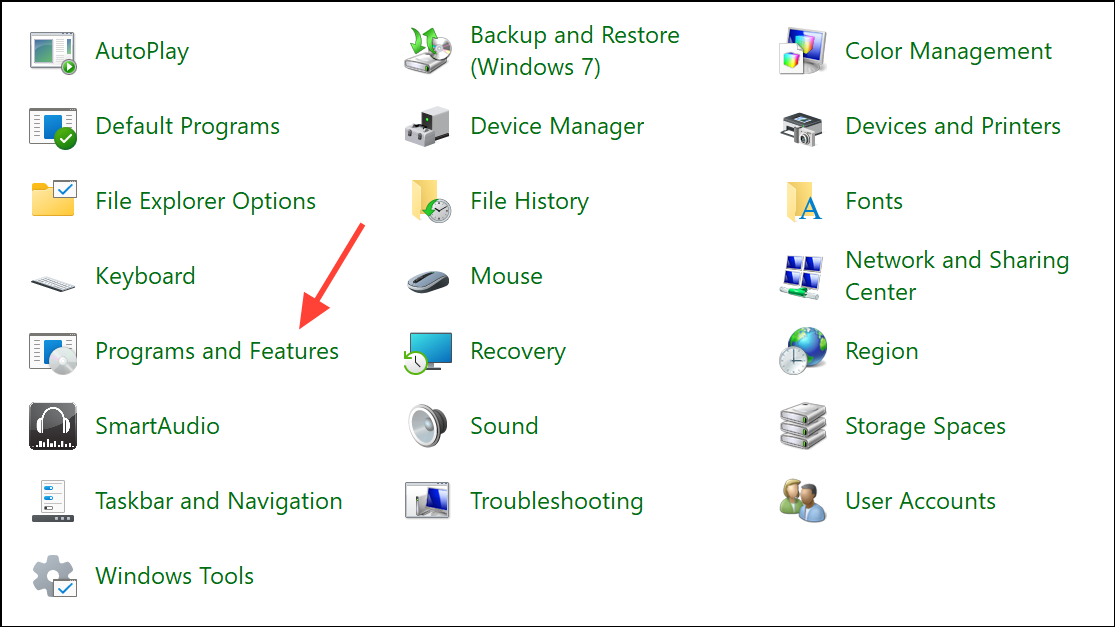
Change, then select Quick Repair or Online Repair. This process fixes issues with Office applications that can trigger read-only mode unexpectedly.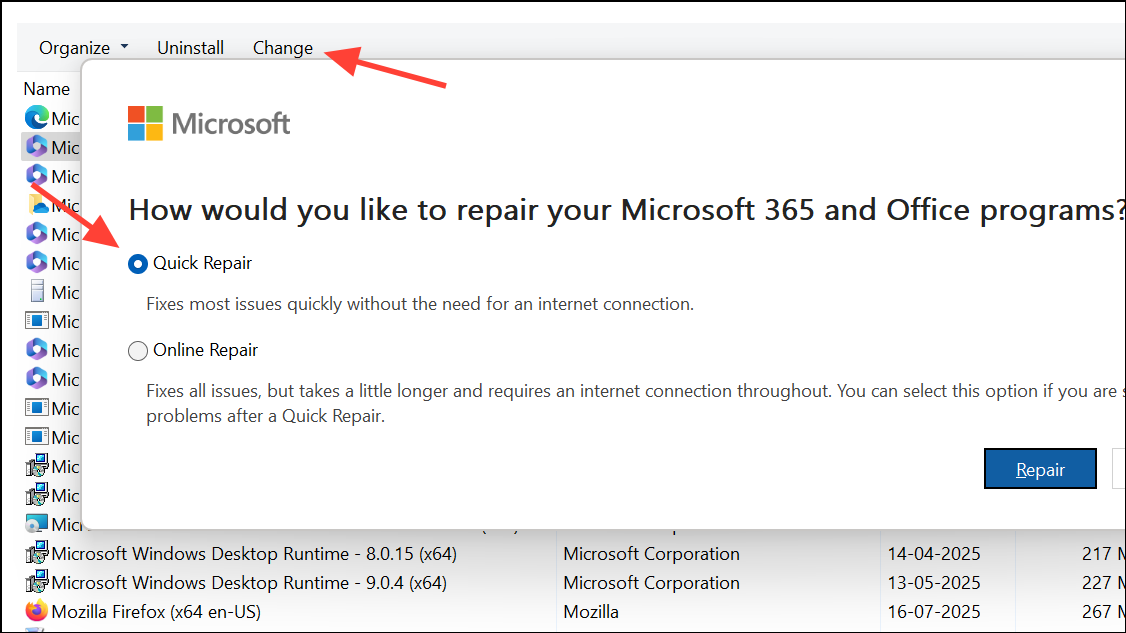
File > Account > Update Options in Word.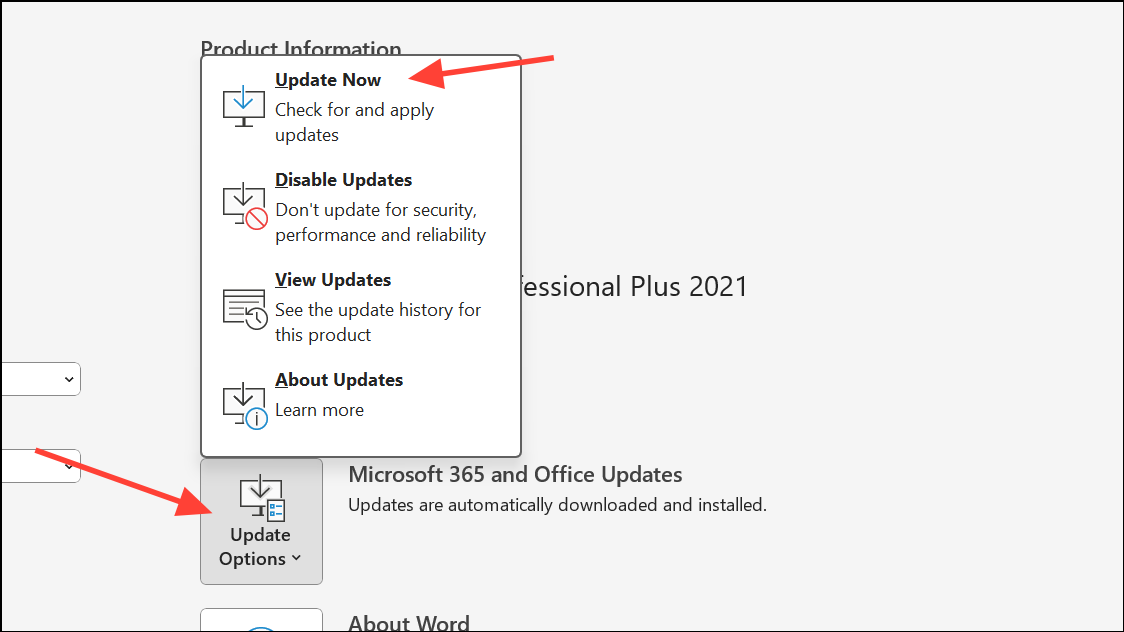
Other Troubleshooting Steps and Workarounds
- Close all open Word documents and reopen only the needed file. Opening a document twice can cause one copy to be read-only.
- If files are on a network share, check folder and file permissions to ensure you have write access.
- Try disabling add-ins by starting Word in Safe Mode: hold
Ctrlwhile launching Word. - Turn off Preview Pane and Details Pane in File Explorer, as these can sometimes lock files in read-only mode.
- If you see “Viewing” or “Reviewing” in the upper-right of Word, check if the “Editing” option is available. If not, try saving the file locally and reopening.
- For files in compressed folders, extract them before opening in Word.
- If Word repeatedly switches to read-only while editing, especially after saving, check for background sync conflicts or try saving with a new filename.
Resolving Word’s read-only mode often comes down to adjusting security settings, checking file properties, and ensuring cloud and antivirus tools aren’t interfering. If the problem persists, Office repair and regular updates usually restore full editing access.





