
The “End Task” feature on the Windows taskbar allows users to swiftly close unresponsive applications without opening Task Manager. By default, this useful feature might not be enabled for every user upon login, especially in multi-user environments. This guide provides clear, step-by-step instructions on how administrators can configure Windows to automatically enable the “End Task” option on the taskbar for all users upon logon.
Method 1: Enable “End Task” Taskbar Feature Using Group Policy (Recommended)
Using Group Policy is the most efficient and reliable method to apply settings across multiple users and devices. It ensures consistency and simplifies management in enterprise environments.
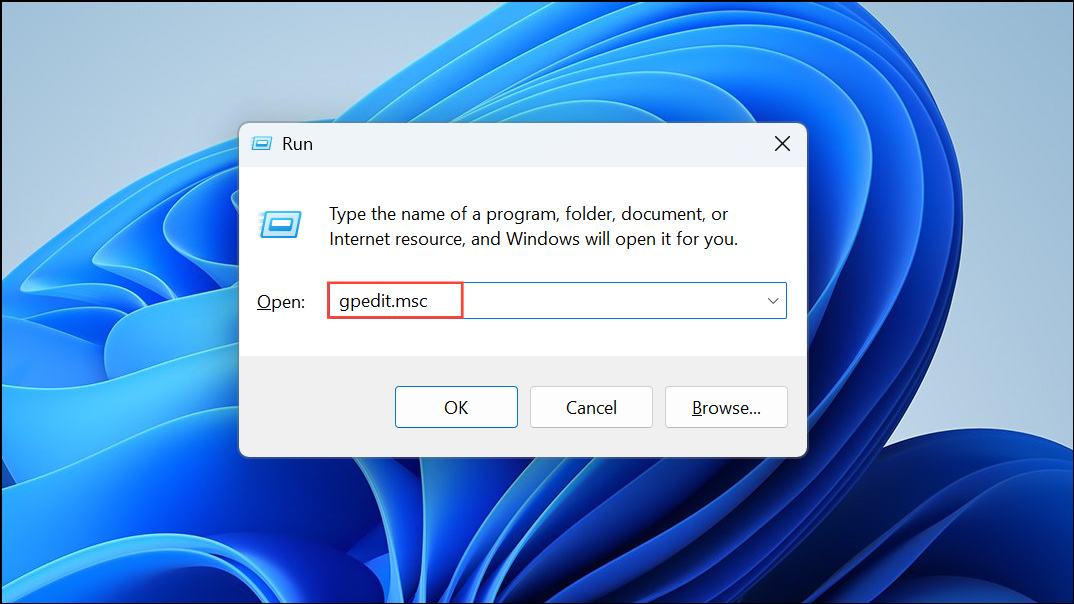
After applying this policy, the “End Task” feature will automatically appear on the taskbar for every user when they log in. This method ensures consistency and requires minimal ongoing management.
Method 2: Enable “End Task” Taskbar Feature via Registry Editor
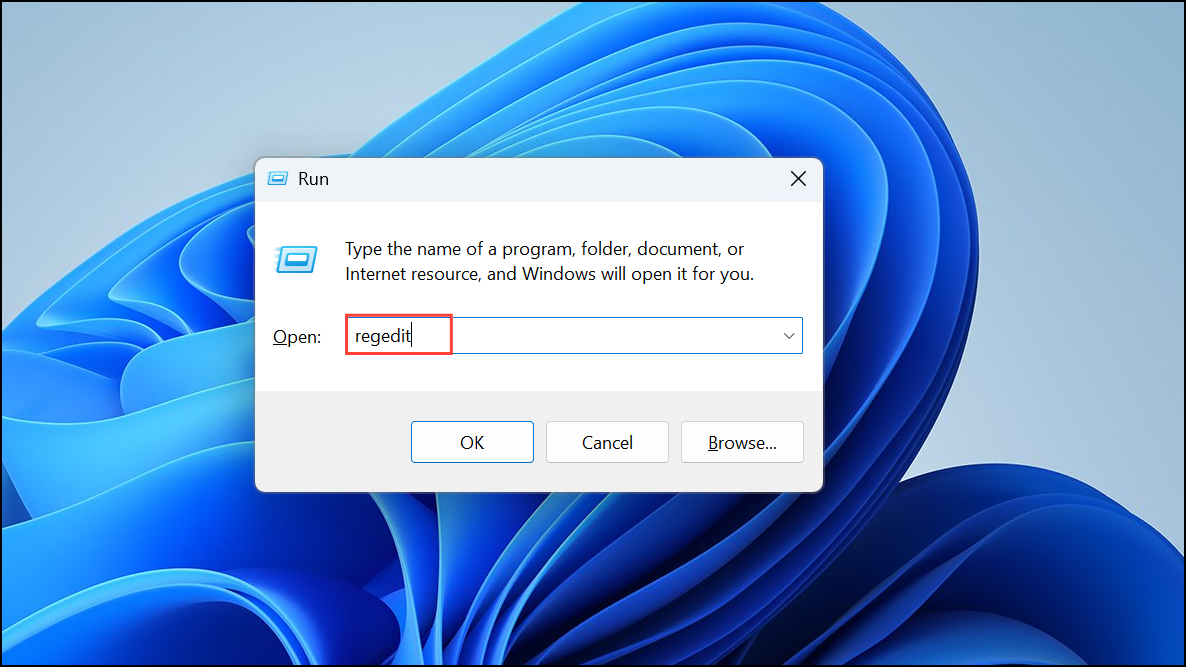
If your Windows edition does not include Group Policy Editor, you can achieve the same result through the Registry Editor. However, editing the registry can pose risks if done incorrectly, so proceed carefully and consider backing up your registry first.
HKEY_CURRENT_USER\Software\Microsoft\Windows\CurrentVersion\Explorer\Advanced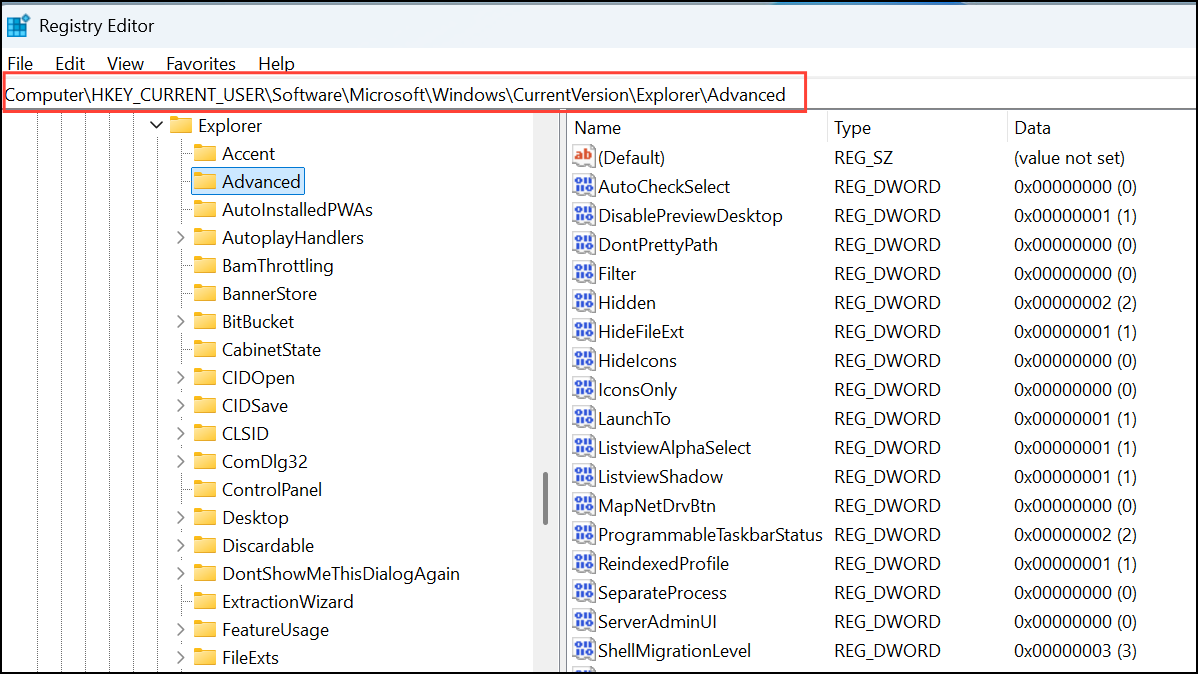
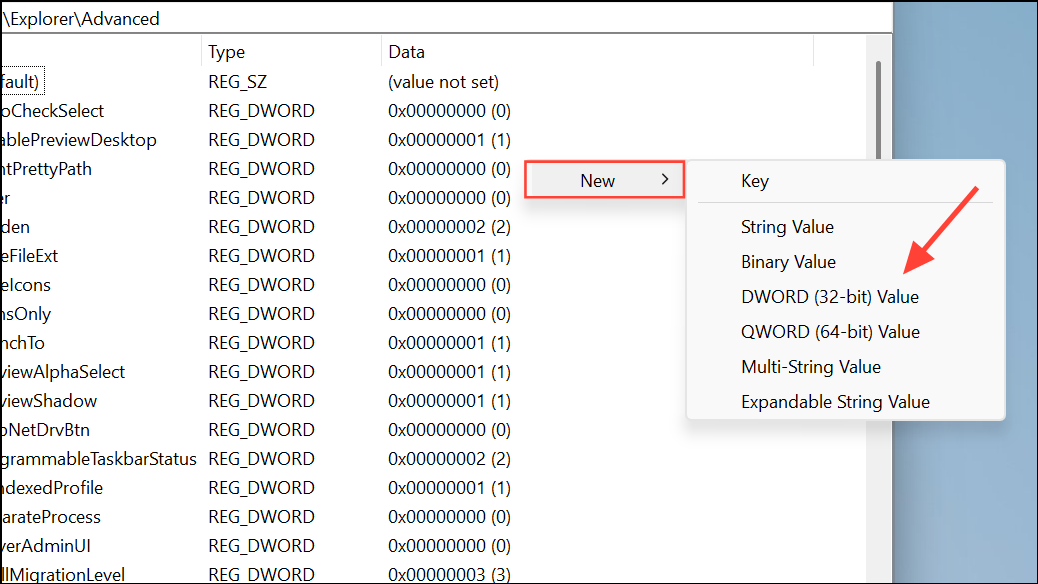
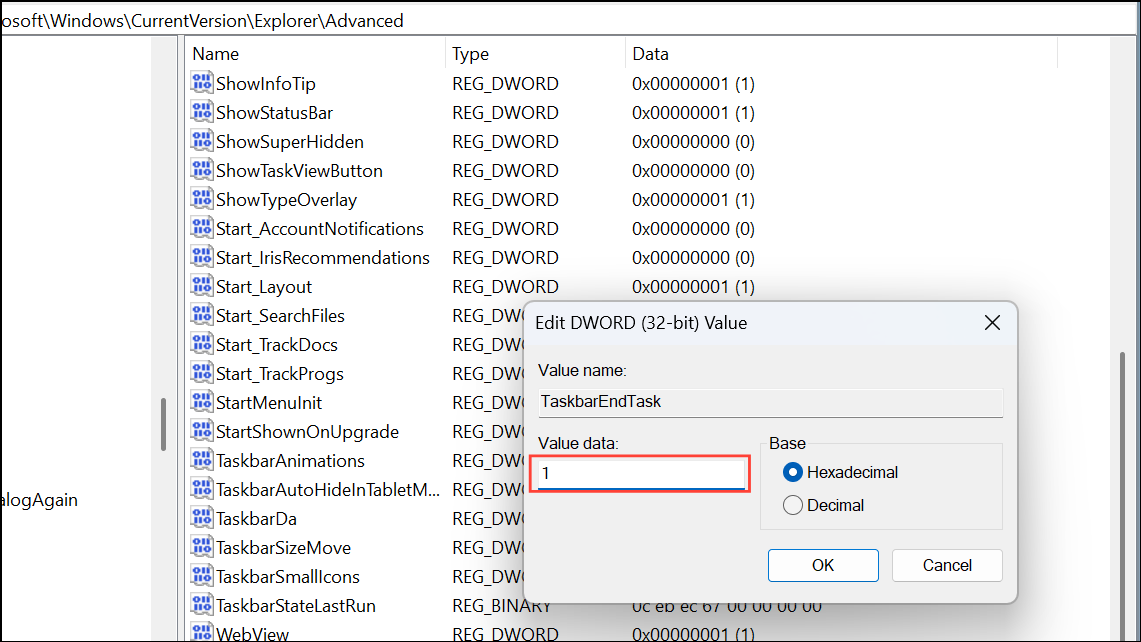
HKEY_LOCAL_MACHINE\Software\Microsoft\Windows\CurrentVersion\Explorer\AdvancedRepeat the creation of the TaskbarEndTask DWORD value here as well, setting its data to 1.
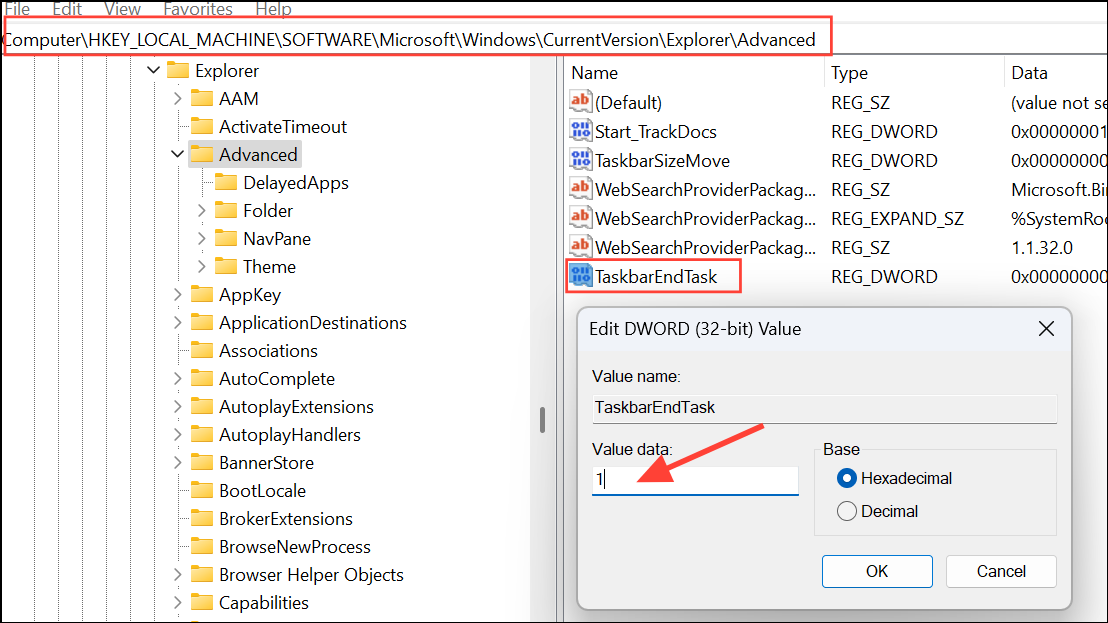
Restart the computer or sign out and back in to apply these changes. All users logging in afterward will have the “End Task” feature available directly on their taskbar.
Method 3: Deploying the Setting via Logon Script
Another alternative is to use a logon script that automatically applies the registry change each time a user logs in. This method is useful in environments where Group Policy is unavailable or registry edits need to be consistently enforced.
REG ADD "HKCU\Software\Microsoft\Windows\CurrentVersion\Explorer\Advanced" /V TaskbarEndTask /T REG_DWORD /D 1 /F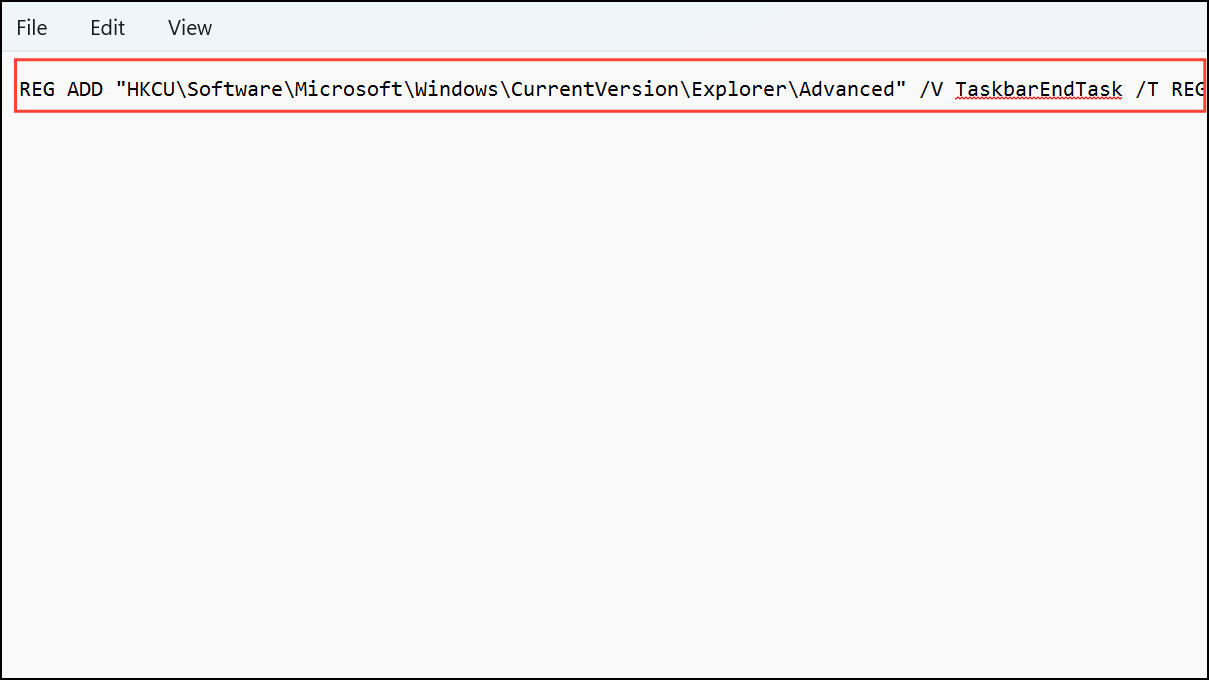
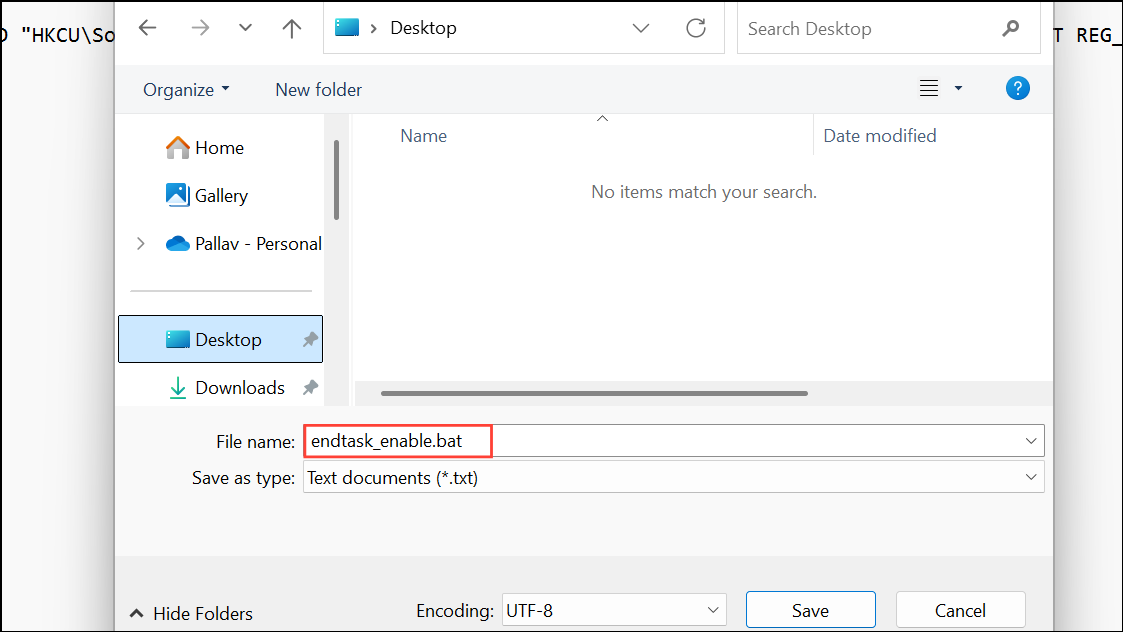
C:\ProgramData\Microsoft\Windows\Start Menu\Programs\StartupAlternatively, configure the script through Active Directory logon scripts if you manage users in a domain environment.
Using this method ensures the registry setting is consistently applied each time users log in, making the “End Task” feature reliably available.
Whichever method you choose, enabling the “End Task” taskbar feature for all users simplifies troubleshooting by allowing quick termination of unresponsive applications directly from the taskbar. This improvement reduces downtime and streamlines user experience across your organization.





