Final Fantasy Resonance on PC already has a busy modding scene, with more than 100 mods on its Nexus Mods game page. Installing one means copying files into the right spot in the game’s install folder or config folder, and that spot depends on the type of mod you downloaded.
Quick answer: Final Fantasy Resonance mods fit four categories. For a pak mod, place its matching .pak, .utoc and .ucas files in FFRS\Content\Paks\~mods within the game directory; make ~mods yourself if needed. Install UE4SS one time in FFRS\Binaries\Win64 before placing UE4SS script mods in FFRS\Binaries\Win64\ue4ss\Mods. Put DLL mods, including the Ultrawide Mod, in FFRS\Binaries\Win64 beside FFRS-Win64-Shipping.exe. Save Engine.ini adjustments under %LOCALAPPDATA%\FFRS\Saved\Config\Windows. Remove any of these by deleting what you installed.
| Mod type | What you download | Where it goes | Example mod |
|---|---|---|---|
| Pak mod | .pak + .utoc + .ucas (same name) | FINAL FANTASY RESONANCE\FFRS\Content\Paks\~mods | Skip intro videos (MajinXIV) |
| UE4SS mod | A mod folder (often with enabled.txt) | FFRS\Binaries\Win64\ue4ss\Mods | Skip Intro (evilbananas), FFR Bestiary (MerkyLAW) |
| UE4SS + pak | A mod folder plus pak files | Both folders above | Item and Chest Markers (ZArkadia) |
| DLL mod | A .dll such as dxgi.dll | FFRS\Binaries\Win64 (next to FFRS-Win64-Shipping.exe) | Final Fantasy Resonance – Ultrawide Mod (Refilo) |
| Engine.ini tweak | Engine.ini | %LOCALAPPDATA%\FFRS\Saved\Config\Windows | PERFECT VISION RESONANCE (MisterAlerion) |
| .ffrspack mod | A .ffrspack file | Installed through FFR Modding Tools | FFR Modding Tools (Kanaruu) |
Every mod page has its own install instructions. When they differ from anything below, follow the page for the mod you actually downloaded.
Back up your saves and find the Final Fantasy Resonance folder
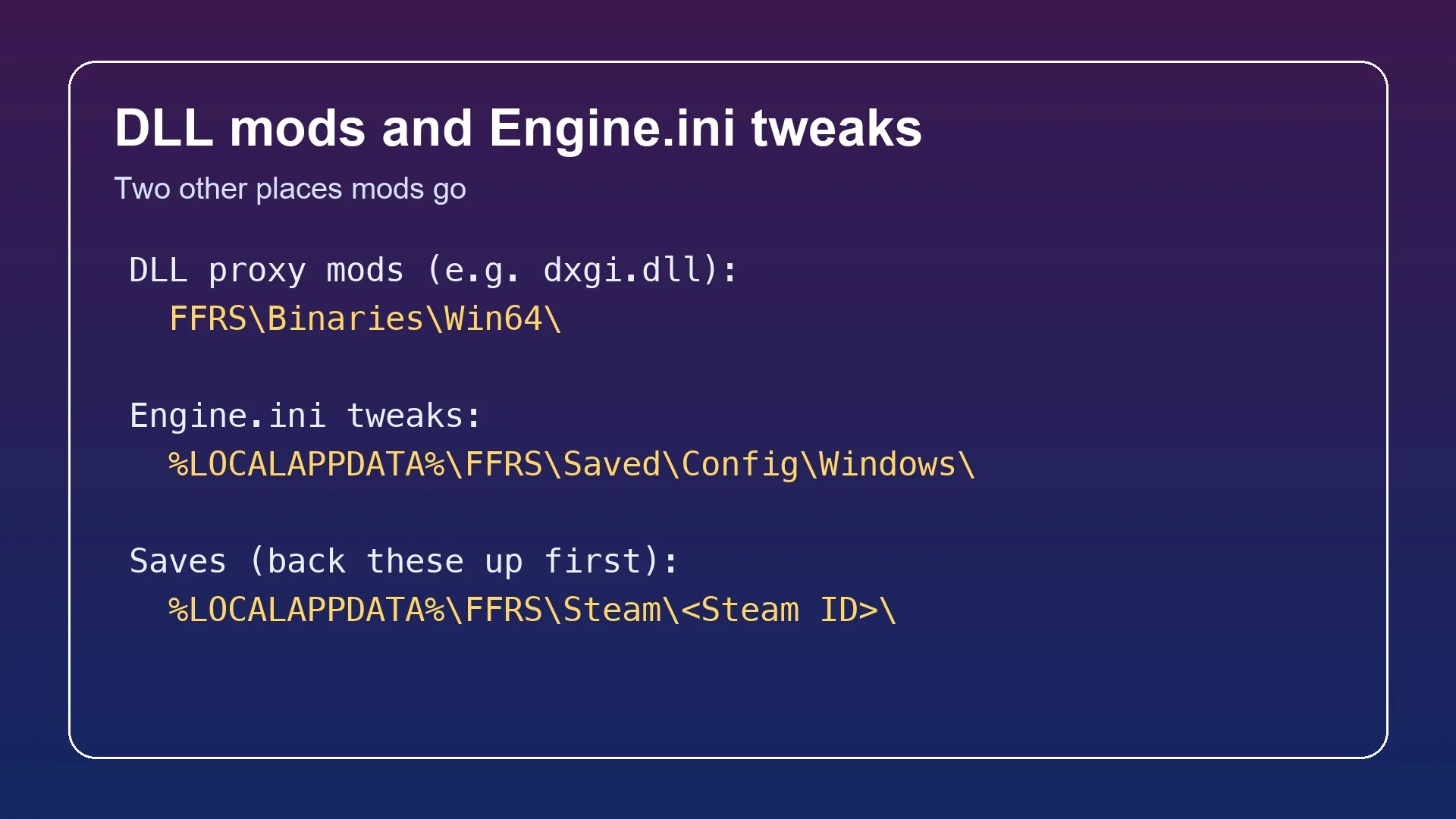
Before touching anything, copy your save folder somewhere safe. On Steam, saves live in %LOCALAPPDATA%\FFRS\Steam\<your Steam ID number>, which expands to C:\Users\<your Windows user name>\AppData\Local\FFRS\Steam\<your Steam ID number>. There’s more on that folder in the Final Fantasy Resonance save guide.
To open the game folder, right-click FINAL FANTASY RESONANCE in your Steam Library and choose Manage > Browse local files. By default it’s C:\Program Files (x86)\Steam\steamapps\common\FINAL FANTASY RESONANCE, or SteamLibrary\steamapps\common\FINAL FANTASY RESONANCE if the game is on another drive. You’re in the right place when you see FFRS.exe alongside the FFRS and Engine folders.
Since the standard install path is within Program Files, copying files there may prompt Windows to request administrator permission.
Steam is the intended version for mods unless a mod’s page specifies a different target. The Ultrawide Mod, for example, also names the Xbox app / Microsoft Store version.
Install pak mods in the ~mods folder
Pak mods are the simplest type, and Skip intro videos by MajinXIV is a typical one. Here’s how it goes in.
~mods—including the tilde. If one already exists, keep using it.~mods. You should end up with three files sharing one name, such as FFRS\Content\Paks\~mods\FFRS-SkipLogos_P.pak, FFRS-SkipLogos_P.utoc and FFRS-SkipLogos_P.ucas.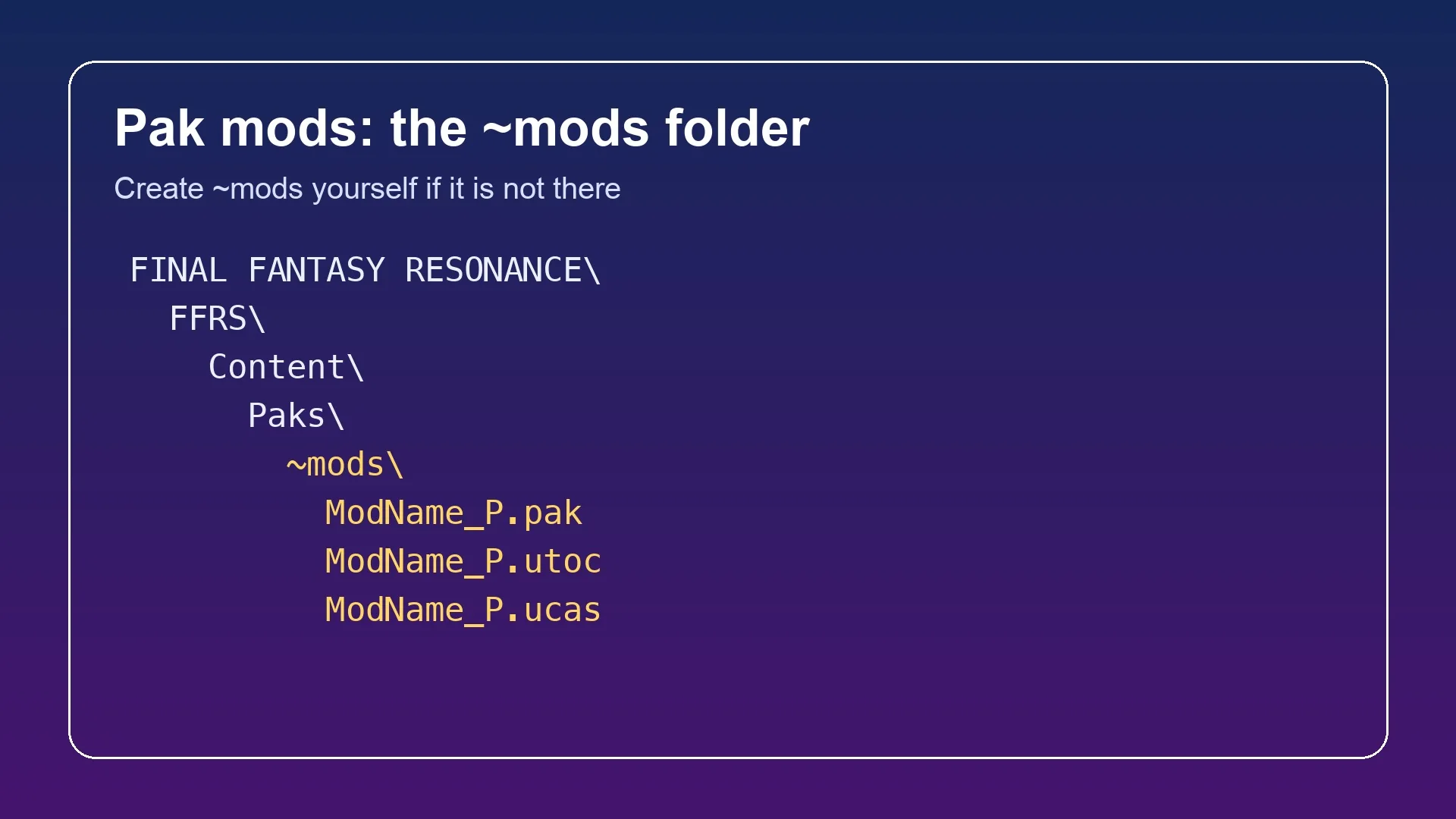
A pak mod requires all three components: .pak, .utoc and .ucas. Keep the set together; without any one of them, the game will not load the mod.
Removing a pak mod is just deleting those three files from ~mods. The game’s original content isn’t modified.
Set up UE4SS for Final Fantasy Resonance script mods
UE4SS is an open-source, no-cost script loader made for Unreal Engine titles. Because Final Fantasy Resonance uses Unreal Engine 5.6, mod pages direct you to the experimental release. This setup is only needed once, so skip these steps if UE4SS is already installed for another mod.
UE4SS_v3... zip from the “experimental-latest” release on the UE4SS GitHub releases page. Don’t grab the zDEV one.FFRS\Binaries\Win64, where FFRS-Win64-Shipping.exe is located, and unpack the zip into that directory. Afterward, dwmapi.dll and the ue4ss directory should be alongside the executable.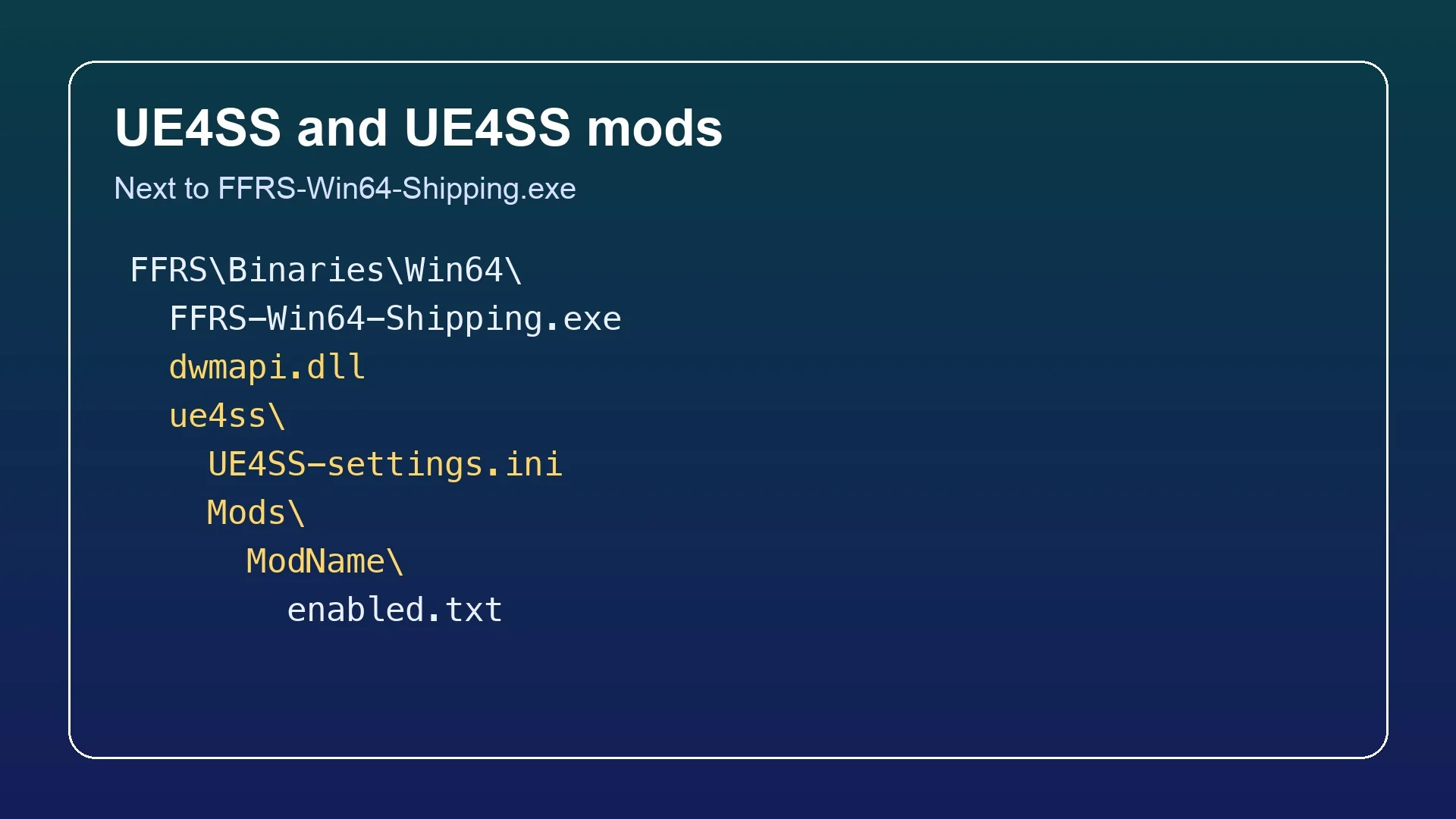
ue4ss\UE4SS-settings.ini. Locate [EngineVersionOverride], change the values to MajorVersion = 5 and MinorVersion = 6, and save the file.Some mods ship with UE4SS included. Skip Intro by evilbananas bundles the experimental UE4SS build v3.0.1-1181 and gets extracted into the top-level game folder, the one with FFRS.exe. If you already have UE4SS, extract only its ue4ss\Mods\SkipIntro folder into your existing Mods folder.
Add UE4SS mods and hybrid UE4SS + pak mods
After UE4SS is installed, each UE4SS mod is installed as a directory under FFRS\Binaries\Win64\ue4ss\Mods. For many mods, an enabled.txt file within that directory activates it.
A few mods require both UE4SS and pak files, which means installing their components in two locations:
- Item and Chest Markers (Including World Map) by ZArkadia: install its
FFR_MapMarkerdirectory underFFRS\Binaries\Win64\ue4ss\Mods, then place the mod’s.pak,.ucasand.utocfiles inFFRS\Content\Paks\~mods. After opening the world map or moving to another area, allow 1-3 seconds for markers to refresh. - FFR Bestiary by MerkyLAW: unpack the archive at the FINAL FANTASY RESONANCE directory level, where the
FFRSfolder is located. This createsFFRS\Binaries\Win64\ue4ss\Mods\FFRBestiaryand places a pak file inFFRS\Content\Paks\~mods.
You can tell FFR Bestiary is working when a Bestiary page appears in the main menu above System, listing the enemies you’ve met, grouped by area.
For one UE4SS mod, remove its directory from ue4ss\Mods and delete any pak file it installed in ~mods. To uninstall UE4SS itself, remove both dwmapi.dll and the ue4ss directory from FFRS\Binaries\Win64.
Install DLL mods like the Final Fantasy Resonance Ultrawide Mod
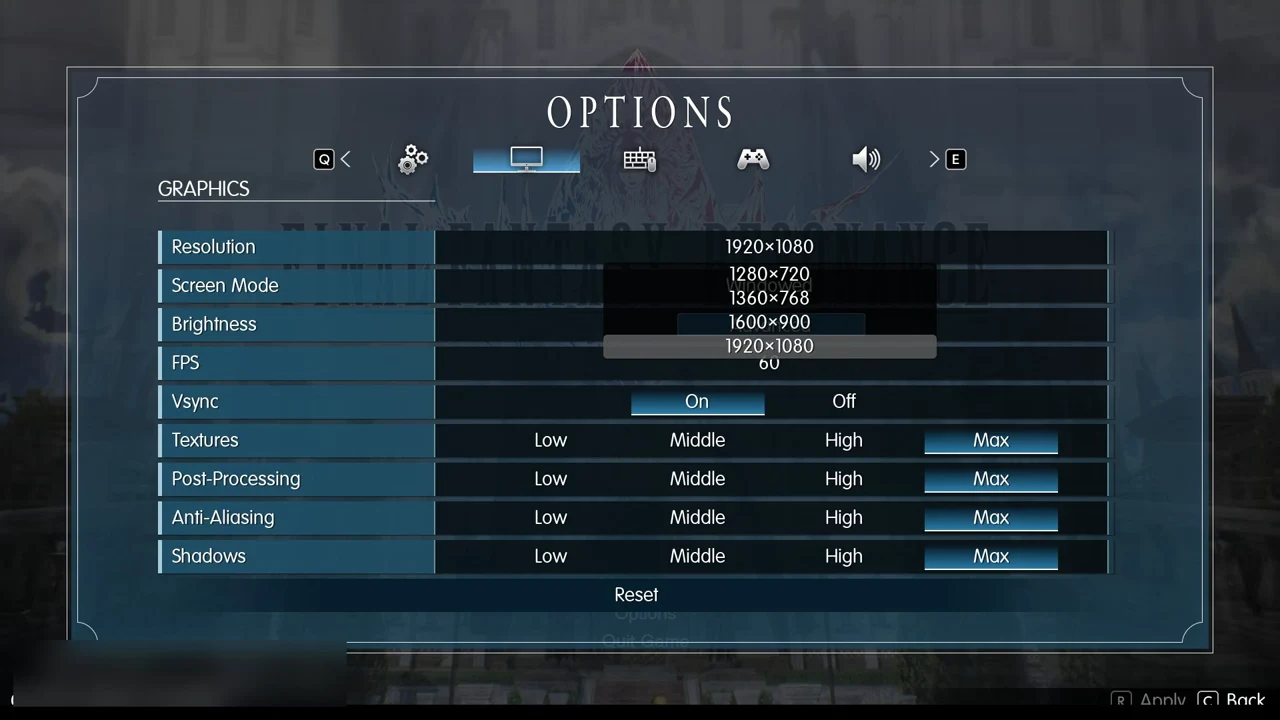
By Refilo, Final Fantasy Resonance – Ultrawide Mod lifts the 16:9 restriction for 32:9, 24:10 and 21:9 displays. It works as a lone dxgi.dll proxy, altering the game in memory without requiring additional tools. After installation, the game’s Resolution menu includes your monitor’s native resolutions.
When ReShade is installed as dxgi.dll, enabling a mod that includes its own dxgi.dll takes ReShade’s place.
Apply Engine.ini tweaks
PERFECT VISION RESONANCE by MisterAlerion is an Engine.ini file that turns off bloom, vignetting, chromatic aberration and depth of field. Type %localappdata% into the File Explorer address bar, then drop Engine.ini into C:\Users\<your Windows user name>\AppData\Local\FFRS\Saved\Config\Windows. That’s the same folder that holds the game’s GameUserSettings.ini. Delete the Engine.ini to undo it.
Manage Final Fantasy Resonance mods with Vortex instead
If you’d rather not copy files by hand, the community extension Final Fantasy Resonance Support for Vortex (version 0.1.0 by leandrobueno, listed under Vortex extensions on Nexus Mods) adds the game to Vortex. It supports the Steam version only; Xbox / Microsoft Store isn’t supported yet. Here’s how it handles each mod type:
- Pak mods go to
FFRS\Content\Paks\~modswith a load order page. Mods lower in the list load later and win when two mods change the same thing. - Drag the UE4SS release zip (not the zDEV one) into Vortex and it sets
MajorVersion = 5andMinorVersion = 6for you. - UE4SS mods go to
ue4ss\Modsand get anenabled.txt. - Place DLL mods alongside the game executable.
- Put Engine.ini adjustments in
%LOCALAPPDATA%\FFRS\Saved\Config\Windows. - Buttons open the ~mods, UE4SS Mods, Config and Save folders.
For .ffrspack files, use FFR Modding Tools (below); the extension cannot install them. On Vortex’s first mod deployment, Windows might request administrator approval, since the game is installed in Program Files. Removing a mod through Vortex also removes what it deployed.
FFR Modding Tools: the .ffrspack mod manager, item tools and save editor
Kanaruu’s FFR Modding Tools – Mod Manager and Creator (Nexus Mods version 0.9.5) runs on 64-bit Windows 10/11 and supports managing, installing, and making Final Fantasy Resonance mods. It installs .ffrspack files and can also take mod archives or folders. Its page states that mods load while the original game stays unchanged. The manager flags mod conflicts and lets you set their priority order. It can also combine conflicting data-table changes, including item or stat adjustments, into a single pack.
Before you use the manager or its save editor, copy your save folder somewhere safe: %LOCALAPPDATA%\FFRS\Steam\<your Steam ID number>, which is the same as C:\Users\<your Windows user name>\AppData\Local\FFRS\Steam\<your Steam ID number>. To install it, run the installer and follow the instructions, then launch the manager, which detects your Steam installation automatically. After that, drag and drop .ffrspack files, mod archives or folders into the manager to install them.
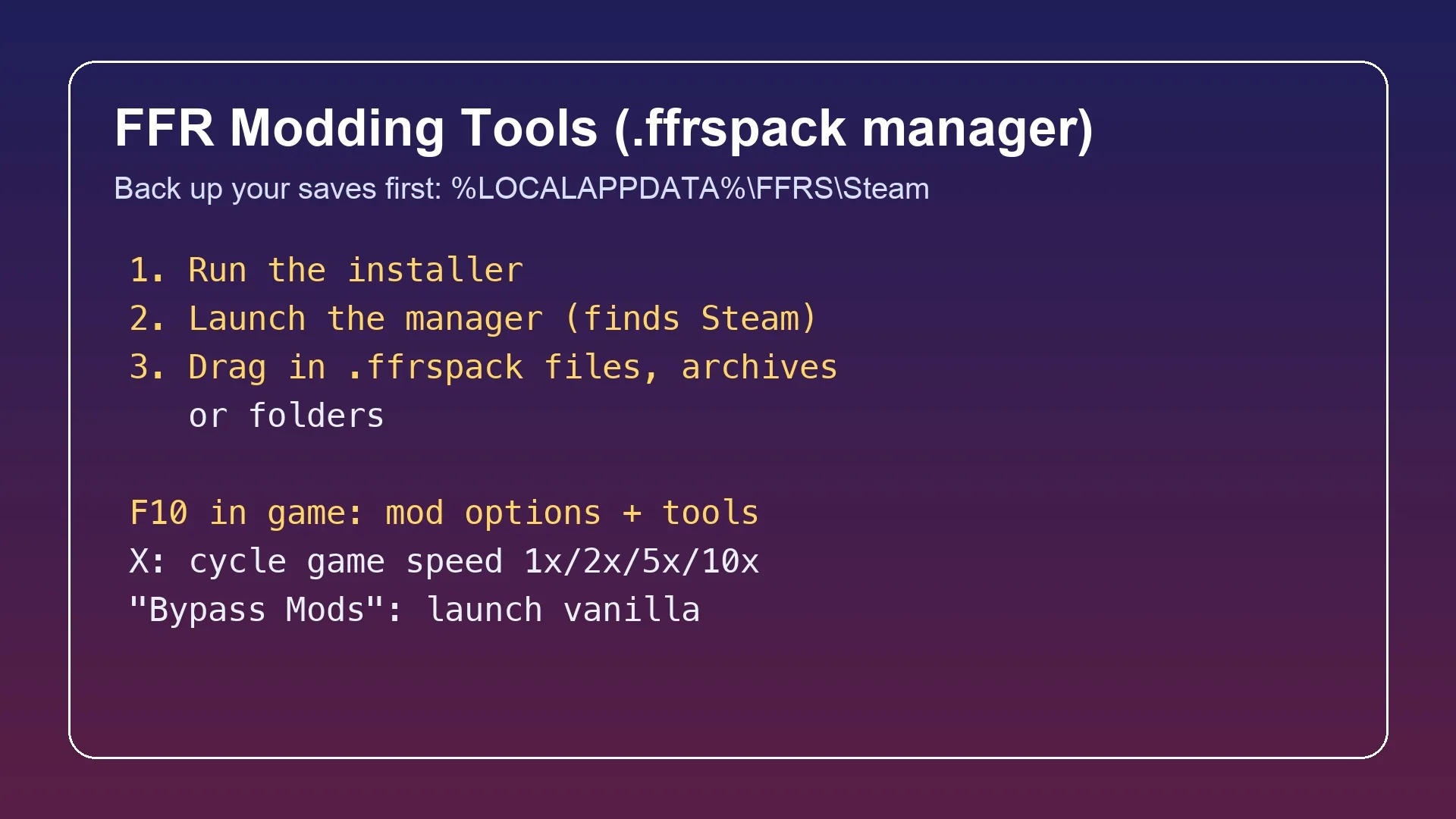
Press F10 in game to bring up the overlay. It includes settings for each mod, controller support, a level launcher, an FPS counter, and tools for adding Gil, granting any named consumable, weapon, seed or accessory, changing or adding party members, and unlocking Vision summons. The save editor lets you alter values in your save data. Press X on the keyboard to cycle through 1x, 2x, 5x and 10x game speed. The “Bypass Mods” option starts the game with mods disabled while leaving them installed. Its page describes a demo-era early build and cautions that issues may occur.
Popular Final Fantasy Resonance mods and their install type
These mods cover every install method above, so the Type column tells you which section to follow.
| Mod | Author | What it does | Type |
|---|---|---|---|
| Final Fantasy Resonance – Ultrawide Mod | Refilo | True 32:9 / 21:9 ultrawide, menus centred in 16:9 | DLL |
| Final Fantasy Resonance Smooth Sprite | 1vierock29 | Smoothed x4 character sprites | Pak |
| PERFECT VISION RESONANCE | MisterAlerion | Turns off bloom, vignette, chromatic aberration and depth of field | Engine.ini |
| Skip intro videos | MajinXIV | Skips the startup logos | Pak |
| Skip Intro | evilbananas | Boots straight to the main menu | UE4SS (bundled) |
| Item and Chest Markers (Including World Map) | ZArkadia | Shows uncollected items, chests and other markers on the map | UE4SS + pak |
| FFR Bestiary | MerkyLAW | Adds a Bestiary page with enemies you have met and scanned | UE4SS + pak |
| Thai Translation Full Game | Siwaphat | Unofficial Thai translation of all game text | See its page |
| FFR Modding Tools – Mod Manager and Creator | Kanaruu | Mod manager for .ffrspack files, F10 item and speed tools, save editor | Installer |
| XP Multiplier | MajinXIV | Battle EXP x2, x4, x8 or x16 | Pak |
| MRP Multiplier | MajinXIV | Vision MRP x2, x4, x8 or x16 | Pak |
| More Gil Drop from Enemies | ZArkadia | Doubles enemy gil | Pak |
| Enemy 100 Percent Drop Item | ZArkadia | Every enemy drops its items, rare drops included | Pak |
| Steal always 100 Percent | ZArkadia | Steal and mug always take the normal steal item | Pak |
| FFRS_AutoResolve | chinYomod | Auto-resolves eligible random encounters (F6 toggle) | UE4SS |
A translation mod changes the game’s own Text Language list.
Gameplay mods: EXP, MRP, gil, drops and auto-battle
Gameplay mods change how quickly you progress in Final Fantasy Resonance, a single-player game, and make it easier. When a mod comes in several versions you install only one at a time, and most of these are pak mods that go in FFRS\Content\Paks\~mods.
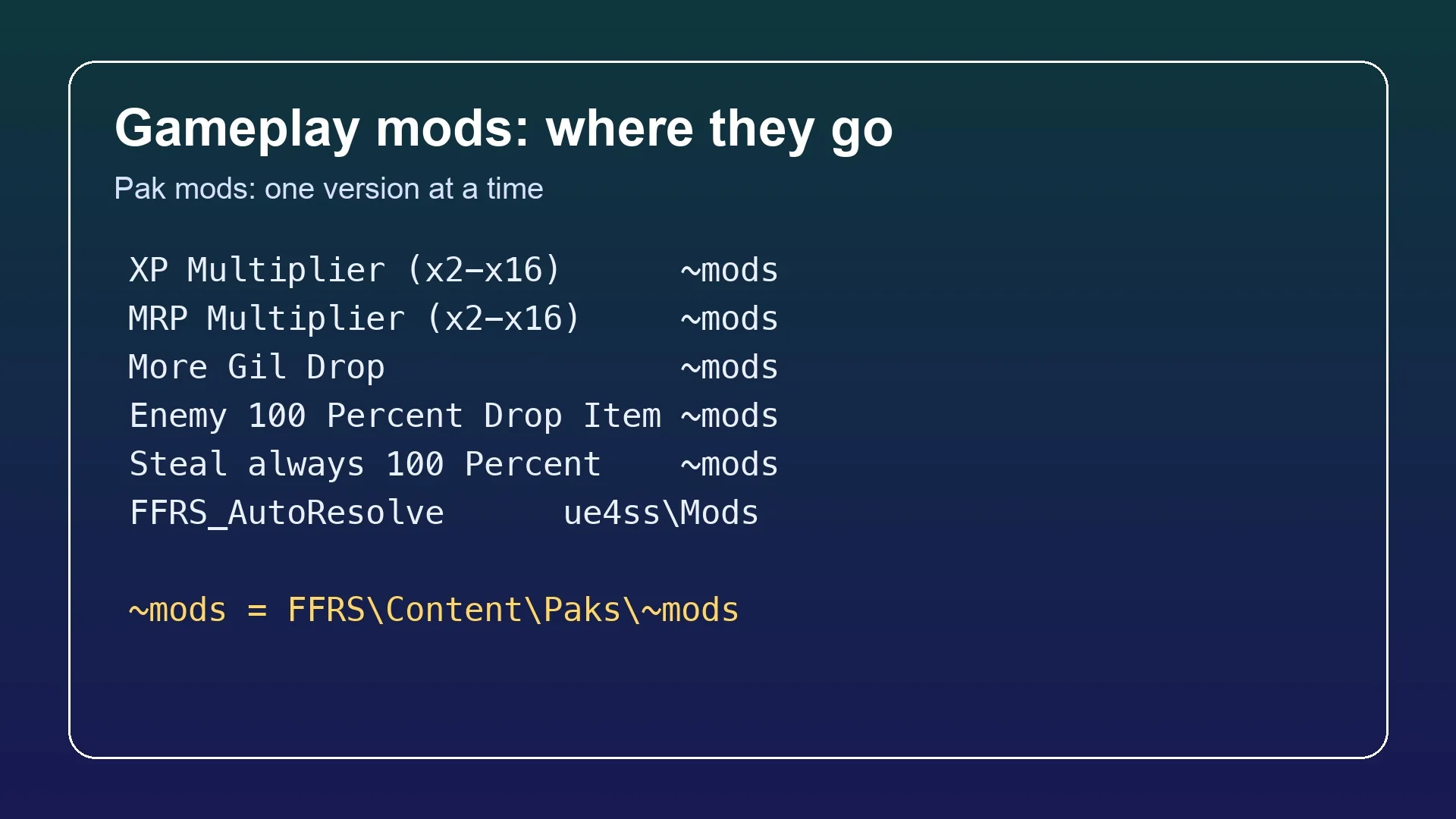
XP Multiplier by MajinXIV boosts battle EXP by x2, x4, x8 or x16; install just one version. For x2, put the three files FFRS-ExpX2_P.pak, .utoc and .ucas in FFRS\Content\Paks\~mods.
MRP Multiplier by MajinXIV increases the Vision points (MRP) gained in battles by x2, x4, x8 or x16; use only one version at a time. Install it as a pak mod in FFRS\Content\Paks\~mods. The x2 version uses FFRS-VisionX2_P.pak, .utoc and .ucas.
More Gil Drop from Enemies by ZArkadia raises the gil dropped by each enemy to twice the usual amount. Place its pak files in FFRS\Content\Paks\~mods.
Enemy 100 Percent Drop Item by ZArkadia guarantees that each enemy drops its items on every kill, including rare drops. Put its pak files in ~mods. The mod’s page notes an incompatibility with More Gil Drop from Enemies; choose one of them or use the author’s combined version.
FFRS_AutoResolve by chinYomod: a UE4SS mod that resolves eligible random encounters before the battle screen opens, paying out EXP, gil, MRP for equipped Visions and any rolled item drops when your highest party level is above the enemies’ level (and the area’s danger level) by a margin, while story and fixed battles, under-level fights and anything it cannot resolve play as normal battles. Press F6 to turn it on or off, adjust it in Mods\FFRS_AutoResolve\Scripts\FFRS_AutoResolve.ini, and install it by copying only its ue4ss\Mods\FFRS_AutoResolve folder into your UE4SS Mods folder if UE4SS is already installed, or for a new UE4SS install by copying everything inside the archive’s Win64 folder into FFRS\Binaries\Win64 beside the executable after backing up any existing dwmapi.dll.
Mods that change the same thing can conflict, so check the conflict notes on each mod’s page before combining them. To uninstall a pak mod, delete its three files from ~mods, and to remove a UE4SS mod, delete its folder from ue4ss\Mods.
Fix broken mods after a Final Fantasy Resonance update
Each mod is made for a particular game version. Updates can therefore break compatibility or trigger crashes until the author provides a fix. The Ultrawide Mod behaves differently: an unrecognized game build leaves it inactive, and the game continues to run normally.
If the game crashes or acts strangely after an update, clear out ~mods and ue4ss\Mods (or move those files outside the game folder) and remove any DLL mods. Then add them back one at a time, and check each mod’s page for an update.
To have Steam repair the game’s original files, right-click the game and open Properties, then Installed Files; there, choose the command to verify the integrity of the game files. Added mod files are left untouched, so delete those yourself. Keep your save backup until you’ve confirmed the mods work.