
Quick and accurate communication can determine the outcome of any Battlefield 6 match. Pinging lets you alert teammates to threats, objectives, or points of interest without relying on voice chat. Mastering this feature means your squad responds faster and coordinates more effectively, which can make a measurable difference in chaotic battles.
How to Ping in Battlefield 6 Using Default Controls
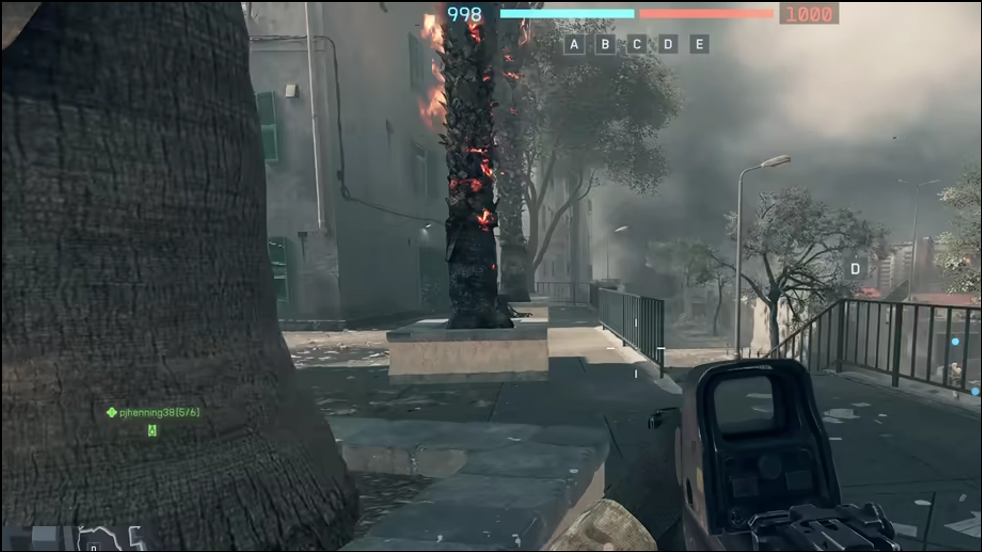
R1. On Xbox controllers, tap RB. For PC players, the default key is Q. If you’re unsure or have customized your controls, check the keybindings under the in-game settings menu—look for the action labeled “Danger Ping” or “Commo Rose.”How to Customize Ping Controls in Battlefield 6
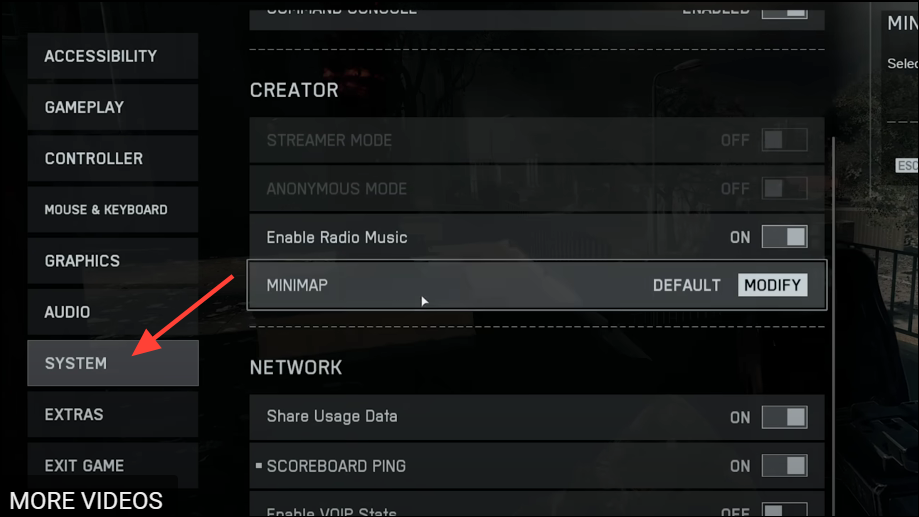
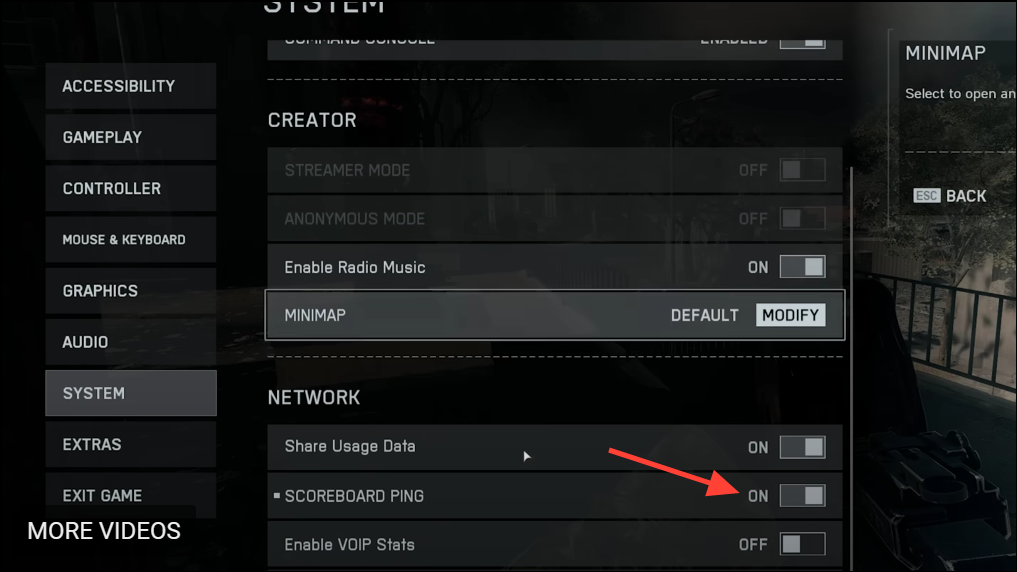
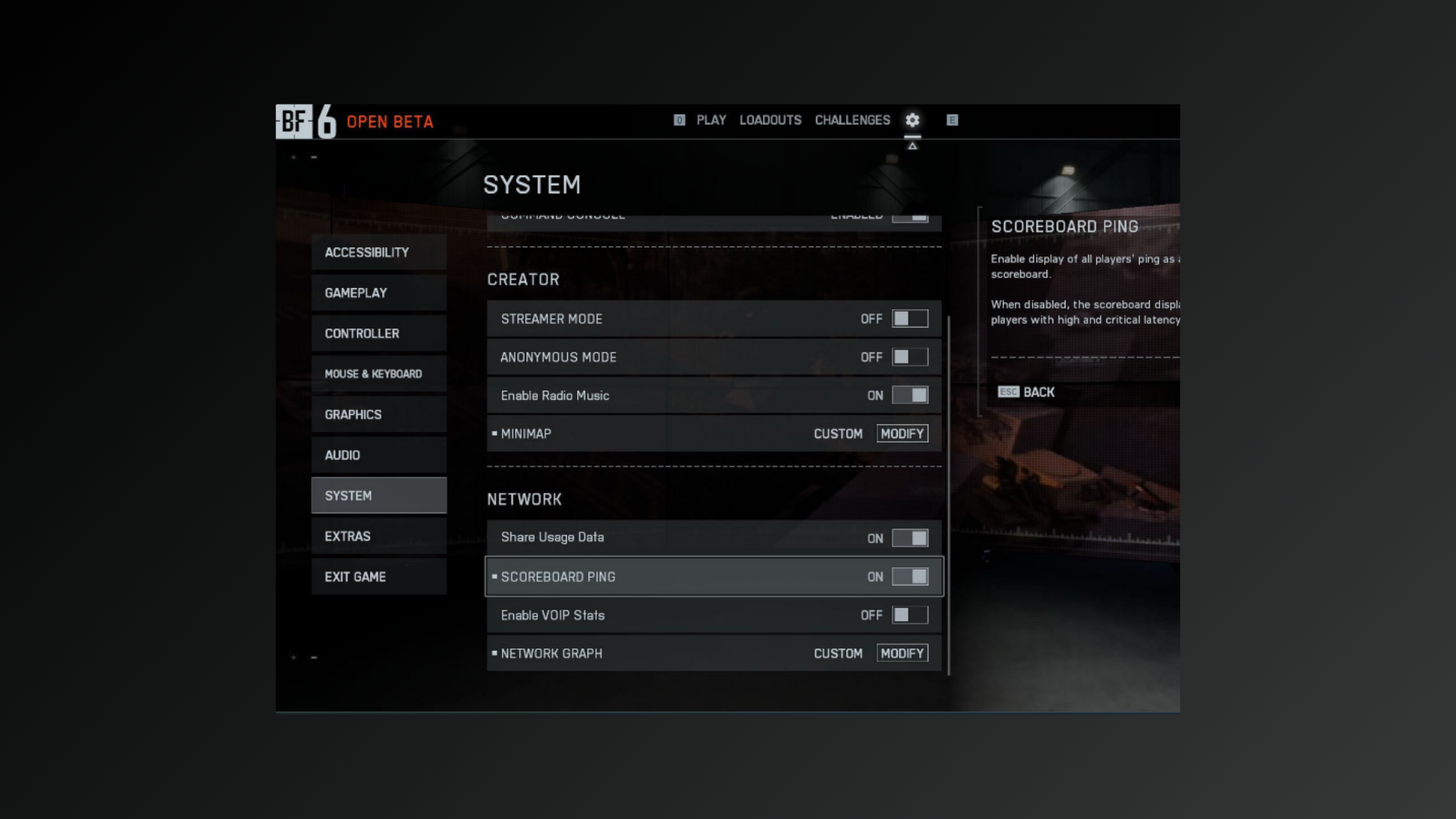
Optional: You can also enable other things by going to the same Network group and selecting “Network Graph”. For instance, you can enable the “Network Performance Bar” to check how your network performs, enable the “Network Performance Graph” to see how your network is performing, and other things like the “Damage Log” and “Event Graph”.
Troubleshooting: When Pinging Doesn’t Work
Tips for Effective Pinging in Battlefield 6
- Use single taps for quick pings and hold for more detailed communication through the Commo Rose.
- Avoid spamming the ping button—excessive pings can clutter your squad’s screen and distract from important calls.
- Coordinate with your team to establish ping conventions, such as using red pings for enemies or yellow for objectives.
- Rebind your ping key or button if the default feels awkward during intense fights.
Mastering the ping system in Battlefield 6 speeds up squad coordination and keeps everyone on the same page, even without voice chat. Try out different ping methods and settings to find what works best for your playstyle.





