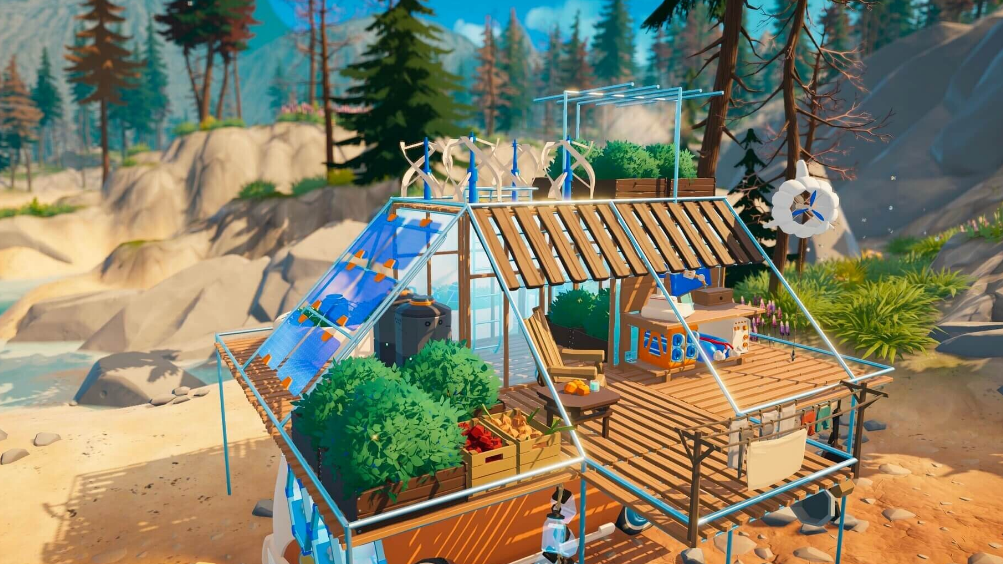
Outbound supports online co-op for up to four players, but the option stays locked until you clear the short opening tutorial. Once the starting barrier is repaired, the host can generate a multiplayer code and share it with up to three friends across PC platforms, while consoles use direct invitations instead.
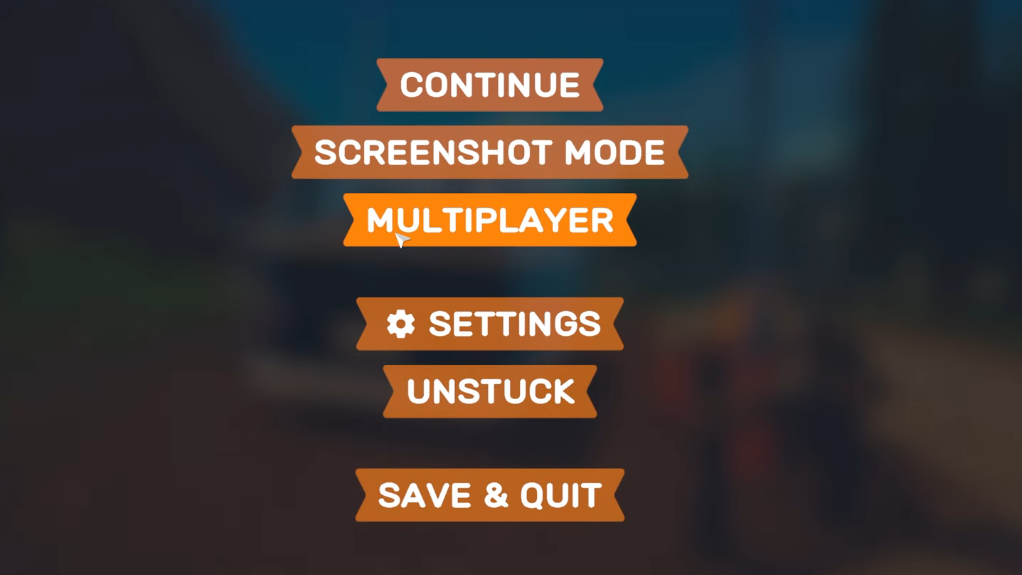
Quick answer: Finish the tutorial by crafting the Wrench I and opening the red-and-white barrier, then open the in-game menu, pick the multiplayer tab, generate a code, and send it to a friend who selects Join Friend from the main menu.
Requirements before co-op unlocks
Multiplayer is gated behind the first camping area. You cannot host or join until the host account has completed the intro sequence on their own save. The game is online co-op only, so a stable internet connection is required for every player.
- Each player must own Outbound on a compatible platform.
- The host must finish the tutorial steps below at least once on the save they plan to share.
- Crossplay between Steam and Epic Games Store works through the code system. Crossplay between Steam/Epic and Xbox (including PC Game Pass, which uses the Xbox build) is not supported.
Finish the tutorial to unlock multiplayer
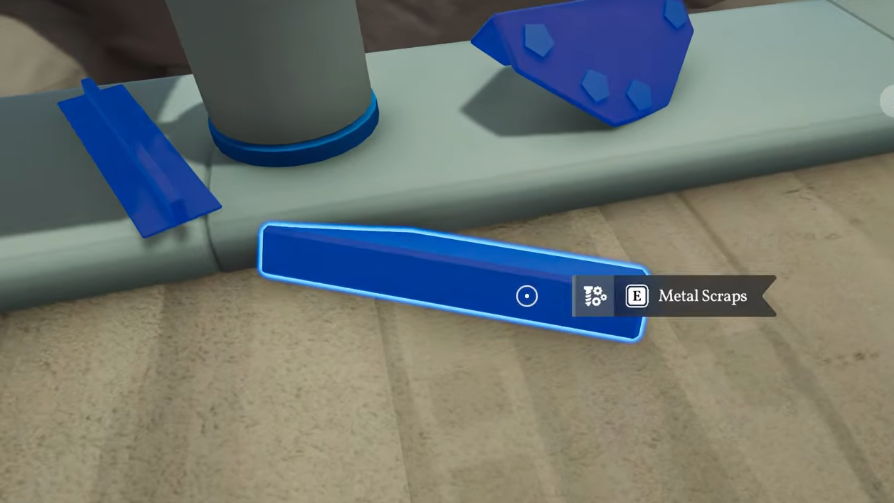
The opening sequence takes only a few minutes and ends when you repair the gate, leaving the first camping spot. Follow it in order on the host’s save.

Invite friends with a lobby code (PC)
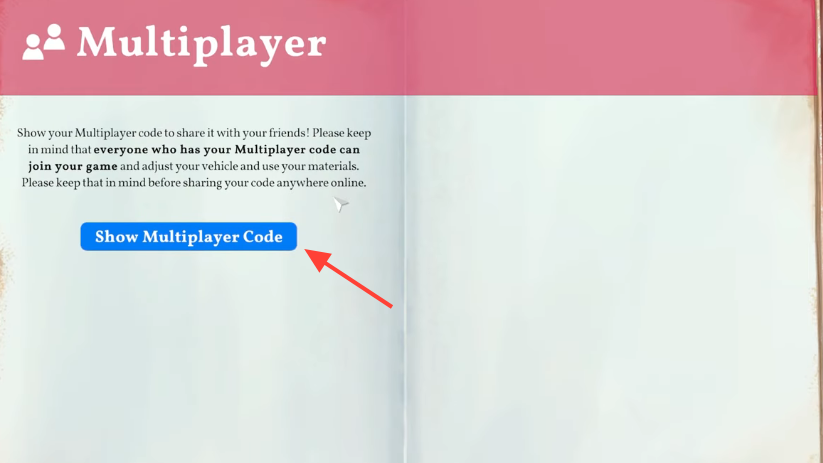
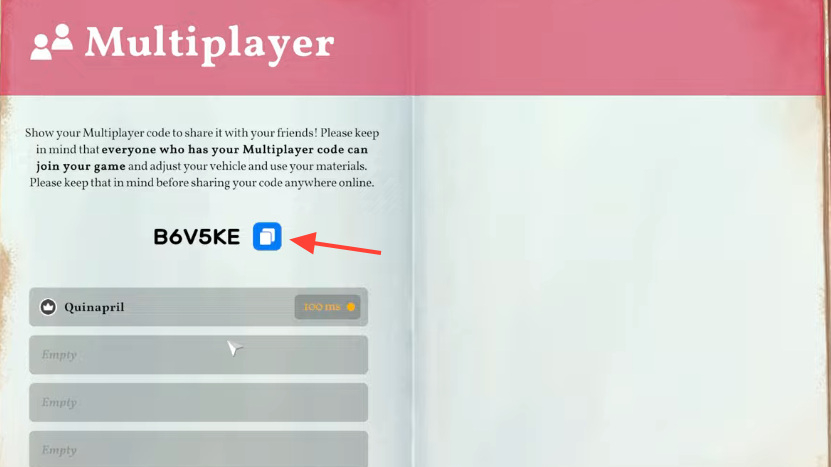
On Steam and Epic Games Store, multiplayer runs on a copy-and-paste code rather than platform friend lists. The host generates the code from inside an active save.
Invite friends on console
PlayStation 5, Xbox Series consoles, and Nintendo Switch 2 use direct invitations instead of pasteable codes. Open the same multiplayer tab from the in-game menu, choose Host Session, and then select Invite to pick friends from your platform’s friends list.
How shared progression works
Progress in Outbound is attached to the save file, not to the character. That means joining a friend’s world creates a fresh character there, and anything you unlock while playing in their game stays in their save.
| Element | Behavior in co-op |
|---|---|
| Vehicle | One shared camper van per session, owned by the host’s save. |
| Character | A new character is created the first time you join another player’s save. |
| Blueprints and recipes | Unlocked items, tools, and decorative packs are shared with everyone in the same save. |
| Resources | Materials, food, and crafted items are stored on the shared van and accessible to all players. |
| Save ownership | Only the host can load the world. Other players cannot continue without the host online. |
| Player limit | Up to 4 players total, including the host. |
Because there is only one van per session, players can wander the open world separately, but staying within reasonable range of the vehicle keeps travel, crafting, and recharging practical.
How to confirm co-op is active
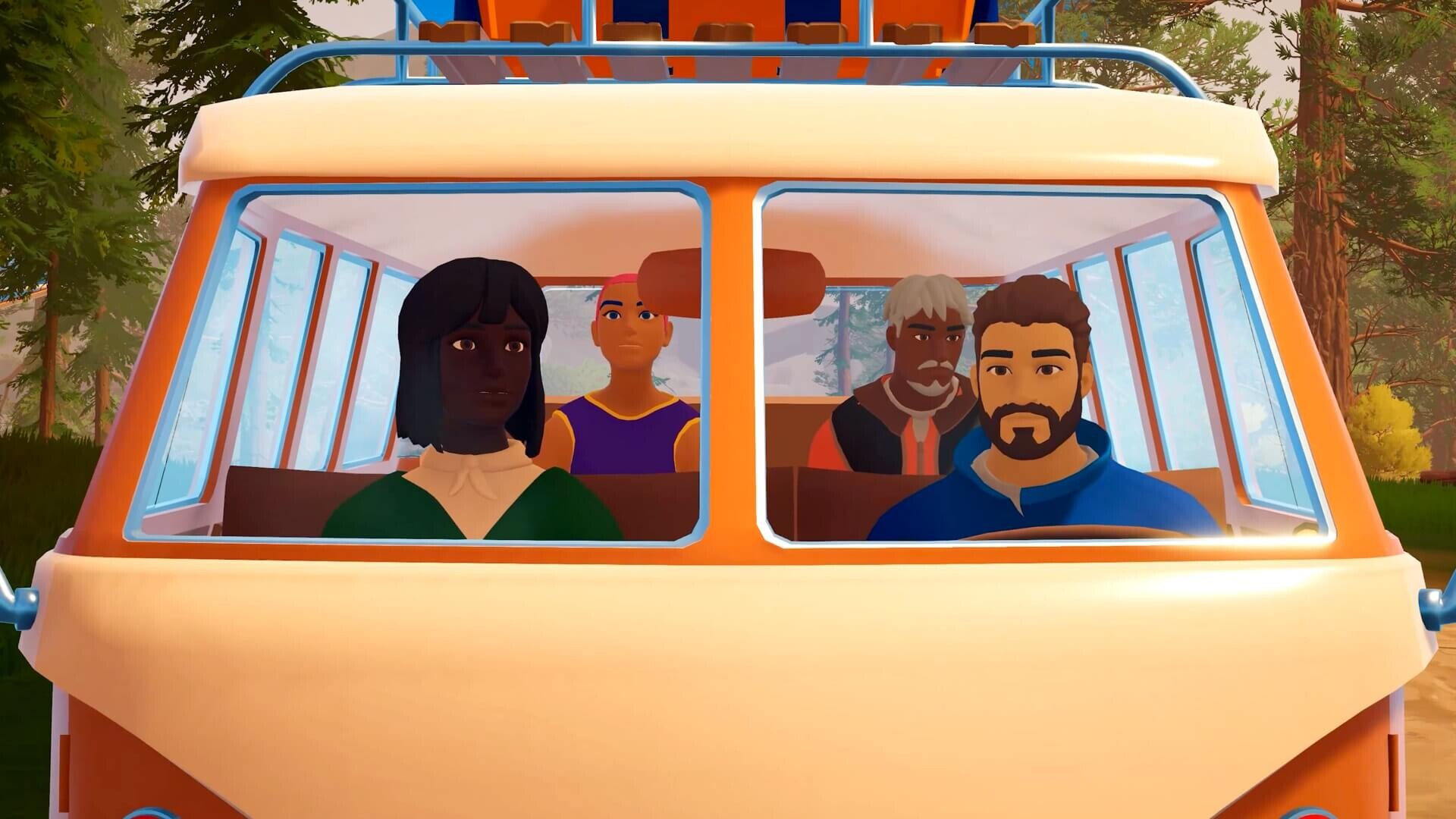
You will know multiplayer is working when the host sees the on-screen pop-up after opening the first gate, and the multiplayer tab in the menu shows an active session with connected player names. Joining players land in the host’s world with their own character model and an empty personal inventory while the shared van keeps the host’s stored materials.
Common reasons co-op will not start
- The host has not finished the tutorial and opened the first barrier, so the multiplayer tab is still locked.
- One player is on Xbox or PC Game Pass while the other is on Steam or Epic. Those platforms cannot connect to each other.
- The code was entered into the wrong screen. Codes must be used through Join Friend on the main menu, not from inside an existing save.
- The host is offline. Without the host loading the save, no one else can rejoin that world.
Once the tutorial is behind you, co-op stays available for the rest of the game, and any new friend can drop in later using the same code-or-invite flow from the multiplayer tab.