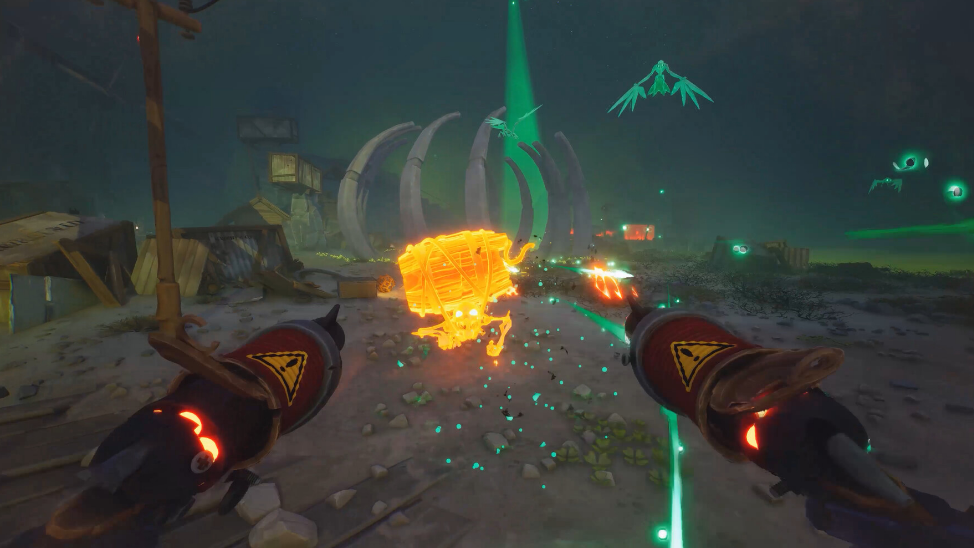
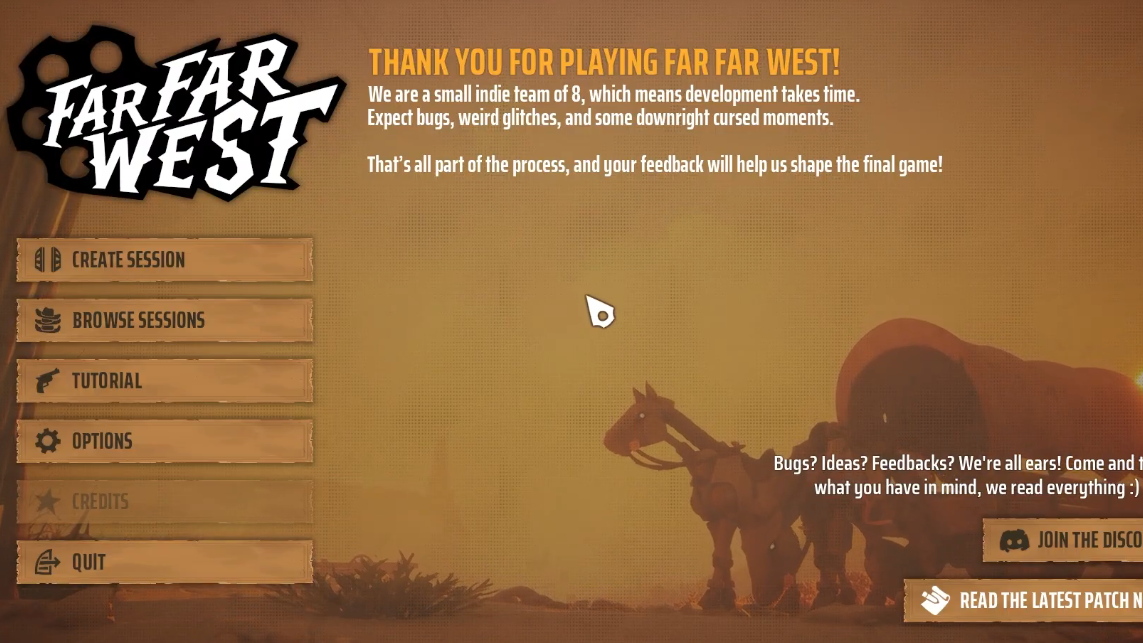
Far Far West supports 1 to 4 player co-op, and joining or hosting a session takes only a few clicks from the main menu. You can either drop into a friend’s lobby with a session code or open your own session and pull friends in through Steam.
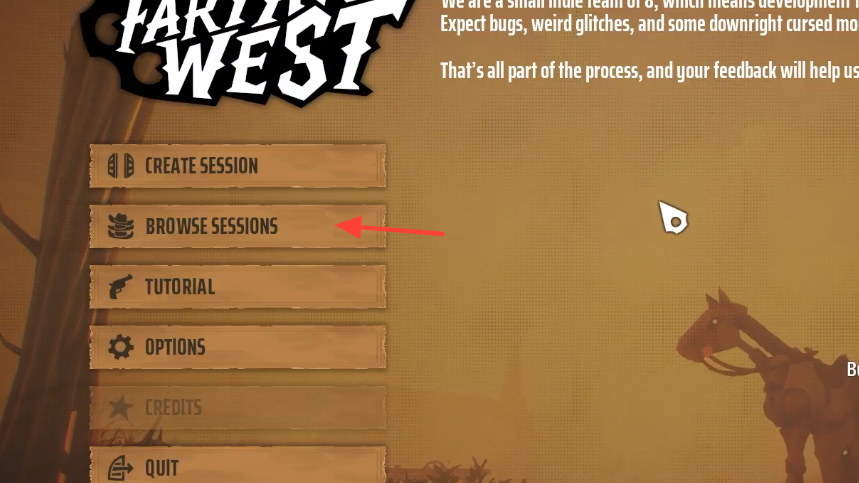
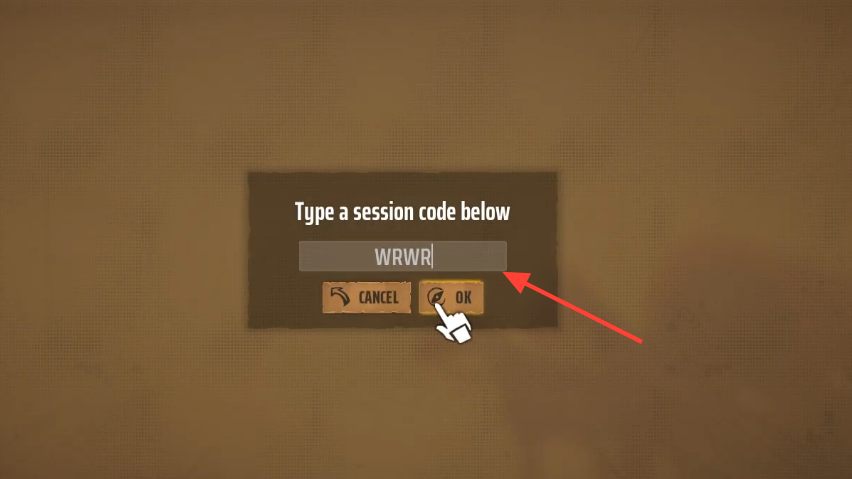
Quick answer: From the home screen, pick Browse Sessions → Join with Code to enter a friend’s session, or pick Create Session → Solo or with Steam Friends, then press Escape and use Current Session to copy the code or invite a Steam friend directly.
Requirements before you start
Both players need their own copy of Far Far West on Steam, and both accounts must be added as Steam friends if you plan to use the in-game invite icon. A session code can be shared with anyone (no friend link required), but invites through the social icon pull from your Steam friends list.
Sessions hold up to four robot cowboys on the same contract. You can run solo, duo, trio, or a full squad of four. Voice chat is built in for coordination once everyone is in the lobby.
Join a friend’s session with a code
Create your own session and invite friends
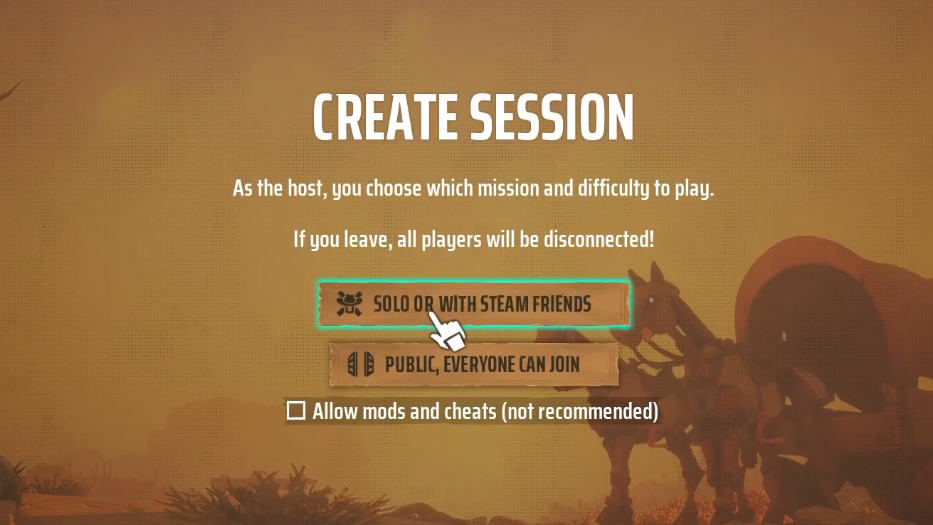
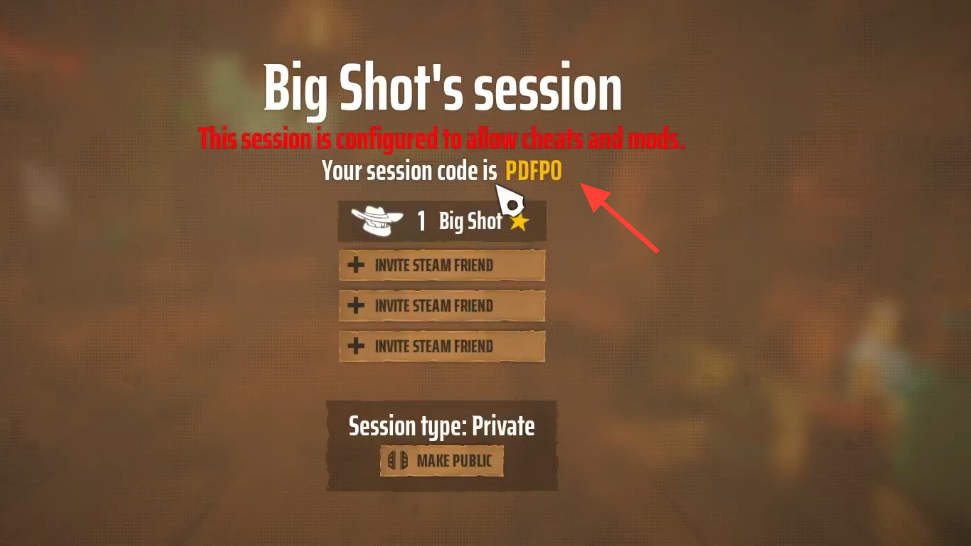
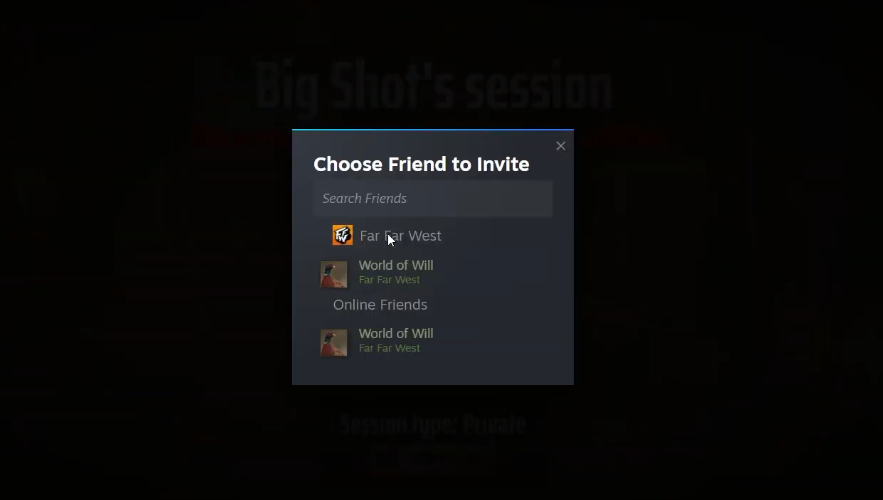
If you want to fill the lobby faster, switch the session visibility to public. The code still works, but other players browsing sessions can also find and join you.
Verifying everyone is connected
You know the join worked when the second player’s name and character appear in the session lobby alongside the host’s. The host sees the lobby player count tick up from 1 to 2 (and so on up to 4), and the joining player loads directly into the same map as the host once the contract begins.
If a friend cannot find your session, double-check that the code was typed exactly as shown (codes are case- and character-sensitive) and that the host has not closed or restarted the session. Re-opening the lobby generates a new code.
Party size at a glance
| Players | What changes |
|---|---|
| 1 (Solo) | No revives from teammates. All objectives, enemies, and extraction decisions fall on you. |
| 2 (Duo) | Revives become available. One player can hold enemies while the other pushes objectives. |
| 3 (Trio) | Roles can split between damage, crowd control, and objective work without leaving gaps. |
| 4 (Full squad) | Maximum build flexibility. Side objectives can be cleared before the post-boss infinite wave phase. |
Turning on voice chat in the session
Voice chat is off-by-default for some setups. Press Escape, open Options → Audio, and make sure Voice Chat Volume is above zero. Set the correct microphone device, then choose either Push to Talk (default key N) or Always On. A speaking indicator appears in the top-left corner when your mic is live.
Once the lobby is filled and voice is working, the host starts the contract and everyone loads in together. Stick close on your first few runs so revives are always within reach, and split off to cover side objectives only after the squad has the contract flow down.