
Unexpected right margin changes in Microsoft Word disrupt document layout, cause text to reflow, and often require repeated manual corrections. These margin shifts can result from a mix of formatting settings, section breaks, AutoCorrect features, or even external factors like printer drivers and PDF conversion tools. Addressing the root causes directly restores consistent margins and saves time spent on unnecessary reformatting.
Method 1: Reset All Margins Across the Document
Ctrl+A to select the entire document. This ensures margin changes apply to every section and page.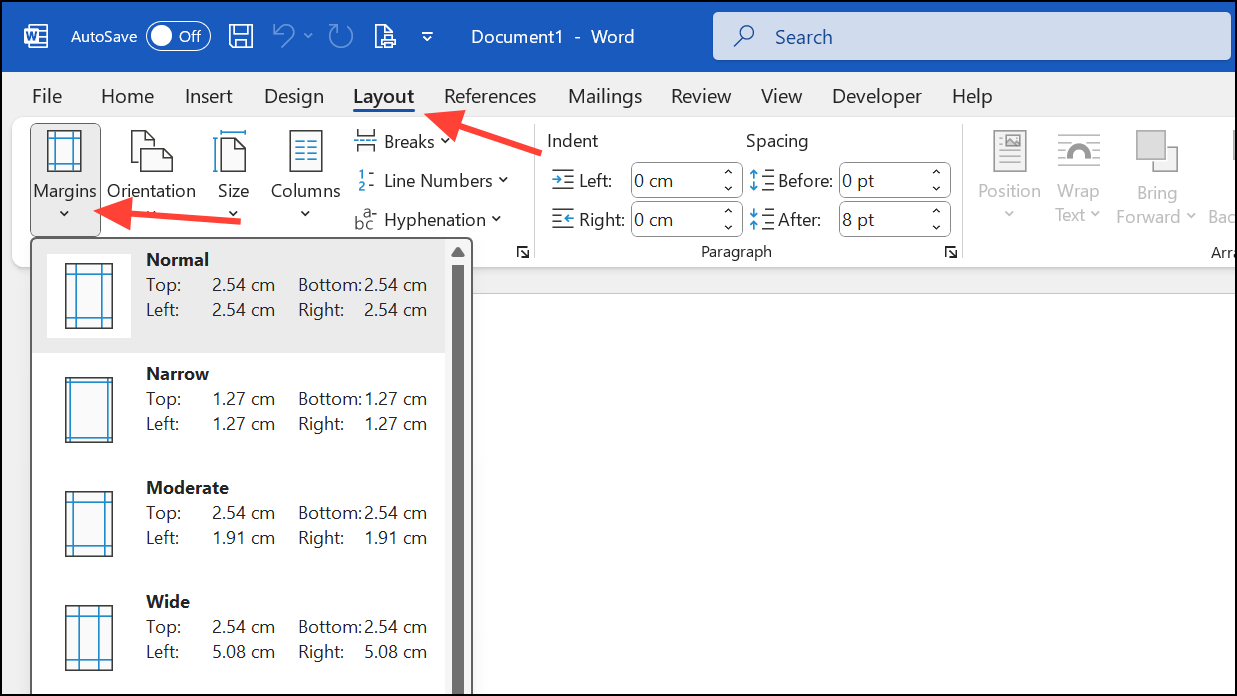
This step standardizes margins for all sections. If margins still vary, section breaks may be present and require removal.
Method 2: Remove Section Breaks That Cause Margin Changes
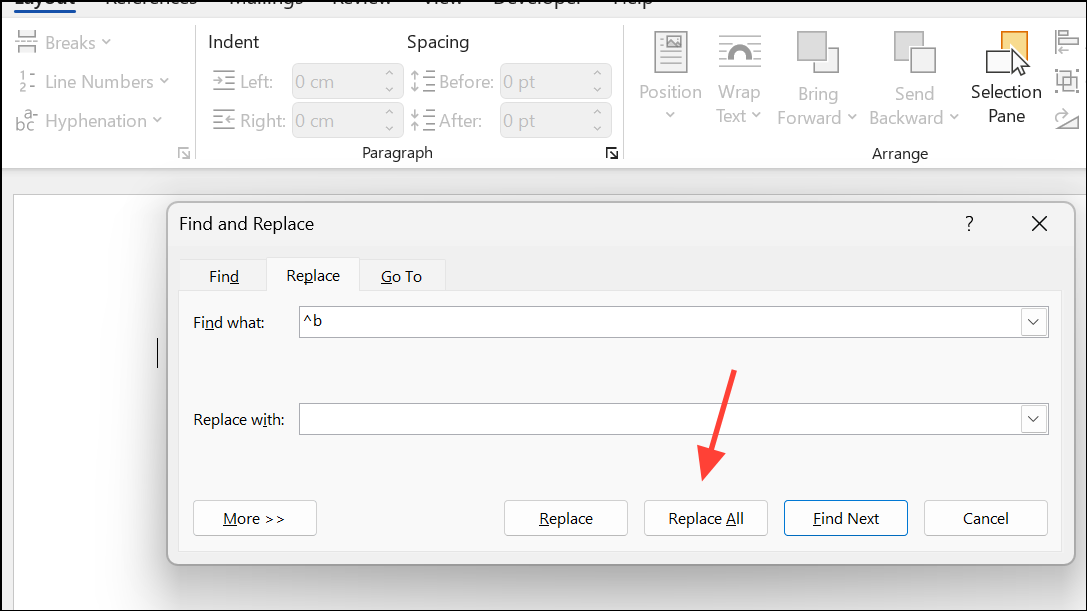
Section breaks allow different margin settings within a single document, so leftover breaks from copied or imported text can shift margins unexpectedly.
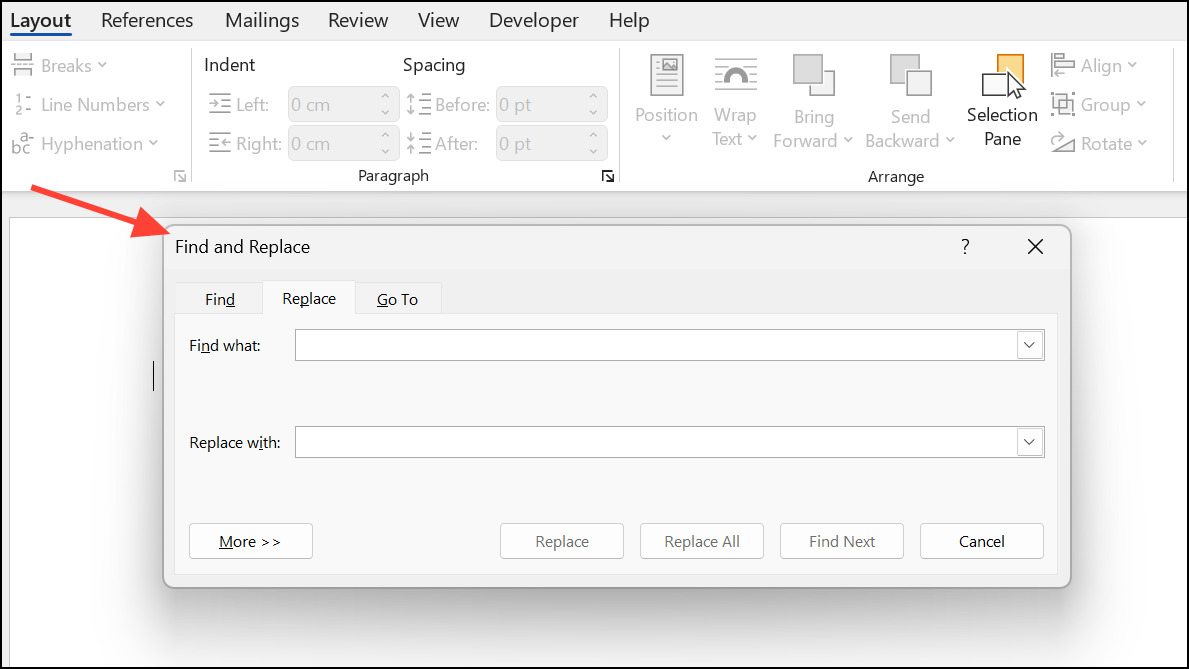
^b (the code for section breaks). Leave the Replace with field empty to delete them.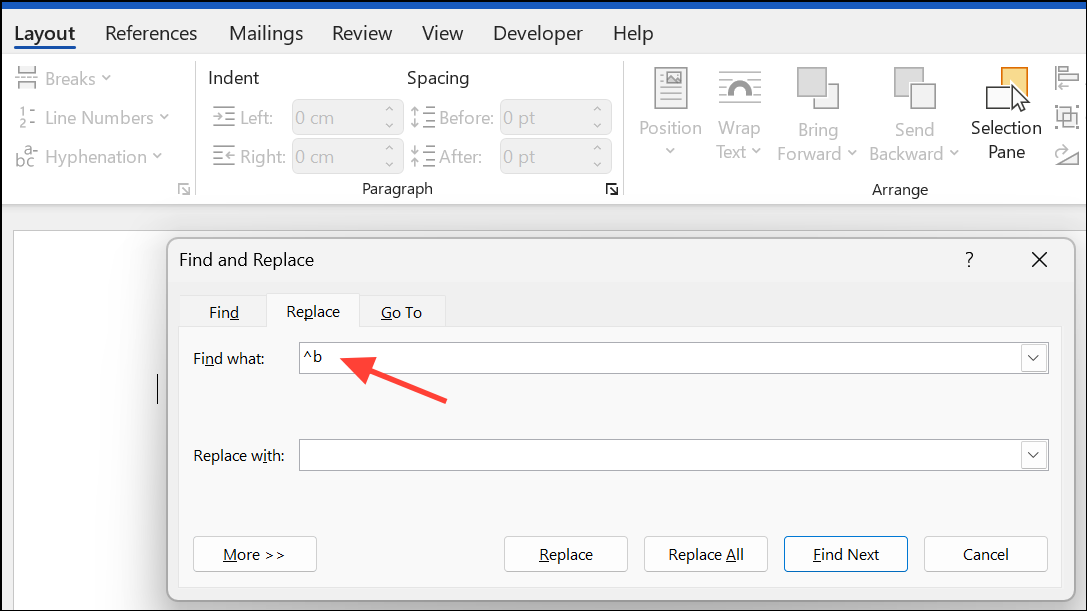
Method 3: Fix Indents Versus Margins
Paragraph indents are often mistaken for margin changes. Indents apply to individual paragraphs and can create the appearance of shifted margins.
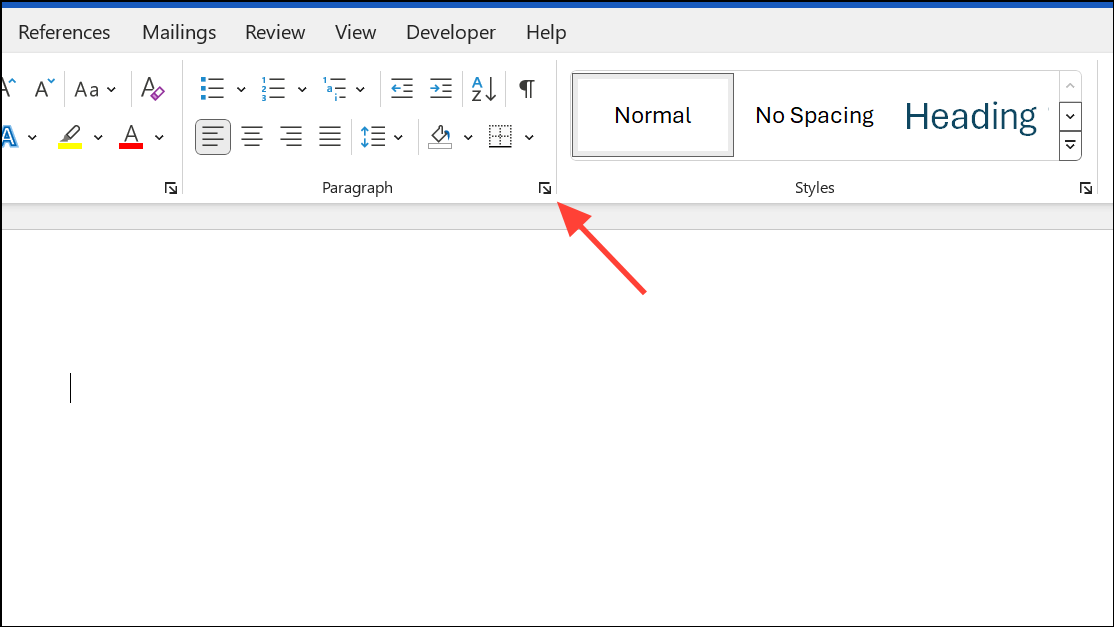
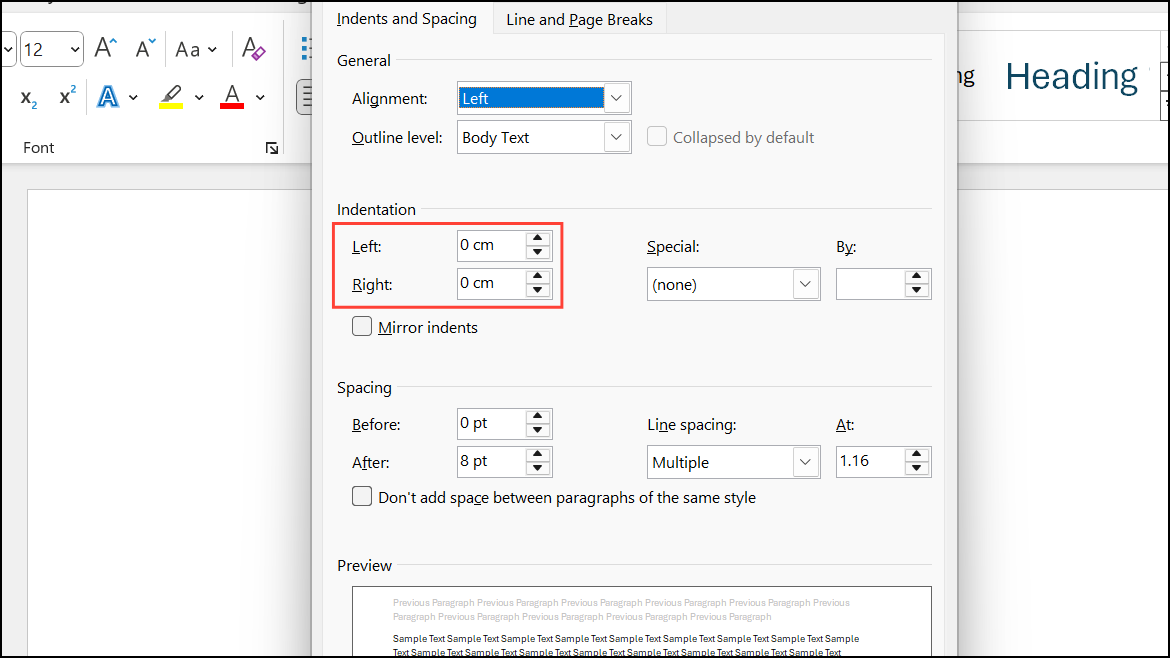
This step ensures that only the document’s margins, not paragraph indents, define the text area.
Method 4: Disable AutoFormat and AutoCorrect Features
Some automatic formatting features can change alignment, margin-like spacing, or insert unexpected elements that push text to the right.
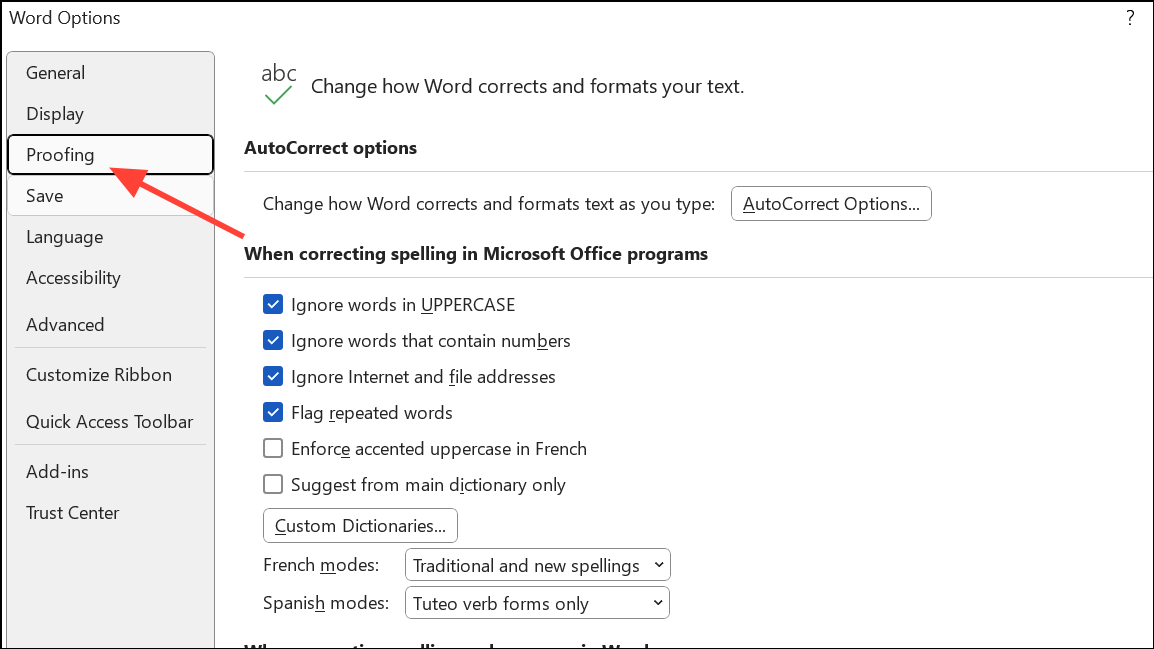
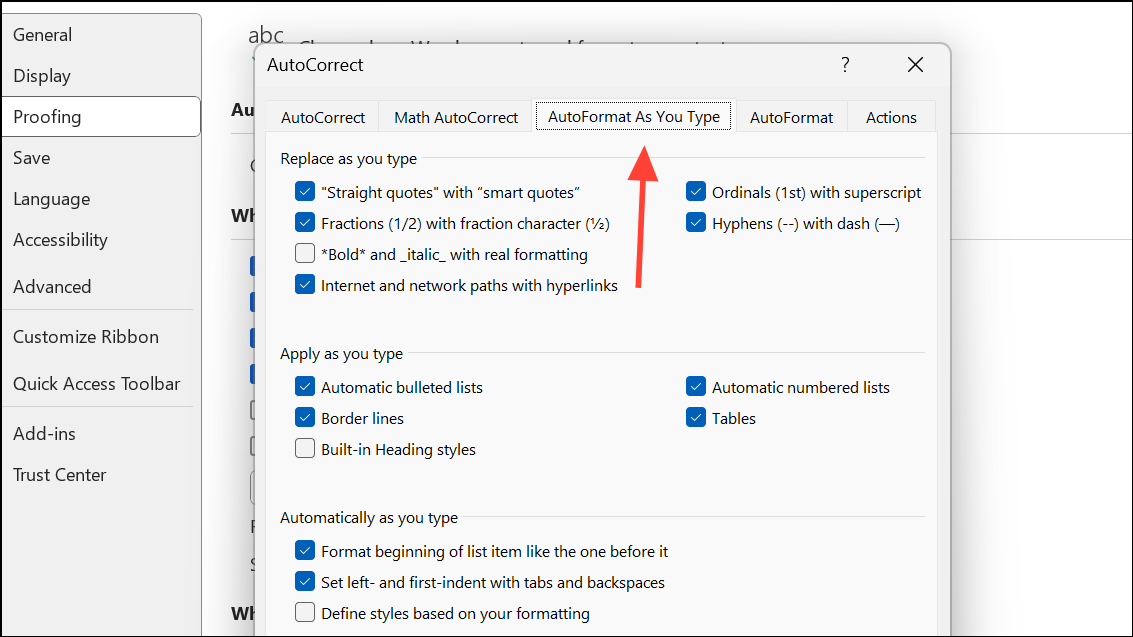
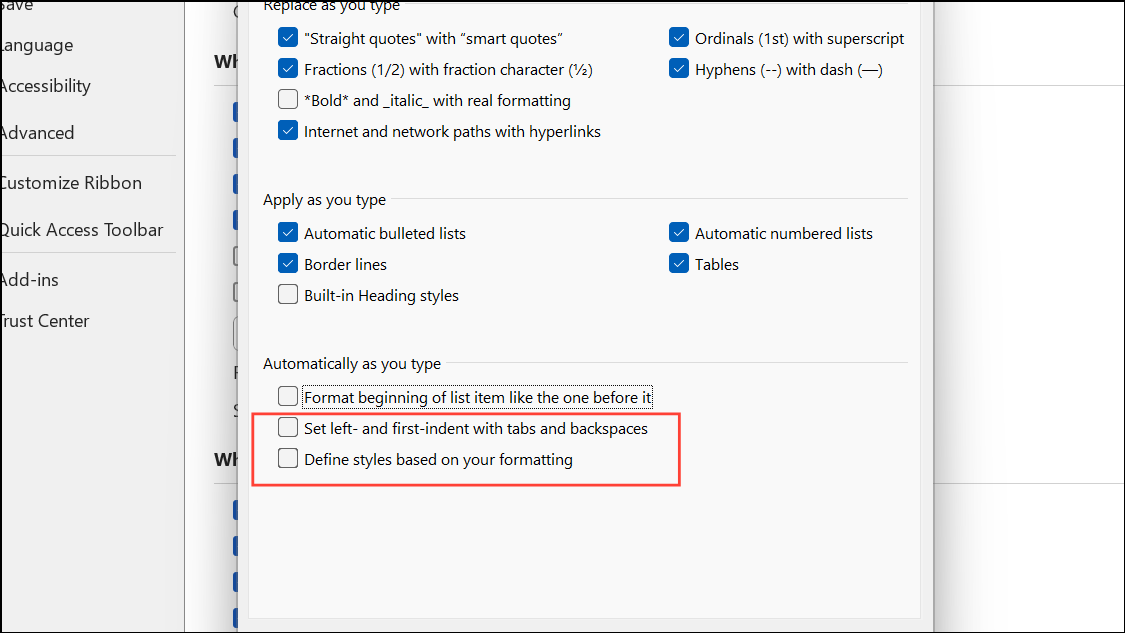
Turning off these features prevents Word from making automatic changes that affect margins or alignment.
Method 5: Check for Hidden Formatting or Corruption
Corrupted formatting, unusual templates, or copied content from external sources can introduce persistent margin problems.
Method 6: Adjust Printer and PDF Conversion Settings
Right margin shifts may occur only when printing or exporting to PDF due to printer drivers or scaling options.
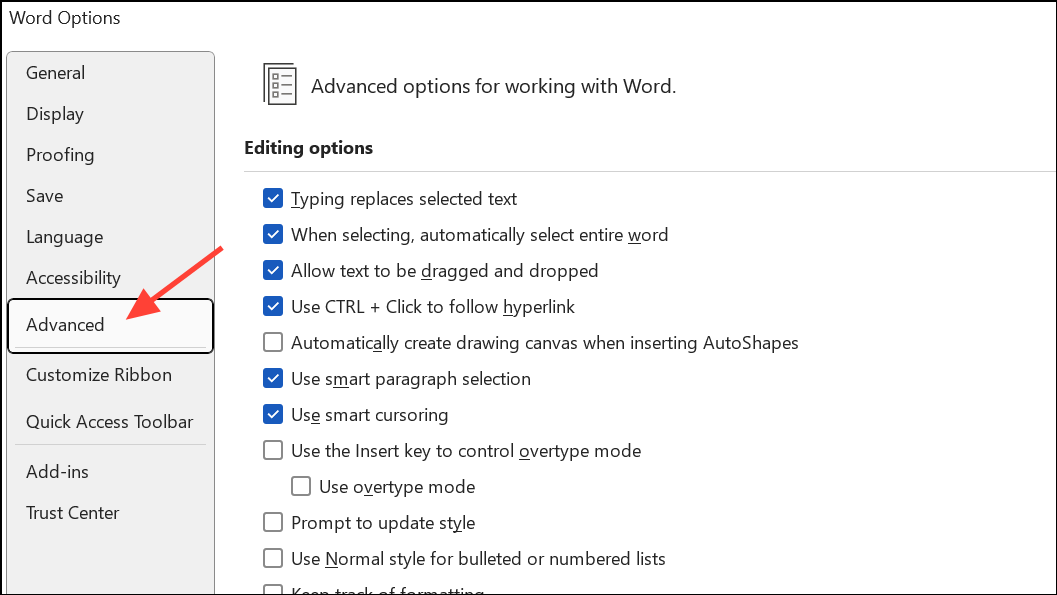
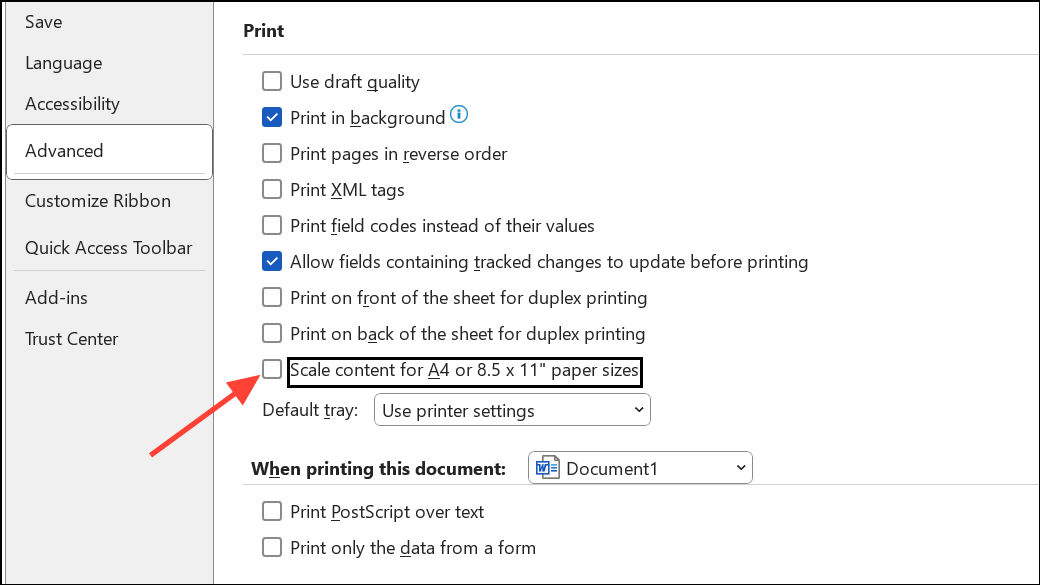
These steps keep printed and PDF margins consistent with the on-screen layout.
Method 7: Restore Display of White Space Between Pages
When the top or bottom margins seem to disappear in Print Layout view, Word may have toggled the display of white space, which can also affect perceived right margin alignment.
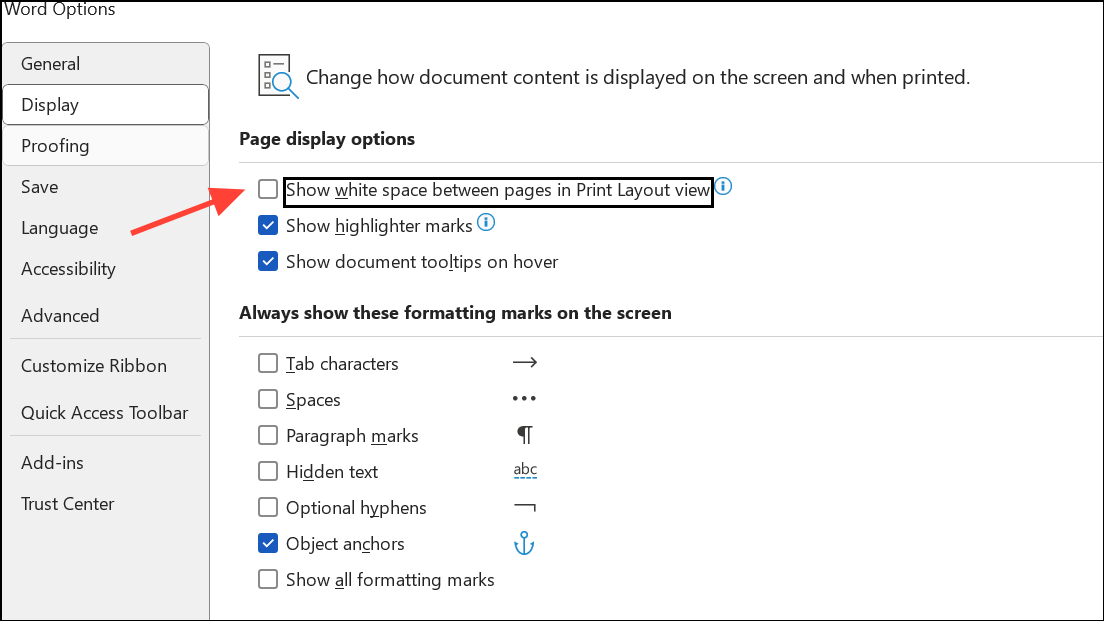
Restoring white space ensures margins appear as expected during editing.
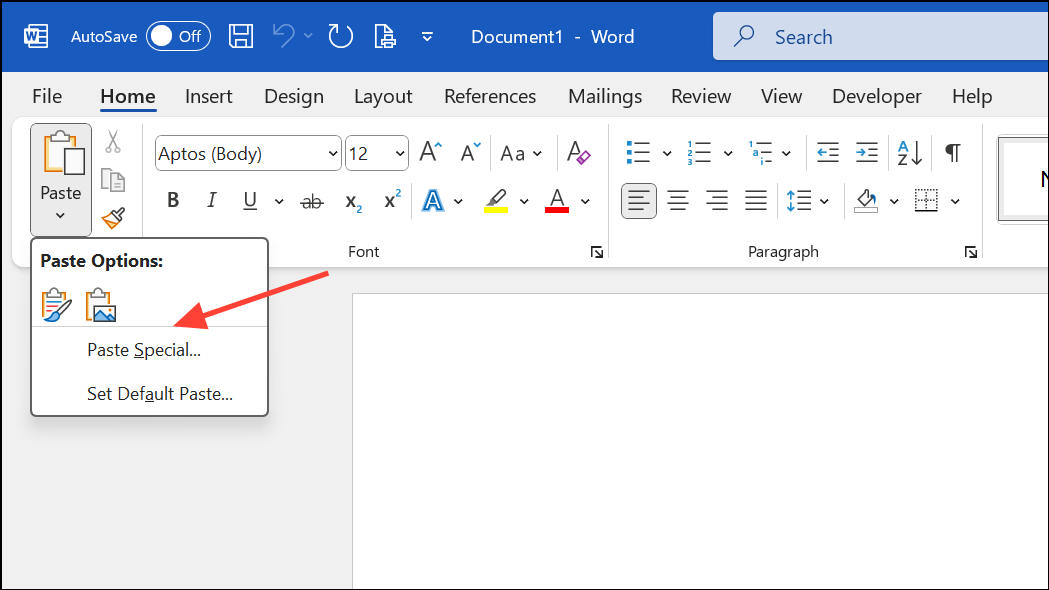
Addressing right margin shifts in Word requires a mix of margin resets, section break removal, and careful management of formatting settings. Regularly saving backup copies and using Word’s Paste Special feature helps maintain consistent formatting over time.





