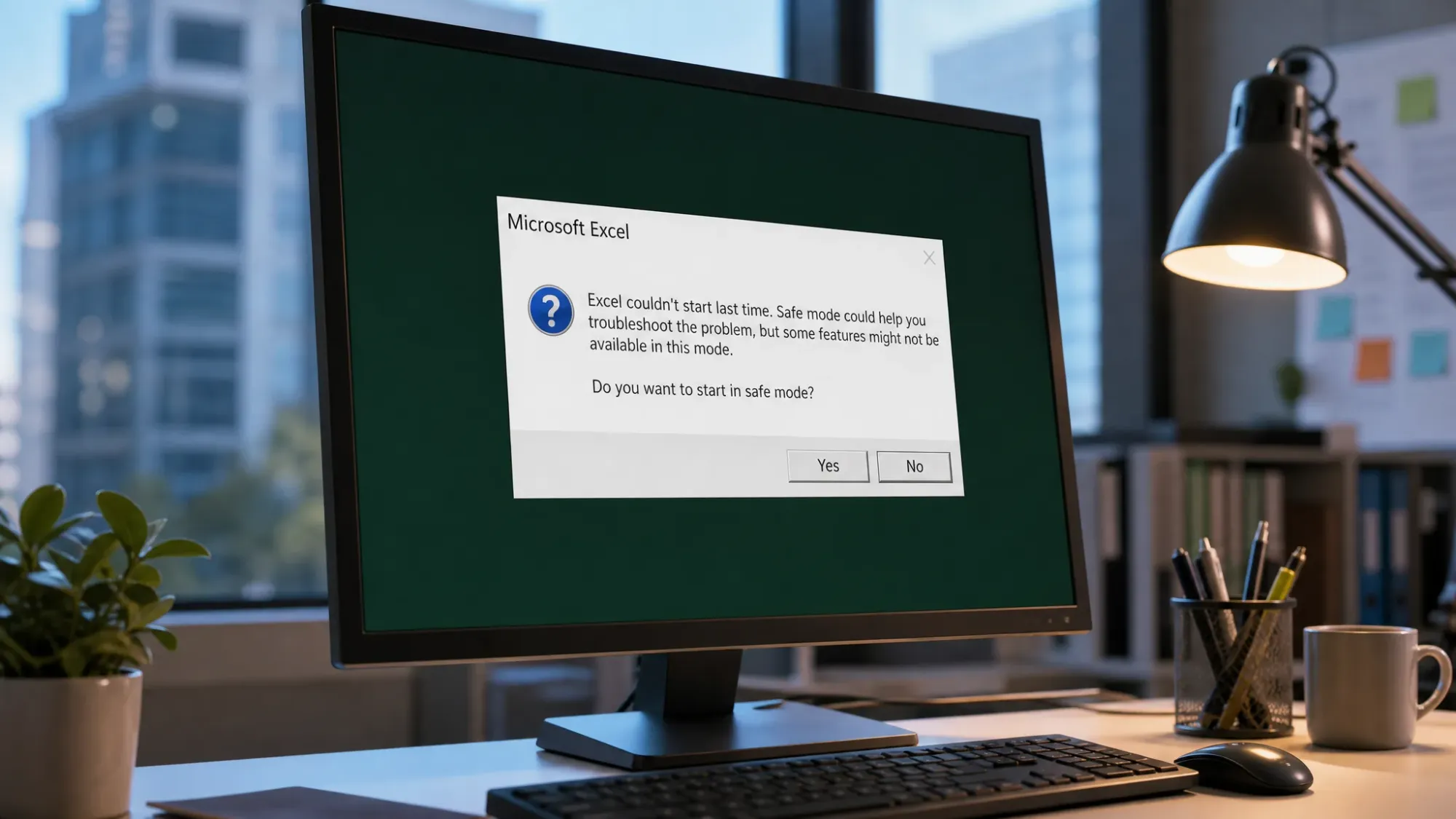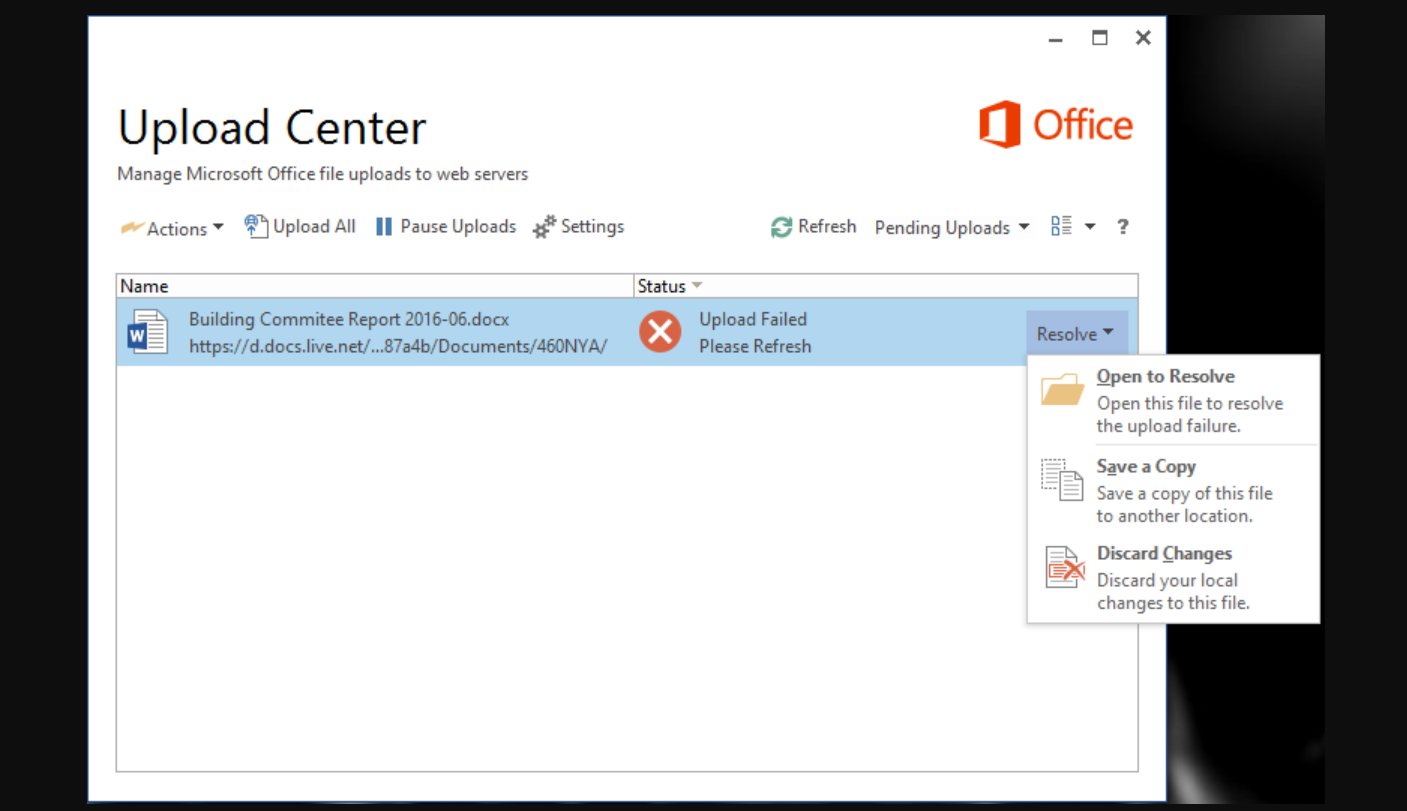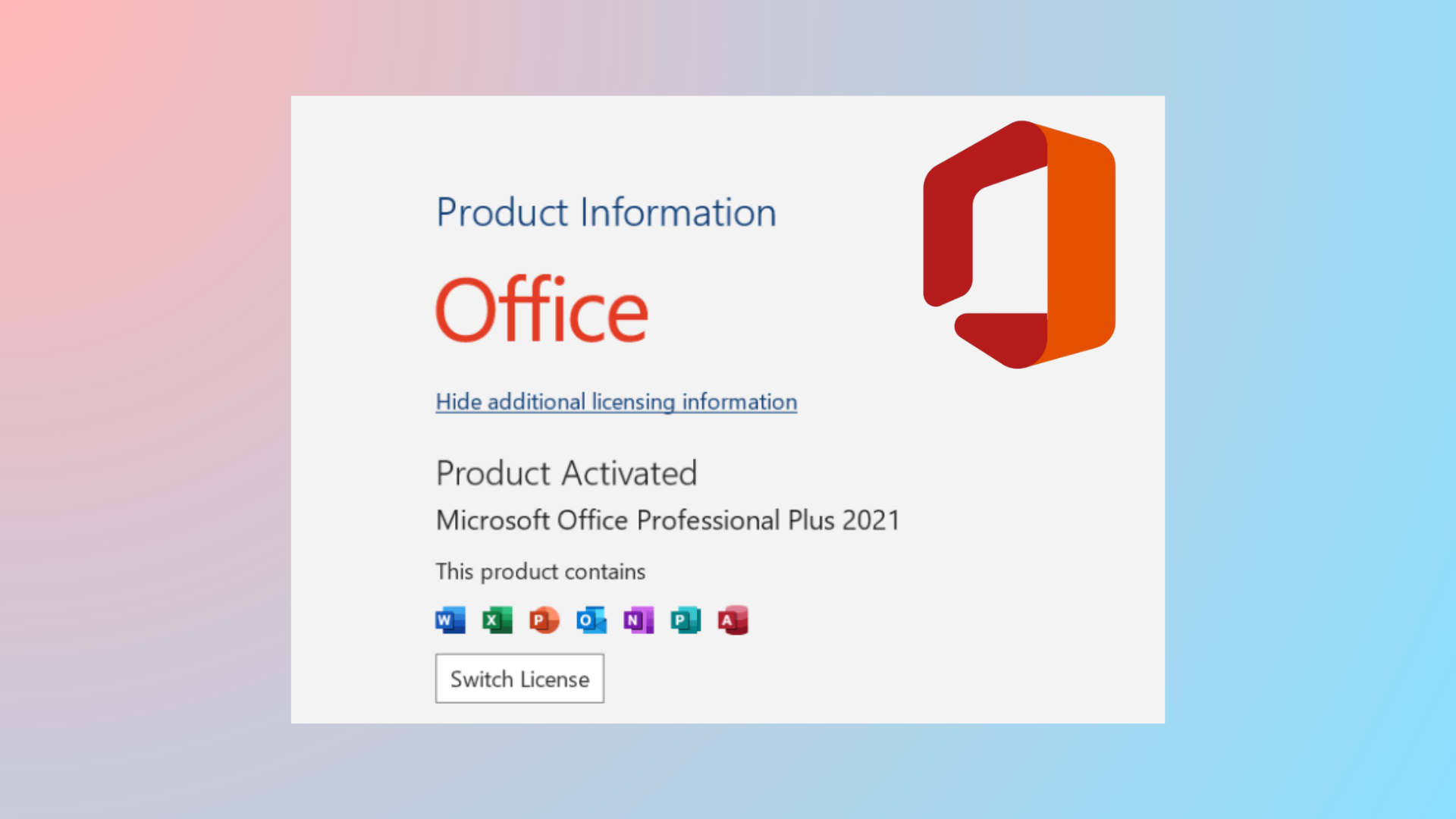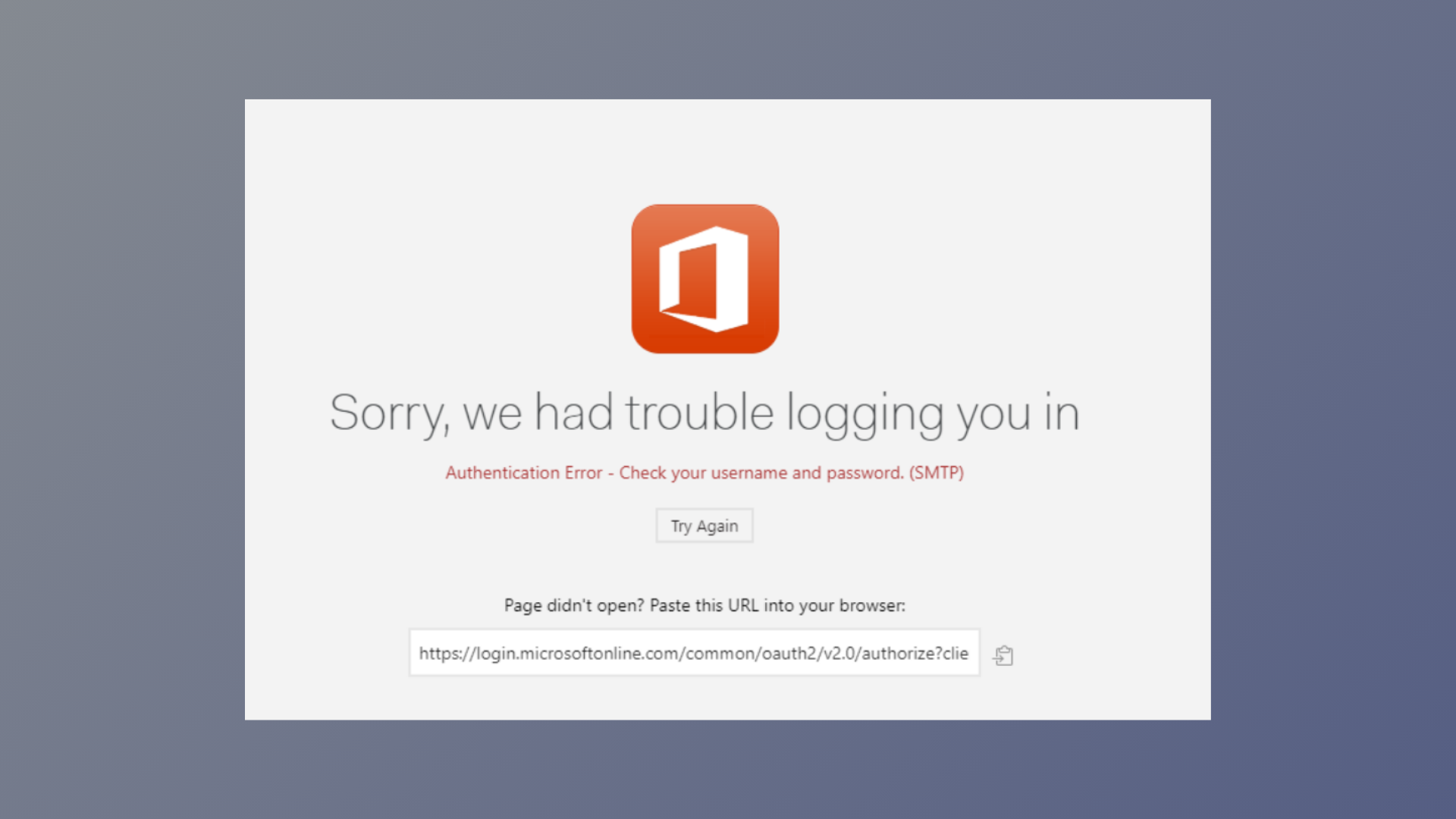
Word, Excel, or Outlook may stop launching, freeze on startup, or display error messages when system files are damaged or Office updates are interrupted on Windows 11. These issues can prevent you from accessing essential documents or disrupt daily workflow, but Windows 11 includes built-in repair tools designed to restore Office functionality without requiring a complete reinstallation.
Repairing Microsoft Office Using Windows 11 Built-In Tools
Settings. Navigate to Apps > Installed apps. Scroll through the list to locate your Microsoft Office or Microsoft 365 installation.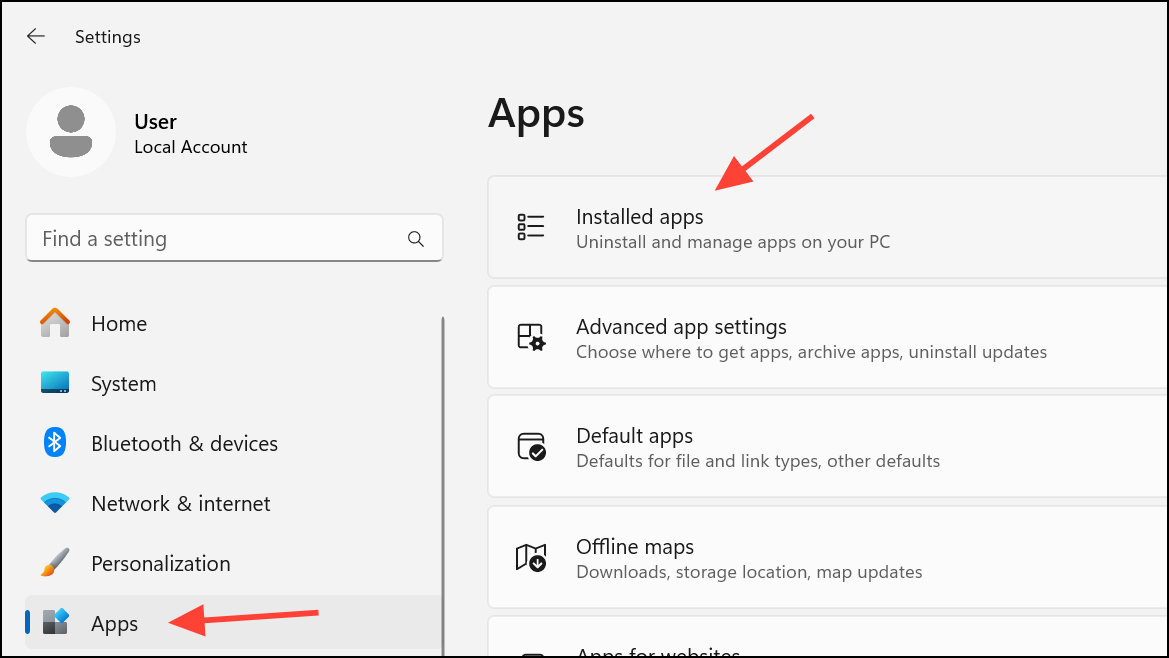
...) next to the Office entry and select Modify. This opens the Office repair dialog.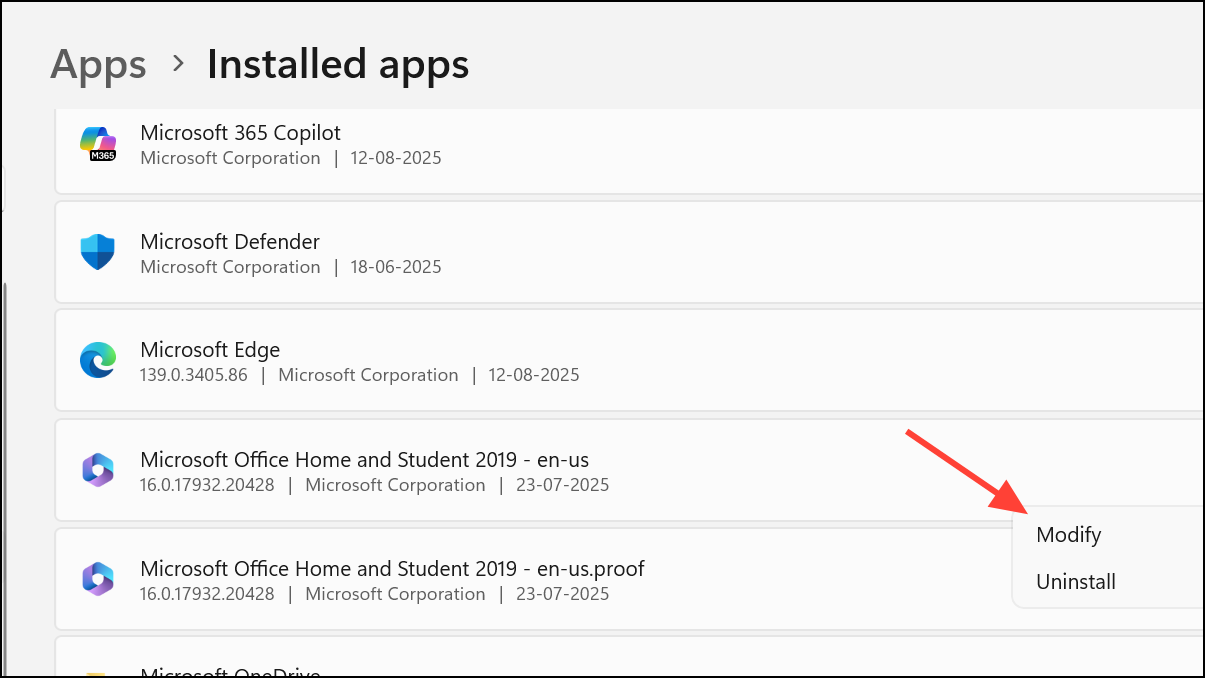
Quick Repair and confirm by clicking Repair. Quick Repair uses local files to fix minor issues, such as missing or corrupted components, without requiring an internet connection. The process usually takes a few minutes, and you’ll see a progress bar indicating activity.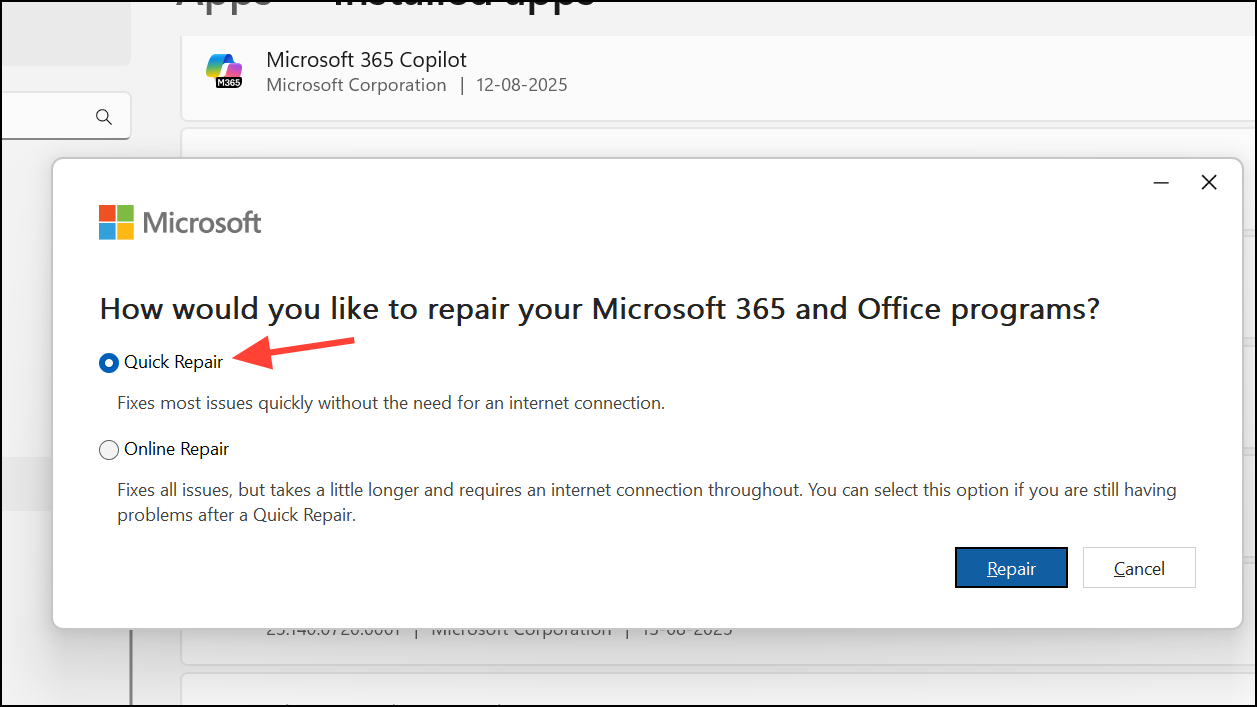
Online Repair in the repair dialog. Online Repair downloads fresh copies of Office files from Microsoft’s servers, replacing damaged or missing files and addressing deeper issues that Quick Repair cannot resolve. This process takes longer and requires an active internet connection.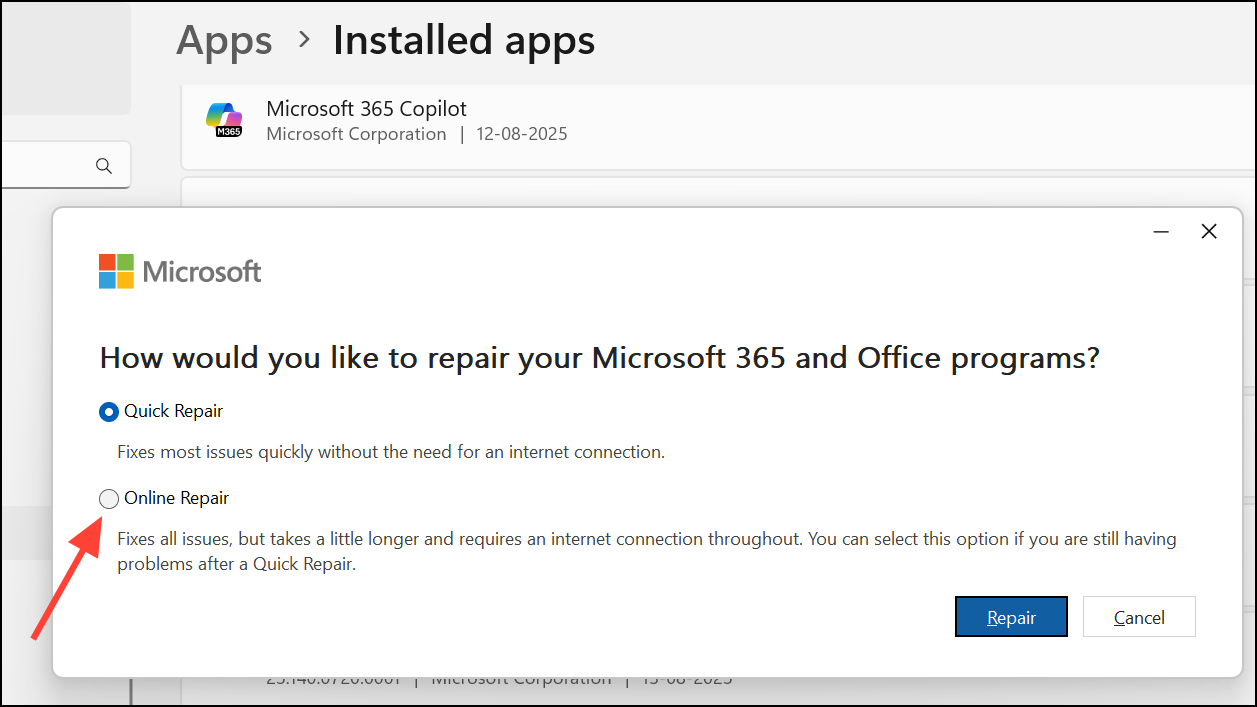
Repairing Office via Control Panel (For Perpetual Licenses)
Office 2019, Office 2021, and older perpetual-license versions may not appear in the Windows 11 Settings > Apps list. In these cases, use the Control Panel:
Control Panel, and press Enter. Navigate to Programs > Programs and Features.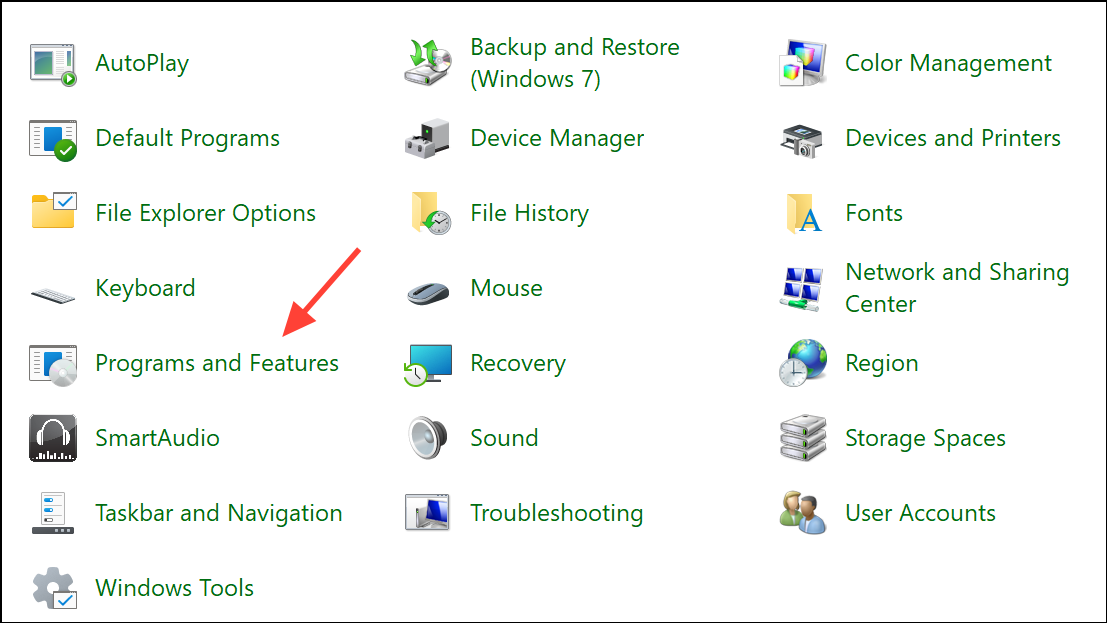
Change. The Office repair dialog will open as before.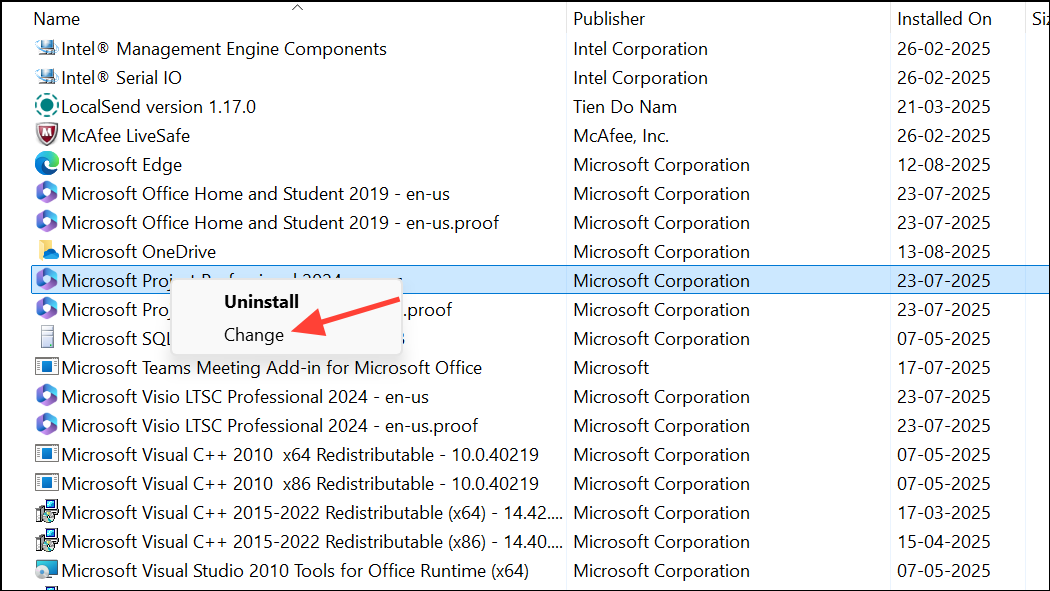
Quick Repair first, then Online Repair if needed, restarting your PC after each attempt.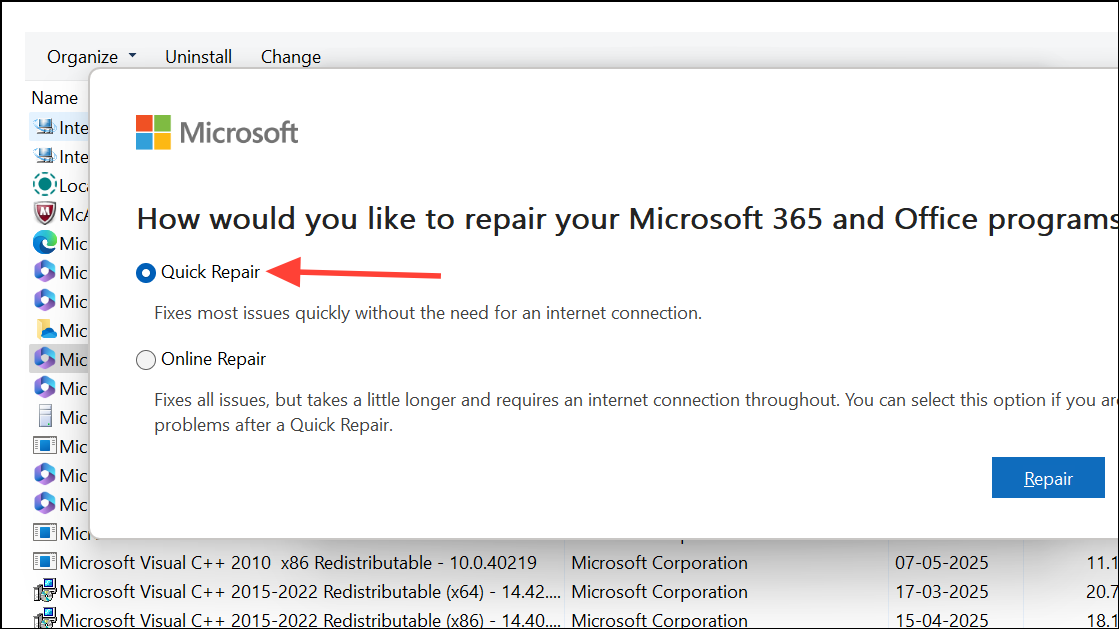
Using Microsoft Support and Recovery Assistant (SaRA)
Persistent issues—such as repeated error messages or Office apps refusing to activate—may require specialized diagnostics. Microsoft provides the Support and Recovery Assistant (SaRA), a downloadable tool that automates troubleshooting for Office installation, activation, and app-specific problems.
SaRA is especially useful when standard repair tools do not resolve activation problems or when Office apps repeatedly fail to open despite other repair attempts.
Uninstalling and Reinstalling Office (Advanced Fix)
When neither repair tools nor SaRA resolve Office issues, a complete removal and fresh installation is the most reliable way to restore full functionality. This process eliminates lingering registry entries and leftover files that can interfere with Office operations.
This approach resolves stubborn problems that persist after all other troubleshooting steps have failed. Ensure you have backup copies of important files and product keys before proceeding.
Additional Troubleshooting Tips
- Rebooting your PC after each repair attempt ensures that changes take effect and temporary files are cleared.
- If Excel windows open but remain minimized or hidden, right-click the app icon in the taskbar and select
RestoreorMoveto bring them into view. Windows 11 does not include the “Cascade Windows” feature found in Windows 10. - Keep your system updated. Outdated Windows or Office installations can cause compatibility problems and software instability.
- If Office apps still do not function after a complete reinstall, consider performing a Windows in-place upgrade as a last resort, which refreshes system files without removing personal data.
Most Office issues in Windows 11 can be resolved with Quick Repair, Online Repair, or the Support and Recovery Assistant. For persistent problems, a clean reinstall restores reliable performance and access to your productivity tools.