
Restarting your Dell laptop can resolve many common issues such as software glitches, frozen programs, or sluggish performance. While using the mouse or trackpad is straightforward, sometimes these devices become unresponsive, making keyboard shortcuts particularly useful. Here are several effective ways to restart your Dell laptop using just the keyboard.
Method 1: Using Ctrl + Alt + Delete
Ctrl + Alt + Delete keys simultaneously on your keyboard. This will bring up the Windows Security screen.Tab key repeatedly until the power icon in the bottom-right corner of the screen is highlighted, then press Enter.Enter again. Your Dell laptop will now reboot.Method 2: Using Alt + F4
Windows + D keys to go directly to the desktop.Enter to initiate the reboot.Method 3: Using Windows + X Menu
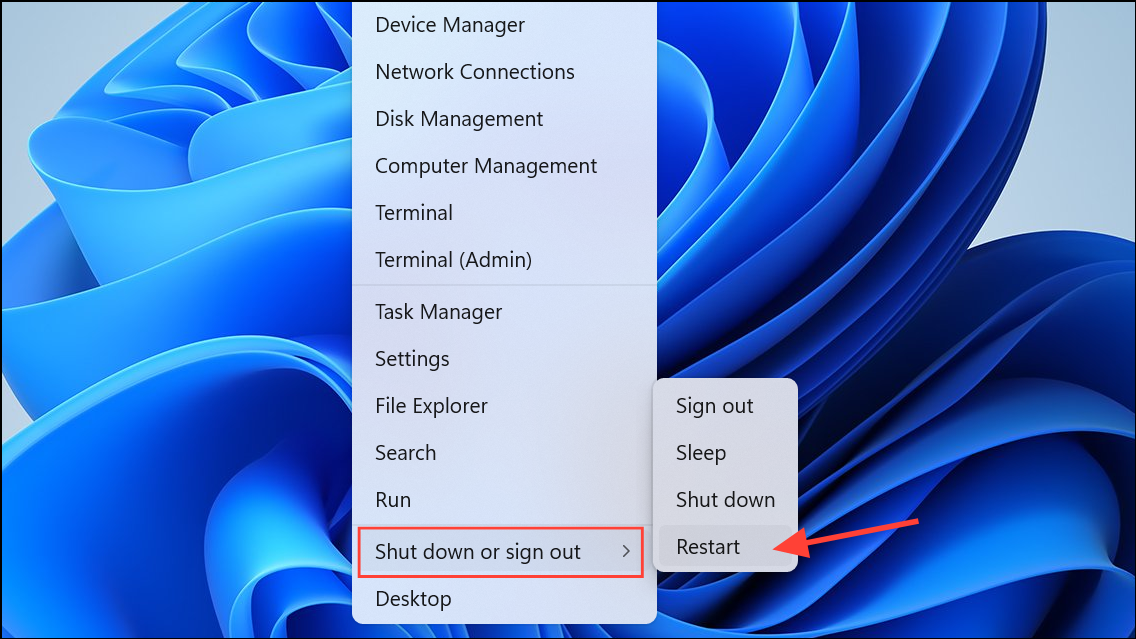
Method 4: Using the Run Command
shutdown /r into the box and press Enter. Windows will display a message and then restart your laptop within a minute.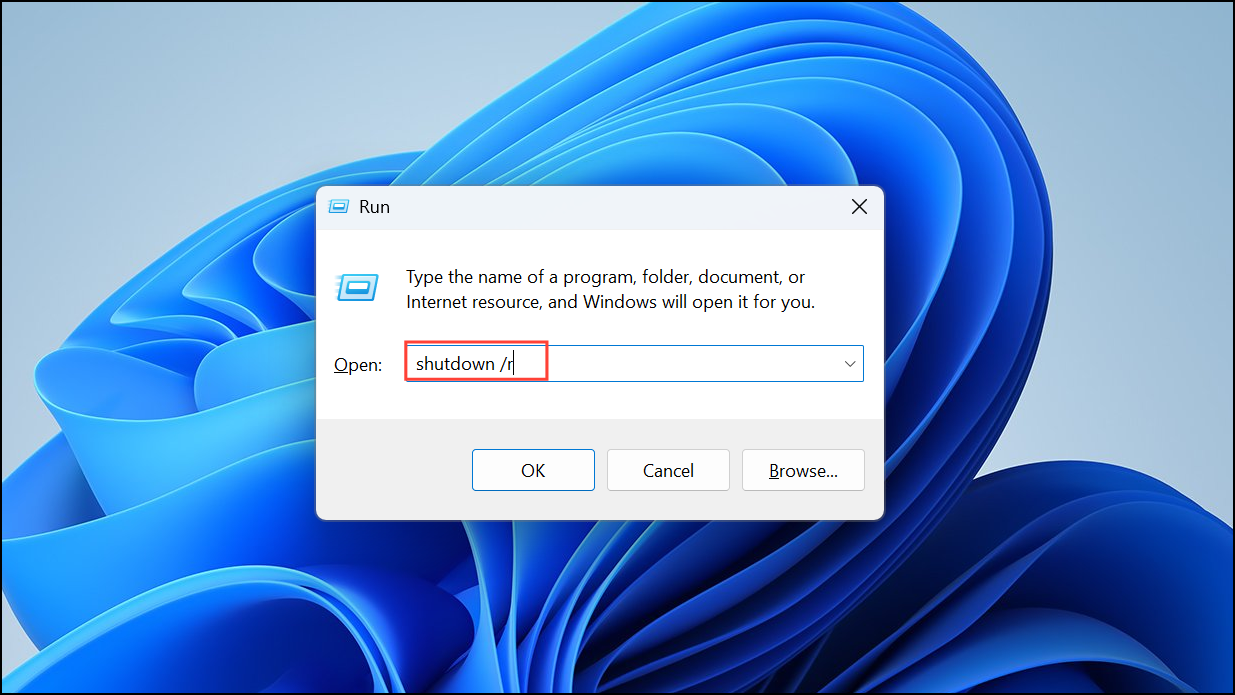
Method 5: Force Reboot Using the Power Button
If all keyboard shortcuts fail and your laptop is completely unresponsive, you can perform a forced reboot. This should be the last resort, as it can result in data loss.
Using these keyboard shortcuts and methods, you can quickly reboot your Dell laptop even when the mouse or trackpad isn’t working. Always remember to save your work frequently to avoid losing important data during unexpected reboots.





