

Saving key online content for offline access or sharing often means converting a webpage to PDF. Microsoft Edge provides a straightforward method to do this, leveraging Windows’ integrated PDF printer and browser options. Below, you’ll find step-by-step instructions for saving an entire webpage as a PDF, as well as alternative approaches for more selective or customized results.
Save an Entire Webpage as PDF Using the Print Feature
Print. Alternatively, you can press Ctrl + P (Windows) or Cmd + P (Mac) for a shortcut.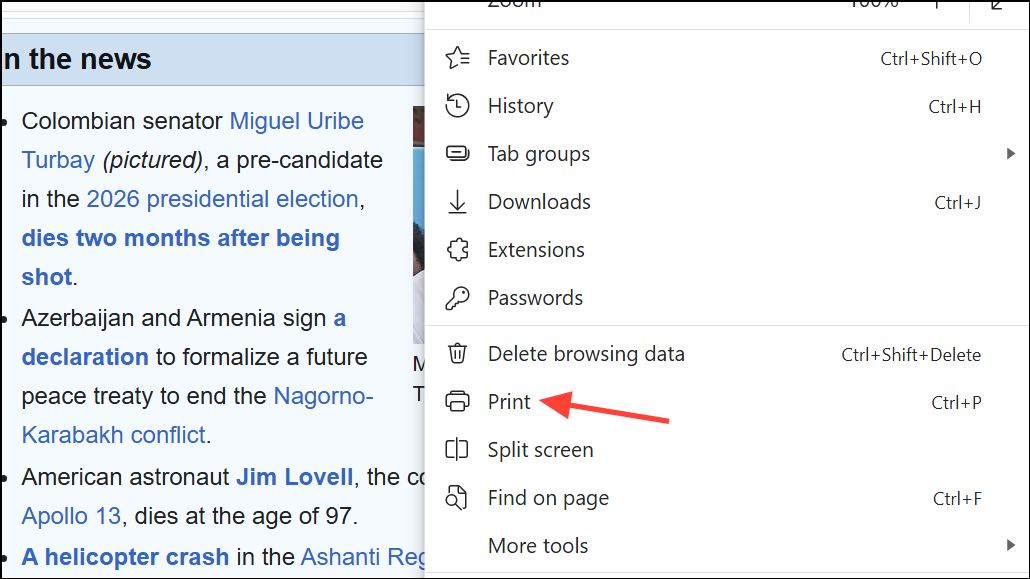
Save as PDF or Microsoft Print to PDF as your printer option.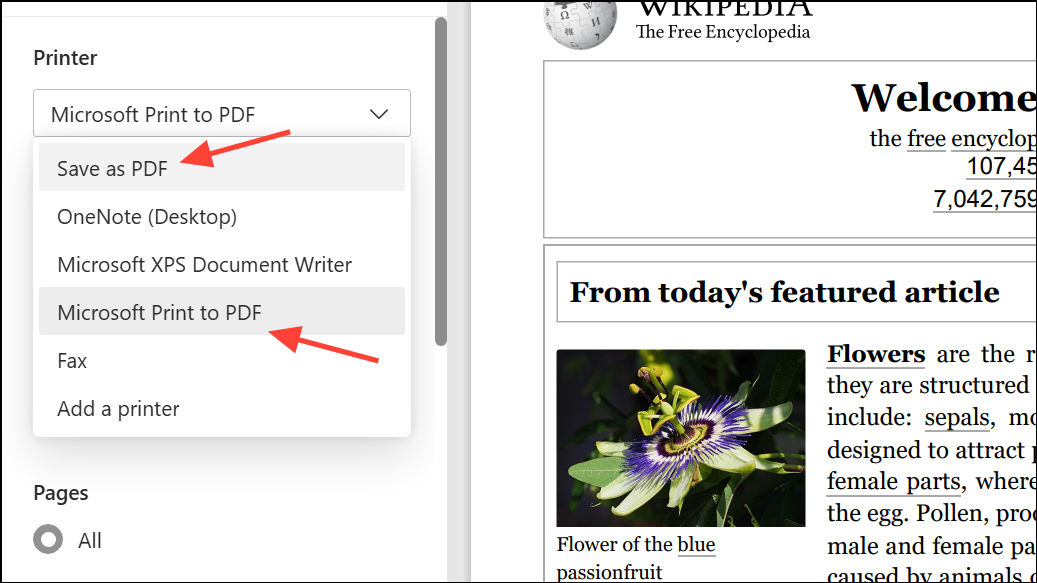
Save or Print (depending on your system). Choose a file name and destination folder for the PDF file, then confirm to save the document.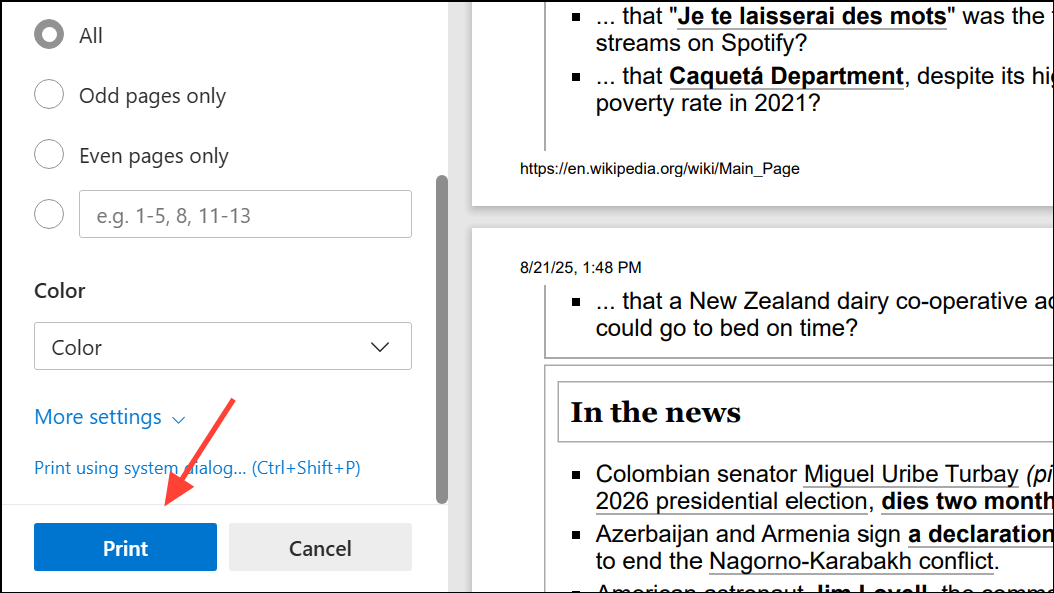
Convert Only Selected Text or Sections to PDF
Edge’s built-in print-to-PDF function saves the full page, but sometimes you only need a portion of the content. While Edge does not natively support saving only selected content as PDF, you can work around this limitation using the Immersive Reader or browser extensions.
Using Immersive Reader and Print
Open selection in Immersive Reader from the context menu. Immersive Reader displays only the selected content in a simplified format.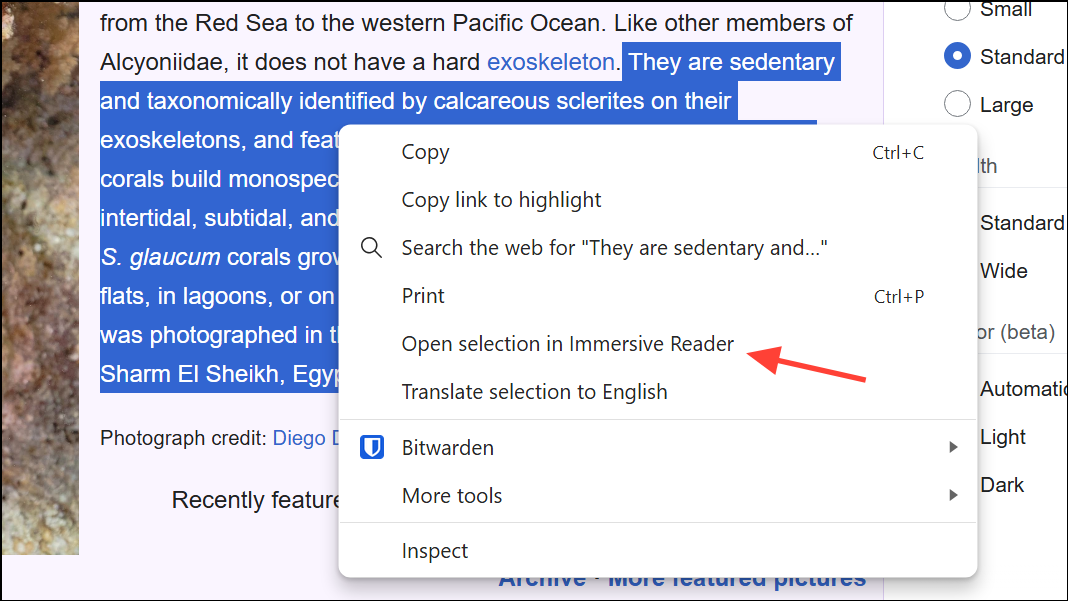
Ctrl + P or Cmd + P to open the print dialog. Select Save as PDF and save your file as described above.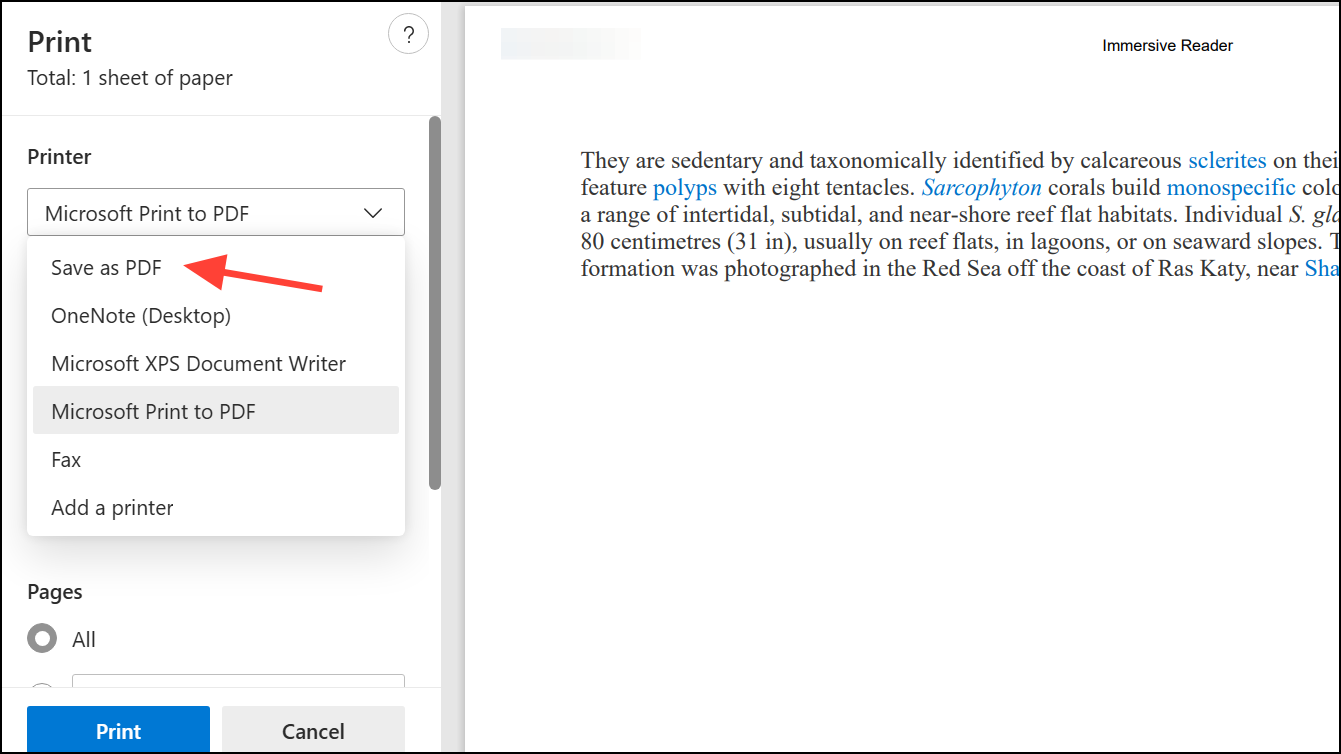
This approach works best for text-heavy content. Note that formatting and images may be simplified or omitted in Immersive Reader mode.
Use Browser Extensions for Enhanced PDF Saving
Extensions can provide more control over what gets saved to PDF, such as removing ads, images, or unwanted sections. Tools like “Print Friendly & PDF” are available from the Microsoft Edge Add-ons store and allow you to customize the content before generating a PDF.
- This method is especially useful for removing clutter or selectively including only the information you need.
- Some extensions offer additional options like emailing the PDF or saving it directly to cloud storage.
Troubleshooting Issues Saving as PDF
Occasionally, saving a webpage as PDF in Edge may not work as expected—such as the browser freezing during the save process or producing incomplete files. These issues can be caused by browser cache, outdated software, or incompatible extensions.
- Clear your browser cache and cookies to resolve file-saving errors.
- Update Microsoft Edge to the latest version to benefit from bug fixes and performance improvements.
- Disable extensions temporarily to check if they interfere with the PDF saving process.
- On macOS, you can also use the system’s built-in PDF functionality from the print dialog if Edge’s options are not working.
- If persistent problems occur, consider resetting Edge to its default settings or reporting the issue via Edge’s feedback tool under
Help and Feedback.
Saving webpages as PDF in Microsoft Edge streamlines content archiving and sharing. Whether you use built-in features or browser extensions, these methods help you keep important information accessible offline or in a portable format.





