How to Set Up a Program to Run with Admin Rights for Regular Users
Configure applications to automatically launch with administrator privileges without granting users full admin access.
Configure applications to automatically launch with administrator privileges without granting users full admin access.
by Pallav Pathak
Some programs require administrator privileges to function correctly, but granting full admin rights to every user can pose security risks. Fortunately, Windows provides ways to configure specific applications to always run with administrator privileges, even for standard user accounts. This approach maintains security while enabling essential software to operate smoothly.
Method 1: Using Task Scheduler to Automatically Run Programs as Administrator
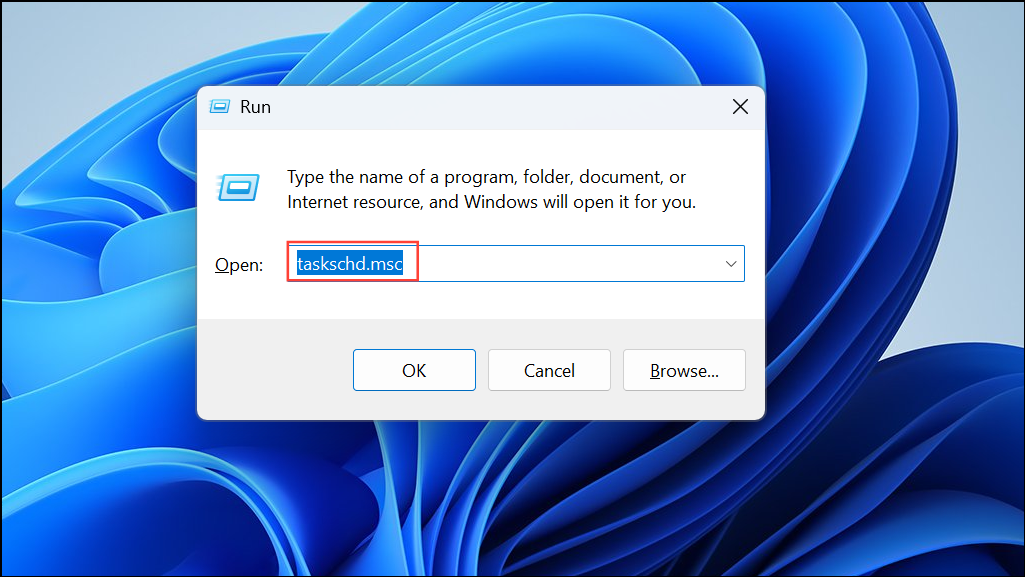
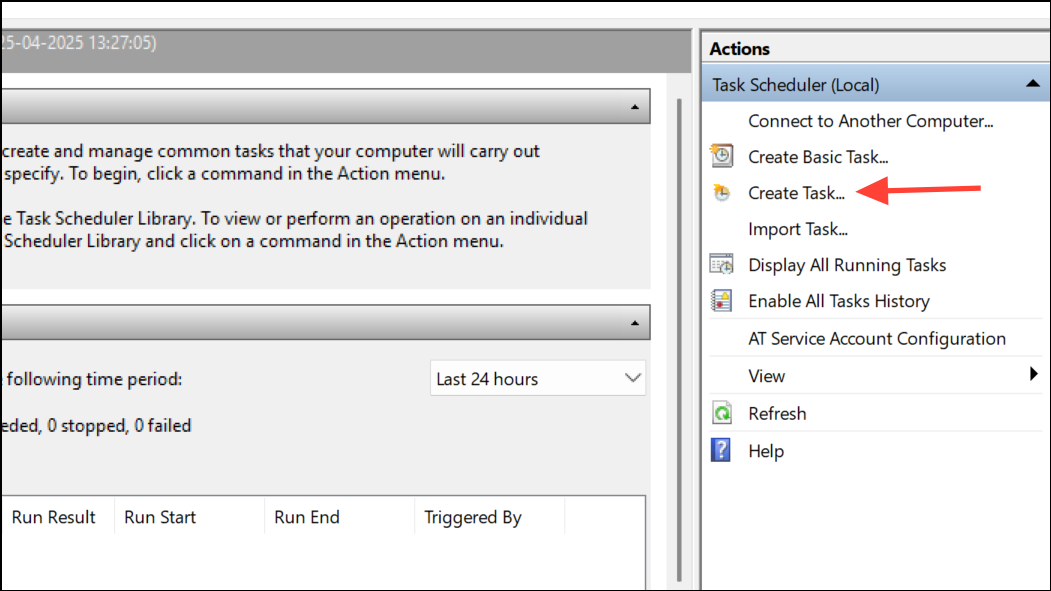
Task Scheduler is a built-in Windows tool that allows you to automate tasks and set specific privileges. You can leverage Task Scheduler to run an application with admin rights without giving users full administrator access.
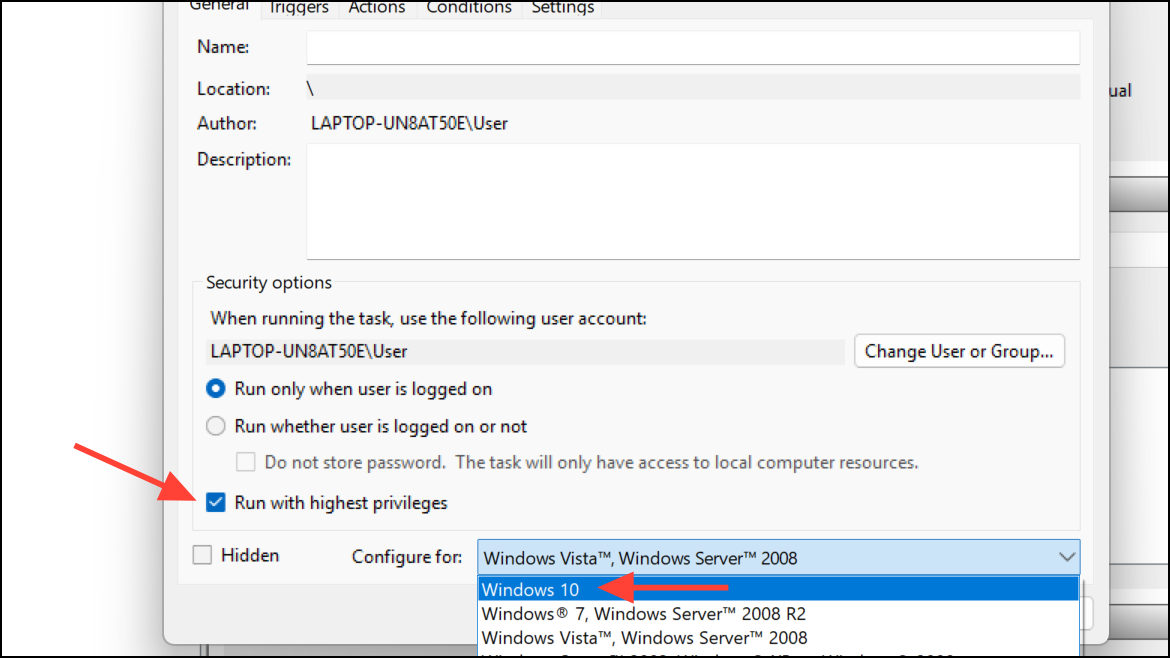
In the “General” tab, provide a clear name for your task. Check the option labeled “Run with highest privileges” to ensure the task executes with administrator permissions. Also, select “Windows 10” or your current Windows version from the “Configure for” dropdown menu.
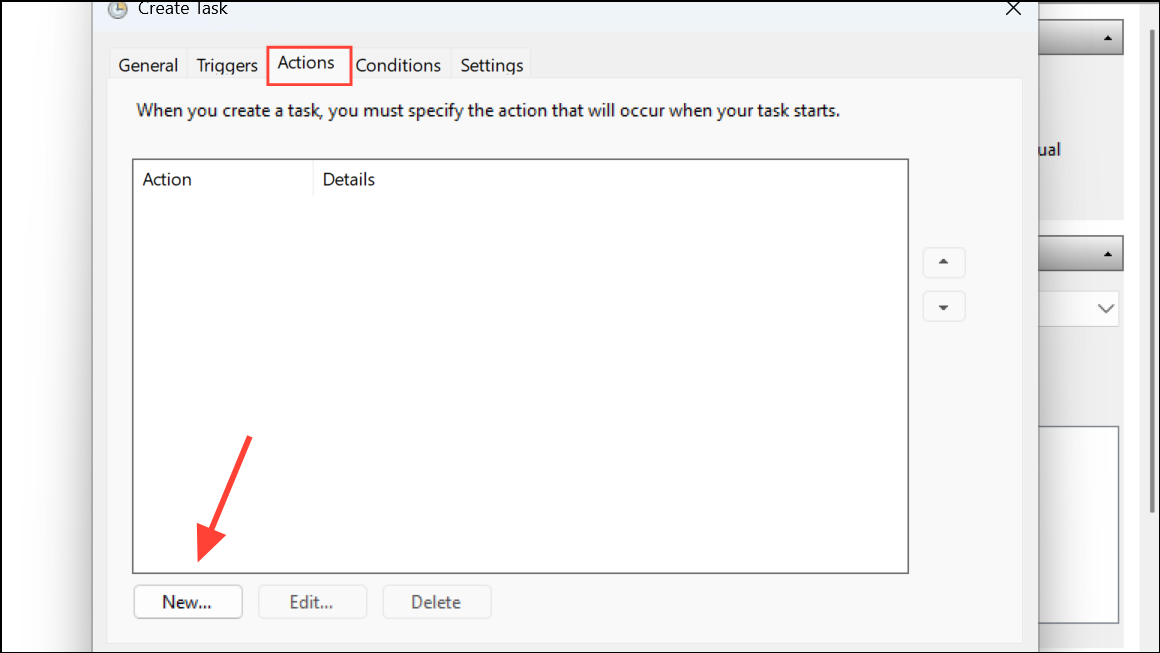
Navigate to the “Actions” tab and click “New.” In the “New Action” window, select “Start a program,” then click “Browse” to locate and select the executable file (.exe) of the application you want to run. Click “OK.”
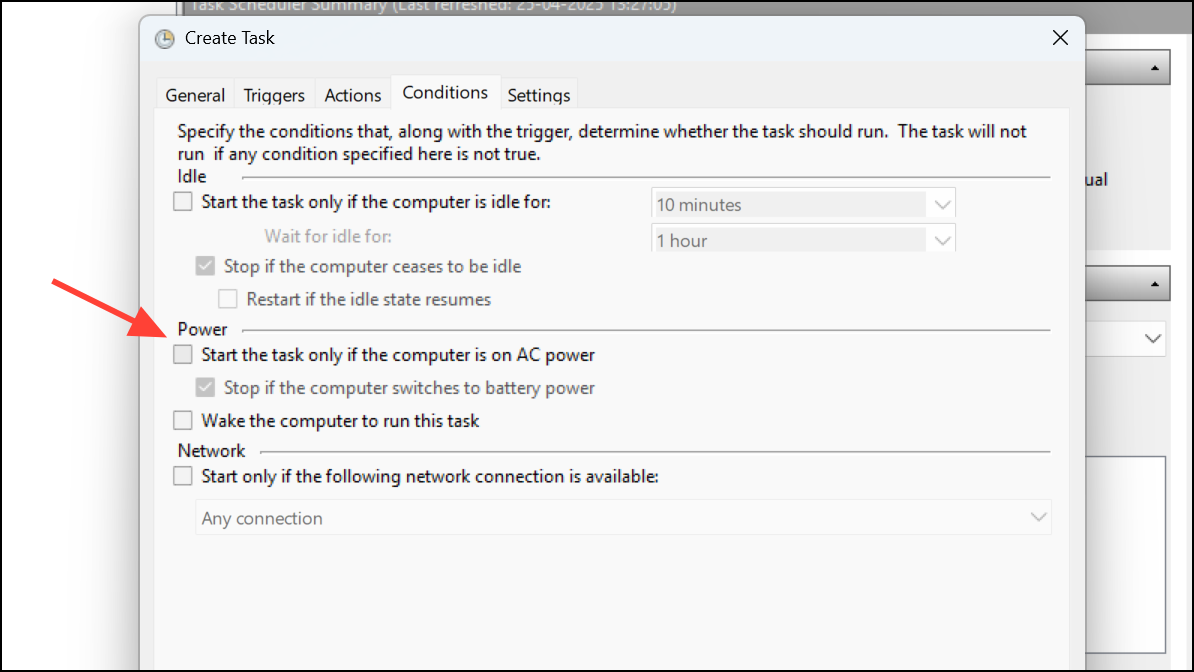
Switch to the “Conditions” tab and uncheck any options that may prevent the task from running, such as “Start the task only if the computer is on AC power.”
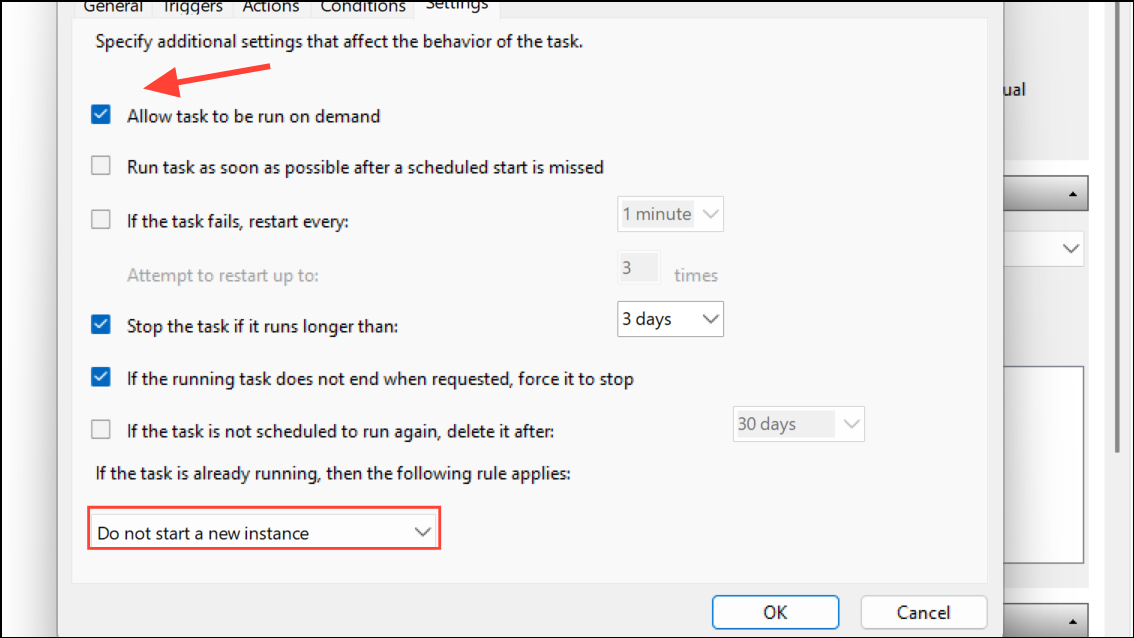
Move to the “Settings” tab. Ensure “Allow task to be run on demand” is checked, and select “Do not start a new instance” from the dropdown menu labeled “If the task is already running.”
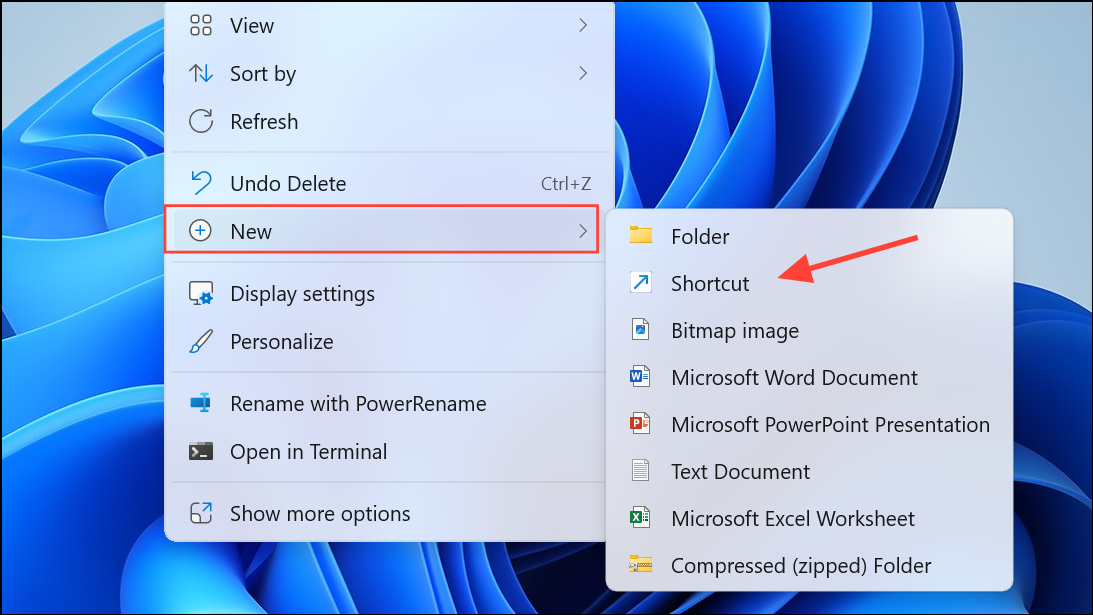
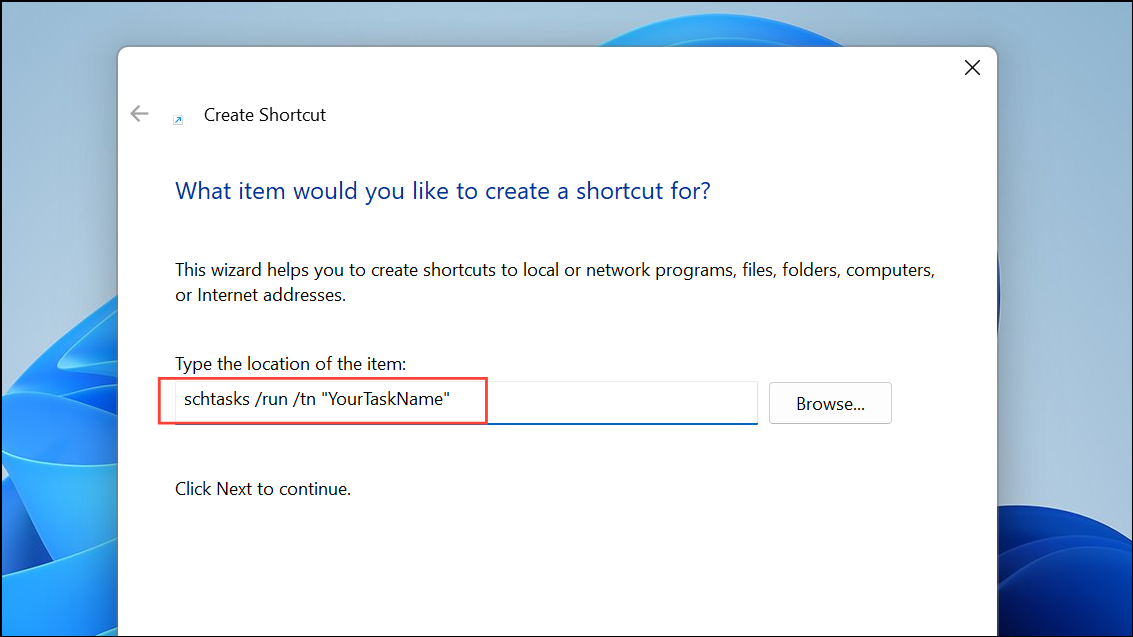
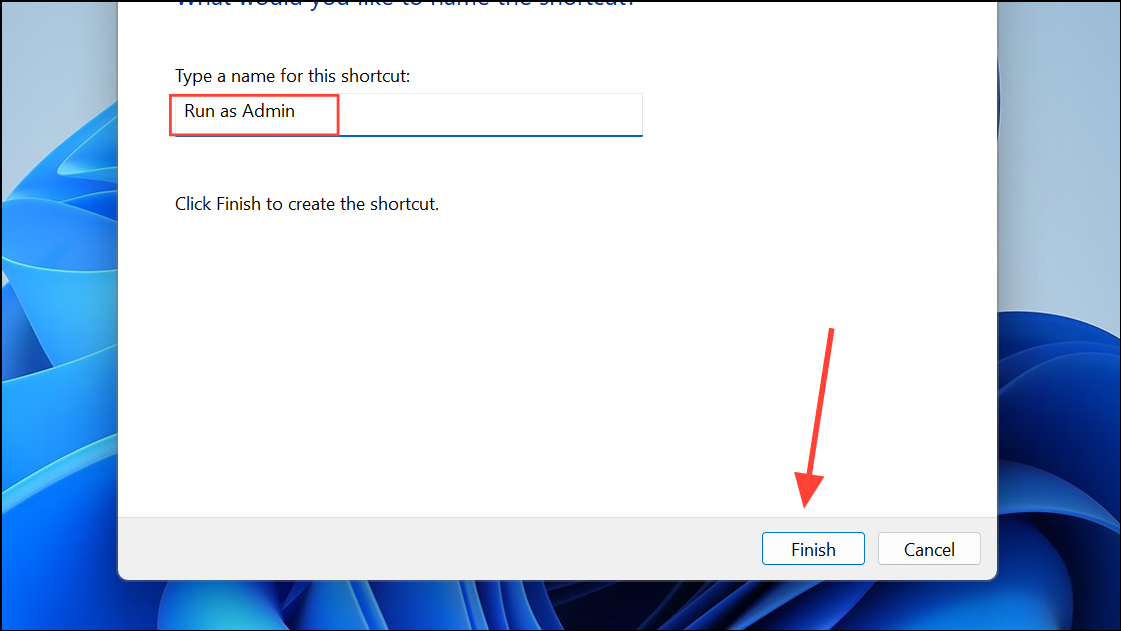
Click “Next,” give the shortcut a descriptive name, and click “Finish.”
Now, whenever the user clicks this shortcut, the application launches with administrator privileges without prompting for an admin password.
Method 2: Using Application Compatibility Settings
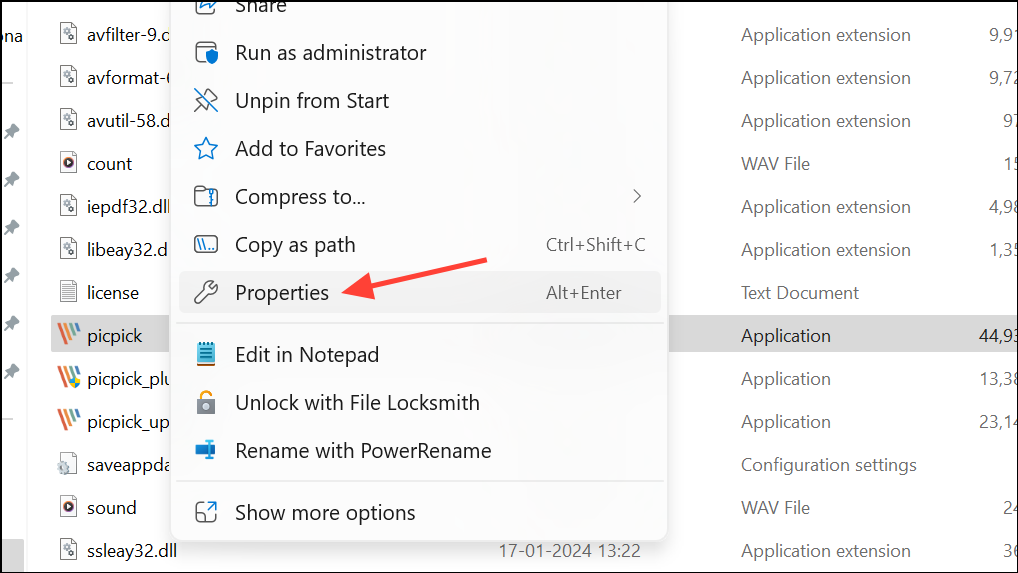
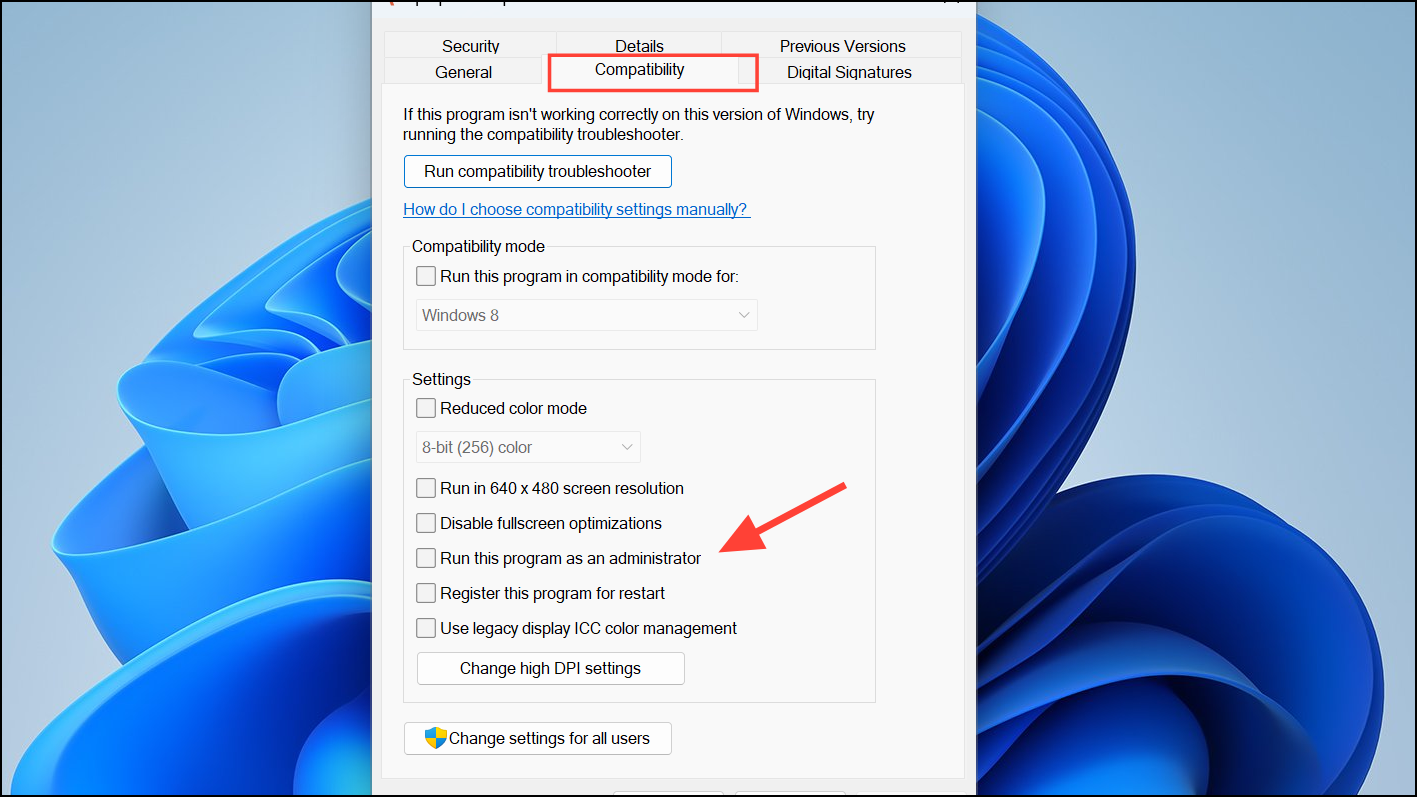
Another straightforward method is adjusting the application’s compatibility settings to always run as an administrator. This method is simpler but requires entering the admin password once during setup.
Click “Apply,” then “OK.” When the user launches this program, Windows will prompt for the admin password once. After entering it, the application will run with administrator privileges.
Keep in mind that this method will prompt for admin credentials at least once, unlike the Task Scheduler method, which bypasses the prompt entirely.
Method 3: Using Third-Party Tools
If you’re looking for more flexibility or advanced control, third-party utilities like “RunAsTool” or “Elevate” can simplify this process. These tools allow administrators to create shortcuts or profiles for specific applications that standard users can run with elevated privileges without knowing admin passwords.
Configure permissions within the tool to allow standard users access to run the selected application with admin rights.
Third-party tools offer convenience, but always ensure you’re downloading from trusted sources to avoid security risks.
By configuring programs to run with admin rights selectively, you maintain security while ensuring essential applications function properly. Regularly review configured tasks or shortcuts to ensure they remain secure and necessary.