Grim Dawn buries you in loot, and after the Fangs of Asterkarn update there is even more worth keeping. The problem is bank space. Once your shared stash fills up, you either start leaving legendaries on the ground or spin up throwaway “mule” characters just to hold gear. The Grim Dawn Item Assistant, usually shortened to GDIA, solves that by pulling items out of your stash and into an external database with no storage limit.
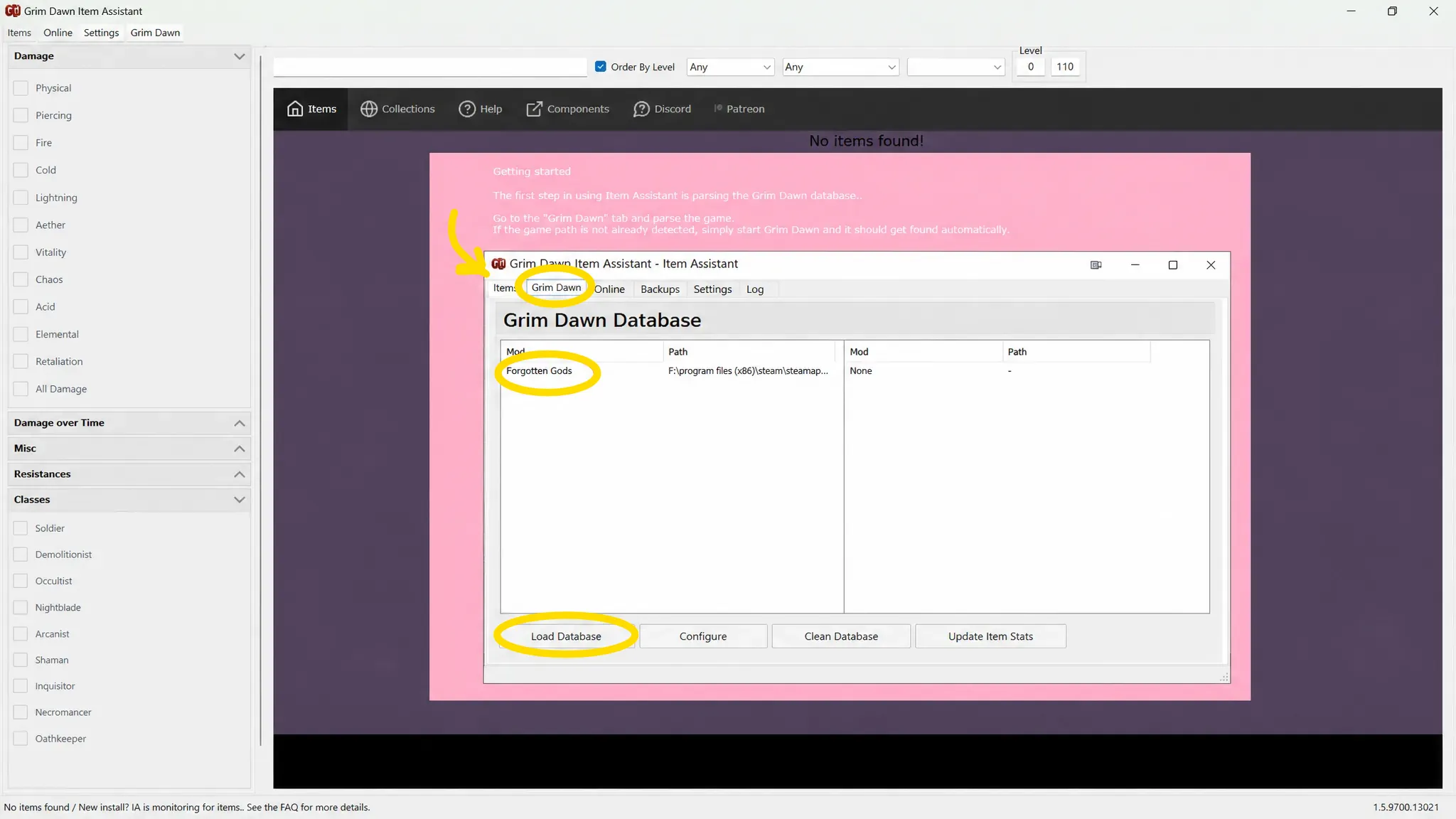
Quick answer: Install the GDIA app, open the Grim Dawn tab and press Load Database, then drop items into the last tab of your shared stash. GDIA loots them automatically and you retrieve them from the second-to-last tab.
What GDIA needs before you install it
GDIA is not a normal in-game mod. It is a standalone application that watches your shared stash while you play, so it has its own set of requirements. Sort these out first and the setup goes smoothly.
| Requirement | Detail |
|---|---|
| .NET 10 Desktop Runtime | Install from Microsoft. GDIA prompts you if it is missing. |
| 64-bit Grim Dawn | Right-click Grim Dawn in Steam, set the launch option to the x64 version. |
| Two shared stash tabs | Buy at least two tabs from the Smuggler with gold. The last tab is for depositing, the one before it is for retrieving. |
| Empty transfer tabs | Keep the last two shared stash tabs cleared so GDIA can use them. |
| Current version for GD 1.3 | Running Grim Dawn 1.3 requires GDIA version 1.5.9688.8602 or higher. |
Cloud saving no longer has to be disabled. Version 1.4 added Steam Cloud support, so leaving it on is fine. If you still run into trouble later, turning cloud saving off in both Steam and the in-game options is a known workaround.
Back up your Grim Dawn saves first
GDIA moves items between the game and its own database, so make a copy of your saves before you start. If anything goes wrong, you can restore them.
C:\Users\(Your User Name)\Documents\My Games\Grim Dawn\save. Paste it somewhere safe and name it something like “Local Save”.C:\Program Files (x86)\Steam\userdata\(Your Friend Code)\219990\remote\save. The number varies per account. Paste it separately and label it “Cloud Save”.With both copies stored, you have a fallback point no matter what happens during setup.
Download and install GDIA
GDItemAssistant.exe to launch the installer, choose an install location, then click through and wait for it to finish.Load the item database (first-time configuration)
On first launch, GDIA shows “No items found” because it has not yet read the game’s files. Before it can store anything, it needs to parse Grim Dawn’s icons and item data.
c:\program files (x86)\steam\steamapps\common\Grim Dawn.Note: Reload the database again after every Grim Dawn patch. GDIA itself rarely needs an update, but re-parsing keeps item names and stats correct. If items appear as “Unknown Item” or names like gdxTag0134, close Grim Dawn, select the right database (Vanilla, or the AoM/Forgotten Gods option), press Load Database, then Update Item Stats.
How to deposit and retrieve items
Once the database is loaded, keep GDIA open the whole time you play. Start GDIA first, then launch Grim Dawn.
Depositing: Open the shared stash at the Smuggler and place gear into the last tab. GDIA loots it instantly and shows “Item looted by Item Assistant” on screen. The item leaves your stash and lands in the tool’s database. Only equipment is transferred, not consumables.
Retrieving: In GDIA, find the item using the search bar or the filters on the left, then click Transfer to Stash on the item card. Open the Smuggler’s shared stash and the item appears in the second-to-last tab. If several identical items are stacked, the button changes to Compare & Transfer so you can pull back only the ones you want.
Hardcore and softcore stashes are kept separate, and mods are separated too. Use the selector in the upper-right corner to switch between “No Mod”, “No Mod (HC)”, or a mod you have loaded, otherwise your items will look like they are missing.
How to confirm it is working
When a session starts correctly, Grim Dawn displays “Item Assistant / Item monitoring enabled.” Seeing that message means the tool is hooked into the game. If it does not appear, GDIA is not monitoring your stash and deposits will not be picked up.
If items are not being looted or come straight back, these are the usual causes.
| Problem | Fix |
|---|---|
| Items not transferred, or returned immediately | The database was never parsed. Load it from the Grim Dawn tab. |
| Nothing happens at all | GDIA is not running, or you opened the private stash instead of the shared one. |
| Deposited items seem to vanish | The view has not refreshed. Change a filter or restart GDIA and the game. |
| Items appear missing | Wrong mod or game mode selected in the upper-right corner. Match it to your character. |
| “Stash: Error” message | GDIA cannot inject into the game. Run it as administrator. |
GDIA never changes your gear. It reproduces every item exactly as it found it, even with merging enabled, so nothing you deposit is altered on the way back. It also keeps daily backups, and you can add your own by pointing the tool at a cloud folder or a USB stick under the Backups tab. Given that hard drives fail and antivirus tools misbehave, a second backup is worth setting up before you start hoarding.