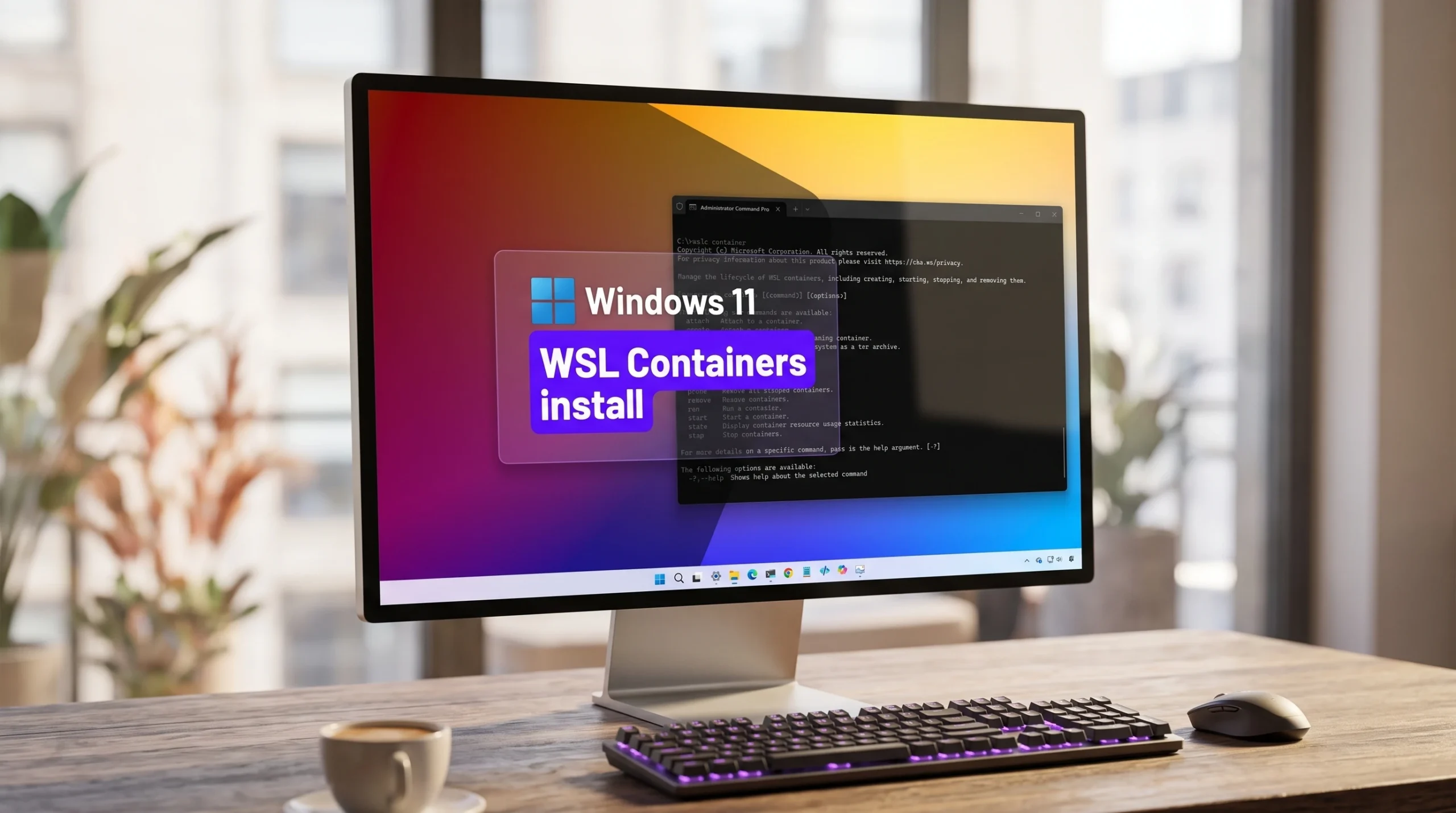
Windows 11 can now build, run, and manage Linux containers on its own through Windows Subsystem for Linux, with no Docker Desktop, Podman Desktop, or other third-party runtime installed first. The feature is called WSL Containers, it was introduced at Build 2026, and it currently ships as a public preview. It adds a command-line tool named wslc.exe plus an API that Windows apps can call to run Linux containers as part of their own logic.
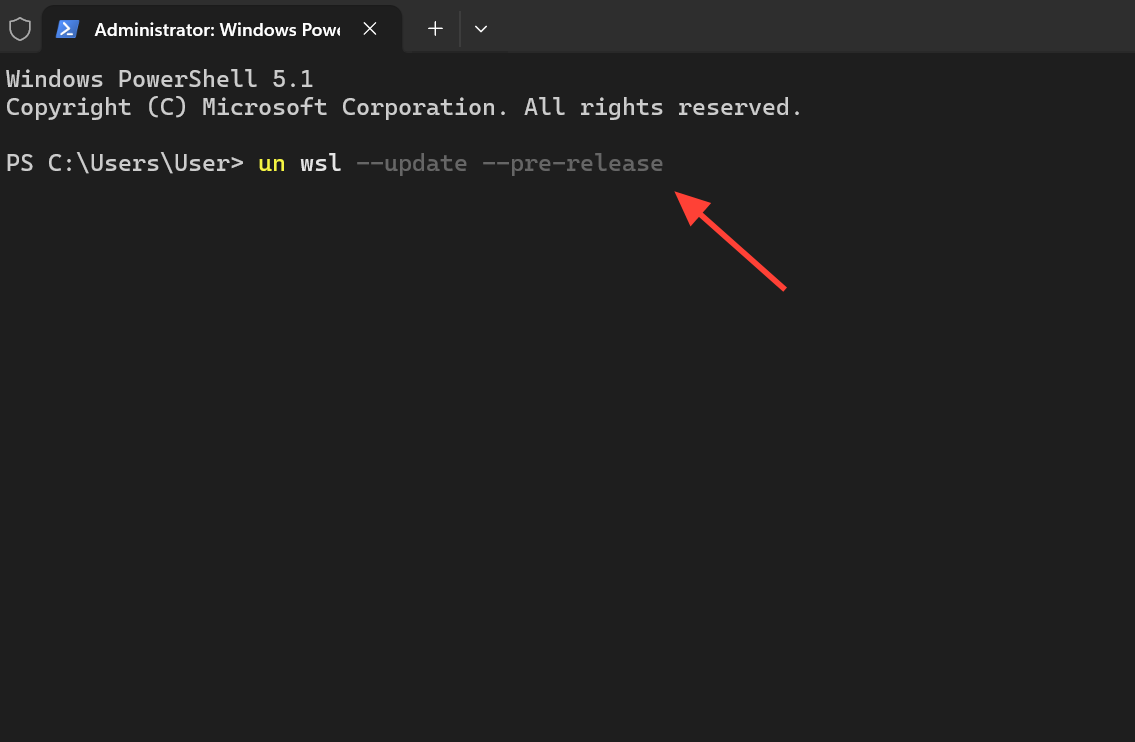
Quick answer: Open Windows Terminal or PowerShell as administrator, run wsl --update --pre-release, restart WSL with wsl --shutdown, then confirm the tool by running wslc --version. Seeing a version such as 2.9.3.0 means it is installed.
Requirements before you install wslc
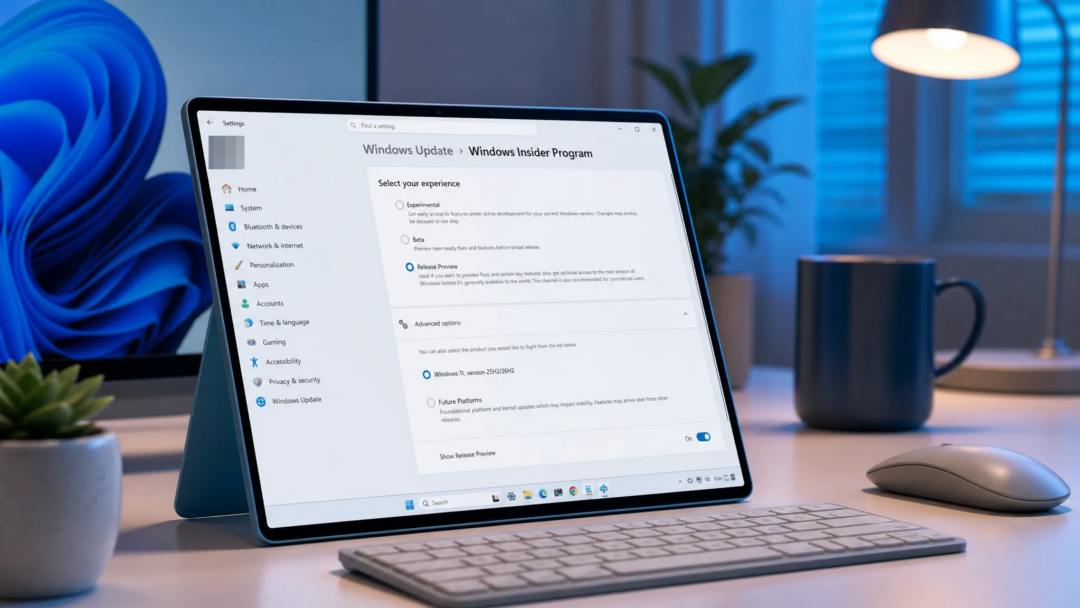
WSL Containers only ships in the pre-release channel of WSL right now, so you have to opt into that channel before wslc appears on your machine. You do not need a Copilot+ PC, since this arrives as a plain WSL component rather than an AI feature.
Because each container runs inside a lightweight Hyper-V utility virtual machine, hardware virtualization matters more here than it does for a regular WSL distro. Make sure virtualization is enabled in your BIOS or UEFI, and use a reasonably recent CPU.
Install WSL Containers on Windows 11
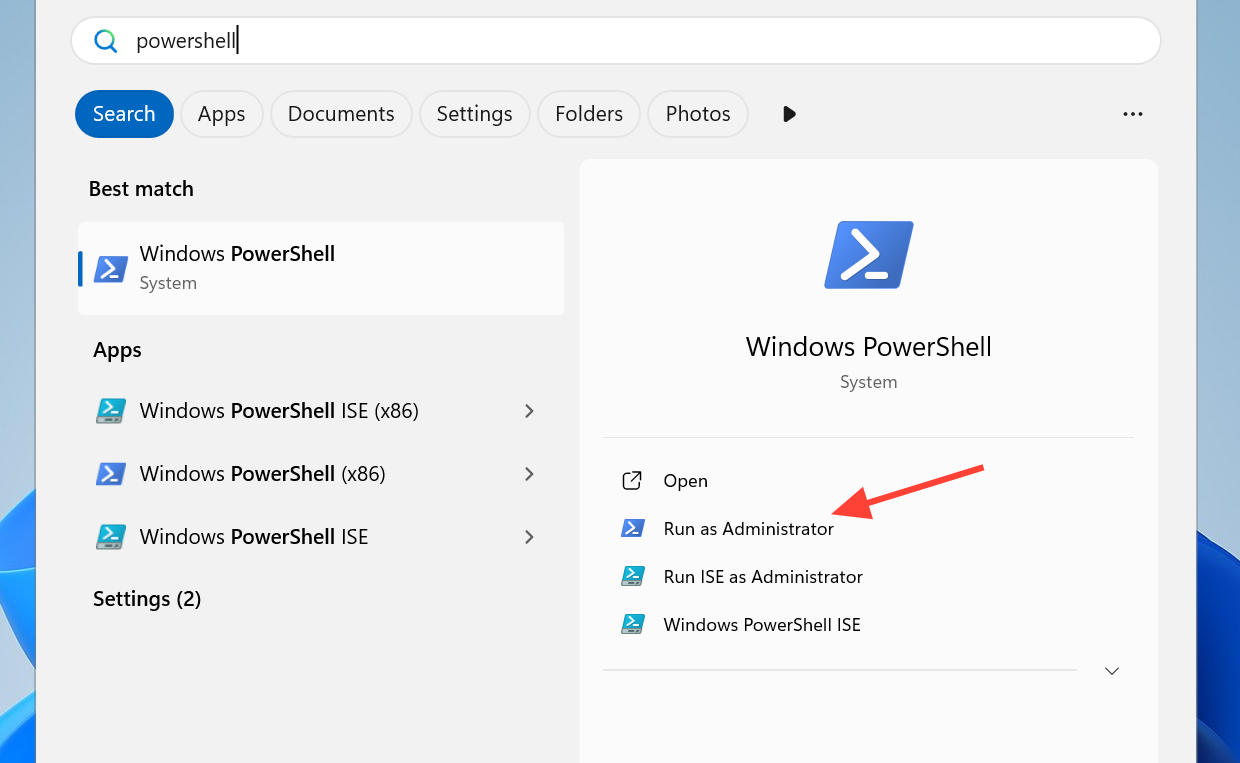
wsl --update --pre-releasewsl --shutdown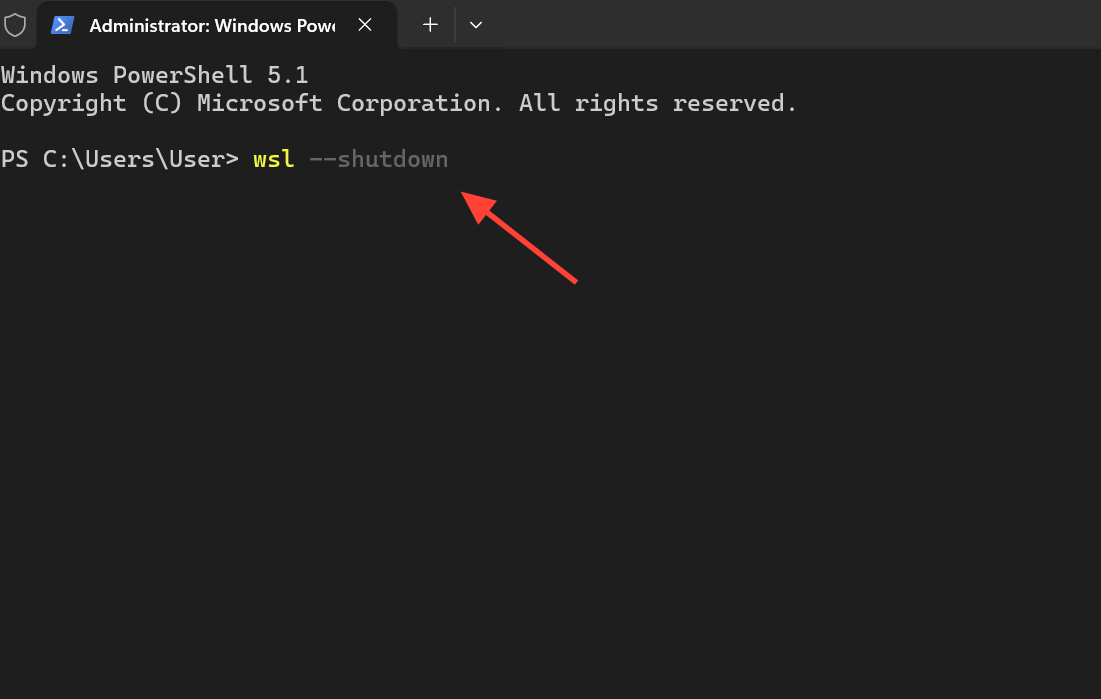
If you would rather install it by hand, download the package directly from the WSL releases page on GitHub instead of running the update command.
Confirm wslc is installed
Check the tool is on your PATH by asking for its version. A version number such as 2.9.3.0 or newer confirms WSL Containers is in place.
wslc --version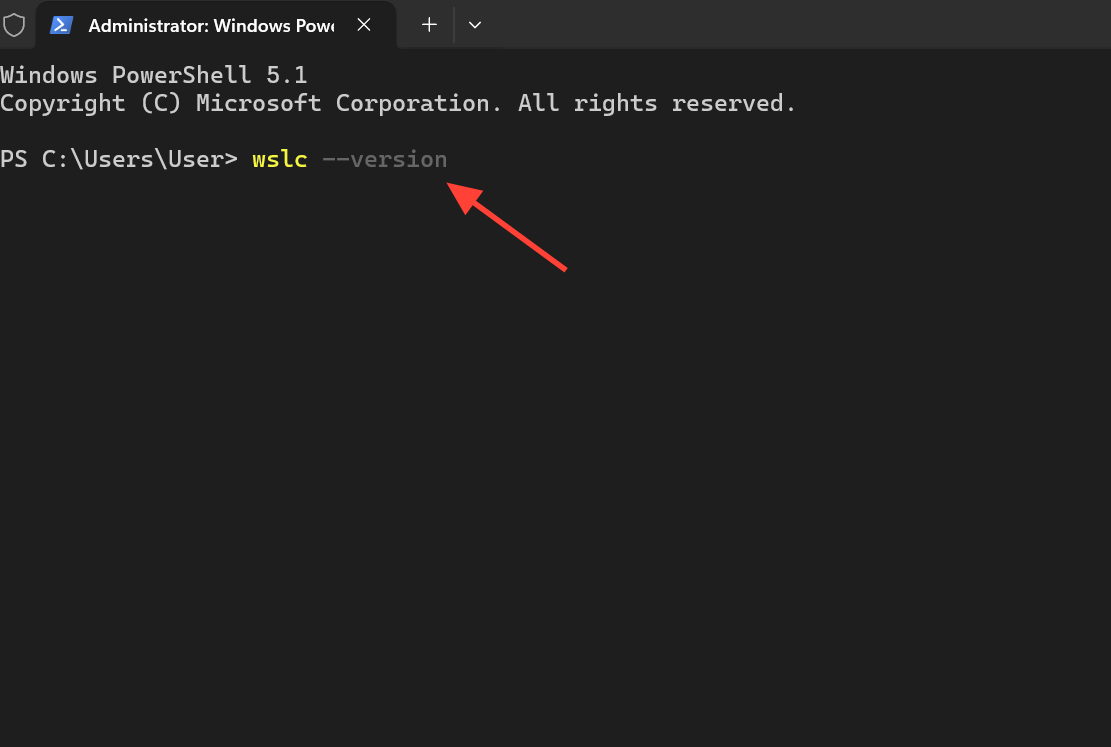
Then print the full command reference. If wslc --help lists options and usage, the binary is working and you are ready to run containers. A container.exe alias ships alongside it, so either command name points to the same tool.
wslc --help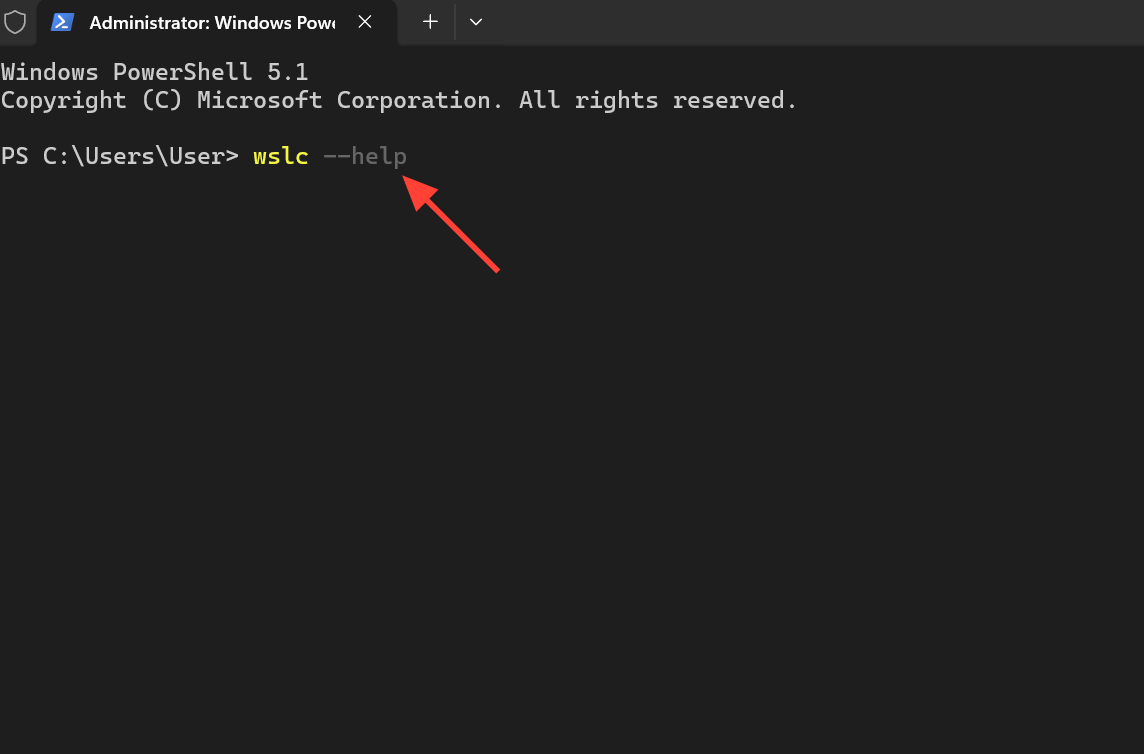
Run your first Linux container
The syntax mirrors Docker closely, so existing scripts and habits carry over. Pull and run a Debian container interactively to prove the environment is real Linux.
wslc run -it debian:latest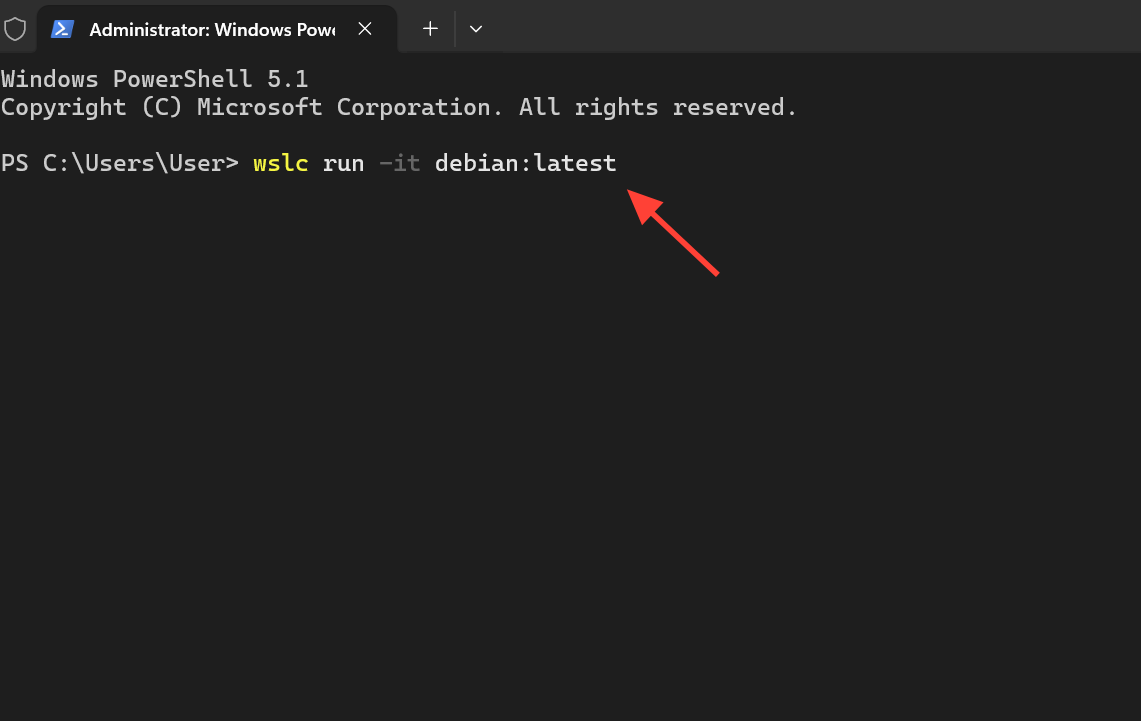
Inside the container, uname -a returns a WSL2 Linux kernel string, which confirms you are in a genuine Linux environment rather than a translation layer. You can detach with Ctrl+P, Ctrl+Q, list containers with wslc ps -a, and reattach with wslc attach <name>.
To run a full Linux desktop and expose it on local ports, use the command below. It pulls a desktop image and maps ports 3000 and 3001 to Windows.
wslc run -d --name=webtop -e PUID=1000 -e PGID=1000 -e TZ=Etc/UTC -p 3000:3000 -p 3001:3001 lscr.io/linuxserver/webtop:ubuntu-kde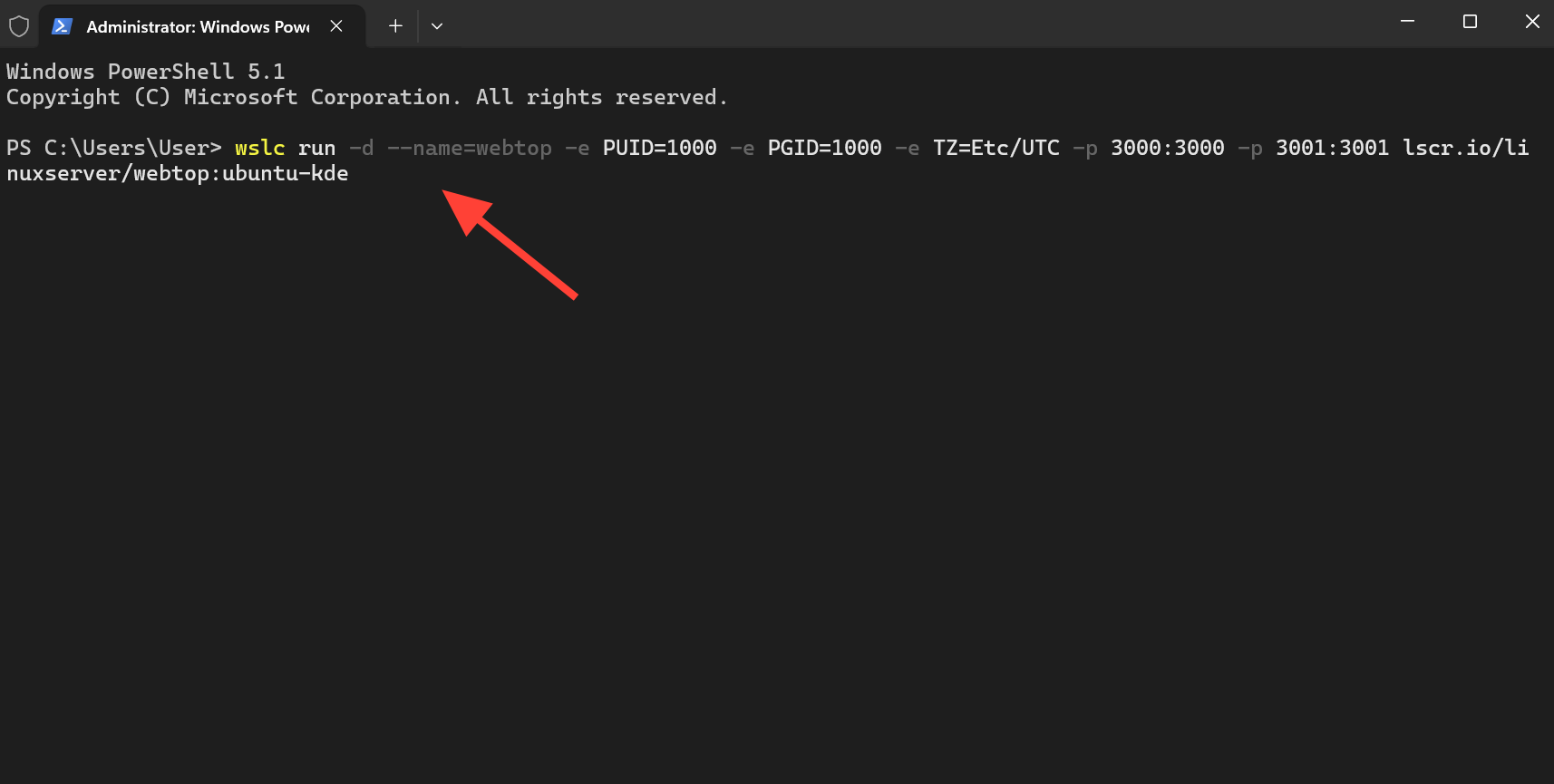
Test GPU access inside a container
Containers can reach the host GPU through the --gpus all flag, the same syntax Docker users already know. That matters for local machine learning work that would otherwise need a separate Linux box. A quick way to confirm the graphics card is visible is a PyTorch CUDA check.
wslc run --rm --gpus all pytorch/pytorch:2.5.1-cuda12.4-cudnn9-runtime python -c "import torch; print(torch.cuda.is_available()); print(torch.cuda.get_device_name(0))"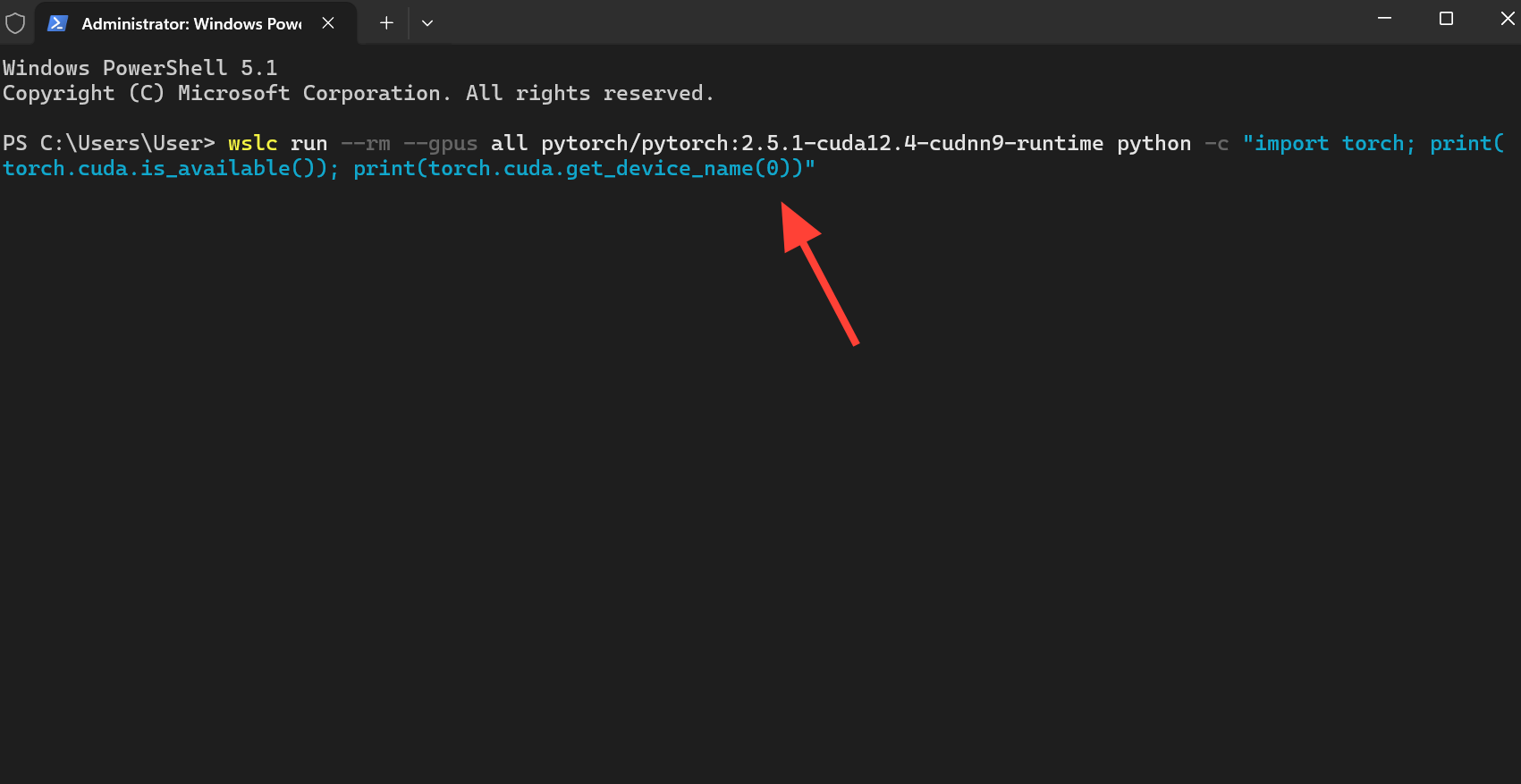
Point VS Code dev containers at wslc
VS Code dev containers support wslc starting with the 0.462.0-pre-release build. To switch away from Docker, open VS Code settings, search for Docker Path, and change the value to wslc. The setting is still in pre-release, with general availability planned later.
If wslc is not recognized
Most install failures come down to the terminal not picking up the new binary. Work through the checks below in order before assuming something is broken.
| Symptom | What to do |
|---|---|
wslc command not found | Confirm wsl --update --pre-release completed with no errors, run wsl --shutdown again, then close and reopen the terminal. If it still fails, restart the PC. |
| Update finishes but version looks old | Re-run the pre-release update and check wsl --version reports a supported build such as 2.9.3.0. |
| Catastrophic failure, Error code: E_UNEXPECTED on first container | A known rough edge in the pre-release channel. Restart WSL and retry; report persistent failures on the WSL GitHub page. |
Preview status and what changes at release
WSL Containers stays in public preview inside the WSL pre-release channel, with general availability targeted for fall 2026. Inside the Linux VM, the runtime doing the real work is Moby, the open-source engine that also powers Docker, so this is a first-party front door to containers rather than a new container format.
Docker Desktop, Podman Desktop, and Rancher Desktop remain fully supported alongside it. If your workflow depends on Linux containers, installing the pre-release build now lets you test wslc.exe and the container API before the stable release arrives.