
Display scaling affects how text, apps, and other items appear on your screen. On Windows, custom scaling lets you specify a precise scaling percentage, which can resolve issues with blurry text or interface elements that appear too large or small on high-resolution displays. PowerShell provides a way to set custom scaling values beyond the standard options available in the Settings app, allowing for more granular control.
Change Custom Scaling with PowerShell
Setting custom scaling through PowerShell involves editing the Windows Registry, which stores system configuration settings. Adjusting these values can immediately impact how your display renders text and UI elements. It’s important to back up your registry before making changes, as incorrect edits can cause system instability.
powershell in Windows Search and select Run as administrator from the menu. Running as administrator is required to modify system registry settings.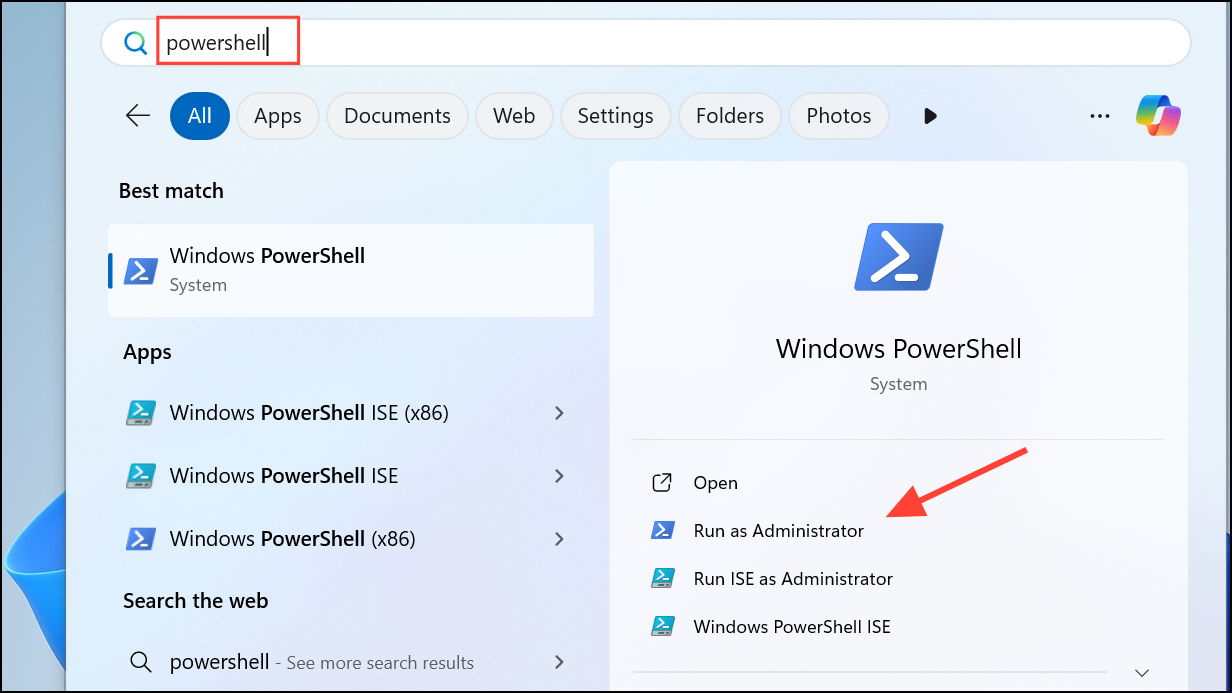
reg export "HKCU\Control Panel\Desktop" "$env:USERPROFILE\Desktop\Desktop_Backup.reg"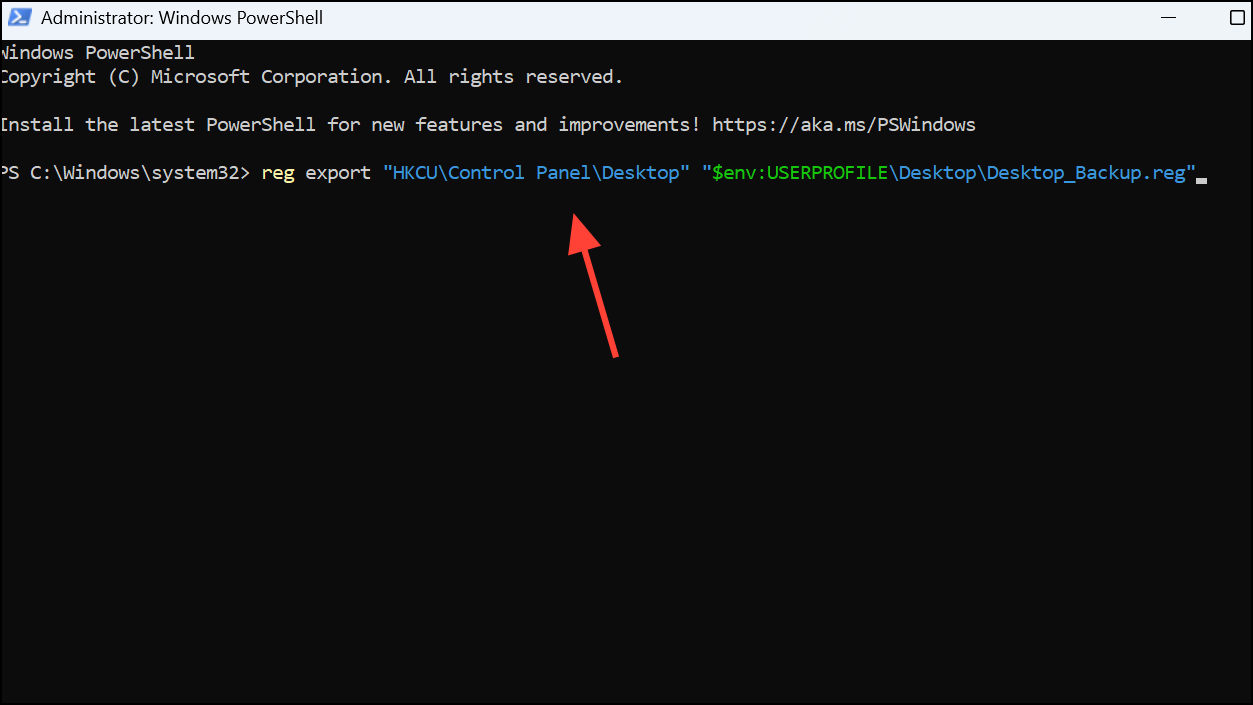
This command creates a backup file on your desktop. If anything goes wrong, you can restore your settings by double-clicking the backup file.
LogPixels registry value under HKEY_CURRENT_USER\Control Panel\Desktop. The value is a DWORD representing DPI (dots per inch). For example, 100% scaling is 96 DPI, 125% is 120 DPI, 150% is 144 DPI, and so on. To set a specific DPI, use this command (replace 120 with your desired value):Set-ItemProperty -Path "HKCU:\Control Panel\Desktop" -Name "LogPixels" -Type DWord -Value 120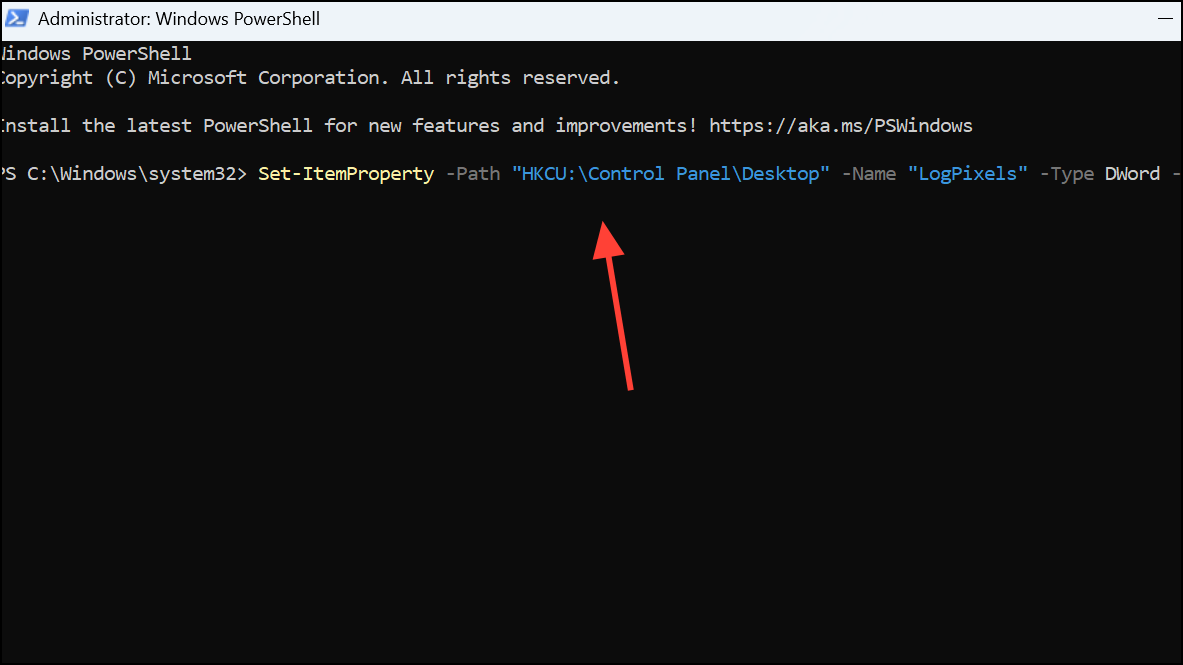
Common values:
- 96 = 100% scaling.
- 120 = 125% scaling.
- 144 = 150% scaling.
- 192 = 200% scaling.
Choose a value that best matches your preferred scaling level.
Ctrl + Alt + Del and choosing Sign out.Settings > System > Display.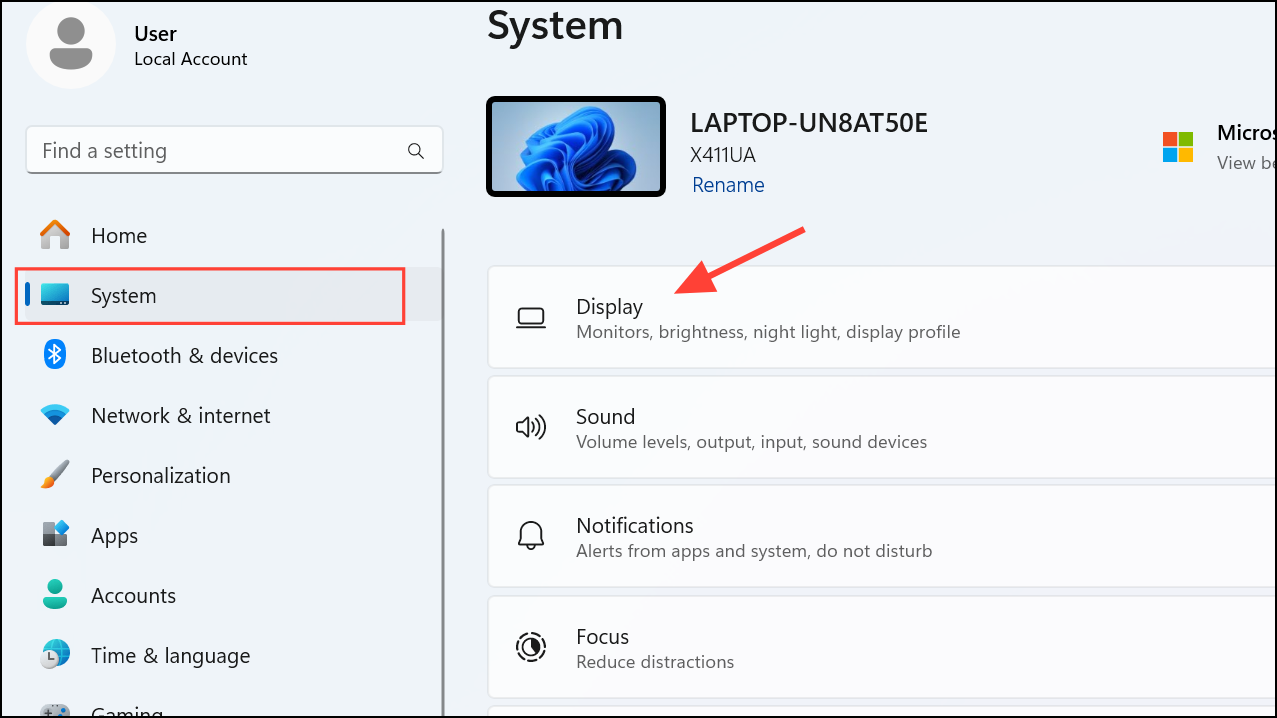
Alternative: Remove Custom Scaling Value
If you want to revert to Windows’ default scaling options, you can remove the custom scaling registry value you set. This will allow you to use the scaling slider in the Settings app again.
Remove-ItemProperty -Path "HKCU:\Control Panel\Desktop" -Name "LogPixels"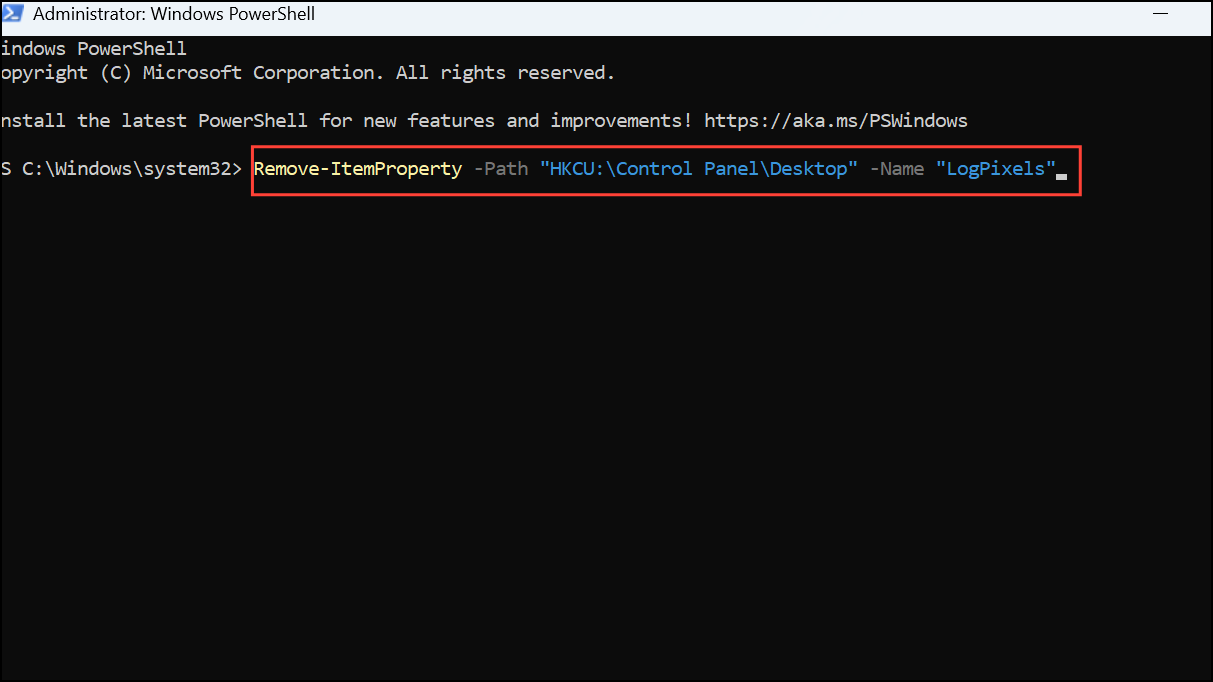
Additional Tips and Cautions
- Setting a non-standard scaling value may cause some applications to display incorrectly or with blurry text.
- If you experience display issues, restore your registry backup or use the Settings app to reset scaling.
- Always back up your registry before making changes.
- Some scaling changes may not take effect until after a full restart, depending on your system and apps.
Adjusting custom scaling with PowerShell gives you more precise control over your display settings. If you run into problems, restoring your registry backup or removing the custom value will quickly return things to normal.





