

Running certain commands or scripts in Windows 11 requires administrator privileges, especially when modifying system settings, installing software, or performing maintenance. Launching Windows Terminal with administrative rights ensures that all shells—Command Prompt, PowerShell, or WSL—inherit these permissions, preventing access errors and streamlining advanced operations.
Open Windows Terminal as Administrator Using the Win+X Menu
Windows + X on your keyboard. This opens the Power User (Quick Link) menu, which provides fast access to essential system tools.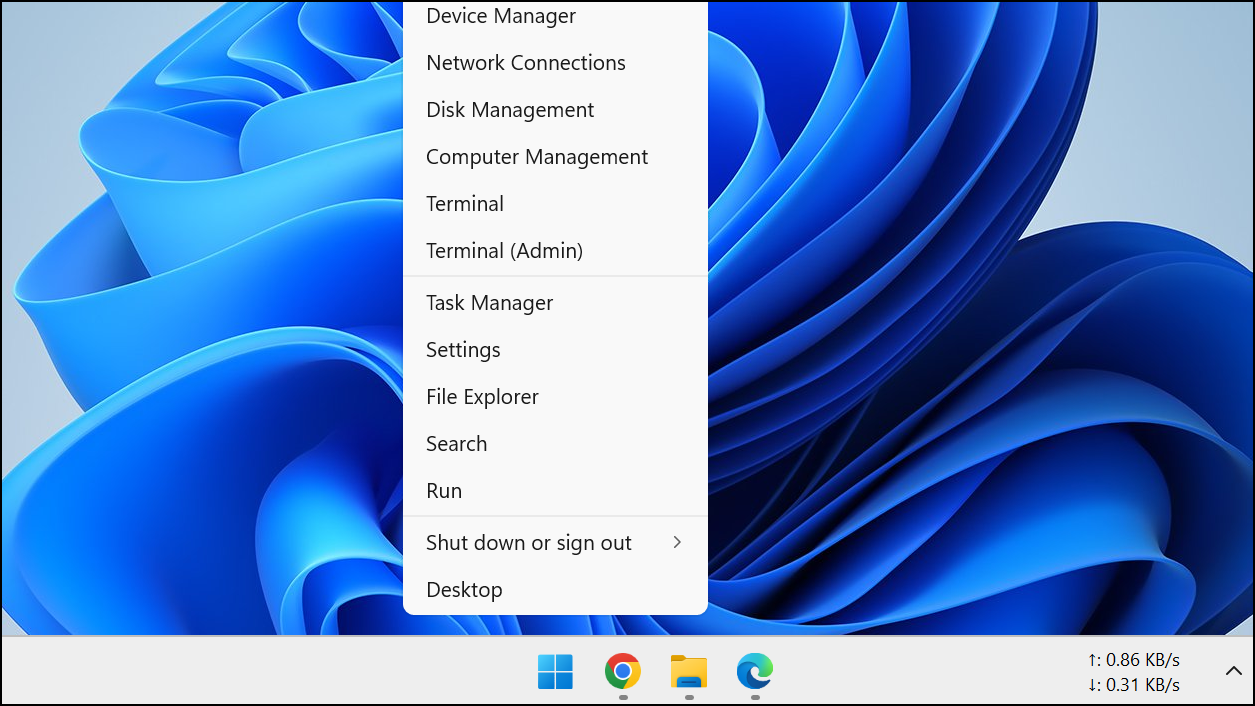
Terminal (Admin) from the menu. In some Windows 11 builds, this entry may appear as Windows Terminal (Admin) or just Terminal depending on your configuration and updates. If you see Windows PowerShell (Admin) instead, you can set Windows Terminal as your default terminal app in system settings.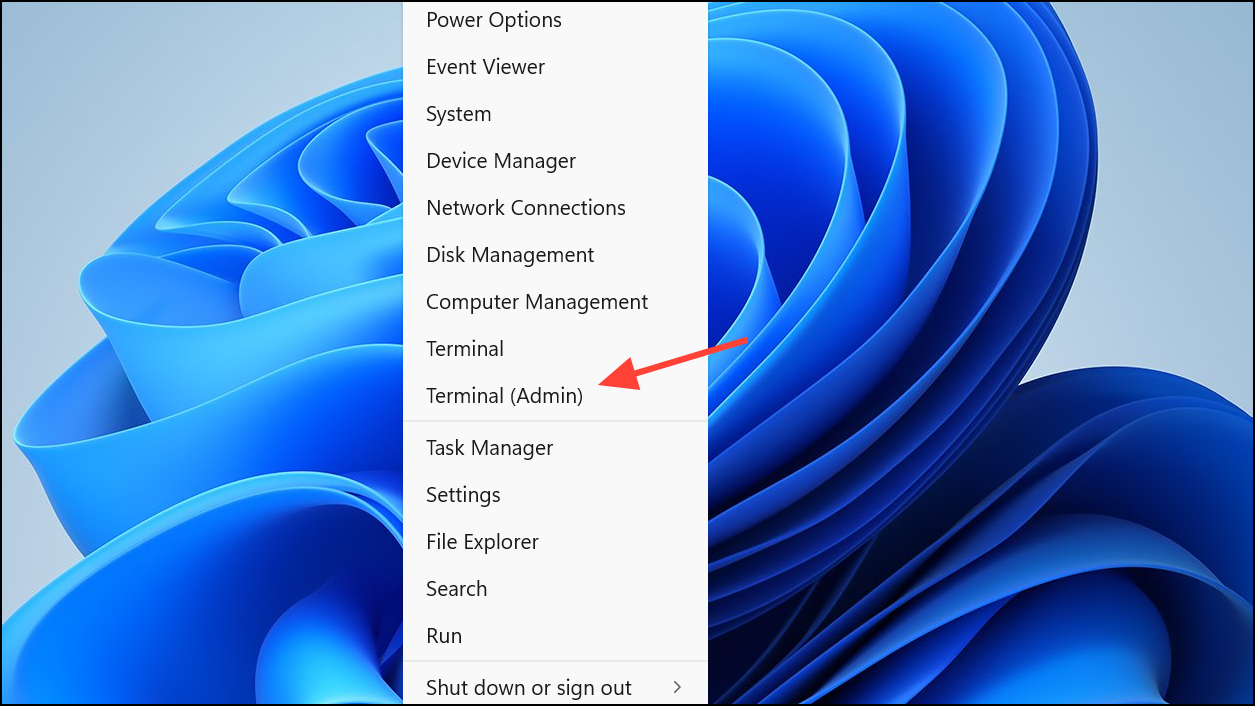
Yes to confirm. The Windows Terminal window will now launch with administrator rights, allowing you to run elevated commands without restriction.Open Windows Terminal as Administrator from Start Menu
All apps in the upper-right corner to display an alphabetical list of installed applications.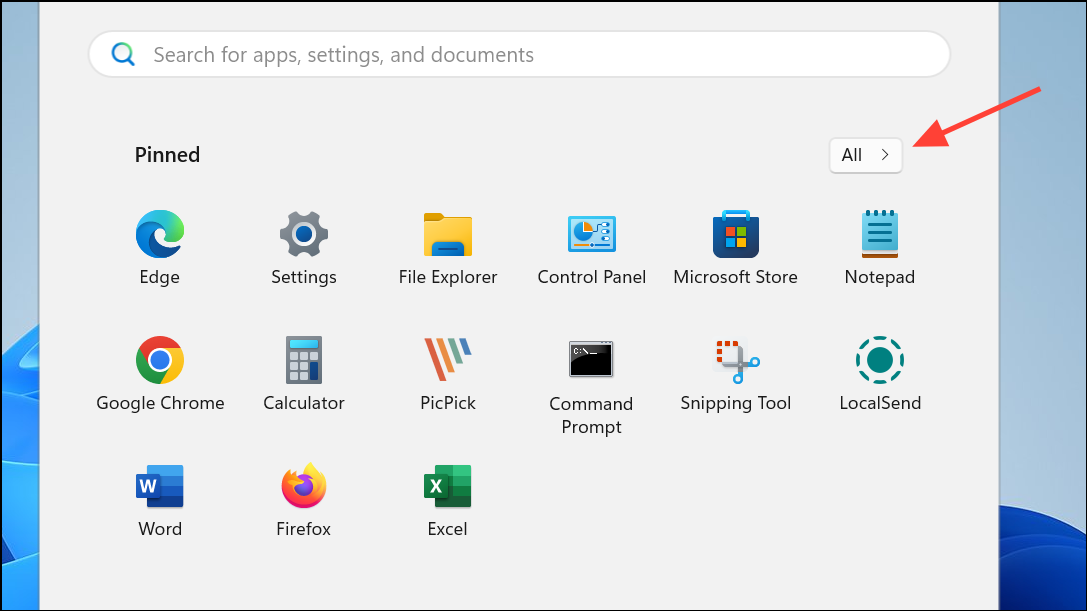
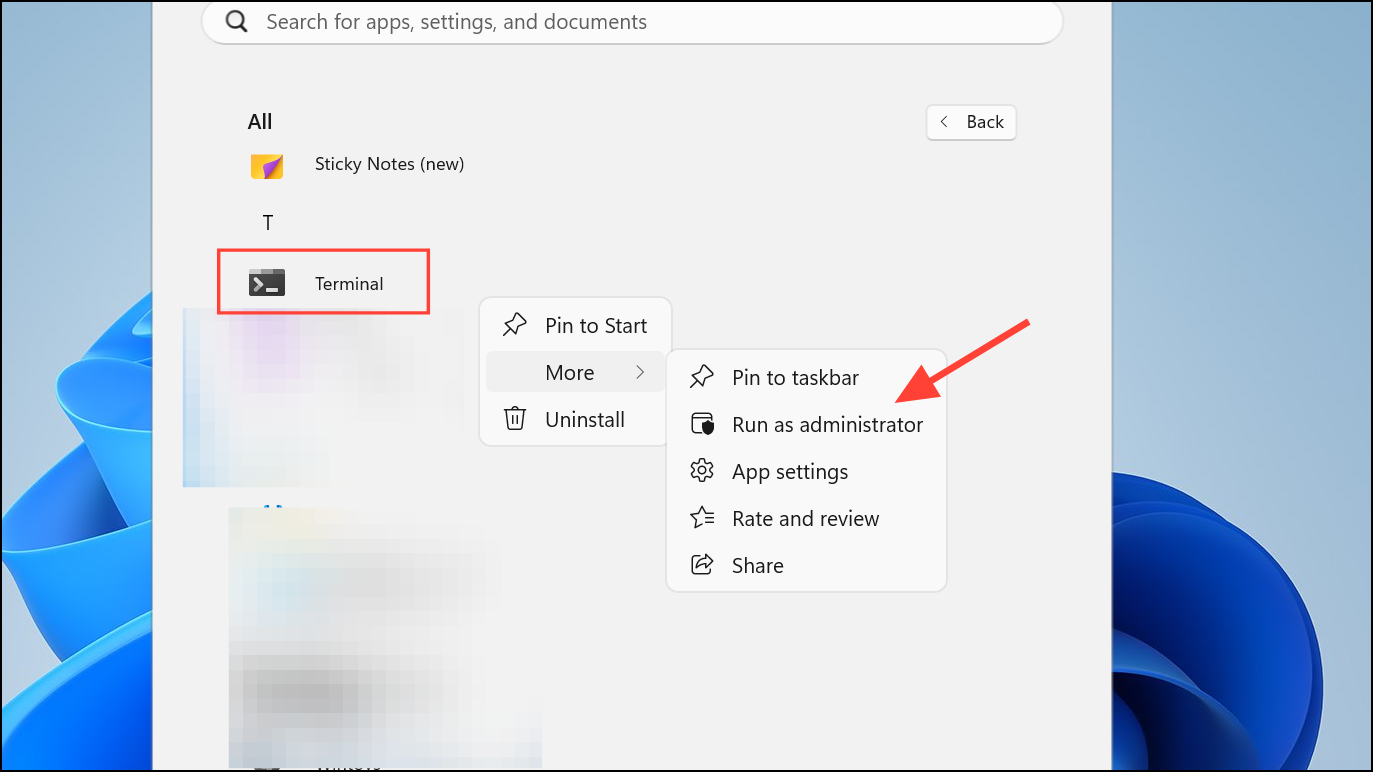
Open Windows Terminal as Administrator Using Windows Search
Windows Terminal and choose Run as administrator. Alternatively, click the small arrow next to the app and select Run as administrator from the expanded options.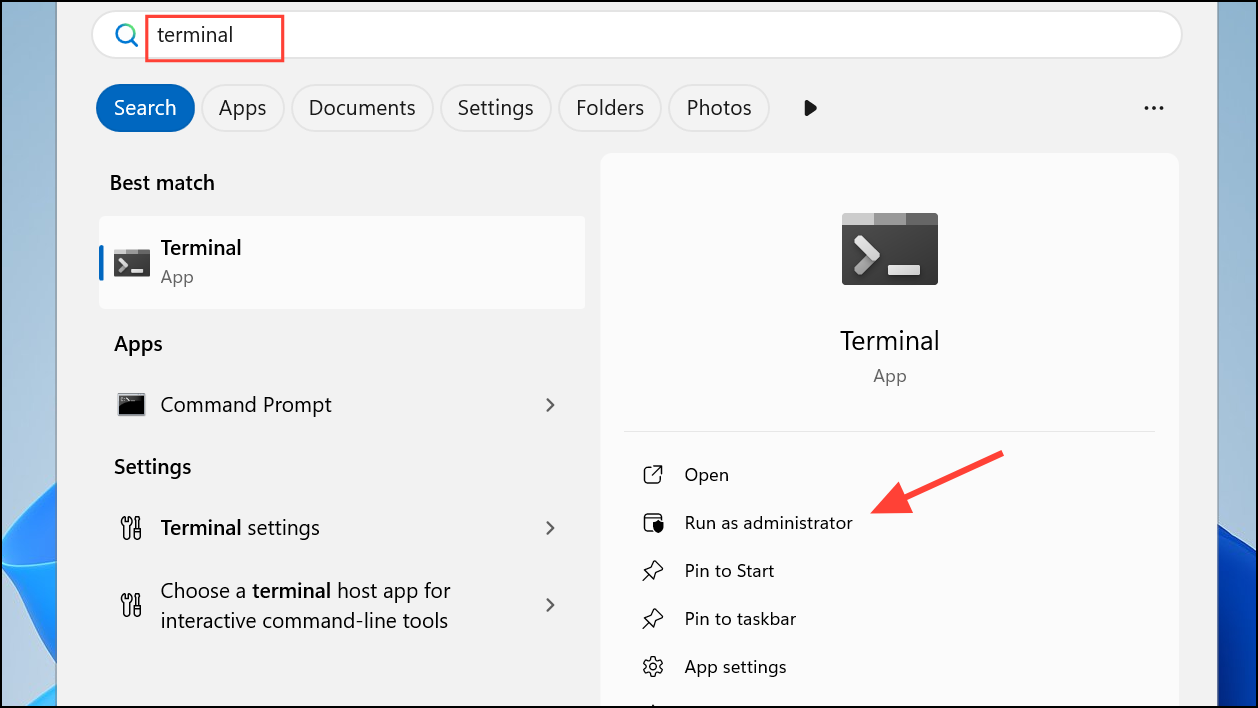
Open Windows Terminal as Administrator via the Run Dialog
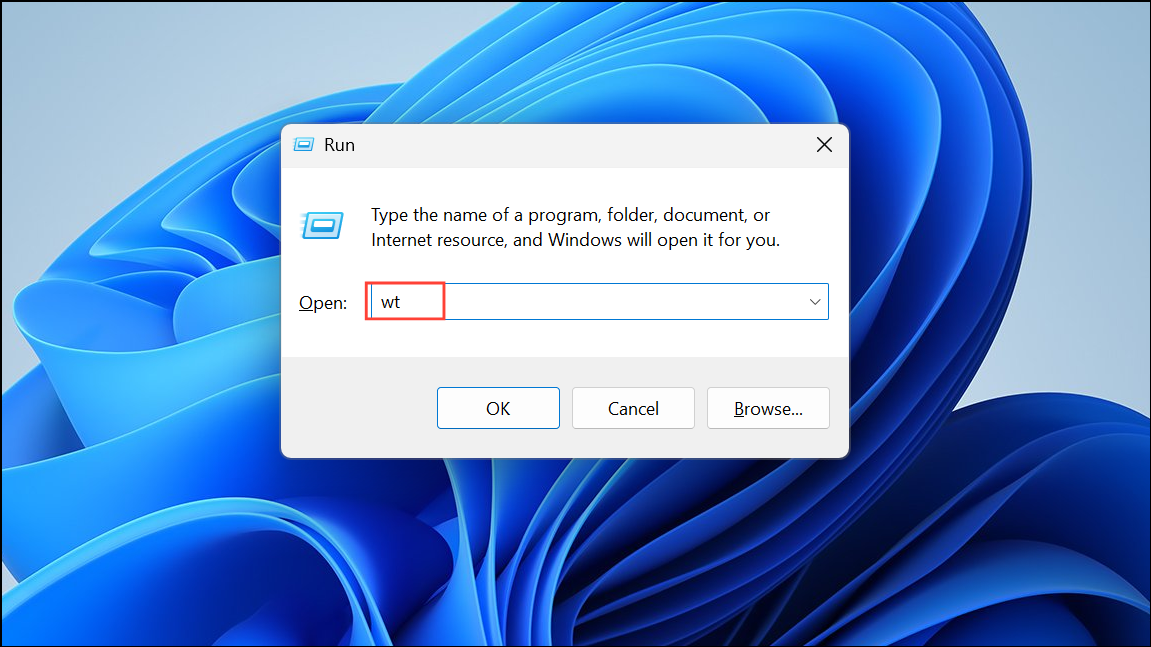
Ctrl + Shift and then press Enter or click OK. This shortcut instructs Windows to launch the command with administrator rights.Open Windows Terminal as Administrator Using Task Manager
Ctrl + Shift + Esc or by right-clicking the taskbar and selecting Task Manager.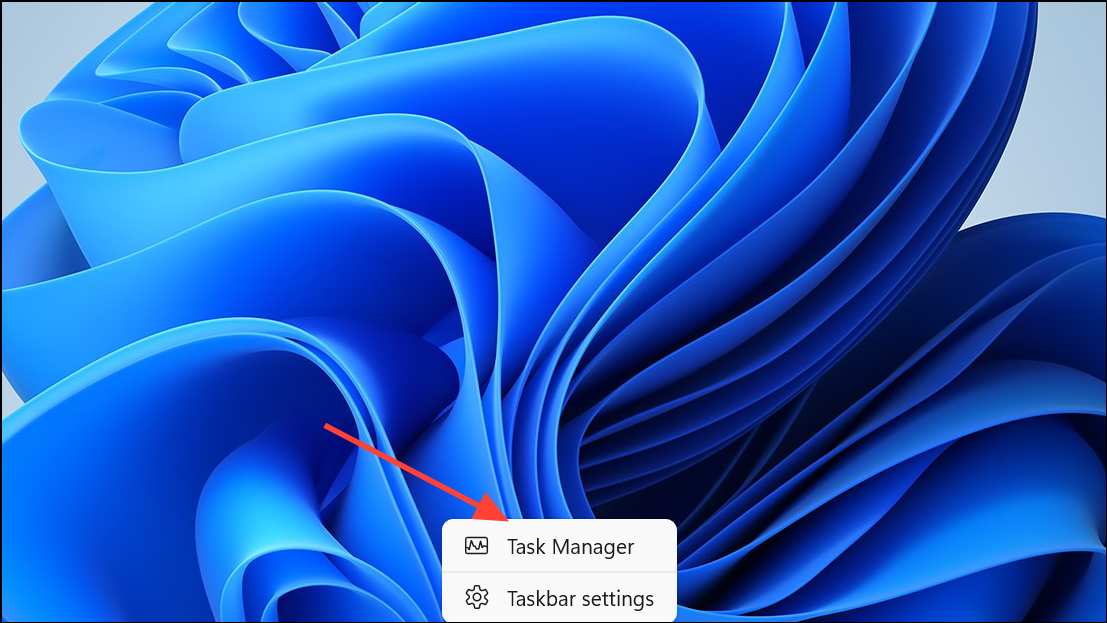
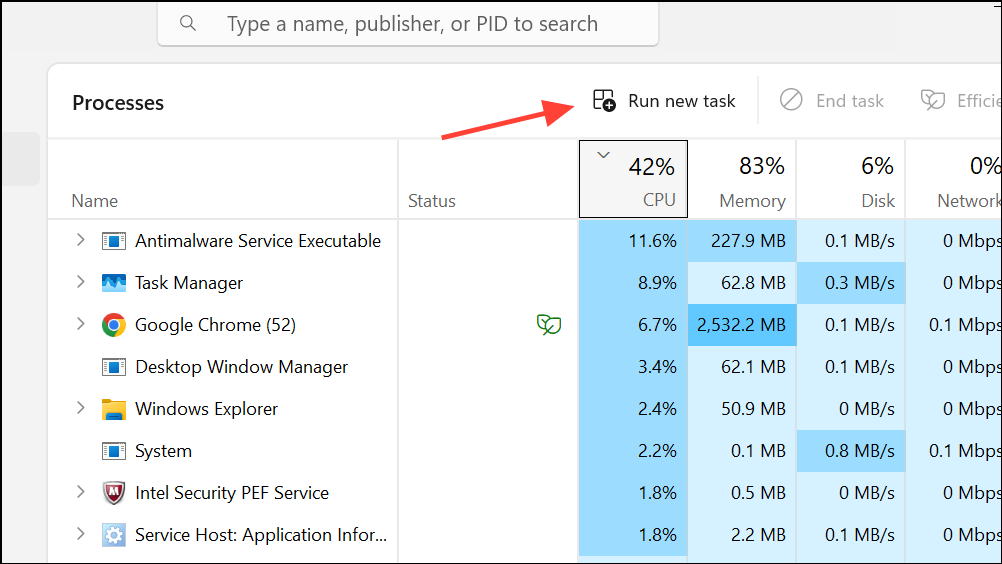
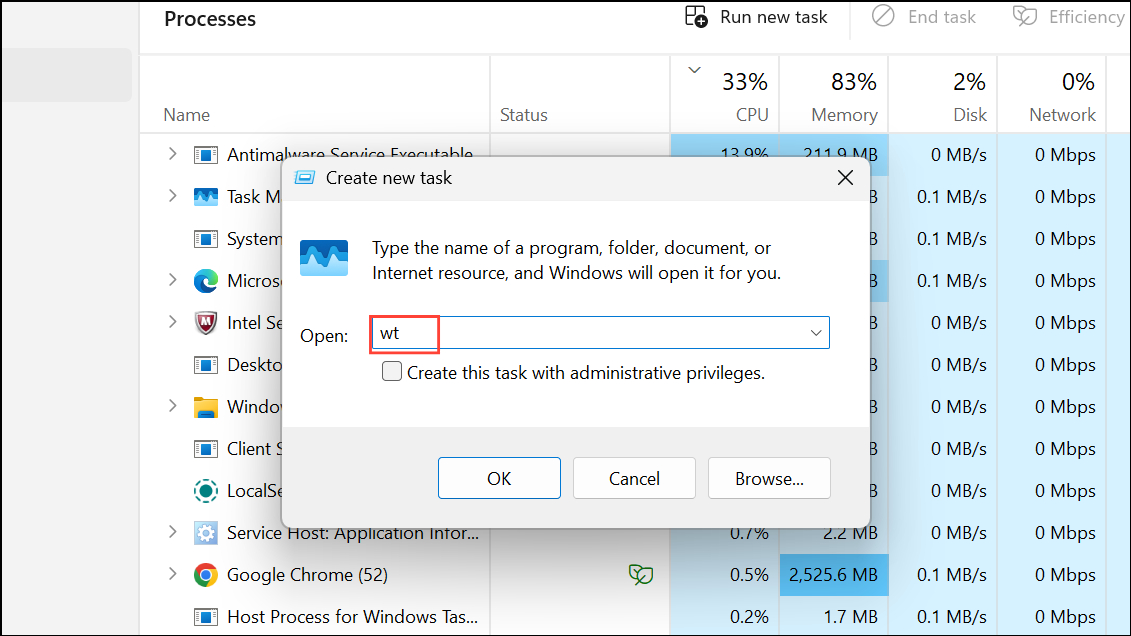
Create this task with administrative privileges before clicking OK. This ensures Windows Terminal launches with elevated permissions.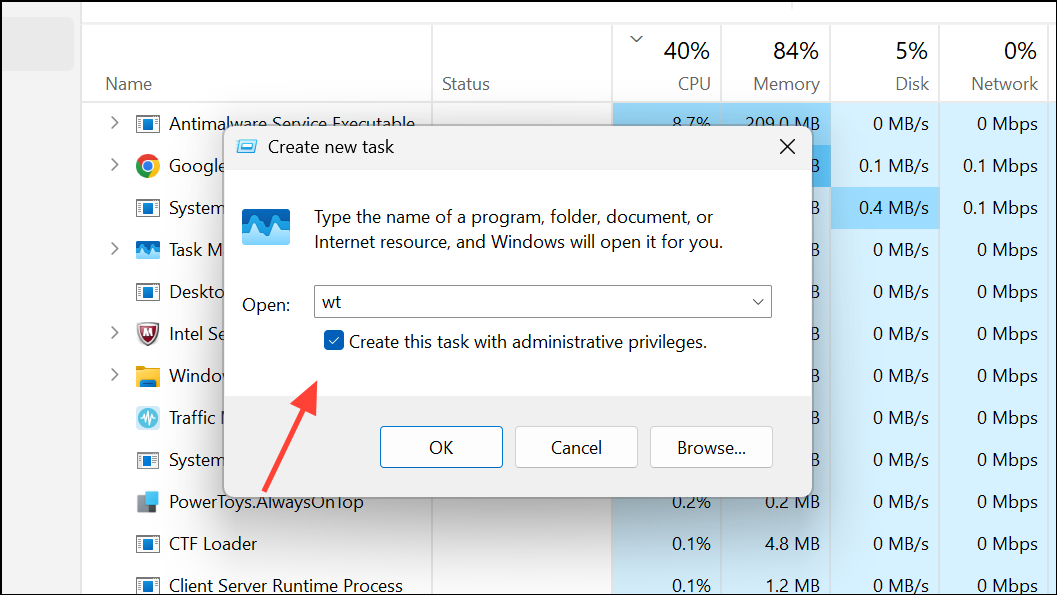
Set Windows Terminal to Always Run as Administrator
For users who frequently need administrative access, configuring Windows Terminal to always start in admin mode can save time. Adjusting the app’s settings or shortcut properties streamlines this process.
Settings, or press Ctrl + ,.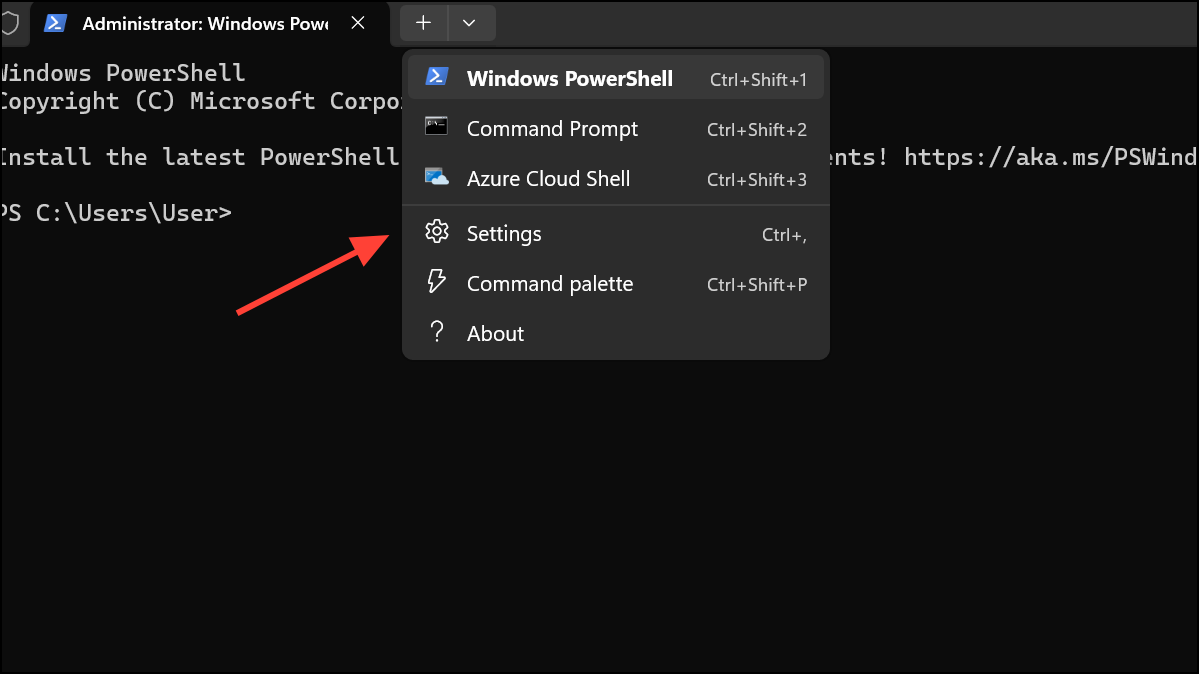
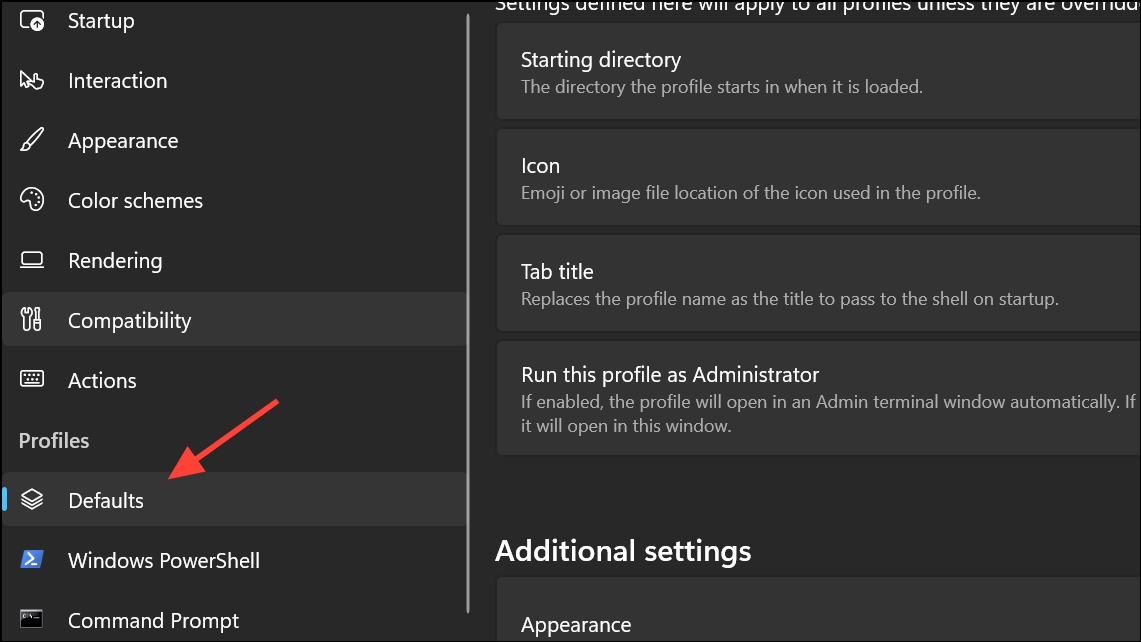
Run this profile as Administrator. This makes every new Terminal window launch with elevated permissions by default.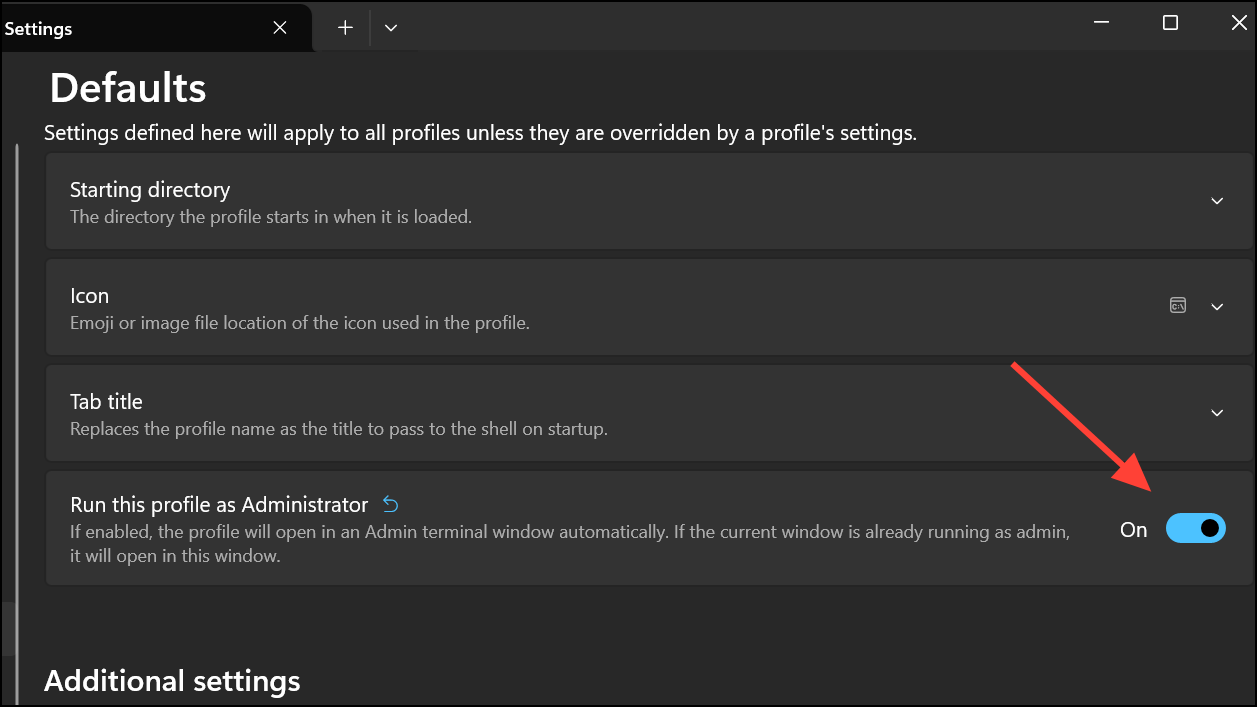
Startup.Alternatively, you can create a custom desktop shortcut for Windows Terminal, then right-click the shortcut, choose Properties, click Advanced, and check Run as administrator. This shortcut will always open Terminal with admin rights.
Launching Windows Terminal as administrator in Windows 11 prevents permission issues and unlocks advanced system commands. Choose the method that fits your workflow for faster, error-free command-line management.



