
Custom Chromium builds often retain the default taskbar icon and application name, which can cause confusion or branding issues, especially when distributing modified versions. Updating these elements on Windows 11 requires direct changes to application resources and shortcuts, guaranteeing your build stands out and is easily identifiable in the taskbar and Start menu.
Change the Chromium Taskbar Icon and Application Name by Modifying the Executable
.ico format. Ensure the file is 256×256 pixels for best compatibility. This icon will replace the default Chromium icon in the taskbar and Start menu.chrome.exe or your build’s main .exe file).Icon Group or ICON resource section, which contains the embedded application icons. Replace all icon sizes with your new icon to ensure consistency across all Windows UI elements.Version Info resource in the same executable. Look for fields such as ProductName, FileDescription, and InternalName. Update these strings to your desired application name. This step ensures the new name appears in the taskbar, Start menu, and application switcher.
cd /d %userprofile%\AppData\Local\Microsoft\Windows\Explorer
del iconcache*
shutdown /r /f /t 00
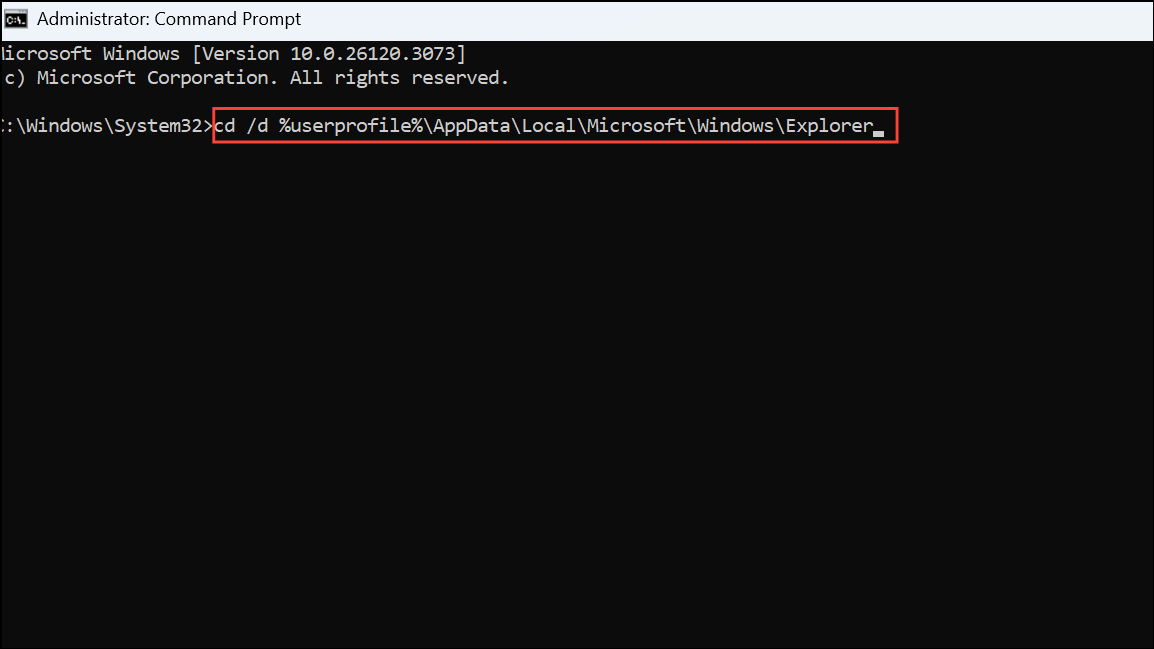
This deletes the icon cache files and immediately restarts your computer, ensuring Windows loads the updated icon for your modified Chromium build.
Update Shortcuts and Pin to Taskbar with Custom Icon
Create shortcut.Properties, and click Change Icon. Browse to your custom .ico file and select it.Name field under the General tab to your desired application name. This changes how the shortcut appears in the Start menu and on the desktop.Pin to taskbar. The taskbar will now display the new icon and name, but this method does not update the actual executable or system-level application name.Use Application Manifest and Branding Files (For Developers)
chrome/app/theme and chrome/app/chrome_exe.rc).Updating the Chromium taskbar icon and name on Windows 11 for modified builds creates a distinct, professional look and helps avoid confusion with standard Chromium or Chrome installations. Consistently applying these changes ensures your custom build is easily recognizable and properly branded.



