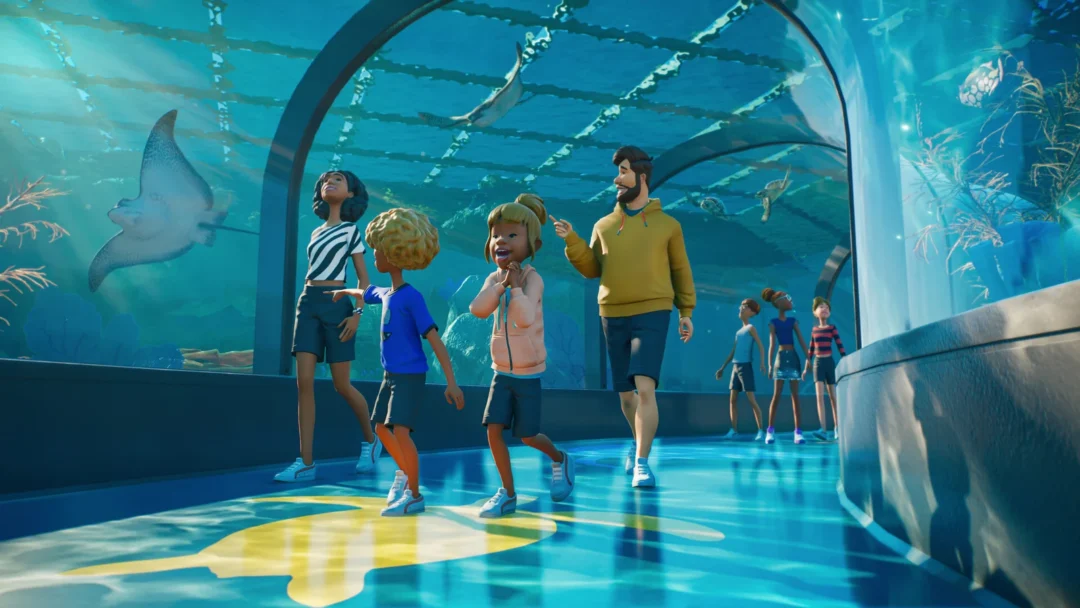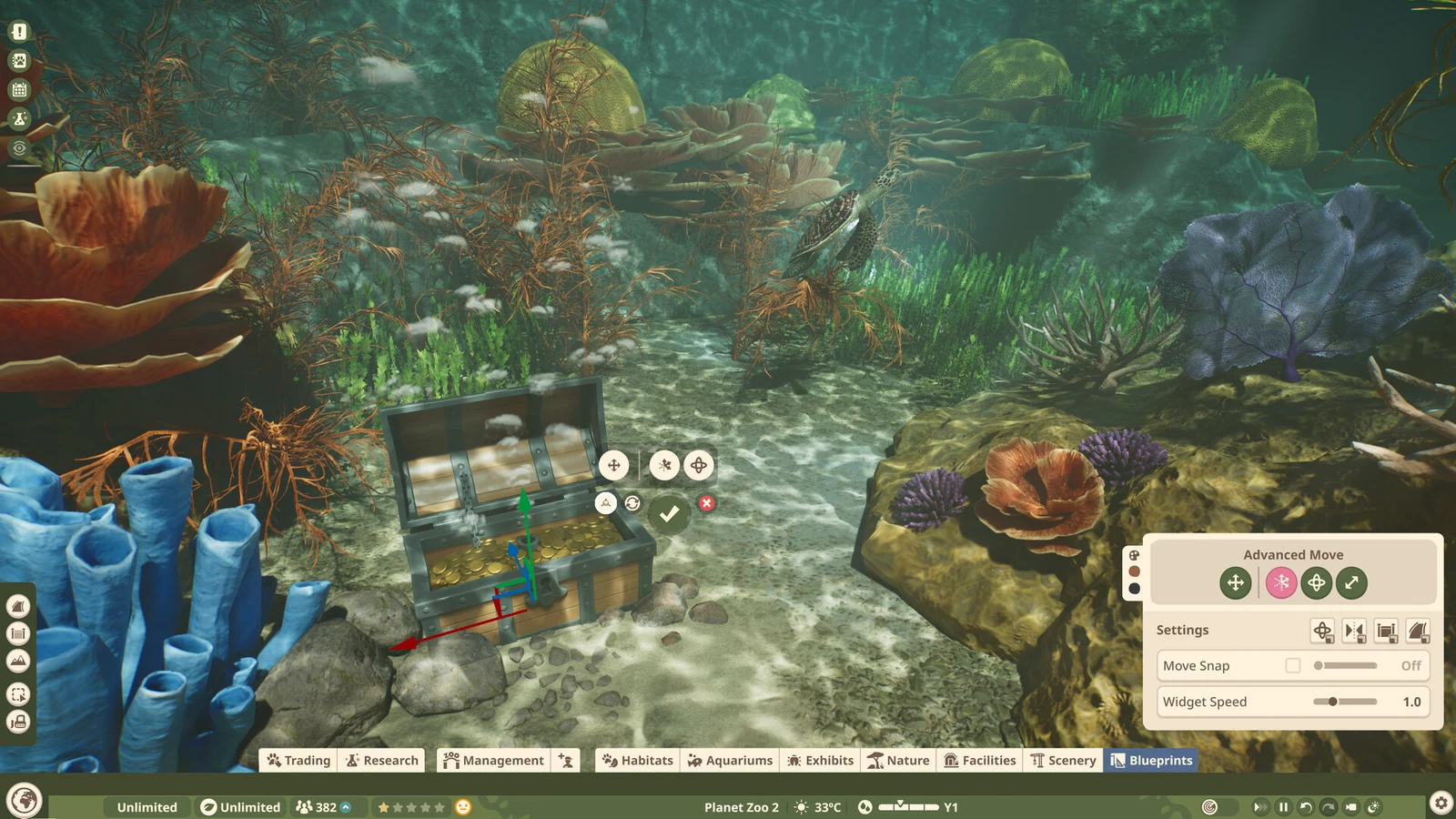
Planet Zoo 2 has no Steam Workshop integration. Sharing instead runs through Frontier Workshop, Frontier’s in-house service, which you can access from the construction menus. While in the game, you can place another player’s aviary, aquarium, or trade centre in your zoo. You can upload your own creations for others or save them privately to reuse in other zoos.
Quick answer: Open any build menu, click See More in the purple Workshop box, select a creation to download it, then place it like a normal item. To share your own, use Save As Blueprint.
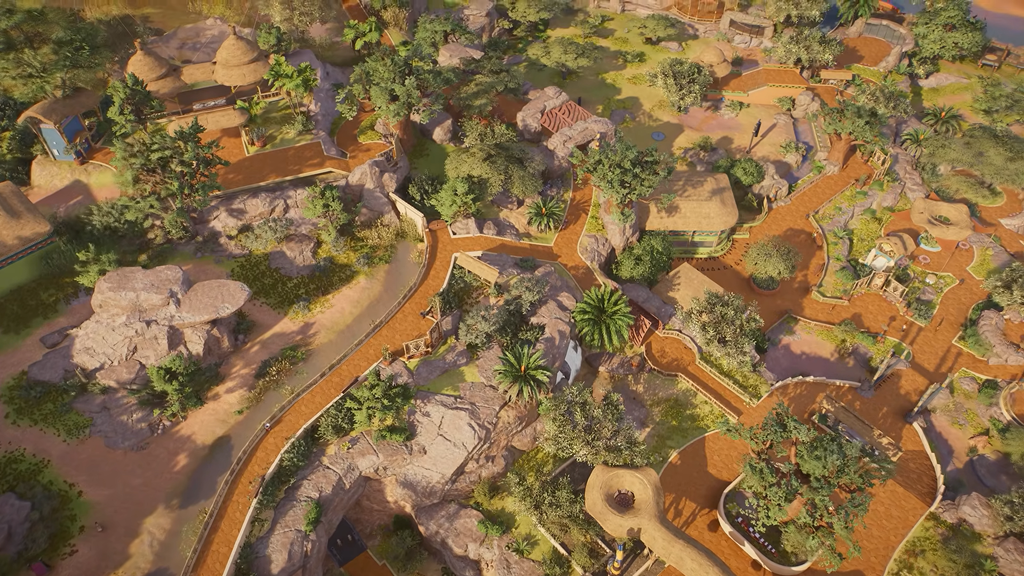
Download and place a Frontier Workshop creation in your zoo
You don’t need a separate app or a web browser to get started. The Workshop sits inside the same menus you already use to build.
You’ll know it worked when the creation follows your cursor and drops into the park the same way a stock building or scenery piece does.
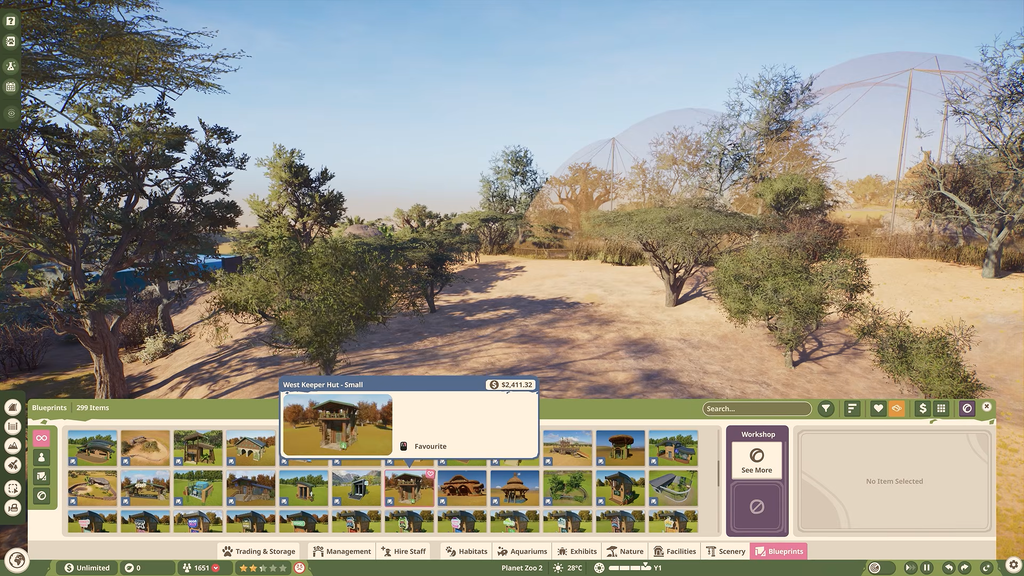
Open the full Frontier Workshop browser
The side menu is fine for a quick grab, but it’s cramped. From that same Workshop-only menu, click Open Workshop in the top-right corner to get a full-page view that’s much easier to scan. That larger page lets you do a few things the side menu doesn’t:
- Browse creations on a bigger, more readable layout
- Follow specific creators whose work you like
- View content you’ve saved
- View content you’ve made, under the My Content tab
The Workshop also lives on the web. You can browse the Planet Zoo 2 Workshop on the official site, log in, and hit Subscribe on any creation page. The site splits its front page into Trending, Highlighted, and Official tabs, and every listing shows its rating, subscriber count, favourites, and supported platforms.
Find a specific build with a sharecode
Every Workshop creation has a sharecode, a short string made of three groups of three characters. It’s printed right next to the creation on its Workshop page. When someone posts a code on social media or in a forum, search for it in the Workshop and you’ll land on that exact build, no save file swapping required. These are a few of the most-subscribed creations right now and their codes:
| Creation | Creator | Sharecode |
|---|---|---|
| Botanical Bird Conservatory – Tropical Aviary | zoibean | 5WT-39J-4ML |
| Moon Jelly Sanctuary – Glowing Exhibit Pavillon | zoibean | 2X4-H7H-PJM |
| Thrive-Ready Siamang & Sumatran Orangutan Habitat | PlasticSwans | 858-KTS-40Y |
| Trout Bridge by Adamup | Adamup | 7NW-01M-4C7 |
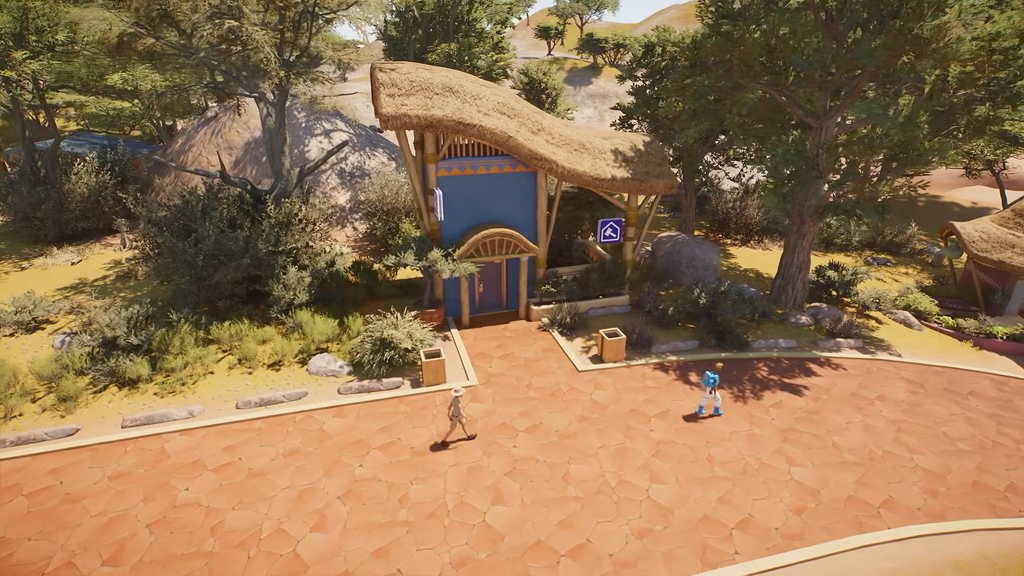
| Stone Cottage Trade Centre | boozlesims | 76T-GMD-1SY |
The Botanical Bird Conservatory leads that group with more than 10,000 subscriptions. All five are blueprints, and all five list Windows, PS5, and Xbox Series X|S as supported platforms.
Frontier’s creations appear in the shared catalogue under “Planet Zoo Team – Official,” with ratings and sharecodes handled just like other uploads. For a proven aquarium or exhibit shell instead of another player’s design, open the Official tab first.
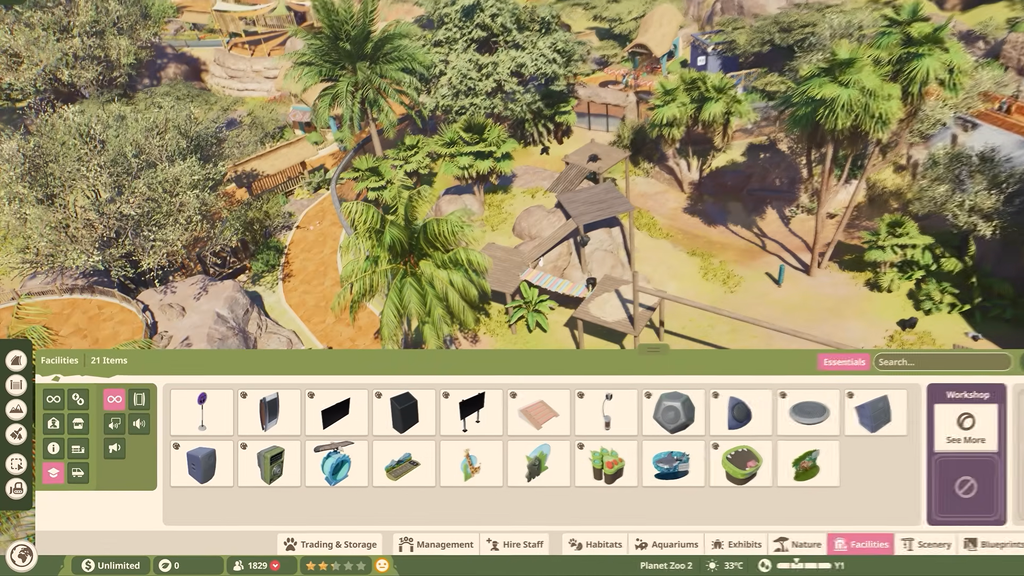
Frontier Workshop filters and sort options
The catalogue is organized around how a zoo actually gets built, so you can narrow by the thing you’re trying to place, then by where it belongs.
| Filter group | Examples |
|---|---|
| Habitats | Shelters, Climbable, Feeding Stations, Nests |
| Aquariums | Feeders, Filtration, Toy Enrichment |
| Facilities | Trade Centre, Vet Surgery, Food Shops, Zoo Entrance |
| Exhibits | Construction, Natural Debris, Rocks |
| Species | Aquatic, avian, exhibit, and terrestrial lists |
| Biome | Tropical, Taiga, Reef, Mangrove, Tundra |
| Continents / Oceans | Africa, Asia, Pacific Ocean, Arctic |
| Level Type | Zoo, Wildlife Reserve |
| Content Pack | Base Game, Bonus Content, Deluxe |
| Material | Stone, Glass, Metal, Organic |
You can arrange results by subscribers, rating, favourites, updated, created, or name. Choose rating to find well-regarded builds, or updated to see the most recent uploads. If you don’t own the Deluxe edition, set the Content Pack filter to focus on creations using pieces available to you.
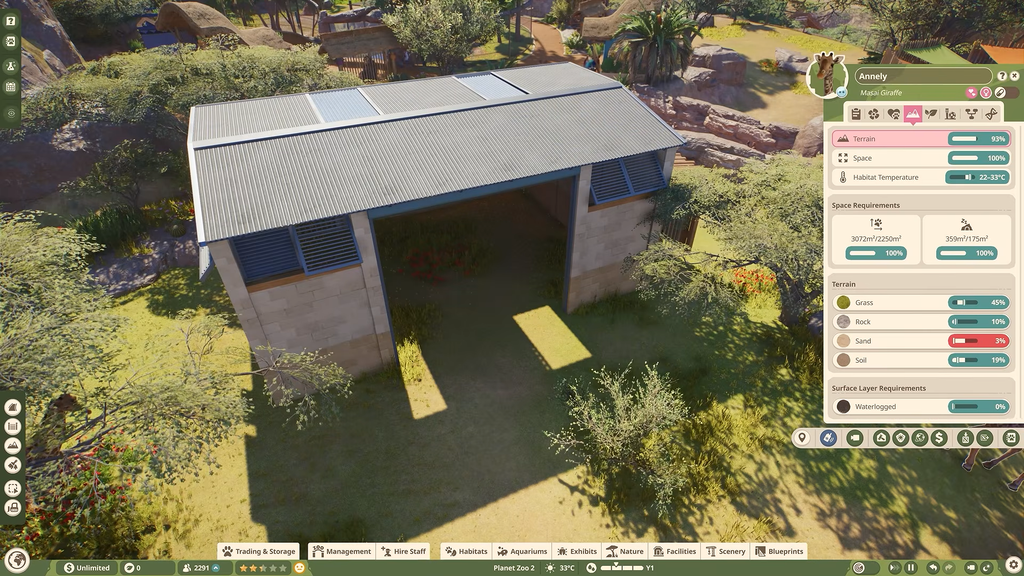
Upload your own creation to the Frontier Workshop
Sharing starts by turning your build into a blueprint. That covers grouped items, full habitats, and other structures.
Once it’s live, your creation gets its own Workshop page with a sharecode, a version number, the game version it was made on, file size, and its upload date. That page is your confirmation the upload went through, and the sharecode is what you hand to other players.
Publishing is optional. You can save a blueprint without making it public, which is the easiest way to reuse your own habitats across different zoos.
Cross-platform sharing and console limits
PC and console both pull from the same Frontier Workshop. A build made on Windows can be used on PS5 or Xbox Series X|S, and the reverse works too. Each listing shows which platforms it supports.
Consoles do have a complexity meter that caps how much you can build, and PC zoos don’t. A huge shared project can eat a big chunk of that budget, so check a build’s scale before committing a console park to it.
The Workshop is limited to assets you place with the standard build tools, including habitats, enclosures, scenery, foliage, and facilities. It doesn’t affect the way the game operates, and Frontier hasn’t announced official mod tools for Planet Zoo 2. Anything presented as a “mod” is hosted outside the Workshop.
For most players, the in-game See More menu covers everything. The full Workshop page is where you’ll go to follow creators, manage your uploads, and dig through filters. Pulling in a ready-made habitat or aviary is also a quick way to get animals housed faster when you’re working toward Wildlife Reserve releases or a higher accreditation.