

Pinning folders to the Quick Access panel in Windows Explorer speeds up navigation and file management by keeping important directories just a click away. For users managing multiple systems or automating desktop setups, knowing how to programmatically add folders to Quick Access can save considerable time and ensure consistency across environments.
Using Windows Shell API with PowerShell
powershell in Windows Search and select Run as administrator.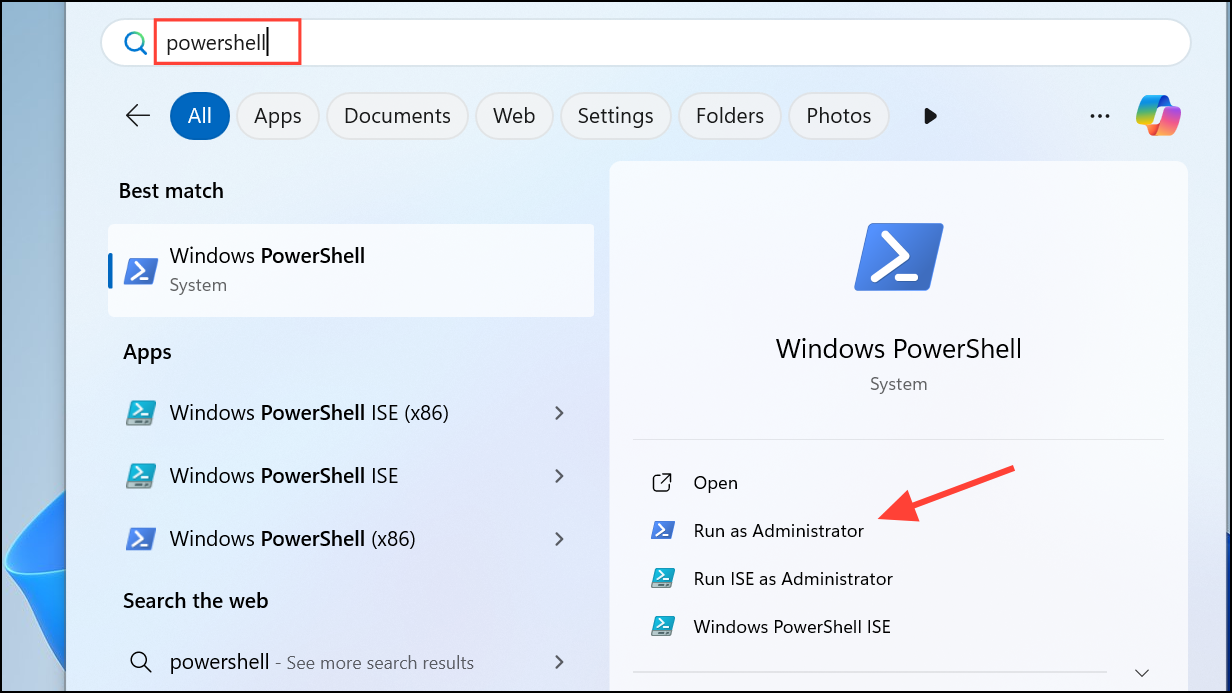
$folder = "C:\Your\Folder\Path"
$shell = New-Object -ComObject Shell.Application
$folderItem = $shell.Namespace((Split-Path $folder)).ParseName((Split-Path $folder -Leaf))
$verb = $folderItem.Verbs() | Where-Object { $_.Name.Replace('&','') -match 'Pin to Quick access' }
if ($verb) {
    $verb.DoIt()
}
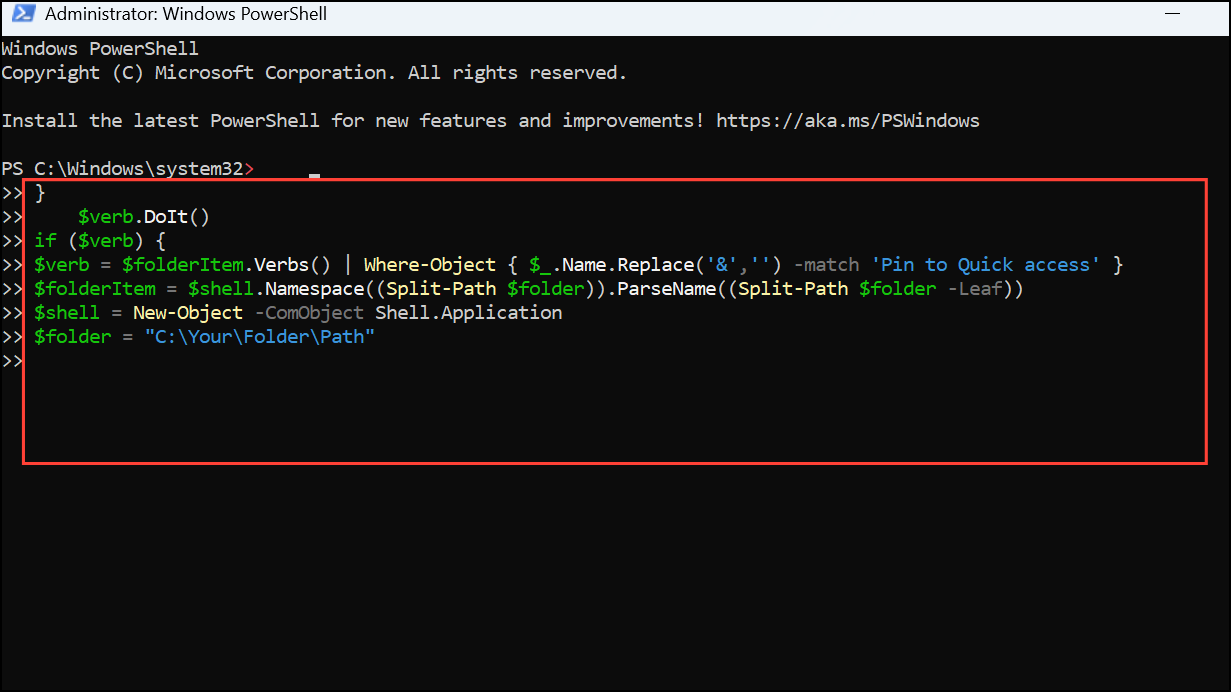
This script locates the folder and attempts to execute the “Pin to Quick access” shell verb. Replace C:\Your\Folder\Path with the full path of the directory you want to pin. If your system language is not English, you may need to adjust the verb string to match your language (e.g., “An Schnellzugriff anheften” for German).
Modifying AutomaticDestinations Files (Advanced/Unsupported)
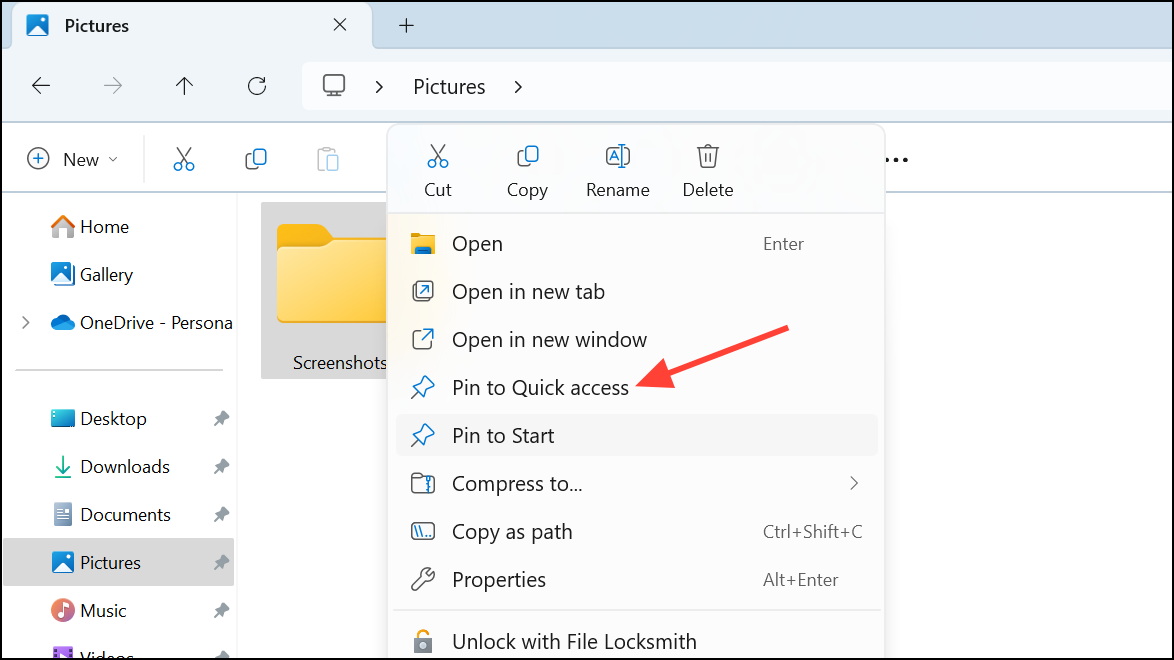
f01b4d95cf55d32a.automaticDestinations-ms located in %APPDATA%\Microsoft\Windows\Recent\AutomaticDestinations. Directly editing these files is not supported by Microsoft and risks corrupting your Quick Access list.AutomaticDestinations folder to a safe location. This step is vital to prevent data loss if the file becomes corrupted..automaticDestinations-ms files. These utilities are not officially supported and may not always work as expected. If you use such a tool, follow its documentation closely and be prepared to restore your backup if something goes wrong.Manual Pinning via File Explorer (Alternative for Small-Scale Use)
Automating Quick Access folder pinning can save time and improve workflow consistency across devices. Choose the method that best fits your needs, and always back up your settings before attempting advanced changes.





