
Build a custom Windows 11 25H2 ISO with tiny11builder so Copilot never lands on the machine in the first place. This approach removes Copilot during image servicing, minimizes post-install cleanup, and adds safeguards against the Store or Windows Update putting it back.
What you need before you start
tiny11builder is an open-source PowerShell script that uses Microsoft tools (DISM and oscdimg) to customize official Windows ISOs. The latest update supports Windows 11 25H2, any language, and both x64/arm64 images. It also includes explicit removal routines for Copilot, Outlook, and Teams, uses recovery compression for smaller ISOs, and injects an autounattend file to streamline setup.
- An official Windows 11 ISO or ESD (25H2 supported). Download from Microsoft: Windows 11 download page.
- Windows ADK (for
oscdimg.exe) if you want the script to produce a bootable ISO. - Admin access to Windows PowerShell 5.1 on a build machine.
- Sufficient RAM and SSD space. Recovery compression yields smaller ISOs but takes longer and uses more memory during export.
- Optional VM for safe testing (recommended before installing on hardware).
Method 1 — Build a 25H2 tiny11 ISO with Copilot removed (recommended)
This method removes Copilot during image creation, preventing it from ever being provisioned on target systems. It is the most reliable way to keep Copilot out and is supported by the latest tiny11builder release.
oscdimg.exe to create the final ISO.Set-ExecutionPolicy Bypass -Scope Process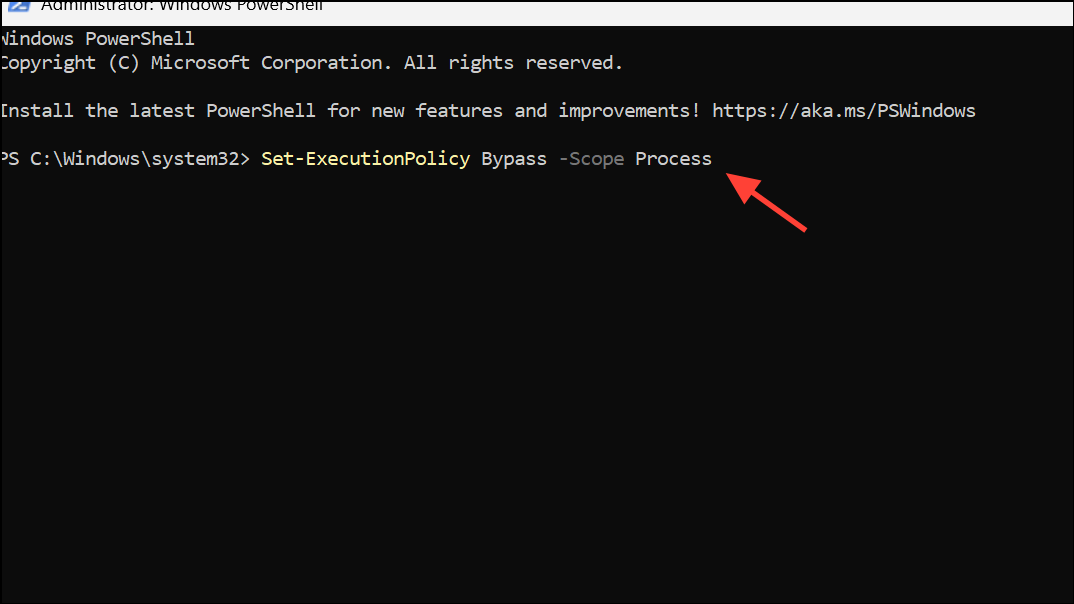
powershell -f C:\Path\to\tiny11maker.ps1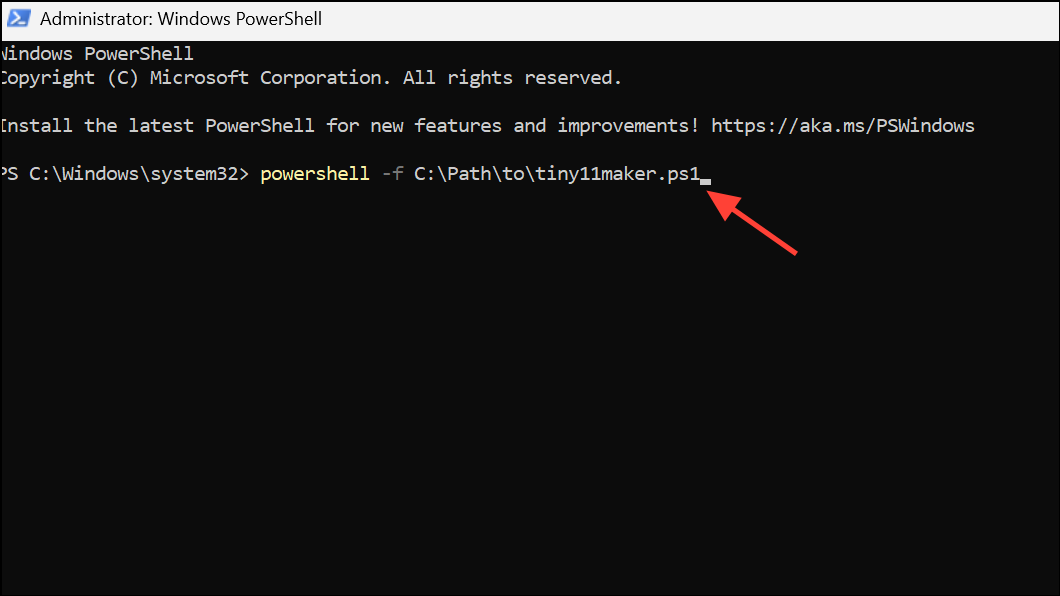
/Compress:recovery produces a smaller final ISO than older modes, trading extra build time and RAM for a smaller distribution size.oscdimg.exe for ISO creation) and injects an autounattend file for OOBE customizations such as bypassing Microsoft Account enforcement.Method 2 — Disable or remove Copilot on an existing install (works, but less durable)
These steps disable or remove Copilot from a running system. They are quicker than rebuilding an ISO but are more likely to be undone by feature updates or Store repair actions.
Settings > System > Copilot and turn Copilot off. This hides the feature in the shell for most scenarios.Settings > Apps > Optional features and uninstall any Copilot or AI-related optional components that are listed. This reduces the chance of background components loading.Win + C) may still appear or relaunch UI stubs. Expect that major updates could reintroduce components, requiring you to repeat this process.Method 3 — Reduce reinstallation after updates
The updated tiny11builder includes mitigations to block some inbox apps from returning, but Windows servicing can change over time. Treat this as an ongoing maintenance task.
Optional — tiny11 Core (for labs and throwaway VMs only)
Core creates a very small, non-serviceable image by cutting the component store and other servicing paths. It is not intended for daily use.
Build notes, requirements, and caveats
- Recovery compression produces smaller ISOs but increases build time and memory usage. Run builds on a machine with ample RAM and fast SSD storage.
- Run PowerShell elevated and set a permissive execution policy for the session to avoid script execution blocks.
- tiny11builder supports WIM and ESD sources, x64 and arm64, and any Windows 11 release, including 25H2.
- The script relies on Microsoft tools (DISM and Windows ADK’s
oscdimg.exe) and injects an autounattend file to adjust OOBE behavior (e.g., local account flow). - Removing Copilot, Outlook, and Teams changes the default user experience. Some settings pages may reference removed features; this is expected on customized images.
- Modified images are not supported by Microsoft. Licensing and activation requirements remain unchanged.
- Test thoroughly in VMs and on representative hardware, then keep backups and a recovery path before broad deployment.
Pre-removing Copilot with tiny11builder gives you a cleaner 25H2 baseline and fewer surprises after updates. Test first, keep the script current, and rebase images as Windows servicing evolves.



