
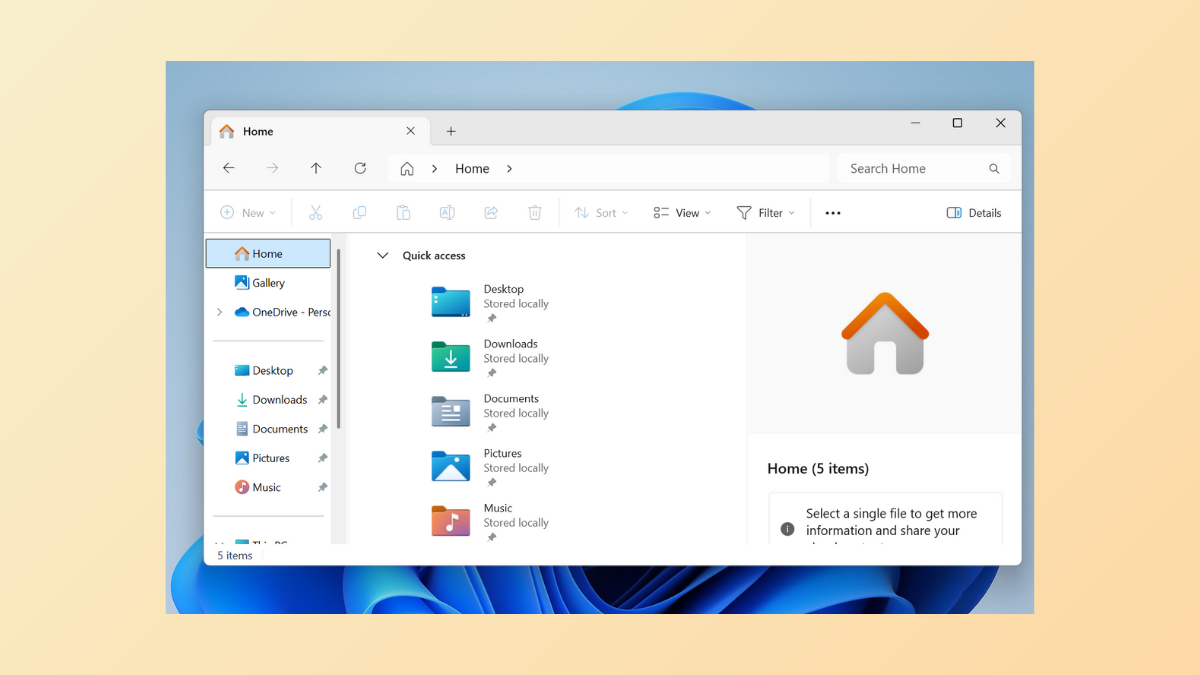
Drop shadows under desktop icon labels and around Windows Explorer windows can make text harder to read, especially on light backgrounds, and sometimes affect system performance on lower-end hardware. Disabling these effects results in sharper icon labels and a more minimal desktop appearance. The following instructions present the most effective methods to remove drop shadows for icon labels and shadow effects from Windows Explorer in Windows 11, including troubleshooting steps for persistent issues.
Disable Drop Shadows for Icon Labels via Performance Options
Win + R to launch the Run dialog, then type SystemPropertiesPerformance.exe and press Enter. This takes you directly to the Visual Effects tab of Performance Options.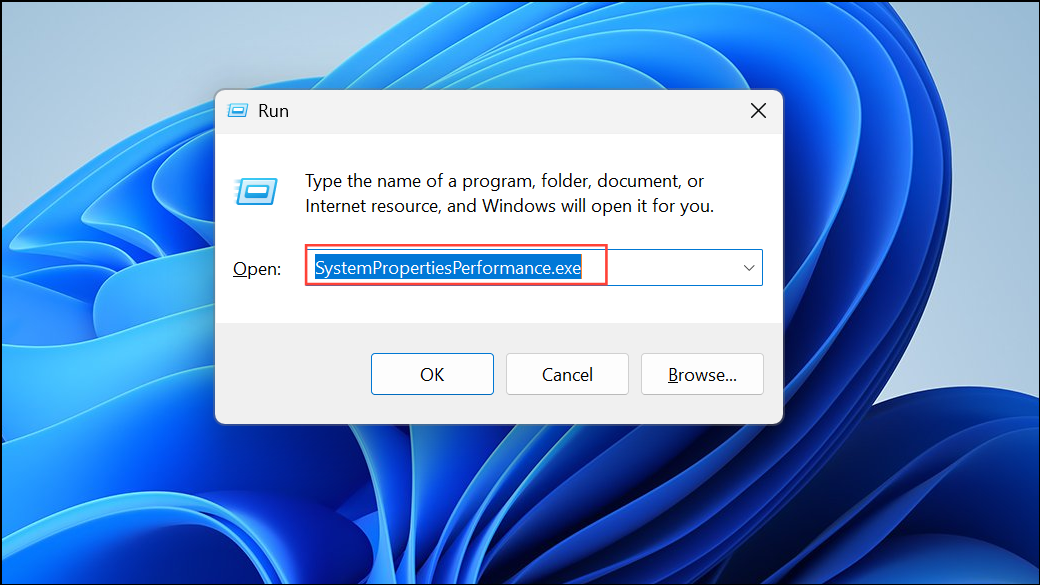
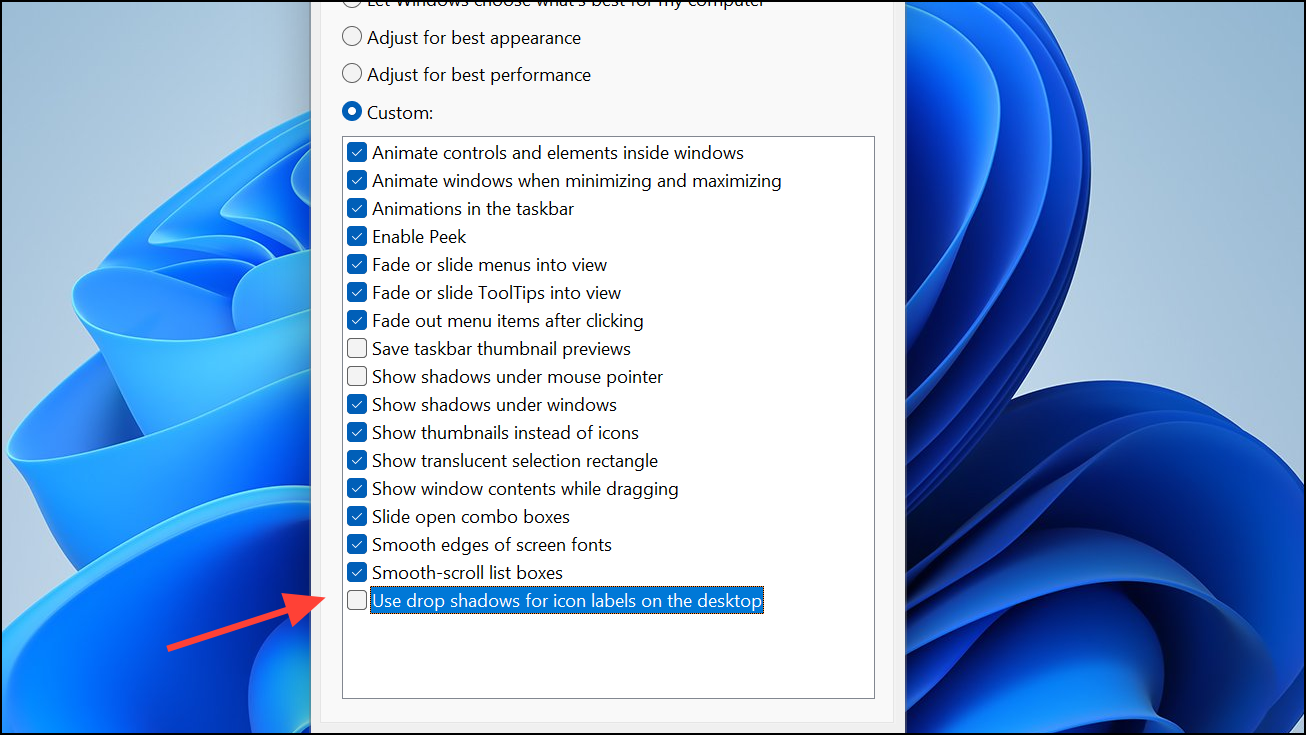
If drop shadows persist after these steps, revisit the Visual Effects tab and also uncheck Animate controls and elements inside windows. This setting can sometimes interfere with the drop shadow toggle.
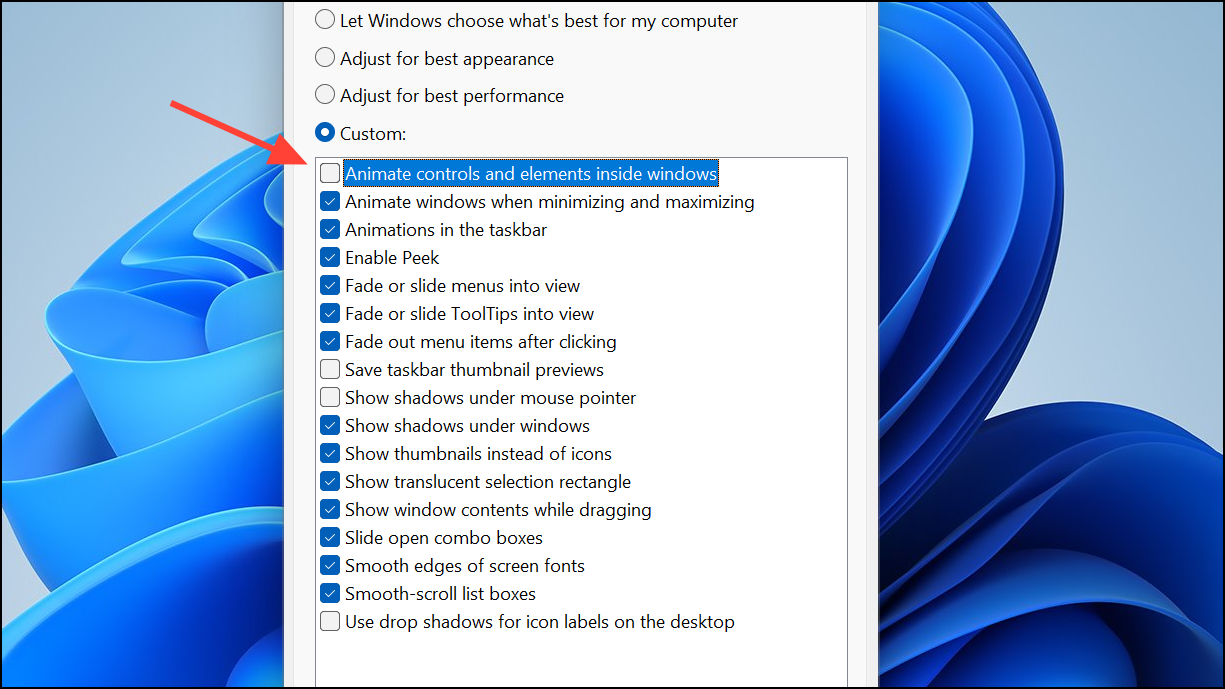
Remove Shadow Effect from Windows Explorer Windows
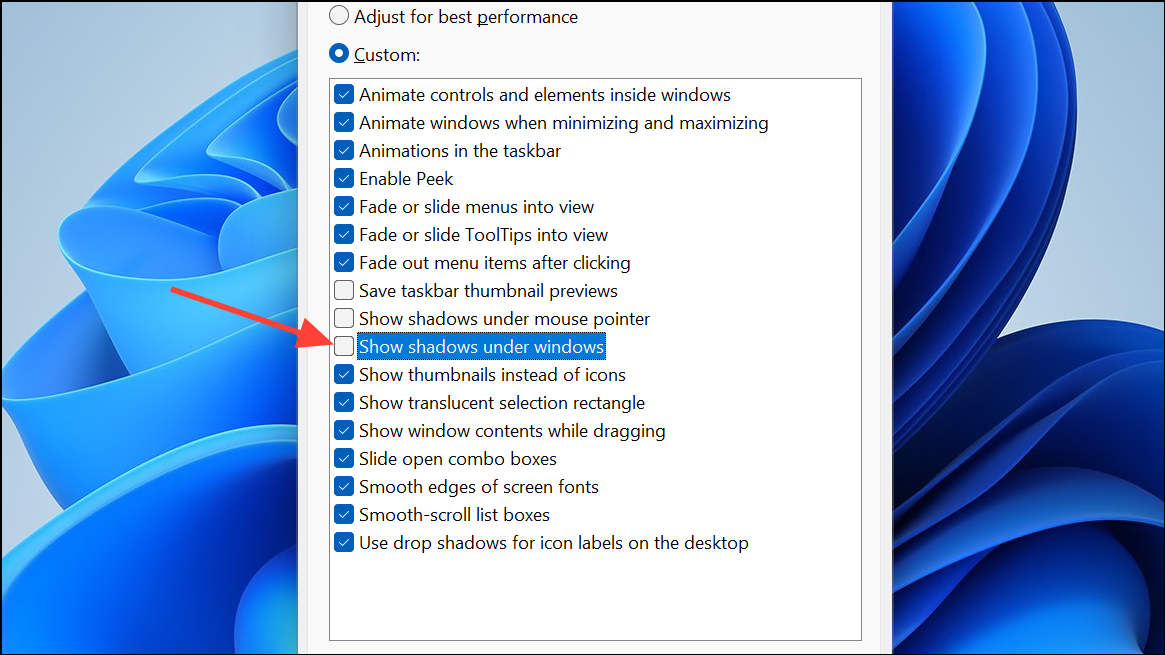
Disable Drop Shadows for Icon Labels Using the Registry Editor
If the Performance Options method fails to remove drop shadows, you can directly edit the Windows registry:
Win + R, type regedit, and press Enter to open the Registry Editor. Approve any User Account Control prompts.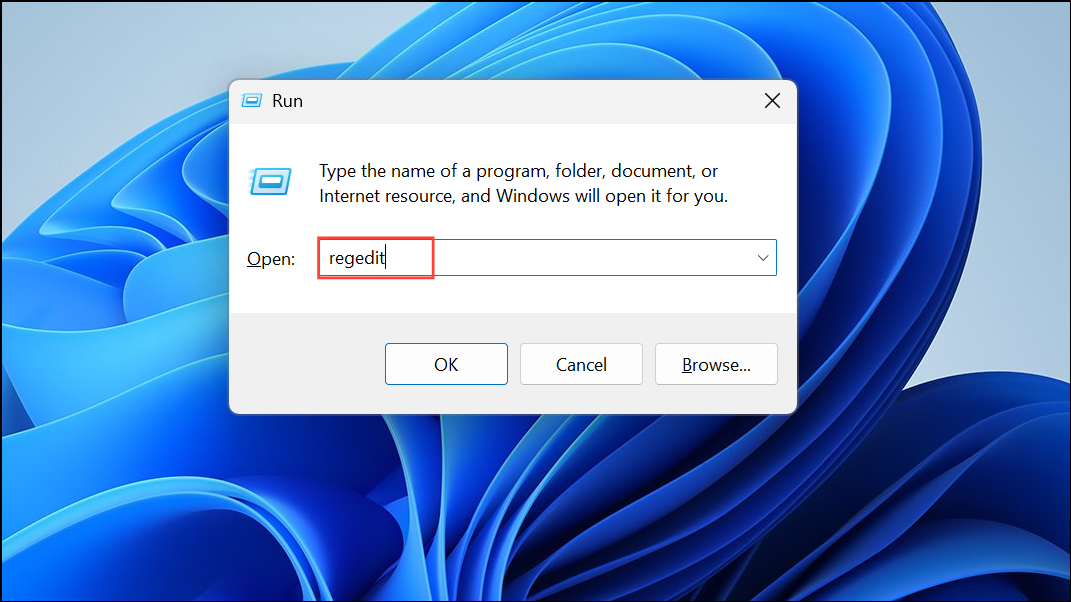
HKEY_CURRENT_USER\Software\Microsoft\Windows\CurrentVersion\Explorer\Advanced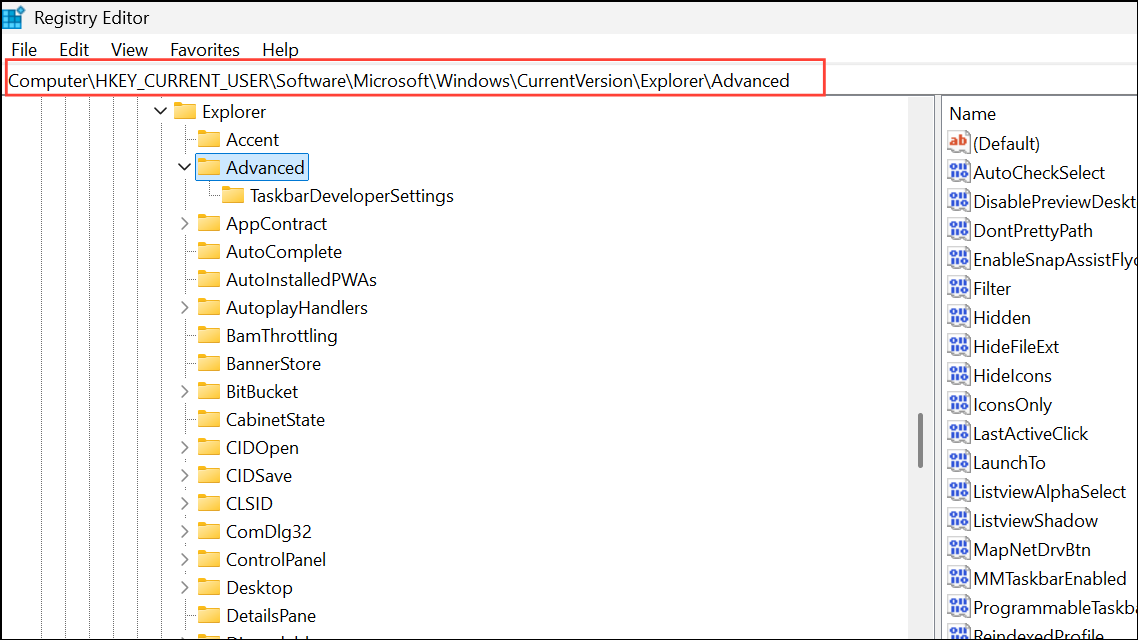
ListviewShadow DWORD value. Double-click it and set its value data to 0 to disable drop shadows for icon labels. Click OK to save.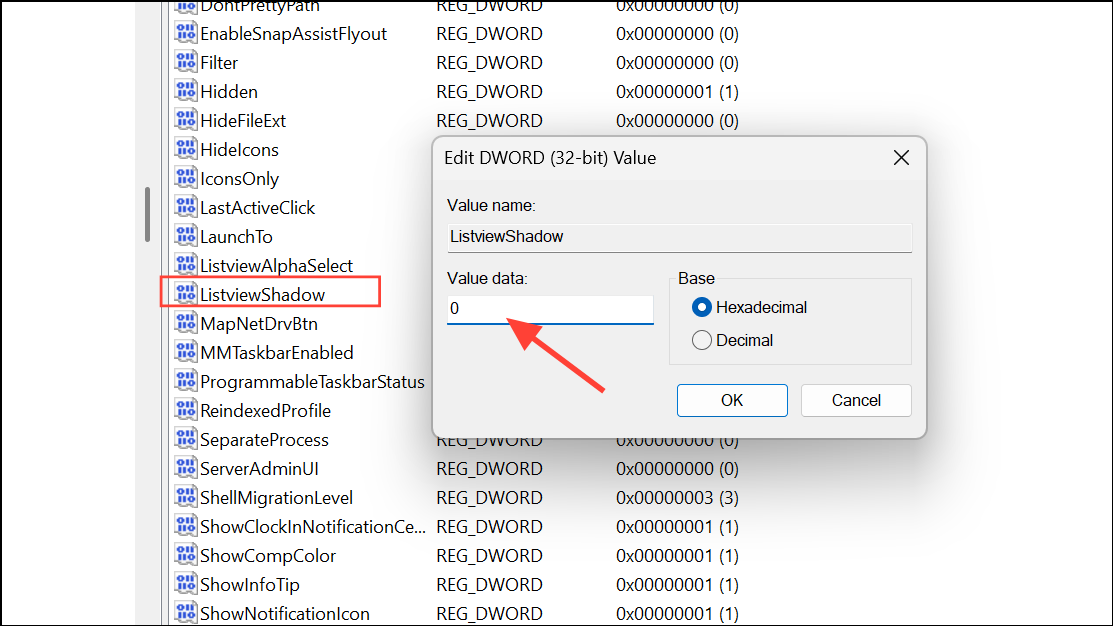
Restart Windows Explorer to Apply Changes
Sometimes, changes to visual effects do not take effect until Windows Explorer is restarted. To do this:
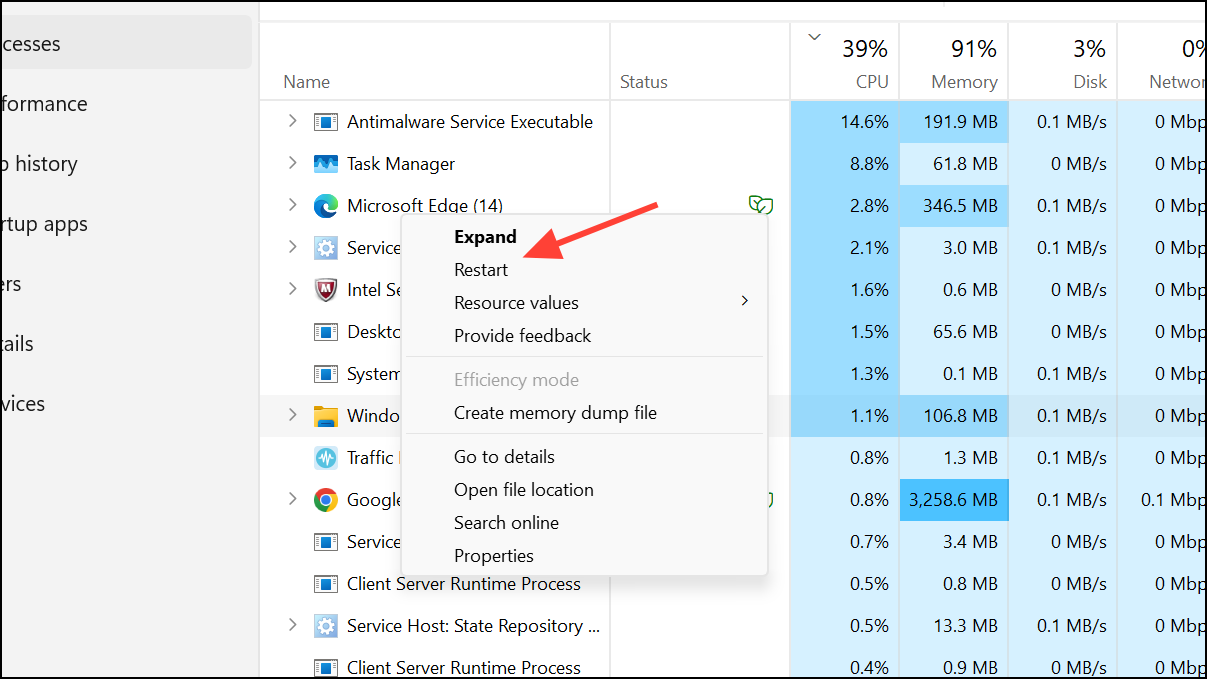
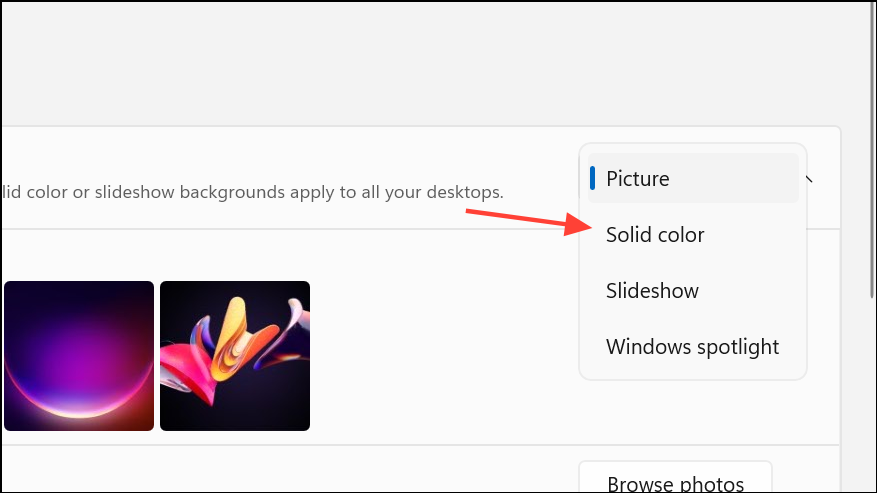
Change Desktop Background to a Solid Color
In certain cases, especially with specific Windows builds or after updates, drop shadows may persist due to background image interactions. Switching your desktop background to a solid color can resolve the issue:
Troubleshooting Persistent Drop Shadows
If drop shadows remain after following the above steps, consider these additional actions:
- Check for recently installed Windows updates, especially optional or preview updates, as known bugs can interfere with visual effect toggles.
- If a problematic update (such as KB5030310) is installed, uninstall it via Settings > Windows Update > Update History > Uninstall Updates and restart your computer.
- Switch your desktop theme or background image and repeat the steps above, as background settings can sometimes override drop shadow preferences.
- If registry and visual effects settings do not work, raise feedback through the Windows Feedback Hub to alert Microsoft of persistent bugs.
Disabling drop shadows for icon labels and window borders in Windows 11 results in clearer text and a cleaner workspace. If the standard settings do not work immediately, restarting Explorer or adjusting registry values usually resolves the issue.



