In Save the Krusty Krab, a Roblox restaurant survival game from Krabby Krew, a shift ends faster when the kitchen never falls behind the customers. Playing solo makes this harder because you run the register, the grill, the soda station, the fryer, the assembly table, and the cleanup by yourself. The fix is a fixed routine. Most of the time you save comes from what you do in the few seconds before the doors open.
Quick answer: Clock in, and have 10 sodas plus 10 grilled patties ready before using the register. Assemble each burger with its buns and patty first, serve only the order highlighted in green, and put all trash in a single bin.
Save the Krusty Krab solo match setup
Walk up to the restaurant entrance in the lobby to open the Match Setup menu. Set Crew Size to 1 for a solo run. Leave TUTORIAL set to ON if it’s your first time, since Day 1 guides you to the register with yellow arrows on the floor and Mr. Krabs tells you to ring up the first customer. Then press START. Finishing a solo game also earns the Lone Sponge badge.
Stock the kitchen before the Krusty Krab opens
Every day starts the same way. You punch in on the Shift Clock, and a short “Opening in 5s” countdown follows. The beginner mistake is running straight to the boat-shaped Cash Register. Orders then pile up while patties are still on the grill. Prep first and serve second.
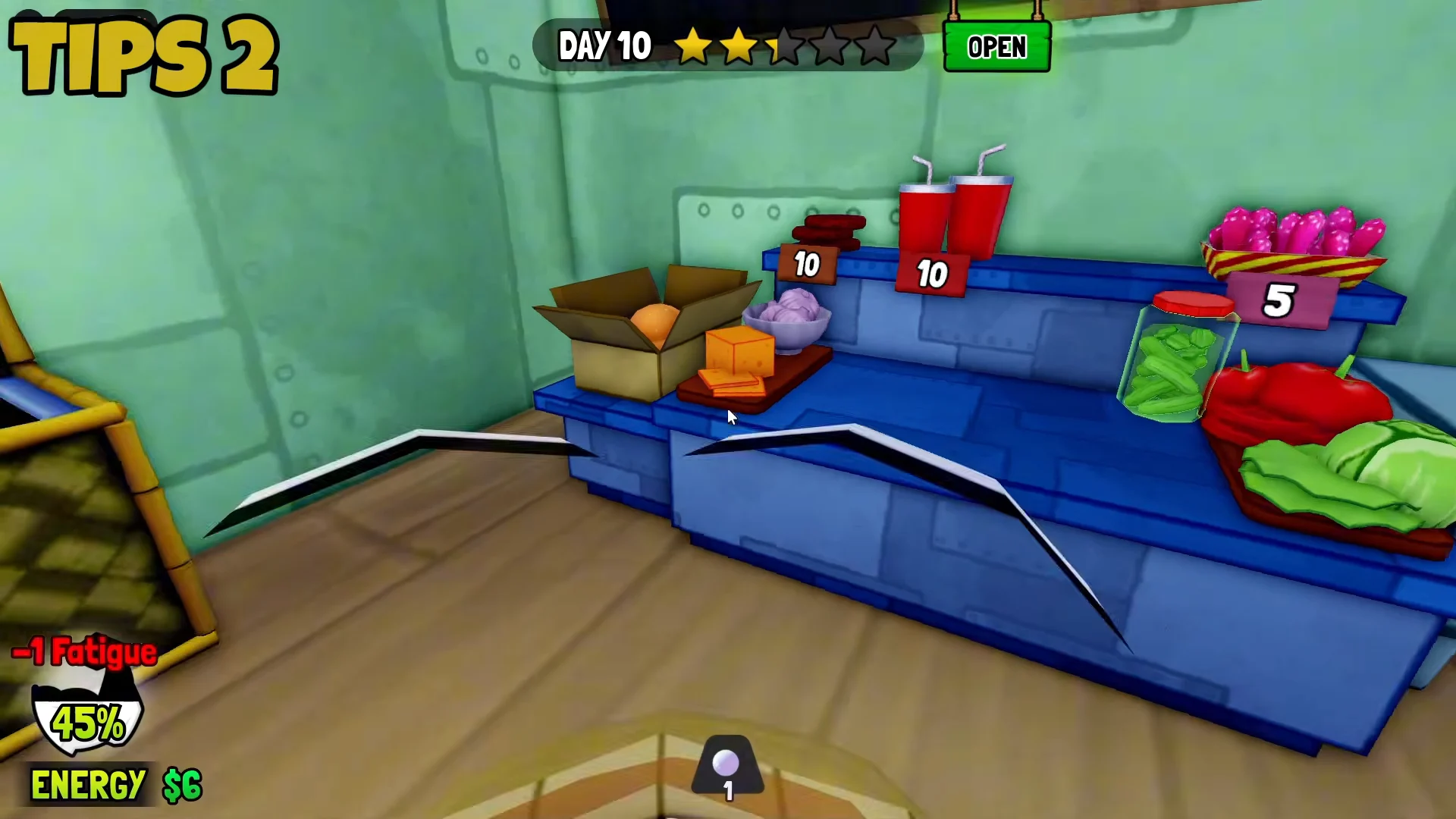
Treat 10 sodas and 10 patties as a minimum. Top the counter back up during quiet moments in the shift so you don’t hit zero halfway through a rush.
Krabby Patty assembly order
At the assembling table, always place the Bread Bun and the Grilled Patties first. Every burger order is built on those two pieces. Once the base is down, add whatever toppings the order’s recipe shows, then press Ready. If you misplace something, Clear resets the tray, which costs less time than serving a wrong burger.
Build a basic Krabby Patty with a Bread Bun underneath, a Grilled Patty in the middle, and another Bread Bun on top. Prepare the patties beforehand and leave them close at hand to assemble each burger in just a few seconds.
Delivering orders to the right customer
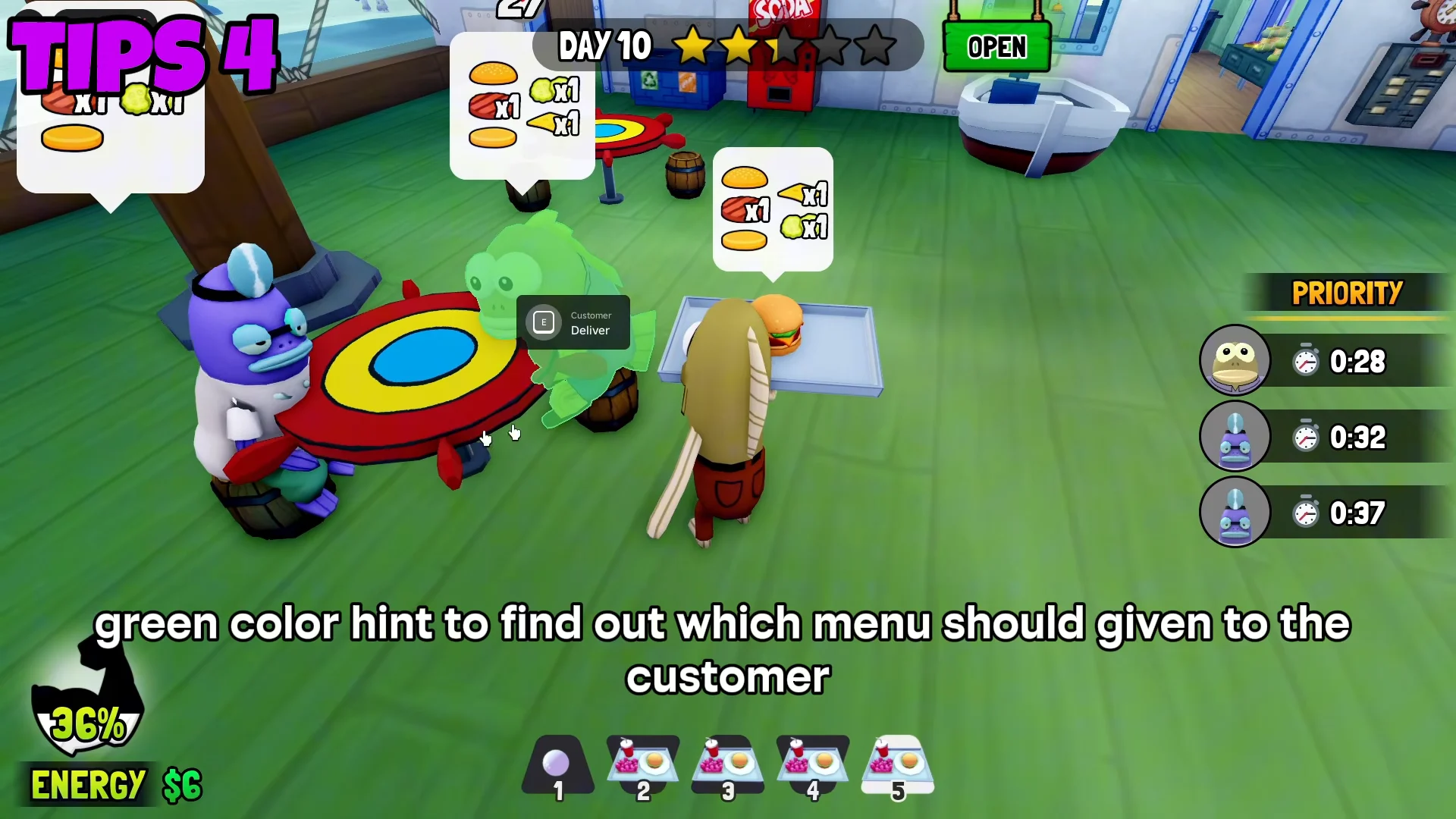
Take the finished tray from the service window and carry it into the dining room. Several customers can have order bubbles showing at once, and it’s easy to click the wrong one. Before you hit Deliver, check that the bubble for the order you’re carrying is highlighted green. That highlight means you’ve matched the tray to the right table. Delivering to the wrong customer is a mistake you have to fix later, and it slows down the whole day.
Kick Out sleeping customers
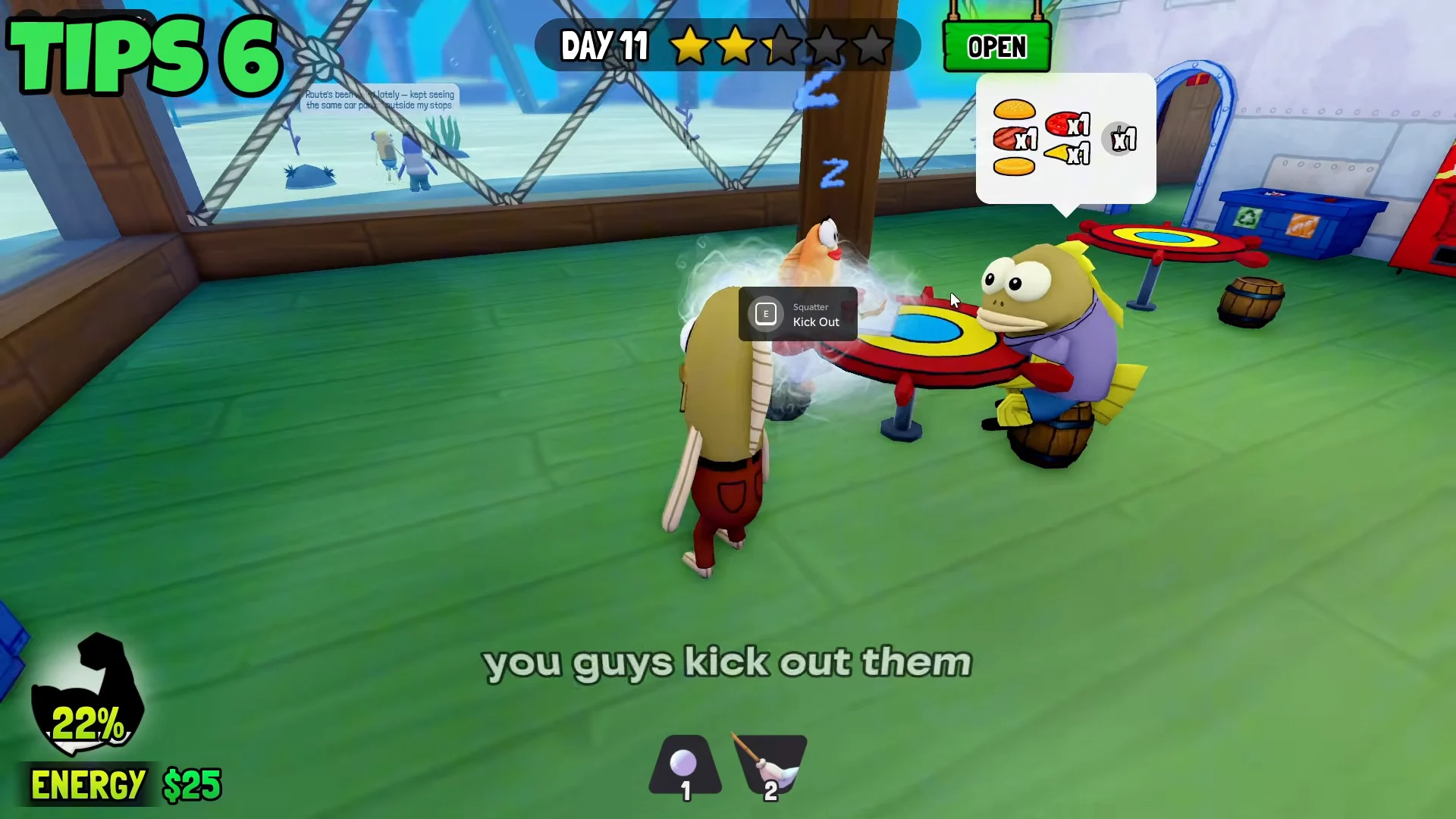
Some customers fall asleep at their table and overstay. You can spot them by the smoky cloud effect and the floating “Z” icons around them. Walk up and use the Kick Out prompt to send them off and free the seat. Don’t let them sit there while new customers are waiting.
Trash and nightly tasks in Save the Krusty Krab
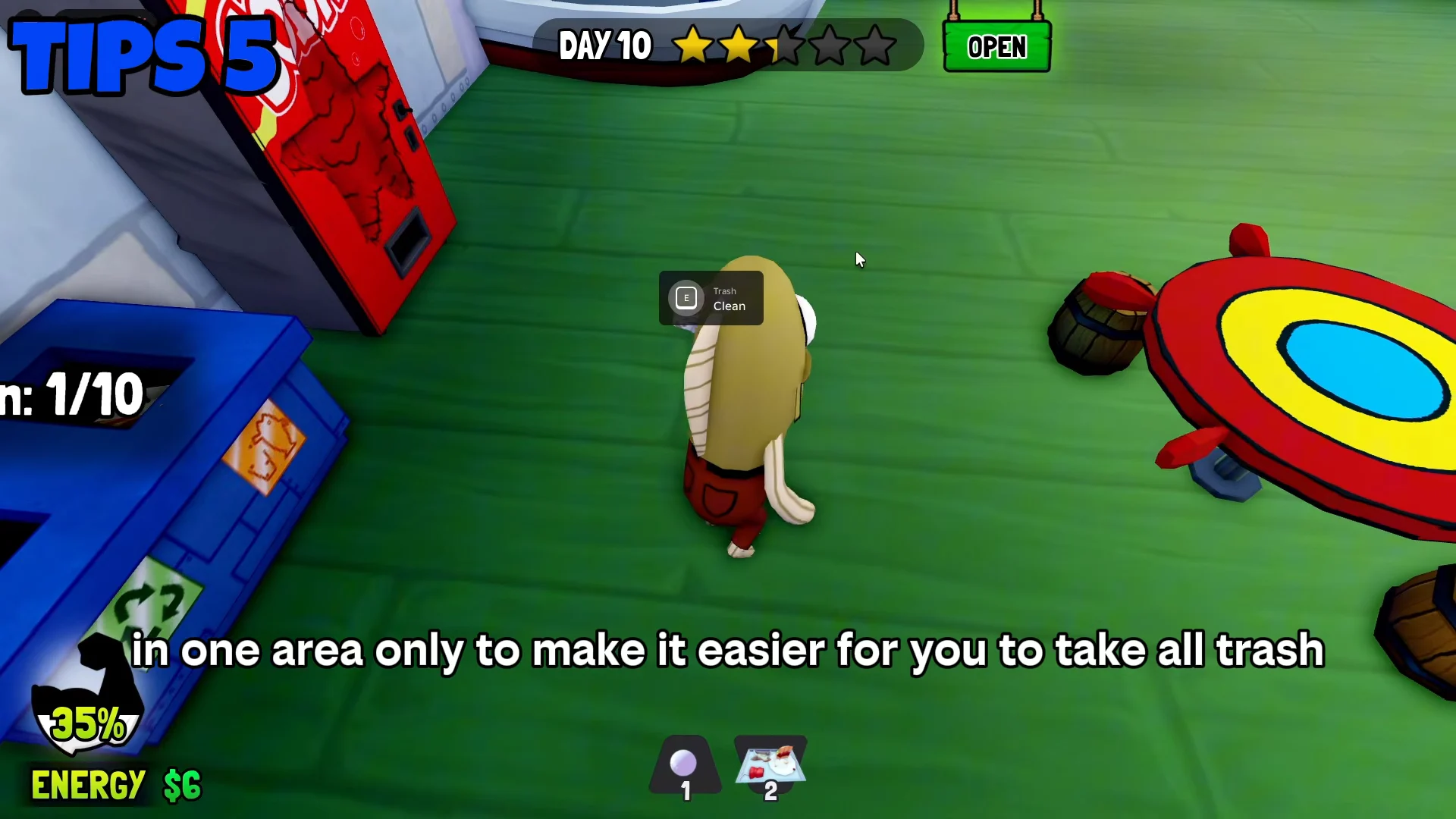
Dirty plates and cups go into a trash bin. Pick one bin and put everything there instead of spreading trash across different bins around the restaurant. Using one bin means one fixed walking route, and only one bag to haul out at night. Each bin holds 10 items. When the bin shows TAKE OUT TRASH and Bag is Ready, collect the bag and throw it away. An empty bin reads TRASH IS EMPTY.
The day isn’t finished until the nightly checklist is cleared. Each task shows a counter so you can track what’s left.
| Nightly task | Required count |
|---|---|
| Clean All Workstations | 4 |
| Mop Up Spills | 2 |
| Wipe Down Tables | 2 |
Once every counter is full and the trash is out, the shift is done and the calendar moves to the next day. Repeat the same order every time: prep, serve, kick out sleepers, then clean. That habit gets a solo player from one day to the next faster than any shortcut.