
Remote access to virtual network adapters allows IT professionals and users to configure networking for virtual machines, test isolated environments, or establish secure VPN connections without direct physical access to the PC. Setting up a virtual network adapter on a remote Windows computer requires administrative privileges and may involve using built-in tools or third-party software. Below, you’ll find detailed instructions for the most effective methods to accomplish this task.
Using Windows PowerShell Remotely
Enable-PSRemoting -Force in an elevated PowerShell window on the remote PC. To initiate a remote session from your local machine, use:Enter-PSSession -ComputerName REMOTE_PC_NAME -Credential USERNAME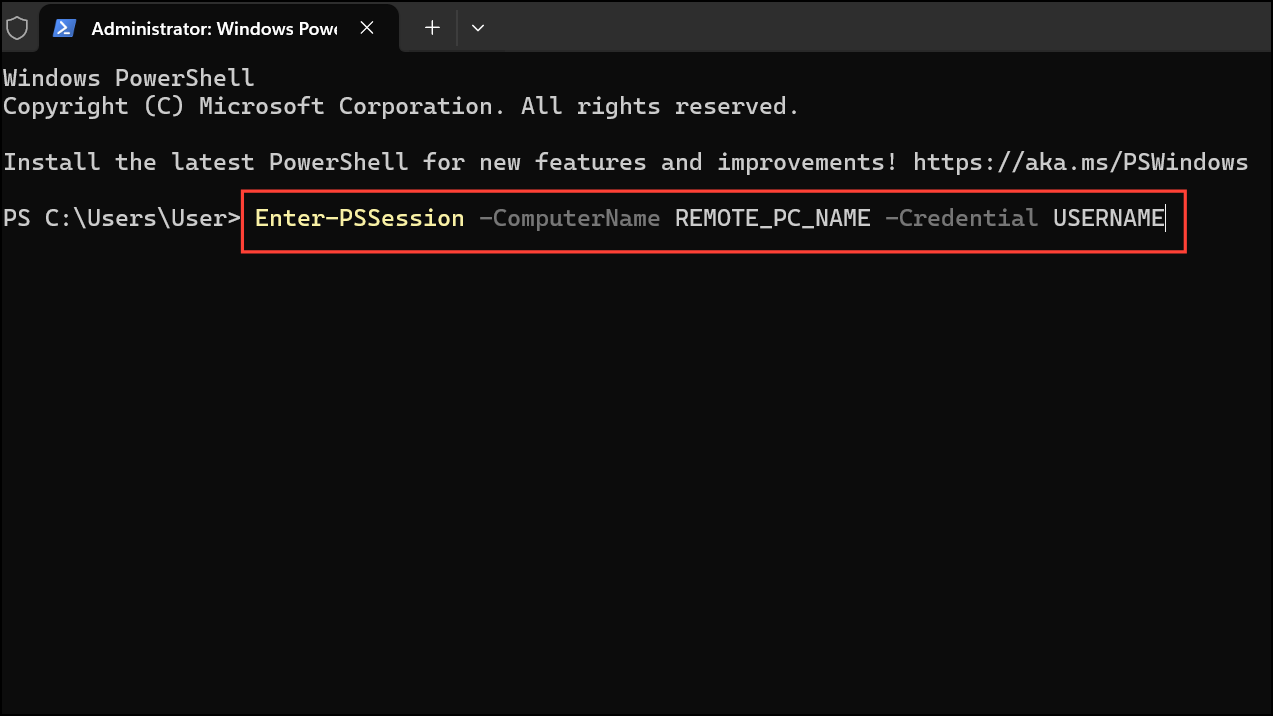
Replace REMOTE_PC_NAME and USERNAME with the actual computer name and user credentials.
Install-WindowsFeature -Name Hyper-V -IncludeManagementTools -Restart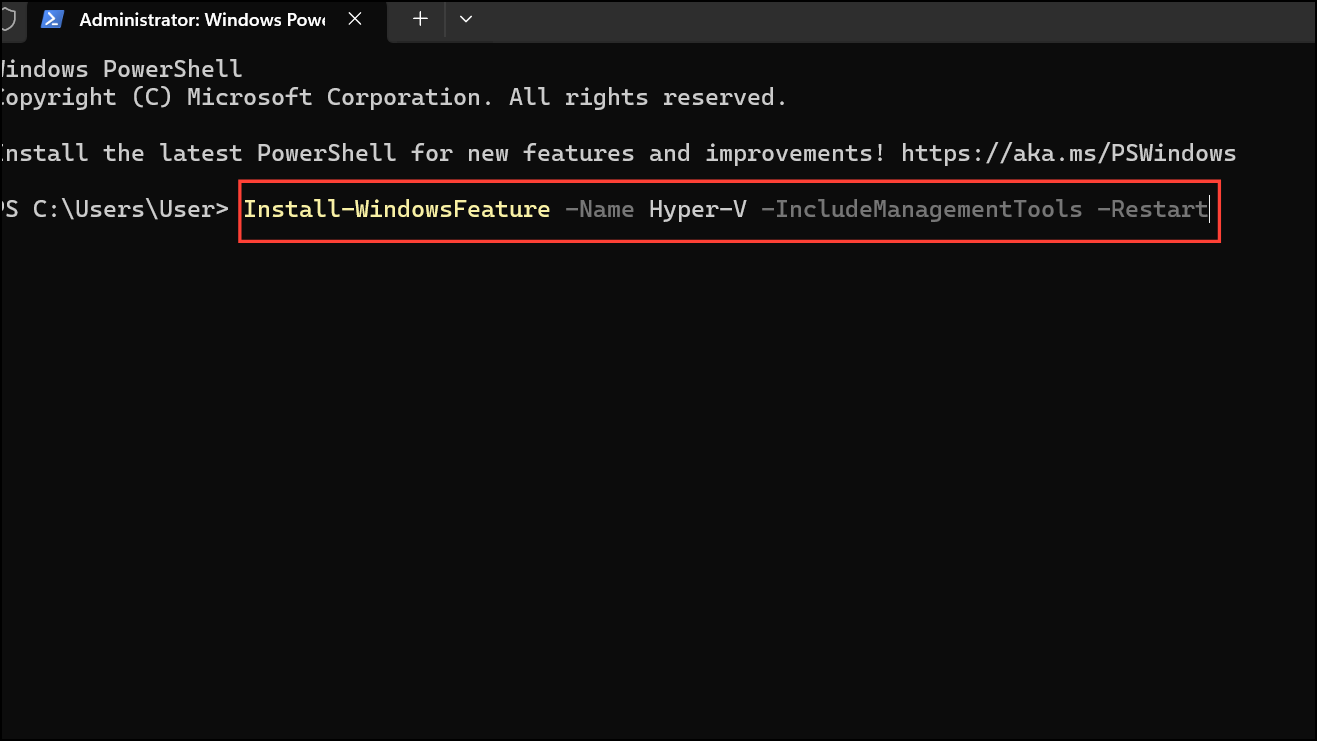
This command adds Hyper-V and its management tools, which are required for creating virtual network adapters. The system may reboot automatically.
New-VMSwitch -Name "VirtualSwitch" -SwitchType Internal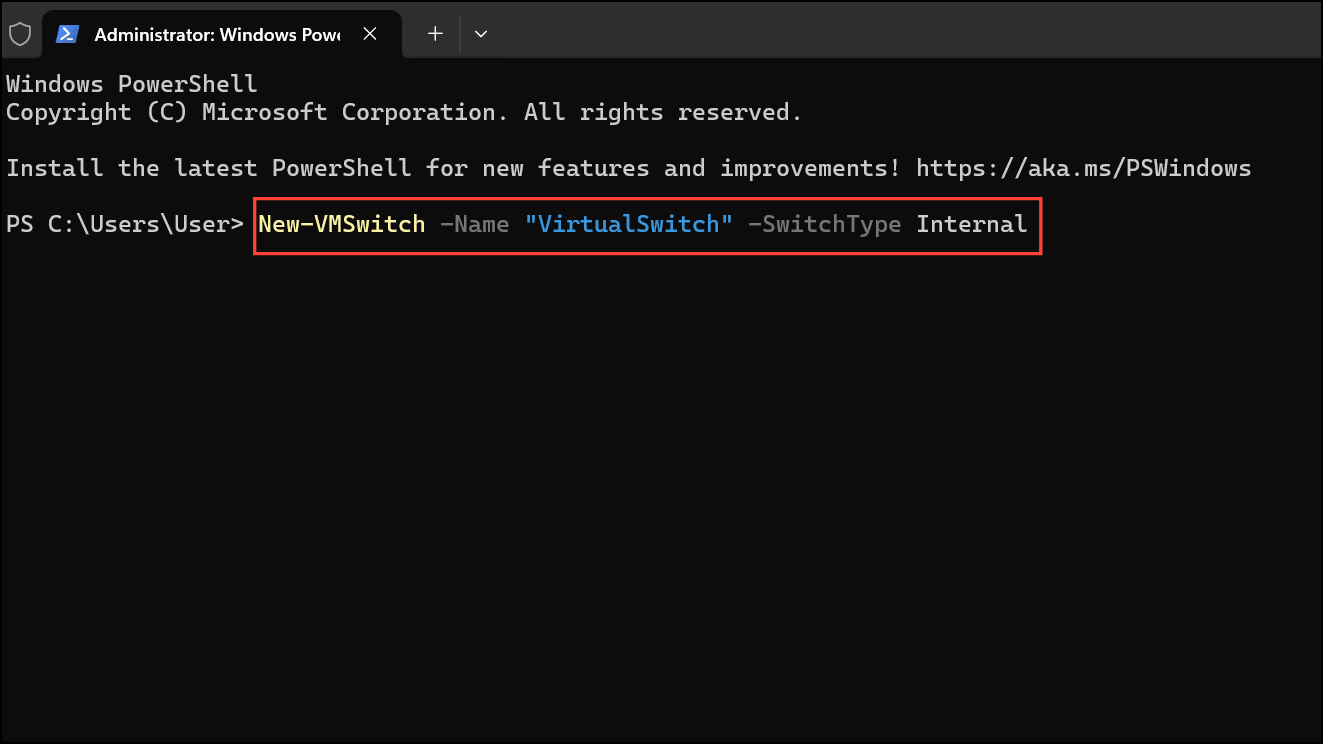
This creates an internal virtual switch, which the host and its virtual machines can use to communicate. You can also use -SwitchType Private or -SwitchType External for different network configurations.
Get-NetAdapter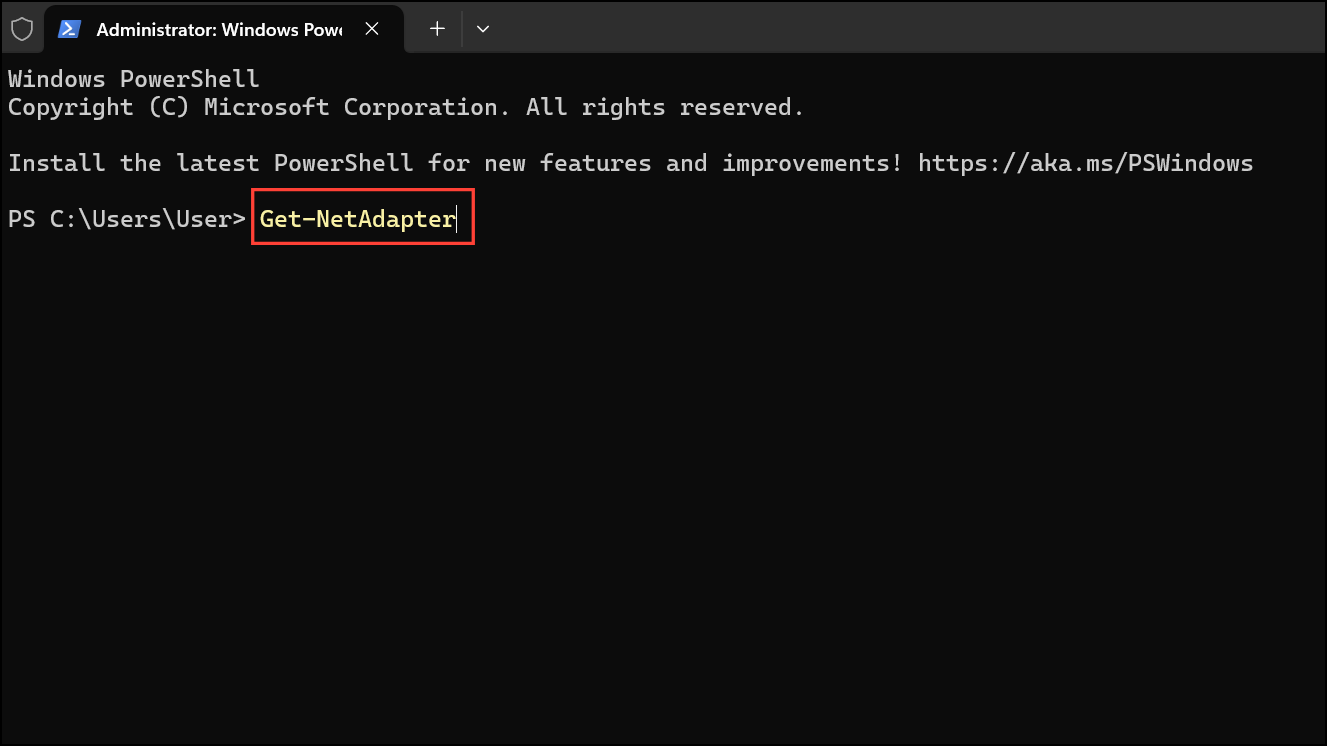
This will list all adapters, including the new virtual adapter associated with your virtual switch.
New-NetIPAddress -InterfaceAlias "vEthernet (VirtualSwitch)" -IPAddress 192.168.100.10 -PrefixLength 24 -DefaultGateway 192.168.100.1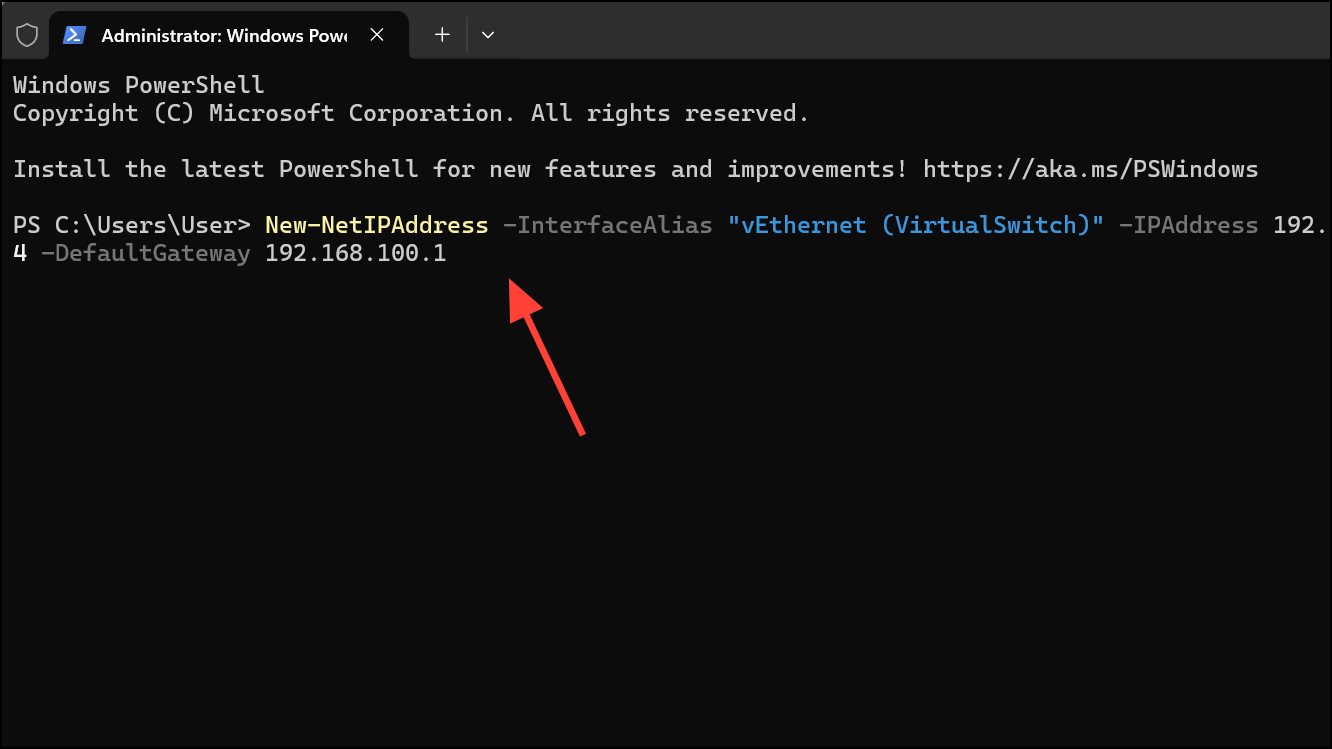
This step is crucial for network connectivity, especially in test or virtual environments.
Using Device Manager via Remote Desktop
mstsc, and enter the remote computer’s IP address or name.Device Manager.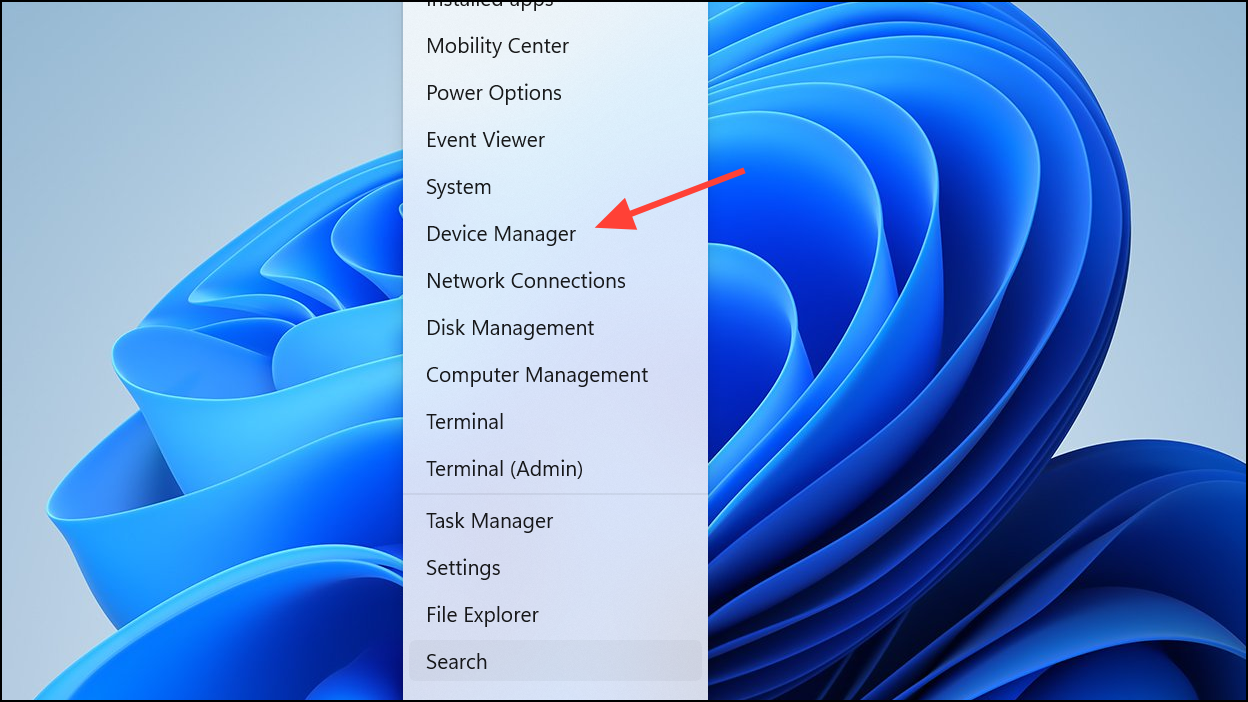
Action > Add legacy hardware. This option allows you to manually add hardware, including virtual network adapters.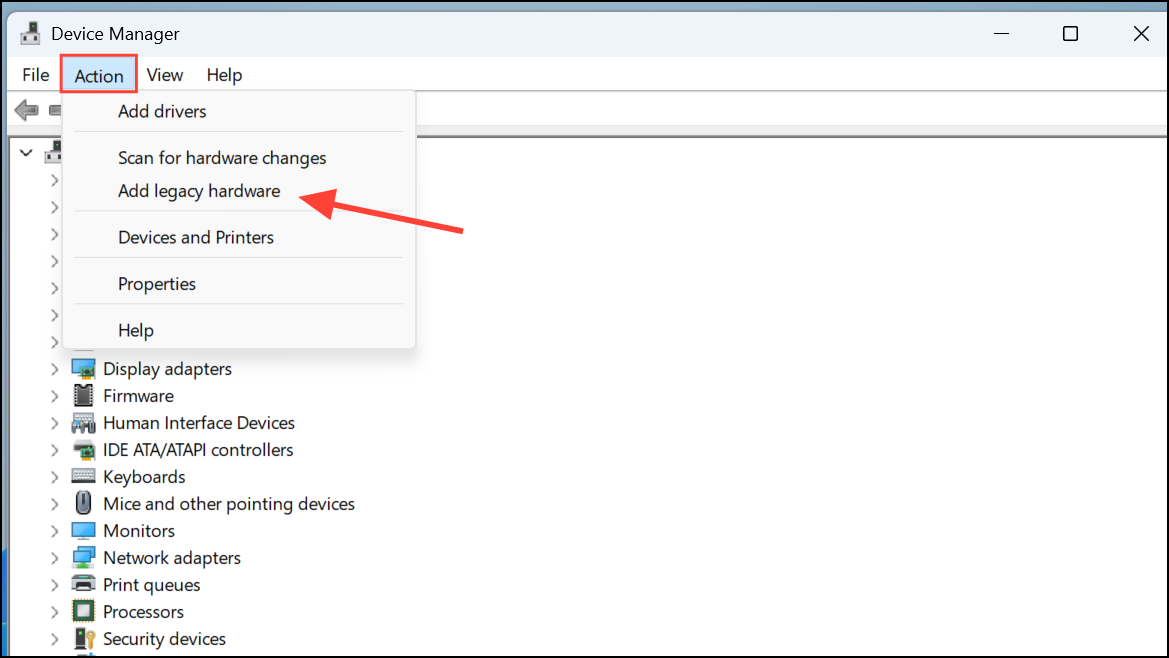
Network adapters, and choose the appropriate virtual adapter from the list (such as Microsoft KM-TEST Loopback Adapter or other available virtual adapters).Control Panel > Network and Sharing Center > Change adapter settings.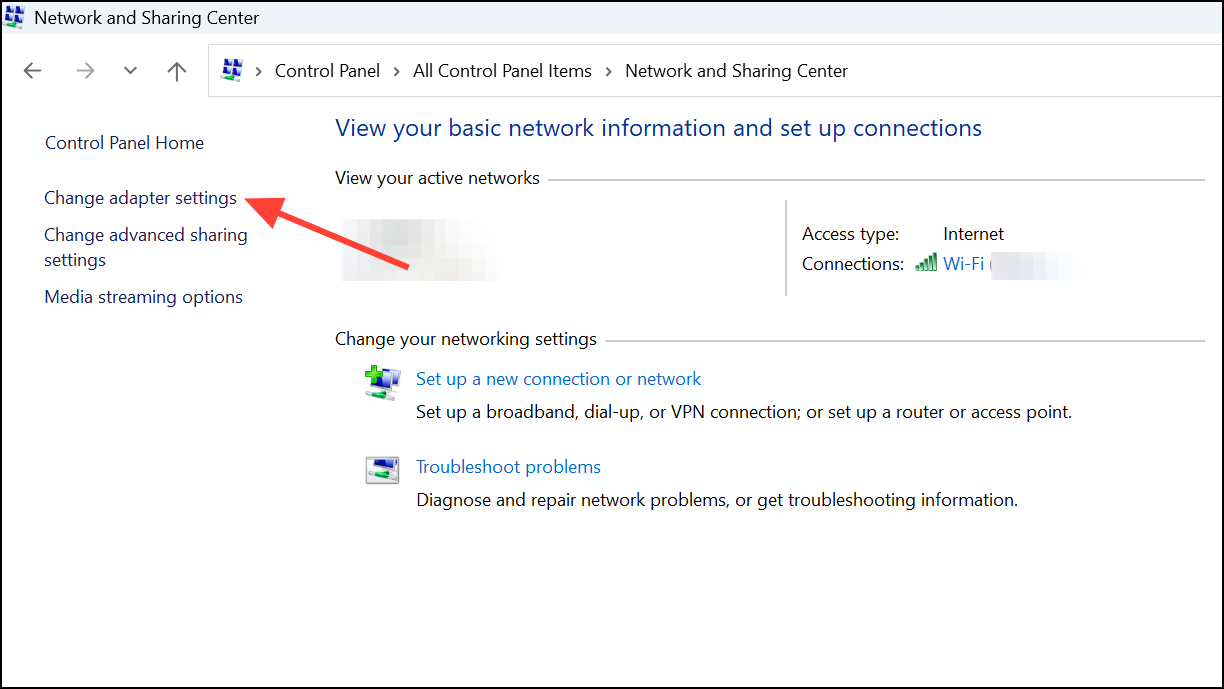
Using Third-Party Virtual Network Software
Setting up a virtual network adapter remotely optimizes virtual machine networking, supports secure connections, and simplifies lab or test configurations. For ongoing management, periodically check adapter settings and update related software or drivers as needed.





