

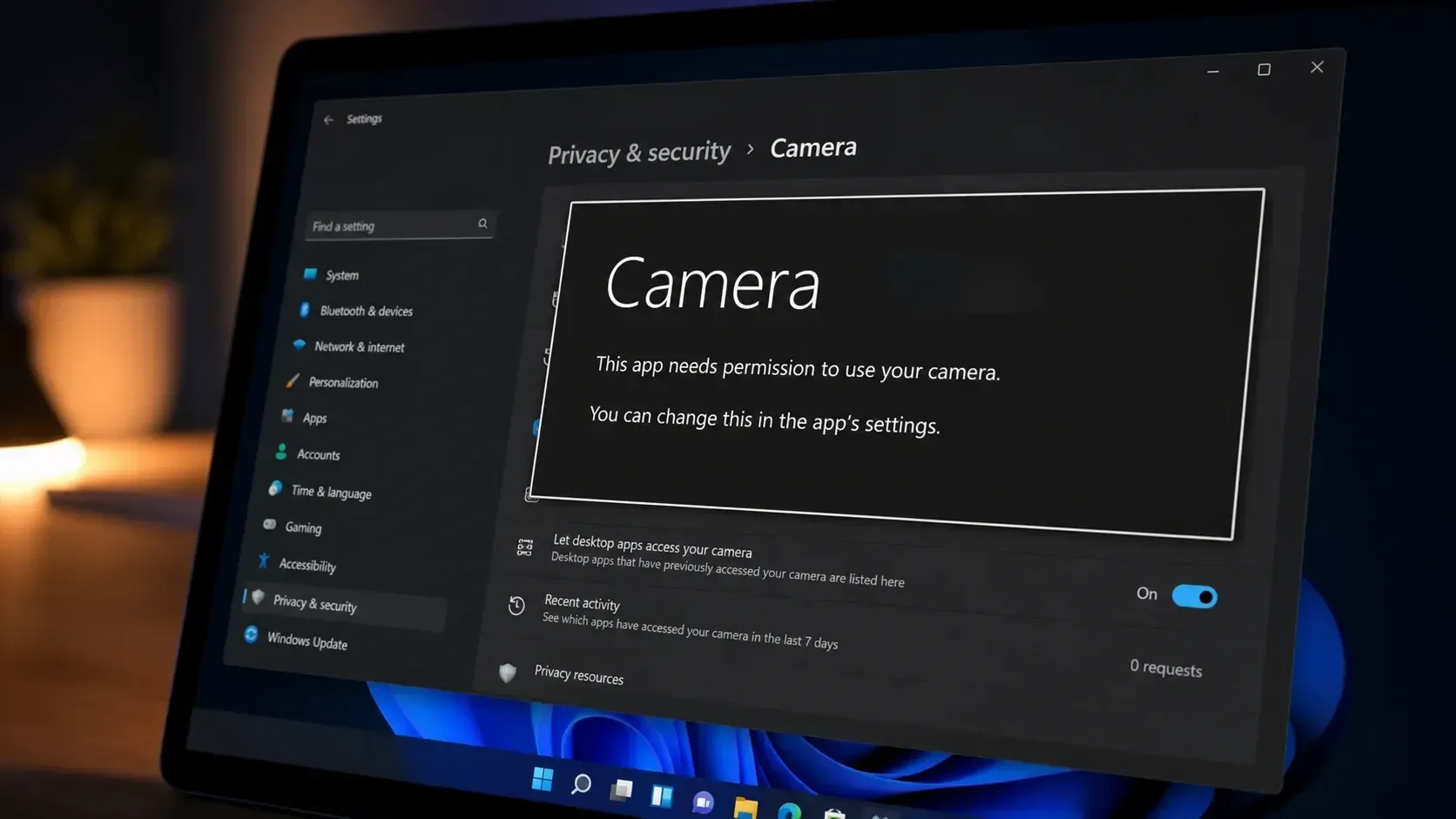
Open the Camera app or a video call on Windows 11 and you may be stopped by the message This app needs your permission to use your camera – You can change this in the app’s settings. The block happens when camera permission was denied earlier or was never granted in the first place. Until you turn it back on manually, the app stays locked out of the webcam.
Fix camera permission in Windows 11 Settings
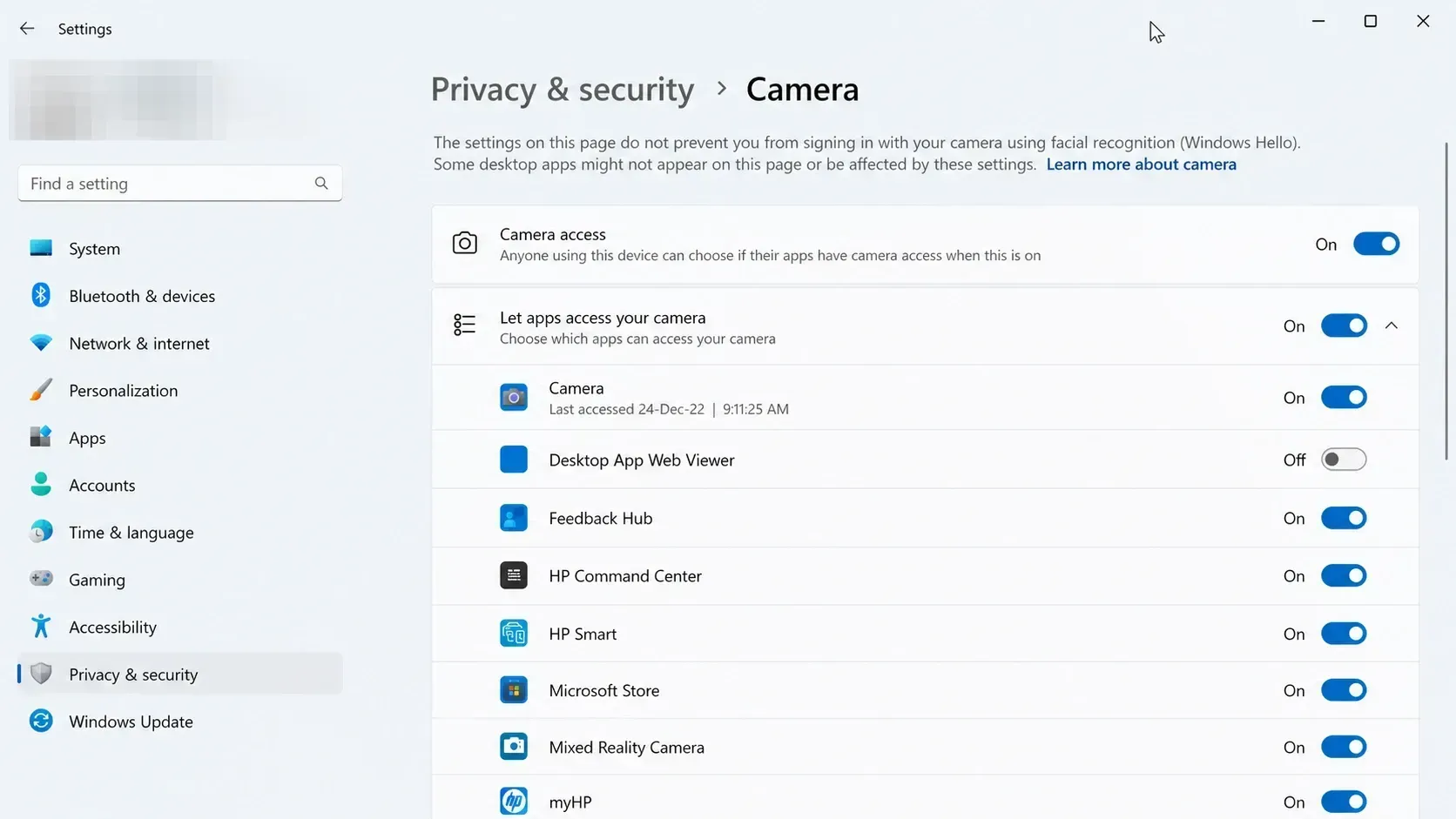
Most of the time the error clears once two switches are on. The master Camera access switch controls the whole device, and the per-app toggle controls the single app that is asking. Both have to be on.
Which toggle controls what
The Camera settings page has several switches that stack together. If a higher-level switch is off, lower toggles are ignored even when they look enabled.
| Setting | What it controls |
|---|---|
| Camera access | Device-wide master switch for the whole PC and all users’ apps. |
| Let apps access your camera | Microsoft Store apps as a group; must be on for individual app toggles to work. |
| Individual app toggle | Allows or blocks one specific Store app, such as the Camera app, Teams, or Skype. |
| Let desktop apps access your camera | Covers traditional desktop programs that are not from the Microsoft Store; controls them as one group. |
If the app is a desktop program and not in the list
Desktop programs that you install from outside the Microsoft Store are not toggled one by one. They only appear once they have tried to use the camera, and they share a single switch.
On the Camera settings page, expand Let apps access your camera and make sure Let desktop apps access your camera is turned on. Desktop apps may not always show in the list, and some can still reach the camera through Windows components, so the grouped switch is the control that matters for them.
How to confirm the camera is working
You know the fix worked when the app stops showing the permission message and the live preview appears. On a device with a camera light, the indicator turns on while the camera is active. If your PC has no camera light, Windows shows a notification each time the camera switches on or off.
Why camera permission still fails after changing settings
If both switches are on and the error continues, the block is usually coming from outside the Privacy settings. Work through the few exact causes below.
- Third-party antivirus or security software is blocking webcam access. Check its camera protection or privacy feature and allow the app there.
- You did not fully close and reopen the app after changing the toggle, so it is still running with the old denied permission.
- The program is a desktop app while only the Store-app toggles were changed. Turn on Let desktop apps access your camera as well.
Once camera access is allowed at every level and any security tool stops intercepting the webcam, the same steps apply to anything else that uses the camera or microphone, so reopen the app and it should connect to the camera normally.



