Random guild invites are one of the most persistent annoyances in World of Warcraft, especially on a fresh character. Recruitment addons fire invites the moment you load into a city, and trade windows can pop open mid-fight. The game already ships with switches for all of this, buried in the Social section of the Options menu.
Quick answer: Open the Options menu, go to the Social category, and tick Block Guild Invites and Block Trades. Nearby checkboxes cover duels and chat channel invites.
Turn on Block Guild Invites and Block Trades
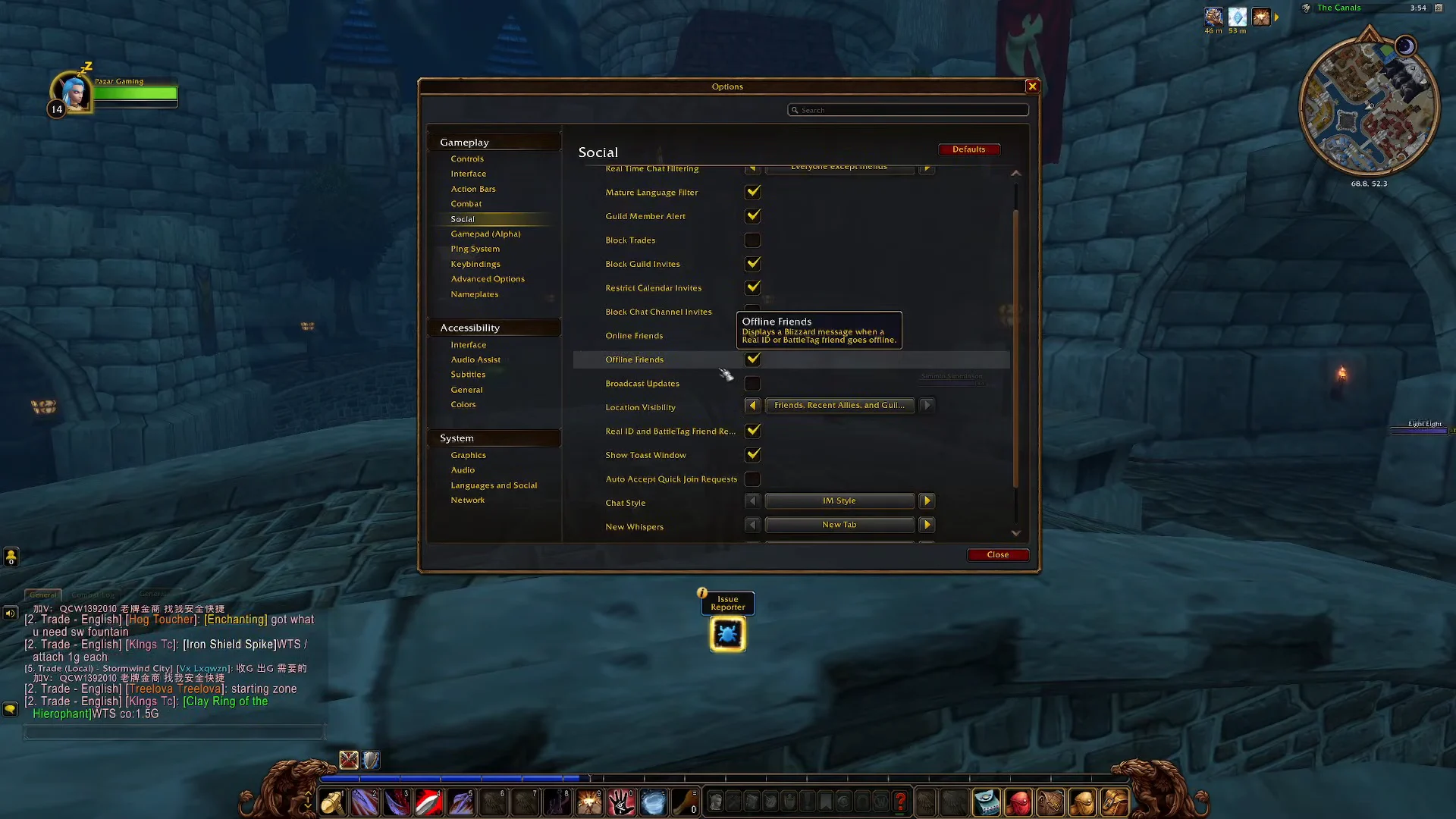
What each Social setting blocks
The checkboxes sit next to each other in the same group, so it is easy to switch on more than you meant to. Here is what each one actually stops.
| Setting | What it stops | Side effect |
|---|---|---|
| Block Guild Invites | All incoming guild invitations | You cannot sign guild charters |
| Block Trades | Trade windows from other players | Must untick to accept wanted trades |
| Block Duels | Duel requests | No duels at all |
| Block Chat Channel Invites | Invites to custom chat channels | None for most players |
Blocking guild invites also blocks charter signatures. If you regularly sign charters for other players, you will have to untick the box each time, then re-enable it afterwards.
Blocking guild invite whispers
The Social settings kill the invite popup, but they do not stop the copy-pasted recruitment whisper that often comes with it. Recruitment addons have been sending these since the game’s early years, and some send them repeatedly over days or weeks.
There are a few practical responses, none of which require changing your playstyle:
- Right-click the sender’s name and report the message as spam.
- Add repeat offenders to your Ignore list.
- Use a chat filter addon such as Bad Boy, adding the recruitment keywords you keep seeing.
- Join any guild, including one of your own — recruitment bots skip characters that already have a guild tag.
The last option is the most reliable long-term fix. Creating a personal guild and parking every alt in it removes you from the recruiting pool entirely, and gives you a guild bank plus the usual guild perks as a bonus. Players who go this route generally stop seeing invite spam altogether.
Addon options for automatic blocking
If you would rather not touch the settings on every new character, small addons can handle it. EasyGuildBlock enables guild invite blocking automatically each time you log in, with no configuration to set up. It supports Retail, Classic, Burning Crusade Classic, and Mists of Pandaria Classic.
Install as usual: copy the extracted folder into your Interface/AddOns directory, then restart the client or enter /reload. At the character select screen, verify that the addon is enabled in the AddOns list.
For duel requests specifically, DuelResponse handles automatic declines. Leatrix Plus is a broader quality-of-life addon that covers similar invite filtering alongside many other tweaks. Bad Boy, paired with its Guilded plugin, filters guild recruitment whispers out of your chat frame before you ever see them.
Silencing Trade and Services channel spam
Invite blocking does nothing about the boosting and gold advertisements filling the Trade and Services channels. Those are separate chat channels, and you leave them rather than block them.
Right-click a chat tab, open the chat settings, and remove the channels you do not want. You can also leave them from the chat window’s channel list using the small x or the red circle-slash icon next to each entry.
A macro is faster and tends to stick better across sessions. The following leaves all three of the usual offenders in one click:
/chatexit trade
/chatexit services
/chatexit lookingforgroup
Channel settings have a long-running habit of resetting on logout or after a UI reload, and the removal buttons sometimes appear greyed out. Players running many alts have reported having to redo this repeatedly, which is why the macro approach is worth setting up.
How to confirm the settings are working
With Block Guild Invites enabled, no invitation window appears when someone sends one — the request is refused silently on your end. With Block Trades on, another player opening a trade with you produces no trade window.
Reopen the Social options after a logout to check the boxes are still ticked. Unlike chat channel membership, these checkboxes are stored per character, so a new alt starts with everything unblocked and will need the same four steps.
Standing in a capital city for a few minutes is the practical test. If you get through it without a single popup, the settings are doing their job, and anything still reaching you is coming through as a whisper rather than an invite.