How to Sync Tabs Between All Your Devices using Chrome, Firefox, and Edge
Sync open tabs in Chrome, Edge, and Firefox across all your devices to seamlessly switch and resume from one device to another.
Sync open tabs in Chrome, Edge, and Firefox across all your devices to seamlessly switch and resume from one device to another.
by Kazim Ali Alvi
Synchronizing browser tabs across all your devices can significantly streamline your workflow and enhance your browsing experience. Browsers like Chrome, Firefox, and Edge offer built-in features that allow you to sync open tabs, so you can easily access them from any device logged into the same account.
We’ll explore how to enable and use tab syncing on Google Chrome, Mozilla Firefox, and Microsoft Edge. For demonstration purposes, we’ll focus on syncing tabs between a computer and a mobile device, but the steps are similar for syncing between any devices.
Syncing Tabs Across Devices Using Chrome
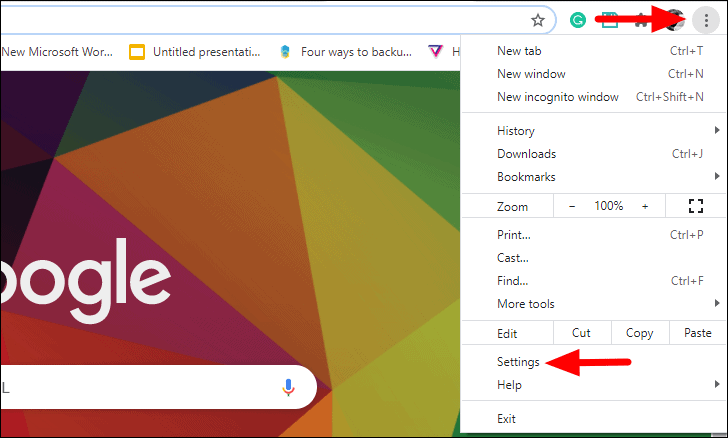
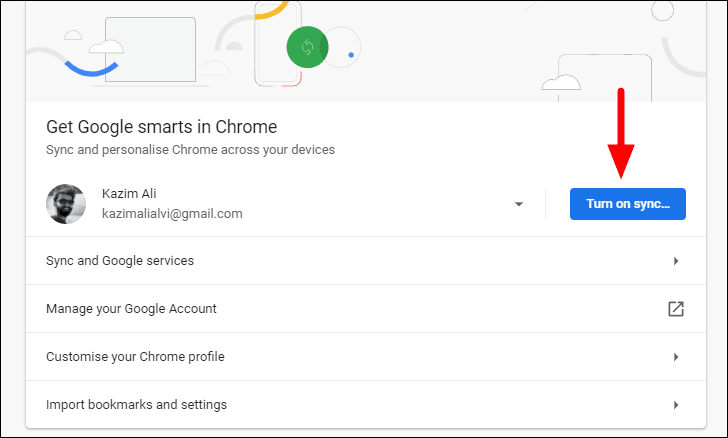
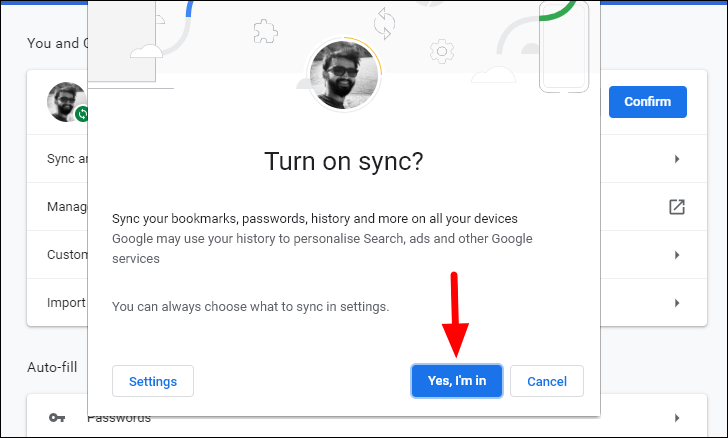
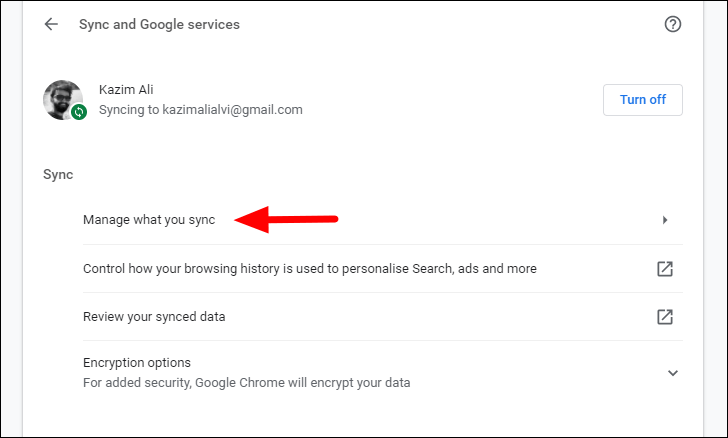
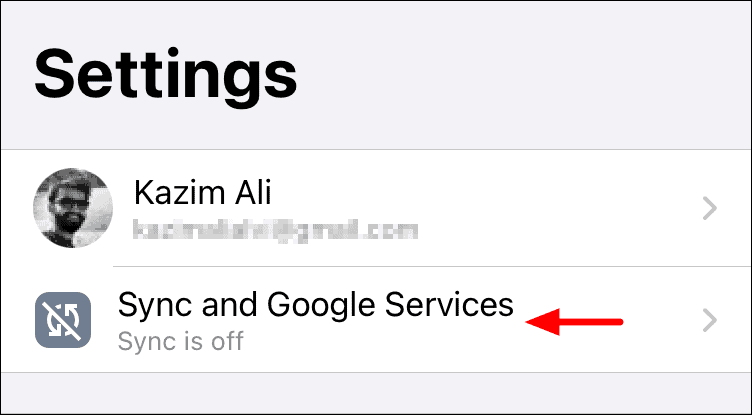
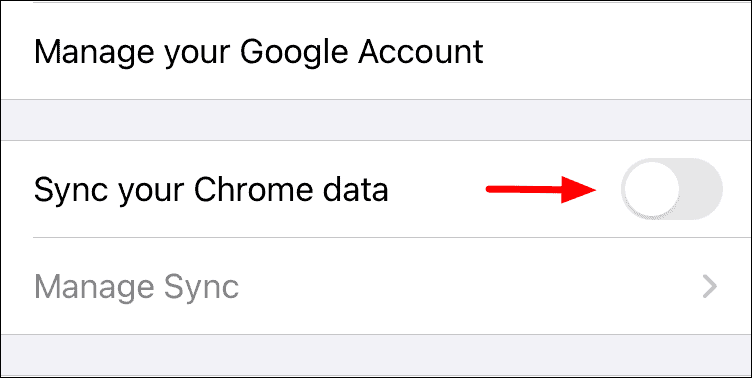
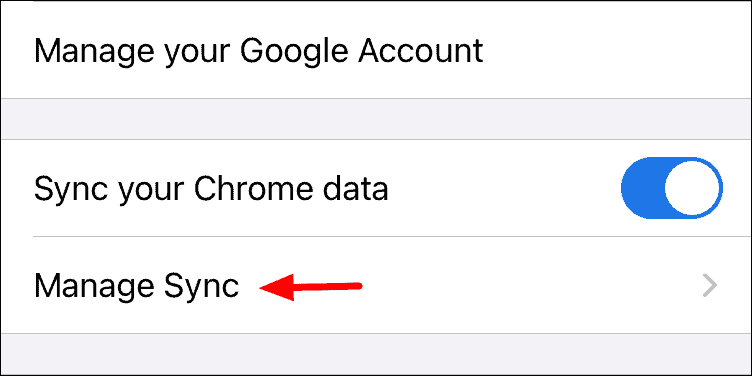
In Google Chrome, you need to enable the sync feature on each device you wish to sync. This ensures that your open tabs, along with other browsing data, are synchronized across all devices.
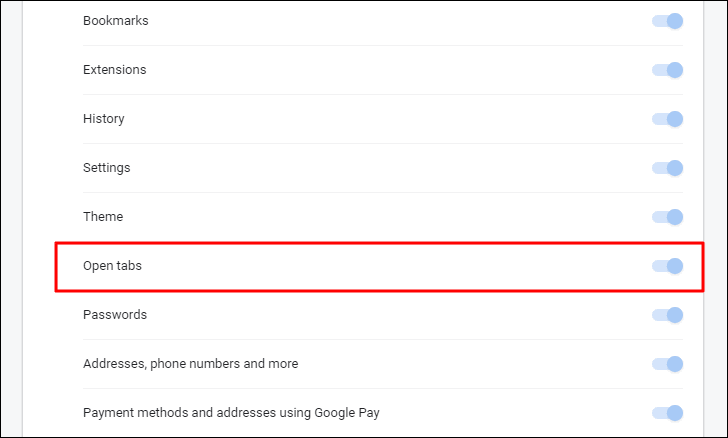
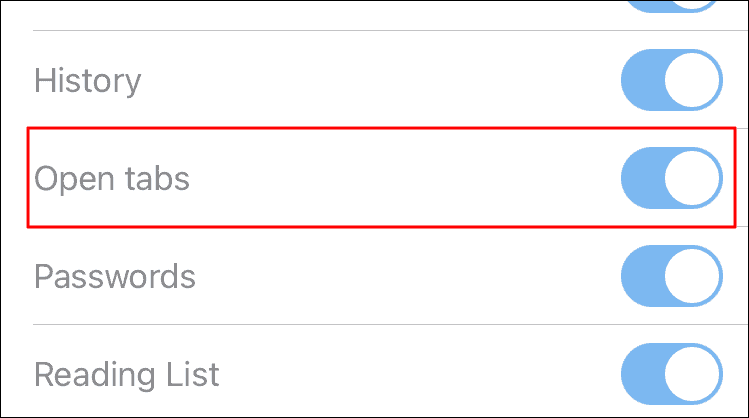
If you have selected Sync everything, your open tabs are already being synced. If you prefer to customize, select Customize sync and ensure that the toggle next to Open tabs is enabled.
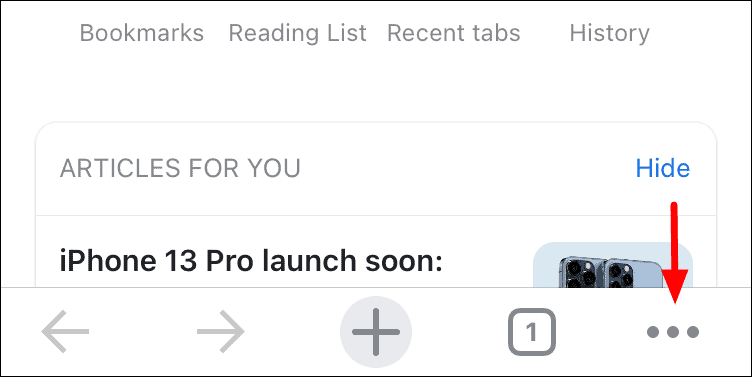
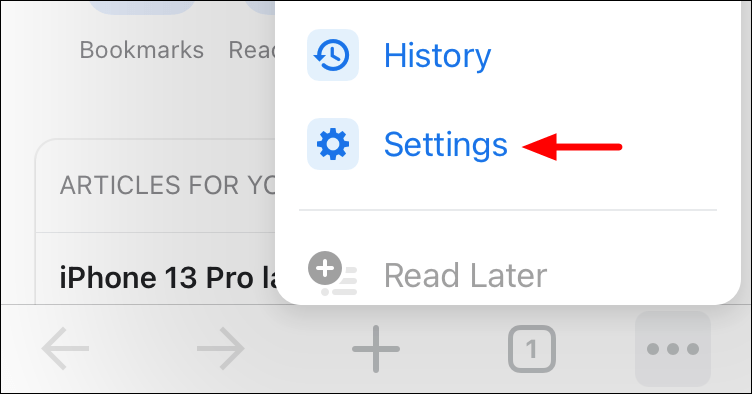
With sync enabled on your desktop, proceed to set up syncing on your mobile device.
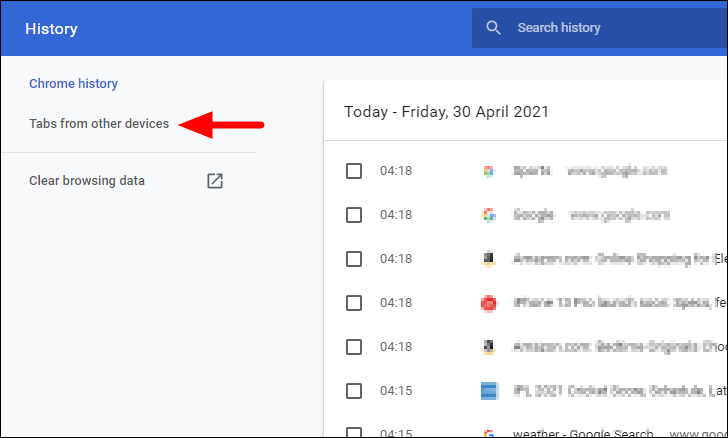
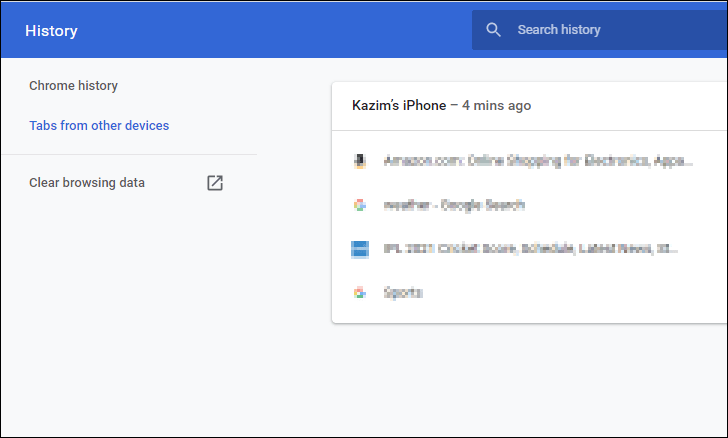
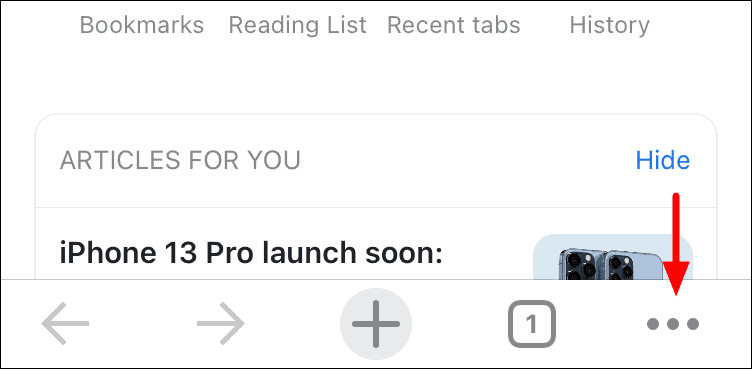
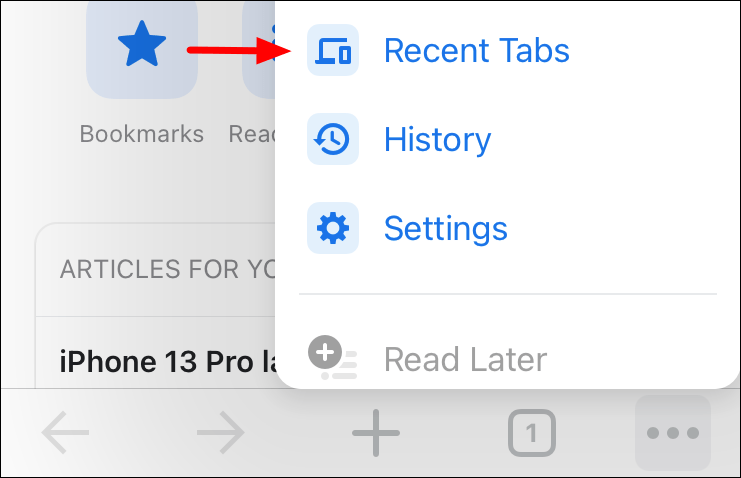
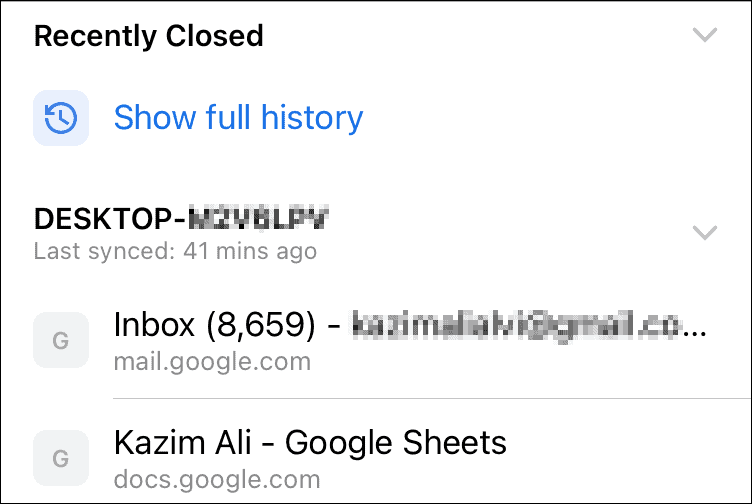
You’ll see a list of tabs open on your other devices. Tap on any tab to open it on your mobile device.
Syncing Tabs Across Devices Using Edge
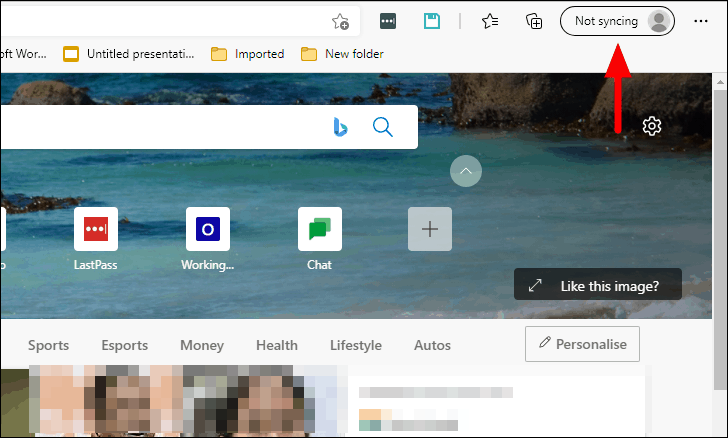
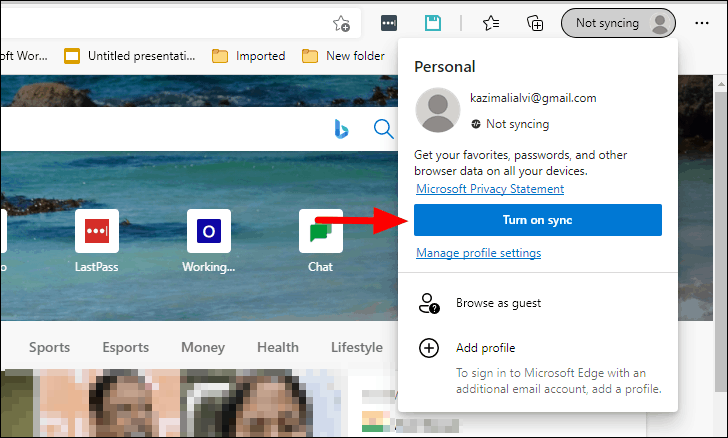
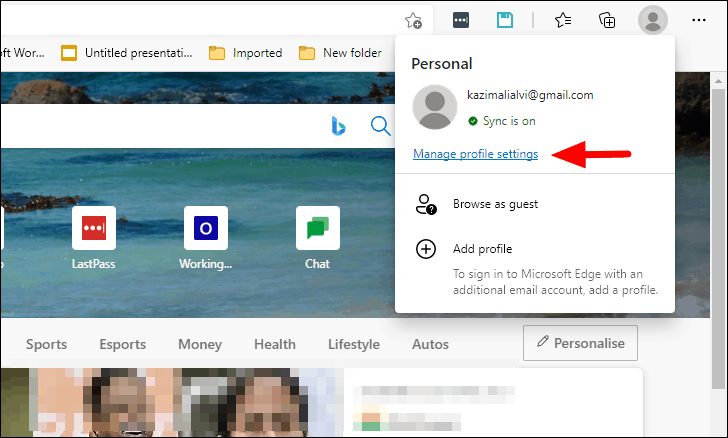
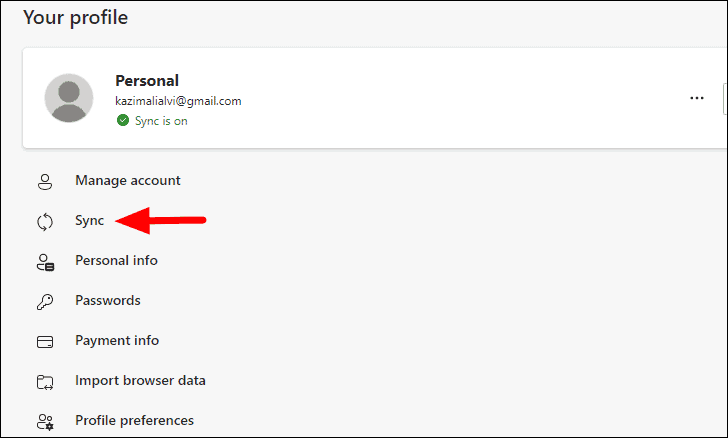
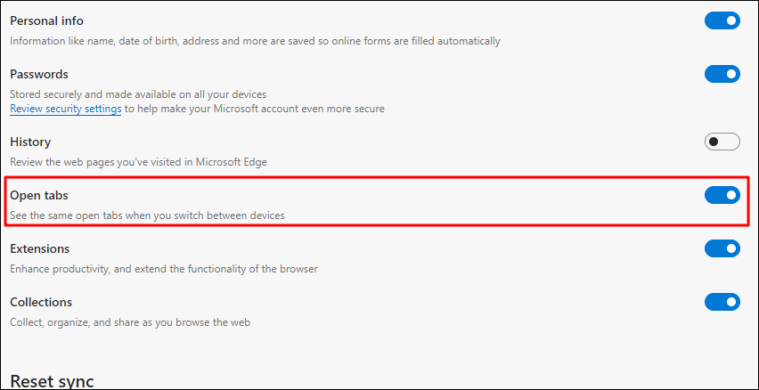
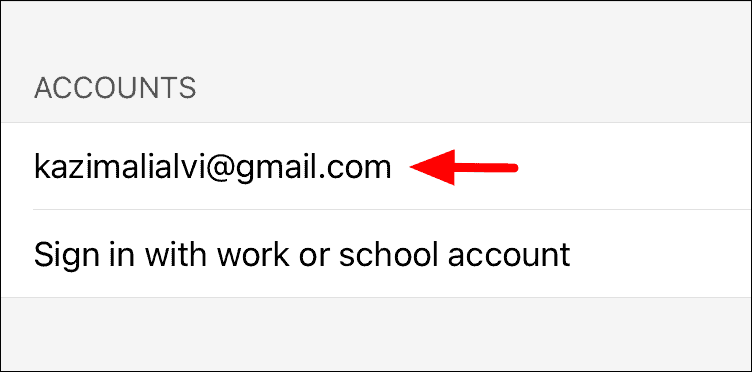
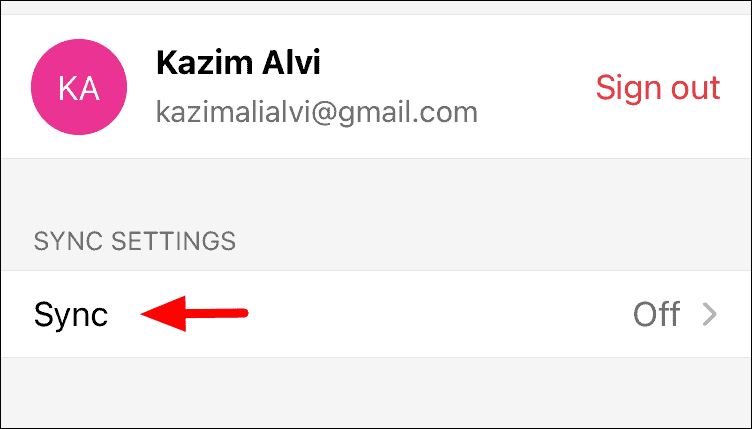
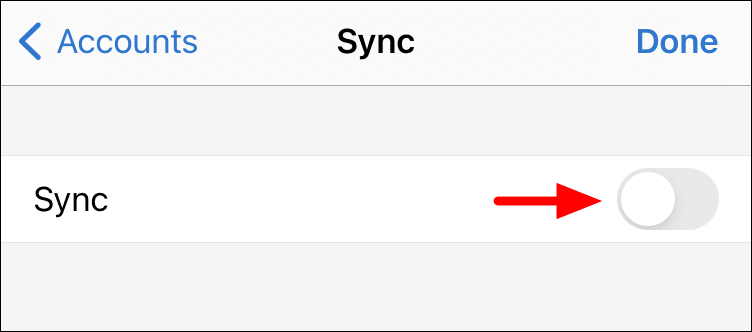
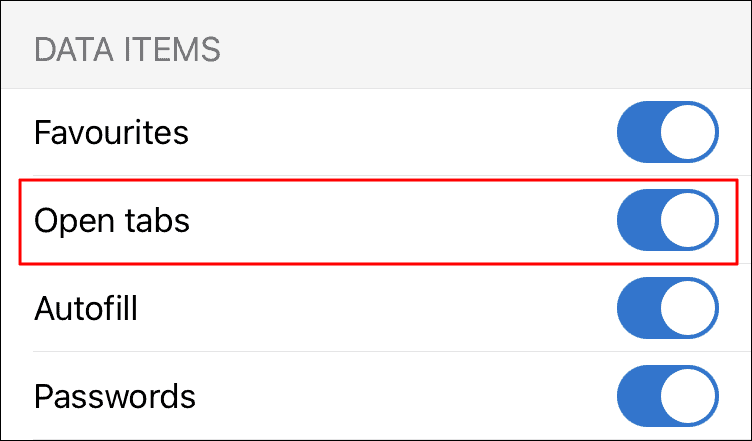
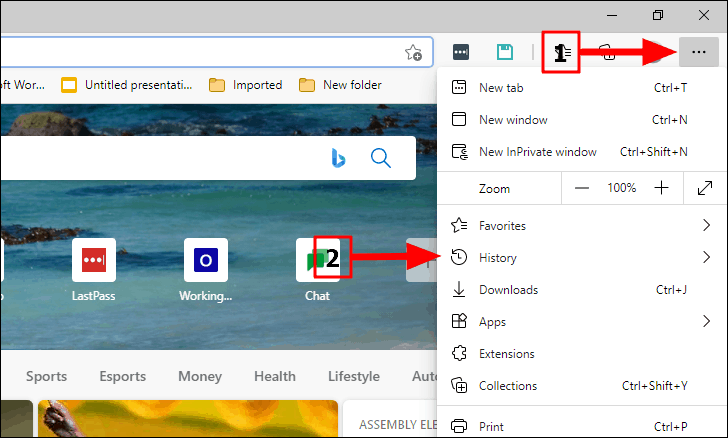
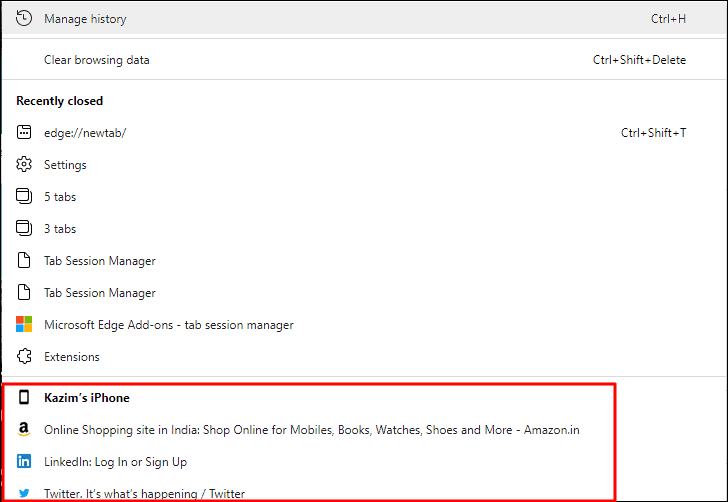
Microsoft Edge also allows you to synchronize your open tabs across devices. Ensure you are signed into Edge with the same Microsoft account on all devices you wish to sync.
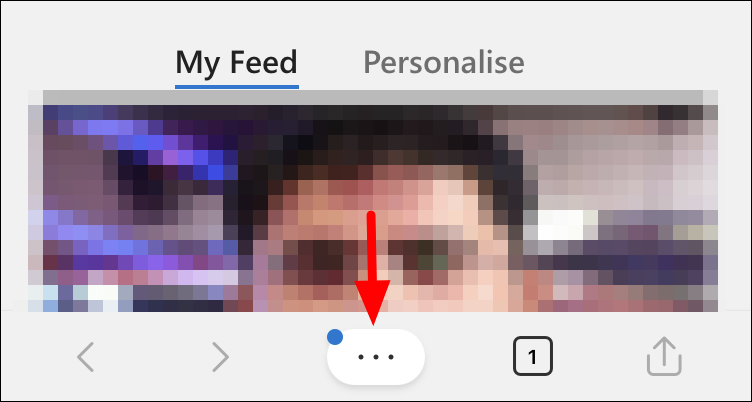
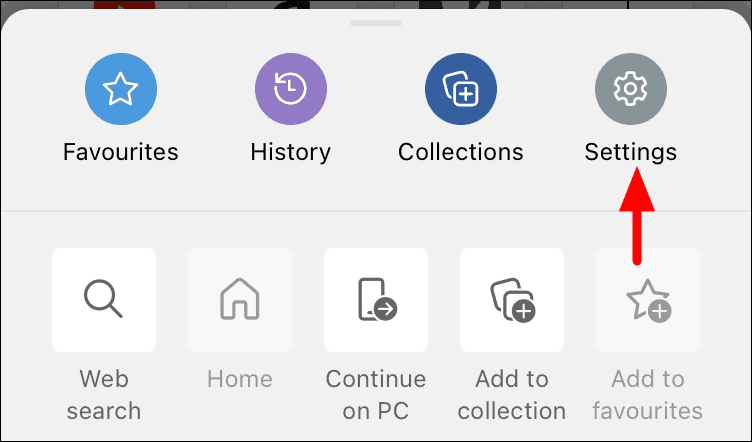
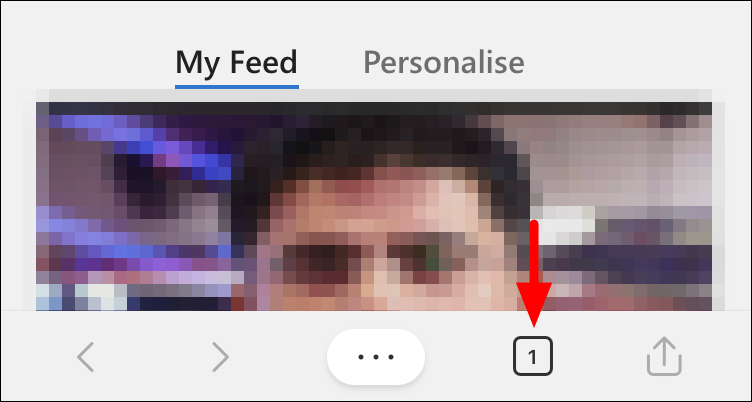
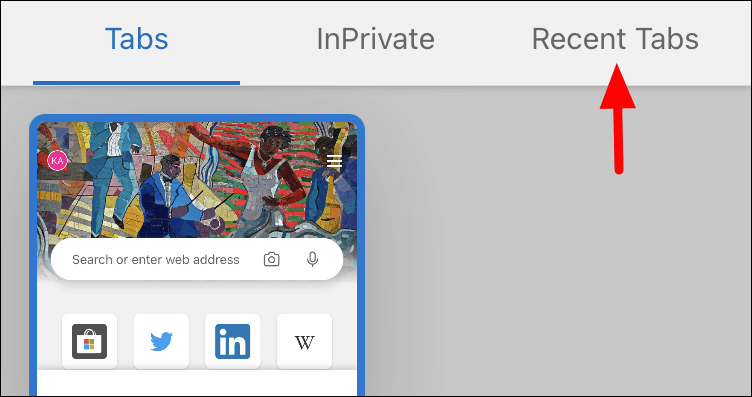
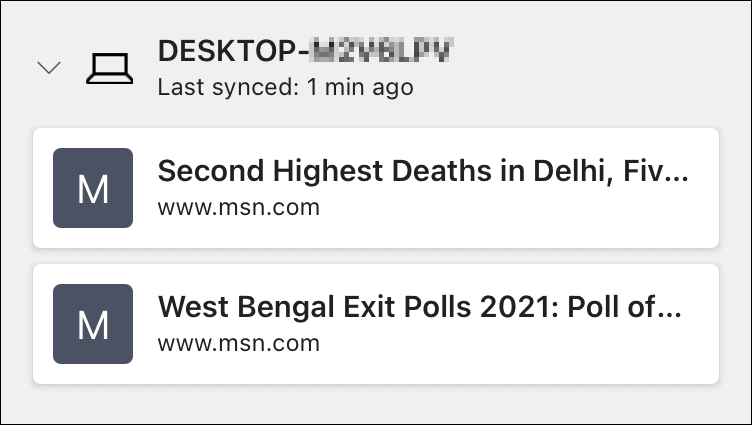
The tabs are organized under each device name. Tap on any tab to open it on your mobile device.
Syncing Tabs Across Devices Using Firefox
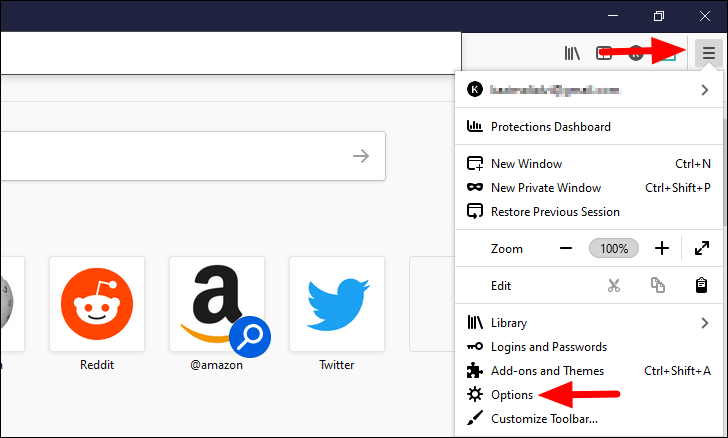
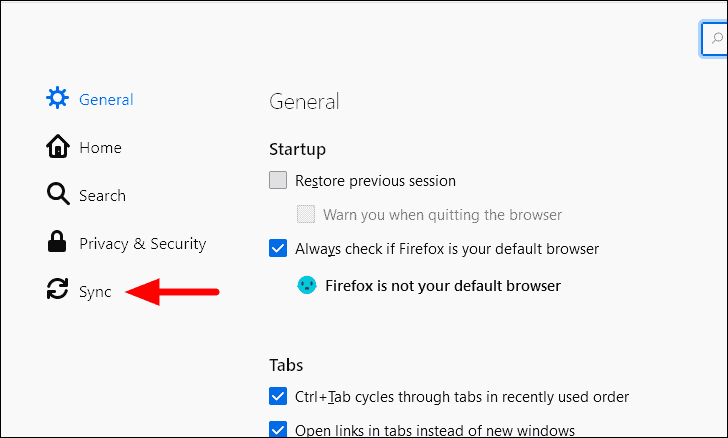
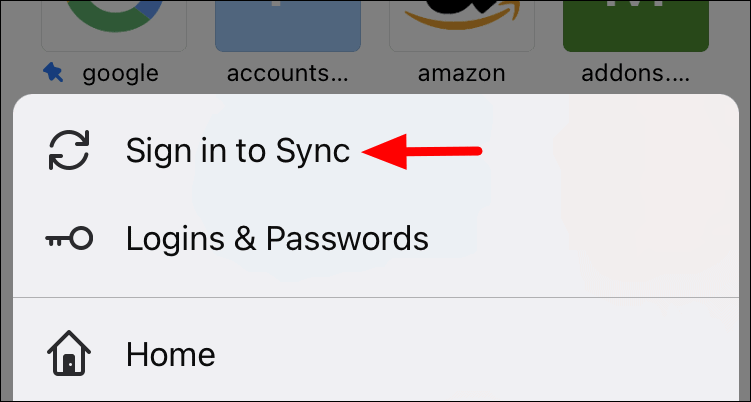
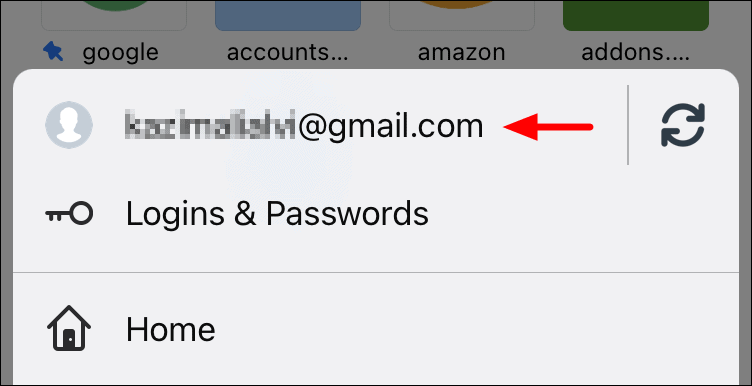
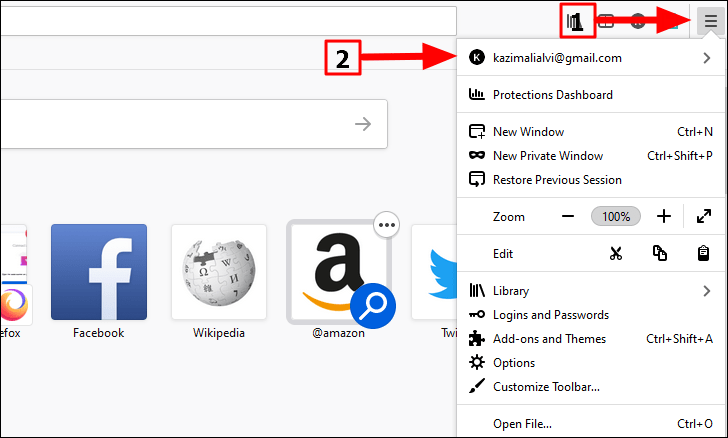
Mozilla Firefox also provides the capability to sync open tabs across devices. Ensure you’re signed into the same Firefox account on all devices and that sync is enabled.
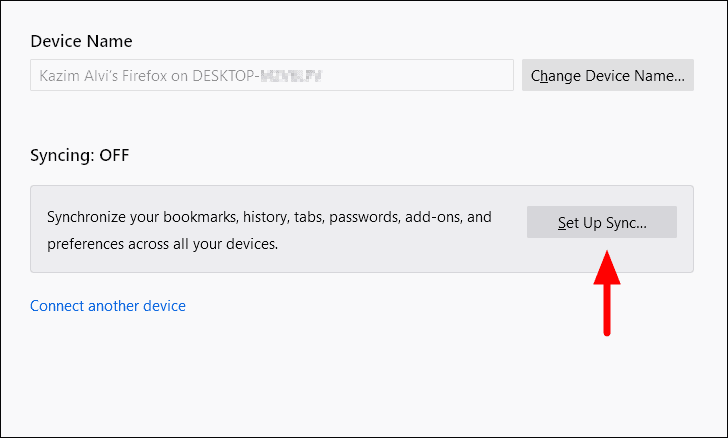
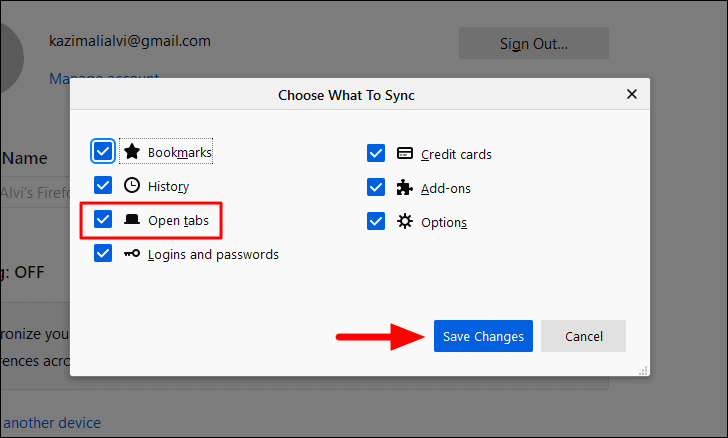
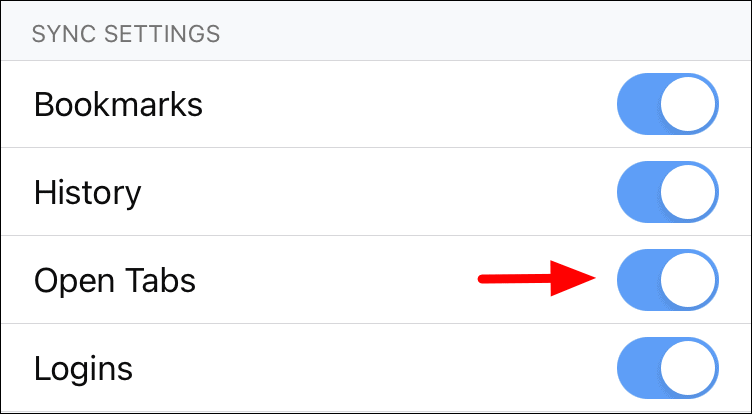
If sync is not set up, click on Set Up Sync and sign in with your Firefox account. If already signed in, verify that Open Tabs is included in the items to sync by clicking on Change next to Syncing.
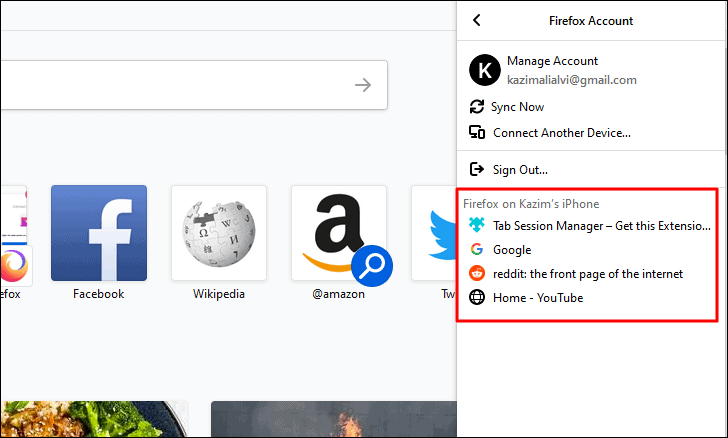
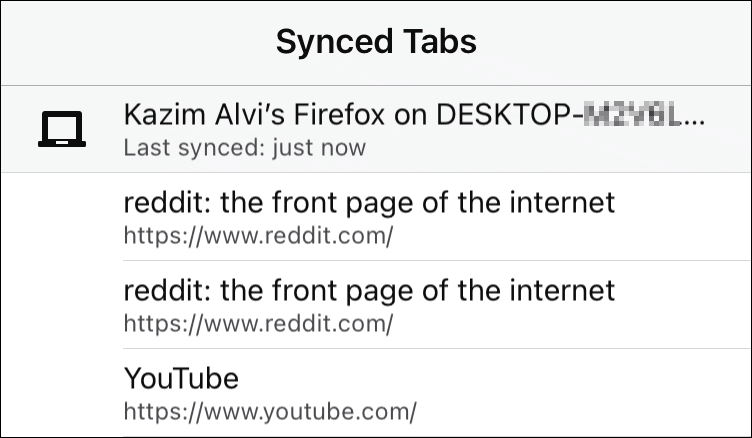
You’ll see a list of tabs open on your other devices, organized under each device name. Tap any tab to open it on your mobile device.
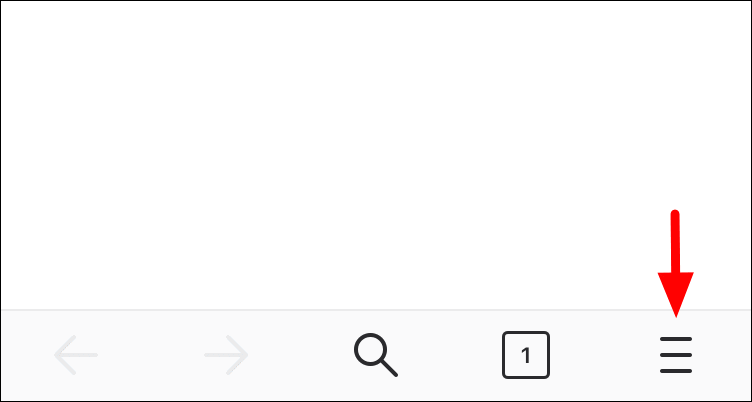
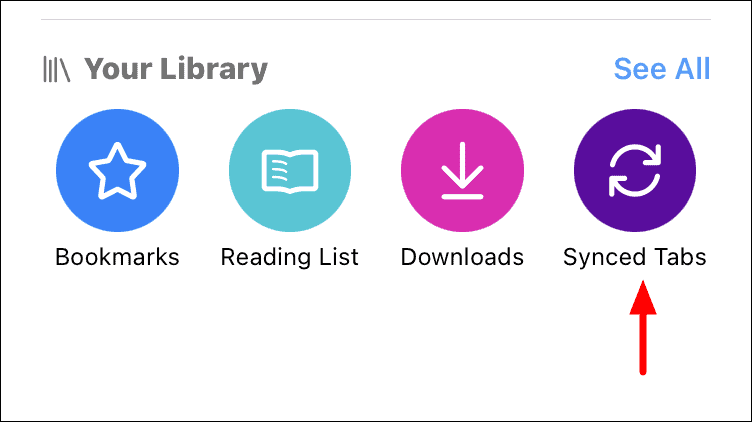
You can also access synced tabs by tapping the Menu icon, selecting Your Library, and then choosing Synced Tabs at the bottom-right corner.
By enabling tab syncing in your preferred browser, you can effortlessly access your open tabs across all your devices, making your browsing experience more seamless and efficient.