

If you’re having trouble reading small text on websites, both Google Chrome and Microsoft Edge allow you to adjust the font size to make text more legible. While you can zoom in on pages to enlarge everything, sometimes you only want to increase the text size without affecting images and other elements. Adjusting the font size in your browser settings lets you enlarge text across all websites permanently.
Changing Font Size in Google Chrome
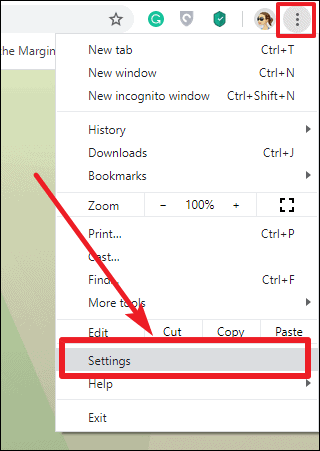
Open Google Chrome on your computer. Click the menu icon (three vertical dots) in the top-right corner of the window, next to the address bar. From the dropdown menu, select Settings.
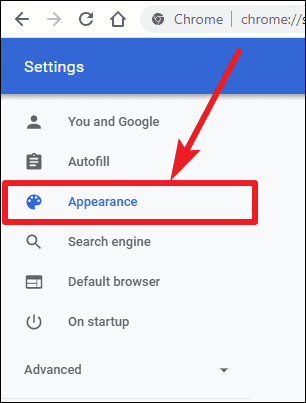
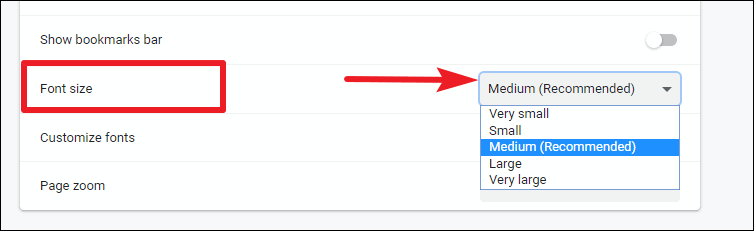
Under the Appearance section, find the option labeled Font size, which is set to Medium by default. Click the dropdown menu and choose from the options: Very small, Small, Medium, Large, or Very large, to adjust the text size according to your preference.
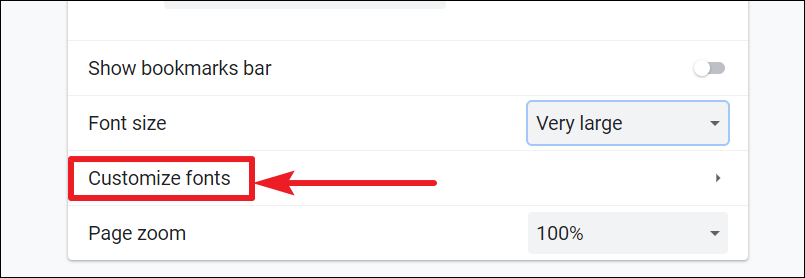
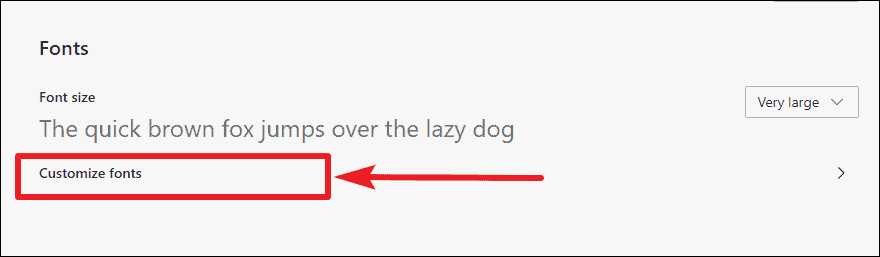
If the preset options don’t suit your needs, click on Customize fonts beneath the Font size setting for more detailed control.
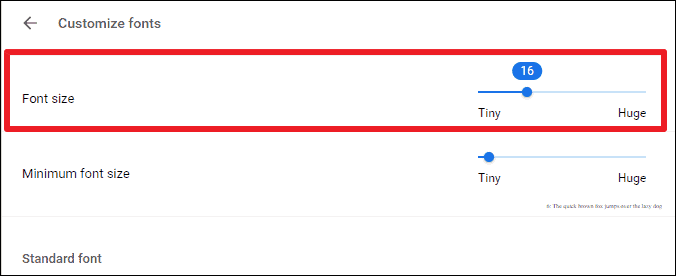
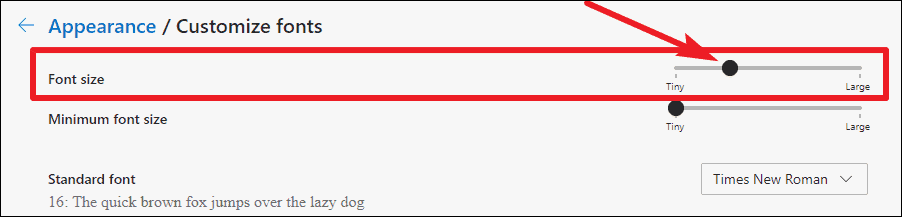
In the Customize fonts section, adjust the slider under Font size to set a specific text size between 9 and 72. You can also set a Minimum font size to prevent text from appearing too small on any website.
Changing Font Size in Microsoft Edge
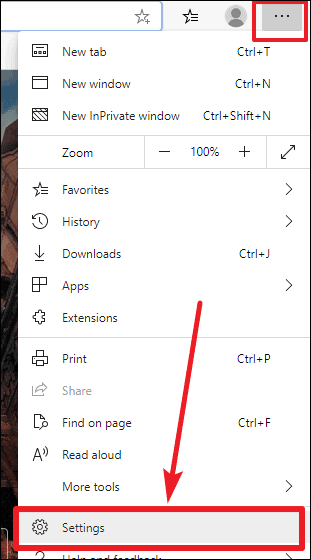
Launch Microsoft Edge on your computer. Click the menu icon (three horizontal dots) in the top-right corner of the browser window. From the dropdown menu, select Settings.
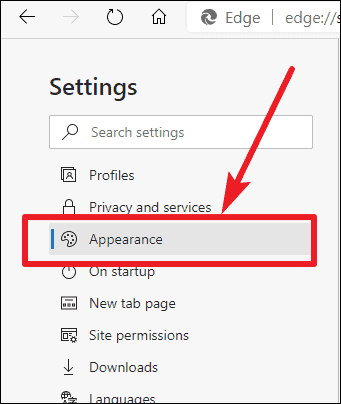
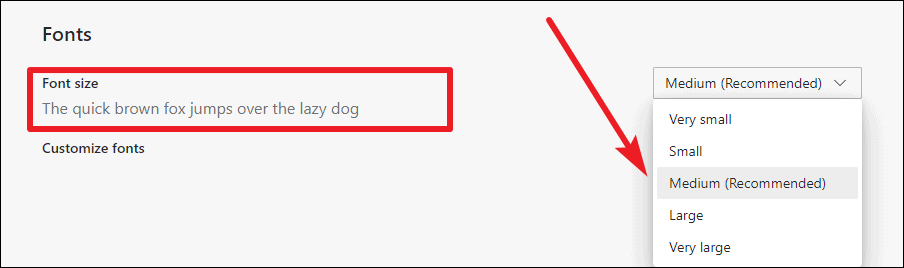
Find the Font size option, which is set to Medium by default. Click the dropdown menu next to it and select your preferred text size from the options: Very small, Small, Medium, Large, or Very large.
In the Customize fonts section, use the slider under Font size to choose a specific text size between 9 and 72. Additionally, you can set a Minimum font size to ensure that text doesn’t become too small on any webpage.
By customizing the font size settings in your browser, you can enhance readability and make your web browsing experience more comfortable. Adjusting these settings ensures that text on all websites appears at a size that suits you best without impacting other content on the pages.





