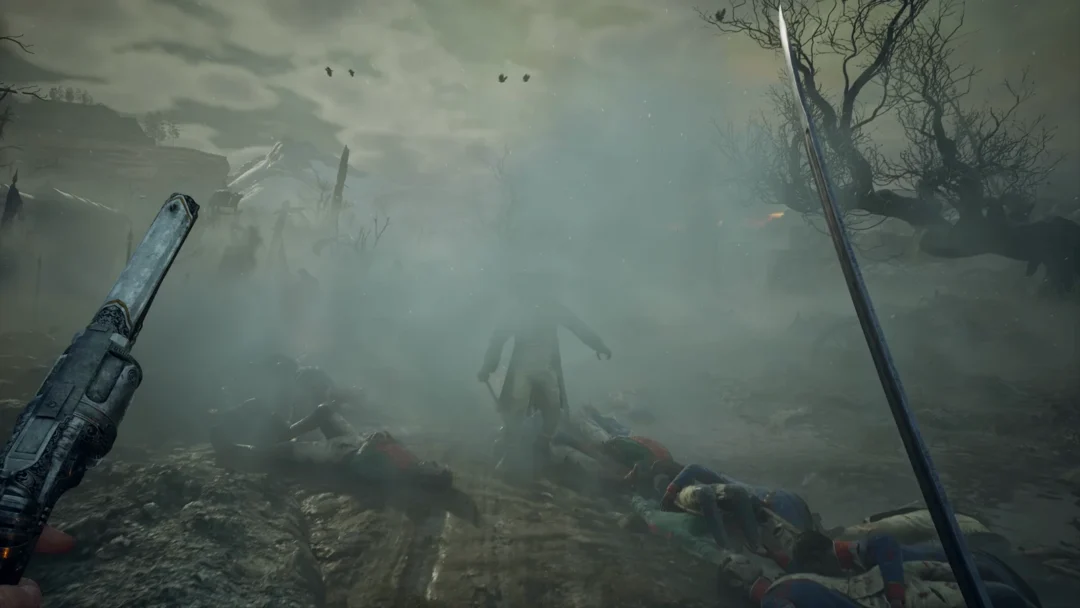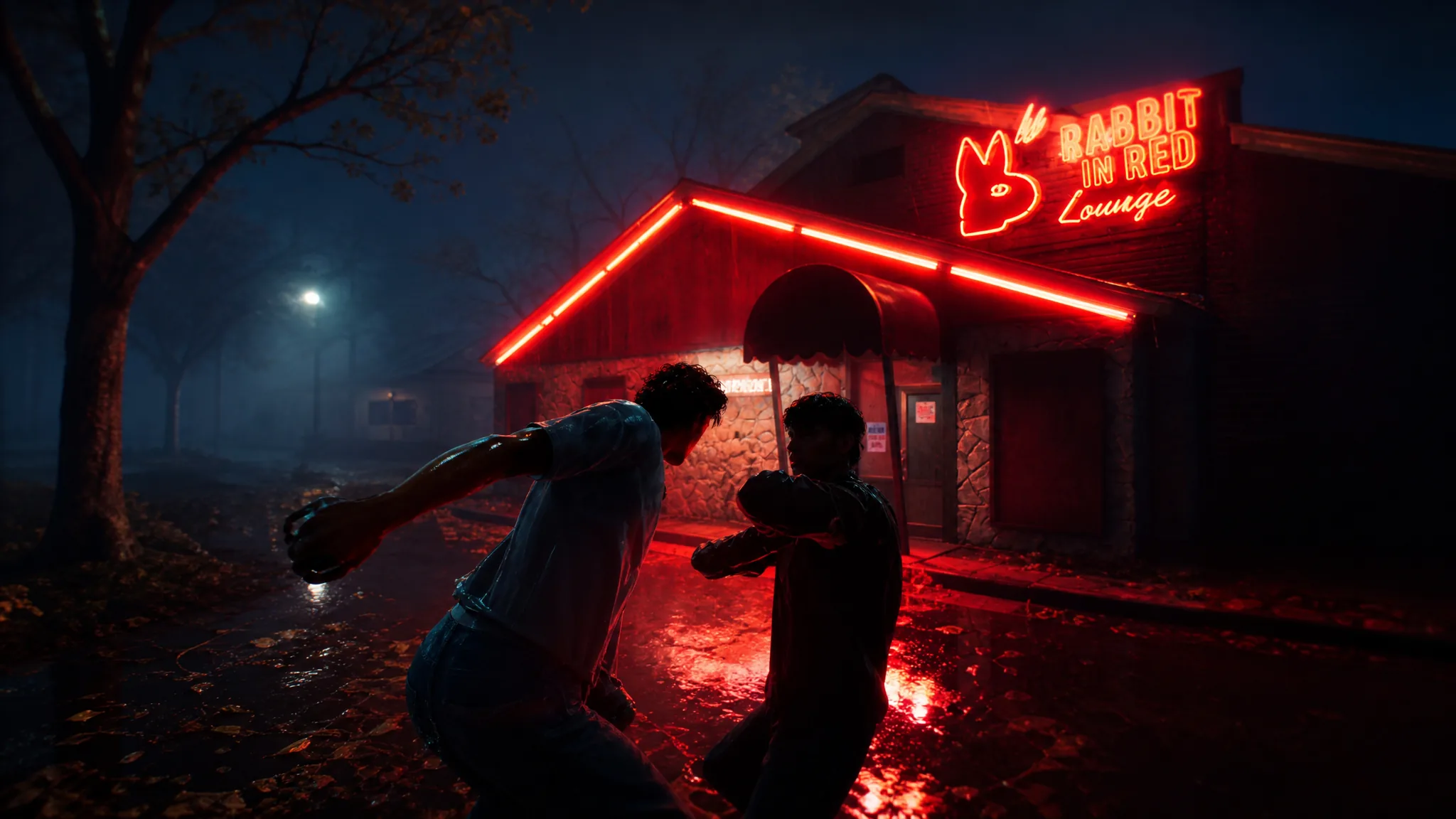
Halloween: The Game runs on Unreal Engine 5, and its launch optimization on PC leaves a lot of room for hitching, frame drops, and input delay. That gets worse in a 1v4 lobby, where stutters can cost you a chase or an escape. The fastest way to stabilize things is to dial back a handful of GPU-heavy options while keeping the picture clear enough to read the neighborhood at night.
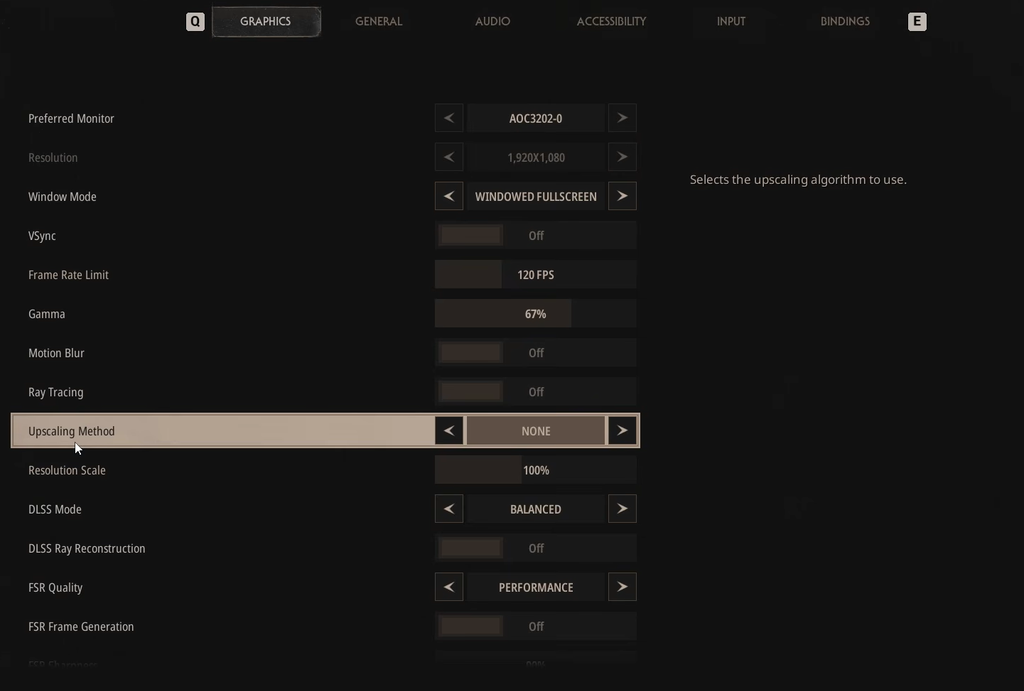
Quick answer: Run your monitor’s native resolution, cap the frame rate at 60 FPS, turn off Motion Blur and Ray Tracing, set Effects, Foliage, Shading, Shadow, Global Illumination, and Reflection to Low, and leave Texture, View Distance, Post-Process, and Anti-Aliasing at Medium. If multiplayer still lags, enable Vsync and switch upscaling on at Performance.
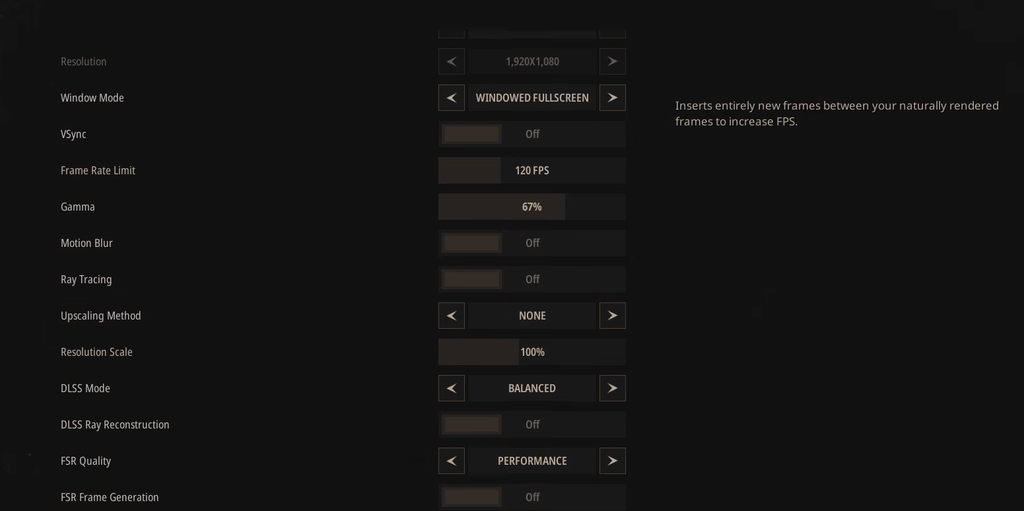
Best Halloween: The Game graphics settings
These values are tuned for machines near the minimum spec. They prioritize a consistent frame time over maximum detail, which is what actually keeps the game feeling responsive. If you own a high-end rig, most of these can go to High with little penalty.
| Setting | Recommended value |
|---|---|
| Resolution | Native monitor resolution |
| Vsync | Off (turn On in multiplayer if you get lag or freezes) |
| Frame Rate Limit | 60 FPS |
| Gamma | Default |
| Motion Blur | Off |
| Ray Tracing | Off |
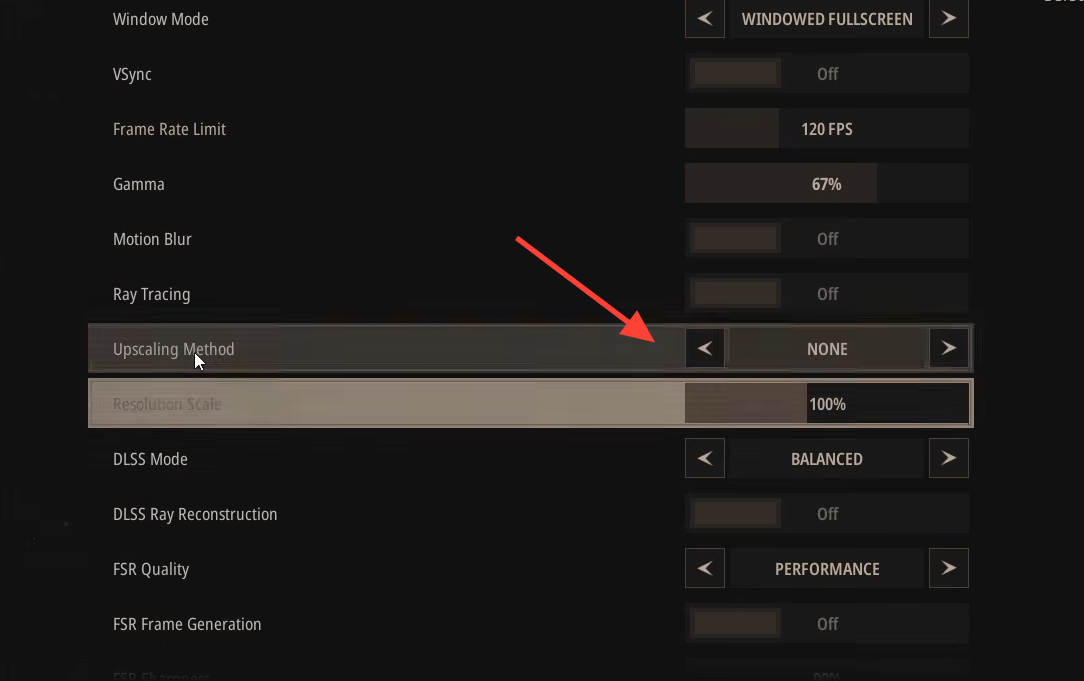
| Upscaling Method | Off (turn On if performance drops) |
| Resolution Scale | 100% |
| Upscaling Quality | Performance |
| FSR Frame Generation | Off |
| Anti-Aliasing Quality | Medium |
| Effects Quality | Low |
| Foliage Quality | Low |
| Post-Process Quality | Medium |
| Shading Quality | Low |
| Shadow Quality | Low |
| Texture Quality | Medium |
| View Distance | Medium |
| Global Illumination Quality | Low |
| Reflection Quality | Low |
Why the 60 FPS cap and Vsync matter
The frame rate limit is the single most important change. Pushing above 60 FPS in the current build tends to introduce stutters rather than smoother motion, so holding the cap at 60 produces a steadier frame time and a calmer image during fast movement.
Vsync is different. In solo play you can leave it off to keep input latency low. In multiplayer, where freezes and micro-hitches are more common, turning it on often smooths out the worst of the lag. If you notice mouse or controller response feels delayed after enabling it, that is the trade-off, and you can switch it back off.
When to turn upscaling on
Leave the upscaling method off while your frame rate holds steady, because rendering at native resolution keeps the picture sharpest. The moment performance dips and you cannot claw it back with quality reductions, switch the upscaling method on and set the quality to Performance. That renders the game at a lower internal resolution and reconstructs the image, which gives mid-range and minimum-spec GPUs a large frame boost.
Keep FSR Frame Generation off. Generated frames can add latency and visual artifacts in a stealth game where reading movement precisely matters more than a higher number on the counter.
System requirements to check first
Before tweaking anything in the menu, confirm your PC clears the baseline. The game requires an SSD, a 64-bit copy of Windows, and a DirectX 12 GPU. The minimum target is 1080p at 30 FPS, and the recommended target is 4K at 30 FPS, so higher frame rates on either tier mean lowering settings from the table above.
| Component | Minimum | Recommended |
|---|---|---|
| Target | 1080p @ 30 FPS | 4K @ 30 FPS |
| OS | Windows 11 64-bit | Windows 11 64-bit |
| CPU | Intel LGA 1200 / AMD AM4 | Intel LGA 1700 / AMD AM5 |
| RAM | 16 GB | 32 GB |
| GPU | GTX 1660 / RX 590 / Arc A770 | RTX 3000 Series / RX 7000 Series |
| Storage | 45 GB (SSD required) | 45 GB (SSD/NVMe) |
How to confirm the settings are working
After applying the values, load into a match and watch the first minute closely. A working configuration holds close to the 60 FPS cap without the counter collapsing during action, and textures stop popping in late as you move between houses. Some hitching on the very first session is normal while shaders compile, so let the main menu and opening moments finish loading before you judge the result.
If stutters persist, the usual culprits are an outdated GPU driver, background apps eating memory, or a slow drive. Install the latest Game Ready or Adrenalin driver, close browsers and overlays, and make sure the game sits on your SSD rather than a hard drive. Shadow, Foliage, and Global Illumination are the heaviest remaining options if you still need to shave off more load.
The optimization here is a moving target, and post-launch patches are expected to smooth out much of the current instability. Until then, the low-and-medium mix above is the reliable way to keep Haddonfield running clean while you stalk or survive.