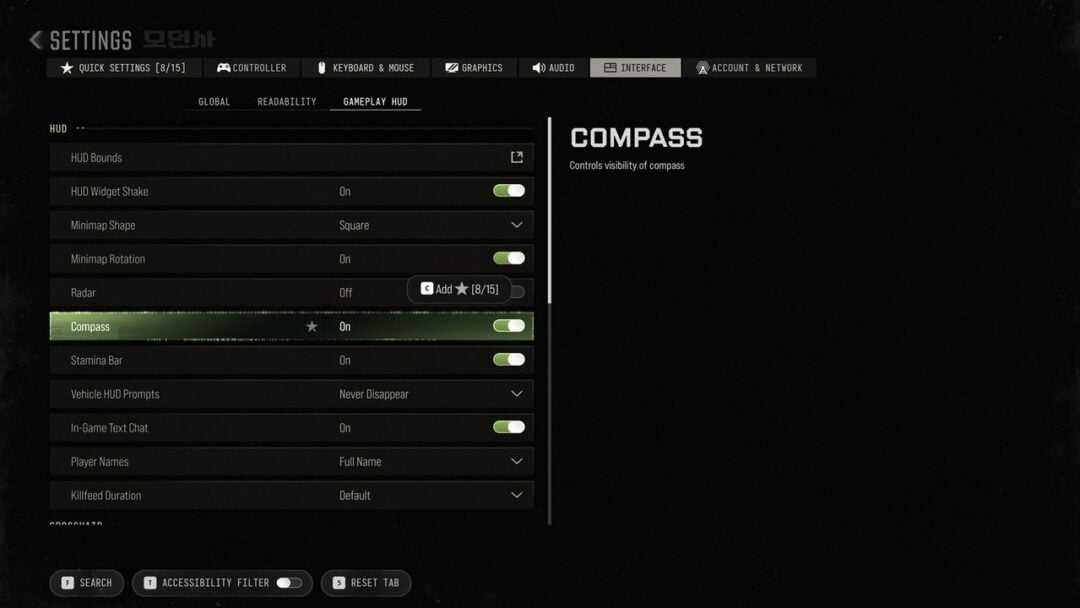
WARDOGS keeps its language control in one place, and it is not on the first settings screen you land on. The option sits inside the Interface tab, below the gear icon, and the change only sticks once you confirm it. Here is exactly where it lives and what to do if you end up stuck in a menu you cannot read.
Quick answer: Open the pause menu, click the gear icon, select INTERFACE, use the LANGUAGE dropdown at the top of the list, then click APPLY at the bottom of the screen.
Languages you can pick in WARDOGS
The dropdown lists each language under its own name rather than in English, so scan for the native spelling. Every option changes interface text only; the game’s spoken audio stays in English.
| Language | Label in the dropdown |
|---|---|
| English | English |
| German | Deutsch |
| Spanish (Spain) | español (España) |
| French | français (France) |
| Italian | italiano (Italia) |
| Korean | 한국어 |
| Polish | polski (Polska) |
| Portuguese | português |
| Portuguese (Brazil) | português (Brasil) |
| Russian | русский |
| Turkish | Türkçe (Türkiye) |
| Ukrainian | українська (Україна) |
| Simplified Chinese | 中文 (简体) |
Japanese and Traditional Chinese are also part of the game’s localization support. Vietnamese, Arabic, and Thai are not offered, and there is no official way to add them.
Change the language from the Interface settings
You can do this from the main menu or mid-match without leaving the server. The route is the same either way.


How to confirm the language actually changed
Watch the Interface page itself. As soon as APPLY registers, the surrounding labels redraw in the new language, so entries like NAMEPLATE BACKGROUND OPACITY, ADAPTIVE CROSSHAIR, KILLFEED FILTER, and HUD VISIBILITY PRESET should all switch over. If those still read in English, the change did not take and you need to press APPLY again.

Note: RESET TO DEFAULT sits next to APPLY on the same row. It restores the whole Interface page, not just the language, so avoid it if you have tuned your HUD.
Force the language back to English with GameUserSettings.ini
Two situations leave you unable to fix this in-game. One is picking a language you cannot read and losing track of the menu. The other is the first-launch setup flow, where the audio page can cut off at the bottom with no visible continue button and no hotkey to confirm. Editing the config file resolves both.

%localappdata%\Wardogs\Saved\Config\WindowsClientLanguage=enBecause the setting lives in a per-machine config file rather than your account, each PC you play on needs its own pass through the Interface tab. Set it once per install and it carries across sessions.