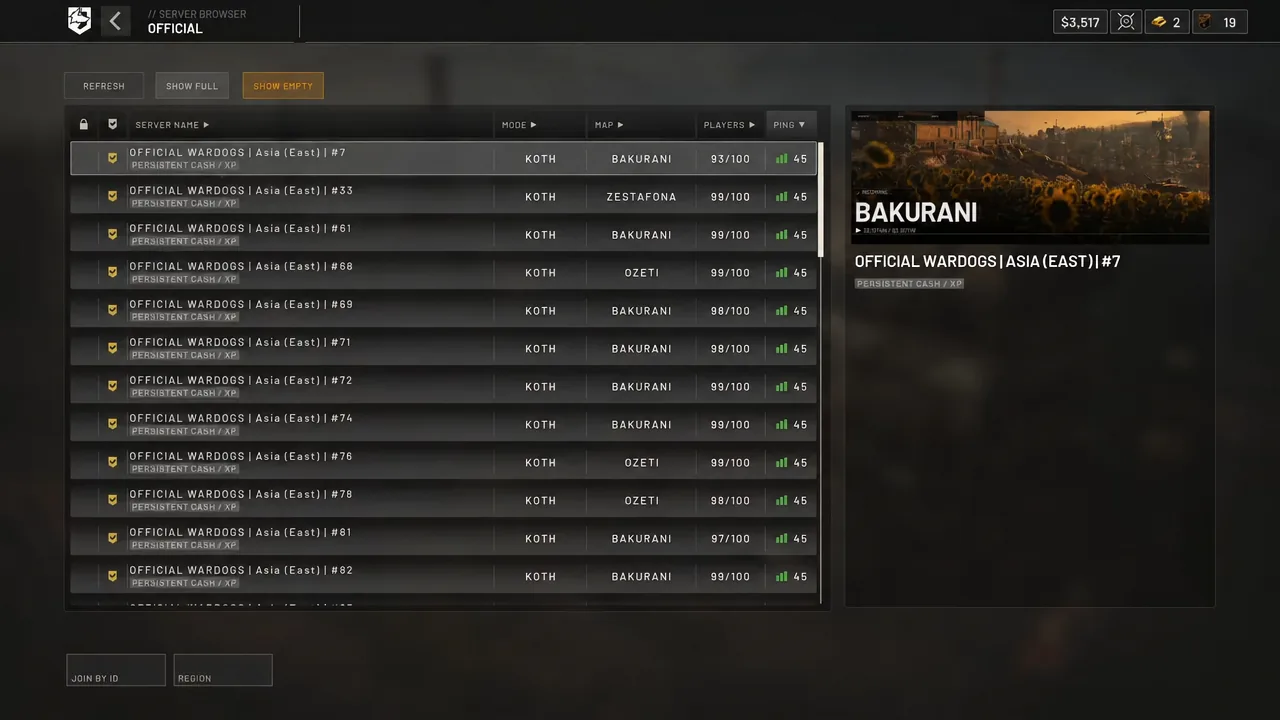
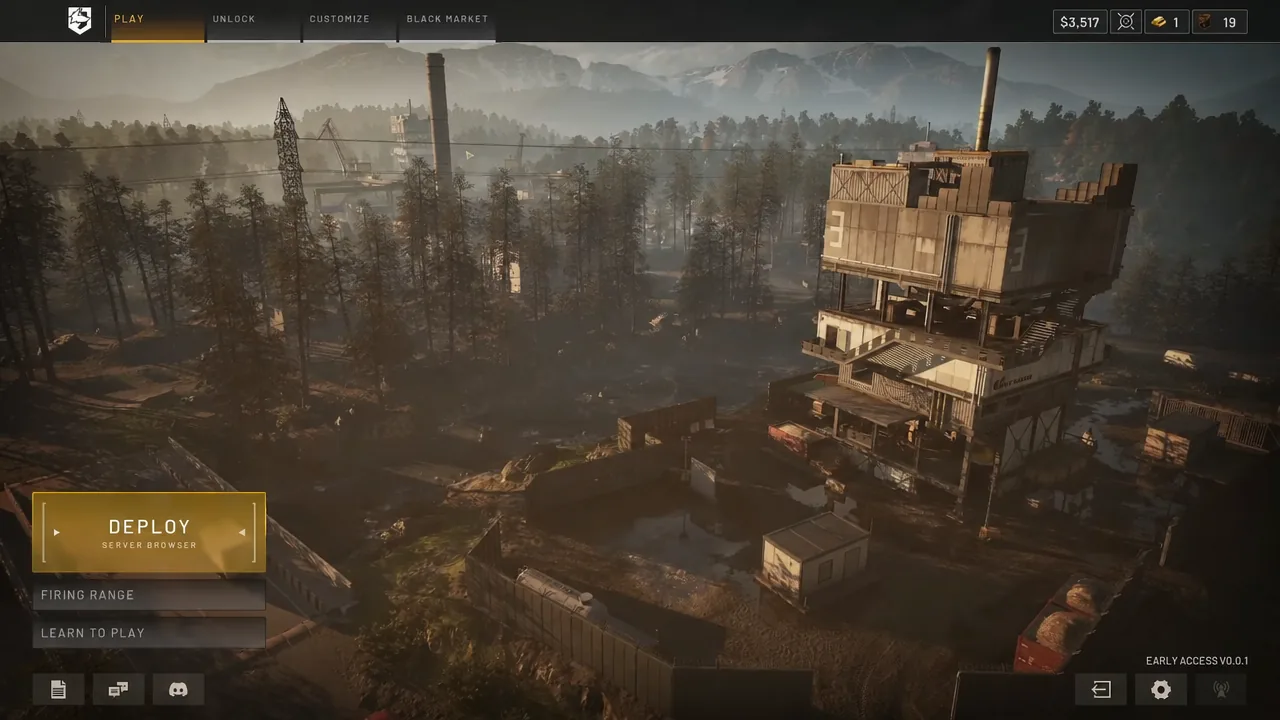
WARDOGS points you at the closest server cluster the first time you open the server browser, which is fine until your local lobbies are empty, full, or simply asleep. The region filter is not buried in a settings menu. It sits on the server browser itself, and changing it takes about four clicks.
Quick answer: Open DEPLOY > SERVER BROWSER, pick OFFICIAL or COMMUNITY, click REGION at the bottom of the screen, tick the regions you want, then hit CONFIRM to refresh the list.
Change your WARDOGS server region from the server browser
There is no region option in the main settings menu, and nothing to change on Steam. Everything happens inside the browser you use to pick a match.
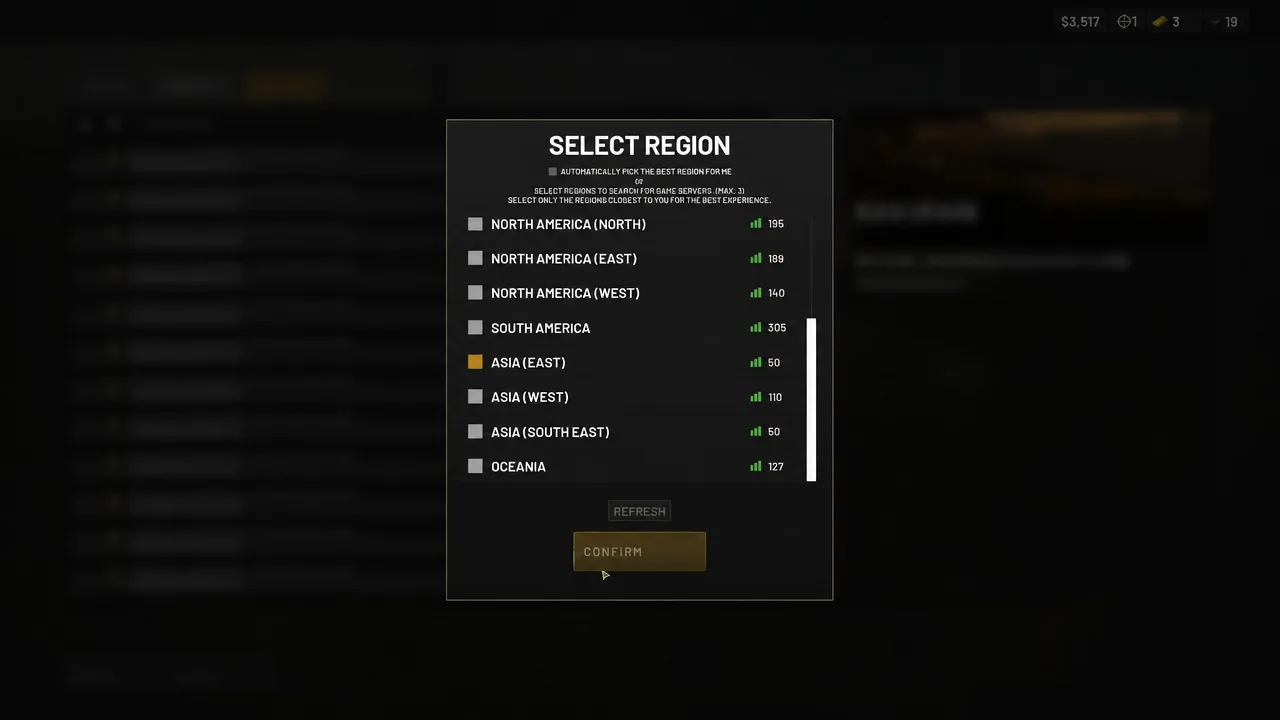
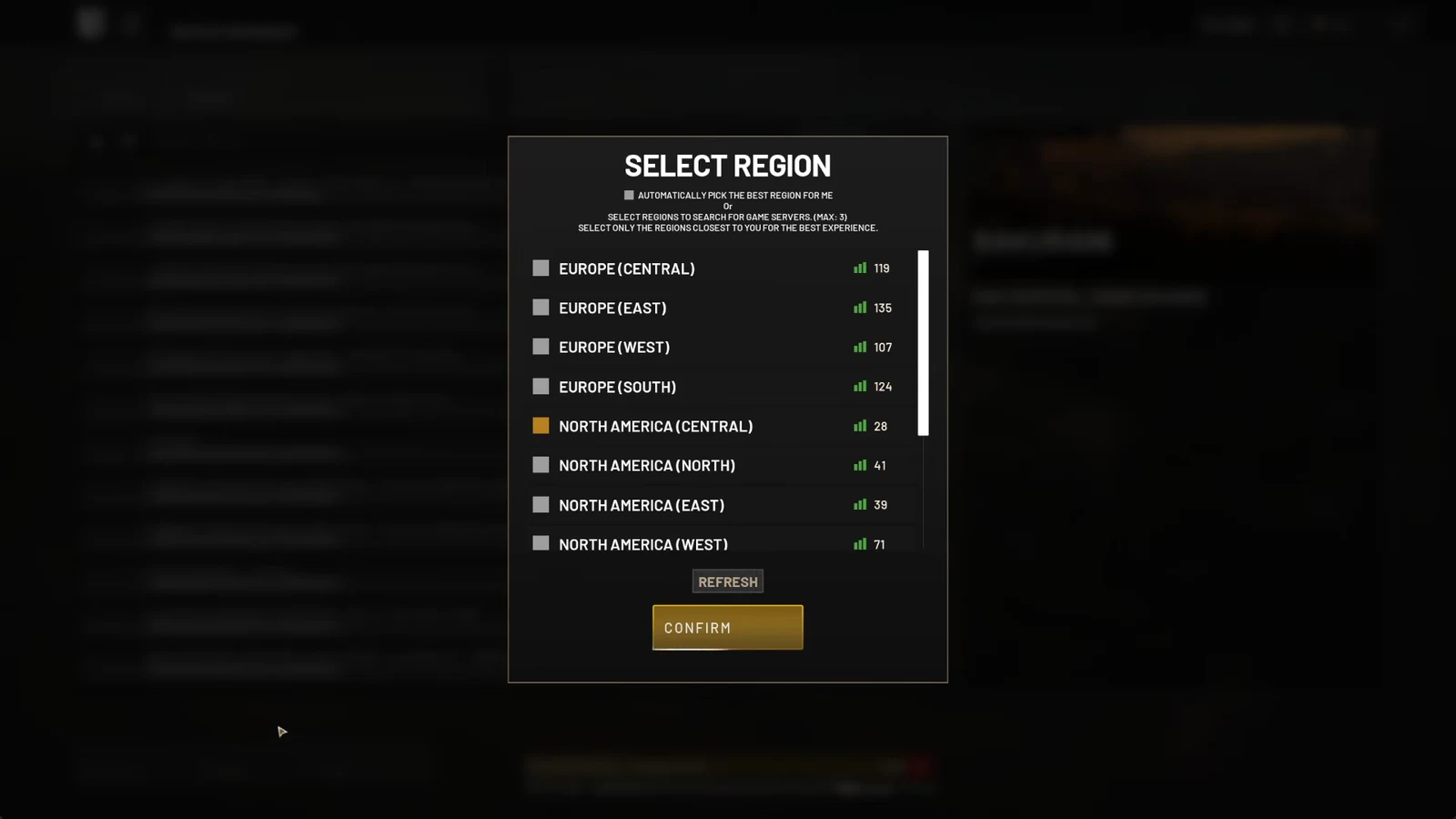
How to confirm the region change applied
You do not need to restart the game or back out to the main menu. Two things tell you it worked. First, the region label above the server list changes to the one you picked. Second, the list itself repopulates with different servers — new names, new player counts, new ping values.
If the list looks identical after confirming, press REFRESH once and let the query finish before touching anything else. The counts shown next to each server are a snapshot, not a live feed.
Every WARDOGS server region in the SELECT REGION menu
Thirteen entries appear in the overlay, split across five broad areas. The labels below are exactly as they read in game.
| Area | Entries in the menu |
|---|---|
| Europe | EUROPE (CENTRAL), EUROPE (EAST), EUROPE (WEST), EUROPE (SOUTH) |
| North America | NORTH AMERICA (CENTRAL), NORTH AMERICA (NORTH), NORTH AMERICA (EAST), NORTH AMERICA (WEST) |
| South America | SOUTH AMERICA |
| Asia | ASIA (EAST), ASIA (WEST), ASIA (SOUTH EAST) |
| Oceania | OCEANIA |
Oceania is served by Australian infrastructure in Sydney, so players in Australia and New Zealand get a local option rather than being pushed onto overseas nodes. Southeast Asian traffic routes through Singapore, and East Asian matches run out of Tokyo and Seoul.
Selecting multiple regions, and what to do if the list comes back empty
The overlay is built for multi-select. Its own text reads “SELECT REGIONS TO AUTOMATICALLY FIND THE BEST MATCH FOR YOU,” and ticking several at once widens the pool so you can compare ping across neighbouring clusters in a single list. That is the normal behaviour; during the closed beta test, BULKHEAD capped searching to one region at a time.
Multi-select does have a failure mode worth knowing about. Ticking more than one region can return no servers at all, leaving you staring at a blank browser while the rest of the game works fine. If that happens, work through the filters rather than the game files.
- Clear anything typed into the server name search box.
- Reopen REGION and cut the selection down to a single region.
- Make sure the Official or Community filter is switched on — turning both off returns nothing.
- Leave at least one population filter active, such as SHOW EMPTY or SHOW FULL.
- Press REFRESH once and wait for the query to complete.
If a single region with permissive filters still returns nothing and other players are reporting the same blank browser, the server list service is down and there is no local setting left to change.
Can you join a WARDOGS server outside your own region?
Yes. There is no region lock in WARDOGS. The filter simply defaults to whichever region is closest to you, and you are free to change it to any entry in the list and join from there. That matters if you work unsociable hours and want lobbies that are busy while your own region is asleep, or if you are squadding up with friends on another continent.
The trade is latency. The region menu recommends staying under 150 ping for a playable experience, and in a shooter with 100 players and destructible cover, that number is the difference between landing shots and watching them disappear. Watch for fluctuating ping too — a server whose number jumps around will feel worse than a stable connection with a slightly higher average.
If you are playing with a party spread across regions, pick the cluster that splits the difference rather than the one that is best for the host. And if your local servers are full during a peak event, an adjacent region with free slots will usually get you into a match faster than sitting in a queue at home.