Call of Duty: Modern Warfare 4 sets aim down sights to Hold and sprint to Toggle by default, on both keyboard and controller. Each control has its own dropdown, so you can switch one without touching the other. To change which key or button does each action, see our Modern Warfare 4 controls guide.
Quick answer: For ADS, change Aim Down Sight Behavior under Keyboard & Mouse > Combat or Controller > Aiming. For sprint, change Sprint/Tactical Sprint Behavior under Keyboard & Mouse > Movement or Controller > Movement Advanced Settings.
How to change ADS to toggle or hold
On keyboard and mouse, the ADS option sits at the top of the combat settings.
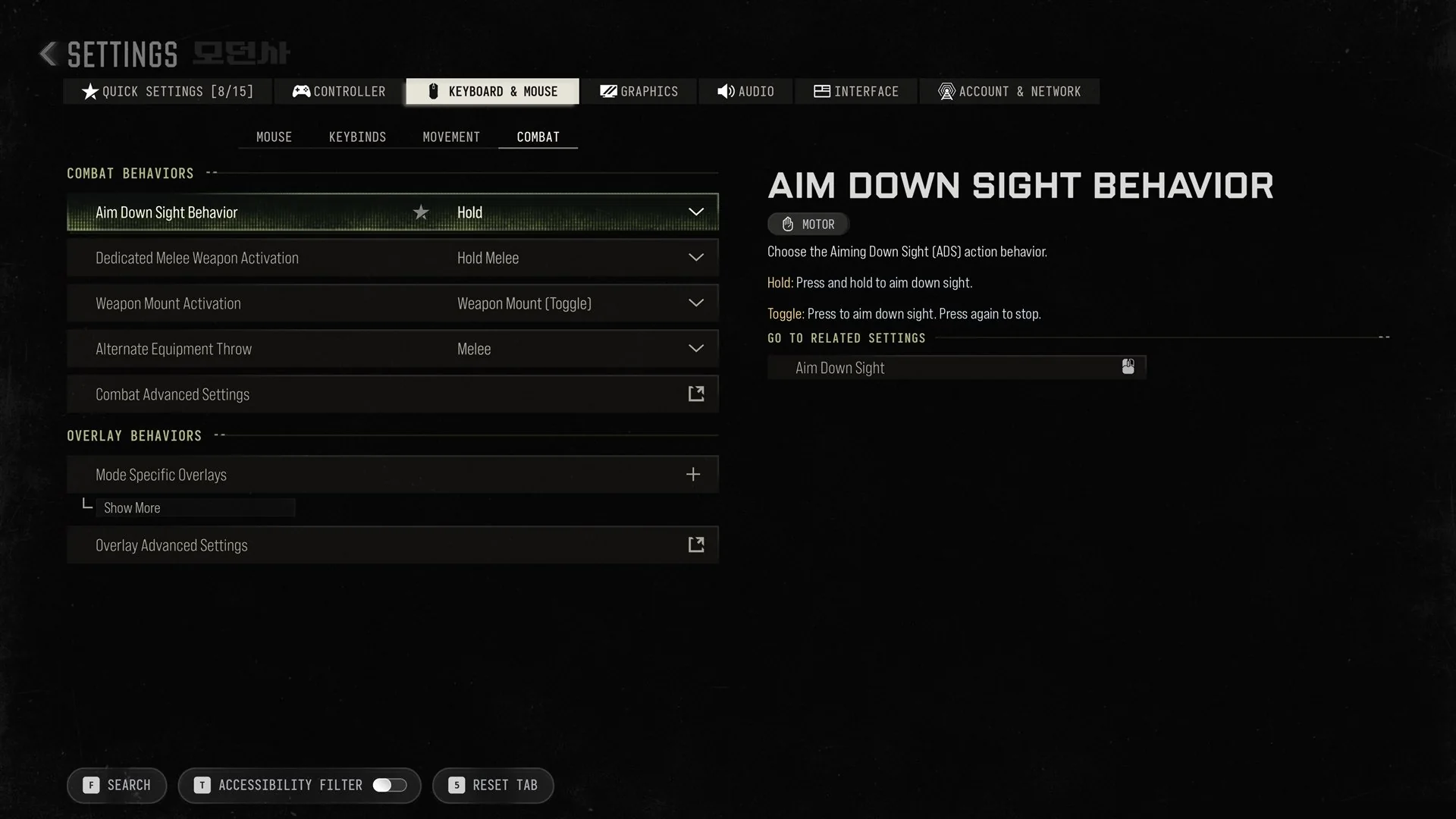
After you choose a mode, that value appears in the row. To remap the key too, use the panel’s Go to related settings link to open the Aim Down Sight keybind.
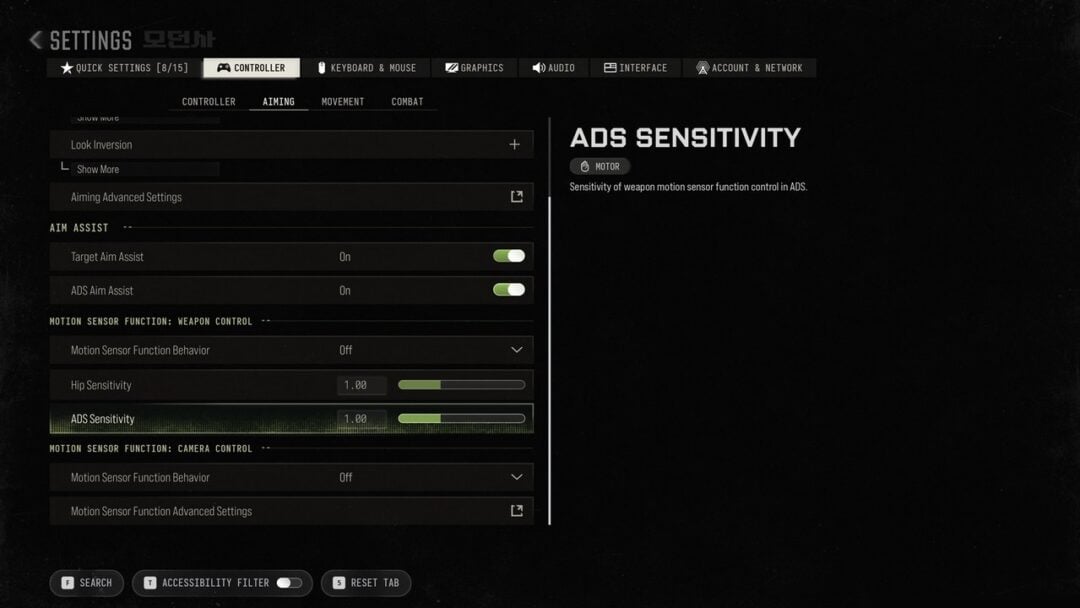
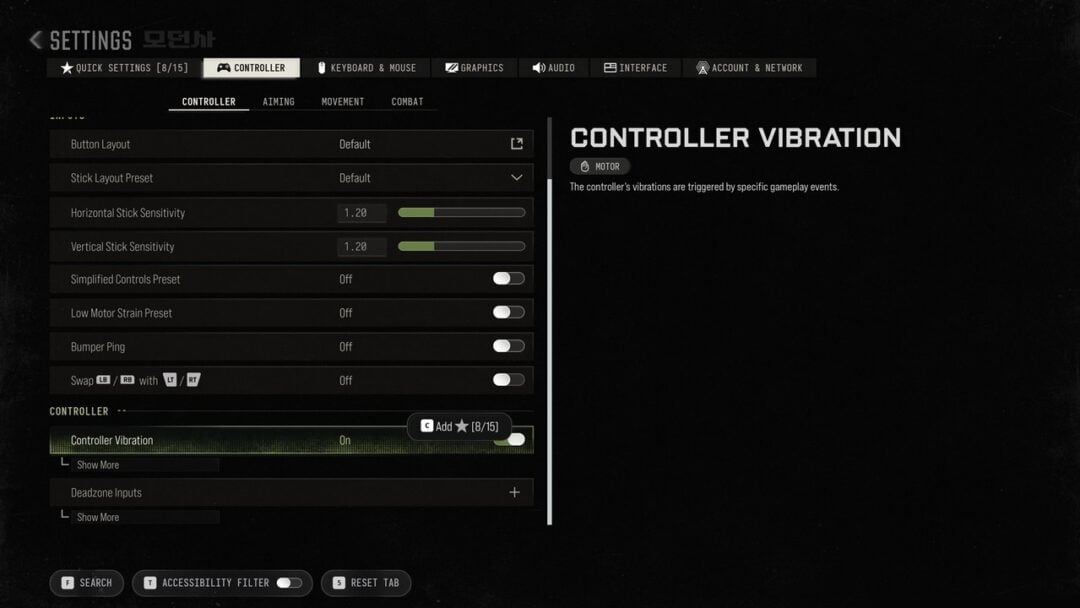
On controller, go to Settings > Controller and look in the AIMING section. Aim Down Sight Behavior is there too, set to Hold by default.
How to change sprint to hold or toggle
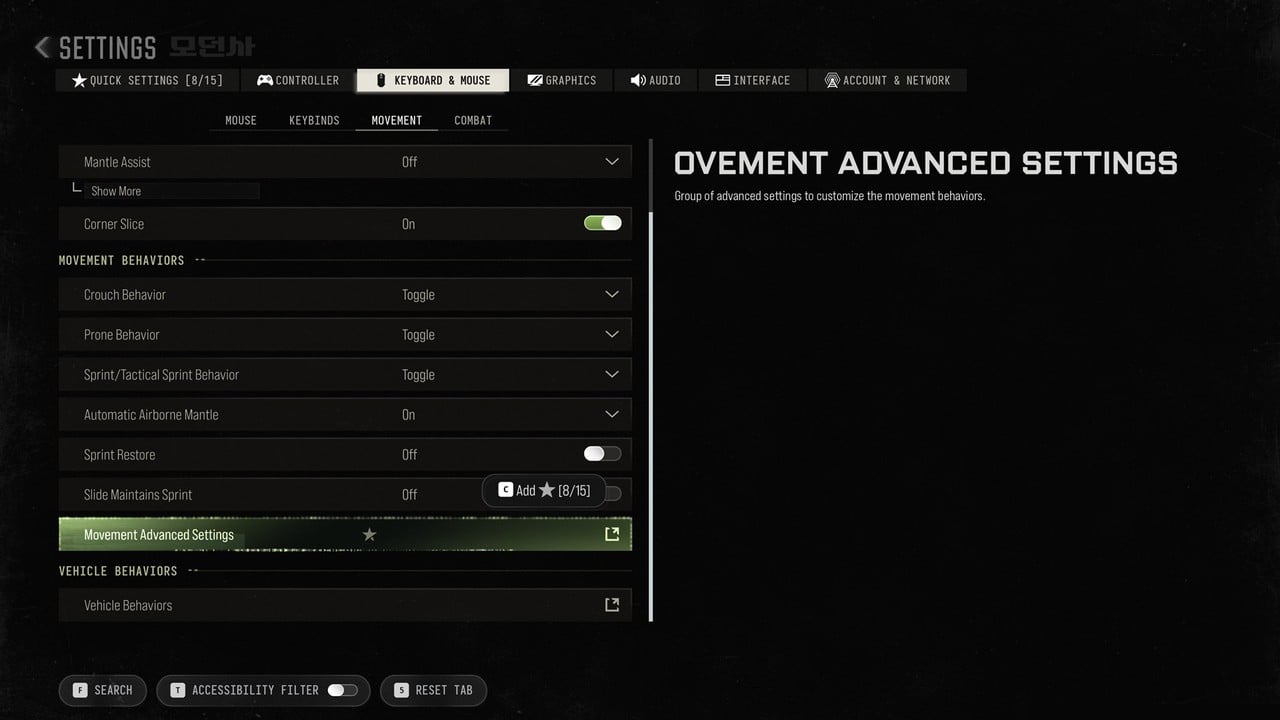
Sprint and Tactical Sprint share one setting. Whichever mode you choose, Tactical Sprint is still triggered by double pressing Sprint.
Keyboard and mouse
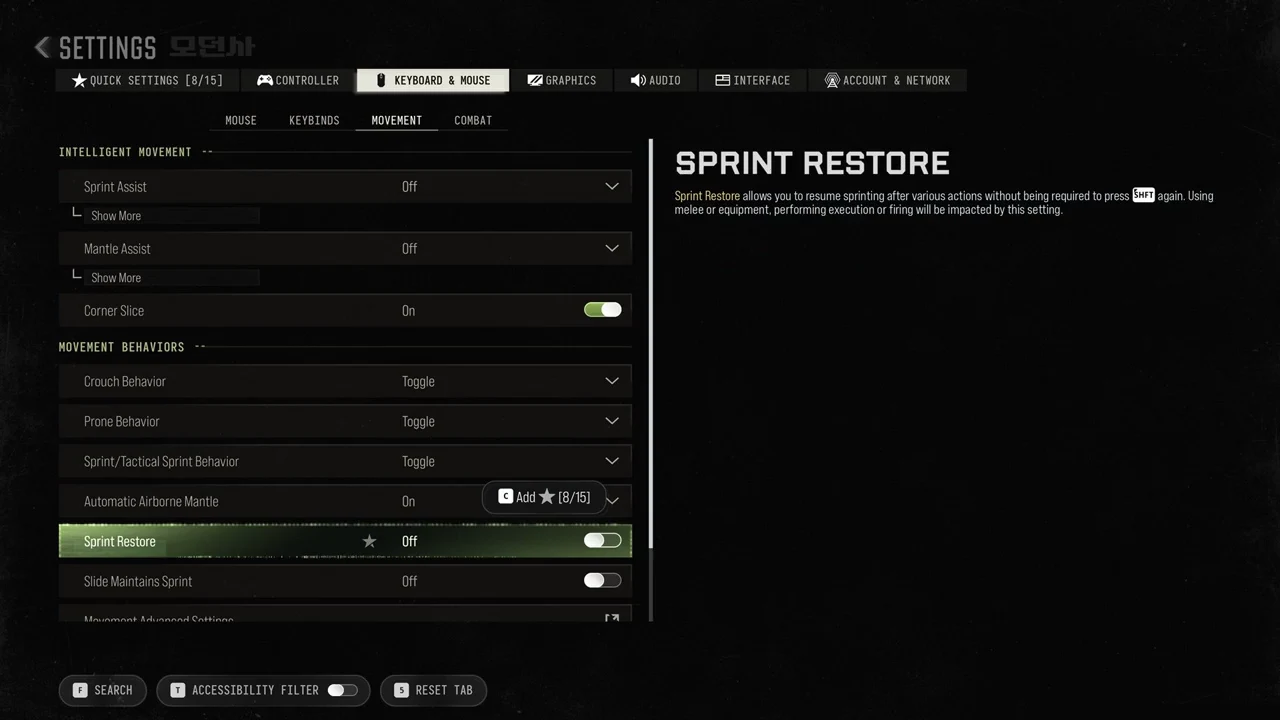
The same page also holds Crouch Behavior and Prone Behavior, both Toggle by default, along with Automatic Airborne Mantle (On) and Slide Maintains Sprint (Off).
Controller
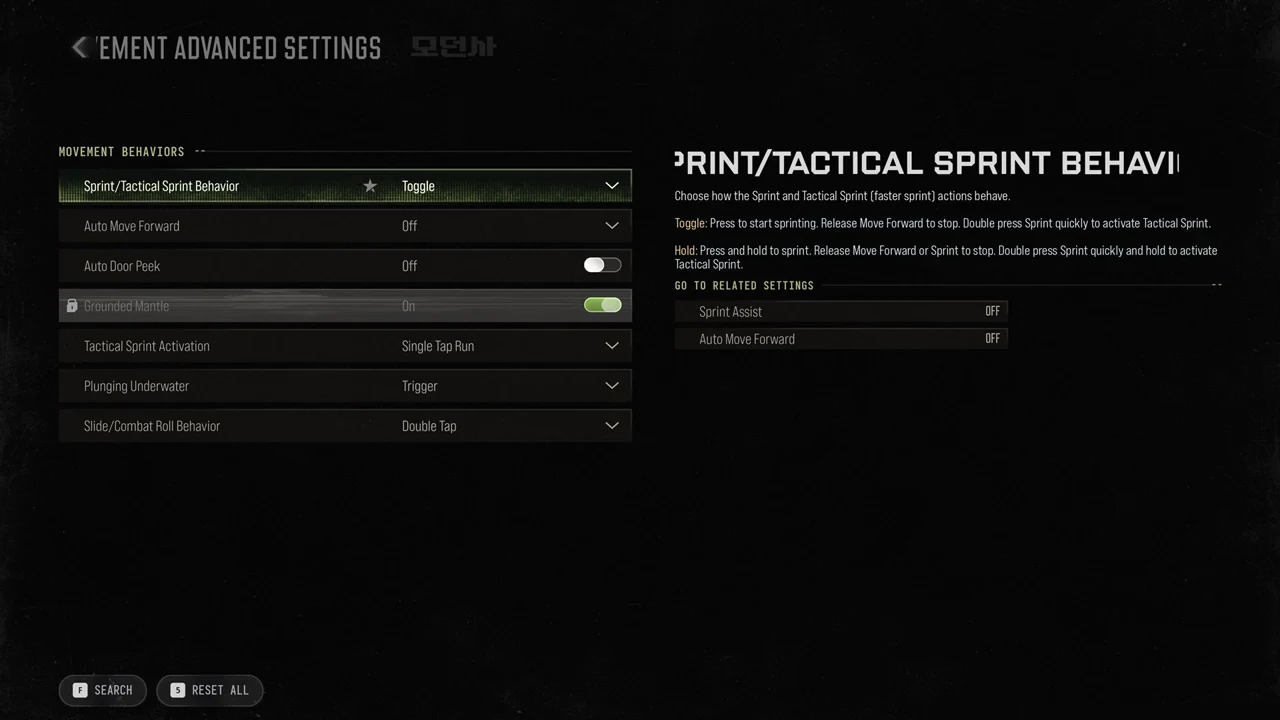
Here is exactly how the two modes behave:
- Toggle: “Press to start sprinting. Release Move Forward to stop. Double press Sprint quickly to activate Tactical Sprint.”
- Hold: “Press and hold to sprint. Release Move Forward or Sprint to stop. Double press Sprint quickly and hold to activate Tactical Sprint.”
Sprint Assist and Auto Move Forward are the related settings for this option, and both default to OFF. On that same page, Tactical Sprint Activation is set to Single Tap Run, while Slide/Combat Roll Behavior is set to Double Tap.
Other hold and toggle settings
A few other actions also have their own behavior dropdowns. These are the defaults:
| Setting | Where | Default |
|---|---|---|
| Aim Down Sight Behavior | Keyboard & Controller | Hold |
| Sprint/Tactical Sprint Behavior | Keyboard & Controller | Toggle |
| Crouch Behavior | Keyboard & Mouse | Toggle |
| Prone Behavior | Keyboard & Mouse | Toggle |
| Equipment Behavior | Controller | Hold |
| Manual Fire Behavior | Controller | Press |
| Dedicated Melee Weapon Activation | Keyboard & Controller | Hold Melee |
| Scoreboard/Map/Stats Behavior | Controller | Toggle |
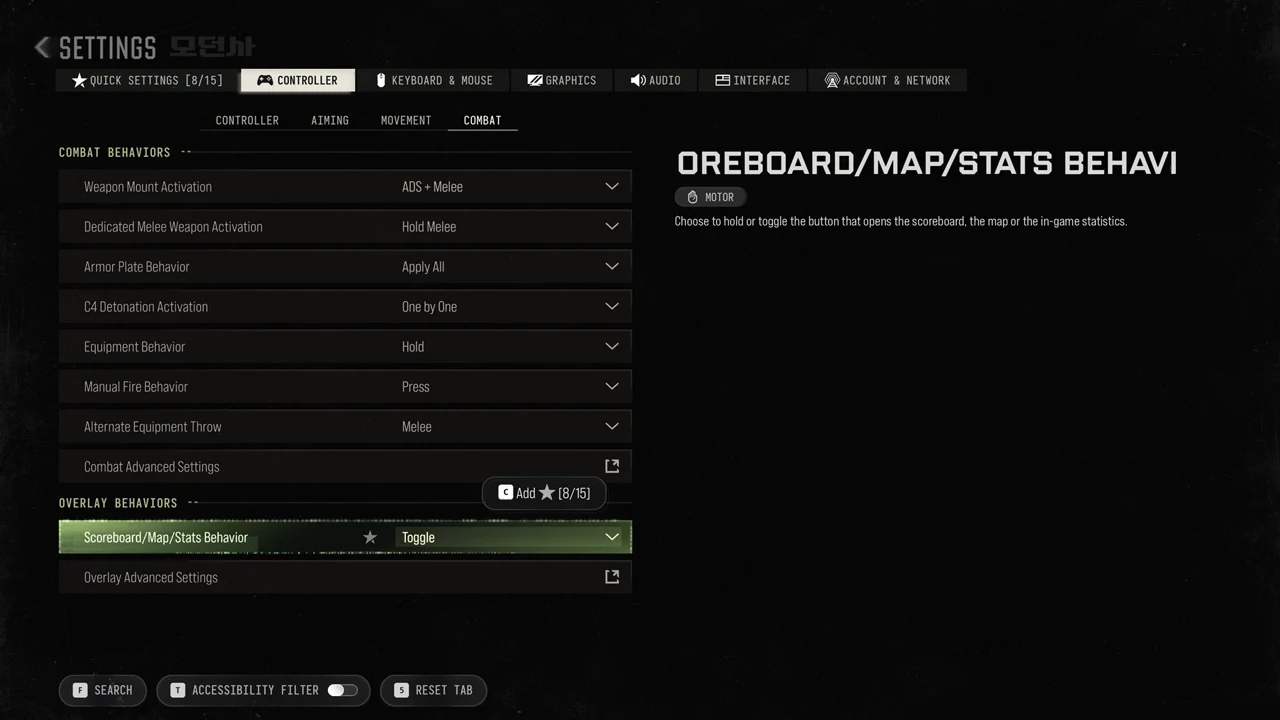
On controller, Equipment Behavior, Manual Fire Behavior and Dedicated Melee Weapon Activation sit under Controller > Combat Behaviors. Scoreboard/Map/Stats Behavior is further down, under Overlay Behaviors, and its panel reads “Choose to hold or toggle the button that opens the scoreboard, the map or the in-game statistics.”