Enshrouded: How to Make a Pickaxe and Replace a Broken One
The basic Pickaxe needs no crafting station, costs Stone, Twigs and String, and takes a few menu clicks to swap in.
The basic Pickaxe needs no crafting station, costs Stone, Twigs and String, and takes a few menu clicks to swap in.
by AllThingsHow Staff
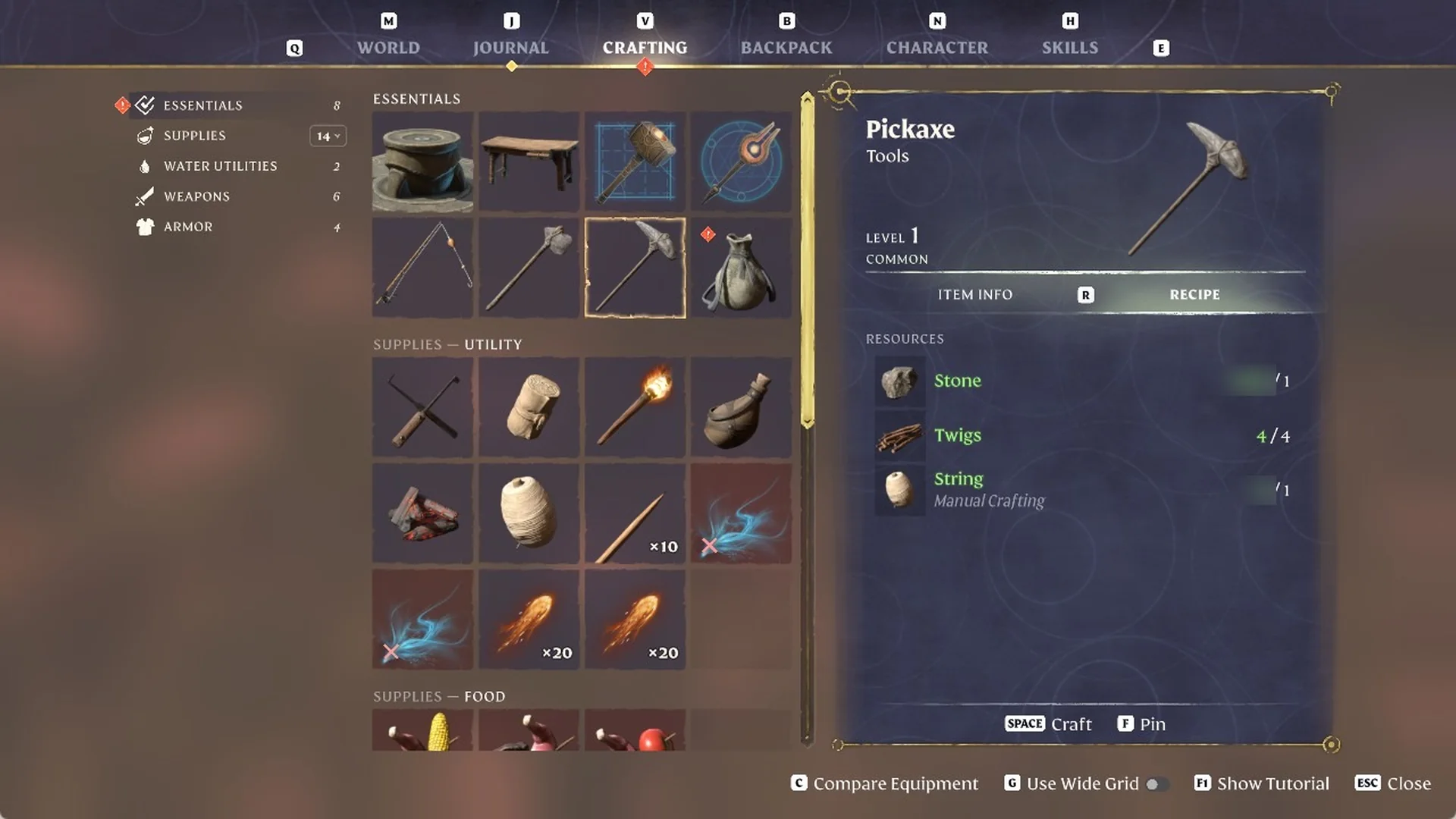
You don’t need a crafting station to make the basic Pickaxe in Enshrouded. You craft it by hand from the CRAFTING tab, under ESSENTIALS, for Stone 1, Twigs 4 and String 1. When the old one breaks, its card reads “Durability 0 / 180”. Replacing it means crafting a fresh one, deleting the broken one and putting the new tool on your action bar.
Quick answer: Press V, open ESSENTIALS, select the Pickaxe next to the Axe, and press SPACE once Stone 1, Twigs 4 and String 1 all show green.
Pickaxe recipe in Enshrouded
Resource
Amount
Stone
1
Twigs
4
String
1
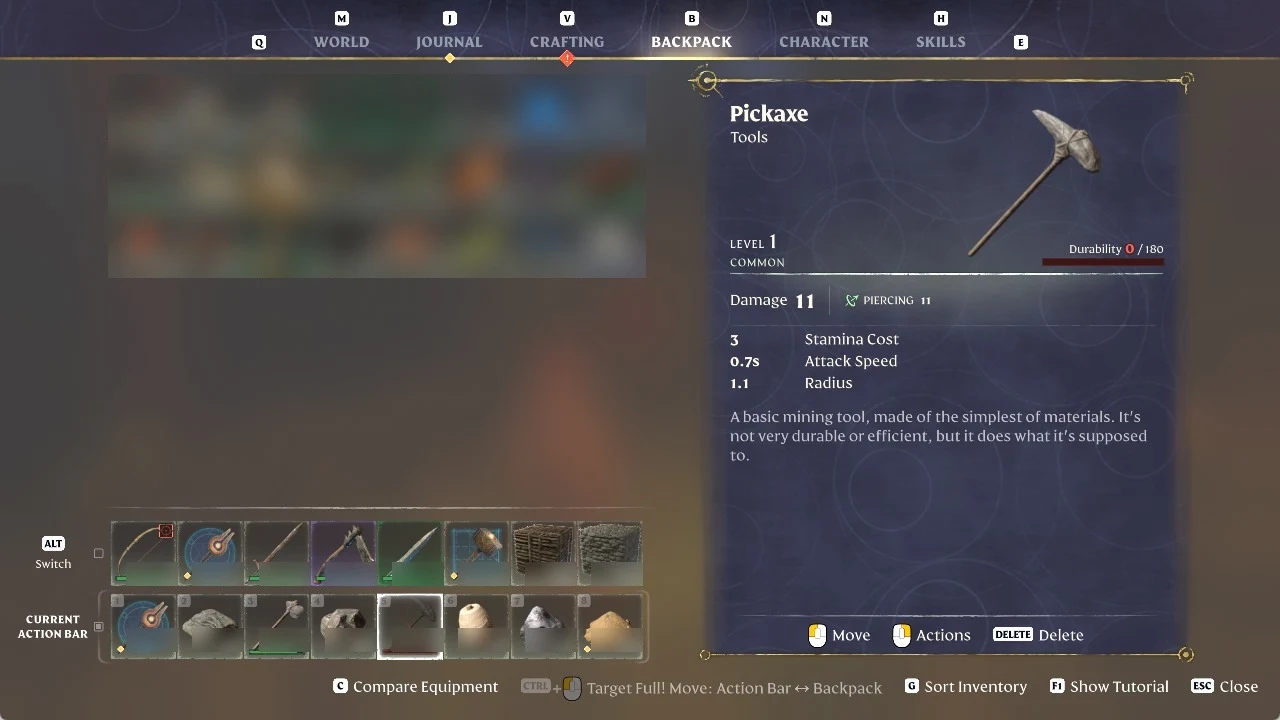
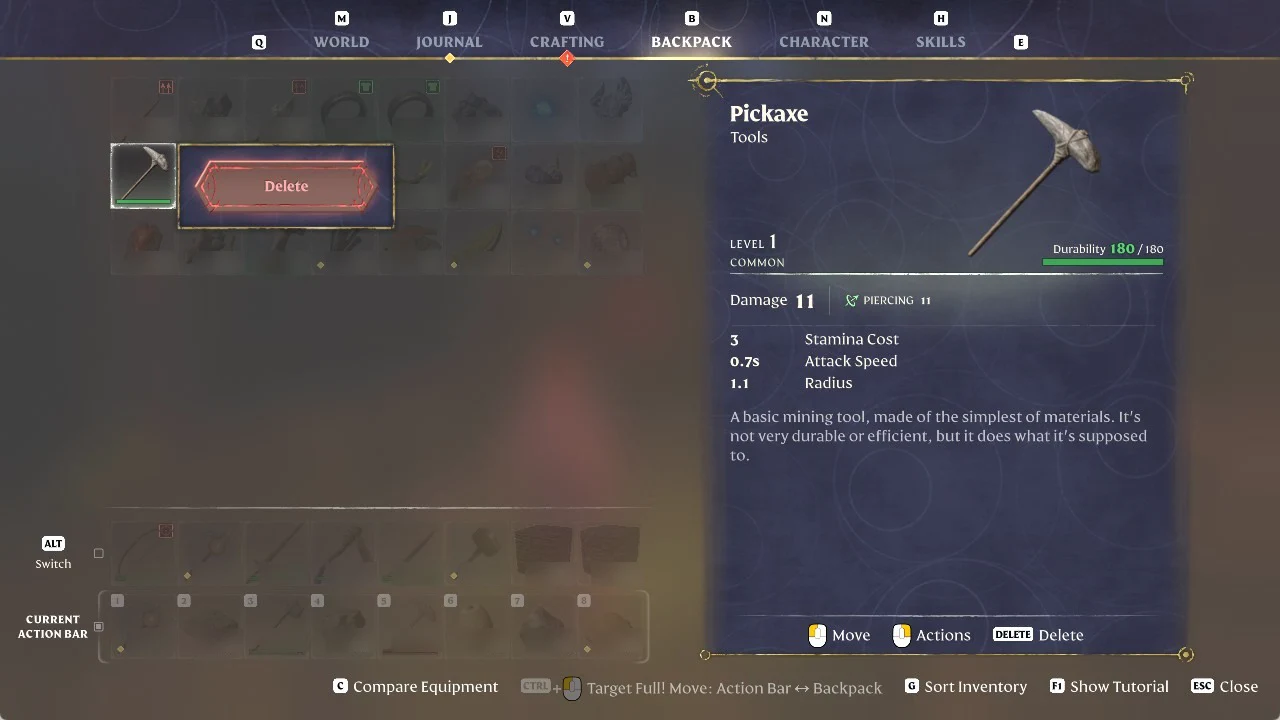
This completed tool belongs to the Tools category and is rated LEVEL 1, COMMON. Its card shows Damage 11, PIERCING 11, a 3 Stamina Cost, 0.7s Attack Speed, and 1.1 Radius, followed by this description:
“A basic mining tool, made of the simplest of materials. It’s not very durable or efficient, but it does what it’s supposed to.”
This is the level 1 Pickaxe. The metal pickaxes are made at the Blacksmith: see all Blacksmith recipes.
How to tell your Pickaxe is broken
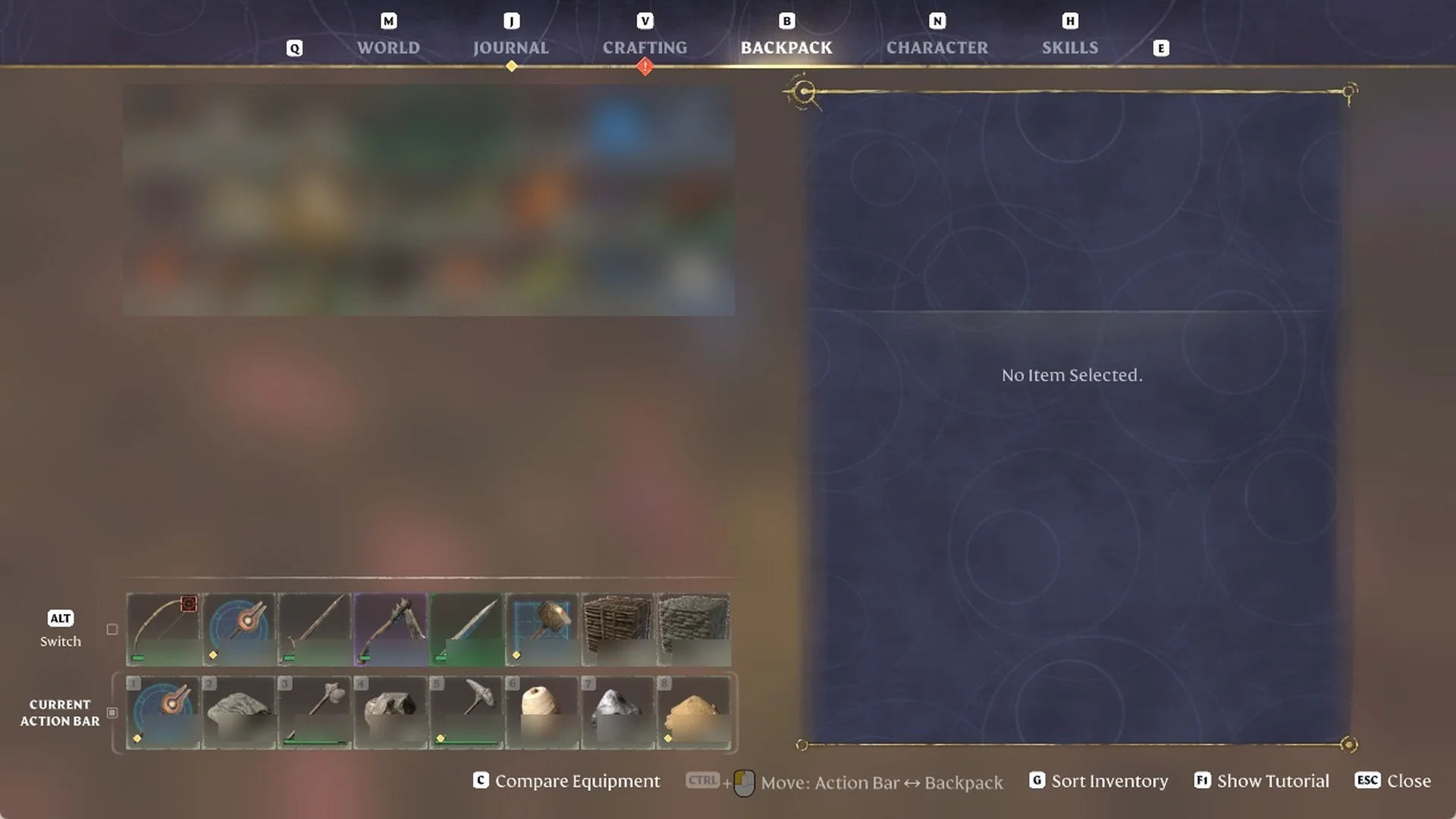
Open the BACKPACK tab and select the Pickaxe. Its card reads “Durability 0 / 180”: the 0 is red and the durability bar is empty. You can also spot it on the action bar, where a red bar sits under the tool’s slot.
The Backpack screen shows the Pickaxe (Tools, Level 1, Common) with 0/180 durability, alongside the current action bar.
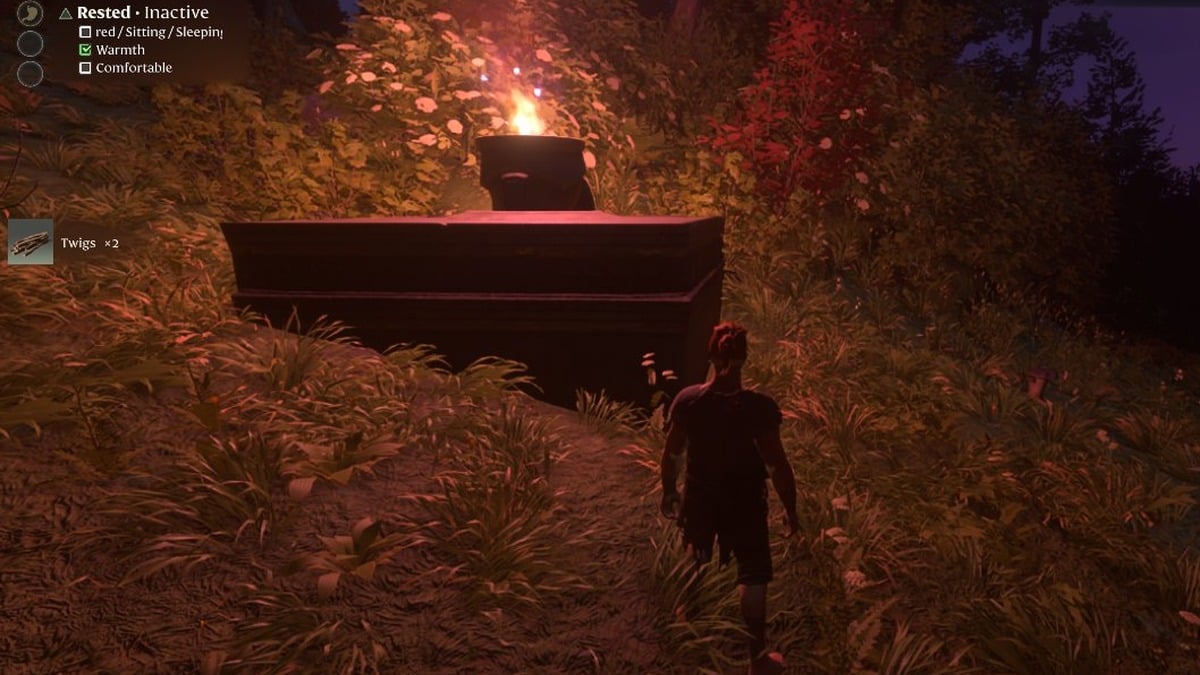
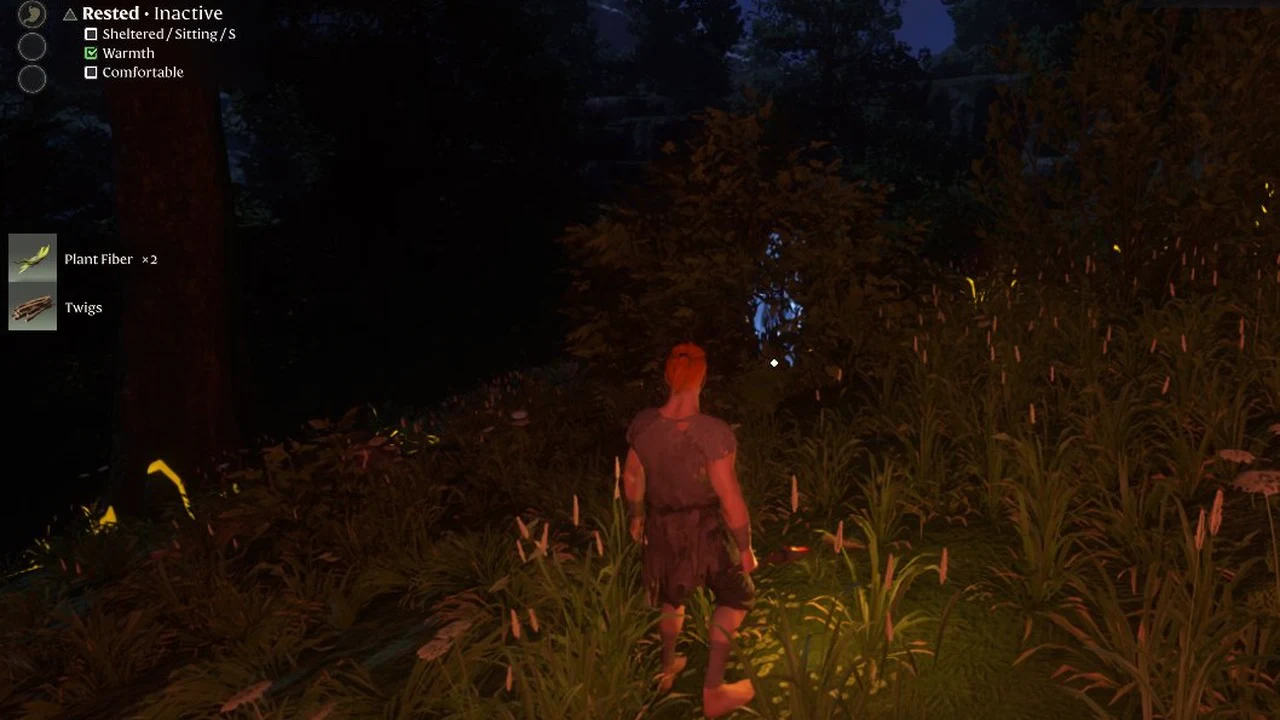
If you are short on Twigs, gather them from bushes and fallen branches, such as the ones around your Flame Altar. Tap E, then hold E to pick them up. Pickup notes read “Twigs” or “Twigs x2”, and a bush can also drop “Plant Fiber x2”.
Harvesting bushes and branches gives Twigs and Plant Fiber.
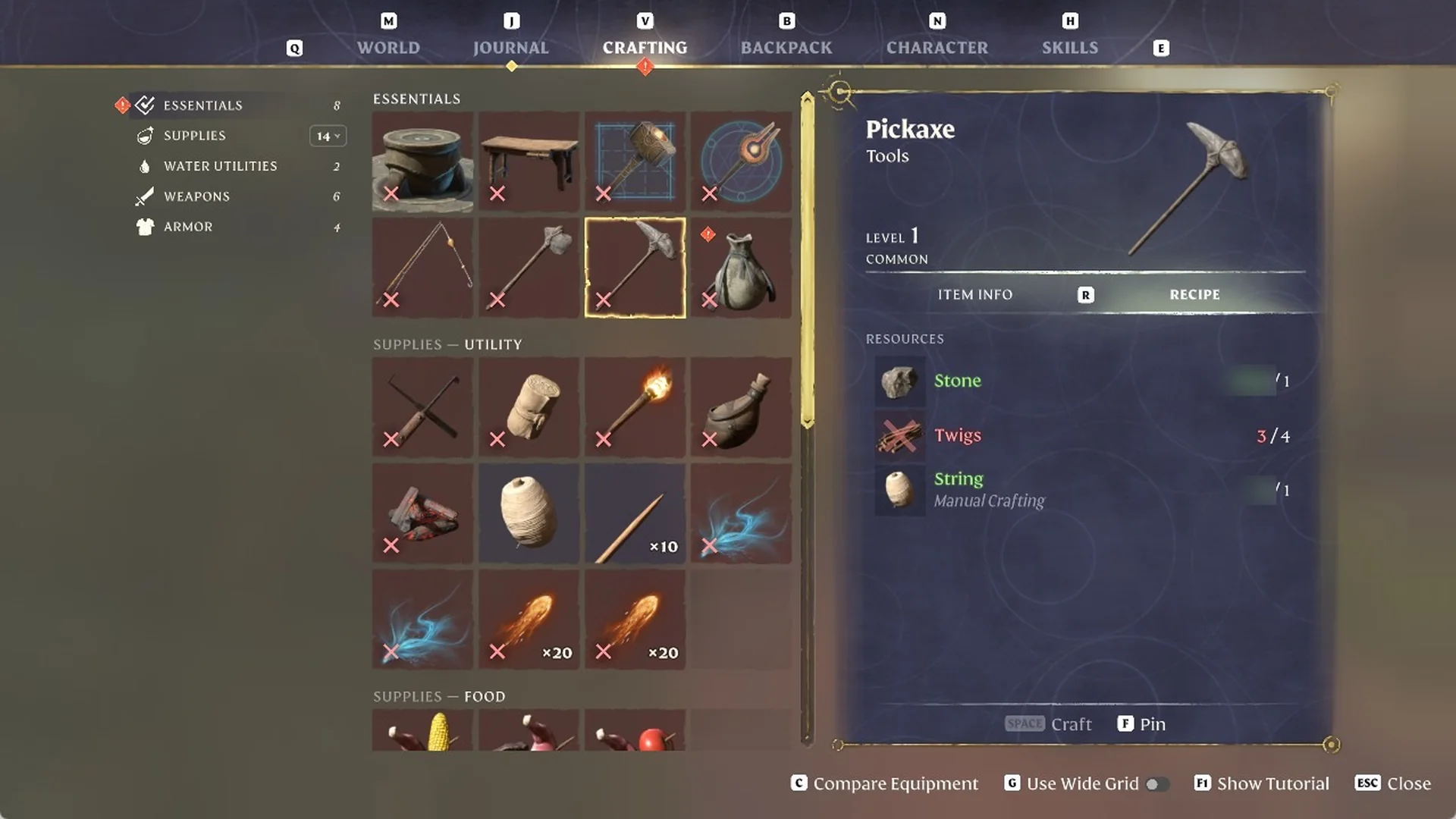
Press R to flip the card from ITEM INFO to RECIPE. Any resource you lack shows in red. With only three Twigs, for example, the line reads 3 / 4 and SPACE Craft stays greyed out.
The Pickaxe recipe card on the Crafting screen, showing the resources it needs.
Once every line is green and SPACE Craft lights up, press SPACE to craft. The Twigs line drops back to 0 / 4, and the new Pickaxe lands in your backpack reading “Durability 180 / 180”.
Every resource line, including ‘Twigs 4 / 4’, shows green and the Pickaxe is ready to craft.
In the BACKPACK tab, CTRL + click the broken Pickaxe to move it off the action bar and into the backpack. The hint at the bottom of the screen reads “Move: Action Bar <-> Backpack”. If the target is full, it reads “Target Full!” instead.
Select the broken Pickaxe, then open Actions with a right click and choose Delete. You can also press the DELETE key.
Delete removes the item selected on the card at the right, not the one under your cursor. Before proceeding, verify that the card shows Durability 0 / 180. Our first Delete threw away the new Pickaxe, and we had to craft it again.
This card shows the new Pickaxe at ‘Durability 180 / 180’, so do not delete it.
Close the menu and press the number key for the Pickaxe’s slot. The action bar goes back to slot 1 when you leave the menu, so the tool won’t be in your hands until you select it again.
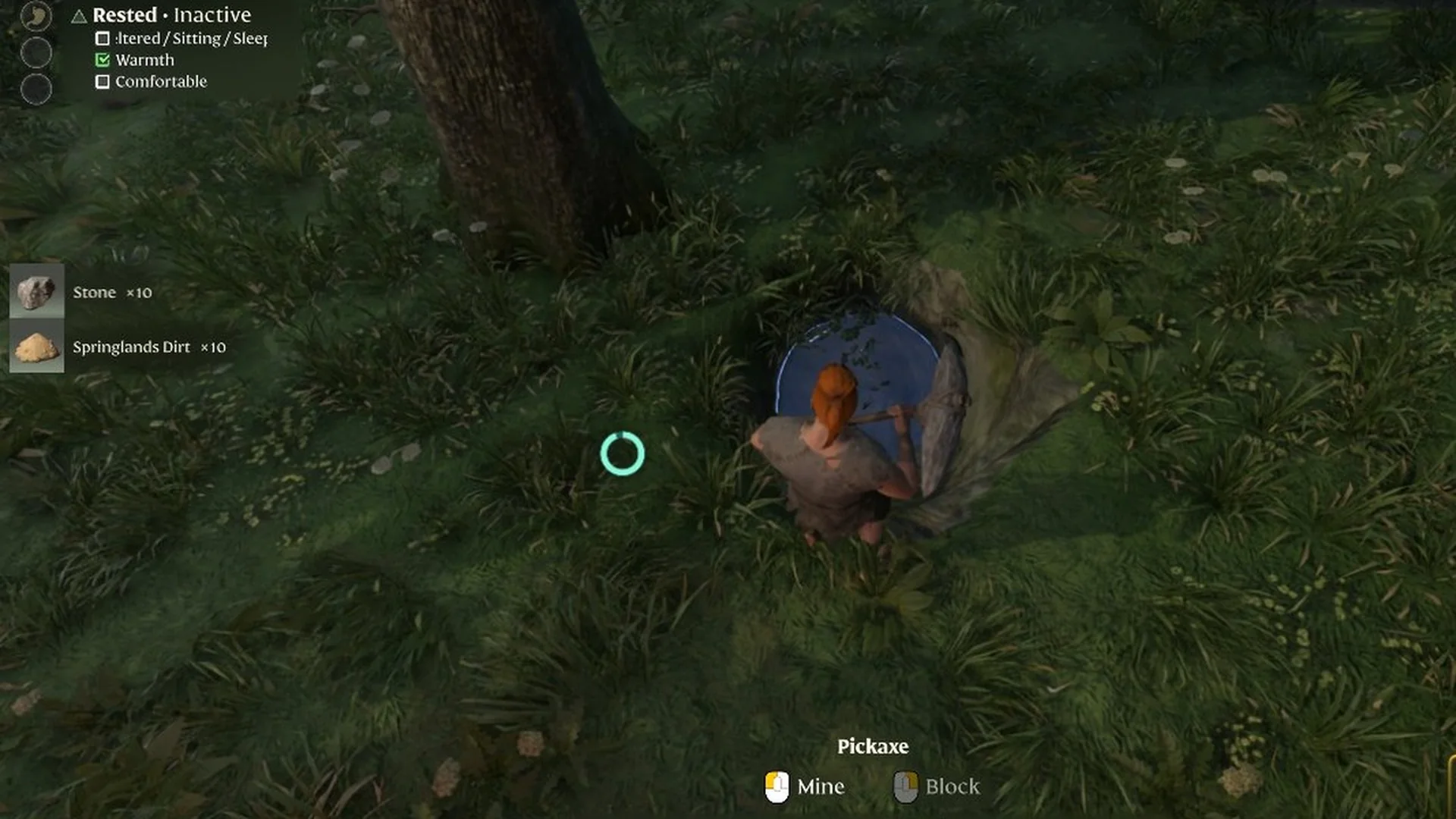
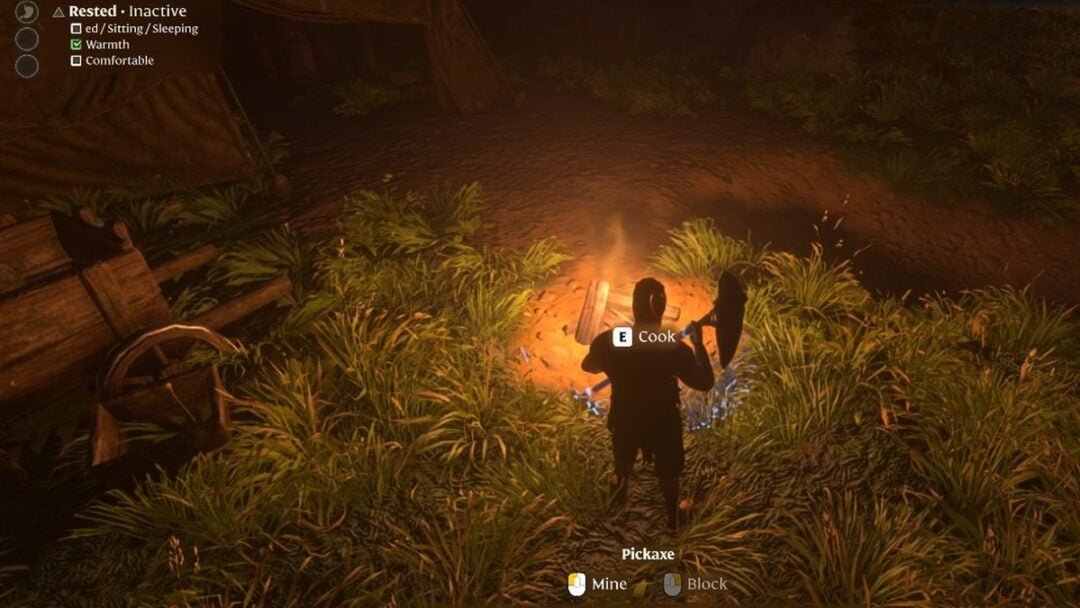
With the Pickaxe in hand, the hint under the action bar reads “Pickaxe,” with “Mine” on the left mouse button and “Block” on the right. Press the left mouse button on the ground to dig. Digging gave us Stone and Springlands Dirt, with pickup notes on the left. Once our backpack filled, “Backpack full” showed mid-screen as we dug; a bigger backpack gives more room.
In our game, digging grass with the Pickaxe picked up Stone and Springlands Dirt.