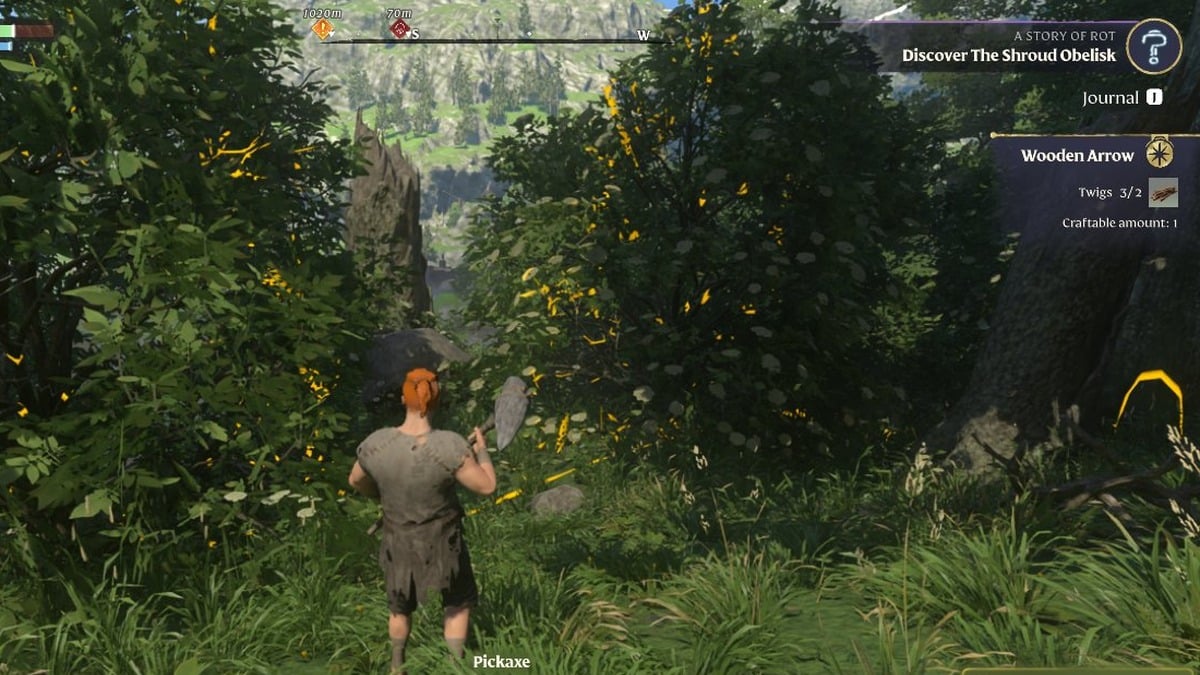
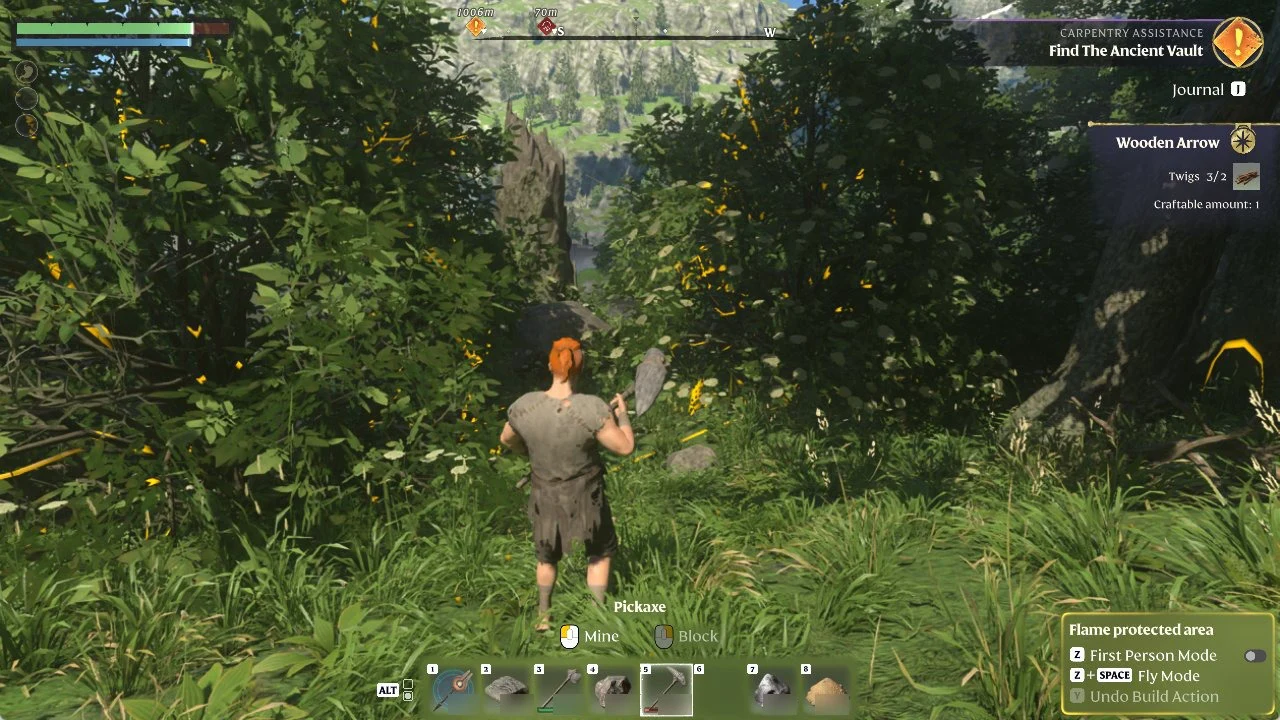
In Enshrouded, the tracked quest’s objective shows in the top right of the HUD, and you choose that quest in the JOURNAL. You can swap it for another quest or stop tracking it there too.
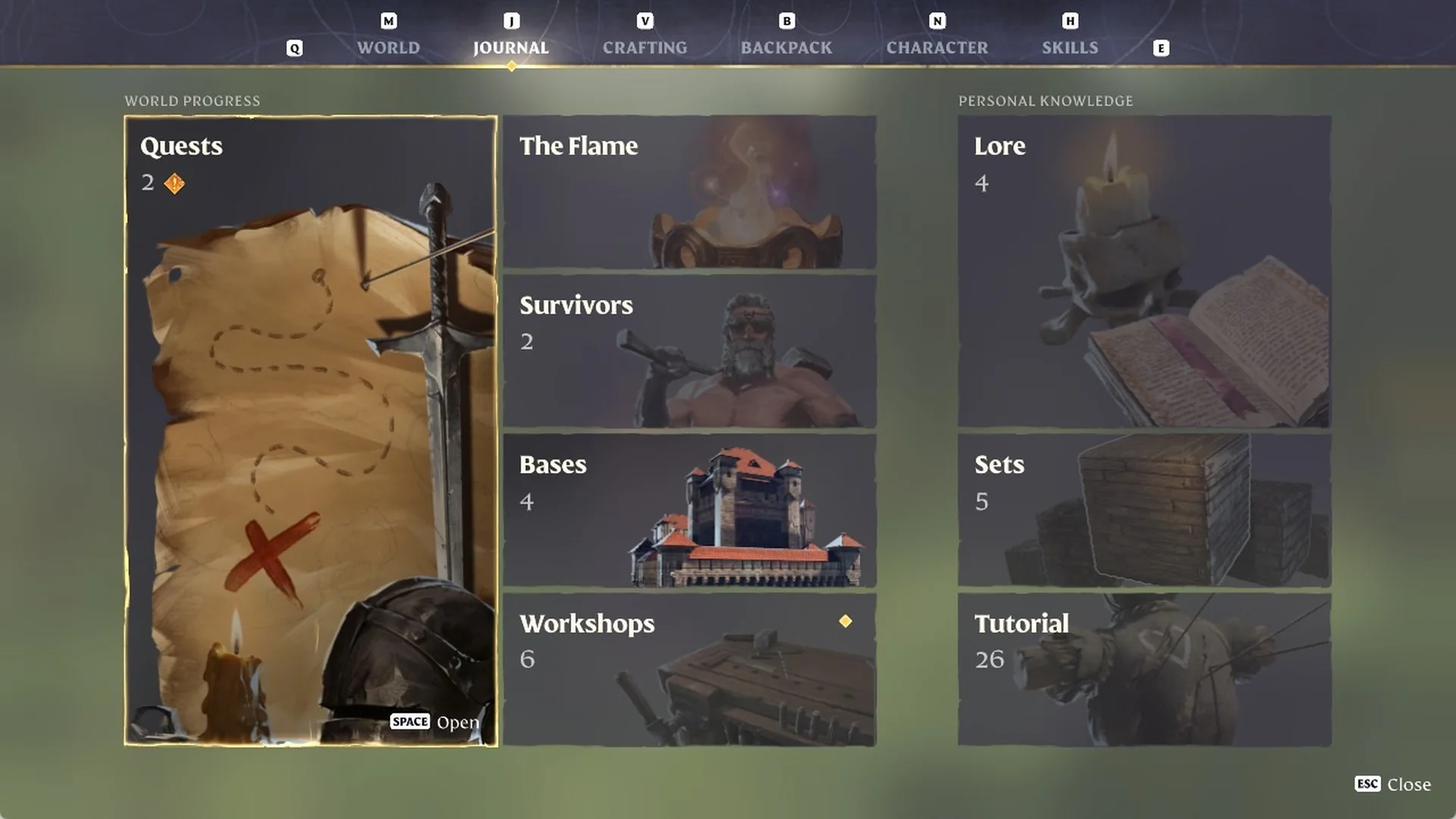
Quick answer: Press J, open Quests with SPACE, select a quest and press SPACE (“SPACE Start Tracking”). Its objective appears at the top right of the HUD.
Enshrouded quest tracking controls
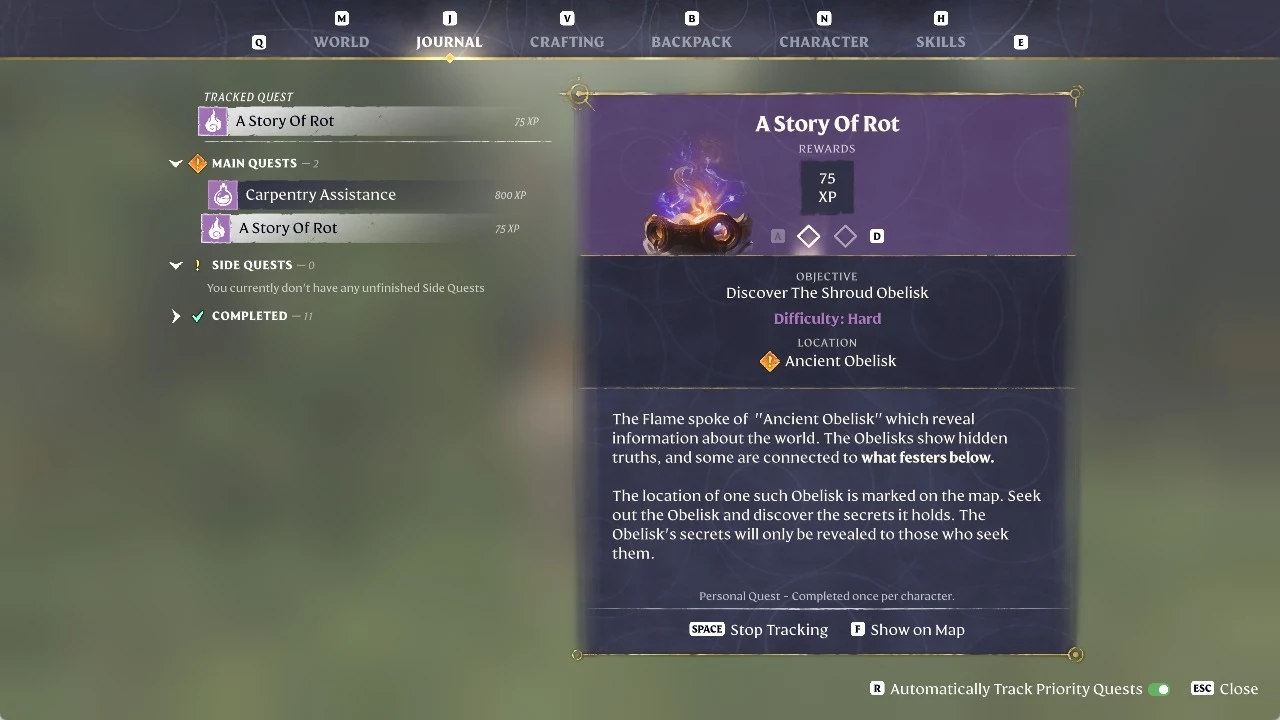
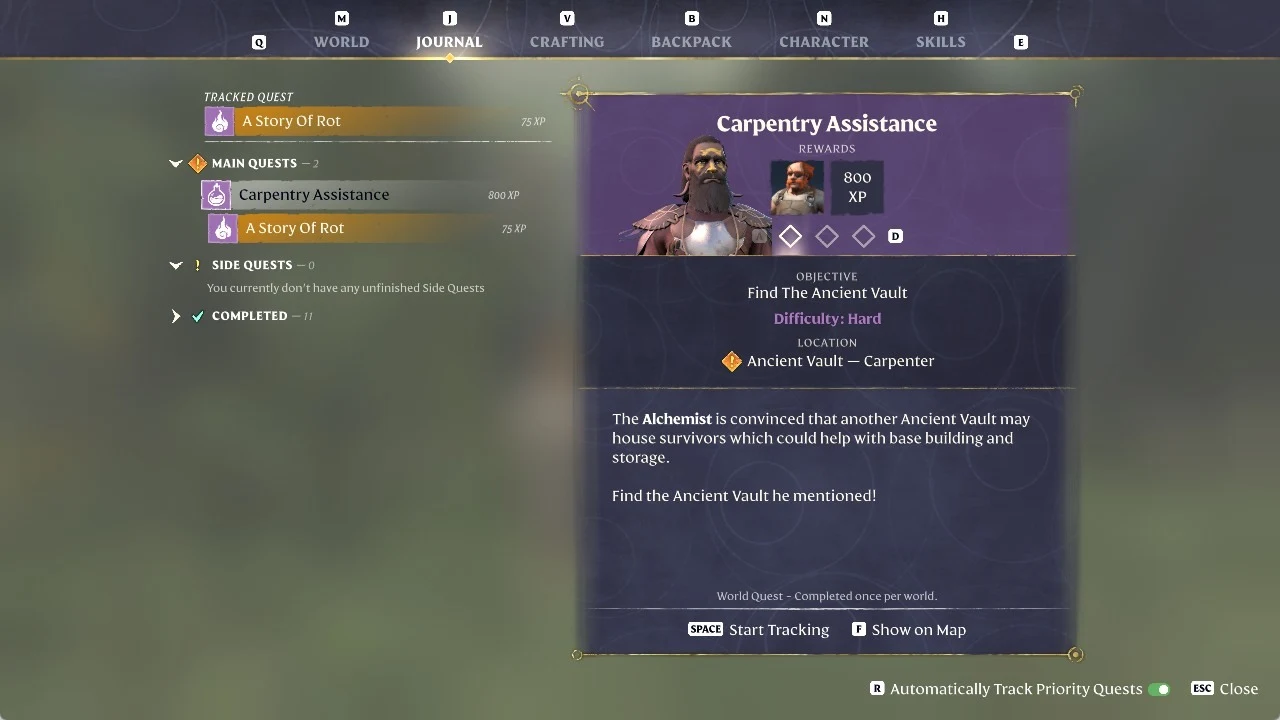
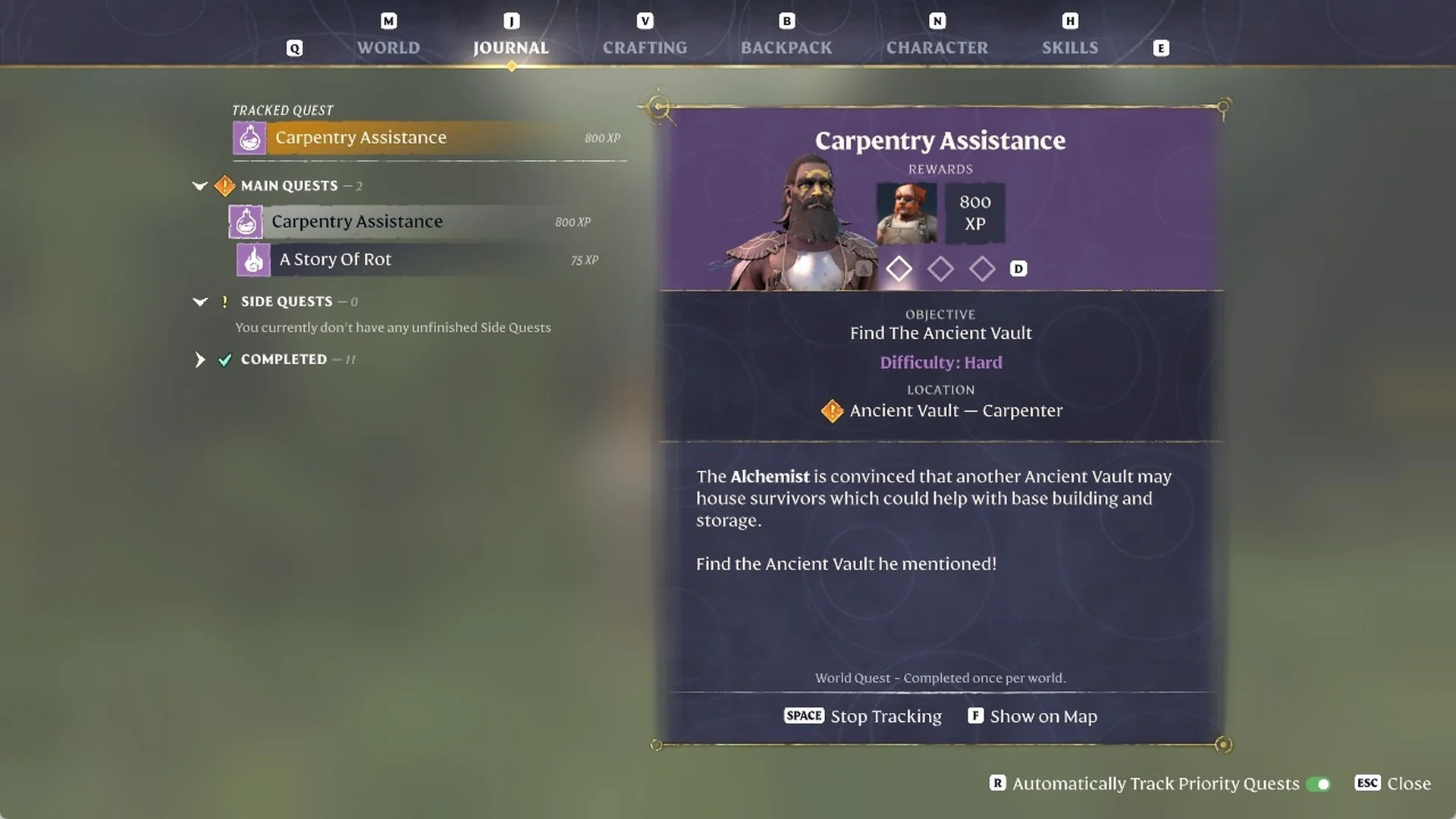
The selected quest card in the Journal shows its prompts in the footer. These are the ones that control tracking:
| Key | Prompt | What it does |
|---|---|---|
| SPACE | “SPACE Start Tracking” | Tracks the selected quest |
| SPACE | “SPACE Stop Tracking” | Stops tracking the current quest |
| F | “F Show on Map” | Shows the quest on the map |
| R | “R Automatically Track Priority Quests” | Turns automatic tracking of priority quests on or off |
SPACE is one key with two jobs. On a quest you are not tracking, it reads “SPACE Start Tracking”. On the quest you are already tracking, it reads “SPACE Stop Tracking”. The R toggle sits on the bottom line of the quest list, not on any single quest card.
Switch the tracked quest in Enshrouded
Switching the tracked quest in Enshrouded is done from the Journal. Every key you need is in our full controls list, and each quest’s steps are in our all quests list.
Switch back or stop tracking a quest
To go back to an earlier quest, open the Journal again and select it. Press SPACE on its card, and it takes over the TRACKED QUEST slot and the HUD; we tracked A Story Of Rot again this way. To clear tracking instead, select the quest under TRACKED QUEST and press SPACE when the footer reads “SPACE Stop Tracking”.