Phantom Blade Zero’s map works as a rough guide to a region, not a full route planner. It shows the layout of the area you’re in. The paths that actually get you somewhere, like a climbable rock face, only turn up when you explore. You need two tools: the map screen, where you track a quest, and Mind’s Eye, which shows that quest’s marker in the world.
Quick answer: Press M to open the map, then E to jump to the Quests tab, and track the story quest. In the world, hold V (Mind’s Eye) to see its marker and distance, because the map doesn’t draw hidden paths.
| Action | PC key |
|---|---|
| Open map | M |
| Jump to Quests (tutorial prompt) | E |
| Switch menu tabs | Q / E |
| Move the map | Mouse |
| Zoom | Mouse wheel |
| Reset view | T |
| World Map | Tab |
| Back / return to game | Esc |
| Confirm tutorial bubbles | Space |
| Mind’s Eye | Hold V |
| Climb at a marked rock face | Space (when prompted) |
How to open the map in Phantom Blade Zero
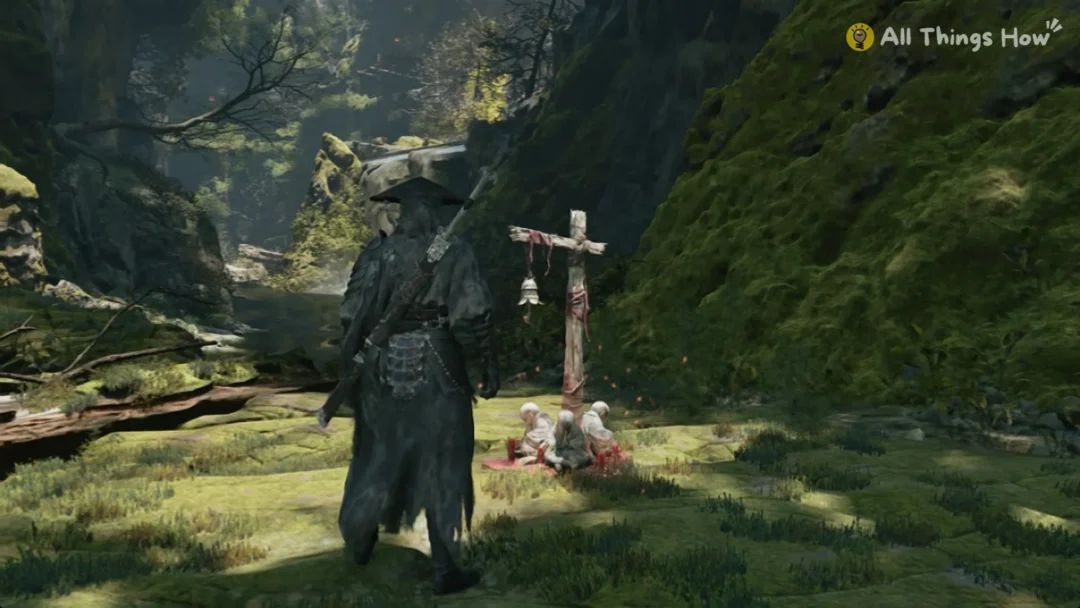
You cannot bring up a map during the prologue; the map key is inactive. Access begins in Chapter 1. After Soul wakes in the gorge beneath a waterfall, the game displays the prompt “[M] Open Map”.
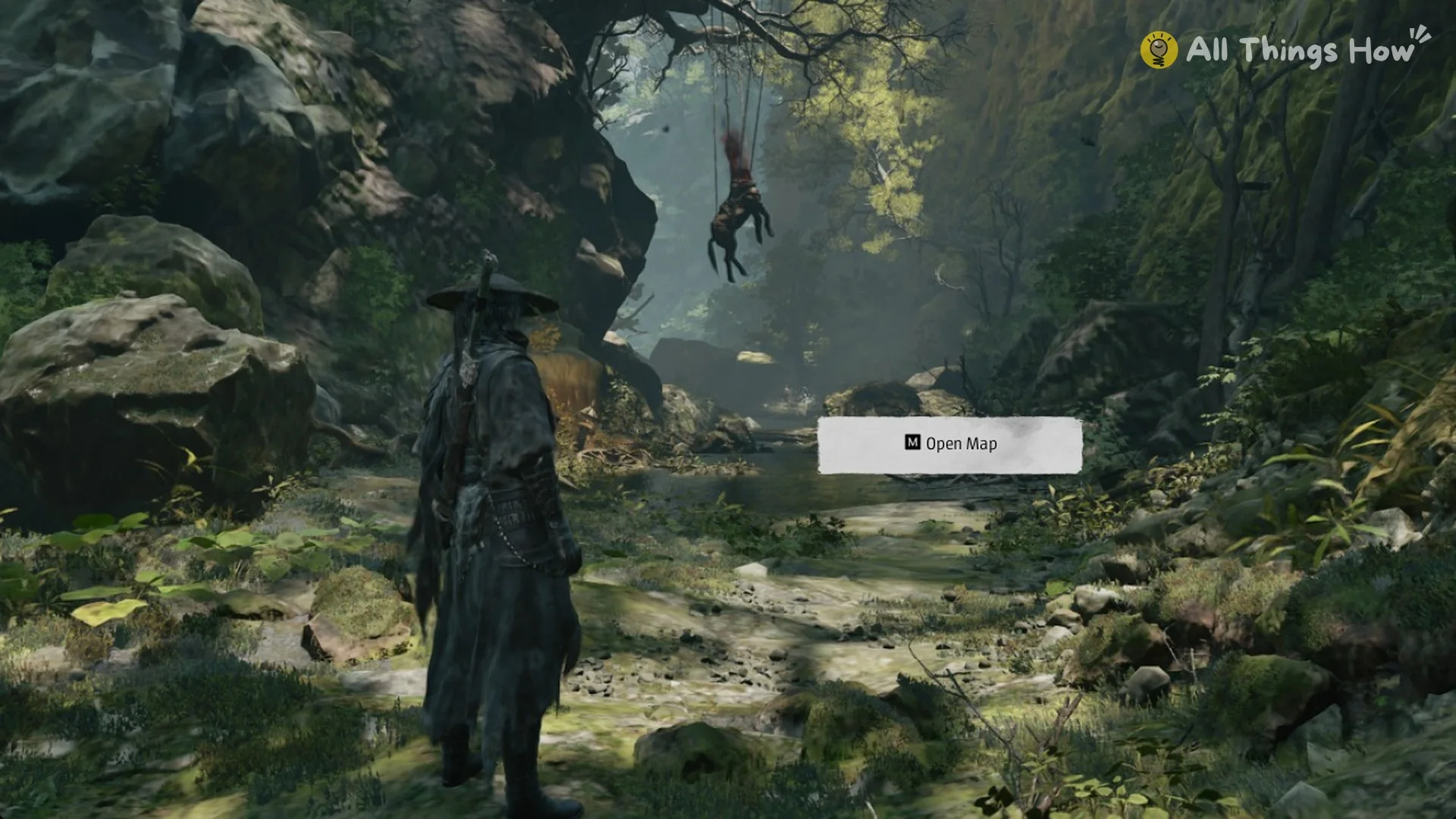
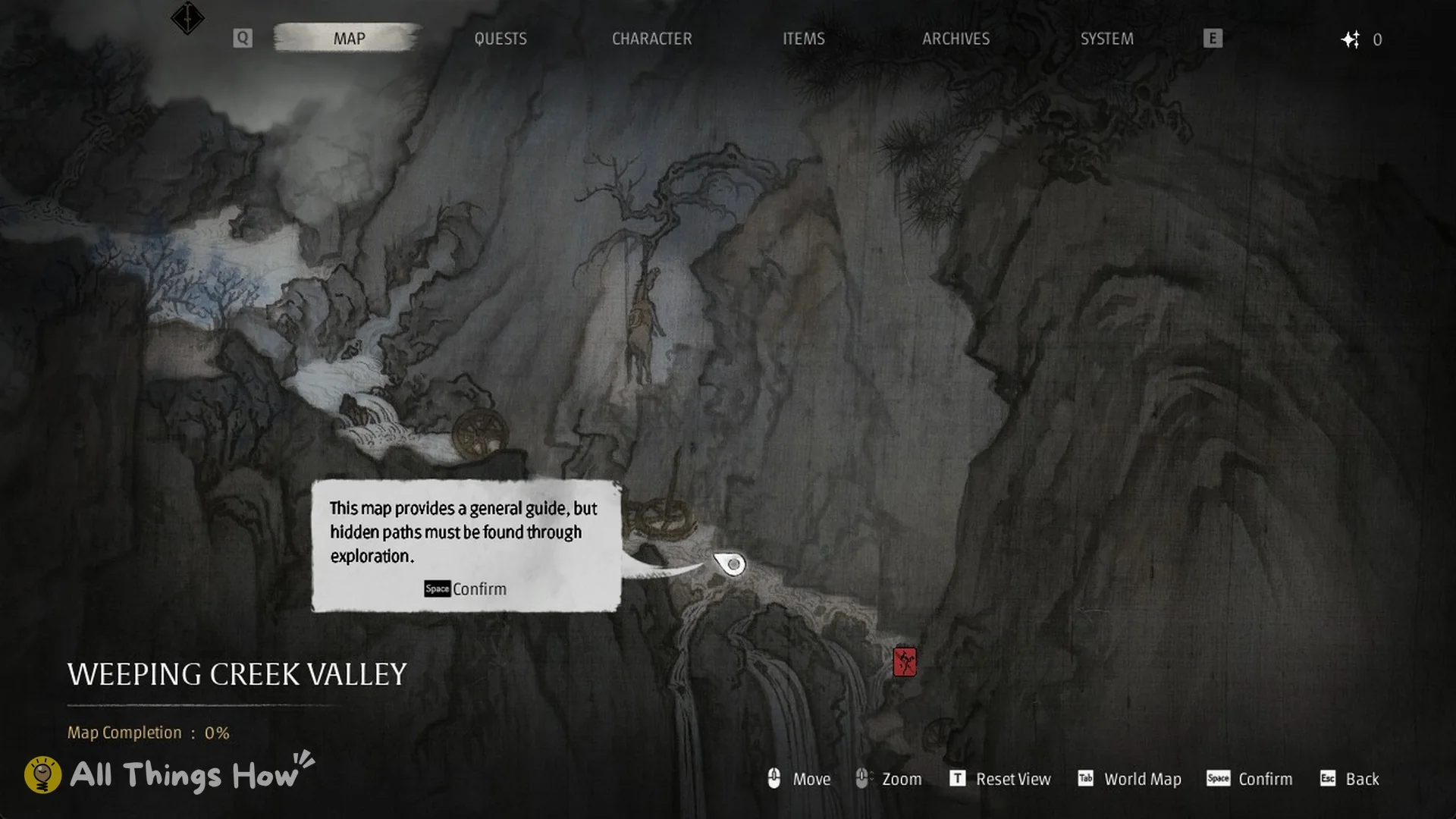
The first time you open it, a tutorial bubble tells you what the map is for: “This map provides a general guide, but hidden paths must be found through exploration.” Press Space to dismiss it.
What the map screen shows, including Map Completion
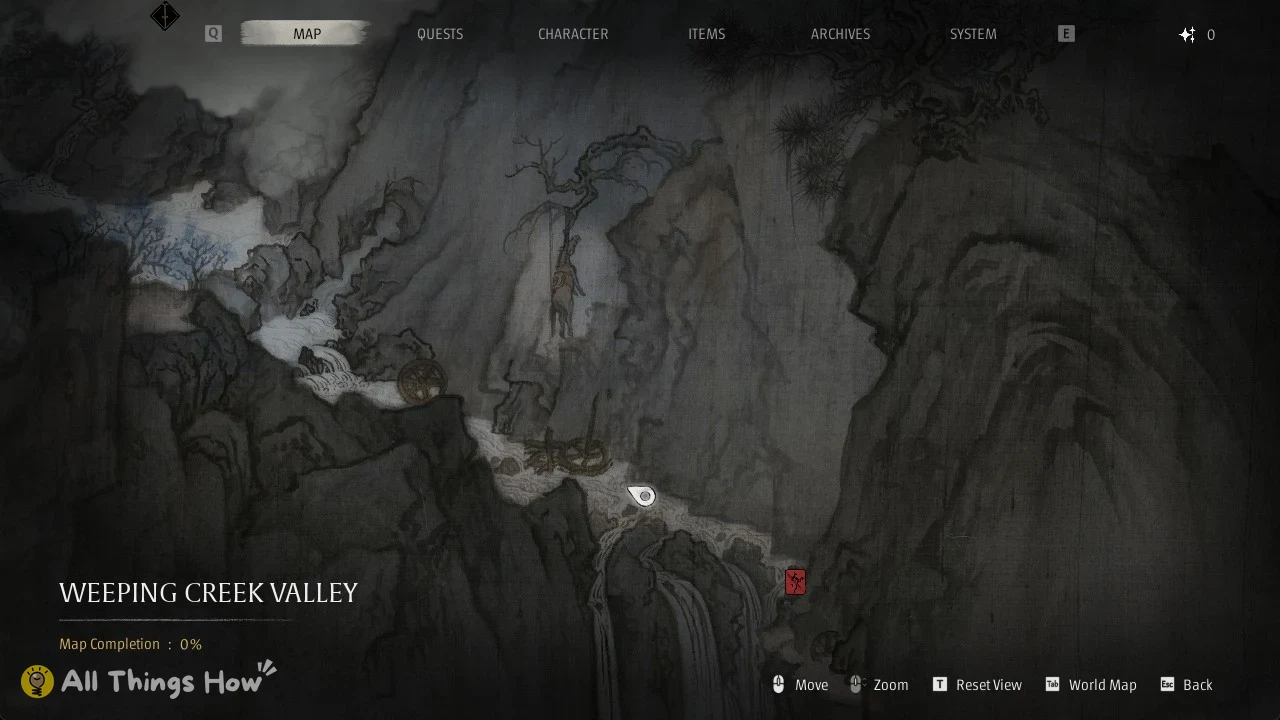
The map is an ink-painting style picture of your current region. At the start of Chapter 1 that region is “WEEPING CREEK VALLEY”. Under the region name is the completion counter, which reads “Map Completion : 0%” when you first arrive. The controls for moving, zooming, resetting the view and opening the World Map run along the bottom of the screen.
The map is one tab of a larger menu. The other parts of the screen are:
- Across the upper edge, the tabs appear in this order: MAP, QUESTS, CHARACTER, ITEMS, ARCHIVES, SYSTEM.
- Q and E cycle between those tabs.
- Your Remnant Dust total appears in the upper-right corner; it is 0 at this point.
How to track a quest on the map
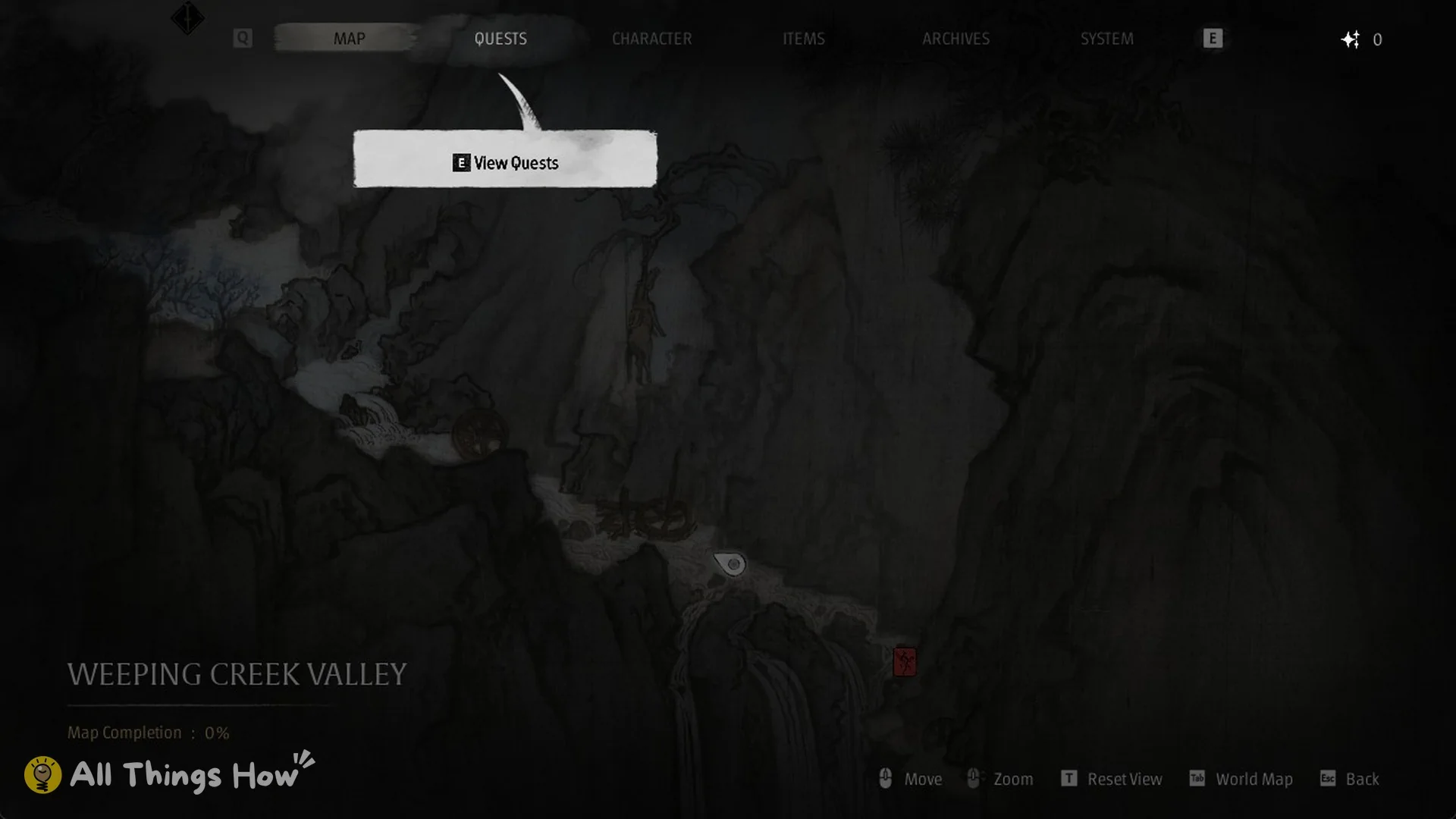
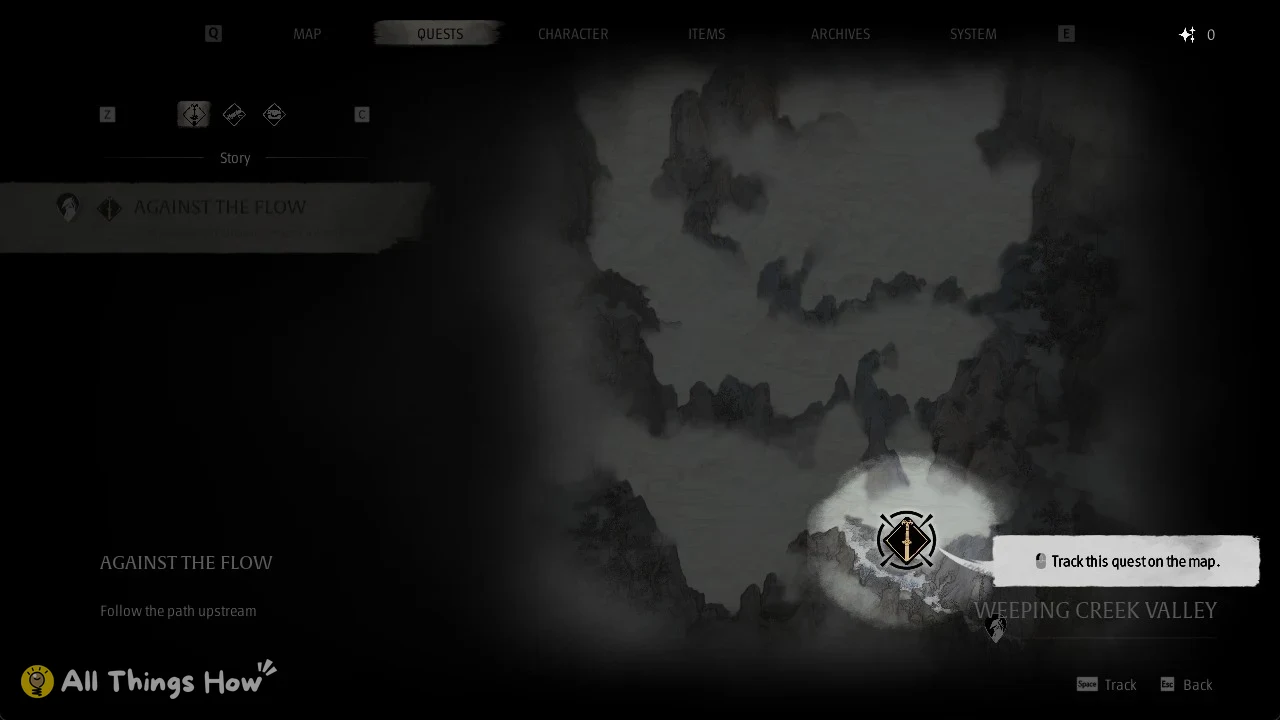
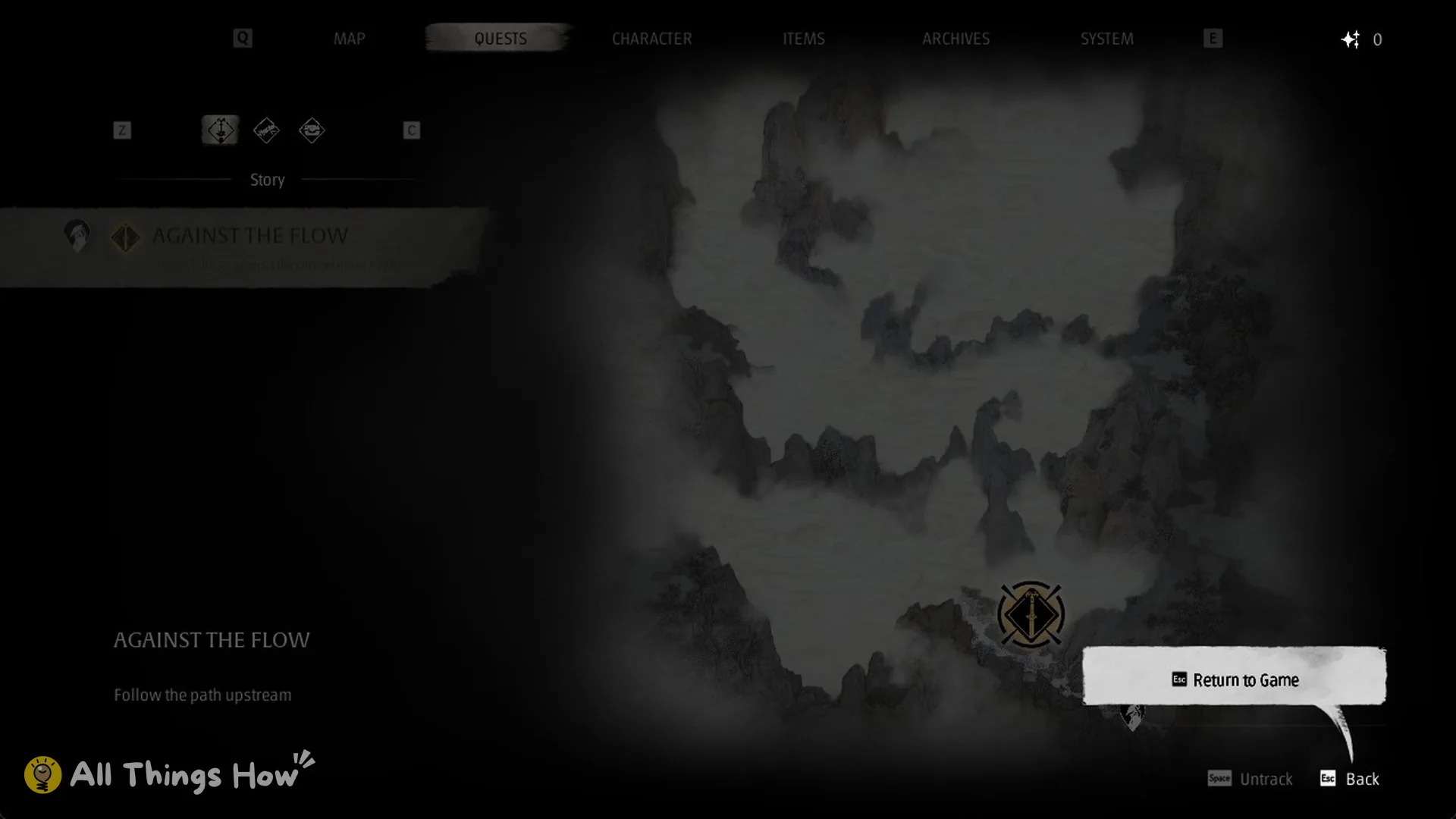
To stop tracking a quest later, use the “Untrack” option on that same screen.
Finding hidden paths with Mind’s Eye
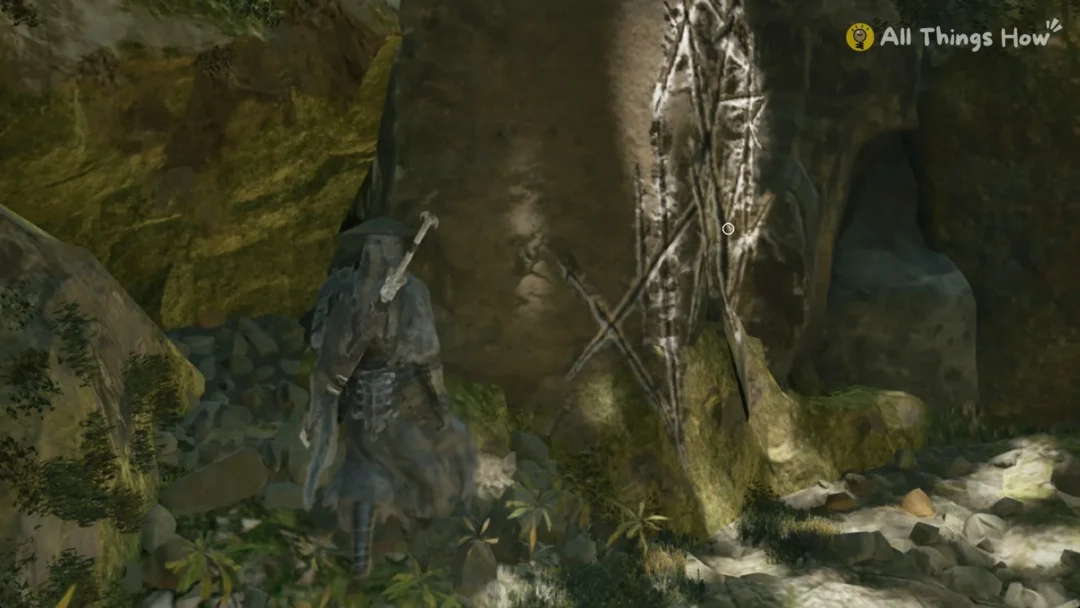
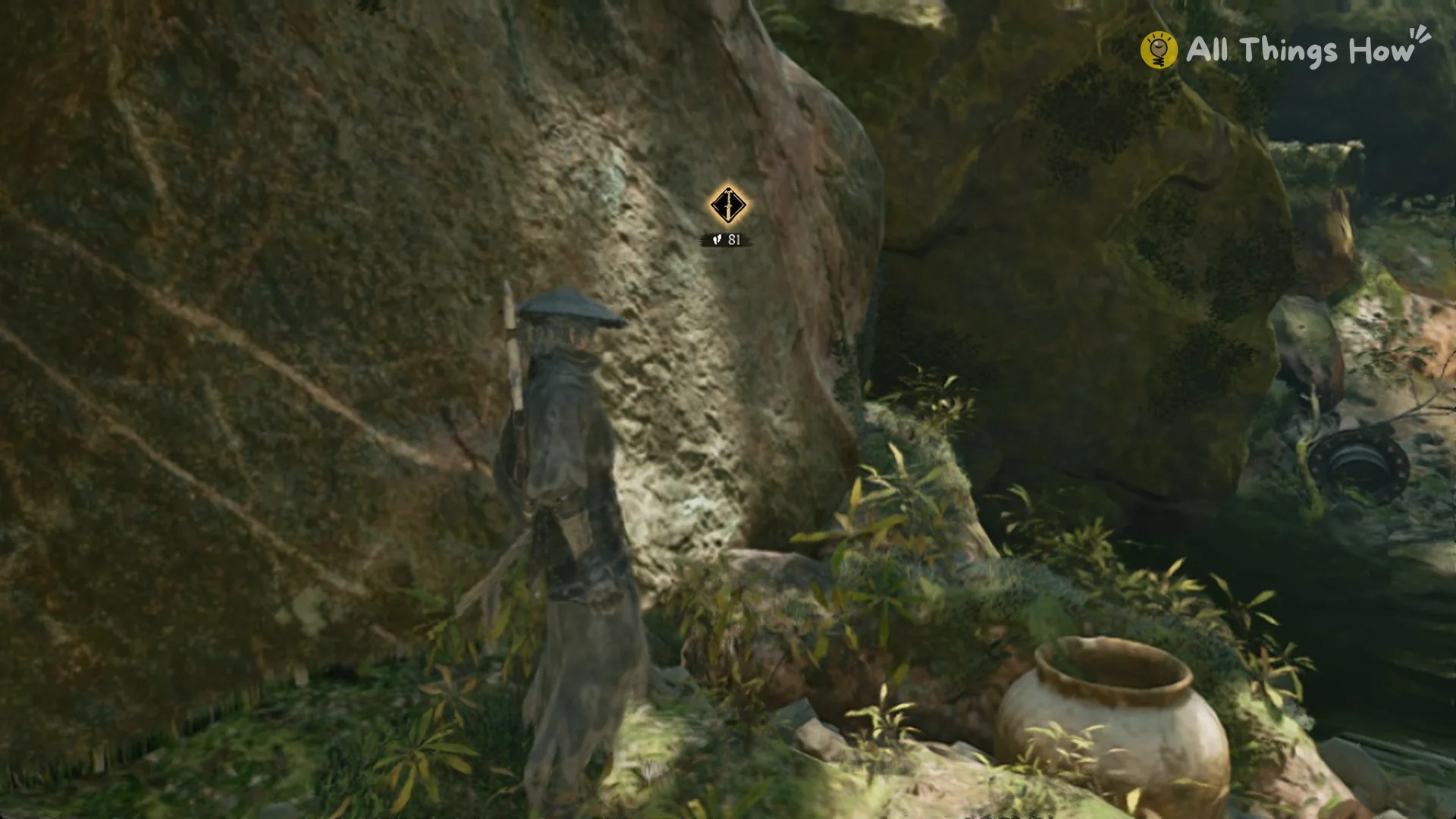
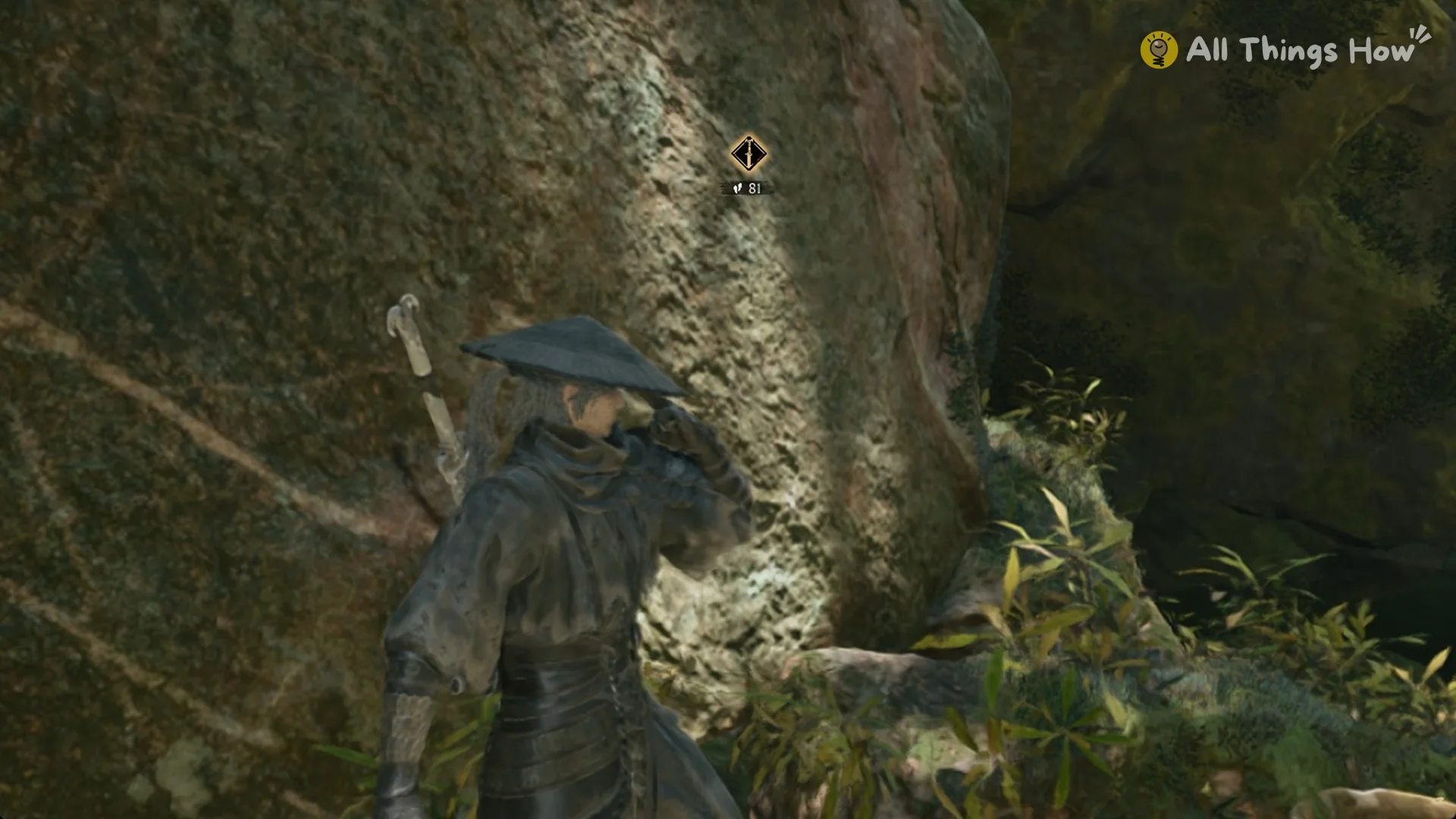
Mind’s Eye matters early on. At the start of Chapter 1, the marker sits above a rock face, and the only way forward is to climb it. Look for the spot on the rock with bright white scratch marks. When the climb prompt appears there, press Space.
If the map shows no road toward your marker, hold V and check whether the marker sits above you.
What Wulin Tales are
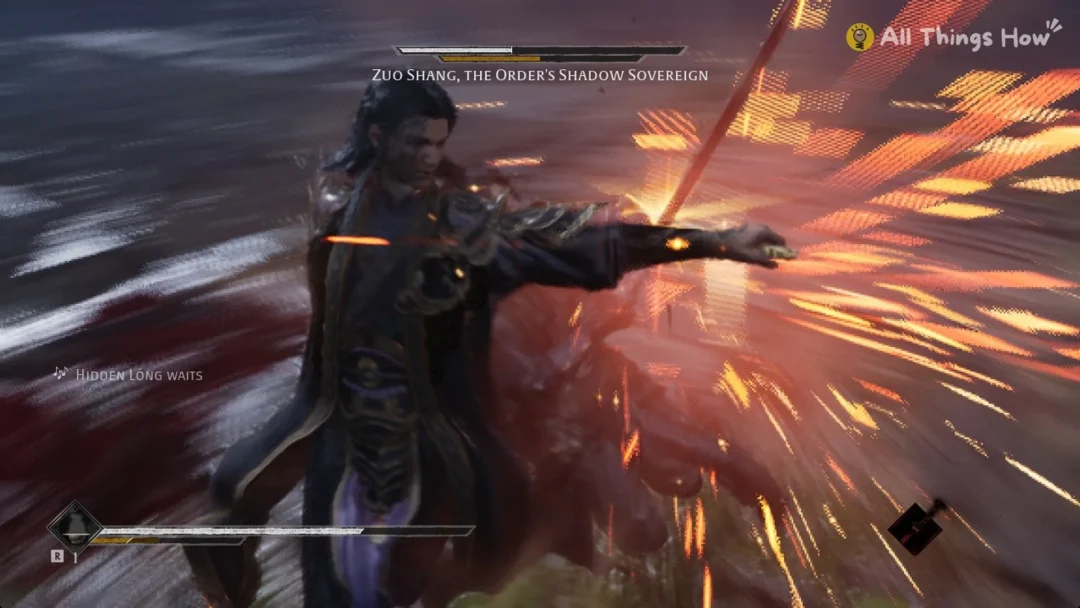
Wulin Tales first come up in the tutorial text on the Story quest. That bubble reads “Follow the main story and pick up Zuo Shang’s trail.” and “Turn the tide, and perhaps defy destiny…”, and then adds “Investigating Wulin Tales can be a great help along the way.”
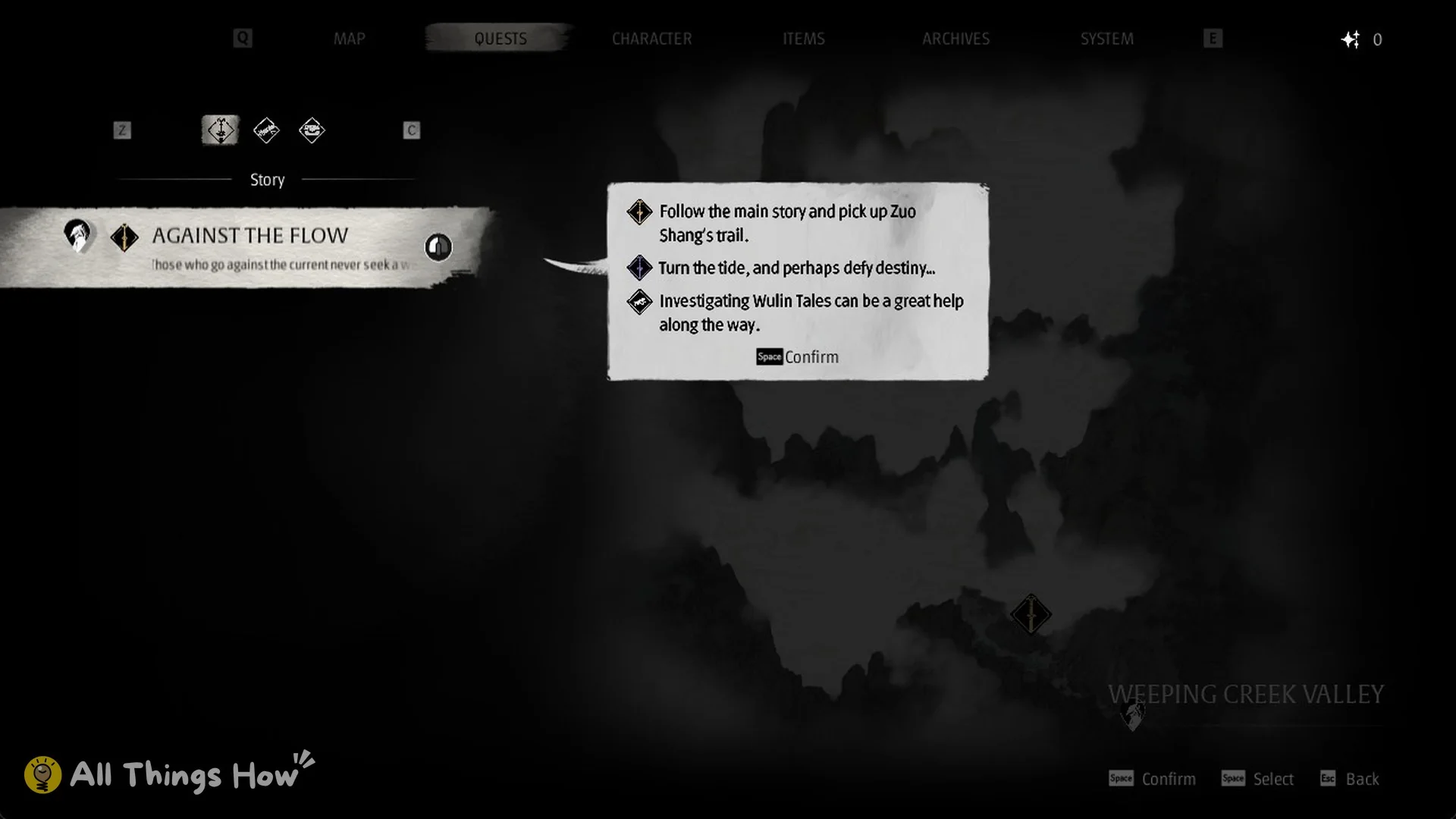
The Quests tab has filter icons above the Story list. At the start of Chapter 1, though, the only entry is the Story quest, so there are no Wulin Tales to track yet. For now, follow “AGAINST THE FLOW” upstream and use Mind’s Eye whenever the map stops being helpful.