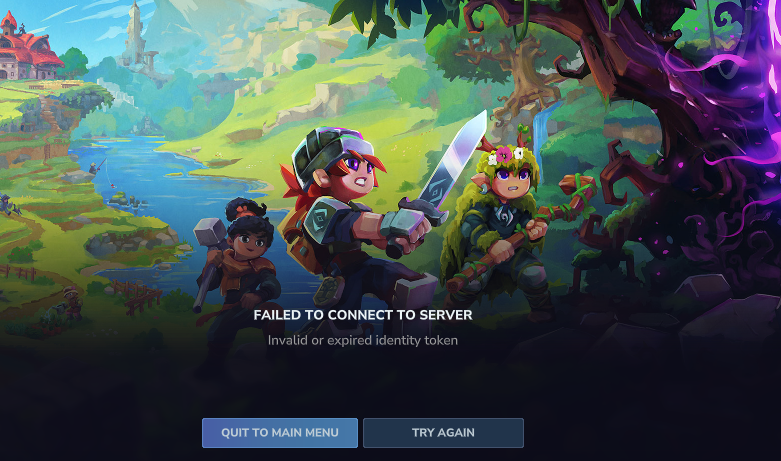
The “Failed to connect to server” message in Hytale indicates that the game client could not complete a network connection to the target server. The cause can be on the player’s side, on the server’s side, or in how the server itself is configured and authenticated.
Common reasons include the server not running at all, the server starting with errors due to mods or configuration, missing authentication on dedicated servers, or players trying to join with the wrong server code or an incompatible mod setup. Narrowing down which side is responsible is the fastest way to resolve the problem.
Quick checks for players joining a Hytale server
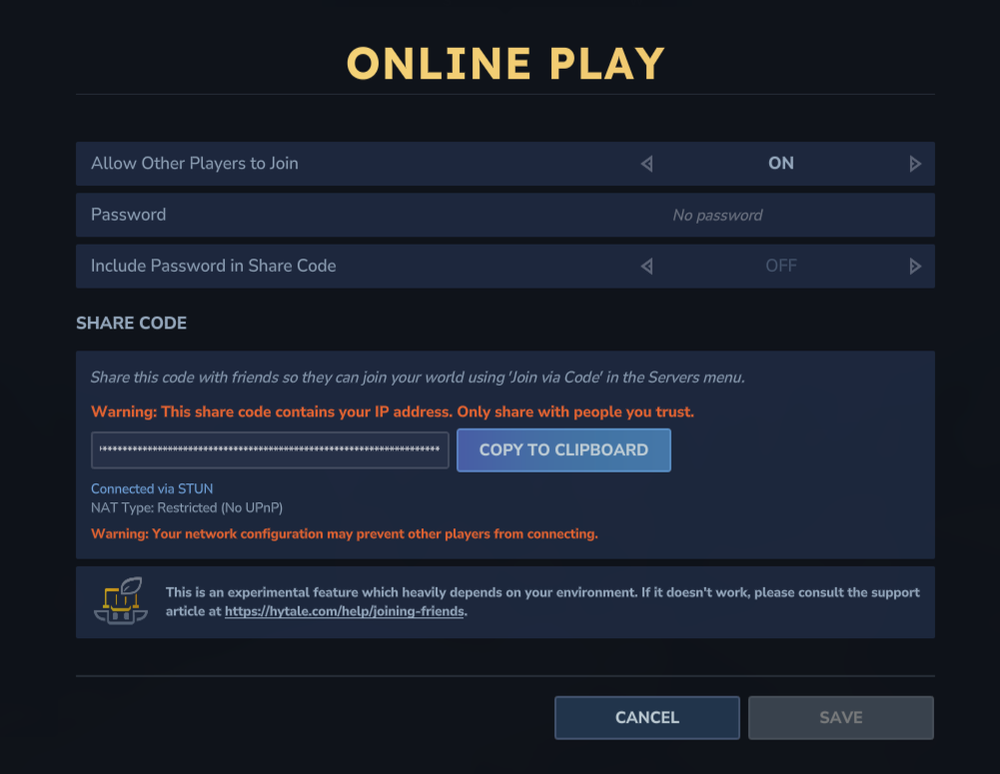
Checks for Hytale server owners using hosting panels
mods folder. Start the server again and see whether it now reaches a stable “running” state without errors.Checks for self‑hosted Hytale dedicated servers
HytaleServer.jar, Assets.zip, a configuration file such as config.json, and a mods folder for any add‑ons.java -jar HytaleServer.jar --assets PathToAssets.zipThis command should bring the server up and keep it running; if the process exits immediately, players will see connection failures.
/auth login device and follow the prompts described in the official Hytale Server Manual on the support site at support.hytale.com.
How Hytale mods can cause connection problems
Mods are a frequent source of subtle issues in multiplayer Hytale servers. They can change assets, game mechanics, and server behavior, and they often expect specific versions of the game or other mods.
| Mod aspect | Impact on Hytale connections |
|---|---|
| Version compatibility | If a mod targets a different Hytale version than the one your server is running, the server can fail to start or behave incorrectly when players attempt to connect. |
| Missing dependencies | Some mods require other mods to be present; when those dependencies are absent, the server can throw errors on startup that prevent it from accepting connections. |
| Server‑only mods | These are installed only on the server and generally do not require anything from players, but a broken server‑side mod can still crash or block the server itself. |
| Client‑only mods | These live only in each player’s local game. Incompatible client‑side mods can cause local errors, but they usually do not affect the server’s ability to receive connections. |
| Mods required on both sides | When a mod requires installation on both server and client, any mismatch between what the server and player have installed can lead to connection problems or severe in‑game issues. |
When connection failures start right after adding or updating a mod, treat that change as the most likely cause. Stopping the server, backing up your world, removing or downgrading the suspect mod, and then starting the server again is often the quickest way to restore normal connectivity.
When to escalate to official Hytale support
If players see “Failed to connect to server” across multiple unrelated servers, or if a properly configured dedicated server will not authenticate or accept any connections, the problem may be outside what you can fix with configuration changes alone. In those cases, use the official support portal at support.hytale.com to open a ticket.
Include as much detail as possible, such as whether you are joining with a share code or a direct connection, whether the server is hosted or self‑hosted, and any recent changes to mods or configuration. Clear server logs and a description of when the error appears help the support team or your hosting provider identify the underlying cause more quickly.