Limiting access to Firefox profiles is an important step for administrators, parents, or anyone who needs to keep browser settings, add-ons, or site restrictions from being bypassed by creating new profiles. Since Firefox’s built-in profile management tools do not include options to lock or password-protect profile access, the most effective solutions rely on operating system permissions and configuration changes.
Restrict Write Access to the Firefox Profile Directory
Controlling file system permissions is the most reliable way to block users from creating, removing, or modifying Firefox profiles. By revoking write access to the directory where Firefox stores profile data, you prevent the browser from adding or modifying profiles, which stops users from circumventing site blocks or custom settings.
C:\Users\<username>\AppData\Roaming\Mozilla\Firefox\. On Linux, it is usually at ~/.mozilla/firefox/.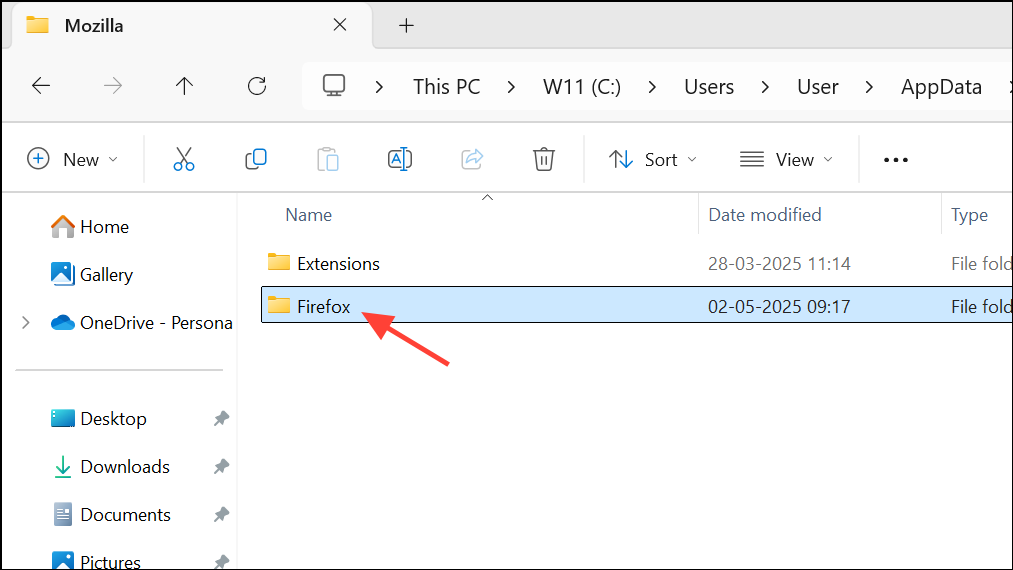
chown or chmod commands in a terminal to restrict access, such as:sudo chown root:root ~/.mozilla/firefox/
sudo chmod 755 ~/.mozilla/firefox/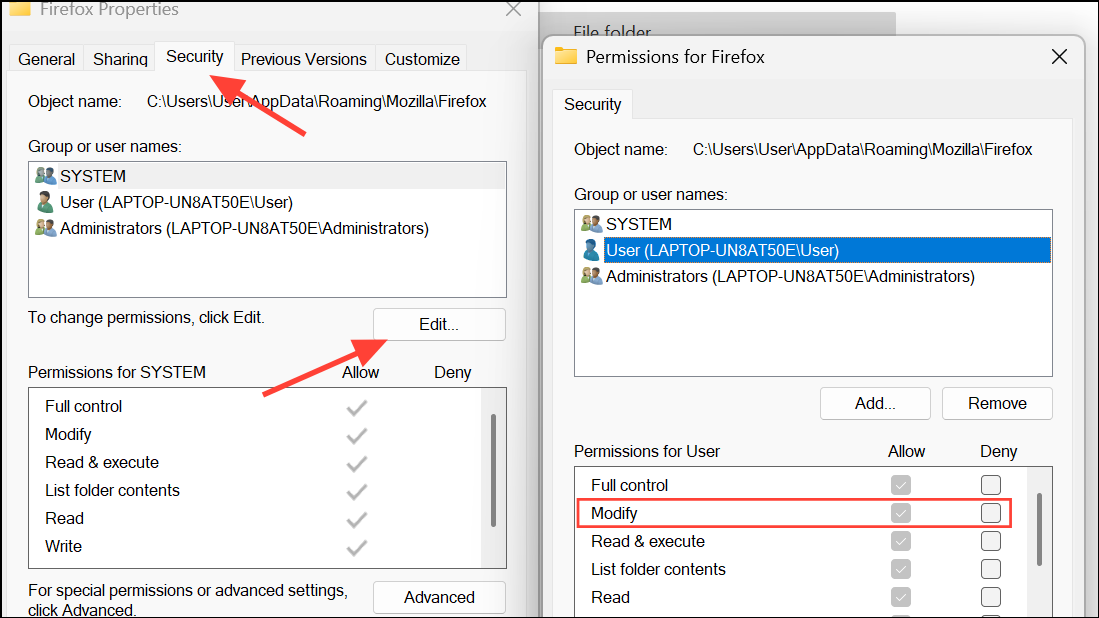
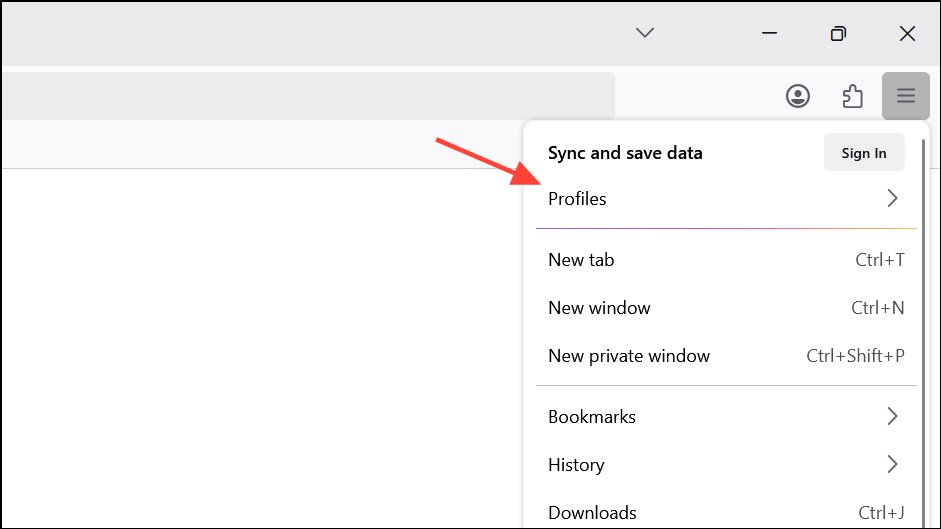
Block Access to the Firefox Profile Manager
Firefox profiles can be managed through the Profile Manager, which is accessible by launching Firefox with the -P or -ProfileManager command-line option. Blocking access to this tool reduces the risk of users creating or switching profiles outside the main browser interface.
Win+R shortcut or restricting access to command prompts and the Run dialog. This can be done through Group Policy Editor or registry edits, which prevent users from easily launching the Profile Manager.Keep in mind that technical users may still find workarounds if they have sufficient system access. These steps are most effective when combined with restricted user accounts.
Prevent Access to the About:Profiles Page
The about:profiles internal page allows users to view, create, and manage profiles directly from within Firefox. While there is no built-in browser setting to disable this page, operating system restrictions and browser configuration changes can reduce access.
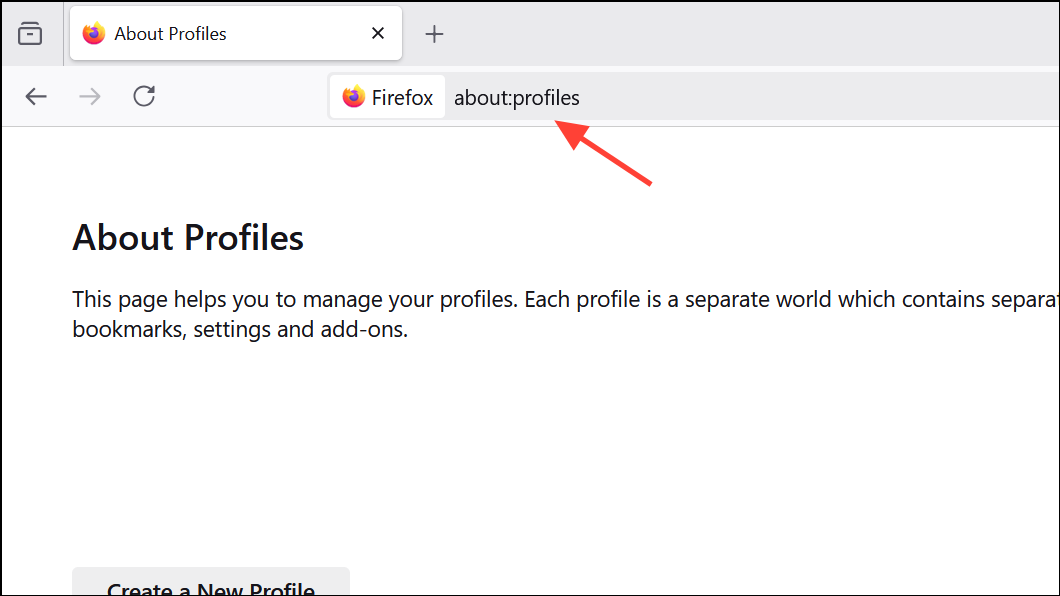
about: pages by creating policies under HKEY_LOCAL_MACHINE\SOFTWARE\Policies\Mozilla\Firefox. Add or modify the relevant policy keys to restrict access to about:profiles./etc/hosts file will not block internal about: pages, since these are not external web addresses. Instead, focus on restricting file system permissions and user privileges as described in previous sections.There is currently no supported method to directly block about:profiles from within Firefox itself. Relying on operating system controls remains the best option.
Use Firefox Enterprise Policies
Organizations and advanced users can apply enterprise policies to configure Firefox behavior, including restricting profile management features. This method is especially effective in managed environments such as schools or businesses.
policies.json file inside the Firefox installation directory’s distribution folder.Consult Mozilla’s official documentation on enterprise policies for the most current options and syntax.
Reduce Profile Switching in Firefox Settings (Where Supported)
Recent versions of Firefox have introduced improved profile management, including the option to choose a profile at startup or switch profiles from within the browser. While these features are still rolling out, you can configure Firefox to use a default profile without prompting the user for profile selection at startup.
about:profiles page in Firefox. Under your preferred profile, click “Set as default profile.”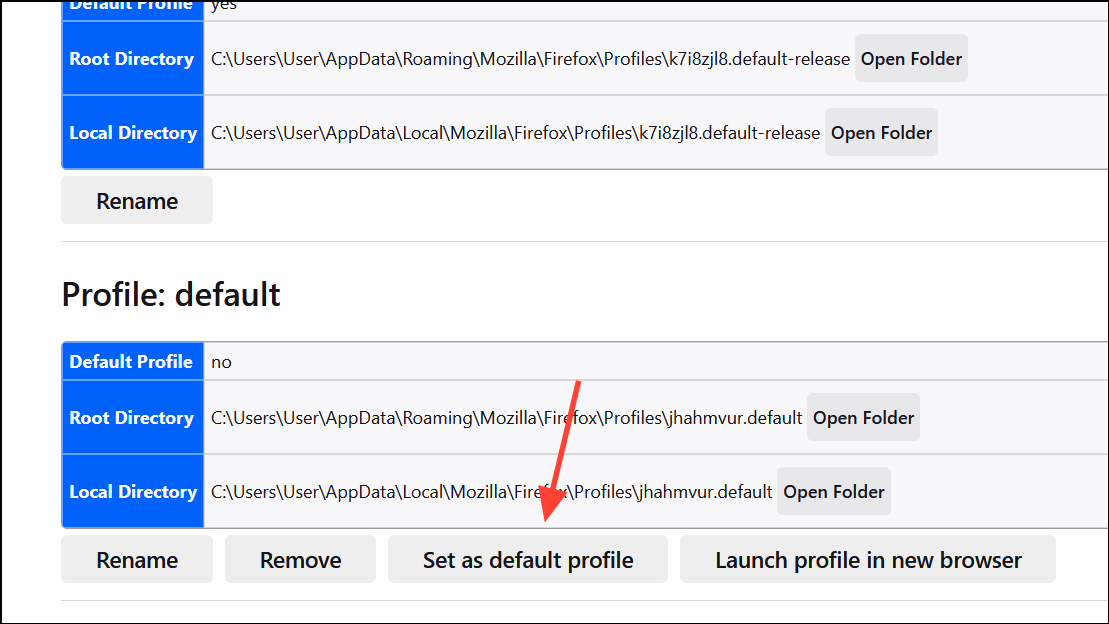
While this does not fully block profile creation, it reduces the likelihood of users switching profiles during normal browser use.
Combining file system permission changes with user account restrictions and enterprise policies provides the most robust way to prevent access to Firefox profiles. Regularly review system permissions and browser updates to maintain these restrictions over time.