

The error message “The code execution cannot proceed because opencl.dll was not found. Reinstalling the program may fix this problem” often appears when launching applications that rely on GPU computing, such as games or video editing software. OpenCL.dll is a dynamic link library essential for running software that leverages graphics processing power. On Windows 11, this issue typically signals a problem with your graphics drivers, system files, or a missing/corrupted OpenCL.dll file.
Update Graphics Card Drivers
Outdated or improperly installed graphics drivers are the most frequent cause of OpenCL.dll errors. Since the OpenCL.dll file is usually bundled with your GPU driver, updating to the latest version often resolves the issue.
Settings > Windows Update and install all pending updates, including optional driver updates. Reboot your computer after installation.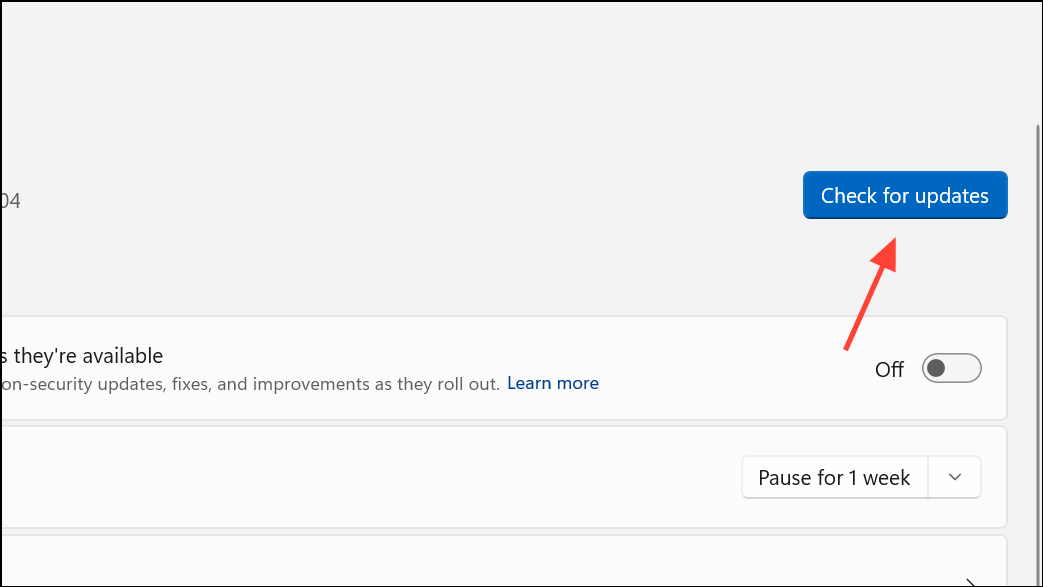
Restore the Missing OpenCL.dll File
If updating drivers does not resolve the problem, restoring the missing OpenCL.dll file manually can help. This approach is useful if the file was deleted or corrupted during a Windows update or software installation.
Settings > System > About and checking the “System type” field.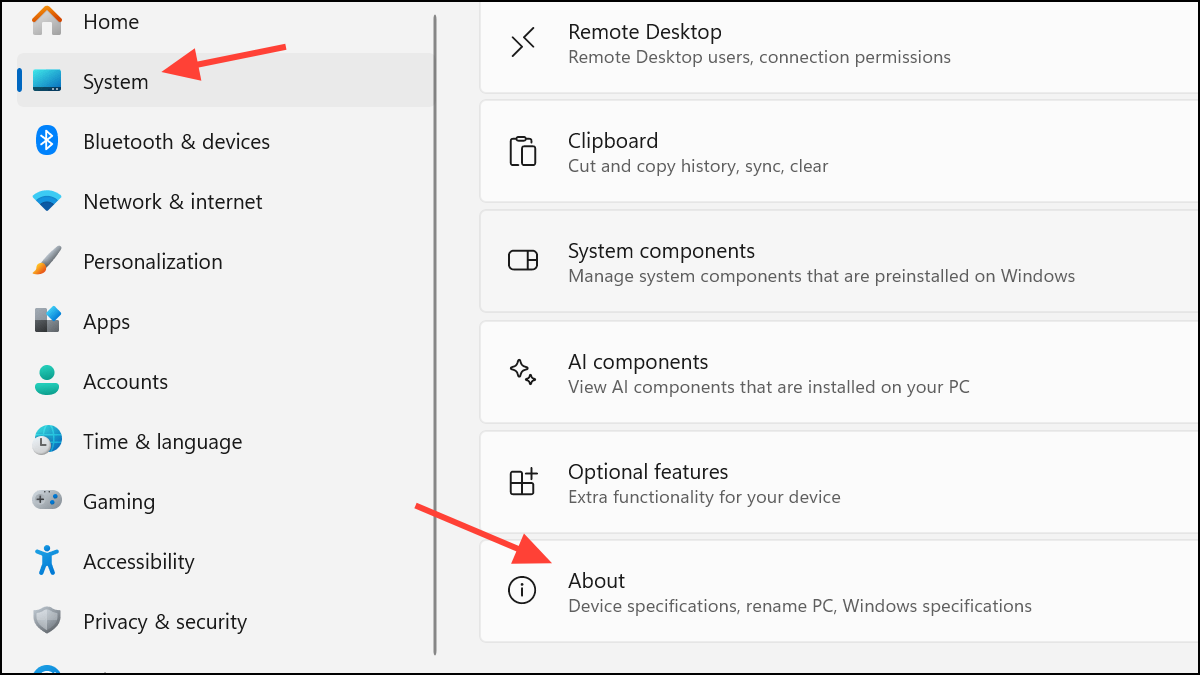
- For 64-bit systems:
C:\Windows\System32andC:\Windows\SysWOW64. - For 32-bit systems:
C:\Windows\System32.
regsvr32 opencl.dll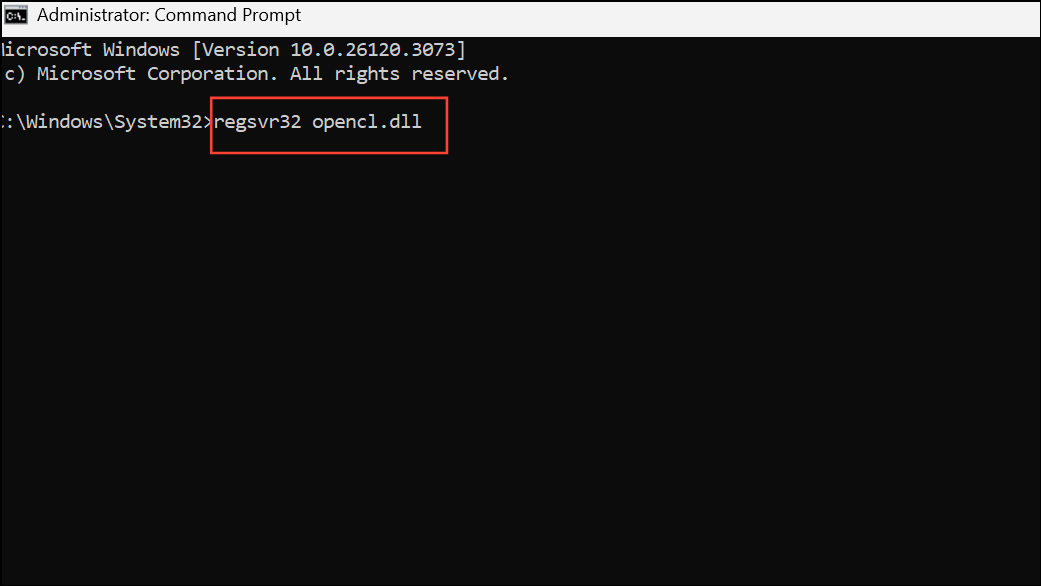
Reinstall the Problematic Program
Sometimes, the OpenCL.dll error is tied to a specific application. Reinstalling the program can restore the correct version of the DLL file that the software expects.
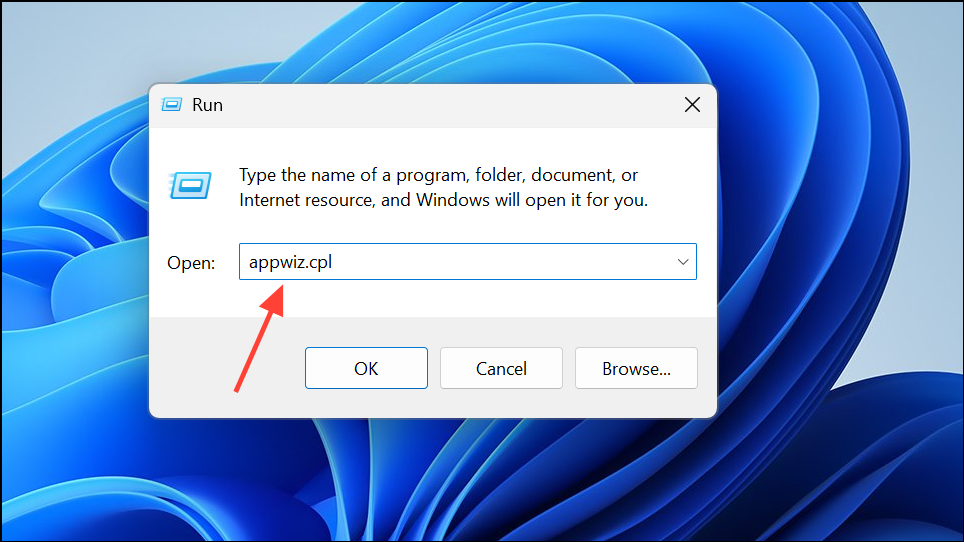
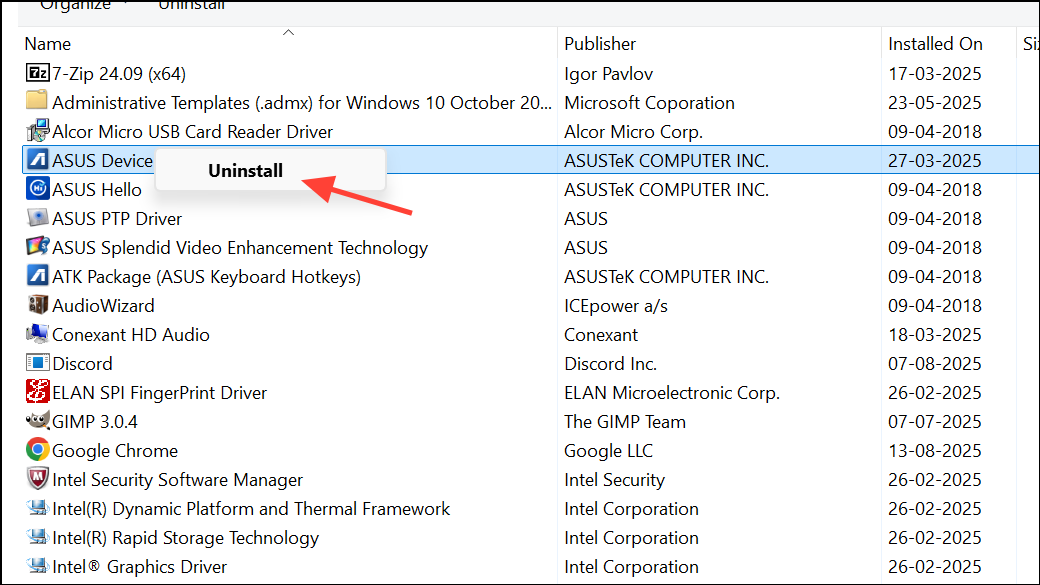
Scan for Malware and System Corruption
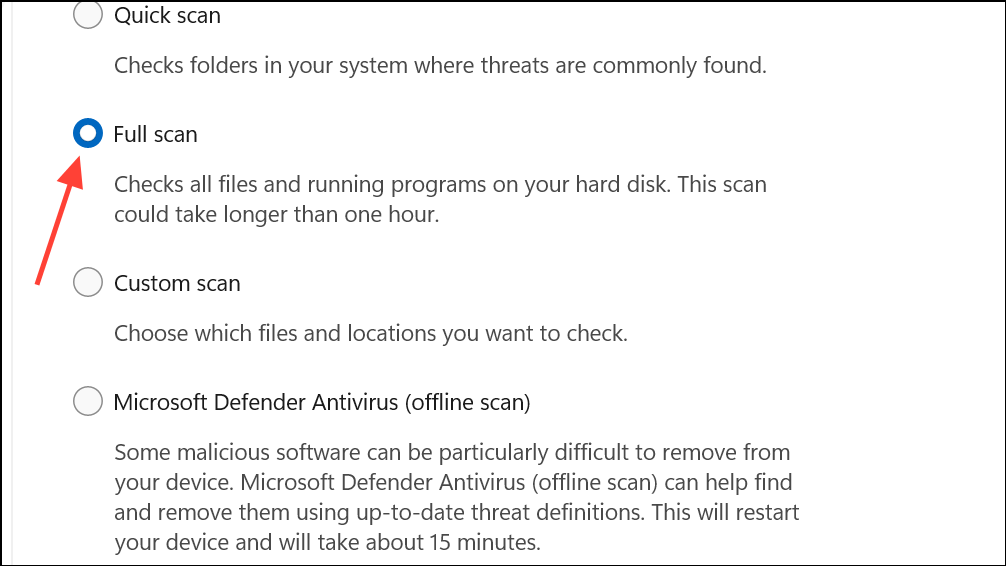
Malware or system file corruption can also trigger OpenCL.dll errors by deleting, blocking, or tampering with essential files. Running a thorough scan can identify and remove threats, restoring system stability.
sfc /scannow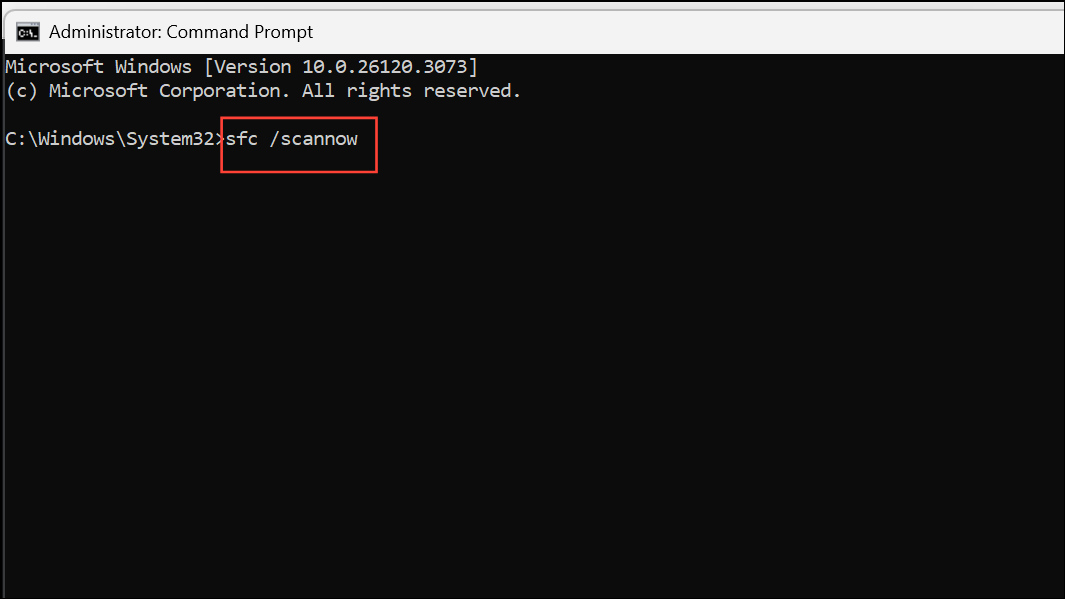
This command scans for and repairs corrupted or missing system files. Wait for the process to complete, then reboot your PC.
Advanced Driver Cleanup and Reinstallation (For Persistent Issues)
If the above steps do not resolve the error, a deeper driver cleanup may be necessary—especially if you recently changed graphics cards or experienced multiple driver installations.
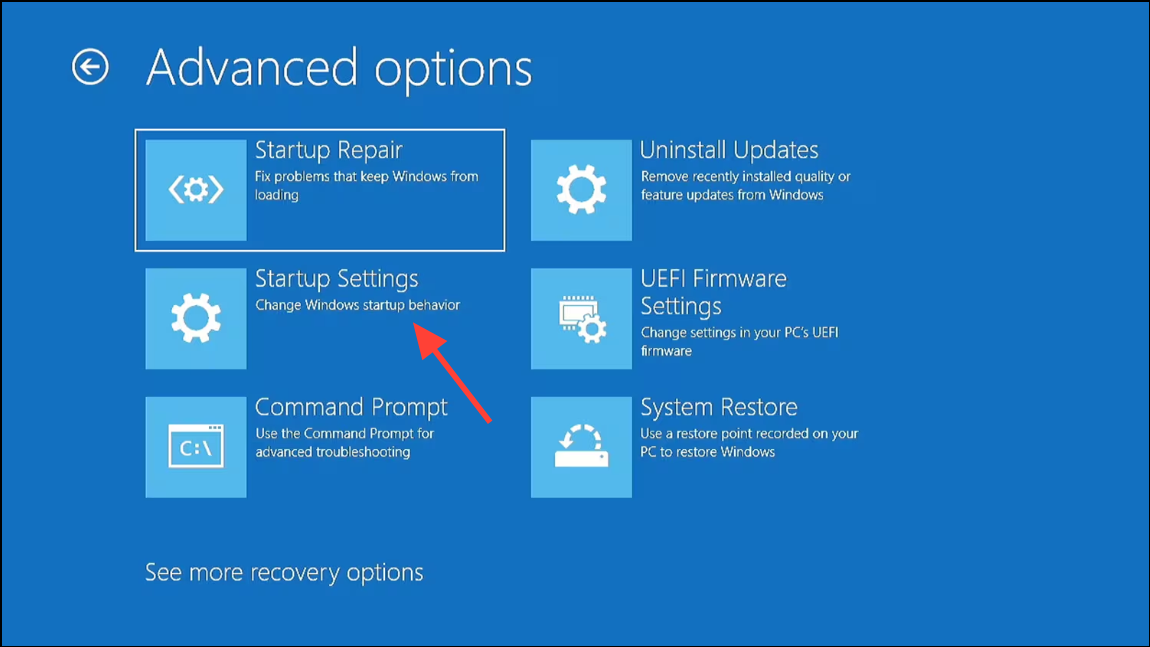
Settings > System > Recovery, then under “Advanced startup,” click “Restart now.”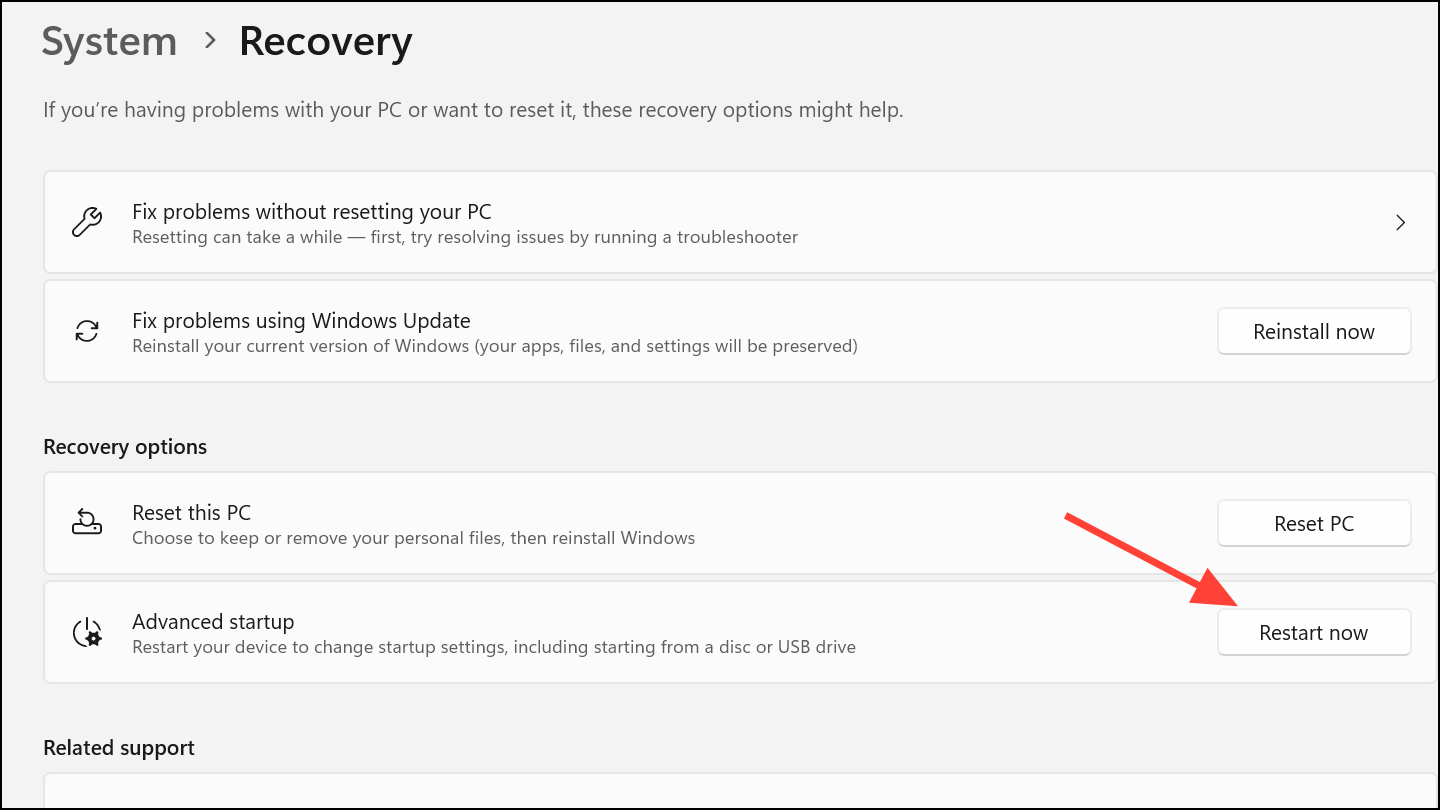
Resolving the OpenCL.dll missing error on Windows 11 usually comes down to updating your graphics drivers, restoring the DLL file, or reinstalling affected programs. Keeping your system and drivers current minimizes the risk of this error recurring.



