

Notepad on Windows 11 has shifted from being a barebones text editor to supporting lightweight formatting, including bold, italics, lists, and Markdown syntax. For users who rely on Notepad to strip all formatting from copied text, these changes may disrupt established workflows. Fortunately, Notepad still provides straightforward options to remove formatting and restore plain text functionality.
Remove Formatting Using the Notepad Toolbar or Menu
Notepad and paste or type the text you want to return to plain formatting. The formatting toolbar appears at the top if the feature is enabled.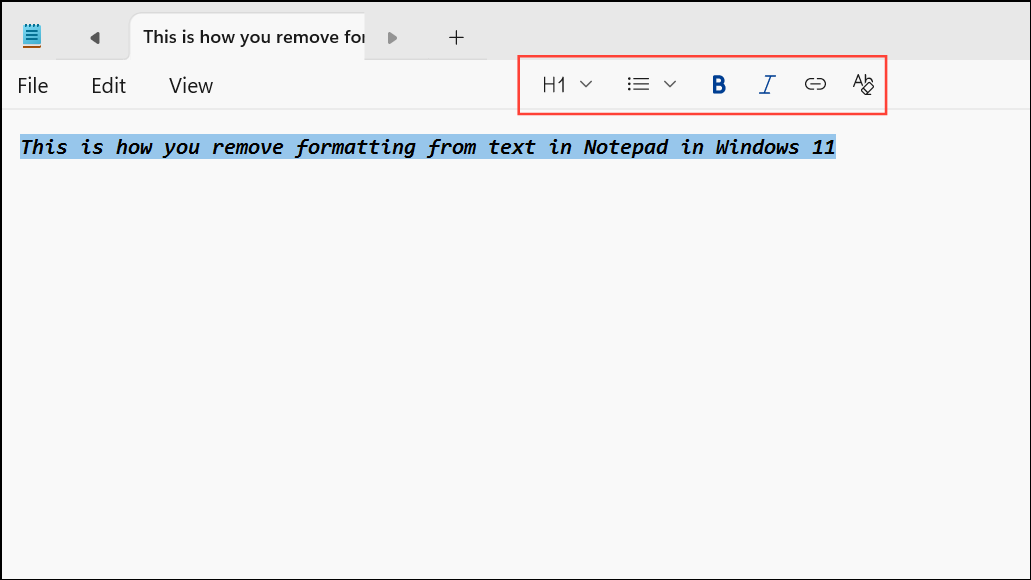
Clear Formatting button (typically represented by an eraser icon or similar). This action strips all applied styles, hyperlinks, and headings, reverting the text to plain format.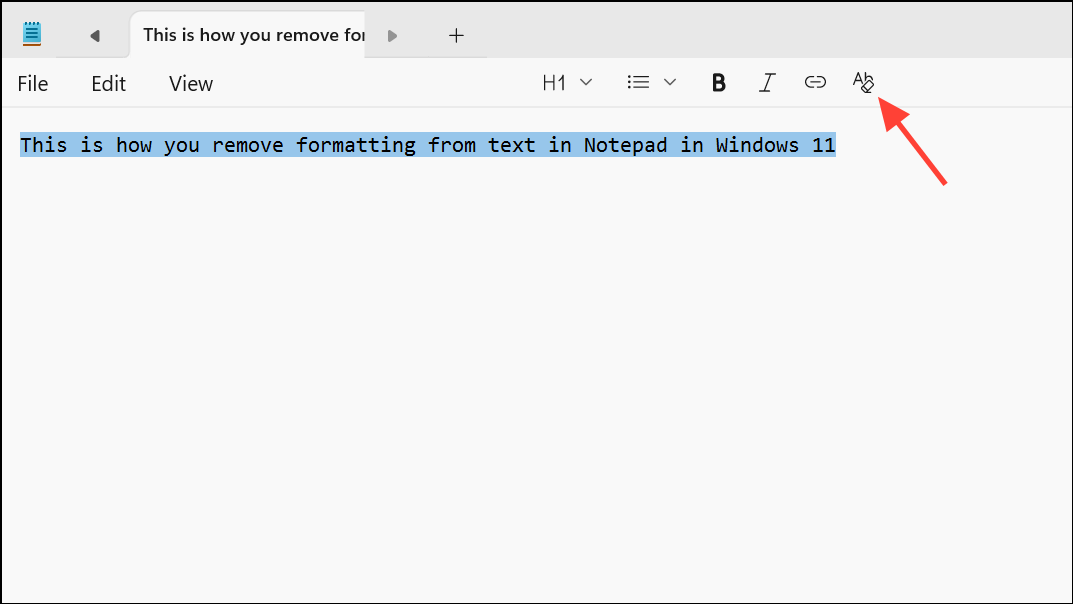
Edit menu at the top. Select Clear Formatting from the dropdown to remove all formatting from your selection or the entire document, depending on your selection.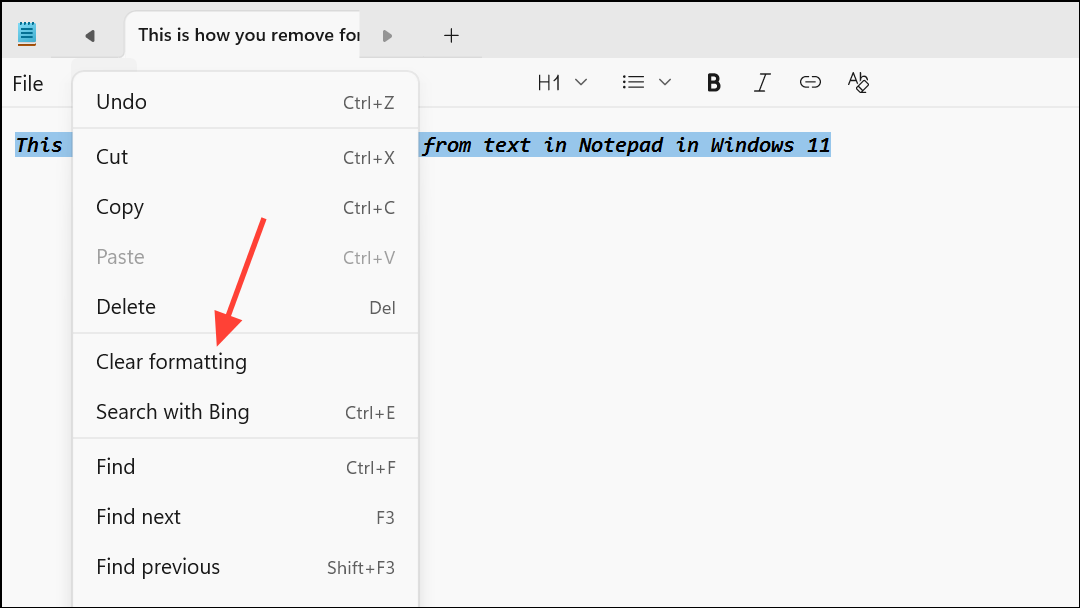
View menu or the toggle button in the status bar at the bottom of the Notepad window. The Markdown syntax view displays only the plain text with Markdown symbols, while the formatted view shows styled text.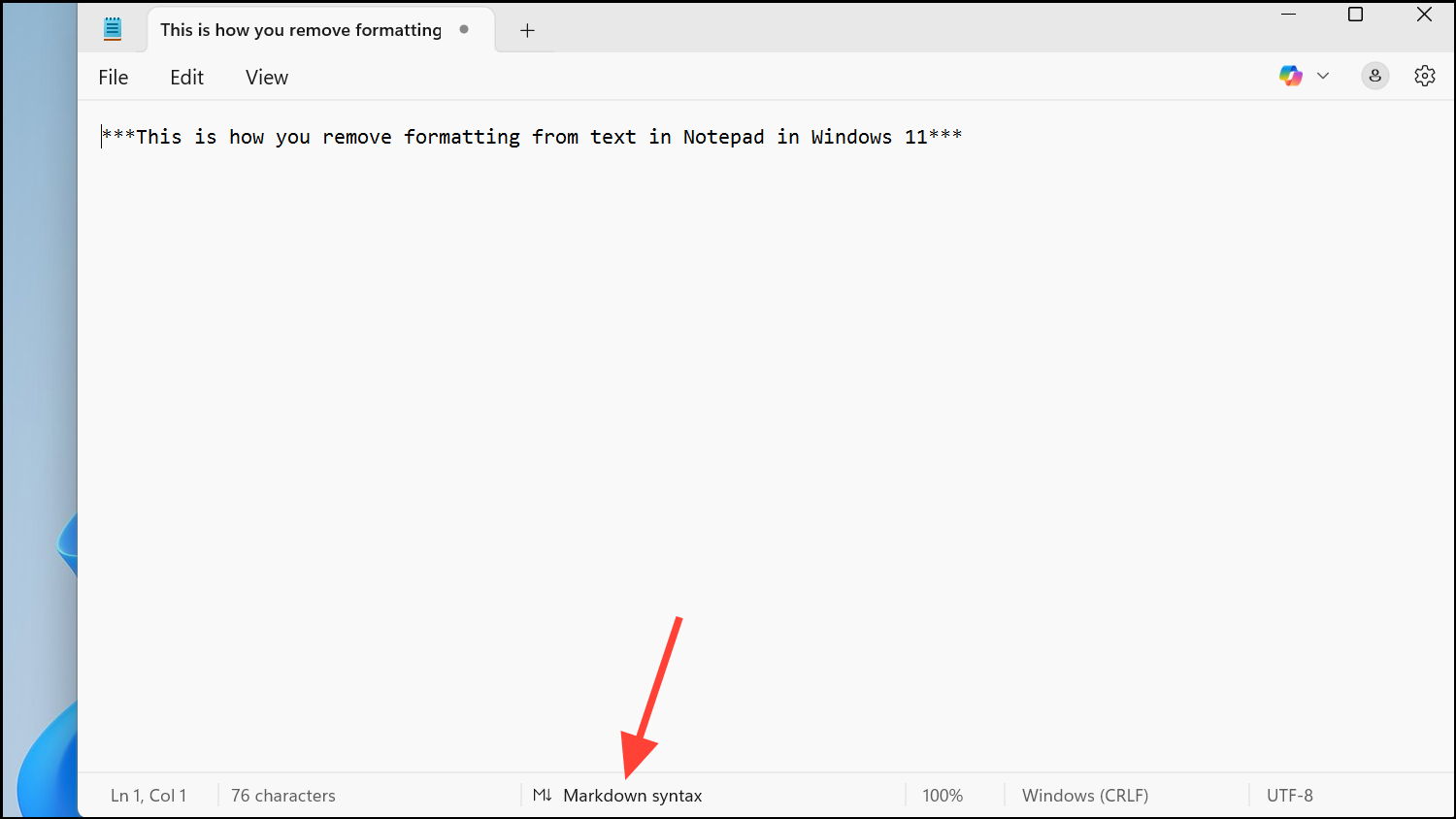
Disable Formatting Features Entirely in Notepad Settings
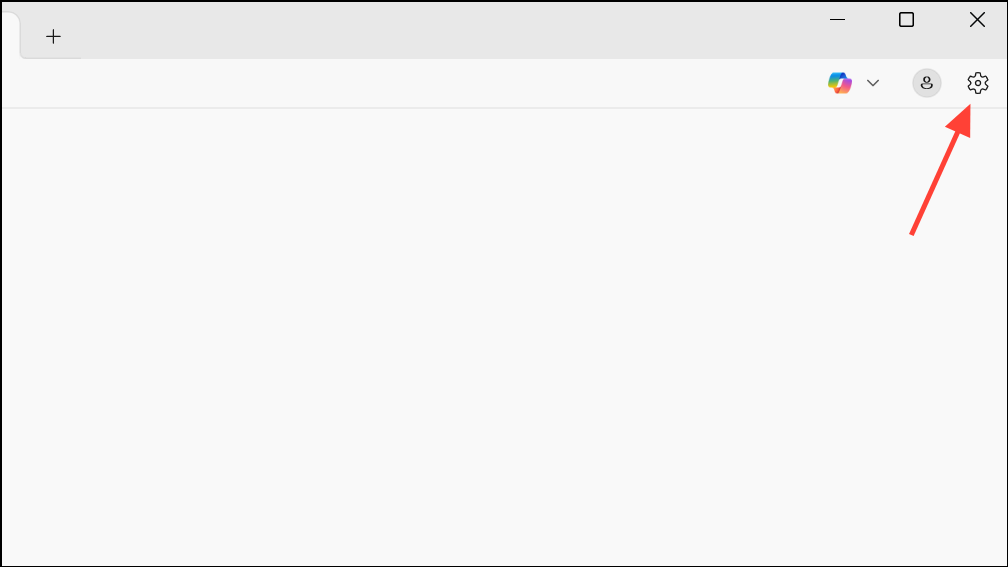
Text Formatting section. Here, you’ll see an option labeled Formatting with a toggle switch.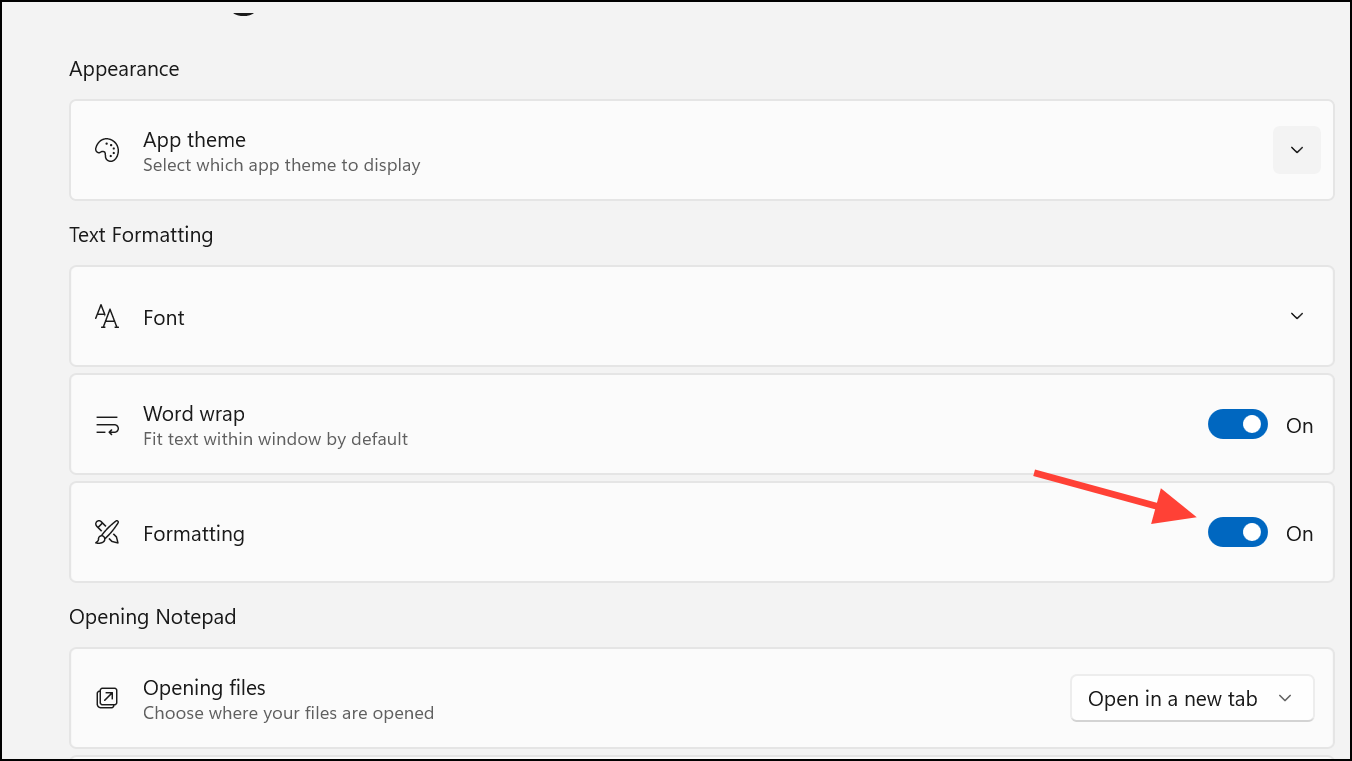
Formatting toggle to Off. A confirmation prompt will appear. Click Turn off to confirm. This action disables all formatting features, ensuring Notepad only works with plain text for all future documents.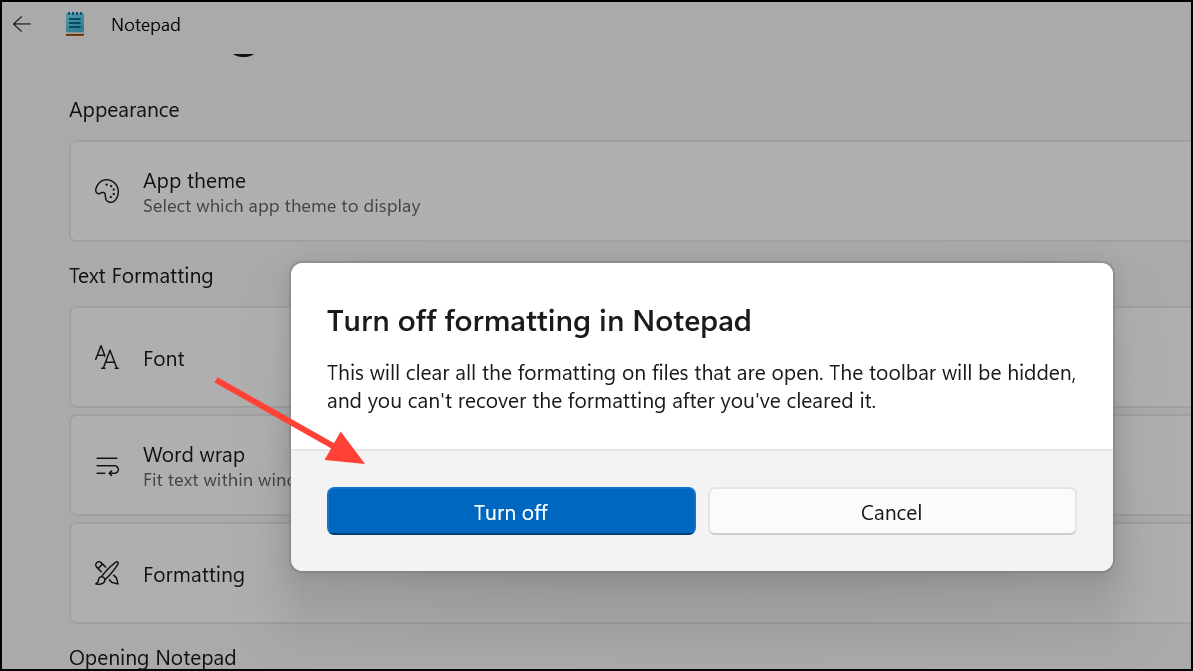
Save As Plain Text File
File > Save As.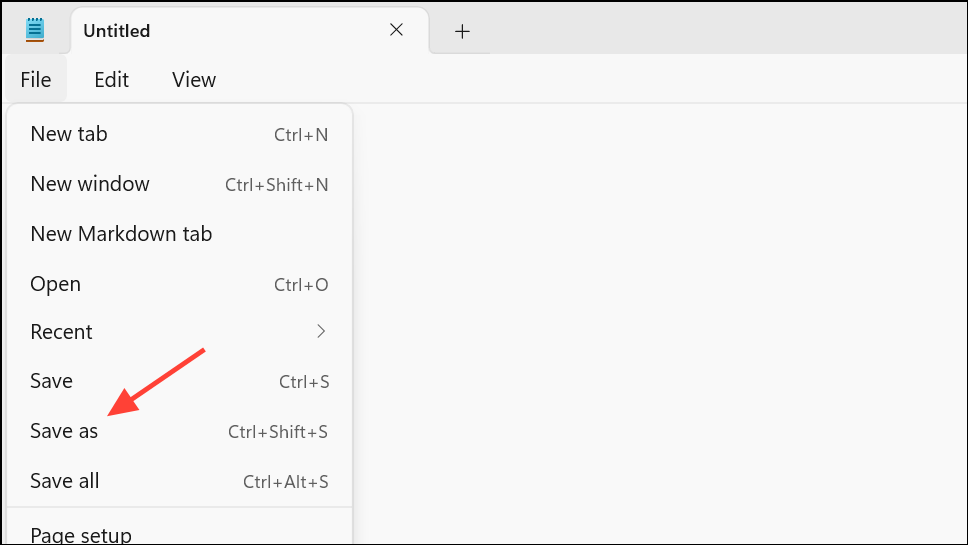
Save As dialog, select Save as text file. Saving in this format strips out Unicode and formatting, leaving only basic plain text. Reopen the saved file to verify that all formatting is gone.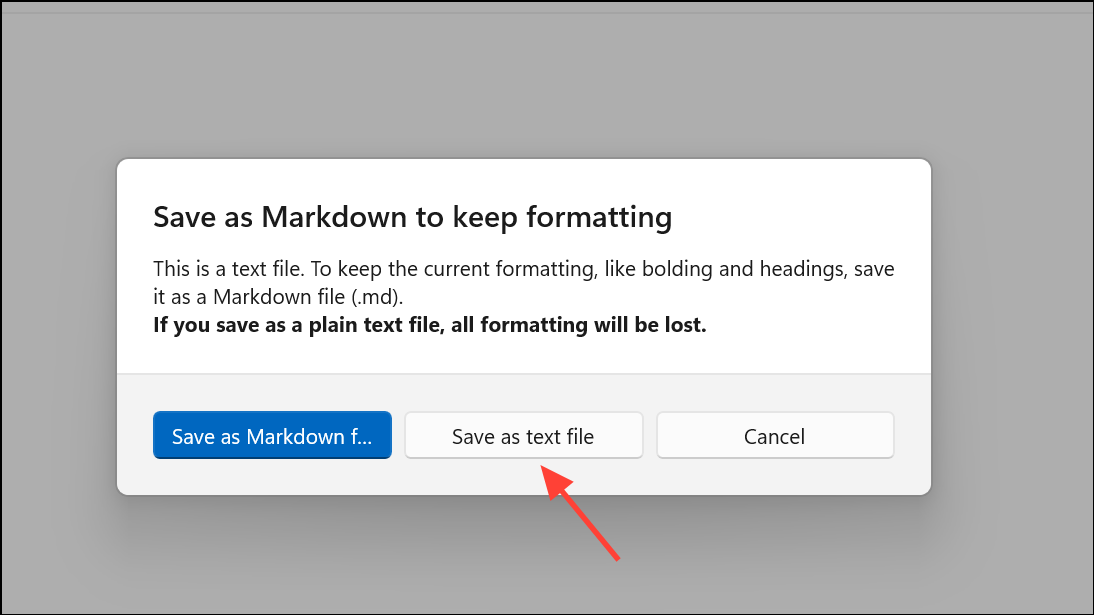
Use Keyboard Shortcuts to Paste Without Formatting (Where Supported)
In some Windows applications, you can use Ctrl+Shift+V to paste text as plain text, removing any formatting copied from web pages or other sources. However, Notepad traditionally pastes as plain text by default, but if formatting persists, using the built-in Clear Formatting option as described above is more reliable.
Additional Tips for Removing Formatting and Hidden Characters
- If pasted text still appears with strange fonts or invisible formatting, inspect for hidden Unicode characters. Save the file as ANSI to remove these, or use a text editor like Notepad++ to search for and delete characters outside the standard ASCII range.
- For advanced cleaning, use regular expressions in Notepad++ to find and remove unwanted Unicode or formatting characters. Search for
[\x{0080}-\x{FFFF}]in Notepad++’s Find and Replace dialog to target non-ASCII characters. - Disabling features like spell check and Copilot in Notepad’s settings can further streamline the plain text experience.
- If you require a minimalistic editor without any formatting, consider third-party tools like Notepad++ or Microsoft’s new
Editapp, which are designed for pure text editing and are less likely to introduce formatting features.
Stripping formatting in Notepad on Windows 11 is quick using the built-in clear formatting tools or by disabling formatting features entirely. These steps restore Notepad’s classic plain text behavior, making it easy to copy, paste, and edit unformatted text whenever you need.



