

WiFi speed in Windows 11 can drop dramatically after a system wakes from sleep, with download rates falling from expected levels to a crawl. This issue often requires a full reboot to restore normal performance, but several targeted adjustments can resolve the problem without restarting your PC. These solutions address common causes like power management conflicts, adapter settings, and driver mismatches.
Adjust Adapter Power Management and Wake Settings
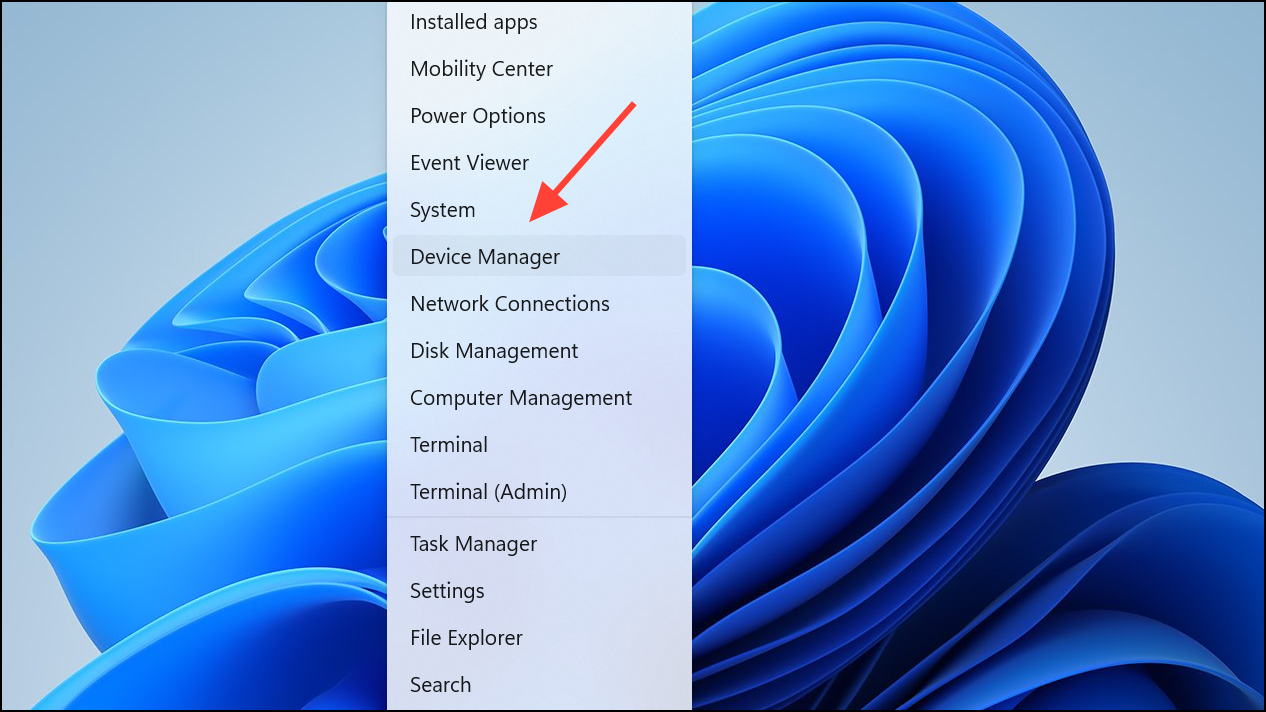
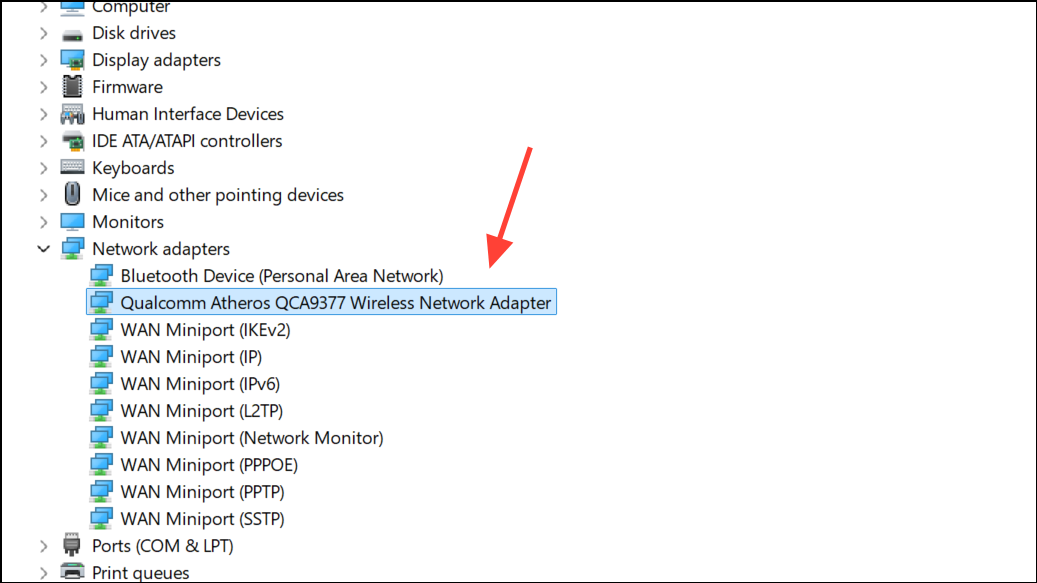
In the adapter properties window, look for the
Power Management tab. If available, uncheck Allow the computer to turn off this device to save power. This prevents Windows from disabling the adapter during sleep, which can sometimes cause slow reconnections or degraded throughput.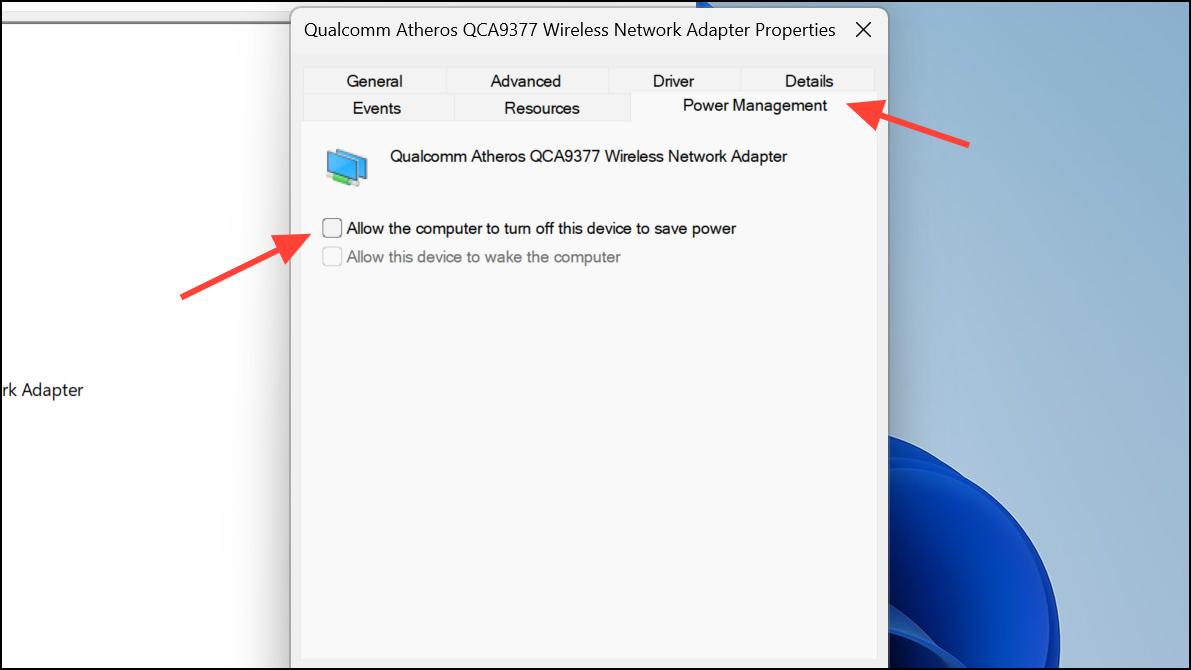
Switch to the
Advanced tab. Locate and set both Wake on Magic Packet and Wake on Pattern Match to Disabled. Disabling these options can resolve issues where the adapter remains in a low-power state after waking, which limits WiFi speed until the next reboot or adapter reset.Click
OK to apply changes and close Device Manager. Test your WiFi speed after waking from sleep to verify improvement.Reset and Renew Network Connections With a Batch File
ipconfig /release
ipconfig /renew
arp -d *
nbtstat -R
nbtstat -RR
ipconfig /flushdns
ipconfig /registerdns
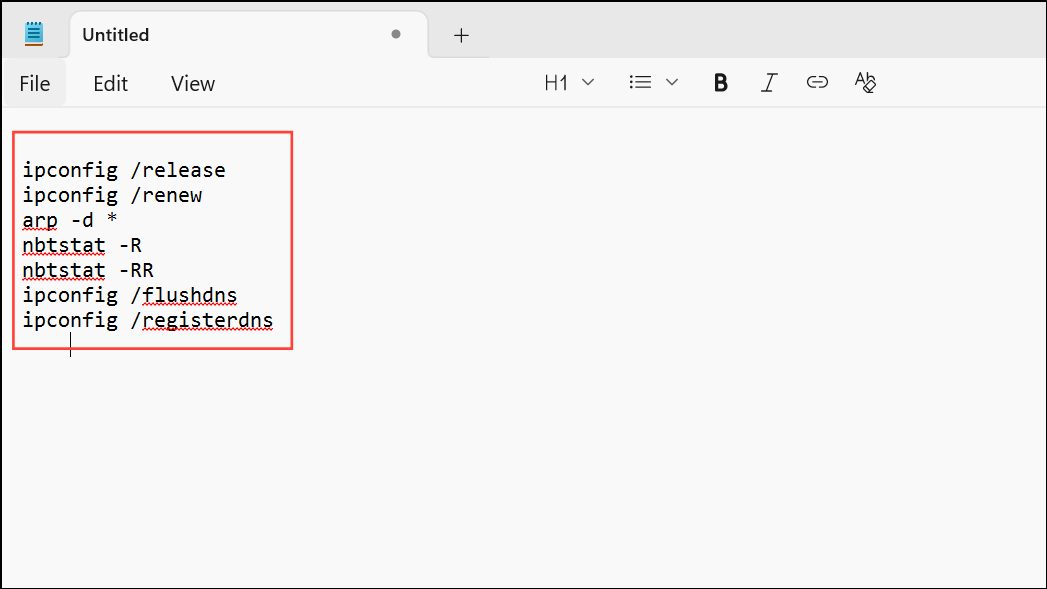
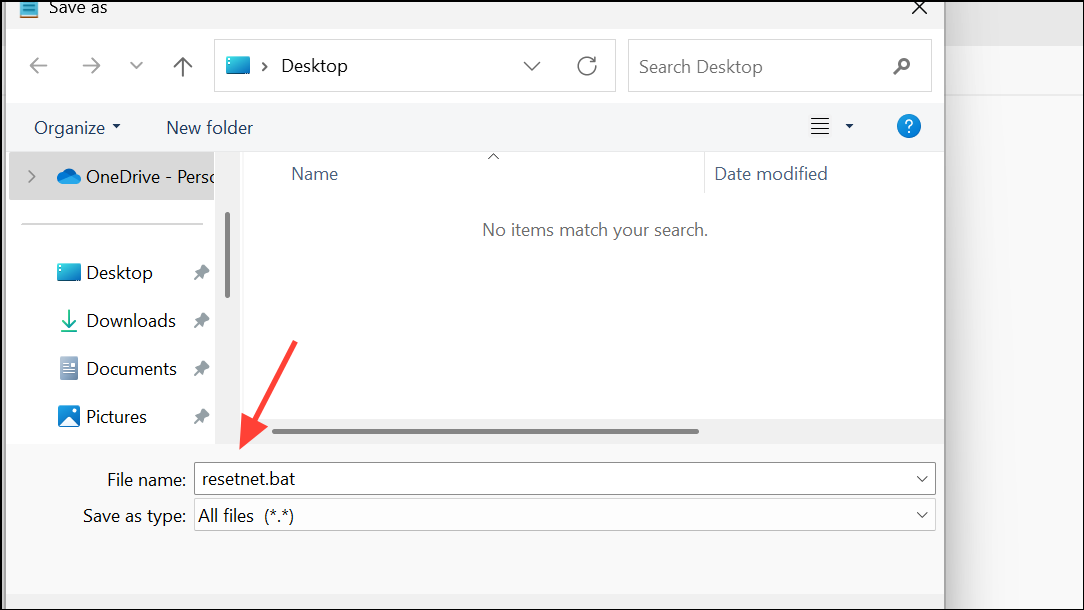
Right-click the batch file and select
Run as administrator whenever your WiFi speed drops after sleep. This script releases and renews your IP address, clears cached network information, and registers DNS, which can restore normal connection speed without a reboot.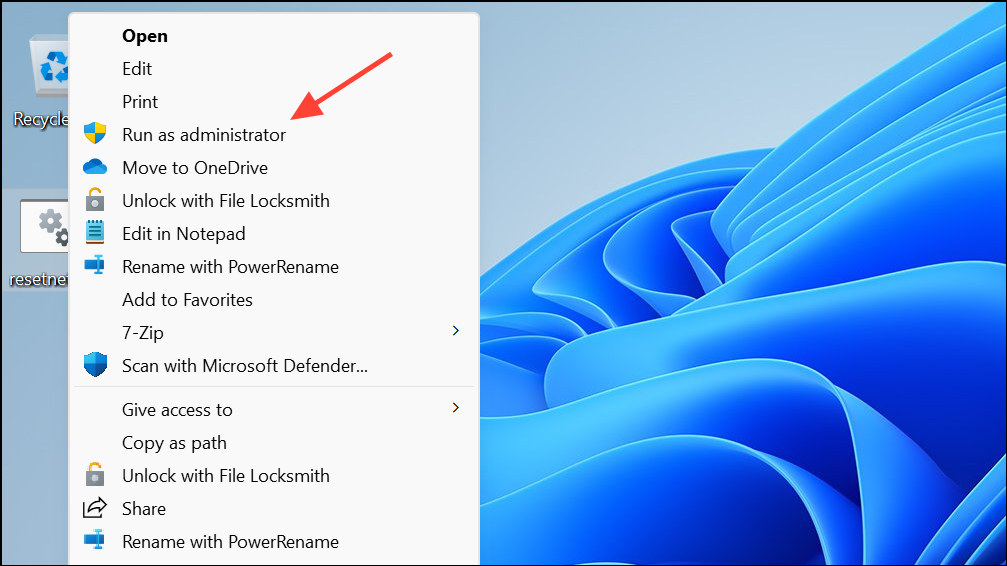
Update or Reinstall WiFi Adapter Drivers
Visit your laptop or WiFi adapter manufacturer’s support page and download the latest Windows 11-compatible drivers. For Intel adapters, check both your device OEM and Intel’s official site for updates.
In Device Manager, right-click your WiFi adapter and select
Uninstall device. Confirm the uninstallation and reboot your computer. Windows will reinstall the driver automatically, or you can manually install the downloaded driver for best compatibility.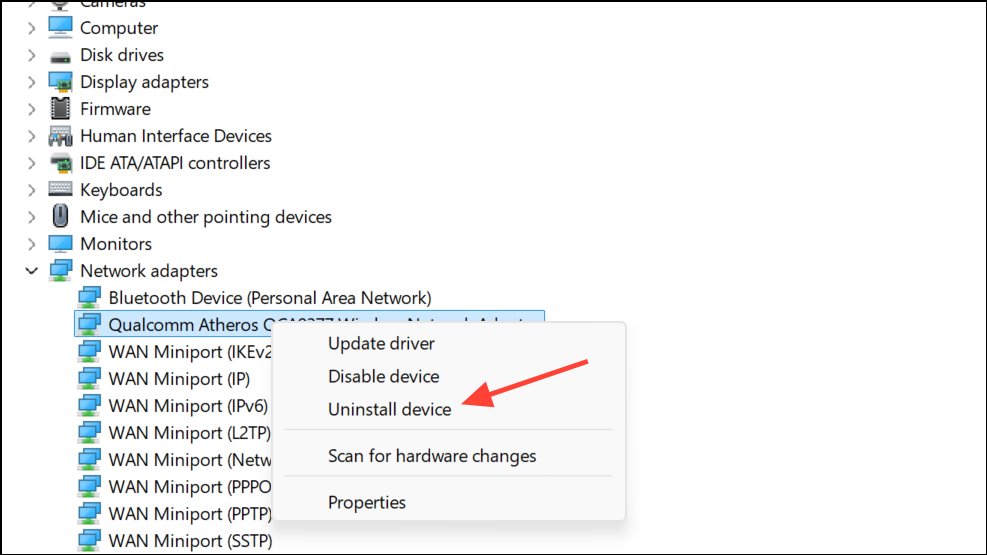
Modify Router Channel Width or Band Settings (If Using Older Routers)
Log in to your router’s configuration page using a web browser. This is typically accessed by entering the router’s IP address (such as
192.168.1.1) in the address bar.Locate the WiFi channel width or bandwidth setting. If set to
Auto 20/40MHz, change it to 20MHz only. This adjustment can stabilize connections with certain WiFi 6 adapters when paired with older 2.4GHz-only routers, preventing slow speeds after sleep.Save settings and reboot your router if required. Reconnect your Windows 11 device and monitor connection speed after waking from sleep.
Disable Fast Startup and Test Sleep/Hibernation Behavior
Open Control Panel and go to
Power Options. Click Choose what the power buttons do on the left sidebar.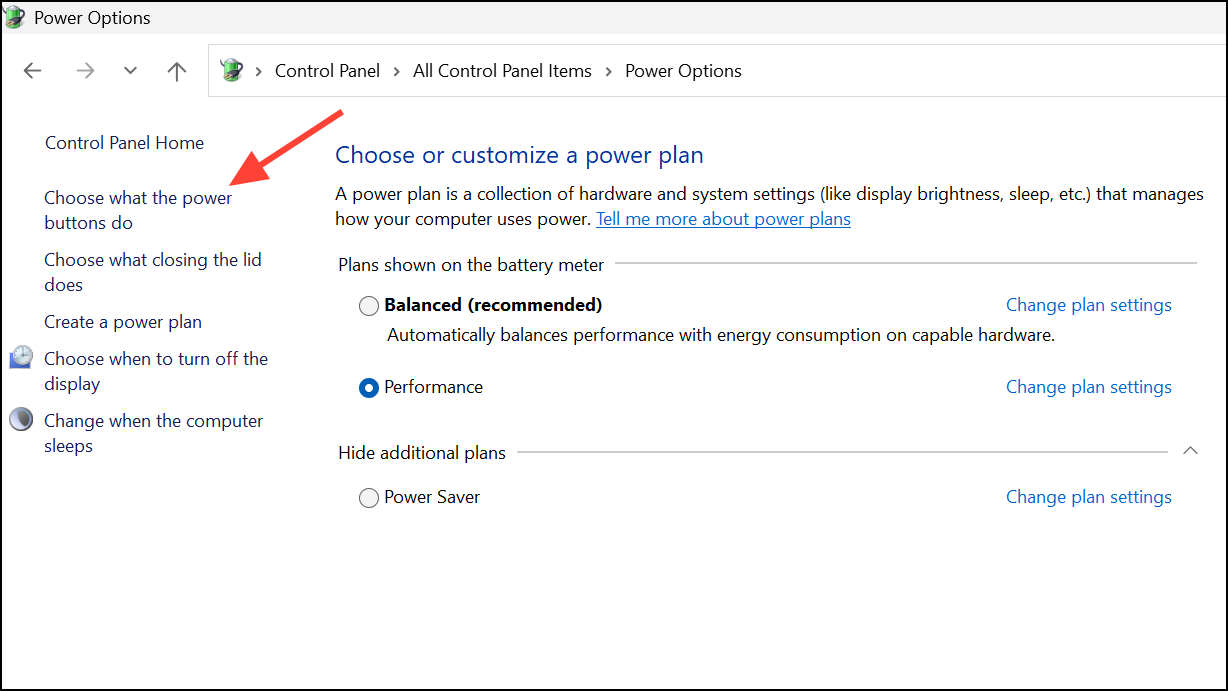
Click
Change settings that are currently unavailable. Under Shutdown settings, uncheck Turn on fast startup (recommended). Fast Startup can sometimes cause network adapters to remain in a partially suspended state, affecting WiFi speed after waking.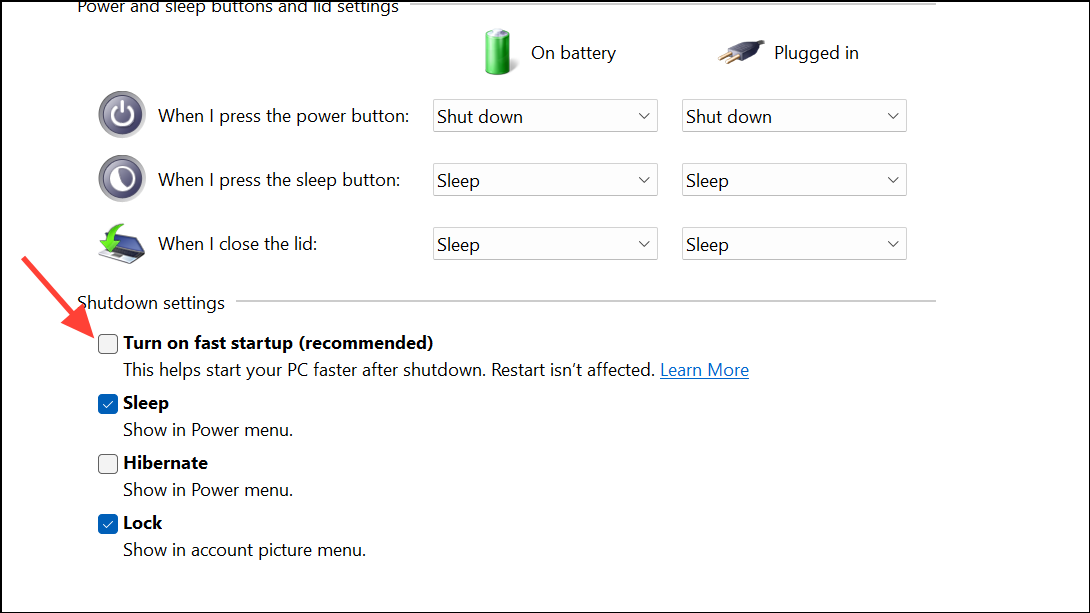
Click
Save changes and restart your computer. Test WiFi speed after waking from sleep or hibernation.Reconnect or Forget and Rejoin WiFi Network
Open Windows 11’s WiFi settings by clicking the network icon in the system tray and selecting
Network & Internet settings.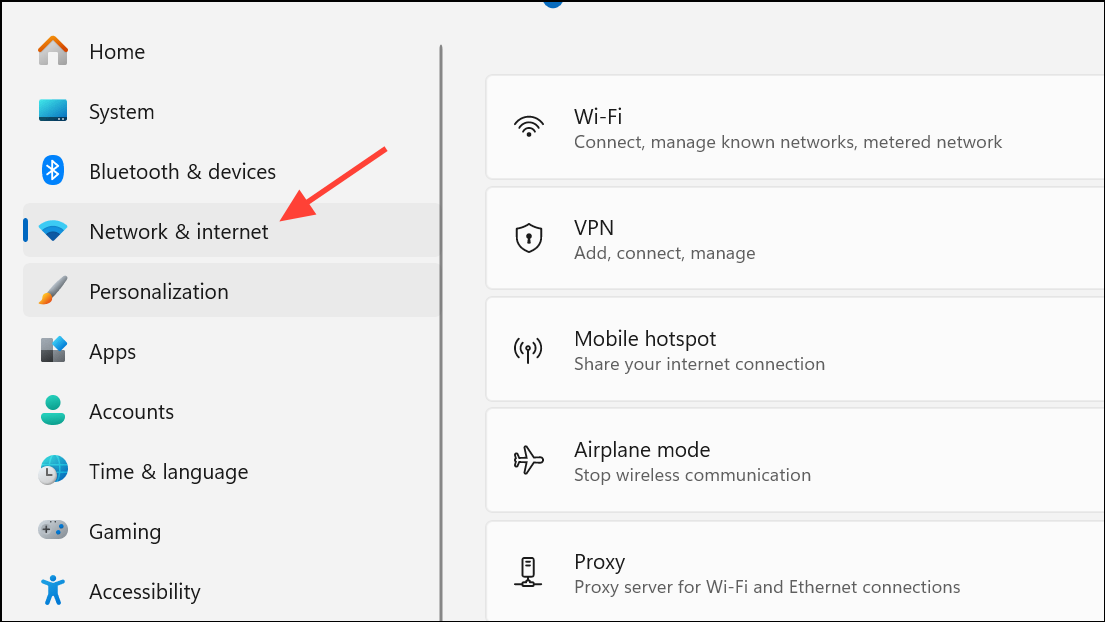
Click
WiFi, then click Manage known networks. Find your network, click it, and select Forget. Reconnect by selecting the network from the WiFi list and entering your password. This resets the connection profile, which can resolve persistent slowdowns after sleep.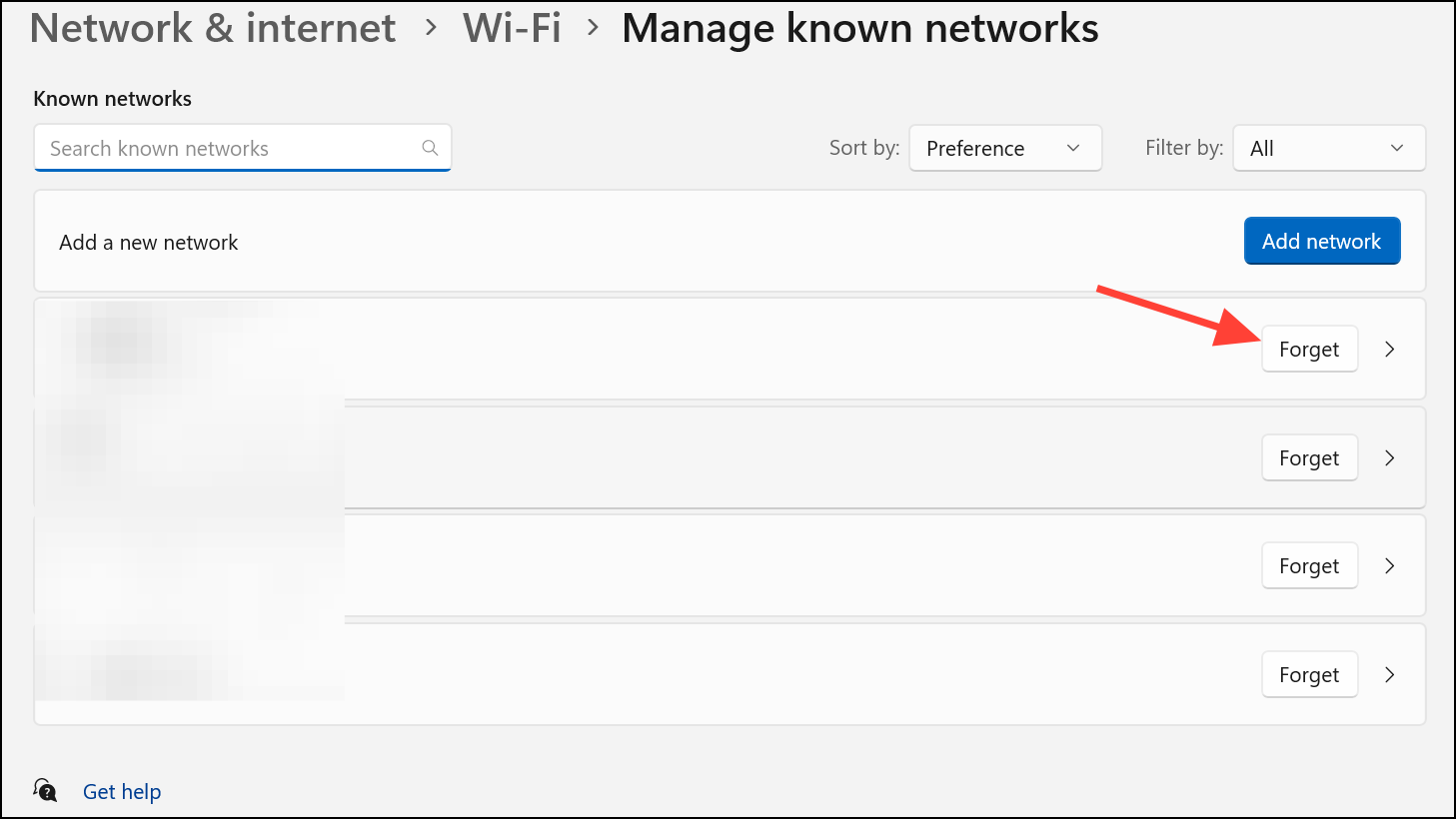
Applying these steps can restore WiFi speed in Windows 11 after sleep mode, reducing the need for constant reboots and streamlining your network experience.



